1
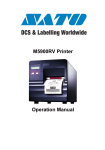
M5900RV Printer
Frequently Asked Questions
SATO Group of Companies
BARCODE SATO INTERNATIONAL PTE
LTD
438A Alexandra Road #05-01/ 02,
Alexandra Technopark,
Singapore 119967
Tel: +65-6271-2122
Fax: +65-6271-2151
Website: www.barcodesato.com
Email: [email protected]
SATO EUROPE NV
Leuvensesteenweg 369,
1932 Sint-Stevens-Woluwe, Brussels, Belgium
Tel: +32 (0)-2-788-80-00
Fax: +32 (0)-2-788-80-80
Website: www.sato-europe.com
Email: [email protected]
SATO UK LTD
Valley Road, Harwich, Essex England
Co12 4RR, United Kingdom
Tel: +44-1255-240000
Fax: +44-1255-240111
Website: www.satouk.com
Email: [email protected]
SATO DEUTSCHLAND GMBH
Schaberweg 28, 61348
Bad Homburg, Germany
Tel: +49 (0)-6-1726-8180
Fax: +49 (0)-6-1726-818-199
Website: www.sato-deutschland.de
Email: [email protected]
SATO POLSKA SP Z O.O.
Ul Okolna 2, 50-422 Wroclaw
Poland
Tel: +48-71-335-23-20
Fax: +48-71-335-23-25
Website: www.sato-europe.com
Email: [email protected]
SATO AMERICA INC.
10350 Nations Ford Road Suite A,
Charlotte, NC 28273
Tel: +1-704-644-1650
Fax: +1-704-644-1662
Website: www.satoamerica.com
Email: [email protected]
SATO SHANGHAI CO, LTD
11 Floor, D, Pudong South Road 1111,
Pudong New Area, Shanghai,
China 200120
Tel: +86 (0)-21-58307080
Fax: +86 (0)-21-58307978
Website: www.barcodesato.com
Email: [email protected]
SATO BAR CODE & LABELLING SDN BHD
BAR CODE SATO ELECTRONICS (S) PTE
LTD
438A Alexandra Road #05-01/02,
Alexandra Technopark, Singapore 119967
Tel: +65-6271-5300
Fax: +65-6273-6011
Website: www.barcodesato.com
www.satosingapore.com
Email: [email protected]
BARCODE SATO (THAILAND) CO. LTD
Suite B-08-11&12, Block B Plaza Mont'
370/8 Supattra Building, 5th Floor, Rama9
Kiara, No.2, Jalan Kiara Mont' Kiara,
Road, Bangkapi, Huay Kwang
50480 Kuala Lumpur, Malaysia
Bangkok 10320, Thailand
Tel: +60-3-6203-5950
Tel: +662-719-7780-3
Fax: +60-3-6203-1209
Fax: +662-719-7784
Website: www.barcodesato.com
Website: www.barcodesato.com
Email: [email protected]
Email: [email protected]
M5900RV
FAQs
Contents
1. General .......................................................................................... 1
What do I receive when I buy a SATO M5900RV Printer? ............ 1
What options do I have? ................................................................ 1
Do I receive a driver with my M5900RV? ..................................... 1
What type of software do I need to buy for my printer? ................. 1
Which languages does my SATO printer support? ........................ 1
Which interfaces can I use? ........................................................... 1
Can I change the printer to use thermal transfer technology? ....... 1
Can I work from my Windows ™ environment? ............................. 2
Can I work from my SAP™ environment? ..................................... 2
Can I work from AS400™? ............................................................ 2
Can I print graphics? ...................................................................... 2
Can I store label formats or true type fonts, formats and
graphics in the M5900RV? ............................................................ 2
Can I print out dates and times? .................................................... 2
Can I connect weighing scales and print out the weight
of my goods? ................................................................................. 2
How often should I clean my SATO M5900RV? ............................ 2
What is a memory card? ................................................................ 3
Why do I need a memory card? ..................................................... 3
Can memory cards be used with the M5900RV? .......................... 3
How do I put information on to the memory card? ......................... 3
2. Set Up and Use ............................................................................. 4
How do I connect my printer to my computer? .............................. 4
How do I load labels? .................................................................... 4
How do I load fan-fold labels or tags? ........................................... 4
How do I select the label sensing method? ................................... 4
How do I adjust the print darkness? .............................................. 4
How do I change the print speed? ................................................. 5
Does the M5900RV have a last label reprint feature? ................... 5
How do I feed a blank label? ......................................................... 5
How do I reprint the last label? ...................................................... 5
How can I cancel my print job? ...................................................... 5
3. Troubleshooting ............................................................................. 6
The display is blank. What is wrong? ............................................ 6
SATO EUROPE
i
FAQs
M5900RV
A label is fed but nothing is printed on it. What should I do? ......... 6
I sent a print job but nothing has happened. What do I do? .......... 6
The print is of poor quality or the barcodes are not readable.
What do I do? ............................................................................... 6
My M5900RV does not feed out one label at a time but
feeds 20 inches of blank labels instead. What is wrong? .............. 7
My printer will not go online. Why not? .......................................... 7
My M5900RV will not print and beeps. What's wrong? .................. 7
The LCD displays "SENSOR ERROR".
How do I solve the problem? ......................................................... 7
The LCD displays "FRAMING ERROR". What should I do? ........ 7
The LCD displays "PAPER END" What's wrong? .......................... 8
ii
SATO EUROPE
M5900RV
1.
FAQs
General
What do I receive when I buy a SATO M5900RV Printer?
Along side your SATO M5900RV printer you will receive an electricity cable, an operation manual, lapping paper and a SegSoft
Dynamic software CD.
What options do I have?
An internal cutter, rewinder, dispenser including an internal backing
paper rewinder, real time clock and PCMCIA cards are available as
options. Please note that the dispenser with internal backing paper
rewinder and the internal cutter must be factory fitted.
Do I receive a driver with my M5900RV?
Yes, the Windows ™ driver is available for download on the Internet
under:
www.sato-europe.com/software/download.html
What type of software do I need to buy for my printer?
In principle, because the printer operates with a Windows ™ driver
it can be used with any Windows ™ application. However, only
SATO software addresses all the functions of the printer, thus we
recommend you work with SATO's Dynamic Publisher or Dynamic
Aviator.
Which languages does my SATO printer support?
Display: The SATO printer display is available in English.
Driver: The properties and settings in the printer driver are available in 9 European languages.
Code Page: The middle European standard character map is available as well as Greek, Turkish, Cyrillic, east European and Hebrew.
Which interfaces can I use?
The printer comes with either an RS232 or Centronics interface.
However available options include RS422/485, RS232 high speed
and IBM Twinax/Coax.
Can I change the printer to use thermal transfer technology?
The M5900RV is dedicated to direct thermal printing. It has been
highly engineered to work without the need for carbon ribbon,
SATO EUROPE
TOC
1
FAQs
M5900RV
ensuring economical printing of barcodes. Instead, heat sensitive
media is used.
Can I work from my Windows ™ environment?
A SATO printer can work from with any Windows ™ system, as long
as the corresponding driver is used.
Can I work from my SAP™ environment?
The SATO Dynamic Aviator software includes an option that makes
it possible to export label data to SAP R/3™.
Can I work from AS400™?
The SATO M5900RV printer can be switched over to non-standard
protocol. Data from the AS400 ™ can then be sent to the printer
via a Twinax/Coax interface.
Can I print graphics?
Yes, graphics, which correspond to the printer driver, can be printed
from every Windows ™ application.
Can I store label formats or true type fonts, formats and
graphics in the M5900RV?
Yes. A memory card option is available enabling the storage of label
formats, true type fonts and graphics.
Can I print out dates and times?
Yes. Dates and time fields can be printed out when the Real Time
Clock (RTC) option is installed. The RTC option is controlled by programming the printer or by using the Dynamic range of software
from SATO.
Can I connect weighing scales and print out the weight of my
goods?
Yes, if you program electric industry scales to send a message to
the printer, using the SATO programming language and also use a
suitable interface.
How often should I clean my SATO M5900RV?
TOC
2
SATO printers need very little maintenance other than the occasional clean. By using the SATO Thermal Printer Cleaning Kit, you
will be ensuring the longevity of your printer.
SATO EUROPE
M5900RV
FAQs
What is a memory card?
A PCMCIA memory card saves information, which can later be
used again. The battery back up means that information cannot be
lost.
Why do I need a memory card?
The memory card enables true-type fonts and graphics to be
saved. Should the formats be of a large volume i.e. a large amount
of data, the memory card can shorten the processing time. Moreover the memory card can be used to increase the length of the
label printed.
Can memory cards be used with the M5900RV?
Yes. A SATO PCMCIA Package is available as an option and
includes a memory card adaptor board, PCMCIA memory cards
and the SATO Memory Manager Software. The M5900RV printer
memory can be expanded by up to 4MB
How do I put information on to the memory card?
In order to save information on to the memory card, the SATO
Memory Card Manager can be used or the Dynamic Memory Card
Compiler. It is also possible to put data on to the card via direct programming.
TOC
SATO EUROPE
3
FAQs
2.
M5900RV
Set Up and Use
How do I connect my printer to my computer?
The SATO M5900RV printer can be connected to a computer using
the standard serial or parallel interfaces. Optional interfaces however include RS422, RS485, IBM Coax and IBM Twinax. After connecting the interface, you must also plug the AC cable provided,
into the back of the printer and connect it to a suitable power supply.
How do I load labels?
The label rolls are to be placed on the label roll spindle and pushed
into position with the green label roll retainer. The labels should be
wound face-in on the roll and must then feed from the bottom. Position the label between the label guides, under the print head and
out of the front of the printer. Use the diagram on the inside of the
top cover to help you. Close the print head.
How do I load fan-fold labels or tags?
If using fan-fold labels or tags, set them on a flat surface behind the
printer and use the feed slot in the rear of the printer. Pass the
labels, with the side to be printed on face-up, through the slot and
under the label off-wind spindle. Feed the label between the label
guides, under the print head and out of the front of the printer. Use
the diagram on the inside of the top cover to help you. Close the
print head.
How do I select the label sensing method?
The M5900RV label sensing method is controlled by DIP switches.
The DIP function chart has been positioned on the inside of the top
cover. The printer however will be delivered set for label gap sensing (DSW2-2, DSW3-3 both in the OFF position). If you wish the
sensor to read an I-mark please refer to the DIP Switch function
chart.
How do I adjust the print darkness?
To view the settings you must go into the User mode by pressing
the LINE key once and turning on the power. Keep pressing the
LINE key until you hear a beep. Next, press the FEED and LINE
keys simultaneously to see "PRINT DARKNESS" on the display. To
move the underline to the desired setting, press the LINE key. Once
TOC
4
SATO EUROPE
M5900RV
FAQs
the correct setting is underlined press the FEED key to accept and
advance to the next adjustment.
How do I change the print speed?
To view the print speed settings you must enter the User mode by
pressing the LINE key once (the printer display shows OFFLINE).
Next, press the FEED and LINE keys simultaneously to see
"PRINT DARKNESS" on the display. Press FEED again to advance
to the print speed setting. Now press the LINE key to move the
underline to the desired setting. Press FEED to confirm it. (NOTE:
This setting can be overwritten by software).
Does the M5900RV have a last label reprint feature?
Yes. By pressing the feed button the last label will be reprinted.
How do I feed a blank label?
Release the FEED button while the printer is offline. Press and hold
down the FEED button to feed multiple labels. If you have problems
check that the print media has been loaded properly
How do I reprint the last label?
By pressing the FEED key the last label printed can be reprinted.
How can I cancel my print job?
The current print job can be cancelled by using the display: set the
printer offline and press the LINE and FEED buttons simultaneously. Next, press the FEED button until the display shows "cancel current print job". Use the LINE button to select YES or NO and
FEED to clear.
A command to cancel the print job can also be sent to the driver via
the software. Alternatively, switching the printer off and on again will
also erase all current print jobs.
TOC
SATO EUROPE
5
FAQs
3.
M5900RV
Troubleshooting
The display is blank. What is wrong?
• Check that the power switch is on
• Check that all cable connections have been made properly.
• Check that the supply cable is not damaged.
• Make sure the fuse is O.K.
A label is fed but nothing is printed on it. What should I do?
• Confirm that the label is wide enough for the image being
printed.
• Make sure you have direct thermal labels installed.
• Check that the print head is clean.
• Check to see if the pitch sensor is dirty or obstructed in some
way.
I sent a print job but nothing has happened. What do I do?
Firstly confirm that the connections have all been made and that
the interface has been connected to the correct port on the PC.
Make sure the printer is on-line and check to see if there are any
error messages in the display. Also make sure that you are sending
the data to the correct printer. The printer listed in the Print Set-up
window should be "M5900RV".
The print is of poor quality or the barcodes are not readable.
What do I do?
• Make sure the print media is loaded properly and that there is
no side-to-side motion as the paper passes through the printer.
• Check that the software print settings are not set too dark /too
light. Adjust the darkness settings or print speed, via the software, if necessary.
• Try different print media. Old or inferior quality material will
degrade the print quality.
• Make sure the print head is clean.
TOC
6
• Unreadable barcodes can also occur if the barcode size is too
big or too small. Confirm that they are within specifications.
SATO EUROPE
M5900RV
FAQs
• Confirm that the scanner is set up to read the barcode type
printed.
• Make sure you are printing a standard barcode symbology and
that the characters you are trying to encode are legitimate.
My M5900RV does not feed out one label at a time but feeds
20 inches of blank labels instead. What is wrong?
It is possible that you have the wrong label sensing method
switched on for the media you are using. Check the DIP switches
against the DIP switch function guide on the inside of the cover to
see if you have selected the appropriate method for you paper.
If you are using the label gap method, check that the gap between
the labels is more than 3mm or if using the I-Mark method that the
I-Mark is bold and also more than 3mm. Finally confirm that the
label is passing over the sensor.
My printer will not go online. Why not?
Is the power LED illuminated? If not check the power supply and
connections.
Also confirm that the print head has been closed properly.
My M5900RV will not print and beeps. What's wrong?
The printer is trying to receive incorrect data. Make sure you are
sending data in the correct format.
The LCD displays "SENSOR ERROR". How do I solve the
problem?
Confirm that the sensing method selected matches that of the
media used and that the media has been routed under the sensor.
The M5900rv should be delivered ready to detect a gap label
(DSW-2-2=on). Make sure that the gap between labels is more
than 3mm; otherwise it will not be detected. If using an I-Mark sensing Method (black bar between each label) DSW2 must be ON and
the I-mark must be more than 3mm wide and bold.
The LCD displays "FRAMING ERROR". What should I do?
"Framing Error" appears on the LCD screen when the printer is
unable to interpret the data sent. Confirm that the communication
format between the printer and host are compatible.
TOC
SATO EUROPE
7
FAQs
M5900RV
The LCD displays "PAPER END" What's wrong?
Confirm that the labels are positioned correctly and have not run
out.
TOC
8
SATO EUROPE