1
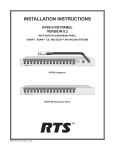
USER INSTRUCTIONS MKP-4 KEYPANEL ADAM™, ADAM™ CS, AND ZEUS™ INTERCOM SYSTEMS Lis ten Ta lk Ca ll W ait ing Co py Cle ar He ad se t MK P- 4 Vo lu me Mic He ad se t MKP-4 Keypanel ™ 9350-7647-000 Rev B, 8/00 PROPRIETARY NOTICE CUSTOMER SUPPORT The RTS product information and design disclosed herein were originated by and are the property of Telex Communications, Inc. Telex reserves all patent, proprietary design, manufacturing, reproduction, use and sales rights thereto, and to any article disclosed therein, except to the extent rights are expressly granted to others. Technical questions should be directed to: COPYRIGHT NOTICE Copyright 1998 by Telex Communications, Inc. All rights reserved. Reproduction in whole or in part without prior written permission from Telex is prohibited. Customer Service Department RTS/Telex, 12000 Portland Avenue South Burnsville, MN 55337 U.S.A. Telephone: (952) 884-4051 Fax: (800) 323-0498 RETURN SHIPPING INSTRUCTIONS PROCEDURE FOR RETURNS UNPACKING AND INSPECTION Immediately upon receipt of the equipment, inspect the shipping container and the contents carefully for any discrepancies or damage. Should there be any, notify the freight company and the dealer at once. WARRANTY INFORMATION RTS products are warranted by Telex Communications, Inc. to be free from defects in materials and workmanship for a period of three years from the date of sale. The sole obligation of Telex during the warranty period is to provide, without charge, parts and labor necessary to remedy covered defects appearing in products returned prepaid to Telex. This warranty does not cover any defect, malfunction or failure caused beyond the control of Telex, including unreasonable or negligent operation, abuse, accident, failure to follow instructions in the Service Manual or the User Manual, defective or improper associated equipment, attempts at modification and repair not authorized by Telex, and shipping damage. Products with their serial numbers removed or effaced are not covered by this warranty. To obtain warranty service, follow the procedures entitled "Procedure For Returns" and "Shipping to Manufacturer for Repair or Adjustment". This warranty is the sole and exclusive express warranty given with respect to RTS products. It is the responsibility of the user to determine before purchase that this product is suitable for the user's intended purpose. ANY AND ALL IMPLIED WARRANTIES, INCLUDING THE IMPLIED WARRANTY OF MERCHANTABILITY ARE LIMITED TO THE DURATION OF THIS EXPRESS LIMITED WARRANTY. NEITHER TELEX NOR THE DEALER WHO SELLS RTS PRODUCTS IS LIABLE FOR INCIDENTAL OR CONSEQUENTIAL DAMAGES OF ANY KIND. 2 User Instructions MKP-4 Keypanel If a repair is necessary, contact the dealer where this unit was purchased. If repair through the dealer is not possible, obtain a RETURN AUTHORIZATION from: Customer Service Department Telex Communications, Inc. Telephone: (877) 863-4169 Fax: (800) 323-0498 DO NOT RETURN ANY EQUIPMENT DIRECTLY TO THE FACTORY WITHOUT FIRST OBTAINING A RETURN AUTHORIZATION. Be prepared to provide the company name, address, phone number, a person to contact regarding the repair, the type and quantity of equipment, a description of the problem and the serial number(s). SHIPPING TO MANUFACTURER FOR REPAIR OR ADJUSTMENT All shipments of RTS products should be made via United Parcel Service or the best available shipper, prepaid. The equipment should be shipped in the original packing carton; if that is not available, use any suitable container that is rigid and of adequate size. If a substitute container is used, the equipment should be wrapped in paper and surrounded with at least four inches of excelsior or similar shock-absorbing material. All shipments must be sent to the following address and must include the Return Authorization. Factory Service Department Telex Communications, Incorporated West 1st Street Blue Earth, MN 56013 U.S.A. Upon completion of any repair the equipment will be returned via United Parcel Service or specified shipper collect. End-User License Agreement for Telex® Software IMPORTANT - Please read this document carefully before using this product. THIS DOCUMENT STATES THE TERMS AND CONDITIONS UPON WHICH TELEX COMMUNICATIONS, INC. (the “COMPANY”) OFFERS TO LICENSE THE INSTALLED SOFTWARE OR PROGRAM (“the SOFTWARE”) FOR USE WITH THE PRODUCT IN WHICH IT WAS INSTALLED. YOU ARE AGREEING TO BECOME BOUND BY THE TERMS OF THIS AGREEMENT. IF YOU DO NOT AGREE TO THE TERMS OF THIS AGREEMENT, DO NOT USE THIS PRODUCT. PROMPTLY RETURN THE PRODUCT TO THE PLACE WHERE YOU OBTAINED IT FOR A FULL REFUND. The installed software as supplied by the Company is licensed, not sold, to you for use only under the terms of this license, and the Company reserves all rights not expressly granted to you. You own the product or other media on or in which the Software is originally or subsequently recorded or fixed, but the Company retains ownership of all copies of the Software itself. 1. License: This license allows you to use the Software for internal purposes only on a single product in which it was installed. 2. Restrictions: (a) You may not market, distribute or transfer copies of the Software to others or electronically transfer or duplicate the Software. YOU MAY NOT REVERSE ENGINEER, DECOMPILE, DISASSEMBLE, MODIFY, ADAPT, TRANSLATE, RENT, LEASE OR LOAN THE SOFTWARE OR CREATE DERIVATIVE WORKS BASED ON THE SOFTWARE OR ANY ACCOMPANYING WRITTEN MATERIALS. (b) The Software and the accompanying written materials are copyrighted. Unauthorized copying of the Software, including portions thereof or the written materials, is expressly forbidden. (c) You understand that the Company may update or revise the Software and in so doing incurs no obligation to furnish such updates to you. 3. Limited Warranty: The Company does not warrant that the operation of the Software will meet your requirements or operate free from error. The Company DISCLAIMS ALL OTHER WARRANTIES AND CONDITIONS EITHER EXPRESS OR IMPLIED, INCLUDING THE WARRANTIES OF MERCHANTABILITY, FITNESS FOR A PARTICULAR PURPOSE AND NON-INFRINGEMENT OF THIRD PARTY RIGHTS. 4. Limited Liability: The liability of the Company for any claims arising out of this License based upon the Software, regardless of the form of action, shall not exceed the greater of the license fee for the Software or $50. 38109-709 Rev A 10/97 User Instructions MKP-4 Keypanel 3 This page intentionally left blank. 4 User Instructions MKP-4 Keypanel TABLE OF CONTENTS DESCRIPTION AND SPECIFICATIONS · · · · · · · · · · · · · · · · · · · · · · · · · · · · · · · · · · · · · · · · · · · · · · · · · · · 7 GENERAL DESCRIPTION . . . . . . . . . . . . . . . . . . . . . . . . . . . . . . . . . . . . . . . . . . . . . . . . . . . . . . . . 7 FEATURES. . . . . . . . . . . . . . . . . . . . . . . . . . . . . . . . . . . . . . . . . . . . . . . . . . . . . . . . . . . . . . . . . 7 FRONT PANEL DESCRIPTION . . . . . . . . . . . . . . . . . . . . . . . . . . . . . . . . . . . . . . . . . . . . . . . . . . . . . 7 BACK PANEL DESCRIPTION . . . . . . . . . . . . . . . . . . . . . . . . . . . . . . . . . . . . . . . . . . . . . . . . . . . . . . 7 SPECIFICATIONS . . . . . . . . . . . . . . . . . . . . . . . . . . . . . . . . . . . . . . . . . . . . . . . . . . . . . . . . . . . . . 8 INSTALLATION · · · · · · · · · · · · · · · · · · · · · · · · · · · · · · · · · · · · · · · · · · · · · · · · · · · · · · · · · · · · · · · · 9 UNPACKING AND INSPECTION . . . . . . . . . . . . . . . . . . . . . . . . . . . . . . . . . . . . . . . . . . . . . . . . . . . . 9 BACK PANEL SWITCHES . . . . . . . . . . . . . . . . . . . . . . . . . . . . . . . . . . . . . . . . . . . . . . . . . . . . . . . . 9 DIP Switches . . . . . . . . . . . . . . . . . . . . . . . . . . . . . . . . . . . . . . . . . . . . . . . . . . . . . . . . . . . . . . 9 Address Switch . . . . . . . . . . . . . . . . . . . . . . . . . . . . . . . . . . . . . . . . . . . . . . . . . . . . . . . . . . . . 10 MOUNTING THE MKP-4 . . . . . . . . . . . . . . . . . . . . . . . . . . . . . . . . . . . . . . . . . . . . . . . . . . . . . . . . 10 CONNECTIONS . . . . . . . . . . . . . . . . . . . . . . . . . . . . . . . . . . . . . . . . . . . . . . . . . . . . . . . . . . . . . 12 Mic Connector. . . . . . . . . . . . . . . . . . . . . . . . . . . . . . . . . . . . . . . . . . . . . . . . . . . . . . . . . . . . . 12 Headset Connector . . . . . . . . . . . . . . . . . . . . . . . . . . . . . . . . . . . . . . . . . . . . . . . . . . . . . . . . . . 12 Speaker Connector . . . . . . . . . . . . . . . . . . . . . . . . . . . . . . . . . . . . . . . . . . . . . . . . . . . . . . . . . . 12 Connection To Intercom System . . . . . . . . . . . . . . . . . . . . . . . . . . . . . . . . . . . . . . . . . . . . . . . . . . . 12 STARTUP AND OPERATIONAL CHECK . . . . . . . . . . . . . . . . . . . . . . . . . . . . . . . . . . . . . . . . . . . . . . . 13 KEYPANEL SETUP· · · · · · · · · · · · · · · · · · · · · · · · · · · · · · · · · · · · · · · · · · · · · · · · · · · · · · · · · · · · · · 13 ASSIGNING INTERCOM KEYS . . . . . . . . . . . . . . . . . . . . . . . . . . . . . . . . . . . . . . . . . . . . . . . . . . . . 13 CLEARING KEY ASSIGNMENTS . . . . . . . . . . . . . . . . . . . . . . . . . . . . . . . . . . . . . . . . . . . . . . . . . . . 14 PRINTING DESIGNATION STRIPS . . . . . . . . . . . . . . . . . . . . . . . . . . . . . . . . . . . . . . . . . . . . . . . . . . 14 CHANGING SETUP PAGES. . . . . . . . . . . . . . . . . . . . . . . . . . . . . . . . . . . . . . . . . . . . . . . . . . . . . . . 14 OPERATION · · · · · · · · · · · · · · · · · · · · · · · · · · · · · · · · · · · · · · · · · · · · · · · · · · · · · · · · · · · · · · · · · 15 HEADSET BUTTON OPERATION . . . . . . . . . . . . . . . . . . . . . . . . . . . . . . . . . . . . . . . . . . . . . . . . . . . 15 DIP switch 4 in Open position (default) . . . . . . . . . . . . . . . . . . . . . . . . . . . . . . . . . . . . . . . . . . . . . . . 15 DIP switch 4 in Closed position. . . . . . . . . . . . . . . . . . . . . . . . . . . . . . . . . . . . . . . . . . . . . . . . . . . . 15 VOLUME ADJUSTMENT . . . . . . . . . . . . . . . . . . . . . . . . . . . . . . . . . . . . . . . . . . . . . . . . . . . . . . . . 15 INTERCOM KEY OPERATION . . . . . . . . . . . . . . . . . . . . . . . . . . . . . . . . . . . . . . . . . . . . . . . . . . . . . 15 Momentary vs Latching Operation . . . . . . . . . . . . . . . . . . . . . . . . . . . . . . . . . . . . . . . . . . . . . . . . . . 15 Intercom Key Operation for Different Types of Key Assignments. . . . . . . . . . . . . . . . . . . . . . . . . . . . . . . . . . 15 Intercom Key Indications . . . . . . . . . . . . . . . . . . . . . . . . . . . . . . . . . . . . . . . . . . . . . . . . . . . . . . . 16 CALL WAITING OPERATION FOR INCOMING CALLS. . . . . . . . . . . . . . . . . . . . . . . . . . . . . . . . . . . . . . . 16 MKP-4 OPERATION WITH THE TIF-951 TELEPHONE INTERFACE. . . . . . . . . . . . . . . . . . . . . . . . . . . . . . . . 16 DISPLAYING KEY ASSIGNMENTS . . . . . . . . . . . . . . . . . . . . . . . . . . . . . . . . . . . . . . . . . . . . . . . . . . 17 DISPLAYING THE PORT NUMBER . . . . . . . . . . . . . . . . . . . . . . . . . . . . . . . . . . . . . . . . . . . . . . . . . . 17 SIDETONE ADJUSTMENT . . . . . . . . . . . . . . . . . . . . . . . . . . . . . . . . . . . . . . . . . . . . . . . . . . . . . . . 17 User Instructions MKP-4 Keypanel 5 LIST OF FIGURES Figure 1. MKP-4 Reference View. · · · · · · · · · · · · · · · · · · · · · · · · · · · · · · · · · · · · · · · · · · · · · · · · · · · · · · · 7 Figure 2. Optional Mounting Configurations · · · · · · · · · · · · · · · · · · · · · · · · · · · · · · · · · · · · · · · · · · · · · · · · · 11 Figure 3. 9-pin Intercom cable wiring diagram. · · · · · · · · · · · · · · · · · · · · · · · · · · · · · · · · · · · · · · · · · · · · · · · 12 Figure 4. RJ12 Intercom cable wiring diagram · · · · · · · · · · · · · · · · · · · · · · · · · · · · · · · · · · · · · · · · · · · · · · · · 12 Figure 5. Scroll, Copy and Clear Buttons · · · · · · · · · · · · · · · · · · · · · · · · · · · · · · · · · · · · · · · · · · · · · · · · · · · 13 Figure 6. Call Waiting Window and Key · · · · · · · · · · · · · · · · · · · · · · · · · · · · · · · · · · · · · · · · · · · · · · · · · · · 13 LIST OF TABLES Table 1. Address number vs intercom port numbers for 8-Port Audio I/O Cards (ADAM and ADAM CS Intercom Systems) · · · · · · 18 Table 2. Address number vs intercom port numbers for 12-Port Audio I/O Cards (ADAM Intercom Systems) · · · · · · · · · · · · · · 19 6 User Instructions MKP-4 Keypanel 1 DESCRIPTION AND SPECIFICATIONS 1.3 1.1 GENERAL DESCRIPTION 1) The MKP-4 Modular Keypanel can be rack mounted or used on a desktop. It is ideal for users who want access to the most commonly used keypanel features, and who generally communicate with four or less locations in the intercom system at any given time. At the same time, it features a simple, intuitive user interface, which lets the keypanel operator quickly change the key assignments if needed. 1.2 FEATURES 2) ■ Works with ADAM, ADAM CS and Zeus Digital Matrix Intercom Systems. ■ Full-function intercom keys with LED indicators. Alphanumeric call waiting window with response key. Access to intercom key and setup page assignments. 4-wire, balanced audio input and output. Several microphone/speaker/headphone combinations possible, including: Headset (microphone + headphones), headphones + panel mounted microphone, speaker + panel mounted microphone, speaker + handheld microphone. Works with: RTS headsets with A4M connector; MCP5 and MCP6 Panel Microphones; MCS325 Modular Speaker. ■ ■ ■ ■ ■ ■ ■ Easy installation setup. One rack unit (RU) high, ½ RU wide. Mounts in a standard equipment rack with RTS MCP rack mount hardware. Can be mounted in same rack unit with an MCS325 Modular Speaker. Universal Power: Ready for worldwide use. Accepts any mains voltage from 90-240 VAC, 47/63 Hz. 3) 4) 5) 6) 7) 8) 9) MKP-4 PUSH Headset Call waiting Copy Clear Listen Talk Mic 1.4 ON 16 56 7 8 34 4 131 15 01112 91 12 12345678 OFF 90-240 VAC Frame Options Intercom Keys: Assignable for several types of operation, including talk only, listen only, talk with auto-listen, and all-call (where activating the key also activates all keys to the left of that key). Keys feature momentary or latching operation. For momentary operation, the operator presses and holds a key while communicating, then releases it when finished. For latching operation, the operator taps a key to turn it on, then taps it again to turn it off. Latching can be disabled via an options switch (13) or from ADAMedit or ZEUSedit. Key Indicators: Two bi-color (red and green) LED indicators for each key. Provide indications for talk on/off, listen on/off, incoming call, busy (for keys assigned to talk to IFB's), and in-use (for keys assigned to talk to either IFB's or ISO's). Designation Strip Holder: Holds printed strip identifying key assignments. Works with ADAMedit and ZEUSedit designation strip print feature. Call Waiting Display and Response Key: 4-character, alphanumeric display for incoming caller names. Talk back to caller via the response key. The call waiting window and response key are also used with the copy, clear, and scroll keys (5). Copy, Clear, and Scroll keys: Used for key and setup page assignment. Can also be used to talk to any location in the intercom system when no intercom key is assigned. (Note: There are 4 setup pages. Each contains a complete set of key assignments.) Headset On/Off Key with Indicator. When the headset is on, the speaker output and panel mic are off. Listen Volume Control for Headset or Speaker. Panel Mic Connector: 1/4", 3-conductor phone jack. Accepts MCP5 or MCP6 Panel Microphone. Monaural Headset Connector: A4F (XLR-4F) connector. Accepts any RTS headset with A4M (XLR4M) connector. Also accepts monaural headphones for use with a panel microphone, or accepts a handheld microphone for use with an external speaker. Headset Volume Speaker FRONT PANEL DESCRIPTION Address Figure 1. MKP-4 Reference View. (Numbered items refer to front and back panel descriptions at right) BACK PANEL DESCRIPTION 10) Universal Power Input: Accepts any mains voltage from 90-240 VAC, 47-63 Hz. 11) External Speaker Connector: 1/4", 3-conductor phone jack. Internal speaker amplifier drives any 8-ohm speaker, such as the RTS Model MCS325. 12) Intercom Frame Connectors. Includes both 9-pin female DE9S and RJ12. 13) Options DIP Switches: ■ Name Display for Assigned Keys: Assigned intercom keys provide an LED flash for incoming call announce. Optionally, the caller's name can also be displayed in the call waiting window. (Incoming User Instructions MKP-4 Keypanel 7 calls from unassigned callers are always displayed in the call waiting window.) ■ Incoming Call Timeout Select: Incoming call LED flash can be set for 15 seconds, or until the caller's key is released. ■ TIF Enable/Disable: Currently, the MKP-4 can answer incoming telephone calls received by an RTS Model TIF-951 Telephone interface. This answer-only capability can be disabled. ■ Speaker / Microphone Selection: A DIP switch, together with the front panel Headset switch, permits any of the following speaker / microphone combinations: external speaker / panel microphone; headset earphones / microphone; external speaker / 4-pin dynamic microphone; headphones / panel microphone. ■ Latching: The electronic latching feature for the intercom keys can be turned on or off as previously mentioned. 14) Address Select Switch: 16-position rotary switch: Selects the keypanel's location in an intercom group. The combination of intercom group number and Address switch setting determines a keypanel's unique address within the intercom system. Note: Only positions 1-8 are used for Zeus and ADAM CS intercom systems, or ADAM intercom systems with 8-port Audio I/O cards. Only positions 1-C are used for ADAM intercom systems with 12-port Audio I/O cards. The remaining switch positions are not used. 1.5 SPECIFICATIONS Matrix Input/ Output 8 dBu nominal, 20 dBu maximum Audio Performance SNR at 8 dBu (A-weighted): > 70 dB THD+N at 8 dBu (Unweighted): < 0.5% Frequency Response at 8 dBu: ± 1.5 dB from 100 Hz 20 kHz CMRR: > 70 dB Panel Mic Input Mic Type: Electret condenser Power: Phantom (+5V DC) Nominal Level: -42 dBu Maximum Level: -25 dBu Connector Type: 1/4", 3-conductor phone jack. Tip: +Audio and DC bias Ring: -Audio Sleeve: No connection Headset Mic Type: Dynamic Nominal Level: -55 dBu Maximum Level: -40 dBu Headphone Impedance: 50 to 600 ohms Output Power: 150 mW into 50 ohms Output Voltage Level: 8 volts p-p maximum Connector Type: D4F (Mates with A4M) Pin 1: Microphone Pin 2: Microphone + Pin 3: Headphone Pin 4: Headphone + Speaker Output: 4 Watts into 8 ohms maximum Connector type: 1/4", 3-conductor phone jack. Tip: Speaker + Ring: Speaker Sleeve: No connection Environmental Operating Temperature: -20°C to 50°C Storage Temperature: -40°C to 85°C Humidity: 0 to 95%, non-condensing Power Requirements 90 to 240 VAC, 47 / 63 Hz Dimensions 1.72" (44mm) high x 8.19" (208mm) wide x 8" (203mm) deep Finish Thermoplastic front panel, aluminum case, light gray finish Approvals UL, CSA, VDE, CE 8 User Instructions MKP-4 Keypanel 2 INSTALLATION Close: LED flash until caller releases key. 2.1 UNPACKING AND INSPECTION Description: Whenever there is an incoming call and there is a talk key assigned to the caller, the talk LED next to that key will flash. The flash can be set for 15 second timeout, or until the caller's talk key is released. As soon as possible after receipt, inspect the container and contents for physical damage that may have occurred in shipping. If damage has occurred, immediately (within 24 hours of receipt of equipment) contact the carrier involved and file a claim. Save all packing materials, and request an immediate inspection by the carrier’s insurance claims agent. DIP Switch 3 Open: Default setting. TIF-951 operation enabled. Close: MKP-4 cannot answer incoming calls to TIF-951. The container should contain the following items: Quantity 1 1 1 Description MKP-4 Keypanel Power Cord User Manual ☞ For information about returns to RTS, see page 2. 2.2 BACK PANEL SWITCHES ☞ Important! If you change any back panel switch settings during operation, you must momentarily turn off power to reset. 2.2.1 DIP Switches DIP Switch 1 Open: Default setting. All incoming calls appear in the call waiting display. Close: Only calls for unassigned callers appear in the call waiting display. Description: Any intercom key that is already assigned to talk/listen to a specific intercom port will always provide an LED flash for incoming calls from that port. If a designation strip is used (see Printing Designation Strips, page 14 ) the keypanel operator can identify the caller from the designation strip. Optionally, the caller's name can also display in the call waiting window. If you don't want this to happen, set DIP switch 1 to Close. Description: The MKP-4 can answer incoming telephone calls received by an RTS Model TIF-951 Telephone Interface. However, it cannot perform any other telephone operations. For example, it cannot force the TIF-951 to hang up at the end of a call. In many cases, the TIF-951 can detect a hang up at the far end of the line and then hang up itself. However, this may not always be the case in all phone systems. In such cases you may wish to completely disable MKP-4 operation with the TIF-951. DIP Switch 4 Open: Default setting. Use a panel mic (connected to the Mic connector) to talk and use a speaker (connected to Speaker connector) to listen. Or, use a headset (connected to Headset connector) to talk and listen. Close: Special Applications. Use a dynamic mic (connected to the Headset connector) with an external speaker (connected to the Speaker connector). Or, use headphones (connected to Headset connector) with a panel mic (connected to the Mic connector). Description: Typically, you will use the MKP-4 either with a panel microphone and a speaker or with a headset. The special applications setting is seldom used. DIP Switch 5 Open: Default setting. Latching turned on. Close: Latching turned off. ☞ The above description applies only to assigned keys. Whenever there is an incoming call, and there is no key assigned to the caller, that caller's name will always display in the call waiting window. DIP Switch 2 Open: Default setting. 15 second flash after incoming call is received. Description: An intercom key can always be turned on for momentary conversation by pressing and holding the key during the conversation. There is also an electronic latching feature that lets you tap intercom keys to turn them on or off. This permits convenient hands-free conversation. However it can also result in a talk circuit being left on unintentionally. For example, a key that talks to a public address system could be accidentally left on. Or an IFB key (a type of key assignment that is often used by a di- User Instructions MKP-4 Keypanel 9 rector or producer to give instructions to a listener, such as a news anchor during a television broadcast) could accidentally be left on, causing confusion for the IFB listener. To prevent such accidents, the latching feature can be turned off. across to the appropriate logical keypanel number for that port number. Use that number to set the MKP-4 Address switch. 2) If you know the connector number (on the back of the ADAM CS frame) that the keypanel will be connected to, look up that connector number in the worksheet, then read across to the appropriate logical keypanel number. Use that number to set the MKP-4 Address switch. Note that address switch settings 0, and 9 through F are not used. DIP Switches 6-8 Not used. Leave Open. 2.2.2 Address Switch ☞ In Zeus, ADAM CS, and ADAM intercom systems, intercom ports are arranged in groups of 8 or 12 intercom ports. Within each group, each MKP-4 keypanel is uniquely identified by its Address switch setting. 34 CDE 56 9A B 78 1 F0 2 The Address switch has a white pointer which points to the current switch setting. Determine the proper setting as follows: Important! Always reset the keypanel after changing the Address switch setting. Do this by briefly removing power to the keypanel. Zeus Intercom Systems: Intercom port connectors on the Zeus back panel are arranged in three groups of eight intercom ports. For each group, intercom port connectors are labeled ID 1, ID 2, etc. When you connect an MKP-4 keypanel to Zeus, set the MKP-4 Address switch to match the corresponding ID number on the Zeus back panel. Note that address switch settings 0, and 9 through F are not used. ADAM CS Intercom Systems: Each Audio I/O card contains 1 group of 8 intercom ports. However, the method of breaking out the groups depends on the type of connectors on the back panel. To determine the MKP-4 Address switch setting, use the planning worksheets in the ADAM CS Installation Manual. These are located near the back of the Installation Manual: • • ADAM CS with RJ12 or DB-9 back panel: You can determine the keypanel address from the worksheets in either of two ways: 1) If you know the port number that a keypanel will be connected to, look up the port number in the worksheet, then read 10 User Instructions MKP-4 Keypanel ADAM CS frame with 50-pin Telco back panel: You can determine the keypanel address from the worksheet in either of two ways: 1) If you know the port number that a keypanel will be connected to, look up the port number in the worksheet, then read across to the appropriate logical keypanel number for that port number. Use that number to set the MKP-4 Address switch. 2) If you know the connector numbers and pin numbers that the keypanel will be connected to, look up these numbers in the worksheet, then read across to the appropriate logical keypanel number. Use that number to set the MKP-4 Address switch. Note that address switch settings 0, and 9 through F are not used. ADAM Intercom Systems: Each Audio I/O contains 1 group of either 8 or 12 intercom ports per card. However, the individual intercom ports may be broken out using various types of breakout panels or punch blocks, and groups may not be easily identified. It may be easier to set the MKP-4 Address switch using the actual intercom port numbers. To do this, refer to Table 1, page 18 (for 8-port cards) or Table 2, page 19 (for 12-port cards). Locate the intercom port number to which the MKP-4 will be connected. Then, read across to the “Address” column to find the Address number. Set the MKP-4 Address switch to this number. Note: settings 0, and 9 through F are not used with 8-port cards settings 0, and C through F are not used with 12-port cards. 2.3 MOUNTING THE MKP-4 The MKP-4 can be used on a desktop, or console-mounted, or rack-mounted. Some possible mounting configurations and the required optional mounting hardware are shown in Figure 2, page 11. When mounting the MKP-4, always allow adequate room behind the unit for cable access. There are no special ventilation requirements. Side-By-Side Rack Mount Configuration Using an MCP1 Rack Mount Kit Single-unit Rack Mount Configuration Using an MCP2 Rack Mount Kit Console Mount Configuration Using an MCP3 Console Mount Kit Tandem Configuration Using an MCP4 Tandem Mount Kit Figure 2. Optional Mounting Configurations User Instructions MKP-4 Keypanel 11 2.4 CONNECTIONS 2.4.1 Mic Connector DE-9P (MALE) TO KEYPANEL DE-9S (FEMALE) TO INTERCOM SYSTEM* + - 1 + - 4 AUDIO TO MATRIX + 7 AUDIO FROM MATRIX 1 To connect a panel microphone, such as the RTS model MCP5 or MCP6, screw the microphone into the Mic connector on the front panel of the MKP-4. 2 6 4 5 ☞ For Mic connector specifications, see page 8. 2.4.2 Headset Connector Alternatively, headphones can be connected when a panel microphone is used for talkback. Or, a handheld dynamic microphone can be connected when a speaker is used for listening. If you use either of these special configurations, make sure DIP switch 4 is set to the Close position (page 9). ☞ For Headset connector specifications, see page 8. Speaker Connector The speaker output can be used for listening when a panel microphone is used for talkback. If you use this configuration, make sure DIP switch 4 is set to the Open position (page 9). The speaker output can also be used for listening when a handheld microphone is used for talkback. If you use this special configuration, make sure DIP switch 4 is set to the Close position (page 9). 7 8 3 ☞ Keypanels may be connected while the intercom system is running. 12 User Instructions MKP-4 Keypanel 8 3 * IMPORTANT! When connecting to an ADAM CS back panel, use only low-profile cable connectors such as AMP Part No. 747516-3 (Telex Part No. 59926-678) Figure 3. 9-pin Intercom cable wiring diagram. Important: Shield connections at keypanel end are optional and may cause ground loops if used. ☞ Note that 9-pin intercom cables for use with an ADAM CS frame must use special connectors at the intercom matrix end as described in Figure 3. CONTACTS RJ12 MODULAR PLUG AMP 5-555042-3 or equivalent (View from cable entrance) 123456 Use AMP Chordal Crimp Tool 231648-1 or equivalent LATCH 3 TWISTED PAIR TELEPHONE CABLE PAIR 1: AUDIO TO MATRIX PAIR 2: AUDIO FROM MATRIX PAIR 3: DATA Connection To Intercom System Use a standard RTS intercom cable. Either a 9-pin or RJ12 type can be used. Refer to Figure 3 or 4. Plug one end of the cable into the appropriate Frame connector on the back panel of the keypanel. Plug the other end into the appropriate port of the intercom system. (This will be the port number that you designated previously when setting the Address switch.) 5 9 CABLE TYPE: BELDEN 8777 ☞ For Speaker connector specifications, see page 8. 2.4.4 2 6 9 The Headset connector accepts a monaural, dynamic-microphone headset (headphones and microphone). If you use a headset, make sure DIP switch 4 is set to the Open position (page 9). 2.4.3 DATA 1 2 3 4 5 6 DATA AUDIO FROM MATRIX + AUDIO TO MATRIX + AUDIO TO MATRIX AUDIO FROM MATRIX DATA + 1 2 3 4 5 6 Figure 4. RJ12 Intercom cable wiring diagram 2.5 STARTUP AND OPERATIONAL CHECK Plug in the ac power cord to apply power. When power is applied, all LEDs will first flash red, then green. This confirms that all LEDs are working correctly. Also, the call waiting window will display asterisks (****) then dashes (----). Assign intercom keys at the MKP-4 as follows: 1. Make sure the key that you want to assign is off. 2. Press the Scroll Up or Scroll Down key to view the list of intercom names in the call waiting window. Scroll Up Call waiting Copy Clear Scroll Down Figure 6. Call Waiting Window and Key ☞ If the keypanel cannot establish data communications with the intercom system, asterisks will continue to display. Check the intercom cable connections (in particular, the data connections). Several symptoms may occur if the keypanel address is incorrectly set: 1) there may be no indication when there is an incoming call; 2) when an intercom key is pressed to talk, the destination may not hear the audio, 3) the call waiting display may behave erratically. If any of these symptoms occur, recheck the MKP-4 Address switch setting. Figure 5. Scroll, Copy and Clear Buttons If you start by pressing Scroll Up, the list will start with all point-to-point names. On power up the keypanel only displays the point-to-point names. Examine or assign a name from a different scroll list as follows: 1) Make sure that the CWW (call waiting window) is clear. (Dashes should display.) 2) Hold the call waiting window key down and tap the Scroll Up button. The CWW displays PL for party lines. Click on the Scroll Up or Scroll Down button to go through the different scroll lists available. ☞ Important! Always reset the keypanel after changing 3) To select a particular scroll list, tap the Copy button. This completes the standard installation procedures. 4) You can go through the names in the selected scroll lists by tapping the Scroll Up or Scroll Down button. 3 KEYPANEL SETUP 5) Tap the CWW key up to return to normal operation. 3.1 ASSIGNING INTERCOM KEYS ☞ You can scroll one name at a time by clicking and the Address switch setting. Do this by briefly removing power to the keypanel. You can assign MKP-4 intercom keys using ZEUSedit or ADAMedit. For help with key assignment in ZEUSedit or ADAMedit, click the KP button on the program's toolbar, then press the F1 key on the computer keyboard for help. You can also assign keys at the MKP-4, with the following exceptions: 1) Special functions (auto follow, auto listen, etc.) cannot be assigned. 2) You can only assign one destination to each talk key (talk level 1). If you need to assign special functions, or activate two destinations with a single talk key (talk level 1and talk level 2) you must assign the key using ZEUSedit or ADAMedit. Note: If you assign talk level 1 from the MKP-4, it will erase any talk level 2 assignment that you previously assigned using ZEUSedit or ADAMedit. immediately releasing the Scroll Up or Scroll Down button. If you press and hold the button it will start scrolling slowly through the names. After a few seconds the scroll speed will increase. This is useful when you need to scroll through a long list. ☞ By default, the following types of names will not appear in the scroll list: UPL Resources, IFB's, Relays (GPI outputs), and ISO's. This is because by default, the scroll enable check boxes for these items are not checked in ADAMedit or ZEUSedit. If you don't know how to activate these check boxes, proceed as follows: Run ADAMedit (or ZEUSedit). Then, press the F1 key on your computer for help. Click the Search button in help, and type "UPL Resources" or "IFB", etc (without the quote marks). From the list of available help topics, select any topic User Instructions MKP-4 Keypanel 13 that tells you how to access or set up the item that you typed. For example, there is a topic that tells you how to access UPL Resources. Once you access UPL Resources, again press the F1 key for help. Within the new help screen, you should find help with the scroll enable feature. ☞ TIF-951 Assignment: To assign the TIF-951 to an intercom key so that you can answer incoming calls, use the P-P scroll list. Remember that the TIF-951 2 separate phone lines to 2 separate intercom ports, so make sure that you select the correct intercom port. 3. When the name you want to assign is displayed in the call waiting window, release the Scroll button. 4. Press and hold the Copy button, then tap down on an intercom key to assign talk, or tap up to assign listen. The talk or listen LED will blink once to confirm the assignment. ☞ To assign both talk and listen, continue holding the Copy button while tapping the intercom key both up and down. 5. 3.2 Press the Clear button to return to normal operation after assigning keys. Otherwise, if you do nothing, the MKP-4 will automatically return to normal operation after about 30 seconds. CLEARING KEY ASSIGNMENTS 1. Make sure that the key or keys that you want to clear are turned off. 2. Press up and release the call waiting key. This clears the call waiting display. (Dashes should display.) 3. Press and hold the Copy button, then tap the intercom key that you want to clear. Tap up to clear the listen assignment. Tap down to clear the talk assignment. The talk or listen LED will flash to confirm that the key assignment is cleared. You can tap several keys in succession to clear them while continuing to hold down the Copy button. 3.3 PRINTING DESIGNATION STRIPS Currently in development. 14 User Instructions MKP-4 Keypanel 3.4 CHANGING SETUP PAGES There are 4 setup pages available. Each setup page can contain a complete set of key assignments. By changing the setup page you can therefore quickly change all of the keys assignments. Change the setup page as follows: 1. Make sure all intercom keys are off. 2. Press and hold the Clear button. 3. While holding the Clear button, press and hold the Copy button. The currently assigned setup page will display in the call waiting window. PG 1 means Page 1; PG 2 means Page 2 and so forth. 4. Release both buttons. 5. Tap the Scroll Up or Scroll Down button to select the desired setup page. 6. Tap the Copy button to assign the selected setup page. The topmost LED next to the call waiting key will flash briefly to confirm the assignment. 4 OPERATION 4.3 INTERCOM KEY OPERATION 4.1 HEADSET BUTTON OPERATION 4.3.1 Momentary vs Latching Operation Operation of the Headset button depends on the position of DIP switch 4 on the back panel (page 9): 4.1.1 • • • DIP switch 4 in Open position (default) Startup Settings: The panel mic connector (Mic) and the back panel Speaker connector will both be on. The Headset connector will be off. The Headset button and LED will be off. Headset Button Off: Talk with a panel microphone and listen with a speaker. DIP switch 4 in Closed position Startup Settings: The Speaker connector will be on at startup. The microphone input of the Headset connector will be on. The Headset button and LED will be off. • Headset Button Off: Listen with an external speaker and talk using a dynamic microphone connected to the Headset connector. • Headset Button On: Listen with headphones connected to the Headset connector and talk with a panel microphone connected to the Mic connector. 4.2 ☞ If the LED next to a key does not turn on when the key it activated, this means the key is not currently assigned. ☞ The electronic latching feature (DIP switch 5) must be enabled in order to use latching. See page 9 for details. 4.3.2 Intercom Key Operation for Different Types of Key Assignments Headset Button On: Talk and listen with a headset. 4.1.2 • For momentary key activation, press and hold an intercom key. For latching operation, tap the key to turn it on, and tap it again to turn it off. VOLUME ADJUSTMENT Adjust speaker or headphone listen volume with the Volume control. ☞ If you are using a headset, you can also adjust the level of your own voice in the headphones. See Sidetone Adjustment, page 17. Basic Talk and/or Listen Key Operation: The down position activates talk (if assigned). The up position activates listen (if assigned). Talk and listen may be latched on or off independently by tapping up or down. ☞ The following paragraphs describe special types of key assignments called special functions. These types of key assignments can only be set up using the ADAMedit or ZEUSedit software, and they are described in detail in the software help file. To find out if a key has a special function assignment, you can display the key's assignment as described under "Displaying Key Assignments" on page 17. If a special function is assigned to a listen key, you will see AF, or AL, etc. when you display the key assignment. Talk+Auto-follow (AF) Listen Key Assignment: This key assignment works the same as the basic talk/listen key assignment: The down position activates talk, and the up position activates listen. Talk and listen may be turned on or off independently by pressing up or down. Talk+Auto-listen (AL) Listen Key Assignment: The down position activates both talk and listen. However, only the talk LED will turn on. If talk is on, you cannot turn off listen. If talk is off, you can turn listen on independently by pressing up. Talk+Auto-mute (AM) Listen Key Assignment: The down position activates talk. And, if listen is on, it automatically turns off until talk is released. When talk is off, listen may be turned on independently by pressing up. User Instructions MKP-4 Keypanel 15 Talk+Auto-reciprocal (AR) Listen Key Assignment: The down position activates talk. Listen is always on and continuously monitors whatever is assigned to the talk position. All Call (AC) Talk Key Assignment: When a talk key is assigned as an All Call key, it operates only as a switch to turn on or off all talk keys to the left of the All Call key. These other talk keys will then activate according to the way they have been assigned. Note that will also affect any listen keys that have been assigned with special functions. For example, an auto listen key will also activate if its corresponding talk key has been activated by an All Call key. 4.3.3 Intercom Key Indications Talk Indicator: 4.4 CALL WAITING OPERATION FOR INCOMING CALLS As previously described, the talk indicator for a key will flash when there is an incoming call to that key, and you may activate that key to talk back. Also, if DIP switch 1 (page 9) was set to the Open position, the caller's name will appear in the call waiting window, and you may press down on the call waiting key instead to talk back. If a caller is not already assigned to an intercom key, the caller's name will always appear in the call waiting window, and you must use only the call waiting key to talk back. If a second call is received in the call waiting window while a caller's name is already displayed there, the call waiting display will start to flash. Also, the topmost LED next to the call waiting key will turn on. When there are multiple calls, use the call waiting key as follows: ■ Continous green indication: Talk is activated for normal intercom communication. 1. To talk to the currently displayed caller, press down on the call waiting key. ■ Green flash: Incoming intercom call indication. The person assigned to the key is calling. Activate the key to talk back. 2. To clear the currently displayed caller name, briefly tap up on the call waiting key. The next caller's name will then appear in the call waiting window, and you may press down on the call waiting key to talk back. 3. Continue talking to callers and clearing their names until the call waiting window displays dashes (no callers). Also, when all calls have been answered, the green LED next to the call waiting key will turn off. ■ ■ Continuous red indication: This indication can occur for an IFB or ISO key when the key is off. It can also occur for a key that is assigned to talk to a remote intercom system when the key is off (intercom systems with optional trunking only). The continous red indication means that someone else is currently talking to that IFB, ISO, etc. If you activate the key, you may break in on a conversation that is in progress. Red flash: This can occur in two circumstances: 1) When you activate a key to talk to an IFB or a remote intercom system. The red flash occurs if some other keypanel with a higher priority is currently talking. You cannot talk at this time. 2) When there is an incoming telephone call to a key that is assigned to a TIF-951 Telephone Interface. Activate the key to talk back. 4.5 If DIP switch 3 (page 9) is set to the Open position, you can use the MKP-4 to answer incoming telephone calls that have been received by the TIF-951. A talk and listen key pair on the MKP-4 must be assigned to talk/listen to the TIF-951 as previously described. Use the assigned keys as follows: 1. Leave the talk and listen keys in the off position, except when answering a call. 2. When there is an incoming phone call, the talk indicator will flash red. Activate the talk key to talk back. You may also have to activate the listen key. 3. When the conversation is finished, turn the keys off. Listen Indicator: ■ Solid green: Listen is activated. (This indication will only be provided when you manually turn listen on by tapping or pressing upward on a key. It will not occur if listen has been automatically activated during talk.) MKP-4 OPERATION WITH THE TIF-951 TELEPHONE INTERFACE ☞ Important! The MKP-4 does not hang up the phone line when you turn the keys off. Usually the TIF-951 does this by detecting when the caller has hung up. However, this may not be possible in some phone 16 User Instructions MKP-4 Keypanel systems, and the TIF-951 may remain off hook. In this case you must manually disconnect using the OFF switch on the front of the TIF-951. ☞ Unless there is an incoming call to answer, activating a key on the MKP-4 that is assigned to the TIF-951 will have no effect. 4.6 Make sure the Call Waiting window is clear. (Dashes should display. If not, momentarily press upward on the Call Waiting key.) 2. Hold down the Call Waiting key. 3. While holding down the Call Waiting key, tap the Copy key. Then, release both keys. The sidetone level should now be displayed in the Call Waiting window. 4. Tap Scroll Up or Scroll Down to increase or decrease the sidetone level. 5. Press upward on the Call Waiting key to exit when finished. DISPLAYING KEY ASSIGNMENTS ☞ You can use this feature to check key assignments after making changes. You can also use it if you think the key assignments have been changed but the designation strip has not been updated. 1. Press up and release the call waiting key to clear the call waiting window. (Dashes should display when the window is clear.) 2. Press down and hold the call waiting key. Then tap an intercom key down or up to display the talk or listen assignment. You may press several keys in succession to check their assignments. 3. Release the call waiting key when finished. 4.7 1. DISPLAYING THE PORT NUMBER Occasionally, you may need to know which intercom port your keypanel is connected to. Identify the port number as follows: 1. Make sure the Call Waiting window is clear. (Dashes should display. If not, press upward on the Call Waiting key.) 2. Hold down the Call Waiting key. 3. While holding down the Call Waiting key, tap the Clear key. The port number will appear in the Call Waiting display. This is the port that the keypanel is connected to. N001 indicates port 1, N002 indicates port 2 and so forth. 4.8 SIDETONE ADJUSTMENT When you use the MKP-4 with a headset, your own voice audio can be heard in the headphones. This is especially helpful when using headphones that completely cover the ears, because it eliminates the muffled sensation when talking. You can adjust the level of your own voice in the headphones as follows: User Instructions MKP-4 Keypanel 17 Table 1. Address number vs intercom port numbers for 8-Port Audio I/O Cards (ADAM and ADAM CS Intercom Systems) Address Card Numbers (bold headings) and Port Numbers Cards 1-25 1 2 3 4 5 6 7 8 9 10 11 12 13 14 15 16 17 18 19 20 21 22 23 24 25 1 1 9 17 25 33 41 49 57 65 73 81 89 97 105 113 121 129 137 145 153 161 169 177 185 193 2 2 10 18 26 34 42 50 58 66 74 82 90 98 106 114 122 130 138 146 154 162 170 178 186 194 3 3 11 19 27 35 43 51 59 67 75 83 91 99 107 115 123 131 139 147 155 163 171 179 187 195 4 4 12 20 28 36 44 52 60 68 76 84 92 100 108 116 124 132 140 148 156 164 172 180 188 196 5 5 13 21 29 37 45 53 61 69 77 85 93 101 109 117 125 133 141 149 157 165 173 181 189 197 6 6 14 22 30 38 46 54 62 70 78 86 94 102 110 118 126 134 142 150 158 166 174 182 190 198 7 7 15 23 31 39 47 55 63 71 79 87 95 103 111 119 127 135 143 151 159 167 175 183 191 199 8 8 16 24 32 40 48 56 64 72 80 88 96 104 112 120 128 136 144 152 160 168 176 184 192 200 Cards 26-50 26 27 28 29 30 31 32 33 34 35 36 37 38 39 40 41 42 43 44 45 46 47 48 49 50 1 201 209 217 225 233 241 249 257 265 273 281 289 297 305 313 321 329 337 345 353 361 369 377 385 393 2 202 210 218 226 234 242 250 258 266 274 282 290 298 306 314 322 330 338 346 354 362 370 378 386 394 3 203 211 219 227 235 243 251 259 267 275 283 291 299 307 315 323 331 339 347 355 363 371 379 387 395 4 204 212 220 228 236 244 252 260 268 276 284 292 300 308 316 324 332 340 348 356 364 372 380 388 396 5 205 213 221 229 237 245 253 261 269 277 285 293 301 309 317 325 333 341 349 357 365 373 381 389 397 6 206 214 222 230 238 246 254 262 270 278 286 294 302 310 318 326 334 342 350 358 366 374 382 390 398 7 207 215 223 231 239 247 255 263 271 279 287 295 303 311 319 327 335 343 351 359 367 375 383 391 399 8 208 216 224 232 240 248 256 264 272 280 288 296 304 312 320 328 336 344 352 360 368 376 384 392 400 Cards 51-75 51 52 53 54 55 56 57 58 59 60 61 62 63 64 65 66 67 68 69 70 71 72 73 74 75 1 401 409 417 425 433 441 449 457 465 473 481 489 497 505 513 521 529 537 545 553 561 569 577 585 593 2 402 410 418 426 434 442 450 458 466 474 482 490 498 506 514 522 530 538 546 554 562 570 578 586 594 3 403 411 419 427 435 443 451 459 467 475 483 491 499 507 515 523 531 539 547 555 563 571 579 587 595 4 404 412 420 428 436 444 452 460 468 476 484 492 500 508 516 524 532 540 548 556 564 572 580 588 596 5 405 413 421 429 437 445 453 461 469 477 485 493 501 509 517 525 533 541 549 557 565 573 581 589 597 6 406 414 422 430 438 446 454 462 470 478 486 494 502 510 518 526 534 542 550 558 566 574 582 590 598 7 407 415 423 431 439 447 455 463 471 479 487 495 503 511 519 527 535 543 551 559 567 575 583 591 599 8 408 416 424 432 440 448 456 464 472 480 488 496 504 512 520 528 536 544 552 560 568 576 584 592 600 Cards 76-100 76 77 78 79 80 81 82 83 84 85 86 87 88 89 90 91 92 93 94 95 96 97 98 99 100 1 601 609 617 625 633 641 649 657 665 673 681 689 697 705 713 721 729 737 745 753 761 769 777 785 793 2 602 610 618 626 634 642 650 658 666 674 682 690 698 706 714 722 730 738 746 754 762 770 778 786 794 3 603 611 619 627 635 643 651 659 667 675 683 691 699 707 715 723 731 739 747 755 763 771 779 787 795 4 604 612 620 628 636 644 652 660 668 676 684 692 700 708 716 724 732 740 748 756 764 772 780 788 796 5 605 613 621 629 637 645 653 661 669 677 685 693 701 709 717 725 733 741 749 757 765 773 781 789 797 6 606 614 622 630 638 646 654 662 670 678 686 694 702 710 718 726 734 742 750 758 766 774 782 790 798 7 607 615 623 631 639 647 655 663 671 679 687 695 703 711 719 727 735 743 751 759 767 775 783 791 799 8 608 616 624 632 640 648 656 664 672 680 688 696 704 712 720 728 736 744 752 760 768 776 784 792 800 Table 2. Address number vs intercom port numbers for 12-Port Audio I/O Cards (ADAM Intercom Systems) Address Card Numbers (bold headings) and Port Numbers Cards 1-25 1 2 3 4 5 6 7 8 9 10 11 12 13 14 15 16 17 18 19 20 21 22 23 24 25 1 1 13 25 37 49 61 73 85 97 109 121 133 145 157 169 181 193 205 217 229 241 253 265 277 289 2 2 14 26 38 50 62 74 86 98 110 122 134 146 158 170 182 194 206 218 230 242 254 266 278 290 3 3 15 27 39 51 63 75 87 99 111 123 135 147 159 171 183 195 207 219 231 243 255 267 279 291 4 4 16 28 40 52 64 76 88 100 112 124 136 148 160 172 184 196 208 220 232 244 256 268 280 292 5 5 17 29 41 53 65 77 89 101 113 125 137 149 161 173 185 197 209 221 233 245 257 269 281 293 6 6 18 30 42 54 66 78 90 102 114 126 138 150 162 174 186 198 210 222 234 246 258 270 282 294 7 7 19 31 43 55 67 79 91 103 115 127 139 151 163 175 187 199 211 223 235 247 259 271 283 295 8 8 20 32 44 56 68 80 92 104 116 128 140 152 164 176 188 200 212 224 236 248 260 272 284 296 9 9 21 33 45 57 69 81 93 105 117 129 141 153 165 177 189 201 213 225 237 249 261 273 285 297 A 10 22 34 46 58 70 82 94 106 118 130 142 154 166 178 190 202 214 226 238 250 262 274 286 298 B 11 23 35 47 59 71 83 95 107 119 131 143 155 167 179 191 203 215 227 239 251 263 275 287 299 C 12 24 36 48 60 72 84 96 108 120 132 144 156 168 180 192 204 216 228 240 252 264 276 288 300 Cards 26-50 26 27 28 29 30 31 32 33 34 35 36 37 38 39 40 41 42 43 44 45 46 47 48 49 1 301 313 325 337 349 361 373 385 397 409 421 433 445 457 469 481 493 505 517 529 541 553 565 577 589 2 302 314 326 338 350 362 374 386 398 410 422 434 446 458 470 482 494 506 518 530 542 554 566 578 590 3 303 315 327 339 351 363 375 387 399 411 423 435 447 459 471 483 495 507 519 531 543 555 567 579 591 4 304 316 328 340 352 364 376 388 400 412 424 436 448 460 472 484 496 508 520 532 544 556 568 580 592 5 305 317 329 341 353 365 377 389 401 413 425 437 449 461 473 485 497 509 521 533 545 557 569 581 593 6 306 318 330 342 354 366 378 390 402 414 426 438 450 462 474 486 498 510 522 534 546 558 570 582 594 7 307 319 331 343 355 367 379 391 403 415 427 439 451 463 475 487 499 511 523 535 547 559 571 583 595 8 308 320 332 344 356 368 380 392 404 416 428 440 452 464 476 488 500 512 524 536 548 560 572 584 596 9 309 321 333 345 357 369 381 393 405 417 429 441 453 465 477 489 501 513 525 537 549 561 573 585 597 A 310 322 334 346 358 370 382 394 406 418 430 442 454 466 478 490 502 514 526 538 550 562 574 586 598 B 311 323 335 347 359 371 383 395 407 419 431 443 455 467 479 491 503 515 527 539 551 563 575 587 599 C 312 324 336 348 360 372 384 396 408 420 432 444 456 468 480 492 504 516 528 540 552 564 576 588 600 19 User Instructions MKP-4 Keypanel 50