1
PART. U2143A - 07/08-01 PC
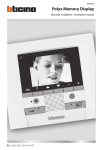
Manuale Installatore
Installation Manual
349140
I
ITALIANO
3
GB
ENGLISH
45
3
INDICE
1 INTRODUZIONE
1.1 AVVERTENZE E CONSIGLI
1.2 CONTENUTO DELLA CONFEZIONE
4
4
4
2 DESCRIZIONE POSTO ESTERNO AXOLUTE
2.1 CARATTERISTICHE
2.2 VISTA ANTERIORE
2.3 TASTI DI NAVIGAZIONE
2.4 TASTIERA ALFANUMERICA
2.5 VISTA POSTERIORE
5
5
6
7
7
8
3 INSTALLAZIONE
3.1 TIPOLOGIE D’IMPIANTO
3.2 CONFIGURAZIONE
3.3 INSTALLAZIONE A PARETE
9
9
10
10
4 MODALITÀ DI CONFIGURAZIONE
4.1 CONFIGURAZIONE DA PC
4.2 COLLEGAMENTO AL PERSONAL COMPUTER
4.3 CONFIGURAZIONE DA TASTIERA
11
11
13
14
5 MENÙ INSTALLATORE
5.1 ACCESSO AL MENÙ
5.2 ICONE DEL MENÙ INSTALLATORE
15
15
16
6 CONFIGURAZIONE DA TASTIERA
6.1 IMPOSTAZIONI
6.2 BADGE
6.3 LINGUE
6.4 CODICI
6.5 ETHERNET
6.6 CONFIGURAZIONE SCS
6.7 SUONERIE
6.8 MESSAGGI VOCALI
6.9 GESTIONE APPARTAMENTI
6.10 SALVA ED ESCI
17
17
21
25
26
27
28
29
30
31
35
7 MODALITÀ DI CHIAMATA
7.1 CONFIGURAZIONE PLURIFAMILIARE A RUBRICA
7.2 CONFIGURAZIONE PLURIFAMILIARE A BLOCCO-PIANO-INTERNO
36
36
38
8 MESSAGGI DI ERRORE
42
9 DATI TECNICI
43
4
1 INTRODUZIONE
1.1
AVVERTENZE E CONSIGLI
Prima di procedere con l’installazione è importante leggere attentamente il presente manuale, in
quanto la garanzia decade automaticamente per negligenza, errata manovra, uso improprio, manomissione del circuito per opera di personale non autorizzato.
Inoltre, decade quando il guasto è dovuto a forti sovratensioni accidentali presenti sulla rete di alimentazione. Pertanto se il Posto Esterno Axolute viene installato in luogo soggetto a violente scariche
atmosferiche (temporali) devono essere installate adeguate protezioni sulla linea di alimentazione,
eseguendo il collegamento di terra nel modo più rigoroso possibile e rispettando le norme di riferimento del paese.
1.2
CONTENUTO DELLA CONFEZIONE
349140
Manuale Installatore
Installation Manual
La confezione contiene:
• Posto Esterno Axolute
• Manuale Installatore
• CD-ROM contenente: - software TiAxoluteOutdoor
- manuali in formato PDF
- software TiContacts
- driver USB
PART. U2143A - 07/08-01 PC
@kbo
(&&.
)*/'*&
)*/'*&
/
/'*&
PART. U2144A
Bjai^aVc\jV\Z
E6GI#J'&))6
5
2 DESCRIZIONE POSTO ESTERNO AXOLUTE
2.1
CARATTERISTICHE
L’innovativo Posto Esterno Axolute presenta caratteristiche notevoli quali la tastiera capacitiva a sfioramento, il display a colori che presenta una home page interamente personalizzabile dall’installatore, la telecamera a colori brandeggiabile dai posti interni (se predisposti) in caso di chiamata o
autoaccensione del PE Axolute, il lettore di transponder per l’apertura della serratura che può essere
effettuata anche tramite un codice numerico riservato ai residenti.
La chiamata può essere impostata secondo diverse modalità; con ricerca nelle rubrica dei residenti,
con numero di interno o tramite selezione di blocco-piano-interno.
È possibile inserire un’immagine che, al termine della chiamata, indichi ad esempio il percorso da
seguire all’interno di un centro residenziale per raggiungere l’interno chiamato.
Il PE Axolute può essere collegato direttamente al bus del sistema 2 fili BTicino oppure direttamente
via ethernet in impianti IP BTicino; nella seconda soluzione può sfruttare tutti i vantaggi del sistema
IP BTicino.
In questo manuale vengono descritte le programmazioni e regolazioni possibili da tastiera; è però
consigliato l’uso dei software TiContacts e TiAxoluteOutdoor forniti a corredo per la completa programmazione e personalizzazione della rubrica dei residenti e di tutte le funzioni del PE Axolute.
6
2 DESCRIZIONE POSTO ESTERNO AXOLUTE
2.2
VISTA ANTERIORE
1
2
3
4
5
6
1 - Altoparlanti
2 - Telecamera a colori: Brandeggiabile da posto interno in caso di chiamata o autoaccensione
del PE Axolute
3 - Display a colori
4 - Tastiera alfanumerica capacitiva: Per la ricerca dell’interno e l’esecuzione della chiamata;
per la programmazione da parte dell’installatore
5 - Lettore transponder: Consente l’apertura della serratura tramite transponder
6 - Microfono
7
2 DESCRIZIONE POSTO ESTERNO AXOLUTE
2.3
TASTI DI NAVIGAZIONE
Durante la configurazione conferma la selezione visualizzata o
i dati inseriti
Durante il normale uso attiva la chiamata verso l’interno
selezionato
Tasti di scorrimento, permettono di scorrere l’elenco delle voci
presenti nei menù o nella rubrica dei residenti
Permette l’accesso alla rubrica dei residenti
2.4
TASTIERA ALFANUMERICA
Scrittura del testo
✔ Premere più volte un tasto numerico finchè non viene visualizzato il carattere desiderato; se la
lettera successiva si trova in corrispondenza dello stesso tasto di quella corrente, attendere lo
spostamento del cursore
✔ Per inserire uno spazio premere
0
✔ Per spostare il cursore usare i tasti
✔ Per cancellare una lettera posizionare il cursore su di essa con i tasti
e premere C
✔ Per passare dal minuscolo al maiuscolo tenere premuto il tasto quando viene visualizzato il
carattere desiderato, i caratteri successivi saranno in maiuscolo; per tornare al minuscolo la
procedura è identica
8
2 DESCRIZIONE POSTO ESTERNO AXOLUTE
2.5
VISTA POSTERIORE
1
2
3
6
4
5
1 - Sede dei configuratori: da non utilizzare in caso di configurazione virtuale
2 - Connettore mini-USB: per il collegamento al PC per programmazione o aggiornamento
firmware
3 - BUS: collegamento al BUS del sistema 2 fili BTicino
4 - Alimentazione supplementare
5 - Fissa-cavi
6 - Connettore Ethernet: per il collegamento con impianto IP BTicino e per programmazione e
aggiornamento firmware da PC
9
3 INSTALLAZIONE
3.1
TIPOLOGIE D’IMPIANTO
Il Posto Esterno Axolute può essere installato sia in impianti che utilizzano il BUS SCS che in impianti
basati su rete Ethernet IP.
BUS SCS
Questa tipologia utilizza per il collegamento all’impianto il BUS del sistema 2 fili BTicino.
È consigliabile prevedere un collegamento Ethernet IP per l’aggiornamento della programmazione
da remoto senza dover disinstallare il PE Axolute.
BUS PI
A
18V 4A
346230
1
F441
2 PL S+ S-
346000
346000
BUS
P
2
1
J J
T M M M
P P
BUS
230V a.c
2
1
230V a.c
IP
Per il collegamento diretto al PC utilizzare un cavo di tipo incrociato.
RETE ETHERNET
Questa tipologia utilizza il collegamento Ethernet IP tra il PE Axolute e l’impianto.
Il numero di posti interni o interfacce d’appartamento collegabili in questo caso arriva a 99999.
A
18V 4A
346230
1
346000
BUS
230V a.c
2
2 PL S+ S-
1
P
J J
T M M M
P P
IMPIANTO IP
10
3 INSTALLAZIONE
3.2
CONFIGURAZIONE
La sede dei configuratori prevede due configuratori P per l’indirizzo del PE Axolute ed un configuratore S per la selezione, tra le quattro previste, della melodia da inviare ai PI in caso di chiamata
Melodia
Indirizzo Posto Esterno
La configurazione così effettuata non può essere modificata nè tramite software nè da tastiera.
Per poter effettuare la configurazione virtuale del PE Axolute tramite software TiAxoluteOutdoor
non inserire alcun configuratore.
3.3
INSTALLAZIONE A PARETE
1 - Inserire il dispositivo nella cornice premendo sino allo scatto delle mollette di fissaggio
2 - Effettuare i collegamenti e assicurare i cavi con l’apposito fissa-cavi
3 - Fissare al telaio e bloccare con la chiave fornita a corredo
CLACK
339213
339223
C
1
2
CK
LA
3
11
4 MODALITÀ DI CONFIGURAZIONE
La programmazione del PE Axolute deve essere effettuata utilizzando il software dedicato TiAxoluteOutdoor; alcune funzioni sono accessibili anche tramite tastiera accedendo al menù installatore
con l’apposito codice numerico o utilizzando un badge Amministratore.
4.1
CONFIGURAZIONE DA PC
TiContacts
Questo software è da utilizzare per la creazione e l’organizzazione della rubrica dei residenti indicando per ognuno di essi, oltre a nome e cognome, un eventuale titolo, il numero di interno, il piano ed
il blocco dell’appartamento in cui alloggia; per ogni appartamento è possibile visualizzare sul PE al
massimo due nominativi.
Ad ogni residente è possibile assegnare uno o più badge per l’apertura della serratura dell’ingresso.
Una volta creata la rubrica, questa deve essere esportata per poter essere trasferita al PE Axolute
tramite l’applicativo TiAxoluteOutdoor.
12
4 MODALITÀ DI CONFIGURAZIONE
TiAxoluteOutdoor
Questo applicativo è dedicato alla programmazione del PE Axolute, una volta creato un progetto,
questo può essere salvato e inviato (Download) al PE Axolute.
La programmazione riguarda:
Progetto: nome del progetto, tipologia abitativa monofamiliare o plurifamiliare, ecc.
Parametri generali: Data e ora, lingua
Connessioni: tipo di connessione; ethernet, SCS, eventuale presenza del Centralino di portineria
Impostazioni: tipo di chiamata numerica o alfanumerica, contatti
Setup: impostazione del volume del microfono e degli altoparlanti, regolazione di contrasto e luminosità del display
Home page: personalizzazione della home page utilizzando uno dei quattro template preimpostati,
con la possibilità di inserire anche un’immagine e di scegliere la dimensione dei caratteri.
Le altre funzioni dell’applicativo sono:
Upload: acquisisce la configurazione presente sul PE Axolute e consente di modificarla secondo le
esigenze per poi essere nuovamente inviata al PE Axolute per aggiornarlo.
Aggiornamento Firmware: permette di aggiornare il firmware del PE Axolute con nuove versioni
rilasciate da BTicino.
13
4 MODALITÀ DI CONFIGURAZIONE
4.2
COLLEGAMENTO AL PERSONAL COMPUTER
Il collegamento al PC può essere effettuato utilizzando un cavo USB-miniUSB oppure tramite
Ethernet utilizzando un cavo incrociato (o tramite Switch).
Collegamento USB
BUS
Collegamento Ethernet
Cavo incrociato
BUS
Se il PE Axolute è installato ed usa la connessione Ethernet, è possibile collegarsi da remoto.
14
4 MODALITÀ DI CONFIGURAZIONE
4.3
CONFIGURAZIONE DA TASTIERA
Molte delle configurazioni effettuate tramite software possono essere modificate da tastiera senza
dover obbligatoriamente collegare un personal computer.
La regolazione del volume, il cambio della melodia, l’aggiunta o la cancellazione di un badge richiedono all’installatore un intervento di pochi minuti.
Nel capitolo seguente vengono descritte nel dettaglio tutte le configurazioni possibili da tastiera.
Configurazione
Luminosità
15
5 MENÙ INSTALLATORE
5.1
ACCESSO AL MENÙ
L’accesso al menù Installatore si ottiene in due modi, con una password riservata all’installatore
(impostazione di fabbrica: 12345) oppure avvicinando al lettore di transponder del PE Axolute un
badge “Amministratore” appositamente programmato con il software TiContacts (fornito a corredo
del PE Axolute).
Accesso con la password installatore
Premere il tasto
Digitare la password
Premere il tasto OK
Dopo il reset del dispositivo si ottiene
l’accesso al menù
Configurazione
16
5 MENÙ INSTALLATORE
5.2
ICONE DEL MENÙ INSTALLATORE
Configurazione
Indirizzo
Regolazioni audio e
video; brandeggio
telecamera; impostazione
di data e ora; aggiunta,
eliminazione o modifica di
residenti e appartamenti
Badge
Configurazione
dell’indirizzo SCS del
posto esterno
Suoneria posto interno
Impostazione della
suoneria da inviare ai
posti interni
Aggiunta o eliminazione
badge dei residenti
(i badge Amministratore
possono essere programmati
esclusivamente tramite
software TiContacts)
Messaggi vocali
Lingue
Registrazione di messaggi
vocali personalizzati
Scelta della lingua per i
menù e per i messaggi
vocali preregistrati
Codici
Gestione appartamenti
Impostazione della
password per apertura
serratura e della password
installatore
Ethernet
Aggiunta o eliminazione
di appartamenti e/o
residenti
Salva ed esci
Impostazione dei
parametri per la
connessione ethernet del
posto esterno
Tutte le impostazioni
eseguite tramite
tastiera devono
essere salvate, in caso
contrario andranno
perse
17
6 CONFIGURAZIONE DA TASTIERA
6.1
IMPOSTAZIONI
Audio
Permette la regolazione del volume del microfono e degli altoparlanti del posto esterno.
Audio
Selezionare l’icona Audio e premere OK
Microfono
Selezionare l’icona (es. Microfono)
Regolare il volume al livello desiderato tramite i tasti
Premere OK per confermare.
18
6 CONFIGURAZIONE DA TASTIERA
Display
Permette la regolazione di luminosità e contrasto del display
Display
Selezionare l’icona Display e premere OK
Luminosità
Selezionare l’icona (es. Luminosità)
Regolare la luminosità al livello desiderato tramite i tasti
Premere OK per confermare.
19
6 CONFIGURAZIONE DA TASTIERA
Telecamera
Permette di impostare la posizione della telecamera del posto esterno.
Calibrazione video
Selezionare l’icona Telecamera e premere OK
Appare l’immagine ripresa della telecamera.
Usare i tasti 2 e 8 per regolare la posizione della
telecamera sull’asse verticale
Usare i tasti 4 e 6 per regolare la posizione della
telecamera sull’asse orizzontale
Una volta terminata la regolazione premere OK
per confermare.
20
6 CONFIGURAZIONE DA TASTIERA
Data e ora
Permette l’impostazione della data e dell’ora
Data e Ora
Selezionare l’icona Data e ora e premere OK
Anno/Mese/Giorno
Con i tasti numerici impostare data e ora attuali
Ora
Anno/Mese/Giorno
2008
05
15
26
22
Premere OK per confermare e tornare al menù principale
Ora
11
21
6 CONFIGURAZIONE DA TASTIERA
6.2
BADGE
Permette la gestione dei badge dei residenti; i badge riservati all’amministratore possono essere
programmati solamente tramite il software TiContacts.
Aggiungere un badge
Abate Rico
Abate Rico
23
Accedendo al menù Badge appare la rubrica dei residenti
Adamoli Mario
Anghileri Matteo
80
Con i tasti
confermare
Adamoli Renzo
Anghileri Matteo
39
Abate Rico
23
selezionare il nominativo, premere OK per
Al centro della schermata appare l’icona che permette
l’aggiunta di un nuovo badge.
Avvicinare il nuovo badge al lettore del posto esterno
C625DBA0
C925FGA0
oppure
Abate Rico
23
Premere OK
Digitare il codice del badge sulla tastiera alfanumerica.
Premere OK per confermare
22
6 CONFIGURAZIONE DA TASTIERA
Abate Rico
23
Se il badge è stato letto correttamente (oppure se
il codice digitato è corretto) appare la schermata di
conferma
Badge aggiunto
Abate Rico
23
Il nuovo badge viene agiunto all’elenco di quelli
assegnati al residente selezionato
C625DBA0
C925FGA0
AB15TG56
Per tornare al menù precedente premere il tasto C
23
6 CONFIGURAZIONE DA TASTIERA
Eliminare un badge
Abate Rico
Abate Rico
23
Accedendo al menù Badge appare la rubrica dei residenti
Adamoli Mario
Anghileri Matteo
80
Con i tasti
selezionare il nominativo, premere OK per
confermare
Adamoli Renzo
Anghileri Matteo
39
Abate Rico
23
Con i tasti
selezionare il badge da eliminare
Premere OK per confermare
C625DBA0
C925FGA0
AB15TG56
Abate Rico
23
Appare la richiesta di conferma
Premere OK per eliminare il badge
Eliminare il badge?
oppure
premere C per annullare l’operazione
24
6 CONFIGURAZIONE DA TASTIERA
Abate Rico
23
Se si è scelto di eliminare il badge apparirà la schermata
di conferma
Badge eliminato
Abate Rico
23
Il badge è stato eliminato e non appare più nell’elenco
C625DBA0
C925FGA0
Per tornare al menù precedente premere il tasto C
25
6 CONFIGURAZIONE DA TASTIERA
6.3
LINGUE
Permette di selezionare la lingua desiderata per i menù ed i messaggi vocali preregistrati.
Lingue
Con i tasti
selezionare il pulsante Lingue
Premere OK per confermare
English
Deutsch
Français
Con i tasti
Italiano
Nederlands
Español
Lingue
selezionare la lingua desiderata
Premere OK per confermare
26
6 CONFIGURAZIONE DA TASTIERA
6.4
CODICI
Permette di impostare la password per l’apertura della porta d’ingresso (impostazione di fabbrica:
00000) e quella che consente all’installatore l’accesso al menù di configurazione.
Cancello
Selezionare la password da inserire o modificare
(es. Cancello)
Cancello
Password
Digitare la nuova password
Conferma password
Premere il tasto
per passare alla riga sottostante
Cancello
Password
Conferma password
Digitare nuovamente la password
Premere OK per confermare
Per tornare al menù precedente premere il tasto C
27
6 CONFIGURAZIONE DA TASTIERA
6.5
ETHERNET
Questo menù deve essere configurato solamente in caso di utilizzo della connessione Ethernet.
Sono possibili due modalità di collegamento:
UPNP (automatica): i parametri di configurazione vengono assegnati automaticamente dalla rete.
Manuale: il PE Axolute utilizza per la connessione Ethernet i parametri impostati.
I parametri di default sono:
Indirizzo IP
192.168.1.50
Subnetmask
255.255.255.0
Gateway
192.168.1.1
Collegamento DHCP
Automatico
Per utilizzare la modalità automatica selezionare l’icona
Automatico e premere OK per confermare
Collegamento Manuale
In modalità Manuale è possibile utilizzare i parametri
di default oppure personalizzarli qualora non fossero
compatibili con quelli della rete esistente.
192
168
1
50
255
255
255
0
192
168
1
1
Impostare i parametri utilizzando la tastiera numerica
Per passare da un parametro al successivo premere il
tasto
Al termine premere OK per confermare
28
6 CONFIGURAZIONE DA TASTIERA
6.6
CONFIGURAZIONE SCS
Questo menù permette di impostare l’indirizzo impiantistico del PE Axolute, ciò è possibile unicamente se la configurazione è stata effettuata in modo Virtuale.
Se la configurazione è stata realizzata con configuratori fisici, la casella “Indirizzo posto esterno (P)”
mostrerà la configurazione del PE ma non sarà possibile modificarla.
La configurazione di base è Virtuale con Indirizzo posto esterno (P) = 0
Tipo di configurazione
Virtuale
Indirizzo posto esterno (P)
0
Selezionare Indirizzo posto esterno (P)
Digitare l’indirizzo posto esterno (P) utilizzando i tasti numerici
Tipo di configurazione
Virtuale
Indirizzo posto esterno (P)
1
Al termine premere OK per confermare
29
6 CONFIGURAZIONE DA TASTIERA
6.7
SUONERIE
Se il PE Axolute è configurato in modo virtuale, tramite questo menù è possibile selezionare la
melodia da inviare ai posti interni scegliendola tra le quattro presenti nel menù.
Se la configurazione è stata eseguita con i configuratori fisici la melodia sarà impostata dal configuratore S e non sarà modificabile tramite questo menù.
Suoneria posto interno
Con i tasti
selezionare l’icona Suoneria posto interno
Premere OK per confermare
Tipo di configurazione
Virtuale
Suoneria0
Suoneria1
Con i tasti
selezionare la suoneria desiderata
Premere OK per confermare
Suoneria2
Suoneria3
Premere C per tornare al menù precedente
30
6 CONFIGURAZIONE DA TASTIERA
6.8
MESSAGGI VOCALI
Questo menù permette di personalizzare i messaggi vocali predefiniti registrandone di nuovi.
I messaggi vocali sono riferiti a : fine chiamata, occupato, chiamata in corso, apertura porta, chiamata non risposta.
Messaggi vocali
Con i tasti
selezionare l’icona Messaggi vocali
Premere OK per confermare
Chiamata in corso
Selezionare il messaggio (es. Chiamata in corso)
Premere OK per confermare
Appare la schermata tramite la quale è possibile registrare, ascoltare o eliminare il messaggio selezionato.
Il funzionamento è identico a quello di un normale registratore.
Avvia la
registrazione
del messaggio
Avvia l’ascolto
del messaggio
Blocca la
registrazione
e l’ascolto
Elimina il
messaggio
selezionato
31
6 CONFIGURAZIONE DA TASTIERA
6.9
GESTIONE APPARTAMENTI
Tramite questo menù è possibile aggiungere o eliminare appartamenti, aggiungere o eliminare
membri dall’elenco dei residenti di un appartamento o tra quelli presenti nella rubrica.
Nuovo appartamento
Nuovo appartamento
Se si intende aggiungere un appartamento selezionare,
tramite i tasti
, l’icona “Nuovo appartamento”
Premere il tasto OK per accedere al menù
Interno
Indirizzo apt.
Tempo richiamata
Inserire i dati relativi al nuovo appartamento utilizzando la
tastiera alfanumerica, per passare da un campo al successivo premere il tasto
Interno: numero progressivo dell’appartamento all’interno della rubrica
Indirizzo apt.: indirizzo di sistema dell’appartamento
Tempo richiamata: trascorsi i secondi impostati, in caso
di mancata risposta, la chiamata viene ripetuta inviando
nuovamente il segnale di chiamata al posto interno
Descrizione
Descrizione: inserire una descrizione che identifichi l’appartamento
Interno
Indirizzo apt.
32
03
Tempo richiamata
3
Descrizione
Terzo piano int. 2
Una volta compilati tutti i campi
premere OK per proseguire
32
6 CONFIGURAZIONE DA TASTIERA
Se i dati relativi al nuovo appartamento risultano corretti e
non sono in contrasto con quelli già memorizzati, apparirà
la schermata di conferma
Rimuovi apt.
La schermata che segue presenta le seguenti icone:
Rimuovi apt.:
elimina l’appartamento selezionato
Aggiungi nuovo membro:
permette di inserire nella rubrica
ed abbinare all’appartamento un
nuovo nominativo.
Aggiungi membro esistente:
permette di abbinare
all’appartamento un nominativo
presente nella rubrica del PE.
Cancella membro esistente:
permette di eliminare un
nominativo selezionandolo tra quelli
presenti nella rubrica del PE.
33
6 CONFIGURAZIONE DA TASTIERA
Gestione utenti appartamento
Gestione utenti appartamento
Tramite i tasti
appartamento”
selezionare l’icona “Gestione utenti
Premere il tasto OK per accedere al menù
Appare l’elenco degli appartamenti, con i tasti
nare l’appartamento che si intende gestire
Abate Rico
Abate Rico
23
Adamoli Mario
Anghileri Matteo
80
Adamoli Renzo
Anghileri Matteo
39
selezio-
Premere il tasto OK
La schermata che segue presenta le seguenti icone:
Rimuovi apt.:
elimina l’appartamento selezionato
Aggiungi nuovo membro:
permette di inserire nella rubrica
ed abbinare all’appartamento un
nuovo nominativo.
Aggiungi membro esistente:
permette di abbinare
all’appartamento un nominativo
presente nella rubrica del PE.
Cancella membro esistente:
permette di eliminare un
nominativo selezionandolo tra quelli
presenti nella rubrica del PE.
34
6 CONFIGURAZIONE DA TASTIERA
Aggiungi nuovo membro
Aggiungi nuovo membro
Tramite i tasti
membro”
selezionare l’icona “Aggiungi nuovo
Premere il tasto OK per accedere al menù
Nome
Giovanni
Cognome
Bianchi
Titolo
Utilizzando la tastiera alfanumerica inserire i dati relativi
a nome, cognome ed eventuale titolo del nuovo membro
da aggiungere alla rubrica
Ing.
Premere il tasto OK
Il nuovo membro è stato aggiunto
35
6 CONFIGURAZIONE DA TASTIERA
6.10 SALVA ED ESCI
Prima di uscire dal menù di configurazione è necessario salvare le modifiche effettuate, in caso
contrario andranno perse
Salva ed esci
Tramite i tasti
, il pusante “Salva ed esci”
Premere il tasto OK per salvare le modifiche
Appare la schermata di conferma
Al termine del reset appare la home page; le modifiche
sono state salvate
36
7 MODALITÀ DI CHIAMATA
7.1
CONFIGURAZIONE PLURIFAMILIARE A RUBRICA
La chiamata verso un posto interno può essere effettuata nei modi che seguono:
Chiamata da rubrica dei residenti
Premendo il tasto
colonna
o un altro tasto della stessa
si accede alla rubrica dei residenti
Bianchi Mario
Bianchi Luigia
23
Bianchi Simone
Rossi Maria
80
Binaghi Luca
Annoni Marta
39
Con i tasti
selezionare il residente da chiamare;
Per facilitare la ricerca è possibile utilizzare la tastiera
alfanumerica per digitare il cognome o anche solo
l’iniziale del residente, automaticamente la rubrica
visualizzerà i nominativi che hanno la stessa iniziale.
Premere OK per inviare la chiamata
Bianchi Mario
Bianchi Luigia
23
È possibile interrompere la chiamata premendo il tasto C
37
7 MODALITÀ DI CHIAMATA
Chiamata diretta con numero di interno
Utilizzando la tastiera alfanumerica digitare il numero di
interno da chiamare;
23
Bianchi Mario
Bianchi Luigia
Premere OK per inviare la chiamata
23
È possibile interrompere la chiamata premendo il tasto C
38
7 MODALITÀ DI CHIAMATA
7.2
CONFIGURAZIONE PLURIFAMILIARE A BLOCCO-PIANO-INTERNO
La chiamata verso un posto interno può essere effettuata nei modi che seguono:
Chiamata da rubrica dei residenti
Premendo il tasto
colonna
o un altro tasto della stessa
si accede alla scelta del blocco
Blocco: 1
Blocco: 2
Blocco: 3
Con i tasti
selezionare il blocco;
Per facilitare la ricerca è possibile utilizzare la tastiera per
digitare direttamente il numero del blocco
Premere OK
Blocco - Piano: 1-1
Con i tasti
Blocco - Piano: 1-2
Per facilitare la ricerca è possibile utilizzare la tastiera per
digitare direttamente il numero del piano
Blocco - Piano: 1-3
Premere OK
selezionare il piano;
39
7 MODALITÀ DI CHIAMATA
Bianchi Mario
Bianchi Luigia
Bianchi Simone
Rossi Maria
Binaghi Luca
Annoni Marta
Con i tasti
selezionare il residente da chiamare;
Per facilitare la ricerca è possibile utilizzare la tastiera
alfanumerica per digitare il cognome o anche solo
l’iniziale del residente, automaticamente la rubrica
visualizzerà i nominativi che hanno la stessa iniziale.
Premere OK per inviare la chiamata
Bianchi Mario
Bianchi Luigia
È possibile interrompere la chiamata premendo il tasto C
40
7 MODALITÀ DI CHIAMATA
Chiamata diretta con blocco-piano-interno
3
Utilizzando la tastiera alfanumerica digitare il numero del
blocco a cui appartiene l’interno da chiamare
Premere
o OK per passare alla scelta del piano
3
2
Digitare il numero del piano
Premere
o OK per passare alla scelta dell’interno
41
7 MODALITÀ DI CHIAMATA
3
2
6
Digitare il numero di interno
Premere OK per inviare la chiamata
Bianchi Mario
Bianchi Luigia
6
È possibile interrompere la chiamata premendo il tasto C
42
8 MESSAGGI DI ERRORE
MESSAGGI
SOLUZIONI
Parte della configurazione è corrotta, per esempio
la rubrica, le immagini dello skin
o i files di lingua
Riscaricare la configurazione via ethernet o USB
La configurazione o gli applicativi del dispositivo
sono corrotti
Scaricare una configurazione e se non dovesse
essere sufficiente anche il firmware via USB
Il dispositivo è in
modalità recovery poichè il firmware principale è
corrotto
Aggiornare il firmware via ethernet o USB
43
9 DATI TECNICI
Temperatura di funzionamento
-20°C ÷ 60°C
Tensione di alimentazione
da bus SCS 18V ÷ 28V
44
Servizio Tecnico Clienti
BTicino risponde del perfetto funzionamento del dispositivo solo se installato a regola d’arte
rispettando le indicazioni del manuale d’installazione del prodotto.
In caso di malfunzionamento contattare il Centro Assiatenza Tecnica Autorizzato.
Per conoscere il nominativo del CAT di zona telefonare al:
Numero verde BTicino 800.293.000
Oppure visitare il sito
ww.bticino.it
Garanzia: i termini di garanzia sono riportati sul documento
“Condizioni di Fornitura del Servizio di Assistenza Tecnica BTicino”.
Tale documento può essere richiesto al CAT, al numero verde BTicino,
oppure scaricato dal sito www.bticino.it
45
CONTENTS
1 INTRODUCTION
1.1 WARNINGS AND ADVICE
1.2 CONTENTS OF PACKAGE
46
46
46
2 AXOLUTE ENTRANCE PANEL DESCRIPTION
2.1 FEATURES
2.2 FRONT VIEW
2.3 BROWSER KEYS
2.4 ALPHANUMERIC KEYPAD
2.5 REAR VIEW
47
47
48
49
49
50
3 INSTALLATION
3.1 TYPES OF SYSTEM
3.2 CONFIGURATION
3.3 WALL MOUNTING
51
51
52
52
4 CONFIGURATION PROCEDURE
4.1 CONFIGURATION FROM PC
4.2 CONNECTION TO PERSONAL COMPUTER
4.3 CONFIGURATION FROM KEYPAD
53
53
55
56
5 INSTALLER MENU
5.1 ACCESS TO MENU
5.2 INSTALLER MENU ICONS
57
57
58
6 CONFIGURATION FROM KEYPAD
6.1 SETTINGS
6.2 BADGE
6.3 LANGUAGES
6.4 CODES
6.5 ETHERNET
6.6 SCS CONFIGURATION
6.7 RING TONES
6.8 VOICE MESSAGES
6.9 APARTMENT MANAGEMENT
6.10 SAVE AND EXIT
59
59
63
67
68
69
70
71
72
73
77
7 CALLING PROCEDURE
7.1 DIRECTORY MULTI-FAMILY CONFIGURATION
7.2 BLOCK-FLOOR-EXTENSION MULTI-FAMILY CONFIGURATION
78
78
80
8 ERROR MESSAGES
84
9 TECHNICAL DATA
85
46
1 INTRODUCTION
1.1
WARNINGS AND ADVICE
Before starting the installation, it is important to read this manual carefully since the guarantee may
automatically expire due to negligence, wrong or improper use and tampering of circuit by unauthorized staff.
Moreover, it expires when the damage is due to strong accidental overcurrents on the power supply
mains. Therefore, if the Axolute Entrance Panel is installed in a place that is subject to violent atmospheric discharges (storms), appropriate protections must be installed on the power supply line by
carrying out the grounding properly and complying with the country regulations.
1.2
CONTENTS OF PACKAGE
349140
Manuale Installatore
Installation Manual
The package contains:
• Axolute Entrance Panel
• Installation manual
• CD-ROM including: - TiAxoluteOutdoor software
- PDF manuals
- TiContacts software
- USB driver
PART. U2143A - 07/08-01 PC
@kbo
(&&.
)*/'*&
)*/'*&
/
/'*&
PART. U2144A
Bjai^aVc\jV\Z
E6GI#J'&))6
47
2 AXOLUTE ENTRANCE PANEL DESCRIPTION
2.1
FEATURES
The innovative Axolute Entrance Panel includes remarkable features such as the capacitive soft-touch
keypad, a colour display with a home page that can be totally customized by the installer, a handsetswivel colour camera (if set up for use) in the event of a call or auto-switch-on of the Axolute EP, a
transponder reader for opening the door lock that can also be performed with a numeric code assigned to the residents.
The call can be set up in different ways; by searching in the resident directory, with an extension number or through the block-floor-extension selection.
After the call, it is possible to insert an image which, for example, indicates the path to be followed
within a residential centre in order to reach the extension called.
The Axolute EP can be directly connected to the bus of the BTicino 2 wire system or directly via Ethernet in BTicino IP systems; in the second solution, it can make use of all the advantages of the BTicino
IP system.
This manual describes all the programming and setup procedures that can be performed from the
keypad; however, it is recommended to use the TiContacts and TiAxoluteOutdoor software (supplied)
to completely programme and customize the resident directory as well as all the functions of the
Axolute EP.
48
2 AXOLUTE ENTRANCE PANEL DESCRIPTION
2.2
FRONT VIEW
1
2
3
4
5
6
1 - Loudspeakers
2 - Colour camera: Handset-swivel in the event of a call or auto-switch-on of the Axolute EP
3 - Colour display
4 - Capacitive alphanumeric keypad: To look up the extension and make the call; to enable the
installer to execute programming procedures
5 - Transponder reader: Allows you to open the door lock with a transponder
6 - Microphone
49
2 AXOLUTE ENTRANCE PANEL DESCRIPTION
2.3
BROWSER KEYS
When configuring, it confirms the selection displayed or the
data entered
During normal use, it sends the call to the selected extension
The scroll keys allow you to scroll the list of items in the menus
or in the resident directory
Allows access to the resident directory
2.4
ALPHANUMERIC KEYPAD
Writing the text
✔ Press a numeric key several times until the required character is displayed; if the next letter is
near the same key as the present letter, wait until the cursor moves
✔ To enter a space, press
0
✔ To move the cursor, use
keys
✔ To delete a letter, position the cursor over it with the
keys and press C
✔ To change from lower case to upper case, hold down the button when the required character
is displayed. The next characters will be upper case; the procedure is the same to go back to
lower case
50
2 AXOLUTE ENTRANCE PANEL DESCRIPTION
2.5
REAR VIEW
1
2
3
6
4
5
1 - Configurator socket: do not use for virtual configurations
2 - Mini-USB Connector: for connecting to the PC to programme or update firmware
3 - BUS: connection to the BUS of the BTicino 2 wire system
4 - Additional power supply
5 - Cable- fastener
6 - Ethernet connection: for connections with BTicino IP system and to programme or update
firmware from a PC
51
3 INSTALLATION
3.1
TYPES OF SYSTEM
The Axolute Entrance Panel can be installed in systems with an SCS BUS and in IP Ethernet network
systems.
SCS BUS
As for the connection to the system, this type uses the BUS of the BTicino 2 wire system.
It is recommended to include an IP Ethernet connection to update the remote programming without
having to uninstall the Axolute EP.
BUS PI
A
18V 4A
346230
1
F441
2 PL S+ S-
346000
346000
BUS
P
2
1
J J
T M M M
P P
BUS
230V a.c
2
1
230V a.c
IP
For direct connection to the PC, use a crossover cable.
ETHERNET NETWORK
This type uses the IP Ethernet connection between the Axolute EP and the system.
The number of handsets or apartment interfaces that can be connected in this case goes up to 99999.
A
18V 4A
346230
1
346000
BUS
230V a.c
2
2 PL S+ S-
1
P
J J
T M M M
P P
IP system
52
3 INSTALLATION
3.2
CONFIGURATION
The configurator socket includes two P configurators for the address of the Axolute EP and one S
configurator for the selection, among the four provided, of the tune to be sent to the Handset in the
event of a call
Tune
Entrance panel address
This configuration cannot be changed with a software system or from a keypad.
In order to virtually configure the Axolute EP through the TiAxoluteOutdoor software, do not insert any configurator.
3.3
WALL MOUNTING
1 - Push the device into the supporting frame until the fixing springs snap
2 - Connect and fasten the cables with the cable-fastener
3 - Fasten to the chassis and lock with the key supplied
CLACK
339213
339223
C
1
2
CK
LA
3
53
4 CONFIGURATION PROCEDURE
Programme the Axolute EP by using the specific TiAxoluteOutdoor software; some functions can also
be accessed with the keypad by accessing the installer menu with a specific numeric code or by using
an Administrator badge.
4.1
CONFIGURATION FROM PC
TiContacts
This software shall be used for the creation and organization of the resident directory, thus indicating
for each one of them – apart from their full name – a heading, telephone extension, floor and the block
of the apartment; for each apartment it is possible to display a maximum of two names on the EP.
It is possible to assign one or more badges to each resident to open the door lock.
After creating the directory, it must be exported so that it can be transferred to the Axolute EP through the TiAxoluteOutdoor application.
54
4 CONFIGURATION PROCEDURE
TiAxoluteOutdoor
This application is intended for the programming of the Axolute EP; after creating a project, it can be
saved and sent (Download) to the Axolute EP.
The programming concerns the following:
Project: project name, one-family or multi-family dwelling type
General parameters: Date and time, language
Connections: type of connection; Ethernet, SCS, assumed presence of Switchboard
Setting: type of numeric or alphanumeric call, contacts
Setup: setup of the microphone and loudspeaker volume, contrast and brightness adjustment of the
display
Home page: home page customization using one of the four preset templates, with the possibility of
also inserting an image and choosing the size of the characters.
The other functions of the application are:
Upload: acquires the configuration on the Axolute EP and enables you to modify it as appropriate,
thus sending it subsequently to the Axolute EP so that it can be updated.
Firmware update: enables you to update the firmware of the Axolute EP with new versions released
by BTicino.
55
4 CONFIGURATION PROCEDURE
4.2
CONNECTION TO PERSONAL COMPUTER
The connection to the PC can be made by using a USB-miniUSB cable or via Ethernet using a crossover cable (or with a Switch).
USB Connection
BUS
Ethernet connection
Crossover cable
BUS
If the Axolute EP is installed and uses the Ethernet connection, it will be possible to make a remote
connection.
56
4 CONFIGURATION PROCEDURE
4.3
CONFIGURATION FROM KEYPAD
Many configurations performed via a software system can be modified from a keypad without
necessarily connecting a personal computer.
Adjusting the volume, changing the tune, adding or deleting a badge takes the installer only a
few minutes.
The following chapter fully describes all the possible configurations that can be made from the
keypad.
Configuration
Brightness
57
5 INSTALLER MENU
5.1
ACCESS TO MENU
The Installer menu can be accessed in two ways: with a password assigned to the installer (default
setting: 12345) or by moving an Administrator badge specifically programmed with the TiContacts
software (supplied with the Axolute EP) towards the transponder reader of the Axolute EP.
Access with the installer password
Press the key
Enter the password
Press the OK key
Access to the menu is given after the
device is reset
Configuration
58
5 INSTALLER MENU
5.2
INSTALLER MENU ICONS
Configuration
Address
Audio and video
adjustment; camera
traverse; date and time
setting; addition, deletion
or change of residents
and apartments
Badge
SCS address configuration
of the entrance panel
Handset ring tone
Setting of the tone to be
sent to the handsets
Addition or deletion of
the resident badges (the
Administrator badges can be
solely programmed via the
TiContacts software)
Voice messages
Languages
Recording of customized
voice messages
Language option for the
menus and for the prerecorded voice messages
Codes
Apartment management
Password setting used
for opening the door
lock and for the installer
password
Ethernet
addition or deletion
of apartments and/or
residents
Save and exit
Setting of the parameters
for the Ethernet
connection of the
entrance panel
Allsettingsperformed
via the keypad must
be saved, otherwise
they will be lost
59
6 CONFIGURATION FROM KEYPAD
6.1
SETTINGS
Audio
Enables you to adjust the volume of the microphone and loudspeakers of the entrance panel.
Audio
Select the Audio icon and press OK
Microphone
Select the icon (e.g. Microphone)
Adjust the volume to the most appropriate level using the
keys
Press OK to confirm.
60
6 CONFIGURATION FROM KEYPAD
Display
Enables you to adjust the brightness and contrast of the display
Display
Select the Display icon and press OK
Brightness
Select the icon (e.g. Brightness)
Adjust the brightness to the most appropriate level using
the
keys
Press OK to confirm.
61
6 CONFIGURATION FROM KEYPAD
Camera
Enables you to set up the camera position of the entrance panel.
Video calibration
Select the Camera icon and press OK
The image taken from the camera appears.
Use keys 2 and 8 to adjust the position of the camera
on the vertical axis
Use keys 4 and 6 to adjust the position of the camera
on the horizontal axis
When adjustment is completed, press OK to
confirm.
62
6 CONFIGURATION FROM KEYPAD
Date and time
Enables you to set the time and date
Date/time
Select the Date and time icon and press OK
Year/Month/Day
Use the numeric keys to set current time and date
Time
Year/Month/Day
2008
05
15
26
22
Press OK to confirm and to go back to the main menu
Time
11
63
6 CONFIGURATION FROM KEYPAD
6.2
BADGE
Enables you to manage the resident badges; the administrator badges can be solely programmed via
the TiContacts software.
Adding a badge
Abate Rico
Abate Rico
23
Adamoli Mario
Anghileri Matteo
80
Adamoli Renzo
Anghileri Matteo
39
Abate Rico
23
The resident directory appears when accessing the Badge
menu
Use the
keys to select the name, press OK to confirm
There is an icon in the middle of the screen which allows
you to add a new badge.
Move the new badge towards the reader of the entrance
panel
C625DBA0
C925FGA0
or
Abate Rico
23
Press OK
Enter the code of the badge on the alphanumeric
keypad.
Press OK to confirm
64
6 CONFIGURATION FROM KEYPAD
Abate Rico
23
If the badge is read correctly (or if the code entered is
correct) the confirmation screen will appear
Badge added
Abate Rico
23
The new badge is added to the list of those assigned to
the selected resident
C625DBA0
C925FGA0
AB15TG56
Press C to go back to the previous menu
65
6 CONFIGURATION FROM KEYPAD
Deleting a badge
Abate Rico
Abate Rico
23
Adamoli Mario
Anghileri Matteo
80
Adamoli Renzo
Anghileri Matteo
39
Abate Rico
23
The resident directory appears when accessing the
Badge menu
Use the
keys to select the name, press OK to confirm
Use the
keys to select the badge you want to delete
Press OK to confirm
C625DBA0
C925FGA0
AB15TG56
Abate Rico
23
The confirm request will be displayed
Press OK to delete the badge
Remove badge?
or
Press C to cancel the operation
66
6 CONFIGURATION FROM KEYPAD
Abate Rico
23
If you have deleted a badge, the confirmation screen will
appear
Badge removed
Abate Rico
C625DBA0
C925FGA0
23
The badge has been deleted and will no longer appear in
the list
Press C to go back to the previous menu
67
6 CONFIGURATION FROM KEYPAD
6.3
LANGUAGES
Lets you select the required language for the menus and for the pre-recorded voice messages.
Languages
Use the
keys to select the Language button
Press OK to confirm
English
Deutsch
Français
Italiano
Nederlands
Español
Languages
Use the
keys to select the required language
Press OK to confirm
68
6 CONFIGURATION FROM KEYPAD
6.4
CODES
Enables you to set the password to open the entrance door (default setting: 00000) and the one
which allows the installer to access the configuration menu.
Gate
Select the password to enter or change (e.g. Gate)
Gate
Password
Enter new password
Confirm password
Press the
key to move to the line below
Gate
Password
Confirm password
Enter password again
Press OK to confirm
Press C to go back to the previous menu
69
6 CONFIGURATION FROM KEYPAD
6.5
ETHERNET
This menu must be configured only when an Ethernet connection is being used.
Two connection procedures are possible:
UPNP (automatic): the configuration parameters are automatically assigned by the network.
Manual: the Axolute EP uses the default parameters for the Ethernet connection.
The default parameters are:
IP address
192.168.1.50
Subnetmask
255.255.255.0
Gateway
192.168.1.1
DHCP Connection
Automatic
Select the Automatic icon to use the automatic mode
and then press OK to confirm
Manual Connection
In Manual mode it is possible to use the default
parameters or to customize them if they are not
compatible with those of the existing network.
192
168
1
50
255
255
255
0
192
168
1
1
Set up the parameters by using the numeric keypad
Press the
next
key to move from one parameter to the
When you are finished, press OK to confirm
70
6 CONFIGURATION FROM KEYPAD
6.6
SCS CONFIGURATION
This menu enables you to set the installation address of the Axolute EP; this is possible only if the
configuration has been performed in a Virtual way.
If the configuration is performed with physical configurators, the “Entrance panel address (P)” box
will show the configuration of the EP but it will not be possible to change it.
The standard configuration is Virtual with Entrance panel address (P) = 0
Type of configuration
Virtual
Entrance panel address (P)
0
Select Entrance panel address (P)
Enter the Entrance panel address (P) with the numeric keys
Type of configuration
Virtual
Entrance panel address (P)
1
When you are finished, press OK to confirm
71
6 CONFIGURATION FROM KEYPAD
6.7
RING TONES
If the Axolute EP is configured in a virtual way it will be possible, through this menu, to select the
tone to be sent to the handsets; choose one of the four included in the menu.
If the configuration is performed with physical configurators, the tone will be set by configurator
S, hence it will not be possible to change it through this menu.
Hanset ring tone
Use the
keys to select the Handset Ring tone icon
Press OK to confirm
Type of configuration
Virtual
Ring tone0
Ring tone1
Use the
keys to select the ring tone
Press OK to confirm
Ring tone2
Ring tone3
Press C to go back to the previous menu
72
6 CONFIGURATION FROM KEYPAD
6.8
VOICE MESSAGES
This menu enables you to customize the default voice messages by recording new ones.
The voice messages are referred to: end of call, engaged, call in progress, door opening, unanswered call.
Voice messages
Use the
keys to select the Voice message icon
Press OK to confirm
Call in progress
Select the message (e.g. Call in progress)
Press OK to confirm
A screen will appear whereby it is possible to record, delete or listen to the selected message.
The functioning principle is the same as a standard recorder.
Record the
message
Listen to the
message
Stop recording
and listening
Delete the
selected
message
73
6 CONFIGURATION FROM KEYPAD
6.9
APARTMENT MANAGEMENT
You can use this menu to add or delete apartments, add or delete members from the residents list
of an apartment or those included in the directory.
New apartment
New apartment
If you want to add an apartment, use the
select the icon “New apartment”
, keys to
Press OK to access the menu
Enter the data of the new apartment using the alphanumeric keypad to move from one field to the next
Internal
Apt. address
Call–back time
Press the
key
Extension: progressive number of the apartment in the
directory
Apt. address: system address of the apartment
Call-back time: when there is no answer and when the set
time (seconds) has elapsed, the call will be repeated by
re-sending a call signal to the handset
Description
Description: enter a description that identifies the apartment
Internal
Apt. address
32
03
Call–back time
3
Description
Terzo piano int. 2
After filling in all fields, press OK to continue
74
6 CONFIGURATION FROM KEYPAD
If the information of the new apartment is correct and
consistent with the previously-saved data, the confirmation screen will appear
Remove apt
The screen below has the following icons:
Remove apt.:
deletes the selected apartment
Add existing member:
matches a name included in the EP
directory to the apartment.
Add new member:
enters a new name in the directory
and matches a new name to the
apartment.
Remove existing member:
permette lets you delete a name by
selecting it among those included in
the EP directory.
75
6 CONFIGURATION FROM KEYPAD
Apartment users management
Apartment device management
Use the
keys to select the icon “Apartment users
management”
Press the OK to access the menu
The list of the apartments appears; use the
lect the apartment you want to manage
Abate Rico
Abate Rico
23
Adamoli Mario
Anghileri Matteo
80
Adamoli Renzo
Anghileri Matteo
39
keys to se-
Press the OK key
The screen below has the following icons:
Remove apt.:
deletes the selected apartment
Add existing member:
matches a name included in the EP
directory to the apartment.
Add new member:
enters a new name in the directory
and matches a new name to the
apartment.
Remove existing member:
lets you delete a name by selecting
it among those included in the EP
directory.
76
6 CONFIGURATION FROM KEYPAD
Add new member
Add new member
Use the
keys to select the icon “Add new member”
Press OK to access the menu
Name
Giovanni
Surname
Bianchi
Title
Use the alphanumeric keypad to enter the information
regarding the name, surname and title (if required) of the
new member to be added to the directory
Ing.
Press the OK key
The new member has been added
77
6 CONFIGURATION FROM KEYPAD
6.10 SAVE AND EXIT
Before exiting the configuration menu, it is necessary to save the changes you have made,
otherwise they will be lost
Save and exit
Use the
, keys to select the button “Save and exit”
Press OK to save changes
The confirmation screen will be displayed
After resetting, the home page will appear; changes have
been saved
78
7 CALLING PROCEDURE
7.1
DIRECTORY MULTI-FAMILY CONFIGURATION
The following describes how to make a call to an extension:
Call from the resident directory
If you press the
key or another key of the same
column, it is possible to access the resident directory
Bianchi Mario
Bianchi Luigia
23
Bianchi Simone
Rossi Maria
80
Binaghi Luca
Annoni Marta
39
Use the
keys to select the resident you need to call;
In order to make lookups easier, it is possible to use the
alphanumeric keypad to enter the surname or simply
the initial of the resident; the directory will automatically
display the names that have the same initial.
Press OK to forward the call
Bianchi Mario
Bianchi Luigia
23
It is possible to stop the call by pressing the C key
79
7 CALLING PROCEDURE
Direct call with an extension
Use the alphanumeric keypad to dial the extension you
need to call;
23
Bianchi Mario
Bianchi Luigia
Press OK to forward the call
23
It is possible to stop the call by pressing the C key
80
7 CALLING PROCEDURE
7.2
BLOCK-FLOOR-EXTENSION MULTI-FAMILY CONFIGURATION
The following describes how to make a call to an extension:
Call from the resident directory
If you press the
key or another key of the same
column, it is possible to access the block selection
Block: 1
Block: 2
Block: 3
Use the
keys to select the block;
In order to make lookups easier, it is possible to use the
keypad to directly enter the number of the block
Press OK
Block - Floor: 1-1
Use the
Block - Floor: 1-2
In order to make lookups easier, it is possible to use the
keypad to directly enter the number of the floor
Block - Floor: 1-3
Press OK
keys to select the floor;
81
7 CALLING PROCEDURE
Bianchi Mario
Bianchi Luigia
Bianchi Simone
Rossi Maria
Binaghi Luca
Annoni Marta
Use the
keys to select the resident you need to call;
In order to make lookups easier, it is possible to use the
alphanumeric keypad to enter the surname or simply
the initial of the resident; the directory will automatically
display the names that have the same initial.
Press OK to forward the call
Bianchi Mario
Bianchi Luigia
It is possible to stop the call by pressing the C key
82
7 CALLING PROCEDURE
Direct call with a block-floor-extension
3
Use the alphanumeric keypad to dial the number of the
block belonging to the extension you need to call
Press
or OK to select the floor
3
2
Enter the number of the floor
Press
or OK to select the extension
83
7 CALLING PROCEDURE
3
2
6
Dial the extension number
Press OK to forward the call
Bianchi Mario
Bianchi Luigia
6
It is possible to stop the call by pressing the C key
84
8 ERROR MESSAGES
MESSAGES
SOLUTIONS
A part of the configuration is corrupt, for example
the directory, the
images of the skin
or the language
files
Download the configuration again via Ethernet
or USB
The configuration or the device
applications are
corrupt
Download a configuration. If it is not adequate,
also download the firmware via USB
The device is in
recovery mode
because the main
firmware is corrupt
Update the firmware via Ethernet or USB
85
9 TECHNICAL DATA
Operating temperature
-20°C ÷ 60°C
Power supply voltage
from SCS 18V ÷ 28V
86
87
Bticino SpA reserves at any time the right to modify the contents of this booklet and to communicate,
in any form and modality, the changes brought to the same.
BTicino SpA si riserva il diritto di variare in qualsiasi momento i contenuti del presente stampato e di
comunicare, in qualsiasi forma e modalità, i cambiamenti apportati.
BTicino SpA
Via Messina, 38
20154 Milano - Italy
www.bticino.it
Servizio Clienti