1
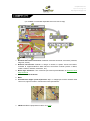
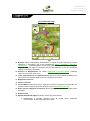
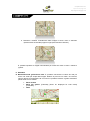
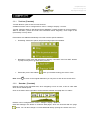
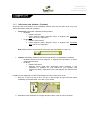
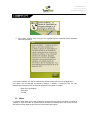
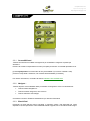
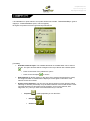
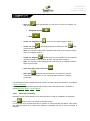
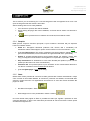
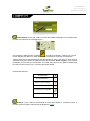
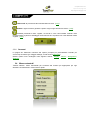
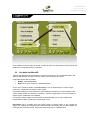
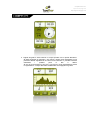
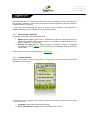
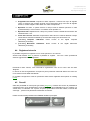
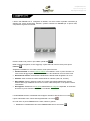
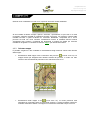
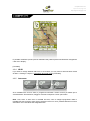
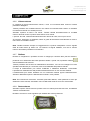
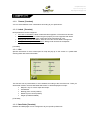
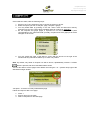
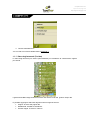
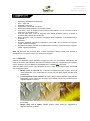
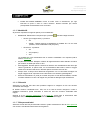
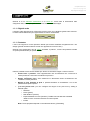
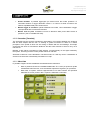
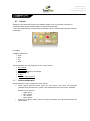
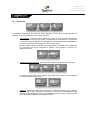
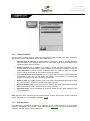
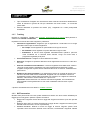
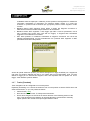
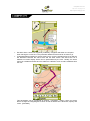
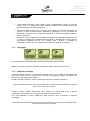
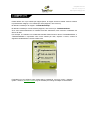
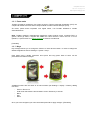
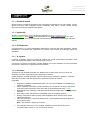
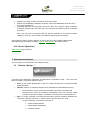
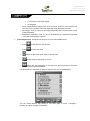
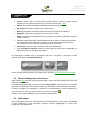
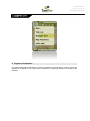
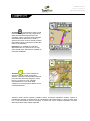
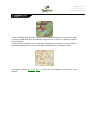
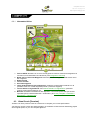
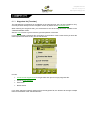
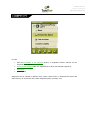
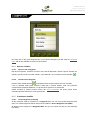
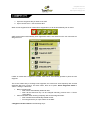
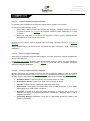
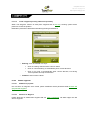
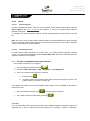
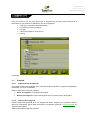
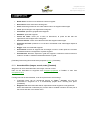
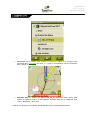
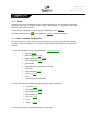
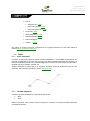
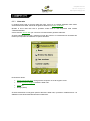
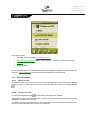
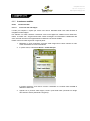
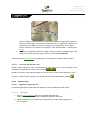
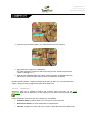
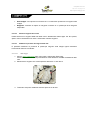
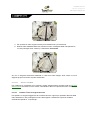
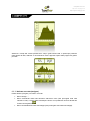
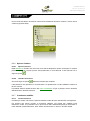
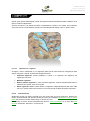
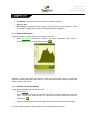
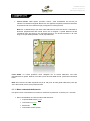
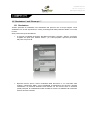
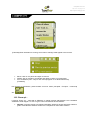
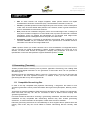
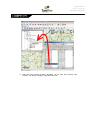
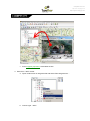
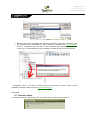
CompeGPS Team S.L. http://www.compegps.com http://support.compegps.com 3.2.1 „Tool bar‟ [Translate] Tool bar allows a quick access to some functions. Available functions can be configured from „menu > settings > display > tool bar‟. Tool bar manager allows to add functions like „MarkWPT‟ (create waypoint in current position), „Mark & edit WPT‟ (create and enter brief information about waypoint), „save image to file‟ (screenshot) or many others. Extra buttons are added automatically to tool bar in these specific situations: Simulating: functions to pause, stop and manage speed of simulation. Navigating a route, track with waypoints or itinerary: „Next WPT‟ and „Prev WPT‟ buttons to jump to next point or go back to the previous. Edit mode: press „close edition‟ Note: Press 3.2.2 when you finished creating your track or route. to return to the original distribution you only have to click at the circular arrow. „Data bar‟ [Translate] Data bar shows a few data fields and, when navigating a route or track, it has an extra state which shows altitude profile. Click on the button at the right side to switch between data bar and graph bar or to hide it. Data bar can be configured from „menu > settings > display > Data bar‟. Data field manager also allows to customize data pages, which are accessed with the „page‟ button. You can also change a concrete data field directly opening the context menu on it.