1
M5X0V Concise UG.book Page 36 Thursday, September 15, 2005
11:17 AM
Concise User’s Guide
English
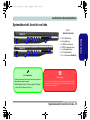
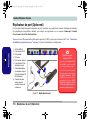
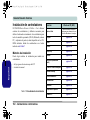
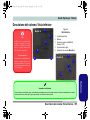
MSI 6833 (802.11g) Mini-PCI Wireless LAN
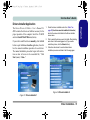
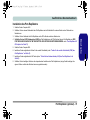
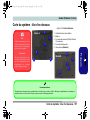
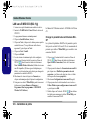
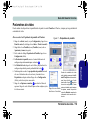
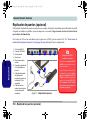
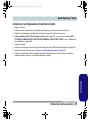
1. Make sure the WLAN module is powered ON.
2. Insert the Wireless LAN CD-ROM into the CD/DVD
drive.
3. The program will run automatically.
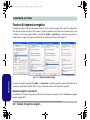
4. Click Install Software (button) and click Next.
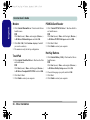
5. Click the button to accept the license agreement, then
click Next.
6. Click Next > Install.
7. Click Finish.
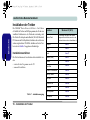
8. The network settings can now be configured.
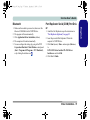
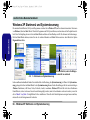
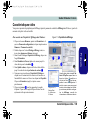
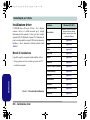
9. Right-click the WLAN icon
in the taskbar and
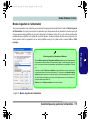
click View Available Wireless Networks (Windows
will manage the adapter by default - see the instructions
on the right for changing the WLAN control settings).
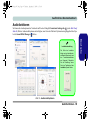
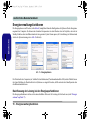
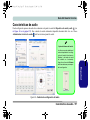
10.Select the network and click Connect, or click
Advanced for further configuration options.
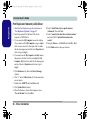
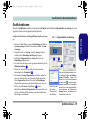
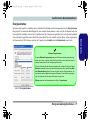
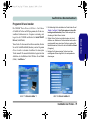
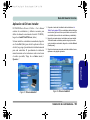
11. You can access the WlanUtility from the desktop
shortcut or Start menu (Start menu and point to
Programs/All Programs > IEEE 802.11 Wireless
LAN Software).
The User’s Manual is on the Wireless LAN CD-ROM.
36 - Driver Installation
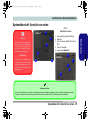
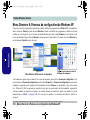
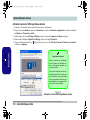
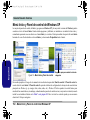
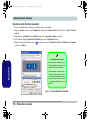
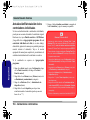
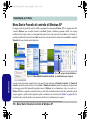
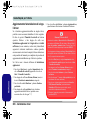
Changing the WLAN Control Setting in WinXP
The Win XP operating system is the default setting for
wireless LAN control. It is recommended that you use
the WlanUtility to control your WLAN connection.
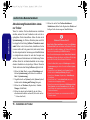
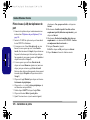
1.
Right-click the WLAN icon
Open Network Connections.
in the taskbar and click
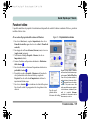
2.
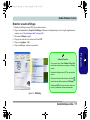
Click to select the Wireless Network Connection and
then click “Change Settings of the connection” (or rightclick it and scroll to select properties).
3.
Click Wireless Networks (tab).
4.
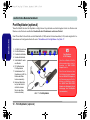
Click to remove the tick in the tickbox “Use Windows to
configure my wireless network settings”, then click OK.
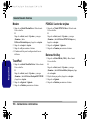
5.
Double-click the WLAN icon
in the taskbar to begin
using the WlanUtility to control the WLAN connection.