1
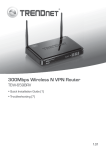
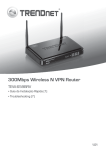
300Mbps Wireless N VPN Router
TEW-659BRV
ŸGuía de instalación rápida (1)
ŸTroubleshooting (7)
1.01
1. Antes de iniciar
Contenidos del Paquete
ŸTEW-659BRV
ŸCD-ROM (Guía del usuario)
ŸGuía de instalación rápida multilingüe
ŸCable de red (1.5mts/5pies)
ŸAdaptador de alimentación (12V DC, 1A)
Si cualquiera de los contenidos anteriores se encuentra, por favor contacte a
su distribuidor.
Requisitos de instalación
ŸUn PC con adaptador de red alámbrico o inalámbrico instalado de manera
correcta (Nota: Es recomendable configurar el enrutador inalámbrico desde
un PC por cableado)
ŸNavegador Web: Internet Explorer (6.0 ó superior), Firefox (2.0 ó superior),
Opera, Chrome, Safari
ŸInternet de banda ancha
ŸCable Módem o DSL instalado
2. Instalación del Hardware
Nota: Reúna toda la información relacionada con su conexión a Internet antes
de empezar. Si es necesario, póngase en contacto con su proveedor de
servicios de Internet (ISP).
1. Compruebe que usted tiene una conexión a Internet cuando conecte su PC
directamente al cable o módem DSL o Conector para Ethernet Abra su web
browser, (e.g. Internet Explorer) y mecanografíe adentro un URL
(e.g. http://www.trendnet.com) en la barra de la dirección.
PC
Cable/DSL
Modem
1
Internet
2. Apague su cable módem o DSL.
6. Conecte el adaptador de
alimentación al TEW-659BRV y
luego a una toma de corriente.
Presione el botón de encendido
para llevarlo a la posición de
encendido “On”.
3. Desconecte el cable de red de su
Cable Módem o DSL y de su PC.
4. Conecte una punta de un cable de
red a uno de los puertos de red del
TEW-659BRV. Conecte la otza
punta del cable al puervo de red
de su comutadora.
7. Encienda su cable módem o DSL
Espere hasta que los LED indiquen
que el módem se ha reiniciado por
completo. Consulte la guía de
usuario del módem para más
información.
5. Conecte un extremo del cable
de red al puerto WAN de
TEW-659BRV. Conecte la otra
8. Compruebe que las siguientes
luces del panel están encendidas:
LAN (el puerto (1,2,3,4) de su PC
está conectado a) (verde), WAN
(Verde) y Wireless (Verde).
Consulte la sección de resolución
de problemas para más
información adicional sobre el
comportamiento de los LED.
punta del cable al puerto
Etnernet del PC.
2
3. Configuración del enrutador inalámbrico
Nota:
1. Es recomendable configurar el enrutador inalámbrico desde un PC por
cableado.
2. Para instrucciones sobre la configuración de VPN remítase a la guía del
usuario. Puede encontrar la guía del usuario en el CD-ROM suministrado.
1. Abra el navegador Web, introduzca
http://192.168.10.1 en la barra de
direcciones, luego pulse la tecla
Enter (Intro).
4. Haga clic en Next (Siguiente).
2. Introduzca la contraseña del
sistema, y luego haga clic en
Login (Inicio). Por defecto:
Contraseña del sistema: admin
5. Introduzca la antigua contraseña
(la contraseña predeterminada es
admin), introduzca la nueva
contraseña, reconfirme la nueva
contraseña y luego haga clic en
Next (Siguiente).
3. Seleccione Wizard (Asistente de
instalación) y después haga clic en
Enter (Intro).
Nota:
1. Establecer una contraseña evita
que otros usuarios tengan
acceso a la configuración de
TEW-659BRV.
2. Se le recomienda introducir una
nueva contraseña. Si decide
cambiar esta configuración,
escriba una nueva contraseña.
3. Contraseña De esta limitada a 9
cetras.
3
6. Seleccione su Time Zone (Zona
horaria) y después haga clic en
Next (Siguiente).
9. Necesitará configurar lo siguiente:
Módulo inalámbrico:
Enable/Disable (Activar/Desactivar)
Debe seleccionar la configuración
predeterminada Enable (Activar).
El ID de red (SSID): El SSID es el
nombre de la red inalámbrica de su
red inalámbrica (por ejemplo,
enrutador inalámbrico o punto de
acceso). Introduzca un único SSID.
No utilice nada que pueda ser
identificable como “Red de la
Familia Smith”. Elija algo que
pueda identificar con facilidad
cuando busque una red
inalámbrica disponible
7. Seleccione Detección automatic
del tipo de WAN y luego haga clic
en Next (siguiente).
Canal: En la mayoría de los casos,
la configuración predeterminada
está bien.
8. Establezca las opciones de
configuración tomando como base
la información suministrada por su
ISP. Siga las instrucciones del
asistente para completar la
configuración.
Nota: Cada tipo de conexión a
Internet podría tener diferentes
opciones.
4
Nota:
1. Para proteger su red de cualquier acceso no autorizado se le recomienda
habilitar la encriptación inalámbrica
2. Los ejemplos que se muestran a continuación son para la seguridad
WPA2-PSK. Si selecciona WPA-PSK o WPA2-PSK, compruebe que sus
adaptadores inalámbricos son compatibles con WPA o WPA2. Si sus
adaptadores inalámbricos no son compatibles con WPA o WPA2, entonces
seleccione WEP.
3. El cifrado WEP es compatible únicamente velocidades de hasta 54Mbps con
802.11b/g.
4. Tan pronto se active la encriptación en el enrutador, cada PC y dispositivo
inalámbrico deberá configurarse con la misma clave de encriptación.
11. Haga clic en Apply Settings
(Aplicar opciones de
configuración)
10. Seleccione el modo de
autenticación deseado, luego
seleccione el tipo de encriptación
deseada e introduzca los
caracteres de su clave
precompartida y después haga
clic en Next (Siguiente). Para
WPA-PSK o WPA2-PSK, la clave
precompartida debe tener entre 8
y 63 caracteres ASCII o 64
caracteres HEX. Asegúrese de
copiar la clave de encriptación.
Usted necesitará la clave pre
compartida cuando configure su
adaptador inalámbrico.
12. Espere mientras el TEW-659BRV
se reinicia y guarda los cambios.
13. Haga clic en Finish (Finalizar).
5
14. Abra su navegador y escriba un URL (Ej. www.trendnet.com) para
comprobar que tiene conexión a Internet.
La instalación ha sido completada
Para obtener información más detallada sobre la configuración así como de las
configuraciones avanzadas del TEW-659BRV, por favor consulte la sección de
resolución de problemas, el CD-ROM de la Guía del Usuario, o el sitio Web de
TRENDnet en http://www.trendnet.com.
6
Troubleshooting
1. I typed http://192.168.10.1 in my Internet Browser's Address Bar, but an error
message says “The page cannot be displayed.” How can I get into the
TEW-659BRV's web configuration page?
1. Check your hardware settings again by following the instructions in Section 2.
2. Make sure the Network Port and Wireless lights are lit.
3. Make sure your TCP/IP settings are set to Obtain an IP address automatically
(see the steps below).
4. Reset the TEW-659BRV. Press the button on the front of the TEW-659BRV for
20 seconds and then let go.
Windows 7
1. Go into the Control Panel, click
Network and Internet, click Network
and Sharing Center, click Change
Adapter Settings and then right-click
the Local Area Connection icon and
then click Properties.
2. Click Internet Protocol Version
4(TCP/IPv4) and then click
Properties. Then click on Obtain an
IP address automatically.
Windows Vista
1. Go into the Control Panel, click
Network and Internet, click Network
and Sharing Center, click Manage
Network Connections and then rightclick the Local Area Connection icon
and then click Properties.
2. Click Internet Protocol Version
4(TCP/IPv4) and then click
Properties. Then click on Obtain an
IP address automatically.
7
Windows XP/2000
1. Go into the Control Panel, doubleclick the Network Connections icon
and then right-click the Local Area
Connection icon and then click
Properties.
2. Click Internet Protocol (TCP/IP) and
then click Properties. Then click on
Obtain an IP address automatically.
2. I am not sure what type of Internet Account Type I have for my cable/DSL
connection. How do I find out?
Contact your Internet Service Provider's (ISP) support service for the correct
information.
3. I went through the Wizard, but I cannot get onto the Internet. What should I
do?
1. Verify that you can get onto the Internet with a direct connection into your
modem.
2. Contact your ISP and verify all the information that you have in regards to your
Internet connection settings is correct.
3. Power cycle your modem and router. Unplug the power to the modem. Turn the
power switch on the TEW-659BRV to the off position. Wait 30 seconds and then
reconnect the power to the modem. Wait for the modem to fully boot up and then
turn the power switch on the TEW-659BRV to the on position.
4. I cannot make a wireless connection to the router. What should I do?
1. Double check that the wireless light on the router is lit.
2. Login to your router. Enter http://192.168.10.1 into the address bar of your
router. The default system password is admin. Click Configuration, Basic
Setting and then Wireless. Make sure Enabled is selected and then click Save.
3. Power cycle the TEW-659BRV. Turn the power switch to the off position. Wait
30 seconds and then turn the power switch on the TEW-659BRV to the on
position.
4. Contact the manufacturer of your wireless network adapter and make sure the
wireless network adapter is configured with the proper SSID. The default SSID
is TRENDnet659. If you have enabled any encryption on the TEW-659BRV,
make sure to configure the wireless network adapter with the same Preshared
key.
8
5. Please give me an explanation of all the LEDs and Buttons.
LED/Button
Color
Wireless/WPS LED
Sequence Definition
Green Blinking
ŸWireless LAN is on or enabled/Wireless
data transmission
ŸWPS is activated (Blinking rapidly for 2
minutes)
N/A
Off
Wireless LAN is off or disabled
Solid
WAN port is connected at 10/20Mbps or
100/200Mbps (Half/Full Duplex)
Blinking
WAN port data transmitting/receiving at
10/20Mbps or 100/200Mbps (Half/Full
Duplex)
Off
WAN port is disconnected/No Ethernet Link
Solid
LAN port connected at 10/20 Mbps or
100/200Mbps (Half/Full Duplex)
Blinking
LAN port data transmitting/receiving
10/20Mbps or 100/200Mbps (Half/Full
Duplex)
Off
LAN port disconnected/No Ethernet Link
Green
WAN Link/Act LED
1
2
3
4
WAN Link/Act LED
(Ports 1-4)
Status LED
Reset/WPS Button
N/A
Green
N/A
Green Blinking
Device is ready
Green Solid/Off
Device is not ready
N/A
Reset: Hold 20 seconds to reset device to
factory defaults. WPS: Hold 3 seconds to
activate WPS.
N/A
If you still encounter problems or have any questions regarding the
TEW-659BRV, please contact TRENDnet's Technical Support Department.
9
TRENDnet
20675 Manhattan Place
Torrance, CA 90501. USA
Copyright ©2011. All Rights Reserved. TRENDnet.