1
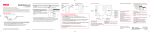
2. Transfer audio/video/picture files to your player with either of the two methods below:
QuickStartGuide
SL50 series
www.rcaaudiovideo.com
Congratulations on purchasing your new RCA Player.
Please read these instructions for quick tips on using the player.
b) Windows Explorer: drag-and-drop audio/
image files to the Internal Storage folder (Windows
Vista™) or the Media/Internal Storage folder
(Windows® XP) of the player.
• Video files must be transferred via RCA easyRip
which converts fi les automatically to optimal format
for playback on this player.
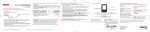
Getting Started
1. Connect your player to your computer.
The player
a) RCA easyRip: Helps to rip CD’s, create playlists, load content and manage your library with
an intuitive and modular design. Click the easyRip icon (
) on your PC desktop to launch
the software.
• For details in using RCA easyRip, click the Help icon (
) on the module dock.
USB port of your PC
Lyra Slider
Learn more about the player
•
•
Lyra Slider
•
To view the user manual directly from the player:
Step 1: Click Start.
Step 2: Click My Computer (XP users) / Click Computer (Vista users).
Step 3: Righ-click the associated drive letter (i.e. Lyra Slider) to show the option menu.
Step 4: From the option menu, select the user manual in your preferred language for
more information on the player’s features, safety and warranty information, and answers
to Frequently Asked Questions (FAQ’s).
To view the user manual on your PC:
If opted-in during installation, the user manual will also be available by clicking on the
Start menu (
in XP or
in Vista ), clicking on All Programs, clicking on the RCA
directory, and then clicking on the appropriate manual.
Keep player out of direct sunlight. Exposure to direct sunlight or extreme heat
(such as inside a parked car) may cause damage or malfunction.
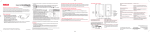
General controls
Display
Slide the display to open or
close the control panel
Increase/decrease volume
Scroll up
Power on/off, Menu
Skip back/reverse/menu back
Skip forward/fast forward/menu advance
Play/pause
•
•
USB cable
(supplied)
•
•
•
•
The RCA easyRip™ Media Software installer (stored in the player*) will launch automatically. Click NEXT to begin the installation and follow the instructions to install the software
on your PC.
RCA easyRip is currently not compatible with DRM files and Audiobooks.
If the installer does not auto-launch, locate and right-click the associated drive letter (i.e.
Lyra Slider) to show the option menu and select the “Install RCA easyRip™” option.
The player charges automatically every time you connect it to your computer.
It should be charged for at least 3 hours before using for the first time.
The player is also compatible with most PC music management software.
Secure music transfer requirements: to enable function of transferring subscription
music content to the player, please select MTP (Media Transfer Protocol) mode under
Protocol in the player’s Settings menu (refer to page 24 of the user manual).
3. Disconnect the player from the computer and enjoy media on the go.
Need more help? Do not return this product to the store.
Visit www.rcaaudiovideo.com/downloads for the latest firmware, RCA easyRip Media
Software, user manual and FAQ’s.
Scroll down
Turn the player on/off
Lock the front panel keys
Navigate to an audio/video/picture file
Press and hold MENU
Slide the display down to close the control panel
In the Home menu, press or to go back or
advance in the player menu and press + or – to
scroll up or down to the desired file
+
or
–
Voice Memo
Settings
Music
Refer to page 15-23 of the user manual
Press and hold MENU for more than 10
seconds to reset the player
Pictures
For information on new and upcoming products and to register your new player,
visit www.rcaaudiovideo.com.
Album
Artists
Titles
Genres
or
Windows is a registered trademark of Microsoft Corporation in the United States and other countries.
Press within the beginning 4 seconds of the
current audio file
Press and hold or during playback
Press MENU
Microphone
Years
v3.0 (EN/E)
Press
Press , press again to resume
Press the volume keys during playback
Press
* Refer to the user manual for information on section skipping for audiobooks.
USB jack
Earphones jack
Videos
* The latest software can be downloaded from www.rcaaudiovideo.com.
Play an audio/video/picture file
Pause playback and show the Option menu
Adjust the volume
Skip to the next file (or section of
audiobooks*)
Skip to the previous file (or section of
audiobooks*)
Reverse or fast forward an audio file
Go to the Home menu (to access Music,
Pictures, Videos, Radio, Audiobooks, Favorites,
Voice Memo and Settings)
Delete files from the player
Reset the player (if it is not responding)
Song 1
Song 2
Song 3
Song 4
Song 5
+
or
–
Audiovox Electronics Corp.
150 Marcus Blvd, Hauppauge, NY 11788
© 2009 Audiovox Electronics Corp.
Trademark Registered
www.rcaaudiovideo.com
Printed in China
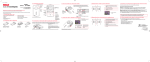
Guía de InicioRápido
Series SL50
www.rcaaudiovideo.com
Felicitaciones por la compra de su nuevo reproductor RCA.
Por favor lea estas instrucciones sobre tips rápidos para usar el reproductor.
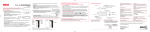
Para comenzar
1. Conecte su reproductor a su computadora.
El reproductor
Puerto USB de su computadora
2. Transfiere archivos de imagen/audio/video/ a su reproductor con cualquiera de los dos
siguientes métodos:
a) RCA easyRip: ayuda a extraer CD’s, crear listas de reproducción, cargar contenido y
administrar su librería con un diseño intuitivo y modular. Haga click en el icono easyRip (
) en el escritorio de su PC para lanzar el software.
• Haga click en el ícono Help (
) en el acoplador de módulo para aprender más acerca del
uso de RCA easyRip.
b) Windows Explorer: arrastre y suelte archivos
de audio/imagen a la carpeta Internal Storage
(Windows Vista™) o la carpeta Media/ Internal
Storage (Windows® XP) del reproductor.
• Los archivos de video deben ser transferidos vía
RCA easyRip el cual convierte archivos automáticamente al formato óptimo para reproducción en
este reproductor.
•
Lyra Slider
•
•
Para ver el manual del usuario directamente desde el reproductor:
Paso 1: Inicio Rápido.
Paso 2: Haga click en Mi PC (usuarios de XP) / Haga click en Computadora (usuarios de
Vista).
Paso 3: haga click derecho en la letra de la unidad asociada (por ejemplo, Lyra Slider)
para mostrar el menú de opciones.
Paso 4: desde el menú de opciones, seleccione el manual del usuario en su idioma
preferido, con el propósito de obtener más información sobre las características del
reproductor, sobre la garantía y seguridad, y respuestas a Preguntas Frecuentes (FAQ’s).
Para ver el manual del usuario en su:
Si en la instalación tuvo la opción para ello, el manual del usuario estará también disponible haciendo click en el menú Inicio (
en XP o
en Vista), haciendo click en
Todos los Programas, directorio RCA, o haciendo click en el manual apropiado.
Mantenga el reproductor fuera de la luz directa del sol. La exposición a la luz solar
directa o calor extremo (tal como dentro de un automóvil estacionado) pueden
causar daño o mal funcionamiento.
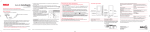
Controles generales
Pantalla
Deslice la pantalla para abrir o
cerrar el panel de control
Marque Deposée
Incremento de volumen/disminuye volumen
Desplaza hacia arrib
Encendido/apagado, Menú
Saltar atrás/reversa/regreso a menú
Saltar adelante/avanzar rápido/avance a menú
Desplaza hacia abajo
Reproducir/pausar
Receptáculo USB
Receptáculo de audífonos
Micrófono
•
•
•
•
Lyra Slider
Cable USB
(incluido)
•
Aprenda más sobre reproductor
El instalador del Software de Medios RCA easyRip™ (almacenado en el reproductor*) será
lanzado en forma automática. Haga clic en NEXT para comenzar la instalación y siga las
instrucciones para instalar el software en su PC.
RCA easyRip is currently not compatible with DRM files and Audiobooks.
Si el instalador no es lanzado en forma automática, localice la letra de la unidad asociada
y haga click derecho (por Ej. Lyra Slider) para mostrar el menú de opciones y seleccionar la
opción “Install RCA easyRip™” .
El reproductor carga automáticamente cada vez que usted lo conecta a su computadora.
Deberá ser cargado por al menos tres horas antes de usarlo por primera vez.
•
Su reproductor RCA es compatible también con la mayoría del software de administración
de música de PC.
Requerimientos de transferencia de música segura: para habilitar la función de
transferencia de contenido de música de suscripción al reproductor, por favor seleccione
el modo MTP (Protocolo de Transferencia de Medios) bajo Protocolo en el menú
Configuraciones del reproductor (refiérase a la página 24 del manual del usuario).
3. Desconecte el reproductor de la computadora y disfrute de su música donde lo desee.
¿Necesita más ayuda? No regrese este producto a la tienda.
Visite www.rcaaudiovideo.com/downloads para el firmware más reciente, Software de
Medios RCA easyRip, manual del usuario y Preguntas Frecuentes.
Enciende / apaga el reproductor
Bloquee las teclas del panel frontal
Navega a un archivo de audio/video/imagen
Presione y sostenga MENU
Deslice la pantalla abajo para cerrar el panel de
control
En el menú Inicio, presione ó para regresar
o avanzar en el menú del reproductor y presione
+ ó – para desplazarse hacia arriba o abajo al
archivo deseado
+
ó
–
Voice Memo
Settings
Music
Pictures
Videos
v3.0 (EN/E)
Windows es una marca registrada de Microsoft Corporation en los Estados Unidos y otros países.
* Para información sobre la sección salto de audiolibros refiérase al manual del usuario.
Para información sobre nuevos productos y para registrar su nuevo reproductor,
visite www.rcaaudiovideo.com.
Album
Artists
Titles
Genres
Years
* El software más reciente puede ser descargado desde www.rcaaudiovideo.com.
Reproduce un archivo de audio/video/imagen Presione
Pausa la reproducción y muestra el menú
Presione , presione otra vez para reanudar
Opción
Ajuste el volumen
Presione las teclas de volumen durante la
reproducción
Salta al siguiente archivo (o sección de
Presione
audiolibros*)
Salta al archivo previo (o sección de
Presione dentro de los primeros 4 segundos
audiolibros*)
del archivo de audio actual
Reversa o avance rápido de un archivo de
Presione y sostenga ó durante la
reproducción
audio
Presione MENU
Va al menú Inicio (para accesar Música,
Imágenes, Videos, Radio, Audiolibros,
Favoritos, Memos de Voz y Configuraciones)
Refiérase a la página 15-23 del manual del
Elimina archivos del reproductor
usuario
Reiniciar el reproductor (si este no responde) Presione y sostenga MENU por más de 10
segundos para reiniciar el reproductor
ó
Song 1
Song 2
Song 3
Song 4
Song 5
+
ó
–
Audiovox Electronics Corp.
150 Marcus Blvd, Hauppauge, NY 11788
© 2009 Audiovox Electronics Corp.
Marca Registrada
www.rcaaudiovideo.com
Impreso en China