1
This product can be setup using
any current web browser, i.e., Internet Explorer 6 or Netscape Navigator 7.0
DP-300U
D-Link Fast Ethernet
Print Server
Before You Begin
You will need an Ethernet-enabled device, such as a laptop or desktop computer
and a USB or parallel-port printer that will connect to the DP-300U.
Important: TURN OFF the power to the printer before installing
the DP-300U.
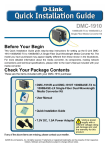
Check Your Package Contents
DP-300U Multi-Port Print Server
CD-ROM (Software, Manual and Warranty)
5V DC 2.5A Power Adapter
If any of the above items are missing, please contact your reseller.
Using a power
supply with a
different voltage
rating will damage
this product and void
its warranty.
©2007 D-Link Systems, Inc. All rights reserved. Trademarks or registered trademarks are the property of their respective holders. Software and
specifications subject to change without notice. DP-300U 02142003
Connecting The DP-300U To Your Network
First, insert one end of a straight-through CAT5 Ethernet RJ-45 cable
into the “Network Port” (shown below.) Connect the other end of the
cable to the LAN port of the gateway or switch. Note: Do not connect
the power cord to the DP-300U until you are advised to do so
The USB Port is designed only for
direct connection to USB Printer. No
other USB devices will be recognized.
Next, make sure that the Printer is turned OFF.
Using the USB cable or printer cable, connect one end of the cable to
the USB or parallel port of the DP-300U (shown below) and the other
end to the USB or parallel port of the printer.
Turn ON the printer.
Power Plug
Parrallel Port 1
Parrallel Port 2
USB Port
Network Port
Then, plug one end of the power adapter into the DP-300U and the
other end into your electric outlet.
The DP-300U will turn on and begin a self-test.
For Mac OS printing, please refer to users manual located on CD-ROM.
Setting up your DP-300U for network
printing in Windows XP
For additional Windows operating system setup or information
on the web-management interface, refer to the manual located
on the CD-ROM.
The factory default IP address of the DP-300U is 192.168.0.10. In order
to print to the printer(s) through the DP-300U, the DP-300U must have the
same IP network settings as your network. IP address can be assigned
manually or automatically by DHCP, BOOTP or RARP. To access the print
server’s web configuration, manually assign an IP address on one of the
PC’s on your network to the same subnet as the print server.
Go to Start > right click on
My Network Places >
select Properties > Double-click on
the Network Connection associated
with your Network Adapter.
Click Internet Protocol (TCP/IP)
Click Properties
Input a static IP address in the
same range as the print server.
Select Use the following IP address
IP address: 192.168.0.52
Subnet mask: 255.255.255.0
Click OK
Setting up your DP-300U for network
printing in Windows XP (continued)
Click OK to apply IP address
settings.
Click OK
Using your web browser enter
the IP address of the DP-300U.
By default the IP address is set
to 192.168.0.10
The IP address of the DP-300U can
be modified on the Network tab of
the web configuration menu.
The following instructions use the
print server’s default IP address as
an example. Make the appropriate
changes if you modify the DP-300Us
IP address.
Setting up your DP-300U for network
printing in Windows XP (continued)
Click on the Configuration tab to
view the current Port Settings.
Write down on a piece of paper
the Port name that you wish to use.
For Windows XP:
Go to Start>Printers and Faxes>Add
a Printer or Go to Start>Control
Panel> Printers and Faxes
Double-click on the
“Add Printer” icon
Click Next
Setting up your DP-300U for network printing in Windows XP
(continued)
Select “Local Printer.”
Please make sure to
deselect Automatically
detect and install my
Plug an Play printer.
Click Next
Select “Create a new port.”
At the pull-down menu,
highlight “Standard TCP/IP
Port.”
Click Next
Click Next
Setting up your DP-300U for network
printing in Windows XP (continued)
Type in the IP address of the
print server. (i.e. 192.168.0.10)
The port name will
automatically be filled in.
Click Next
This may take a few seconds
Select “Custom”
Then click on Settings.
Click Settings
Select “LPR”
Input the port name of
the port being used by
the printer
Click OK
Setting up your DP-300U for network
printing in Windows XP (continued)
Click Next
Click Finish
In this window, scroll down to find
your printer. (If it is not listed, insert
the driver CD or diskette that came
with your printer.)
Click on “Have Disk.”
Then, scroll down and highlight the
printer.
Click Next
Setting up your DP-300U for network
printing in Windows XP (continued)
At this screen, you can input a
name for this printer.
Click Next
Select “Yes” to print a test page
Click Next
Your Setup is Complete!
The printer is now ready for printing
with Windows XP, on your network.
Click Finish
Technical Support
You can find software updates and user documentation on the D-Link website.
Tech Support for customers in
Australia:
Tel: 1300-766-868
Monday to Friday 8:00am to 8:00pm EST
Saturday 9:00am to 1:00pm EST
http://www.dlink.com.au
e-mail: [email protected]
India:
Tel: 1800-222-002
Monday to Friday 9:30AM to 7:00PM
http://www.dlink.co.in/support/productsupport.aspx
Indonesia, Malaysia, Singapore and Thailand:
Tel: +62-21-5731610 (Indonesia)
Tel: 1800-882-880
(Malaysia)
Tel: +65 66229355
(Singapore)
Tel: +66-2-719-8978/9 (Thailand)
Monday to Friday 9:00am to 6:00pm
http://www.dlink.com.sg/support/
e-mail: [email protected]
Korea:
Tel: +82-2-890-5496
Monday to Friday 9:00am to 6:00pm
http://www.d-link.co.kr
e-mail: [email protected]
New Zealand:
Tel: 0800-900-900
Monday to Friday 8:30am to 8:30pm
Saturday 9:00am to 5:00pm
http://www.dlink.co.nz
e-mail: [email protected]
10
Technical Support
You can find software updates and user documentation on the D-Link website.
Tech Support for customers in
Egypt:
Tel: +202-2919035 or +202-2919047
Sunday to Thursday 9:00am to 5:00pm
http://support.dlink-me.com
e-mail: [email protected]
Iran:
Tel: +98-21-88822613
Sunday to Thursday 9:00am to 6:00pm
http://support.dlink-me.com
e-mail: [email protected]
Israel:
Tel: +972-9-9715701
Sunday to Thursday 9:00am to 5:00pm
http://www.dlink.co.il/support/
e-mail: [email protected]
Pakistan:
Tel: +92-21-4548158 or +92-21-4548310
Sunday to Thursday 9:00am to 6:00pm
http://support.dlink-me.com
e-mail: [email protected]
South Africa and Sub Sahara Region:
Tel: +27-12-665-2165
08600 DLINK (for South Africa only)
Monday to Friday 8:30am to 9:00pm South Africa Time
http://www.d-link.co.za
Turkey:
Tel: +90-212-2895659
Monday to Friday 9:00am to 6:00pm
http://www.dlink.com.tr
e-mail: [email protected]
e-mail: [email protected]
U.A.E and North Africa:
Tel: +971-4-391-6480 (U.A.E)
Sunday to Wednesday 9:00am to 6:00pm GMT+4
Thursday 9:00am to 1:00pm GMT+4
http://support.dlink-me.com
e-mail: [email protected]
11
MEMO
DP-300U
Этот продукт может быть
настроен через любой web
браузер, например: Internet Explorer 6 или Netscape Navigator 7.0
Многопортовый принтсервер Fast Ethernet
D-Link
Прежде чем начать
Вам понадобится устройство с сетевым адаптером Ethernet,
такое как ноутбук или настольный компьютер и принтер с портом
USB или параллельным портом для подключения к DP-300U.
Проверьте комплектацию поставки
Принт-сервер DP-300U
CD-ROM (Содержит ПО, инструкцию
пользователя и гарантию)
5V DC, 2.5A Блок питания
Использование источника
питания с другими
характеристиками и напряжением
может повлечь выход из строя
устройства и потерю гарантии.
Если чего-либо из вышеназванного не хватает, обратитесь к вашему поставщику.
©2007 D-Link Systems, Inc. All rights reserved. Trademarks or registered trademarks are the property of their respective holders. Software and
specifications subject to change without notice. DP-300U 02142003
13
Подключение DP-300U к вашей сети
Прежде всего, один конец кабеля CAT5 Ethernet RJ-45 подключите
к сетевому порту - “Network Port” (см. ниже). Другой конец кабеля
подключите к порту коммутатора или шлюза. Примечание: не
подключайте кабель питания к DP-300U, пока в инструкции ниже
это не будет указано
Порт USB предназначен только
для прямого подключения к принтеру
USB. Никакие другие устройства USB
подключать нельзя.
Далее, убедитесь, что питание принтера выключено.
Используя кабель USB или кабель принтера, подключите один конец
кабеля к USB или параллельному порту принтера, другой конец
кабеля подключите к соответствующему порту DP-300U (см. ниже).
Включите принтер.
Разъем
питания
Параллельный
порт 1
Параллельный
порт 2
Порт
USB
Сетевой порт
Затем, подключите шнур питания к DP-300U и включите
устройство в электрическую розетку.
Для печати из ОС Мас пожалуйста, обратитесь к руководству
пользователя на CD-ROM.
14
Настройка DP-300U для сетевой
печати в Windows XP
За информацией по установке в других версиях ОС Windows пожалуйста, обратитесь к руководству пользователя
на CD-ROM.
IP адрес по умолчанию для DP-300U 192.168.0.10. Для того, чтобы
печатать на принтер(ы) через DP-300U, DP-300U должен иметь те же
настройки IP, что и ваша сеть. IP адрес может быт назначен вручную
или автоматически при помощи DHCP, BOOTP или RARP. Для доступа
к настройкам принт-сервера через web-интерфейс вручную назначьте
одному из компьютеров IP адрес из той же подсети, что и IP адрес
принт-сервера.
Нажмите Start > правой кнопкой
щелкните на My Network Places >
выберите Properties > дважды
щелкните на Network Connection
для вашего адаптера
Нажмите Internet Protocol (TCP/IP)
Нажмите Properties
Введите статический IP адрес
из той же подсети, что и IP
адрес принт-сервера.
Выберите Use the following IP adIP address: 192.168.0.52
Subnet mask: 255.255.255.0
Нажмите OK
15
Настройка DP-300U для
сетевой печати в Windows XP
(продолжение)
Нажмите OK для того,
чтобы применить настройки
IP адреса
Нажмите OK
Используя web-браузер,
подключитесь к DP-300U.
По умолчанию IP адрес
192.168.0.10
IP адрес DP-300U может быть
изменен на вкладке Network
меню настройки web-интерфейса.
Следующие инструкции
используют настройки по
умолчанию для IP адреса принтсервера. Выполните необходимые
изменения если вы поменяли IP
адрес DP-300U
16
Настройка DP-300U для
сетевой печати в Windows XP
(продолжение)
Нажмите на вкладку
Configuration чтобы посмотреть
текущие настройки Port Settings.
Запишите имя порта, который
вы хотите использовать.
Для Windows XP:
Нажмите Start>Printers and
Faxes>Add a Printer или Start>Control
Panel> Printers and Faxes
Дважды щелкните на
иконке “Add Printer” icon
Нажмите Next
17
Настройка DP-300U для
сетевой печати в Windows XP
(продолжение)
Выберите “Local Printer.”
Пожалуйста, убедитесь,
что отключена функция
Automatically detect and
install my Plug an Play
printer.
Нажмите Next
Выберите “Create a new port.”
В ниспадающем меню выберите
“Standard TCP/IP Port.”
Нажмите Next
Нажмите Next
18
Настройка DP-300U для
сетевой печати в Windows XP
(продолжение)
Наберите IP адрес принтсервера (например,
192.168.0.10)
Имя порта заполнится
автоматически.
Кликните Next
Это может занять
несколько минут
Выберите “Custom”
Затем кликните Settings.
Кликните Settings
Выберите “LPR”
Введите имя порта,
который будет
использоваться
принтером
Нажмите OK
19
Настройка DP-300U для
сетевой печати в Windows XP
(продолжение)
Нажмите Next
Нажмите Finish
В этом окне выберите ваш
принтер. (Если не отображается,
вставьте CD-ROM или дискету,
поставляемую с вашим принтером)
Нажмите “Have Disk.”
Нажмите Next
20
Настройка DP-300U для
сетевой печати в Windows XP
(продолжение)
В этом меню вы можете задать
имя принтера.
Нажмите Next
Нажмите “Yes” для печати
пробной страницы
Нажмите Next
Установка окончена!
Теперь принтер готов к сетевой
печати с Windows XP.
Нажмите Finish
21
Техническая поддержка
Обновления программного обеспечения и документация
доступны на Интернет-сайте D-Link.
D-Link предоставляет бесплатную поддержку для клиентов
в течение гарантийного срока.
Клиенты могут обратиться в группу технической поддержки
D-Link по телефону или через Интернет.
Техническая поддержка D-Link:
+495-744-00-99
Техническая поддержка через Интернет
http://www.dlink.ru
e-mail: [email protected]
22
Este producto puede instalarse
usando cualquier navegador; p.ej.,
Internet Explorer 6 o Netscape
Navigator 7.0
DP-300U
D-Link Fast Ethernet
Print Server
Antes de empezar
Se necesita un dispositivo con conexión Ethernet, como un portátil u ordenador de
sobremesa y un puerto de impresora paralelo o USB, que se conectará al DP-300U.
Importante: APAGAR la impresora antes de instalar el DP-300U.
Comprobar el contenido del paquete
Servidor de impresión multipuerto DP-300U
CD-ROM (Software, manual y garantía)
Adaptador de alimentación 5V
DC 2.5A
Si falta alguno de estos componentes, por favor contacte con su
proveedor.
El uso de una
f u e n t e d e
alimentación con
distinto voltaje puede
ser perjudicial y anular
la garantía para este
producto.
©2007 D-Link Systems, Inc. Reservados todos los derechos. Las marcas o marcas registradas son propiedad de los respectivos titulares. El
software y las especificaciones pueden ser modificados sin previo aviso. DP-300U 02142003
23
Conectar el DP-300U a la red
Primero, introducir uno de los extremos del cable RJ-45 Ethernet straightthrough CAT5 en el “Network Port” (como se muestra más abajo.)
Conectar el extremo del cable Al puerto LAN de la puerta de enlace o del
conmutador. Nota: No se debe conectar todavía el cable de tensión al DP300U, se indicará más adelante.
El puerto USB está diseñado sólo
para la conexión directa a la impresora
USB. No reconocerá otros dispositivos
USB.
A continuación, se debe comprobar que la impresora está en OFF.
Usando el cable USB o el cable de impresora, conectar uno de los extremos
del cable al puerto USB o al paralelo del DP-300U (como se muestra más
abajo), y el otro extremo al puerto USB o al paralelo de la impresora.
Poner en ON la impresora.
Toma de
corriente
Puerto paralelo 1
Puerto paralelo 2
Puerto USB
Puerto de red
Después, conectar uno de los extremos del adaptador de potencia al DP300U y el otro en la toma eléctrica.
El DP-300U se encenderá y realizará un autotesteo.
Para impresoras Mac OS, consúltese el manual del usuario, incluido
en el CD-ROM.
24
Configurar el DP-300U para la
impresión en red en Windows XP
Respecto a la configuración en otros sistemas operativos Windows, o para obtener información sobre la interfaz de gestión
basada en Web, consúltese el manual disponible en el CDROM.
La dirección IP del DP-300U es, por defecto, 192.168.0.10. Para imprimir con
la(s) impresora(s) a través del DP-300U, el DP-300U debe tener los mismos
parámetros de red IP que la red. La dirección IP puede asignarse manualmente o
automáticamentey con DHCP, BOOTP o RARP. Para acceder a la configuración
de web del servidor de impresión, se debe asignar manualmente una dirección
IP en uno de los PC de la red a la misma subred que el servidor de impresión.
Ir a Start > hacer click con el botón de
la derecha en My Network Places >
seleccionar Properties > Hacer doble
click en la opción Network Connection
asociada con el adaptador de red.
Hacer click en
Internet Protocol (TCP/IP)
Hacer click en
Properties
Introducir una dirección IP estática
del mismo rango que el servidor de
impresión.
Seleccionar
Use the following IP address
IP address: 192.168.0.52
Subnet mask: 255.255.255.0
Hacer click en OK
25
Configurar el DP-300U para la impresión
en red en Windows XP (continuación)
Hacer click en OK para aplicar los parámetros de la dirección IP.
Hacer click en OK
Usando el navegador de Internet,
introducir la dirección IP del DP300U. La dirección IP por defecto
es 192.168.0.10
La dirección IP del DP-300U puede
cambiarse en la ficha Network del
menú de configuración web.
En las instrucciones siguientes se ha
tomado como ejemplo la dirección
IP por defecto del servidor de
impresión. Si se modifica la dirección
IP del DP-300U, deben hacerse los
cambios correspondientes.
26
Configurar el DP-300U para la impresión
en red en Windows XP (continuación)
Hacer click en la ficha Configuration
para ver los valores actuales en
Port Settings.
Se recomienda escribir en un
papel el nombre del puerto que se
desea utilizar.
Para Windows XP:
Ir a Start>Printers and Faxes>Add a
Printer or Go to Start>Control Panel>
Printers and Faxes
Hacer doble click en el
icono Add Printer.
Hacer click en Next
27
Configurar el DP-300U para la impresión
en red en Windows XP (continuación)
Seleccionar Local Printer.
Deseleccionar
Automatically detect
and install my Plug an
Play printer.
Hacer click en Next
Seleccionar Create a new port.
En el menú desplegable, marcar
Standard TCP/IP Port.
Hacer click en Next
Hacer click en Next
28
Configurar el DP-300U para la impresión
en red en Windows XP (continuación)
Escribir en la dirección IP
address del servidor de
impresión. (p.ej. 192.168.0.10)
El nombre del puerto se
mostrará automáticamente.
Hacer click en Next
Esto puedo tardar unos
segundos.
Seleccionar Custom
Luego, hacer click en Settings.
Hacer click en
Settings
Seleccionar “LPR”
Introducir el nombre de
puerto del puerto que
está siendo usado por
la impresora
Hacer click en OK
29
Configurar el DP-300U para la impresión
en red en Windows XP (continuación)
Hacer click en Next
Hacer click en
Finish
En esta ventana, se ha de
desplazar el scroll para encontrar la
impresora. (Si no figura en la lista,
deberá usarse el disquete o CD del
controlador, proporcionado con la
impresora.)
Hacer click en Have Disk.
Luego, desplazar el scroll y marcar la
impresora.
Hacer click en Next
30
Configurar el DP-300U para la impresión
en red en Windows XP (continuación)
En esta pantalla, se puede
introducir un nombre para esta
impresora.
Hacer click en Next
Seleccionar Yes para imprimir
una página de prueba
Hacer click en Next
La configuración ha terminado
La impresora ahora está lista para
imprimir con Windows XP, en la red
Hacer click en
Finish
31
Asistencia Técnica
D-Link Latin América pone a disposición de sus clientes, especificaciones,
documentación y software mas reciente a través de nuestro Sitio Web
www.dlinkla.com
El servicio de soporte técnico tiene presencia en numerosos países de la Región
Latino América, y presta asistencia gratuita a todos los clientes de D-Link, en
forma telefónica e internet, a través de la casilla
[email protected]
Soporte Técnico Help Desk Argentina:
Teléfono: 0800-12235465 Lunes a Viernes 09:00 am a 22:00 pm
Soporte Técnico Help Desk Chile:
Teléfono: 800 8 35465 Lunes a Viernes 08:00 am a 21:00 pm
Soporte Técnico Help Desk Colombia:
Teléfono: 01800-9525465 Lunes a Viernes 07:00 am a 20:00 pm
Soporte Técnico Help Desk Ecuador:
Teléfono: 1800-035465 Lunes a Viernes 07:00 am a 20:00 pm
Soporte Técnico Help Desk El Salvador:
Teléfono: 800-6335 Lunes a Viernes 06:00 am a 19:00 pm
Soporte Técnico Help Desk Guatemala:
Teléfono: 1800-8350255 Lunes a Viernes 06:00 am a 19:00 pm
Soporte Técnico Help Desk Panamá:
Teléfono: 00800 0525465 Lunes a Viernes 07:00 am a 20:00 pm
Soporte Técnico Help Desk Costa Rica:
Teléfono: 0800 0521478 Lunes a Viernes 06:00 am a 19:00 pm
Soporte Técnico Help Desk Perú:
Teléfono: 0800-00968 Lunes a Viernes 07:00 am a 20:00 pm
Soporte Técnico Help Desk México:
Teléfono: 001 800 123-3201 Lunes a Viernes 06:00 am a 19:00
Soporte Técnico Help Desk Venezuela:
Teléfono: 0800-1005767 Lunes a Viernes 08:00 am a 21:00 pm
32
DP-300U
Este produto pode ser configurado
utilizando qualquer navegador web
atual, como por ex., Internet Explorer
6 ou Netscape Navigator 7.0
Servidor de Impressão
Fast Ethernet D-Link
Antes de Você Começar
Você precisará de um dispositivo habilitado para Ethernet, como um laptop ou desktop
e uma impressora com porta USB ou paralela que se conectará ao DP-300U.
Importante: DESLIGUE a impressora antes de instalar o DP-300U.
Verifique o conteúdo da sua embalagem
Servidor de Impressão Multiportas DP-300U
CD-ROM (Software, Manual e Garantia)
Adaptador de Alimentação de
5V 2.5A CC
A utilização de uma
fonte de alimentação
com uma classe de
tensão diferente irá
danificar este produto e
anular sua garantia.
Se qualquer dos itens acima estiver faltando, favor contatar o seu revendedor.
©2007 D-Link Systems, Inc. Todos os direitos reservados. As marcas comercias ou marcas comerciais registradas são propriedade dos seus
respectivos detentores. Os softwares e especificações estão sujeitos a mudanças sem prévio aviso.
33
Conectando o DP-300U à sua Rede
Inicialmente, insira uma extremidade do cabo Ethernet CAT5 direto
na “Porta de Rede” (conforme mostrado abaixo). Insira a outra
extremidade do cabo na porta LAN do gateway ou switch. Observação:
Não conecte o cabo de alimentação ao DP-300U até que você seja
orientado a fazer isso.
A Porta USB é projetada somente
para uma conexão direta à Impressora
USB. Nenhum outro dispositivo USB
será reconhecido.
Em seguida, certifique-se que a sua Impressora esteja DESLIGADA.
Utilizando o cabo USB ou cabo da impressora, conecte uma
extremidade do cabo à porta USB ou paralela do DP-300U (conforme
mostrado abaixo) e a outra ponta à porta USB ou paralela da
impressora. LIGUE a impressora.
Tomada de
Força
Porta Paralela 1
Porta Paralela 2
Porta USB Porta de Rede
Em seguida, conecte uma extremidade do adaptador de alimentação
no DP-300U e a outra na sua tomada elétrica.
O DP-300U irá ligar e iniciar um auto-teste.
Para impressão em Mac OS, favor consultar o manual localizado no CD-ROM.
34
Configurando seu DP-300U para
impressão em rede no Windows XP
Para configuração adicional do sistema operacional Windows
ou maiores informações sobre a interface de administração
web, consulte o manual localizado no CD-ROM.
O endereço IP padrão de fábrica do DP-300U é 192.168.0.10. Para
imprimir na(s) impressora(s) através do DP-300U, ele deve ter as mesmas
configurações de rede IP da sua rede. O endereço IP pode ser atribuído
manual ou automaticamente pelo DHCP, BOOTP ou RARP. Para acessar
a configuração via web do servidor de impressão, atribua um endereço IP
manualmente a um dos PCs na sua rede na mesma sub-rede como o servidor
de impressão.
Vá para Start > clique com o botão
direito do mouse em My Network
Places > selecione Properties >
Dê um duplo clique em Network
Connection associada com o seu
Adaptador de Rede.
Clique em Protocolo de Internet
(TCP/IP)(TCP/IP)
Clique em Properties
Insira um endereço IP estático
na mesma faixa do servidor de
impressão.
Selecione Use the following
IP address
Endereço IP: 192.168.0.52
Máscara de sub-rede: 255.255.255.0
Clique em OK
35
Configurando seu DP-300U para
impressão em rede no Windows XP
(continuação)
Clique em OK para aplicar as
configurações de endereço IP.
Clique em OK
Utilizando seu navegador Web,
digite o endereço IP do DP300U. Por default, o endereço
IP é definido como 192.168.0.10
O endereço IP do DP-300U pode ser
modificado na guia Network (Rede)
do menu de configuração Web.
As seguintes instruções usam o
endereço IP padrão do servidor de
impressão como um exemplo. Faça
as mudanças apropriadas caso tenha
modificado o endereço IP do DP-300U.
36
Configurando seu DP-300U para
impressão em rede no Windows XP
(continuação)
Clique na guia Configuration
(Configuração) para ver as
Configurações de Porta atuais.
Anote em um pedaço de
papel o nome da porta que você
deseja usar.
Para o Windows XP:
Vá para Start>Printers and
Faxes>Add a Printer ou Vá para
Start>Control Panel> Printers and
Dê um duplo clique no
ícone“Add Printer”
Clique em Next
37
Configurando seu DP-300U para
impressão em rede no Windows XP
(continuação)
Selecione “Local Printer.”
Favor certificar-se de
desmarcar a opção
Automatically detect
and install my Plug an
Play printer.
Clique em Next
Selecione “Create a new
port.”
A partir do menu suspenso,
selecione “Standard TCP/IP
Port.”
Clique em Next
Clique em Next
38
Configurando seu DP-300U para
impressão em rede no Windows XP
(continuação)
Digite o endereço IP do
Servidor de Impressão. (ou
seja 192.168.0.10)
O nome da porta será
preenchido automaticamente.
Clique em Next
Isto pode levar alguns segundos
Selecione “Custom”
Em seguida, clique em Settings.
Clique em Settings
Selecione “LPR”
Digite o Nome da Porta
usada pela impressora
Clique em OK
39
Configurando seu DP-300U para
impressão em rede no Windows XP
(continuação)
Clique em Next
Clique em Finish
Nesta janela, role a tela para baixo
para selecionar sua impressora.
(Caso não esteja listada, insira o
CD ou disquete de drivers que vem
com sua impressora.)
Clique em “Have Disk.”
Em seguida, role a tela para baixo
e marque a impressora.
Clique em Next
40
Configurando seu DP-300U para
impressão em rede no Windows XP
(continuação)
Nesta tela, você pode digitar um
nome para esta impressora.
Clique em Next
Selecione Yes para imprimir uma
página de teste.
Clique em Next
Sua Configuração está Concluída!
A impressora está pronta para
imprimir com o Windows XP, na sua
rede.
Clique em Finish
41
Suporte Técnico
Você pode encontrar atualizações de software e documentação
de usuário no site da D-Link Brasil www.dlinkbrasil.com.br.
A D-Link fornece suporte técnico gratuito para clientes no Brasil
durante o período de vigência da garantia deste produto.
Suporte Técnico para clientes no Brasil:
Telefone
São Paulo +11-2185-9301
Segunda à sexta
Das 8h30 às 18h30
Demais Regiões do Brasil 0800 70 24 104
E-mail:
e-mail: [email protected]
42
DP-300U
該產品可使用當前任何WEB瀏覽器
進行安裝,如:Internet Explorer 6
或Netscape Navigator 7.0
D-Link高速乙太網路
印表伺服器
準備
需要一台支援乙太網路的設備,如筆記型電腦或桌上型電腦,一個連接至
DP-300U的USB或平行埠印表機。
注意:安裝DP-300U前請關閉印表機電源。
檢查包裝內物品
DP-300U 印表伺服器
CD-ROM (軟體,使用手冊)
5V DC 2.5A 電源供應器
使用不同電壓
規格的電源會損壞
該產品,且不在
保固範圍內。
以上物件如有任何缺失,請聯繫經銷商。
版權所有。D-Link與D-Link商標為友訊科技的商標,其他註冊商標分別隸屬該公司所有。最新規格以原廠通告為準,
恕不另行通知。DP-300U 02142003
43
將DP-300U連接至網路
首先,將CAT5乙太網路RJ-45直線的一端插入“網路埠”(如下所示),
將另一端插入閘道器或交換器的LAN埠。
注意:請先不要將電源線與DP-300U連接。
USB埠只可與USB印表機相連。
其他USB設備無法識別。
另外,確認印表機已關閉。
使用USB纜線或印表機纜線,將纜線的一端連至DP-300U(如下所示)
的USB或平行埠,另一端連至印表機的USB或平行埠。
電源插頭
平行埠1
平行埠2
USB 埠
網路埠
然後,將電源供應器的一端插入DP-300U,另一端插入電源插座。
DP-300U將會開啟,開始自我檢測。
關於Mac OS列印,請參考光碟上的使用手冊。
44
在Windows XP下為DP-300U安裝
網路列印
如需獲得其他web管理介面的Windows作業系統的安裝及資訊,
請參考光碟上的使用手冊。
DP-300U的預設IP地址為192.168.0.10,如要透過DP-300U列印,DP-300U
必須與您的網路具有相同的IP網路設定。IP地址可以手動分配或通過DHCP,
BOOTP或RARP自動分配。如要連接印表伺服器的WEB設定,手動為網路上
的PC設置IP地址,確保其與印表伺服器在同一個子網段。
進入開始 >右擊網路連線 >選擇內容 >雙擊與
網路卡相關的 區域連線
單擊 Internet Protocol (TCP/IP)
單擊 內容
輸入一個與印表伺服器在
同一範圍的靜態IP地址。
選擇 使用下列的IP地址
IP 地址: 192.168.0.52
子網路遮罩: 255.255.255.0
單擊確定
45
在Windows XP下為DP-300U安裝
網路列印(繼續)
單擊確定使IP位址設定生效
單擊確定
使用WEB瀏覽器輸入
DP-300U的IP地址。
預設IP地址為192.168.0.10
DP-300U的IP位址可在WEB設定
功能表的Network(網路)選項
中修改
使用印表伺服器的預設IP地址為例
來做說明。如果你改變了DP-300U
的IP地址,請做相對應的改變。
46
在Windows XP下為DP-300U安裝
網路列印(繼續
單擊Configuration標簽查看當前
Port Settings.
在一張紙上寫下你希望使用
的埠名稱
對於Windows XP:
進入開始 > 印表機和傳真>新增印表機
或進入 開始>控制台> 印表機和傳真
雙擊新增印表機圖示
單擊下一步
47
在Windows XP下為DP-300U安裝
網路列印(繼續)
選擇本機印表機
請確認取消選定
自動偵測並安裝
我的即插即用印表機
單擊下一步
選擇 建立新的連接埠
單擊下一步
單擊下一步
48
在Windows XP下為DP-300U安裝
網路列印(繼續)
輸入印表伺服器的IP地址
(如:192.168.0.10)
埠名稱會自動填上
單擊下一步
這可能需要幾秒鐘
選擇“自訂”
然後單擊“設定”
單擊設定
選擇“LPR”
輸入印表機所使用
的埠名稱
單擊確定
49
在Windows XP下為DP-300U安裝
網路列印(繼續)
單擊下一步
單擊完成
在這個畫面中,往下拉尋找
印表機。(如果沒出現在列表中,
插入印表機的驅動CD或磁片)
單擊“從磁片安裝”
然後,往下拉選擇印表機
單擊下一步
50
在Windows XP下為DP-300U安裝
網路列印(繼續)
在這個螢幕中,請輸入該
印表機的名稱
單擊下一步
選擇“是”列印測試頁
單擊下一步
安裝完成!
在Windows XP下該網路上的
印表機準備開始列印
單擊完成
51
D-Link 友訊科技 台灣分公司
技術支援資訊
如果您還有任何本使用手冊無法協助您解決的產品相關問題,台灣
地區用戶可以透過我們的網站、電子郵件或電話等方式與D-Link台灣
地區技術支援工程師聯絡。
D-Link 免付費技術諮詢專線
0800-002-615
服務時間:週一至週五,早上8:30 到 晚上9:00
(不含周六、日及國定假日)
網
站:http://www.dlink.com.tw
電子郵件 :[email protected]
如果您是台灣地區以外的用戶,請參考D-Link網站 全球各地
分公司的聯絡資訊以取得相關支援服務。
產品保固期限、台灣區維修據點查詢,請參考以下網頁說明:
http://www.dlink.com.tw
產品維修:
使用者可直接送至全省聯強直營維修站或請洽您的原購買經銷商。
52
DP-300U
Produk ini bisa diseting menggunakan
Web Browser yang ada sekarang
seperti Internet Explorer 6 atau
Netscape Navigator 7.0
D-Link Fast Ethernet
Print Server
Sebelum Memulai
Anda membutuhkan perangkat yang mempunyai kartu jaringan Ethernet seperti
sebuah laptop atau komputer desktop dan sebuah printer dengan port paralel atau
port USB yang akan terhubung ke DP-300U.
Penting : Matikan printer sebelum memasangnya ke DP-300U.
Periksa Isi Paket Penjualan
DP-300U Multi-Port Print Server
CD-ROM yang berisi program, petunjuk
penggunaan dan garansi
5V DC 2.5A Power Adapter
Jika isi paket tidak lengkap, harap hubungi penjual.
Menggunakan power
supply yang tegangannya
berbeda dengan power supply
yang termasuk dalam paket ini
dapat menyebabkan kerusakan
dan akan membatalkan garansi
produk ini.
©2003 D-Link Systems, Inc. All rights reserved. Trademarks or registered trademarks are the property of their respective holders. Software and
specifications subject to change without notice. DP-300U 02142003
53
Menghubungkan DP-300U ke jaringan anda
Pertama, masukkan salah ujung kabel Ethernet CAT5 straight-through ke
Network Port (seperti gambar dibawah). Hubungkan ujung satunya lagi ke
port LAN pada router atau hubungkan ke sebuah switch. Catatan : Jangan
hidupkan DP-300U sebelum ada perintah untuk menghidupkannya.
Port USB dirancang hanya untuk
koneksi langsung ke printer USB.
Tidak ada perangkat USB lainnya yang
akan dikenali.
Berikut, pastikan bahwa Printer anda dalam keadaan OFF.
Menggunakan kabel USB atau kabel printer, hubungkan salah satu dari
ujung kabel ke port USB atau port paralel pada DP-300U (seperti gambar
dibawah) dan ujung satunya dengan port USB atau port paralel pada
printer.
Hidupkan printer
Lubang Power
Port Paralel 1
Port Paralel 2
Port USB
Port Network
Kemudian, masukkan power adapter ke DP-300U dan colokkan power
adapter ke colokan listrik.
DP-300U akan mulai hidup dan melakukan pengetesan internal
Untuk mencetak menggunakan Mac OS, silahkan melihat pada manual yang
ada dalam CD-ROM
54
Mengatur DP-300U anda untuk mencetak
melalui jaringan pada Windows XP
Untuk informasi tambahan mengenai seting sistem operasi
Windows atau informasi pada manajemen antar muka berbasiskan
web, silahkan melihat pada petunjuk penggunaan yang ada di CD.
Alamat IP default DP-300U adalah 192.168.0.10. Untuk dapat terhubung ke
printer melalui DP-300U, DP-300U harus mempunyai alamat IP yang sama
dengan jaringan anda. Alamat IP dapat ditentukan secara manual atau secara
otomatis melalui DHCP, BOOTP atau RARP. Untuk mengakses konfigurasi
berbasis web dari print server, masukkan alamat IP yang satu kelas dengan
print server secara manual pada salah satu PC di jaringan anda.
Pergi ke Start > Klik kanan pada My
Network Places > Pilih Properties >
Klik dua kali pada Network Connection yang terasosiasi dengan kartu
jaringan anda
Klik Internet Protocol (TCP/IP)
Klik Properties
Masukkan alamat IP statis yang
berada dalam kelas yang sama
dengan print server.
Pilih Use the following IP address
IP address: 192.168.0.52
Subnet mask: 255.255.255.0
Klik OK
55
Mengatur DP-300U anda untuk mencetak
melalui jaringan pada Windows XP
(Lanjutan)
Klik OK untuk mengaktifkan
konfigurasi alamat IP
Klik OK
Gunakan web browser anda
dan masukkan alamat IP dari
DP-300U. Secara default alamat
IP-nya adalah 192.168.0.10
Alamat IP dari DP-300U dapat
dimodifikasi pada bagian Network
dari Menu konfigurasi Web.
Instruksi berikut menggunakan alamat
IP default dari print server sebagai
contoh. Silahkan lakukan penyesuaian
yang diperlukan jika anda merubah
alamat IP dari DP-300U.
56
Mengatur DP-300U anda untuk mencetak
melalui jaringan pada Windows XP
(Lanjutan)
Klik pada menu System untuk
menampilkan Port Settings.
Tulis pada secarik kertas nama
Port yang akan anda gunakan.
Untuk Windows XP :
Pergi ke Start > Printers and Faxes
> Add a Printer atau Pergi ke Start >
Control Panel > Printers and Faxes
Klik dua kali pada
simbol Add Printer
Klik Next
57
Mengatur DP-300U anda untuk
mencetak melalui jaringan pada
Windows XP (Lanjutan)
Pilih Local Printer.
Pastikan anda menonaktifkan Automatically
detect and install my
Plug an Play printer.
Klik Next
Pilih Create New Port
Pada bagian menu drop-down,
pilih “Standard TCP/IP Port”.
Klik Next
Klik Next
58
Mengatur DP-300U anda untuk
mencetak melalui jaringan pada
Windows XP (Lanjutan)
Masukkan alamat IP dari print
server (misal : 192.168.0.10)
Nama Port akan otomatis terisi.
Klik Next
Tunggu beberapa detik
Pilih Custom
Kemudian klik Settings.
Klik Settings
Pilih LPR
Masukkan nama port dari port
yang digunakan oleh printer
(nama yang anda tulis pada
secarik kertas tadi)
Klik OK
59
Mengatur DP-300U anda untuk mencetak
melalui jaringan pada Windows XP
(Lanjutan)
Klik Next
Klik Finish
Pada layar ini, cari pada daftar
printer yang anda gunakan (jika
tidak ada maka masukkan CD driver
atau disket yang ada pada paket
penjualan printer anda)
Klik Have Disk…
Kemudian, cari dan pilih printer
Klik Next
60
Mengatur DP-300U anda untuk mencetak
melalui jaringan pada Windows XP
(Lanjutan)
Pada layar ini, anda dapat
memasukkan sebuah nama untuk
printer ini.
Klik Next
Pilih Yes untuk mengetes printer
anda
Klik Next
Setup Anda sudah Selesai!
Sekarang printer sudah siap anda
gunakan untuk mencetak melalui
jaringan anda.
Klik Finish
61
Dukungan Teknis
Update perangkat lunak dan dokumentasi pengguna dapat
diperoleh pada situs web D-Link.
Dukungan Teknis untuk pelanggan:
Dukungan Teknis D-Link melalui telepon:
Tel: +62-21-5731610
Dukungan Teknis D-Link melalui Internet:
Email : [email protected]
Website : http://support.dlink.co.id
62