1
RQT8706-Y.fm Page 21
Thursday, March 9, 2006
12:07 PM
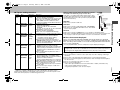
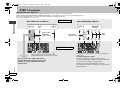
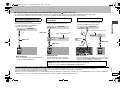
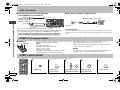
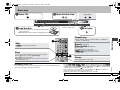
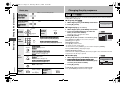
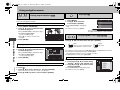
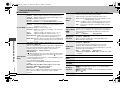
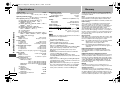
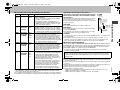
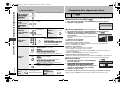
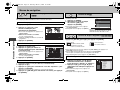
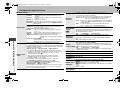
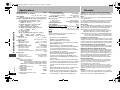
Dolby Digital§
With COAXIAL,
OPTICAL or HDMI AV
OUT connections
(➜ page 7, 8)
DTS Digital
Surround§
With COAXIAL,
OPTICAL or HDMI AV
OUT connections
(➜ page 7, 8)
Dynamic Range
Compression
§
Off:
When not connected with COAXIAL or
OPTICAL terminal
Up to 48 kHz: When connected to equipment compatible
with 44.1 or 48 kHz
Up to 96 kHz: When connected to equipment compatible
with 88.2 or 96 kHz
Up to 192 kHz: When connected to equipment compatible
with 176.4 or 192 kHz
≥Signals from copy-protected discs are converted to 48 or
44.1 kHz.
≥Some equipment cannot handle sampling frequencies of
88.2 kHz, even if they can handle 96 kHz. Read your
equipment’s operating instructions for details.
Bitstream
Select “Bitstream” when the
PCM
equipment can decode the
bitstream (digital form of multichannel data). Otherwise,
select “PCM”.
(If the bitstream is output to
Bitstream
the equipment without a
PCM
decoder, high levels of noise
can be output and may
damage your speakers and
hearing.)
Off
On: Adjusts for clarity even when the volume is low through
compressing the range of the lowest sound level and the
highest sound level. Convenient for late night viewing.
(Only works with Dolby Digital)
When audio is output from HDMI AV OUT terminal, and the connected equipment
does not support the item selected, the actual output will depend on the performance
of this connected epuipment.
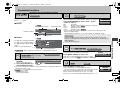
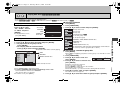
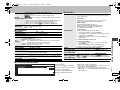
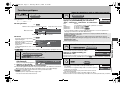
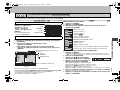
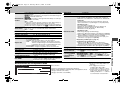
∫ “HDMI” tab
RGB Range
Set “HDMI Color Space”
to “RGB” (➜ page 18,
Picture Menu) .
Standard
Enhanced: When the black and white images are not distinct.
Video Output
(This setting is
irrelevant when
connected through
the VIDEO or S
VIDEO OUT
terminal.)
Audio Output
Speaker Settings
Choose the settings to
suit your audio system
and the listening
environment
(➜ page 22, Changing
the speaker setting to
suit your speakers).
On: Select this when connected through the HDMI terminal.
Video is output from the HDMI terminal. Video is also
output from the COMPONENT VIDEO OUT terminal,
but only in 480p (progressive).
Off: Select this when connected through the COMPONENT
VIDEO OUT terminal. Video is not output from the
HDMI terminal, but from the COMPONENT VIDEO
OUT terminal according to the setting of the“Video
Output Mode” (➜ page 18, Picture Menu).
On: When audio output is from HDMI AV OUT terminal.
(Depending on the capabilities of the connected equipment,
audio output may differ from the audio settings.)
Off: When audio output is not from HDMI AV OUT terminal.
(The audio is output using the settings of this unit.)
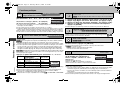
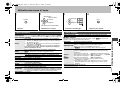
Speaker Type
Multi-channel: when 3 or more speakers are connected.
2-channel:
when 2 speakers are connected.
Multi-channel Setting (If you select “Multi-channel”)
Speaker presence and size
Delay time
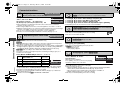
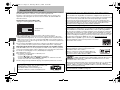
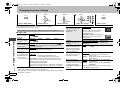
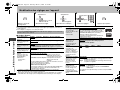
∫ “Display” tab
Menu Language
On-Screen Messages
Background during Play
Select background during JPEG,
MPEG4 and DivX video playback.
English
On
Black
Français
Off
Gray
Español
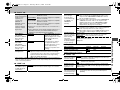
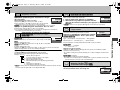
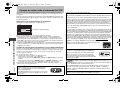
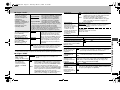
∫ “Others” tab
FL Dimmer
Changes the brightness
of the unit’s display.
Auto Power Off
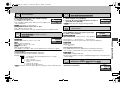
DivX Registration
Displays the unit’s
registration code.
QUICK SETUP
Re-initialize Setting
This returns all values
in the Setup menus to
the default settings.
Bright
Dim
Auto: The display is dimmed, but brightens only when you
perform some operations.
On:
The unit switches to standby mode after about 30
minutes in the stop mode.
Off
You need this registration code to purchase and play DivX
Video-on-Demand (VOD) content. (➜ page 16, About DivX
VOD content)
Yes
No
Yes: The password screen is shown if “Ratings” (➜ page 20)
is set. Please enter the same password and press
[ENTER].
No
RQT8706
PCM Digital Output§
Check the digital input
limitations of the
equipment you
connect using
COAXIAL or
OPTICAL terminal
and select the
maximum sampling
frequency of PCM
digital output.
Changing the player settings
∫ “Audio” tab
21