1
RQT8706-Y.fm Page 2 Thursday, March 9, 2006 12:07 PM
IMPORTANT SAFETY
INSTRUCTIONS
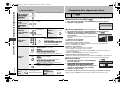
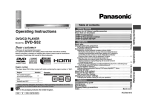
Table of contents
Getting started
IMPORTANT SAFETY INSTRUCTIONS . . . . . . . . . . . . . . . . . . . . . . . . . . . 2
Accessories. . . . . . . . . . . . . . . . . . . . . . . . . . . . . . . . . . . . . . . . . . . . . . . . . 3
Discs that can be played . . . . . . . . . . . . . . . . . . . . . . . . . . . . . . . . . . . . . . 4
RQT8706
Table of contents/IMPORTANT SAFETY INSTRUCTIONS
STEP 1 Connection . . . . . . . . . . . . . . . . . . . . . . . . . . . . . . . . . . . 6
STEP 2 The remote control . . . . . . . . . . . . . . . . . . . . . . . . . . . . 8
STEP 3 QUICK SETUP . . . . . . . . . . . . . . . . . . . . . . . . . . . . . . . . 8
2
Operations
Basic play . . . . . . . . . . . . . . . . . . . . . . . . . . . . . . . . . . . . . . . . . . . . . . . . . . 9
Changing the play sequence . . . . . . . . . . . . . . . . . . . . . . . . . . . . . . . . . . 10
All group/Program/Random play . . . . . . . . . . . . . . . . . . . . . . . . . . . . . . . . . . . . . . .10
Convenient functions . . . . . . . . . . . . . . . . . . . . . . . . . . . . . . . . . . . . . . . . 11
Displaying current playback condition (Quick OSD)/
Reviewing titles/programs to play (Advanced Disc Review)/
Recalling recommended audio/video setting (AV Enhancer)/
Controlling louder portions of audio (Night Sound Mode)/
Enjoying heavy bass with the speakers (H.Bass) . . . . . . . . . . . . . . . . . . . . . . . . . . 11
Enjoying virtual surround (Advanced Surround)/
Reproducing more natural audio (Multi Re-master)/
Repeat play/Quick replay/Skipping a minute forward/
Changing play speed . . . . . . . . . . . . . . . . . . . . . . . . . . . . . . . . . . . . . . . . . . . . . . .12
Changing subtitles/Changing soundtracks/Starting play from a selected group/
Zoom/Angle select/Still picture rotation/advance . . . . . . . . . . . . . . . . . . . . . . . . . .13
Using navigation menus . . . . . . . . . . . . . . . . . . . . . . . . . . . . . . . . . . . . . 14
Playing programs/playlists/Playing CD/Playing HighMAT™ discs . . . . . . . . . . . . .14
Playing data discs . . . . . . . . . . . . . . . . . . . . . . . . . . . . . . . . . . . . . . . . . . . . . . . . . .15
About DivX VOD content . . . . . . . . . . . . . . . . . . . . . . . . . . . . . . . . . . . . . 16
Using On-Screen Menus . . . . . . . . . . . . . . . . . . . . . . . . . . . . . . . . . . . . . 17
Main menus/Other Settings . . . . . . . . . . . . . . . . . . . . . . . . . . . . . . . . . . . . . . . . . .17
Changing the player settings . . . . . . . . . . . . . . . . . . . . . . . . . . . . . . . . . 20
Changing the speaker setting to suit your speakers . . . . . . . . . . . . . . . . . . . . . . . .22
Reference
Troubleshooting guide. . . . . . . . . . . . . . . . . . . . . . . . . . . . . . . . . . . . . . . 23
Maintenance . . . . . . . . . . . . . . . . . . . . . . . . . . . . . . . . . . . . . . . . . . . . . . . 25
Specifications/Glossary . . . . . . . . . . . . . . . . . . . . . . . . . . . . . . . . . . . . . . 26
Limited Warranty/Product Service . . . . . . . . . . . . . . . . . . . . . . . . . . . . . 27
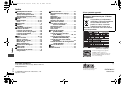
Index . . . . . . . . . . . . . . . . . . . . . . . . . . . . . . . . . . . . . . . . . . . . . . . . . . . . . 28
Read these operating instructions carefully before using the unit. Follow the safety
instructions on the unit and the applicable safety instructions listed below. Keep
these operating instructions handy for future reference.
1)
2)
3)
4)
5)
6)
7)
Read these instructions.
Keep these instructions.
Heed all warnings.
Follow all instructions.
Do not use this apparatus near water.
Clean only with dry cloth.
Do not block any ventilation openings. Install in accordance with the
manufacturer’s instructions.
8) Do not install near any heat sources such as radiators, heat registers, stoves,
or other apparatus (including amplifiers) that produce heat.
9) Do not defeat the safety purpose of the polarized or grounding-type plug. A
polarized plug has two blades with one wider than the other. A grounding-type
plug has two blades and a third grounding prong. The wide blade or the third
prong are provided for your safety. If the provided plug does not fit into your
outlet, consult an electrician for replacement of the obsolete outlet.
10) Protect the power cord from being walked on or pinched particularly at plugs,
convenience receptacles, and the point where they exit from the apparatus.
11) Only use attachments/accessories specified by the
manufacturer.
12) Use only with the cart, stand, tripod, bracket, or table specified
by the manufacturer, or sold with the apparatus. When a cart is
used, use caution when moving the cart/apparatus
combination to avoid injury from tip-over.
13) Unplug this apparatus during lightning storms or when unused for long
periods of time.
14) Refer all servicing to qualified service personnel. Servicing is required when
the apparatus has been damaged in any way, such as power-supply cord or
plug is damaged, liquid has been spilled or objects have fallen into the
apparatus, the apparatus has been exposed to rain or moisture, does not
operate normally, or has been dropped.