1
NOTICE OF REVISION
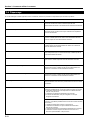
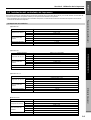
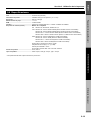
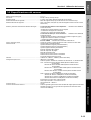
● The contents of “(1) System requirements” on page 3-4 should
be revised as follows:
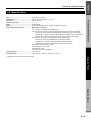
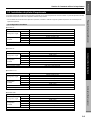
● Windows 95/98/NT 4.0/2000
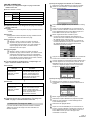
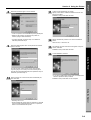
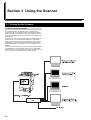
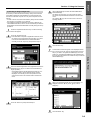
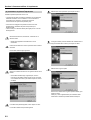
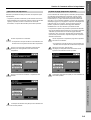
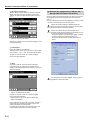
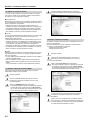
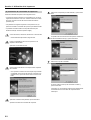
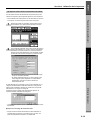
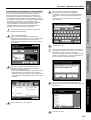
● When settings are initiated from the computer…
Select the TWAIN source from the TWAIN-compatible
application in your computer. The dialogue box for the
TWAIN source will appear.
1
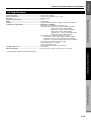
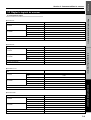
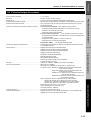
IBM PC-AT or compatible
Operating
CPU
Minimum 133 MHz Pentium
Environment
RAM
More than 64 MB
HDD
More than 20 MB
One drive
CD-ROM drive
Ethernet port
10BASE-T, 100BASE-TX or 10BASE2
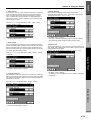
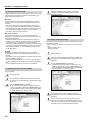
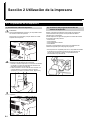
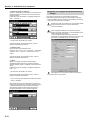
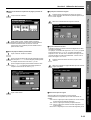
● The explanation on the left side of page 3-10 should be revised
as follows:
Old title
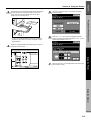
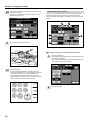
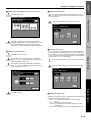
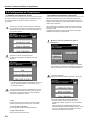
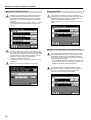
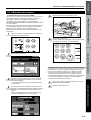
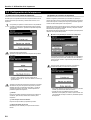
2 Setting for the page separation and border erase modes
Q
New title
2 Setting for the page separation, border erase and one-page file
creation modes
Old sentence
Touch the “2 pages” key if you want to use the page separation mode and the “One page Erase” key if you want to use
the border erase mode.
Q
New sentence
Touch the “2 pages” key if you want to use the page separation mode, the “One page Erase” key if you want to use the
border erase mode, and the “One page per file” key if you
want to use the one-page file creation mode.
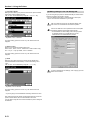
* Settings for the one-page file creation mode are available
when sending scanning instruction from your computer.
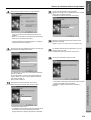
2
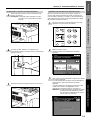
3
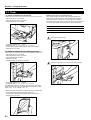
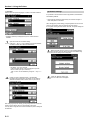
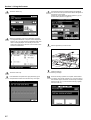
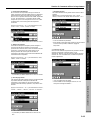
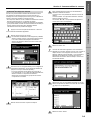
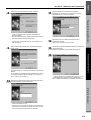
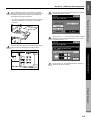
Select the desired settings and select “Waiting Scan”.
4
Set the original that you want to scan.
* At this point it will be possible to perform settings in the
scanner’s touch panel. Change the current settings, as
desired.
* The settings made in the touch panel will take precedence
when settings are made in both the touch panel and the
computer.
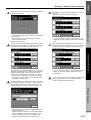
5
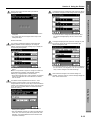
Press the Start key on the scanner’s operation panel
scanning of the original will begin.
6
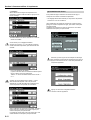
Once the scanning operation is complete, select whether
you want to scan another original or not. If you DO want to
scan another original, touch the “Continue” key and repeat
steps 4 through 6. If you are finished scanning originals,
touch the “End” key.
2
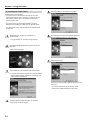
Click on the Connect button to connect to the scanner. Once
your computer is connected to the scanner, the Connect
button will change to the Scan button. Click on the Scan
button once it appears.
2
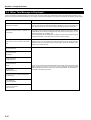
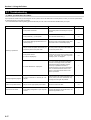
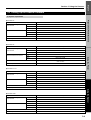
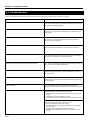
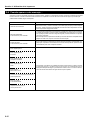
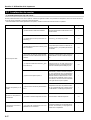
● One of the explanations in the table under “3-4 Troubleshooting”
on page 3-11 should be revised as follows:
Old
Message
Procedure
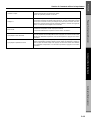
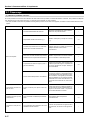
Destination PC’s
version is different.
Connect to administrator.
The version of the User File Utility
being used is not appropriate.
Check with your network administrator to verify the appropriate
version of the User File Utility.
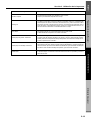
Q
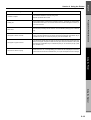
New
Message
Procedure
Destination PC’s
version is different.
Connect to administrator.
The version of the Scanner File
Utility being used is not appropriate.
Check with your network administrator to verify the appropriate version
of the Scanner File Utility.
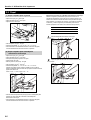
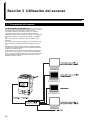
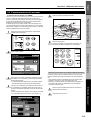
● The explanation under “(1) Scanning an Image Using TWAIN” on
page 3-6 should be revised as follows:
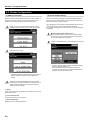
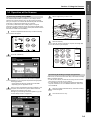
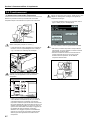
(1) Scanning an Image Using TWAIN
There are basically two different ways to use the TWAIN standard
to scanning images. The following explains these two methods.
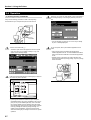
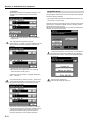
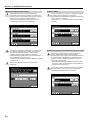
● When settings are initiated at the scanner…
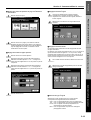
Touch the “TWAIN” key in the basic scanning screen of the
scanner’s touch panel.
1
2
3
Set the original that you want to scan.
4
5
Select the desired settings.
Select the TWAIN source from the TWAIN-compatible
application in
Click on the Connect button to connect to the scanner. Once
your computer is connected to the scanner, the Connect
button will change to the Scan button. Click on the Scan
button once it appears and the scanning operation will begin.
2000. 8
3BJ8095WA