1
Chapter
24
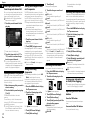
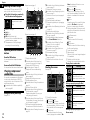
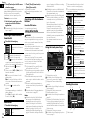
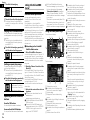
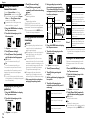
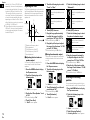
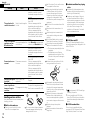
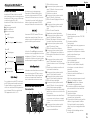
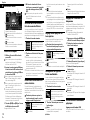
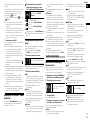
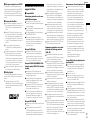
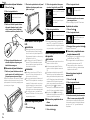
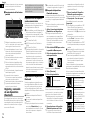
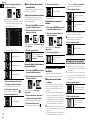
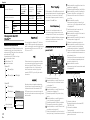
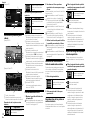
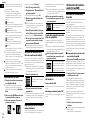
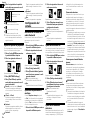
Shifts gradually between the five default
colors in sequence.
p You can preview the Top menu screen
or the AV operation screen by touching
[Home] or [AV] respectively.
Selecting the background
display
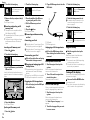
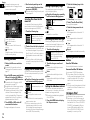
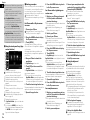
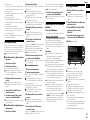
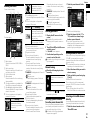
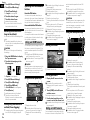
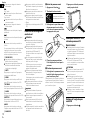
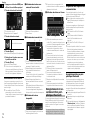
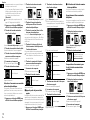
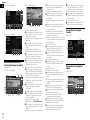
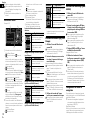
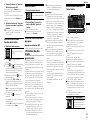
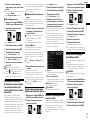
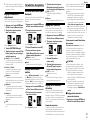
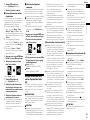
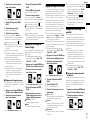
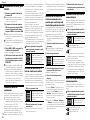
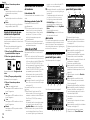
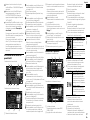
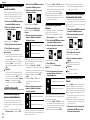
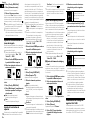
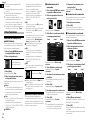
You can create a user-defined color. The
created color is stored, and you can select
the color when setting the illumination color
the next time.
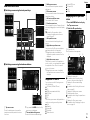
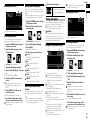
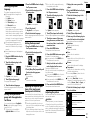
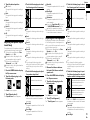
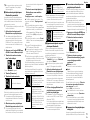
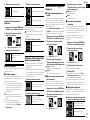
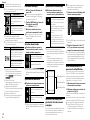
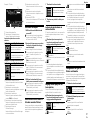
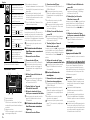
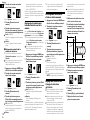
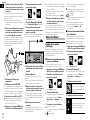
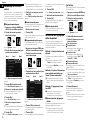
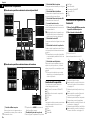
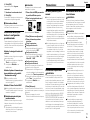
The background display can be selected
from 8 different preset displays for the AV
operation screen and 5 different preset displays for the Top menu screen. Furthermore,
you can change the background display
to other images imported from an external
device.
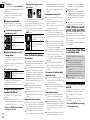
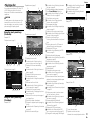
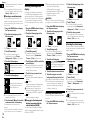
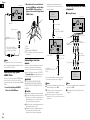
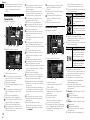
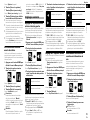
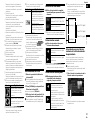
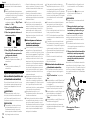
1 Press the HOME button to display
the Top menu screen.
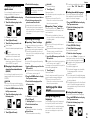
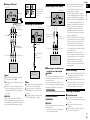
1 Press the HOME button to display
the Top menu screen.
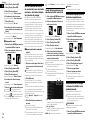
2 Touch the following keys in the
following order.
2 Touch the following keys in the
following order.
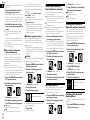
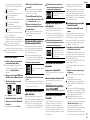
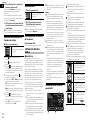
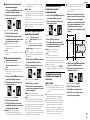
■ Creating a user-deÆned color
The “Theme” screen appears.
The “Theme” screen appears.
3 Touch [Illumination].
3 Touch [Background].
p You can also change the screen
for settings by touching [Theme],
[Background] or [Clock] on this screen.
p You can also change the screen for
settings by touching [Illumination],
[Theme] or [Clock] on this screen.
4 Touch the following key.
4 Touch [Home] or [AV] to switch the
screen displays.
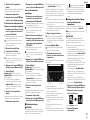
Displays the screen to create a
user-defined color and store it
to memory.
p The setting contents can be memorized
separately for the AV operation screen
and the Top menu screen.
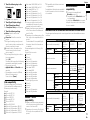
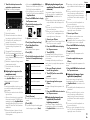
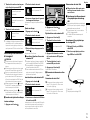
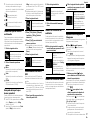
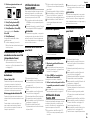
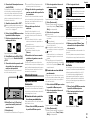
5 Touch the item you want to set.
5 Touch the following keys.
Adjusts the brightness and the
level of red, green and blue to
create a favorite color.
p You can also adjust the color tone by
dragging the color bar.
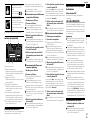
6 Touch and hold [Memo] to store the
customized color in the memory.
The customized color is stored in the
memory.
The set color will be recalled from the memory the next time you touch the same key.
58
En
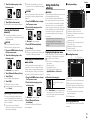
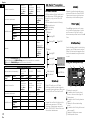
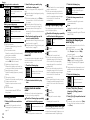
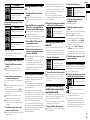
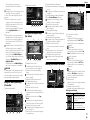
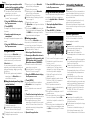
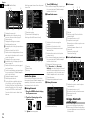
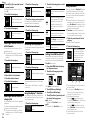
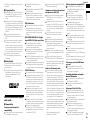
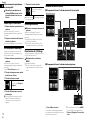
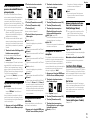
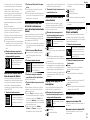
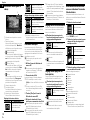
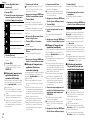
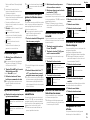
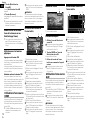
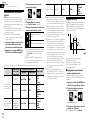
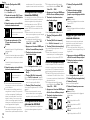
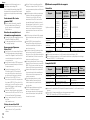
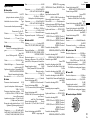
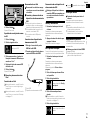
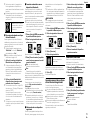
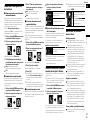
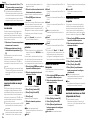
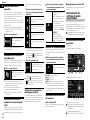
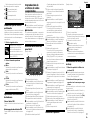
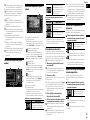
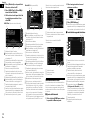
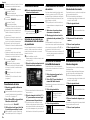
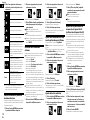
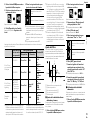
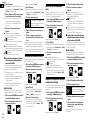
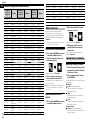
Preset displays:
Selects the desired preset background
display.
(custom):
Displays the background display image
imported from the external device.
For details, refer to Changing to the
background display image stored on the
external device (USB/SD) on page 58.
(off):
Hides the background display.
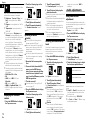
■ Changing to the background
display image stored on the
external device (USB/SD)
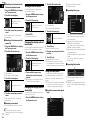
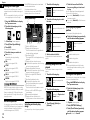
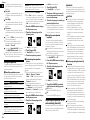
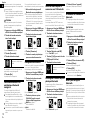
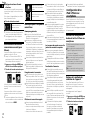
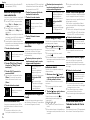
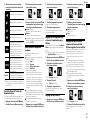
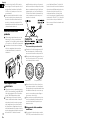
You can change the background display
image to an image imported from the external device (USB/SD).
p Background display image must be used
within the following formats.
— JPEG image files (.jpg or .jpeg)
— Allowable data size is 10 MB or smaller
— Allowable image size is 4 000 ×
4 000 pixel or smaller
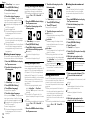
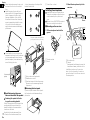
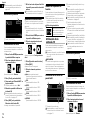
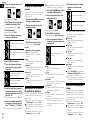
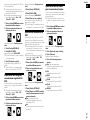
2 Touch the following keys in the
following order.
CAUTION
Do not turn off the engine while importing
an image from the external device (USB/SD).
The “Theme” screen appears.
3 Touch [Theme].
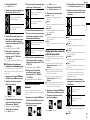
1 Press the HOME button to display
the Top menu screen.
p You can also change the screen for
settings by touching [Illumination],
[Background] or [Clock] on this screen.
2 Touch the following keys in the
following order.
4 Touch the color you want.
The “Theme” screen appears.
3 Touch [Background].
p You can also change the screen for
settings by touching [Illumination],
[Theme] or [Clock] on this screen.
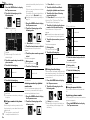
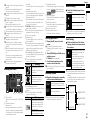
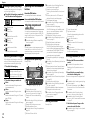
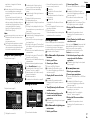
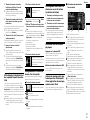
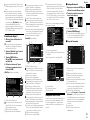
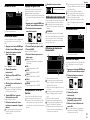
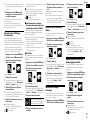
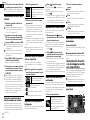
4 Touch the following key.
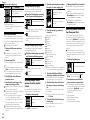
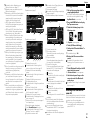
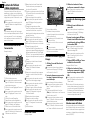
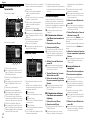
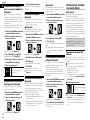
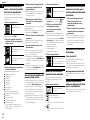
Displays the list of the background display images stored on
the external device (USB/SD).
p You can preview the Top menu screen
or the AV operation screen by touching
[Home] or [AV] respectively.
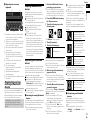
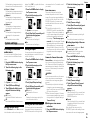
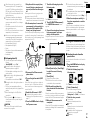
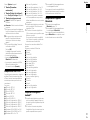
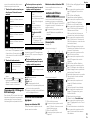
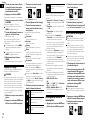
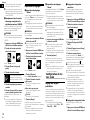
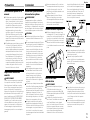
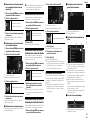
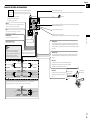
Selecting the clock image
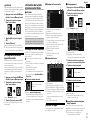
The clock on the AV operation screen and
the Top menu screen can be selected from 3
different images.
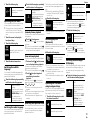
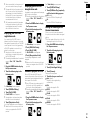
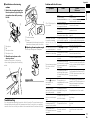
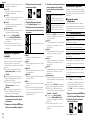
1 Press the HOME button to display
the Top menu screen.
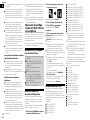
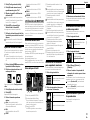
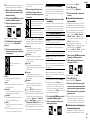
2 Touch the following keys in the
following order.
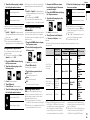
5 Touch the desired external device.
6 Touch the image to use as the
background display from the list.
The image is set as the background display.
p You can delete the imported image and
restore the setting for the background
display to the default by touching and
holding the custom key.
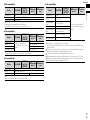
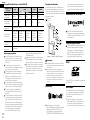
Selecting the theme color
A theme color can be selected from 5 different colors.
1 Press the HOME button to display
the Top menu screen.
The “Theme” screen appears.
3 Touch [Clock].
p You can also change the screen for
settings by touching [Illumination],
[Theme] or [Background] on this
screen.
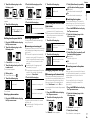
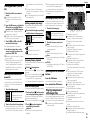
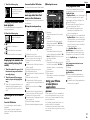
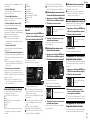
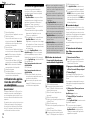
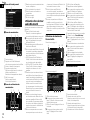
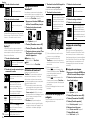
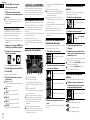
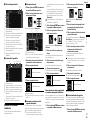
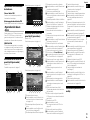
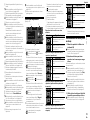
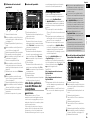
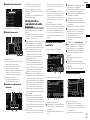
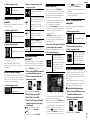
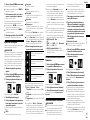
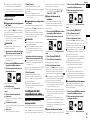
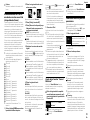
4 Touch the item you want to set.
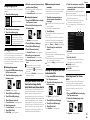
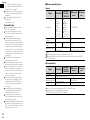
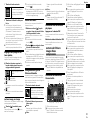
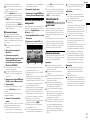
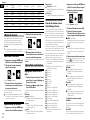
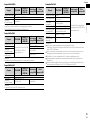
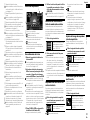
Preset images:
Selects the desired preset clock image.
(off):
Hides the clock display.
p You can preview the Top menu screen
or the AV operation screen by touching
[Home] or [AV] respectively.