1
SYMBOLS SHOWN ON THE DISPLAY
EN
Display
Info
Both dots are
lit up
Description
The terminal is new or has been reset
to the factory settings. Pair the device
with the scanner.
1. General information
Left dot
flashing
Normal mode
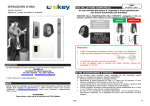
Fingerprint is a biometric access control system equipped with a fingerprint
scanner. This scanner reads special features of fingerprint patterns and
uses them for recognition purposes. Every finger has different features and
is distinct from those of other people.
“Nu” - Need
Update
The terminal requires a firmware
update. This message appears during
updating.
“E0”- Error
code
No connection with the scanner.
Check the connection.
“E1”- Error
code
Already enrolled 99 fingerprints!
The instruction manual is downloadable from the site www.vimar.
com
“E2”- Error
code
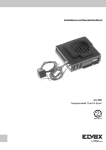
Art. 12A1
Art. 12AD
Art. 12A1
Art. 12A2
Art. 12A3
Art. 12A4
Art. 12A2
Art. 12A3
Art. 12A4
“E3”- Error
code
Art. 12AD
(for electronic units with keypad and alphanumeric display)
(with one push-button)
(with two push-buttons)
(with three push-buttons)
(with four push-buttons)
to
from
No more fingerprints can be stored.
Delete unused fingerprints in order to
store new ones.
30min lock after the security code has
been entered incorrectly three times.
Wait 30 min without disconnecting the
power, then enter the correct security
code.
Pairing failed. Reset the device, then
retry pairing.
Display of
a number
between “1”
and “99” plus
the right dot is
lit up
Indicates the user number of the
recognised fingerprint.
Control unit
counts down
from “44” to
“0”
Countdown until the control unit is
able to communicate with the scanner.
If the countdown reaches zero, “E0”
will appear.
2. Fingerprint
to
OPERATING THE PUSH-BUTTONS
initial startup: Pairing the control unit with the fingerprint scanner
After powering up the appliance for the first time, the external unit display
starts to count down until the connection has been completed with the external unit. Afterwards two red dots appear on the display. During this time
the LED on the scanner flashes red. Once the startup procedure is complete
the LED will flash orange.
Programming is carried out using the 4 push-buttons:
= OK button:
used to enter the menu and to confirm entries.
(<) and
(>):
used to change the values on the display or for navigating in the menu.
(X):
used to cancel the current entry.
ESC button
Commands visible on the display
Normal mode
(flashing dot)
Enrol user
(Enrol user)
Delete user
(delete user)
Change security code
(Security code)
Serial number and version
(Information)
Reset
(Delete all user settings and data)
EN
.
Eu
du
Sc
In
rr
After startup, press the OK button (one red dot will disappear) and then the
ESC button. The initials “EF” (enrol finger) appear on the display. You can
then swipe a previously enrolled finger over the sensor and initialisation
takes place without deleting any user data (this does not work after a reset).
Alternately, if no fingerprints have been enrolled, press ESC again.
During initialisation the scanner and control unit are paired with each other.
The operation takes about 1s. Pairing is necessary to prevent the scanner
being misused or exchanged with a manipulated scanner for the purpose of
gaining fraudulent entry. When the operation is complete, the display shows
the message OK. The standard security code is 99. For reasons of security
you should change the security code as soon as possible to a different code
your choice.
7