1
Dokumentation für FPS Flexibler Positions - Sensor und
Auswerteelektronik FPS-A5 / FPS-F5 / FPS-F5 T
Documentation for FPS flexible position sensor and
processor electronics FPS-A5 / FPS-F5 / FPS-F5 T
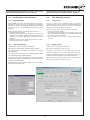
Die wichtigsten Einträge :
Most important settings:
– Portshier wird eingegeben, wieviele FPS gleichzeitig
angeschlossen werden
– Secured = 0 keine Passwortabfrage
– Secured = 1Passwortabfrage bei Programmstart. Sinnvoll,
wenn das FPS über einen PC am Internet hängt.
– PasswordHier steht das Passwort, welches der User beim
Anmelden an das FPS eingeben muss, wenn er
versucht auf das FPS zuzugreifen (siehe auch
Startbildschirm)
– [Port1]Hier werden die Einstellungen gemacht, welche
für das erste FPS zutreffen, hier müssen Sie
eventuell Ihren COM-Port eintragen, COM1 ist
voreingestellt.
– [Port2]Falls ein zweites FPS gleichzeitig angeschlossen
ist, werden hier die Einstellungen gemacht,
welche für das zweite FPS zutreffen, hier müssen
Sie eventuell Ihren COM-Port eintragen, COM2
ist voreingestellt.
– Portsenter how many FPS will be connected up
simultaneously
– Secured = 0 no password confirmation
– Secured = 1password required on program start-up. Should
be used if the PFC is connected to a PC via the
internet.
– Passwordthis is the password which must be entered by
the user when logging on to the FPS and trying
to access the FPS (see also start up screen)
– [Port1]this is for settings for the first FPS. COM1 is the
default, you might have to put in a different
COM port.
– [Port2]this is for settings for the second FPS, if it is
connected up simultaneously. COM2 is the
default, you might have to put in a different
COM port.
4.3
4.3
Möglichkeiten der Anbindung
Connection options
4.3.1 FPS (zur Inbetriebnahme) am PC
4.3.1 FPS (start up) on a PC
Zu Inbetriebnahme, Kontrolle vor Ort oder Parametierung des
FPS, binden Sie das Gerät am einfachsten direkt an Ihren Lap-Top
an. Verwenden Sie hierzu das mitgelieferte Adapterkabel: Öffnen
Sie den Deckel vom FPS mittels eines kleines Schraubendrehers,
stecken Sie das Kabel vorsichtig in die 3 Buchsen unter dem
Deckel ein und schließen Sie den Deckel zur Fixierung des
Flachbandkabels
wieder. Stecken Sie nun die Buchse des Adapters in die serielle
Schnittstelle Ihres PC’s ein. Sie können ein serielles Kabel als
Verlängerung dazwischenstecken.
Legen Sie an das FPS Spannung an.
Geben Sie in der TCPIP_RS232_GW.ini Ihren COM-Port ein,
speichern Sie die Datei.
Starten Sie das Gateway.
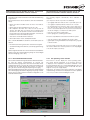
Starten Sie den FPS Controller.
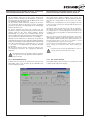
Klicken Sie Netzwerk an und geben Sie als IP-Adresse die
Adresse 127.0.0.1 ein und bestätigen Sie die Eingaben mit O.K.
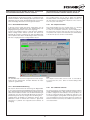
Nach wenigen Sekunden sollten Sie nun das Controller Fenster
im Online-Zustand vor sich sehen.
The simplest option for starting up and checking FPS parameters
on site, is to connect the device directly to your lap top.
To do this, use the adapter cable supplied: open the FPS lid using
a small screwdriver, carefully insert the cable into the three plug
points under the lid and close it to secure the cable in place. Now
insert the adapter into the serial interface on your PC. You can
connect a serial cable in the middle as an extension lead.
Connect the FPS power supply.
Enter your COM port in the TCPIP_RS232_GW.ini file and save
the file.
Start the Gateway.
Start the FPS controller.
Click on network and enter 127.0.0.1 for the IP address. Confirm
the input with OK.
After a few seconds, the controller window should be displayed on
screen with a status of on line.
4.3.2 FPS direkt an Leitstand über RS 232
4.3.2FPS direct to control system via RS 232
Schließen Sie das FPS mittels des mitgeliefertem Steckers und
eines Kabels an Spannung und an eine serielle Schnittstelle Ihres
Leitstandes oder einer untergeordneten Steuerung an. Auf der
Steuerung muß ein Windows System installiert sein. Bei Bedarf
kann auch ein Linux System von uns (gegen Aufpreis) supportet
werden.
Installieren Sie die auf der Compact Disc mitgelieferte API auf
Ihrem Rechner.
Binden Sie die benötigten Befehle entsprechend den in der
Dokumentation beschriebenen Beispielen in IHRE Software ein.
Connect the FPS to the power supply using the plug supplied
and a cable to a serial interface on your control station or to a
secondary control device. The control device must have a
Windows system installed. If required, we can support a Linux
system for an additional charge.
Install the API on your system from the CD supplied.
Link the required commands into YOUR software as per the
examples described in the documentation.
4.3.3FPS an Modem und Fernwartungs-PC an
Modem
4.3.3FPS to modem and remote PC to modem
Legen Sie an das FPS Spannung an.
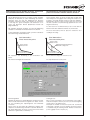
Starten Sie Hyperterminal (Hypertrm.exe), geben Sie als Name
FPS ein und bestätigen Sie mit OK, wählen Sie verbinden über
‚Direktverbindung über Com1‘ und drücken Sie OK, Stellen Sie
folgende Parameter ein:
Connect the FPS power supply.
Start up the hyper terminal (Hypertrm.exe), enter FPS as the
name and confirm with OK. Select ‚direct connection via Com1“
and press OK, then set the following parameters:
11