1
Control Elements and Connections
Important note: Some features or menu items described in this manual refer to the use
with several cameras (e. g. quad function).
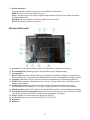
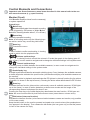
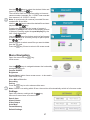
Monitor (Front)
1 LC Screen: Displays videos from the camera(s)
or system operations
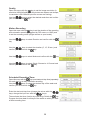
2 touch keys
Motion key
Activates/deactivates the automatic recording
mode (triggered by PIR sensor or Video Motion
Detection, recording duration either 5, 15 or 30 sec.)
Record key
Manually operated recording
Note: In recording mode only the following keys
are active: motion key, record key, talk button.
Menu key
Enter/exit the menu
key
In menu mode to confirm each setting, in viewing
mode to switch into the playback mode
Volume up/down keys
In viewing mode to control the volume in 5 levels (bar graph in the display goes off
after 10 sec.), in menu mode to navigate and to change the individual settings in the system menu
Channel up/down keys
In viewing mode to switch between the available cameras, in menu mode to navigate and to
change the individual settings in the system mode.
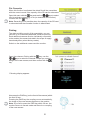
Quad-display key
A simple keystroke activates the automatic switching (every 5 sec.) between the available cameras,
a double keystroke activates the quad function (simultaneous display of all available cameras on
the monitor).
Pressing the button in playback mode activates the PIP (picture-in-picture) function (the live picture
of camera 1 is shown in the top left corner). Pressing the button anew deactivates the PIP function.
Scan key
Activates the scan function (the monitor continuously scans all available cameras, SCAN lights
up on the frame), in case of motion detection an alarm tone sounds and the image of the
corresponding camera is displayed for about 5 sec.
Pressing the scan key or the quad display key deactivates the scan function, SCAN goes out.
Note: the scan function offers a photo frame-screen saver (see submenu screen saver).
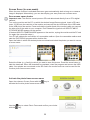
Talk button (intercom function)
Activates the intercom function (voice communication between camera and monitor, only possible
in full-screen mode).
Keep the talk button on the monitor pressed and speak at a normal volume (the speakerphone
icon appears in the display). Then release the talk button (the icon goes out), so that the person
in front of the camera can reply.
21