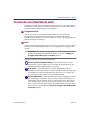
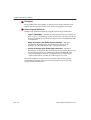
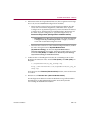
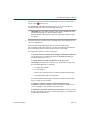
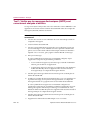
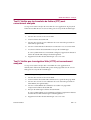
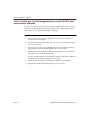
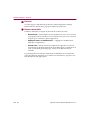
Download Guide d'installation pour WebShield e500
Transcript
INSTALLATION GUIDE WebShield e500 Appliance VERSION 2.5 English/Deutsch/Français/ ᣣᧄ⺆ NAI-525-0061-3 Issued MARCH 2002 / McAfee WebShield e500 Appliance version 2.5 Contents Ports and connectors . . . . . . . . . . . . . . . . . . . . . . . . . . . . . . . . . . . . . . . . . . . . .vii Mounting kit instructions . . . . . . . . . . . . . . . . . . . . . . . . . . . . . . . . . . . . . . . . . viii User interface . . . . . . . . . . . . . . . . . . . . . . . . . . . . . . . . . . . . . . . . . . . . . . . . . . . .x Installation Guide — English . . . . . . . . . . . . . . . . . . . . . . . . . . . . . . . ENG-1 Overview . . . . . . . . . . . . . . . . . . . . . . . . . . . . . . . . . . . . . . . . . . . . . . . . . . . ENG-1 Copyright and trademark attributions . . . . . . . . . . . . . . . . . . . . . . . . . . . ENG-2 Power and safety information . . . . . . . . . . . . . . . . . . . . . . . . . . . . . . . . . . ENG-3 About the WebShield e500 Appliance . . . . . . . . . . . . . . . . . . . . . . . . . . . . ENG-5 Features . . . . . . . . . . . . . . . . . . . . . . . . . . . . . . . . . . . . . . . . . . . . . . . ENG-6 What comes with the appliance? . . . . . . . . . . . . . . . . . . . . . . . . . . ENG-10 Getting started with the appliance . . . . . . . . . . . . . . . . . . . . . . . . . . . . . ENG-13 Who should install the appliance? . . . . . . . . . . . . . . . . . . . . . . . . . ENG-13 Ports and connectors . . . . . . . . . . . . . . . . . . . . . . . . . . . . . . . . . . . ENG-14 Gathering the configuration information . . . . . . . . . . . . . . . . . . . . ENG-18 Installing the appliance . . . . . . . . . . . . . . . . . . . . . . . . . . . . . . . . . . . . . . ENG-28 Configuring the network settings . . . . . . . . . . . . . . . . . . . . . . . . . . . . . . ENG-32 Configuring the protocol settings . . . . . . . . . . . . . . . . . . . . . . . . . . . . . . ENG-40 Configuring the appliance’s protocols . . . . . . . . . . . . . . . . . . . . . . ENG-41 Configuring the automatic updating feature . . . . . . . . . . . . . . . . . ENG-47 Configuring your other equipment . . . . . . . . . . . . . . . . . . . . . . . . . ENG-48 Testing your configuration . . . . . . . . . . . . . . . . . . . . . . . . . . . . . . . ENG-50 Using the appliance . . . . . . . . . . . . . . . . . . . . . . . . . . . . . . . . . . . . . . . . . ENG-53 Backing up and restoring your settings . . . . . . . . . . . . . . . . . . . . ENG-55 Restoring and upgrading the appliance’s software . . . . . . . . . . . ENG-57 Troubleshooting . . . . . . . . . . . . . . . . . . . . . . . . . . . . . . . . . . . . . . . . . . . . ENG-60 Hardware problems . . . . . . . . . . . . . . . . . . . . . . . . . . . . . . . . . . . . . ENG-60 User interface problems . . . . . . . . . . . . . . . . . . . . . . . . . . . . . . . . . ENG-63 Installation Guide iii Contents Installationshandbuch – Deutsch . . . . . . . . . . . . . . . . . . . . . . . . . . . DEU-1 Übersicht . . . . . . . . . . . . . . . . . . . . . . . . . . . . . . . . . . . . . . . . . . . . . . . . . . . DEU-1 Copyright und Marken . . . . . . . . . . . . . . . . . . . . . . . . . . . . . . . . . . . . . . . . DEU-2 Informationen zu Stromversorgung und Sicherheit . . . . . . . . . . . . . . . . DEU-3 Infos zu WebShield e500 . . . . . . . . . . . . . . . . . . . . . . . . . . . . . . . . . . . . . . DEU-5 Funktionen . . . . . . . . . . . . . . . . . . . . . . . . . . . . . . . . . . . . . . . . . . . . . DEU-6 Lieferumfang des WebShield e500 . . . . . . . . . . . . . . . . . . . . . . . . . DEU-11 Erste Schritte mit dem Gerät . . . . . . . . . . . . . . . . . . . . . . . . . . . . . . . . . . DEU-14 Wer das Gerät installieren sollte . . . . . . . . . . . . . . . . . . . . . . . . . . . DEU-14 Ports und Stecker . . . . . . . . . . . . . . . . . . . . . . . . . . . . . . . . . . . . . . . DEU-15 Zusammenfassen der Konfigurationsinformationen . . . . . . . . . . DEU-20 Installation des McAfee WebShield e500 . . . . . . . . . . . . . . . . . . . . . . . . DEU-32 Konfigurieren der Netzwerkeinstellungen . . . . . . . . . . . . . . . . . . . . . . . DEU-36 Konfigurieren der Protokolleinstellungen . . . . . . . . . . . . . . . . . . . . . . . DEU-45 Konfigurieren der Protokolle des WebShield e500 . . . . . . . . . . . . DEU-46 Konfigurieren der Funktion zum automatischen Aktualisieren . . DEU-52 Konfigurieren weiterer Geräte . . . . . . . . . . . . . . . . . . . . . . . . . . . . . DEU-53 Testen Ihrer Konfiguration . . . . . . . . . . . . . . . . . . . . . . . . . . . . . . . DEU-55 Verwenden des WebShield e250 . . . . . . . . . . . . . . . . . . . . . . . . . . . . . . . DEU-59 Sichern und Wiederherstellen der Einstellungen . . . . . . . . . . . . . DEU-61 Wiederherstellen und Aktualisieren der Gerätesoftware . . . . . . . DEU-64 Fehlerbehebung . . . . . . . . . . . . . . . . . . . . . . . . . . . . . . . . . . . . . . . . . . . . DEU-68 Hardwarefehler . . . . . . . . . . . . . . . . . . . . . . . . . . . . . . . . . . . . . . . . . DEU-68 Probleme mit der Benutzeroberfläche . . . . . . . . . . . . . . . . . . . . . . DEU-71 iv McAfee WebShield e500 Appliance version 2.5 Contents Guide d'installation – Français . . . . . . . . . . . . . . . . . . . . . . . . . . . . . .FRA-1 Présentation . . . . . . . . . . . . . . . . . . . . . . . . . . . . . . . . . . . . . . . . . . . . . . . . FRA-1 Copyright et attribution de marques commerciales . . . . . . . . . . . . . . . . FRA-2 Informations sur l'alimentation et la sécurité . . . . . . . . . . . . . . . . . . . . . . FRA-3 A propos de l'application WebShield e500 . . . . . . . . . . . . . . . . . . . . . . . . FRA-5 Fonctionnalités . . . . . . . . . . . . . . . . . . . . . . . . . . . . . . . . . . . . . . . . . . FRA-6 Contenu fourni avec l'application . . . . . . . . . . . . . . . . . . . . . . . . . . FRA-10 Mise en route de l'application . . . . . . . . . . . . . . . . . . . . . . . . . . . . . . . . . FRA-13 Installateur de l'application . . . . . . . . . . . . . . . . . . . . . . . . . . . . . . . FRA-13 Ports et connecteurs . . . . . . . . . . . . . . . . . . . . . . . . . . . . . . . . . . . . FRA-14 Collecter les informations de configuration . . . . . . . . . . . . . . . . . FRA-19 Installation de l'application . . . . . . . . . . . . . . . . . . . . . . . . . . . . . . . . . . . FRA-31 Configuration des paramètres réseau . . . . . . . . . . . . . . . . . . . . . . . . . . FRA-35 Configuration des paramètres de protocole . . . . . . . . . . . . . . . . . . . . . FRA-45 Configuration des protocoles de l'application . . . . . . . . . . . . . . . FRA-46 Configuration de la fonctionnalité de mise à jour automatique . FRA-52 Configuration des autres équipements . . . . . . . . . . . . . . . . . . . . . FRA-53 Tester votre configuration . . . . . . . . . . . . . . . . . . . . . . . . . . . . . . . . FRA-55 Utilisation de l'application . . . . . . . . . . . . . . . . . . . . . . . . . . . . . . . . . . . . FRA-59 Sauvegarde et restauration de vos paramètres . . . . . . . . . . . . . . FRA-61 Restauration et mise à niveau du logiciel de l'application . . . . . . FRA-63 Dépannage . . . . . . . . . . . . . . . . . . . . . . . . . . . . . . . . . . . . . . . . . . . . . . . . . FRA-67 Problèmes matériels . . . . . . . . . . . . . . . . . . . . . . . . . . . . . . . . . . . . FRA-67 Problèmes d'interface utilisateur . . . . . . . . . . . . . . . . . . . . . . . . . . FRA-70 Installation Guide v Contents 䉟 䊮 䉴 䊃 䊷䊦 䉧 䉟 䊄 䋭 ᣣᧄ⺆ . . . . . . . . . . . . . . . . . . . . . . . . . . . ᣣᧄ⺆ - 1 ⷐ . . . . . . . . . . . . . . . . . . . . . . . . . . . . . . . . . . . . . . . . . . . . . . . . . . . . . ᣣᧄ⺆ - 1 ⪺ᮭ 䈫 ᮡ . . . . . . . . . . . . . . . . . . . . . . . . . . . . . . . . . . . . . . . . . . . . . ᣣᧄ⺆ - 2 㔚Ḯ䈍䉋䈶 㔚Ḯ䈍䉋䈶ో 䈍䉋䈶ో䈮 ో䈮 㑐䈜䉎ᖱႎ 䈜䉎 ᖱႎ . . . . . . . . . . . . . . . . . . . . . . . . . . . . . . . . . ᣣᧄ⺆ - 3 WebShield e500 䉝 䊒 䊤 䉟 䉝 䊮 䉴 䈮䈧䈇䈩 . . . . . . . . . . . . . . . . . . . . . . ᣣᧄ⺆ - 5 ຠ䈱 ຠ䈱․⦡ . . . . . . . . . . . . . . . . . . . . . . . . . . . . . . . . . . . . . . . . . . . ᣣᧄ⺆ - 6 䊌 䉾 䉬䊷䉳䈱 䉬䊷䉳 䈱ౝኈ . . . . . . . . . . . . . . . . . . . . . . . . . . . . . . . . . . . . . ᣣᧄ⺆ - 10 䉝 䊒 䊤 䉟 䉝 䊮 䉴䈱 䉴 䈱Ḱ . . . . . . . . . . . . . . . . . . . . . . . . . . . . . . . . . . . . . ᣣᧄ⺆ - 13 䉟 䊮 䉴 䊃 䊷䊦䈮 䊷䊦 䈮 ᔅⷐ䈭 ᔅⷐ 䈭 䉴䉨䊦 . . . . . . . . . . . . . . . . . . . . . . . . . . . . ᣣᧄ⺆ - 13 䊘䊷 䊃 䈫 䉮 䊈 䉪 䉺 . . . . . . . . . . . . . . . . . . . . . . . . . . . . . . . . . . . . . ᣣᧄ⺆ - 14 ⸳ቯᖱႎ䈱 ⸳ቯᖱႎ䈱㓸 . . . . . . . . . . . . . . . . . . . . . . . . . . . . . . . . . . . . . . ᣣᧄ⺆ - 19 䉝 䊒 䊤 䉟 䉝 䊮 䉴䈱 䉴 䈱 䉟 䊮 䉴 䊃 䊷䊦 . . . . . . . . . . . . . . . . . . . . . . . . . . . . . . ᣣᧄ⺆ - 31 䊈 䉾 䊃 䊪䊷 䉪 ᭴ᚑ䈱 ᭴ᚑ䈱⸳ቯ . . . . . . . . . . . . . . . . . . . . . . . . . . . . . . . . . . . ᣣᧄ⺆ - 35 䊒 䊨 䊃 䉮䊦䈱 䉮䊦䈱⸳ቯ . . . . . . . . . . . . . . . . . . . . . . . . . . . . . . . . . . . . . . . . . ᣣᧄ⺆ - 43 䊒 䊨 䊃 䉮䊦䈱 䉮䊦䈱⸳ቯ . . . . . . . . . . . . . . . . . . . . . . . . . . . . . . . . . . . . . ᣣᧄ⺆ - 44 ⥄േ䉝 ⥄േ 䉝 䉾 䊒䊂䊷 䊃 䈱⸳ቯ . . . . . . . . . . . . . . . . . . . . . . . . . . . . . . . ᣣᧄ⺆ - 50 ઁ䈱ᯏེ䈱 ᯏེ䈱⸳ቯ . . . . . . . . . . . . . . . . . . . . . . . . . . . . . . . . . . . . . . ᣣᧄ⺆ - 51 ⸳ቯ䈱 ⸳ቯ䈱 䊁 䉴 䊃 . . . . . . . . . . . . . . . . . . . . . . . . . . . . . . . . . . . . . . . . ᣣᧄ⺆ - 53 䉝 䊒 䊤 䉟 䉝 䊮 䉴䈱 䉴 䈱↪ᣇᴺ . . . . . . . . . . . . . . . . . . . . . . . . . . . . . . . . . . ᣣᧄ⺆ - 57 ⸳ቯ䈱 ⸳ቯ䈱䊋 䉾 䉪 䉝 䉾 䊒 䈫 ᓳర . . . . . . . . . . . . . . . . . . . . . . . . . . . . . ᣣᧄ⺆ - 59 䉸 䊐 䊃 䉡 䉢 䉝䈱 䉝 䈱ᓳర 䈫 䉝 䉾 䊒䉫 䊧䊷 䊄 . . . . . . . . . . . . . . . . . . . . ᣣᧄ⺆ - 61 䊃 䊤 䊑䊦䉲 䊠 䊷䊁 䉞 䊮䉫 . . . . . . . . . . . . . . . . . . . . . . . . . . . . . . . . . . . ᣣᧄ⺆ - 65 䊊䊷 䊄 䉡 䉢 䉝 䈮 㑐䈜䉎㗴 䈜䉎 㗴 . . . . . . . . . . . . . . . . . . . . . . . . . . . . . ᣣᧄ⺆ - 65 䊡䊷䉱 䉟 䊮 䉺 䊷 䊐 䉢 䊷䉴 䈮 㑐䈜䉎㗴 䈜䉎 㗴 . . . . . . . . . . . . . . . . . . . . ᣣᧄ⺆ - 67 vi McAfee WebShield e500 Appliance version 2.5 Ports and connectors Ports und Stecker Ports et connecteurs 䊘䊷 䊃 䈫 䉮 䊈 䉪 䉺 A D E F B G H C I A Two hard disk drives Zwei Festplattenlaufwerke Deux unités de disque dur 䊊䊷 䊄 䊂 䉞 䉴 䉪 2 B CD-ROM drive CD-ROM-Laufwerk Lecteur CD-ROM CD-ROM 䊄 䊤 䉟 䊑 C Control panel Bedienungsfeld Panneau de contrôle 䉮 䊮 䊃 䊨䊷䊦 䊌䊈䊦 D Power socket Netzanschluß Prise d'alimentation 㔚Ḯ䉸 䉬 䉾 䊃 E Power supply switch Stromversorgungsschalter Interrupteur d'alimentation électrique 㔚Ḯ䉴 䉟 䉾 䉼 F Keyboard port Tastatur-Port Port clavier 䉨䊷䊗䊷 䊄 䊘䊷 䊃 G Monitor port Monitor-Port Port écran 䊝䊆 䉺 䊘䊷 䊃 H LAN1 port (NIC 1) LAN1-Port (NIC 1) Port réseau local 1 (carte réseau 1) LAN1 䊘䊷 䊃 (NIC 1) I LAN2 port (NIC 2) LAN2-Port (NIC 2) Port réseau local 1 (carte réseau 2) LAN2 䊘䊷 䊃 (NIC 2) Installation Guide vii Mounting kit instructions Anweisungen für den Montagerahmen Instructions de montage 䊙䉡䊮 䊃 䉨 䉾 䊃 䈱⚵䉂┙䈩 ᣇ Supplied: Im Lieferumfang: Fourni: หᪿ䈘䉏䈩䈇䉎 หᪿ 䈘䉏䈩䈇䉎ㇱຠ 䈘䉏䈩䈇䉎 ㇱຠ : 2 8 8 2 22 2 2 Required: Zusätzlich erforderlich: Requis: ᔅⷐ䈭 ᔅⷐ䈭Ꮏౕ : 1 2 3 viii McAfee WebShield e500 Appliance version 2.5 Standard rack / Standardgestell/Rack standard / ᮡḰ䊤 ᮡḰ 䊤 䉾 䉪 : 4 5 Telco rack / Telco-Gestell / Rack Telco/ Telco ␠䊤 ␠ 䊤 䉾 䉪 : 4 5 Installation Guide ix User interface Benutzeroberfläche Interface utilisateur 䊡䊷䉱 䉟 䊮 䉺 䊷䊐 䉢 䊷䉴 Your user interface might look slightly different depending on the version and language. Ihre Benutzeroberfläche kann je nach Version und Sprache anders aussehen. L'interface utilisateur peut présenter de légères différences selon la version et la langue utilisées. ↪䈜䉎⸒⺆ 䈫 䊋䊷䉳 䊢 䊮䈮 䉋 䈦 䈩䇮 䉟 䊮 䉺䊷䊐 䉢䊷䉴䈱ᄖⷰ䈏ᄙዋ⇣䈭 䉎႐ว䈏䈅 䉍 䉁䈜䇯 B A C D x A Navigation bar Navigationsleiste Barre de navigation 䊅䊎䉭䊷䉲 䊢 䊮 䊋䊷 B Page Seite Page 䊕䊷䉳 C Panel Dialogfeld Panneau 䊕䉟 䊮 D Control buttons Steuerungsschaltflächen Boutons de contrôle 䉮 䊮 䊃 䊨䊷䊦 䊗 䉺 䊮 McAfee WebShield e500 Appliance version 2.5 Installation Guide — English 1 Overview This Installation Guide provides the information you need to install and configure your WebShield appliance. Please refer to the following sections for specific information: Copyright and trademark attributions Page 2 Power and safety information Page 3 About the WebShield e500 Appliance Page 5 • Features Page 6 • What comes with the appliance? Page 10 Getting started with the appliance • Who should install the appliance? Page 13 • Ports and connectors Page 14 • Gathering the configuration information Page 18 Installing the appliance Page 28 Configuring the network settings Page 32 Configuring the protocol settings Page 40 • Configuring the appliance’s protocols Page 41 • Configuring the automatic updating feature Page 47 • Configuring your other equipment Page 48 • Testing your configuration Page 50 Using the appliance Page 53 • Backing up and restoring your settings Page 55 • Restoring and upgrading the appliance’s software Page 57 Troubleshooting Installation Guide Page 13 Page 60 • Hardware problems Page 60 • User interface problems Page 63 ENG - 1 Installation Guide — English Copyright and trademark attributions COPYRIGHT © 2001–2002 Networks Associates Technology, Inc. All Rights Reserved. No part of this publication may be reproduced, transmitted, transcribed, stored in a retrieval system, or translated into any language in any form or by any means without the written permission of Networks Associates Technology, Inc., or its suppliers or affiliate companies. To obtain this permission, write to the attention of the Network Associates legal department at: 3965 Freedom Circle, Santa Clara, California 95054, or call +1-972-308-9960. TRADEMARK ATTRIBUTIONS Active Security, Active Security (in Katakana), ActiveHelp, ActiveShield, AntiVirus Anyware and design, Bomb Shelter, Certified Network Expert, Clean-Up, CleanUp Wizard, CNX, CNX Certification Certified Network Expert and design, CyberCop, CyberCop (in Katakana), CyberMedia, CyberMedia UnInstaller, Design (stylized N), Disk Minder, Distributed Sniffer System, Distributed Sniffer System (in Katakana), Dr Solomon’s, Dr Solomon’s label, Enterprise SecureCast, Enterprise SecureCast (in Katakana), EZ SetUp, First Aid, ForceField, GMT, GroupShield, GroupShield (in Katakana), Guard Dog, HelpDesk, HomeGuard, Hunter, ISDN TEL/SCOPE, LANGuru, LANGuru (in Katakana), M and design, Magic Solutions, Magic Solutions (in Katakana), Magic University, MagicSpy, MagicTree, McAfee, McAfee (in Katakana), McAfee and design, MultiMedia Cloaking, Net Tools, Net Tools (in Katakana), NetCrypto, NetOctupus, NetScan, NetShield, NetStalker, Network Associates, NetXray, NotesGuard, Nuts & Bolts, Oil Change, PC Medic, PC Medic 97, PCNotary, PGP, PGP (Pretty Good Privacy), Pretty Good Privacy, PrimeSupport, Recoverkey, Recoverkey – International, Registry Wizard, ReportMagic, RingFence, Router PM, SalesMagic, SecureCast, Service Level Manager, ServiceMagic, SmartDesk, Sniffer, Sniffer (in Hangul), SniffMaster, SniffMaster (in Hangul), SniffMaster (in Katakana), SniffNet, Stalker, SupportMagic, TIS, TMEG, TNV, TVD, TNS, Total Network Security, Total Network Visibility, Total Network Visibility (in Katakana), Total Service Desk, Total Virus Defense, Trusted Mail, UnInstaller, Virex, Virus Forum, ViruScan, VirusScan, WebScan, WebShield, WebShield (in Katakana), WebSniffer, WebStalker, WebWall, Who’s Watching Your Network, WinGauge, Your E-Business Defender, ZAC 2000, Zip Manager are registered trademarks of Network Associates, Inc. and/or its affiliates in the US and/or other countries. All other registered and unregistered trademarks in this document are the sole property of their respective owners. LICENSE AGREEMENT NOTICE TO ALL USERS: CAREFULLY READ THE APPROPRIATE LEGAL AGREEMENT CORRESPONDING TO THE LICENSE YOU PURCHASED, WHICH SETS FORTH THE GENERAL TERMS AND CONDITIONS FOR THE USE OF THE LICENSED SOFTWARE. IF YOU DO NOT KNOW WHICH TYPE OF LICENSE YOU HAVE ACQUIRED, PLEASE CONSULT THE SALES AND OTHER RELATED LICENSE GRANT OR PURCHASE ORDER DOCUMENTS THAT ACCOMPANIES YOUR SOFTWARE PACKAGING OR THAT YOU HAVE RECEIVED SEPARATELY AS PART OF THE PURCHASE (AS A BOOKLET, A FILE ON THE PRODUCT CD, OR A FILE AVAILABLE ON THE WEB SITE FROM WHICH YOU DOWNLOADED THE SOFTWARE PACKAGE). IF YOU DO NOT AGREE TO ALL OF THE TERMS SET FORTH IN THE AGREEMENT, DO NOT INSTALL THE SOFTWARE. IF APPLICABLE, YOU MAY RETURN THE PRODUCT TO NETWORK ASSOCIATES OR THE PLACE OF PURCHASE FOR A FULL REFUND. ENG - 2 McAfee WebShield e500 Appliance version 2.5 Installation Guide — English Power and safety information IMPORTANT: To ensure safe operation of the WebShield e500 Appliance, read all of the following information carefully before installing the appliance. Power requirements • Ensure that the power cord is suitable for the country of use. If it is not suitable, contact your supplier. Do not attempt to modify the power cord. • The power outlet to which you connect the appliance must meet all applicable electrical standards for the country of use. • When connecting the appliance to the power outlet and other equipment, ensure that the cables are stowed or grouped safely, so that no one will trip over them. Using the appliance • Do not open the appliance’s case. There are no user-serviceable parts inside. • The appliance is heavy. When you lift it, ensure that you have a firm grip and carry it correctly, so that you do not injure yourself or damage the appliance. • Place the appliance on a flat sturdy surface, such as a desk, or secure it in a rack, such as a 19” (inch) rack. Ensure that the surface or rack can support the weight of the appliance, and that it cannot fall. • Do not place any heavy objects on top of the appliance. • The appliance’s network ports are only suitable for use with RJ-45 connectors. Do not use them with telephone equipment unless the socket to which you are connecting is specifically intended for 10Mbps or 100Mbps Ethernet network use. • In the unlikely event that the appliance encounters a hardware failure, turn off the appliance and disconnect it from the power outlet. Contact your supplier. Installation Guide ENG - 3 Installation Guide — English Operating conditions • Ensure that the environmental conditions surrounding the appliance are suitable for standard computer use. Check that it is not damp, with adequate ventilation. The operating temperature must remain within 10–40°C, and the humidity within 0–90%. If these values are exceeded, the appliance could fail to operate. • When you use the appliance, ensure that there is a gap of at least 1” (25mm) behind the case, so that the appliance can cool itself properly. • Ensure that liquid and other objects do not enter the appliance through its ventilation holes or fan grill. ENG - 4 McAfee WebShield e500 Appliance version 2.5 Installation Guide — English About the WebShield e500 Appliance The WebShield e500 Appliance (Figure 1-1) is a purpose-built anti-virus and content-scanning server containing powerful WebShield software. It is fully configurable through a web browser, and it can be used in almost any network topology. It provides virus scanning for the following protocols: • Simple Mail Transfer Protocol (SMTP) e-mail messages • File Transfer Protocol (FTP) exchanges • Hypertext Transfer Protocol (HTTP) web browsing • Post Office Protocol version 3 (POP3) Internet e-mail messages Figure 1-1. WebShield e500 Appliance With additional features such as content scanning, anti-relay and anti-spam, the appliance provides complete protection for your Internet gateway, preventing undesirable material entering and leaving your organization. The WebShield e500 Appliance shares its resources between the protocols that it scans, checking inbound and outbound traffic as required. It can detect, clean, log, and quarantine infected e-mail items, including compressed files and macros, preventing them from reaching their intended recipients. It can also block infected HTTP, FTP and POP3 items. Using the appliance to perform your anti-virus scanning allows your mail server to remain dedicated to mail activities. You can also use multiple WebShield e500 Appliances together to increase scanning throughput and provide fault tolerance. For details of the different ways to use the appliance and some example topologies, refer to Chapter 1 of the Product Guide. Installation Guide ENG - 5 Installation Guide — English Features Transparency — a new feature for version 2.5 If you have used a previous version of the WebShield appliance, be aware that a new feature for version 2.5 is the addition of transparency. This means that you can now use the appliance in either proxy mode or transparency mode: • Proxy mode (explicit proxy) is suitable for networks where you can easily configure your equipment to route its protocol traffic through the appliance. Before transparency was introduced, the appliance only operated in proxy mode. In proxy mode, the appliance only handles traffic for the protocols that it proxies. • Transparency mode (transparent proxy) allows you to slot the appliance into networks where it is difficult or time-consuming to reconfigure your other equipment. The appliance then sits transparently on the network using static and dynamic routing information to receive and pass on the traffic that it scans. NOTE: In transparency mode, the appliance must be connected to two different subnets (through its LAN1 and LAN2 ports). The appliance handles all IP traffic flowing between the two subnets. For more details about these modes, see the “Proxy or transparency?” section in the Product Guide. IMPORTANT: Both modes are different so it is important that you understand and decide which mode you want to use before you install and configure the appliance. For details on configuring the appliance with a configuration file taken from an earlier version of the appliance, see “Restoring your settings” on page 56. Some of the appliance’s other features are summarized in the remainder of this section. ENG - 6 McAfee WebShield e500 Appliance version 2.5 Installation Guide — English Hardware The appliance has many features, including the following: • 1U high 19” (inch) rack-mountable hardware. • Dual Intel Pentium III 1GHz processors. • 256MB of PC133 SDRAM. • Two RJ-45 10/100Mbps auto-sensing Ethernet network ports, allowing flexible connection to your existing network and a dedicated management interface (only available in proxy mode). • Two 17.4GB “hot-pluggable” SCSI hard disk drives managed in a hardware-based RAID 1 (mirror) configuration. This ensures seamless processing in the unlikely event of a problem with one of the drives. When you insert a replacement drive, the RAID controller re-mirrors the new drive automatically. For details on the appliance’s ports and connectors, see page 14. Software The software on the appliance has the following features: • Web management through Secure Sockets Layer (SSL) encryption from a web browser. • An easy-to-configure user interface, allowing you to set up the appliance quickly. The appliance then requires minimal user-intervention, making it a configure-and-forget solution. • Flexible proxies that are simple to configure even in complex environments; see “Gathering the configuration information” on page 18. • Virus scanning of SMTP e-mail messages, checking for infected items and banned content. Other SMTP features include: Installation Guide – Flexible SMTP e-mail delivery configurations, allowing you to set up multiple e-mail delivery methods and introduce fault tolerance. – Flexible content scanning of messages, allowing you to search for banned content and block specific attachment types. – Spam blocking (rejecting unwanted e-mail messages) by recipient, sender, or server. ENG - 7 Installation Guide — English – Support for real-time Blackhole lists, which identify potential sources of spam messages. The appliance can use these lists to block spam messages. Blackhole lists are available from many organizations, including the Mail Abuse Prevention System (MAPS); see http://www.mailabuse.org. – Message relay from a specified server or domain name to another server. There is also an anti-relay feature to block unauthorized senders from using the appliance to relay spam messages. • Virus scanning of FTP exchanges for infected items. • Virus scanning of HTTP web browsing, blocking infected content. You can also block Java, ActiveX and scripting. • Virus scanning of POP3 e-mail messages, checking for infected items. • Separate scanning for inbound and outbound traffic, allowing you to configure different scanning options for each direction. • Separate automatic updating schedules for the appliance’s McAfee virus definition (.DAT) files and McAfee scanning engine, ensuring up-to-date virus scanning at all times. • Virus detection within common compressed file formats. • Flexible scan actions that allow you to clean, delete, block or quarantine (isolate) infected items. • Separate quarantine storage, allowing you to inspect the following types of quarantined e-mail messages: – Inbound messages containing infected items. – Outbound messages containing infected items. – Inbound messages containing banned content. – Outbound messages containing banned content. • Notification upon detection of an infected item, using a variety of configurable alerting methods, such as e-mail messaging, XML logging, SNMP reporting and ePolicy Orchestrator reporting; see the Configuration Guide. • Advanced logging of scan activities and protocol streams, allowing you to view past performance and delivery information. You can also generate charts, reports and logs from the user interface. ENG - 8 McAfee WebShield e500 Appliance version 2.5 Installation Guide — English • McAfee ePolicy Orchestrator support, allowing you to integrate the appliance with an ePolicy Orchestrator server to produce advanced statistical, historical, management and graphical reports for the information recorded by the appliance; see the Configuration Guide. • A quick backup process, allowing you to store and restore your appliance’s settings quickly over the network; see page 55. • A quick restoration process, allowing you to restore the appliance’s software in the unlikely event of a problem; page 57. What doesn’t it do? The appliance has many features, but remember the following: • It is not a firewall. You must use it within your organization, behind your existing firewall. • It is not a mail server. You might need to configure your firewall, mail server, web cache and other equipment to route protocol traffic through the appliance; see page 48. • It is not a mail transfer agent, and does not keep copies of the e-mail messages that pass through it, unless they are quarantined or deferred. • It is not a general-purpose web server for storing web pages. • It is not a general-purpose server for storing extra software and files. Do not install any software on the appliance or add any extra files to it unless specifically instructed by the appliance’s documentation or your support representative. • In proxy mode, it handles SMTP, FTP, HTTP and POP3 traffic only. Do not attempt to route other traffic through the appliance. Installation Guide ENG - 9 Installation Guide — English What comes with the appliance? Ensure that you have all the items that accompany the appliance, checking the product’s packaging for any hidden compartments. If any of the items are missing or damaged, please contact your supplier. Hardware and software • Three Cat 5 (Category 5) UTP network cables with RJ-45 connectors: – The two blue cables are straight-through (uncrossed). – The orange cable is crossed. “Installing the appliance” on page 28 describes how you use these cables with the appliance. • Mounting kit, for installing the appliance into a 19” (inch) rack. • WebShield e500 Appliance recovery CD. • Various power cords for different countries. IMPORTANT: Ensure that you use the power cord that is suitable for the country of use. If a suitable cable is not included, contact your supplier. Do not connect the appliance to a power source until you have read “Power and safety information” on page 3. User documentation This guide is just one of the documents that we have included with the appliance, to help you use the product effectively. See the Release Notes for a description of the other documentation components. Supplementary documentation • Warranty information and mail-back card. • McAfee PrimeSupport information. • Additional literature, such as special offers and third-party licenses. ENG - 10 McAfee WebShield e500 Appliance version 2.5 Installation Guide — English What additional items are required? You can use the mounting kit to install the WebShield e500 Appliance into a 19” (inch) rack. To install it into an alternative location, you might need addition equipment to prepare that location and secure the appliance in place. Ensure that you follow all safety warnings at all times; see “Power and safety information” on page 3. To configure and manage the appliance, you must have a computer connected either to the same network as the appliance or directly to the appliance; see Step 4 on page 29. You can then use the computer’s web browser to access the appliance’s user interface. Configuration computer’s requirements The appliance’s user interface is optimized for Microsoft Internet Explorer v4.0, v5.0, v5.5 or v6.0, and supports Netscape Navigator v4.7. When you access the appliance, it checks that your web browser contains the correct components, and displays dialog boxes for any missing components. Your web browser must have the following enabled: • Secure Sockets Layer (SSL) v3.0 encryption • JavaScript • ActiveX (for Microsoft Internet Explorer) • Plug-ins (for Netscape Navigator) The user interface displays best with the following screen settings: • 65,536 colors (256 colors minimum) • 1152x864 resolution Installation Guide ENG - 11 Installation Guide — English Restoring or upgrading the appliance’s software In addition to general management of the appliance, you might also need to do the following: • Restore the appliance’s software to both of the appliance’s drives, in the unlikely event of a problem. • Upgrade the appliance’s software with a WebShield e500 Appliance upgrade CD. To perform these tasks, you must connect a keyboard and monitor directly to the appliance; see page 57 for more details. Updating the appliance anti-virus definition (.DAT) files and scanning engine The appliance’s automatic updating feature keeps the .DAT file and scanning engine up-to-date, maintaining full anti-virus protection. This feature is configured through the appliance’s user interface (using a web browser); see page 47. You can also initiate immediate updates at any time, using the same set of user interface pages. Installing Service Packs and HotFixes You might receive Service Packs and HotFixes from your support representative, which contain improved software for the appliance. If this happens, you can install them through the appliance’s user interface (using a web browser). Refer to the information that accompanies the Service Packs and HotFixes for information on installing them. ENG - 12 McAfee WebShield e500 Appliance version 2.5 Installation Guide — English Getting started with the appliance When you have decided how you want to use the appliance — see Chapter 1 of the Product Guide — you must perform the following actions to integrate the WebShield appliance with your current network: 1. Gather the required configuration information; see page 18. 1 Gather the configuration information 2 Install the appliance 2. Install the appliance in the required location, making the necessary connections; see page 28. 3. Configure the appliance’s network settings; see page 32. 3 4. Configure the appliance’s protocol settings; see page 40. 5. Back up your settings, so that you can reconfigure the appliance quickly if you need to restore its drives; see page 55. When you have installed and configured the appliance, access its user interface to tailor the features that you require. For detailed information on configuring a feature in the user interface, view its Help topic by clicking the Help button; see page 54. Configure the appliance’s network settings 4 Configure the appliance’s protocol settings 5 Back up the appliance’s settings Who should install the appliance? We strongly recommend that the Information Technology administrator responsible for your organization’s e-mail system and Internet gateway installs and configures the appliance. The configuration process requires information for the protocols that you want to scan, and it must be configured correctly. Additionally, you might need to configure your other equipment to route traffic to the appliance, depending on which mode the appliance is using (proxy mode or transparency mode). See page 18 for a summary of the required information. Installation Guide ENG - 13 Installation Guide — English Ports and connectors The appliance’s ports and connectors are shown on page vii (at the front of this guide). The installation steps on page 28 describe how to connect your equipment to the ports. NOTE: We might change the physical appearance of the appliance at any time during manufacture. For this reason, the locations and types of the ports and connectors on your appliance might be different from those shown in this guide. If the changes are substantial, refer to the accompanying Release Notes for new information. These ports and connectors are described below. A Two hard disk drives Both drives are 17.4GB “hot-pluggable” SCSI hard disk drives, managed in a RAID 1 (mirror) configuration. They mirror the appliance’s operating system and data processing, ensuring seamless operation in the unlikely event of a problem with one of the drives (indicated by a red LED on the drive). The drives are in caddies, allowing you to replace a faulty drive while the appliance is operational. The replacement drive is imaged automatically from the existing drive; see “One hard disk drive LED is red” on page 61. B CD-ROM drive The CD-ROM drive is used for restoring and upgrading the appliance’s software, and must not be used at other times; see Step 4 on page 58. ENG - 14 McAfee WebShield e500 Appliance version 2.5 Installation Guide — English C Control panel The control panel on the bottom right-hand corner of the appliance contains LEDs that provide system information. There is also a reset button and power button: Reset button Restarts the appliance, simulating it being turned on and off. Power button Turns on the appliance, so that it is operational (the power LED is lit). If the power button is off, the appliance is in standby mode. When the appliance is in standby mode, its network ports remain active but no protocols or data intended for the appliance can pass through it, maintaining your organization’s anti-virus protection. NOTE: If the power supply switch E (on the back of the appliance) is in the OFF position, the appliance does not receive any power. Overheat LED Lights when the appliance has overheated. This can be caused by poor airflow around the unit, or if room temperature exceeds normal operating conditions. Listen for the noise of the appliance’s fan — in the center of the unit — to check that it is still working. If it does not appear to be working, turn off the appliance and contact your supplier. Network activity LEDs Flash when there is network activity on the network ports: NIC 1 is the LAN1 port, NIC 2 is the LAN2 port. If these LEDs flash when the power LED is off, the appliance is in standby mode. CD-ROM drive activity LED Flashes when the appliance is accessing the CD in the CD-ROM drive. Power LED Lights when the appliance is both switched on and operational. D Power socket Use the supplied power cord to connect the appliance to a power outlet. IMPORTANT: Ensure that the power cord is suitable for the country of use. If it is not, contact your supplier. Installation Guide ENG - 15 Installation Guide — English E Power supply switch Use this switch to turn on the appliance, so that it receives power from the connected power outlet. NOTE: If the power supply switch is in the ON position but the power button (on the control panel C on the front of the appliance) is in the OFF position, the appliance is in standby mode. F Keyboard port Connect a keyboard to this port (colored purple) only if you are going to restore or upgrade the appliance’s software; see Step 1 on page 58. G Monitor port Connect a monitor to this port only if you are going to restore or upgrade the appliance’s software; see Step 2 on page 58. H LAN1 port (NIC 1) The LAN1 port is an RJ-45 10/100Mbps auto-sensing Ethernet network port, and is used to connect the appliance to your existing network. See Step 4 on page 29 for connection information. The LAN1 port receives and transmits the following traffic: • Inbound and outbound protocol traffic. • Management and log data, including the communication from the remote web browser that you use to access the appliance’s user interface. If you use ePolicy Orchestrator software with the appliance, its communication is also transmitted through this port. The LAN1 port has a default IP address of 10.1.1.108 (subnet mask 255.255.255.0) to allow you to access the appliance initially across the network. When you configure the appliance, you can do the following: • Add new IP addresses that are valid for your network. • Modify or disable the default IP address. • Delete the default IP address so that it cannot be used. NOTE: For previous versions of the WebShield appliance, the LAN1 port was known as the data port, so you might see such references in existing documentation. ENG - 16 McAfee WebShield e500 Appliance version 2.5 Installation Guide — English I LAN2 port (NIC 2) The LAN2 port is an RJ-45 10/100Mbps auto-sensing Ethernet network port, and its operation depends on how you are using the appliance: • Proxy mode — The LAN2 port can only be used for a direct local management connection. It cannot receive and transmit inbound and outbound protocol traffic. You might use this port if you cannot achieve a remote management connection through the LAN1 port, because of these reasons: – The LAN1 port’s IP address belongs to a different subnet than your remote computer. – You have forgotten the LAN1 port’s IP address that you set, and have disabled the default IP address of 10.1.1.108 for that port. • Transparency mode — The LAN2 port is used (in conjunction with the LAN1 port) to connect the appliance to your existing network. It receives and transmits the same type of traffic as the LAN1 port. See Step 4 on page 29 for connection information. The LAN2 port has a default IP address of 10.1.2.108 (subnet mask 255.255.255.0). When you configure the appliance, you can do the following: • Add new IP addresses that are valid for your network. • Modify or disable the default IP address. • Delete the default IP address so that it cannot be used. • Disable the port so that it cannot be used. IMPORTANT: If you are using transparency mode, do not disable the LAN2 port. For previous versions of the WebShield appliance, the LAN2 port was known as the management port, so you might see such references in existing documentation. Installation Guide ENG - 17 Installation Guide — English Gathering the configuration information When you have decided how you want to use the appliance — see Chapter 1 of the Product Guide — you are ready to gather the required configuration information (step 1). This section lists the information you must supply. We recommend that you gather the information before installation and configuration, so you can set up the appliance quickly. 1 Gather the configuration information 2 Install the appliance We have provided spaces so that you can record the information on a printed copy of this section. Chapter 11 of the Product Guide contains useful details about the configuration information that you can specify, and how it affects the operation of the appliance. 3 Step 2 — installing the appliance — is described on page 28. 4 Configure the appliance’s network settings Configure the appliance’s protocol settings Appliance host name Supply the unique host name for the appliance: 5 Host name Back up the appliance’s settings Domain Supply the fully qualified domain or subdomain in which the appliance is located: Domain name Examples: myorg.com, network1.myorg.com ENG - 18 McAfee WebShield e500 Appliance version 2.5 Installation Guide — English Network addresses Supply the TCP/IP network address information for the appliance: TCP/IP address LAN1 port IP address and subnet mask . . . . . . LAN2 port IP address and subnet mask . . . . . . Local DNS server IP address . . . Default gateway or router IP address . . . NOTE: You can configure multiple IP addresses for the LAN1 and LAN2 ports. For previous versions of the WebShield appliance, the LAN1 port was known as the data port, and the LAN2 port was known as the management port. Therefore, you might see such references in existing documentation. Internal networks Supply the domains or IP addresses for the internal networks (inside your organization) with which the appliance communicates. You can identify as many internal networks as you want (spaces for 10 networks are provided below): NOTE: Remember to include the domain in which the appliance is located, unless you want that domain treated as an external network. Network Domain, or IP address and subnet mask Example 1 myorg.com Example 2 Example 3 192 . 168 . 1 . 0 255 . 255 . 255 . 0 *.myorg.com 1 . Installation Guide . . ENG - 19 Installation Guide — English . . . . . . . . . . . . . . . . . . . . . . . . . . . . . . . . . . . . . . . . . . . . . . . . . . . . . . . . . 2 3 4 5 6 7 8 9 10 ENG - 20 McAfee WebShield e500 Appliance version 2.5 Installation Guide — English External networks Supply the domains or IP addresses for the external networks (outside your organization) with which the appliance communicates. You can identify as many as you want (spaces for 10 networks are provided below): IMPORTANT: We recommend that you keep the * domain entry in your external networks because it ensures that the appliance can proxy traffic for the Internet. Ensure that you include the IP address of your firewall. Network Domain, or IP address and subnet mask Example 1 testing.myorg.com Example 2 sales.myorg.com Example 3 * 1 . . . . . . . . . . . . . . . . . . . . . . . . . . . . . . . . . . . . 2 3 4 5 6 7 Installation Guide ENG - 21 Installation Guide — English . . . . . . . . . . . . . . . . . . . . . . . . 8 9 10 Proxy or transparency mode? Decide which mode you want the appliance to use (it can use only one of these modes): Proxy mode (explicit proxy). Transparency mode (transparent proxy). For more details about these modes, see the “Proxy or transparency?” section in the Product Guide. IMPORTANT: Both modes are different so it is important that you understand and decide which mode you want to use before you install and configure the appliance. Every network is different so the appliance must be configured with the correct information for your network to ensure correct operation. If you are unsure about of the information that you need to provide, consult your organization’s networking expert. ENG - 22 McAfee WebShield e500 Appliance version 2.5 Installation Guide — English Static routes and dynamic routing When adding the appliance to your network, you need to ensure that all parts of your network can still communicate both internally and externally through the appliance. You can use static routes and dynamic routing at the appliance to configure this information so that the appliance knows how to reach various parts of your network: • Proxy mode — There are circumstances where the appliance might need to use more than one gateway or router to communicate with the entire network. Specify these additional gateways and routers as static routes. • Transparency mode — You might need to specify routing information for some of the internal and external communications through the appliance. Specify this routing information as static routes. Additionally, the appliance supports the RIP (Routing Information Protocol) and OSPF (Open Shortest Path First) routing protocols, so you can use dynamic routing to gather the routing information from your network, if the network uses these protocols. For each static route, supply the IP address and subnet mask to identify the network, and supply the IP address of the gateway or router used to reach that network. You can configure as many static routes as you want (spaces for 4 routes are provided below): Route Network IP address and subnet mask Gateway or router IP address Exampl e 192 . 168 . 40 . 0 192 255 . 255 . 255 . 0 . . . . . . . . . . . . . . . . . . . . . . . . 1 2 3 4 . 168 . 50 . . . . . . . . . . . . . 3 If you want to use dynamic routing to obtain the routing information, check the following box: Enable dynamic routing. Installation Guide ENG - 23 Installation Guide — English Protocols Check the boxes for the proxies that you want to enable, and the virus scanning that you want to enforce. Supply the ports on which your network transmits the protocols’ traffic, if they are different from the defaults (provided in parentheses): Enable proxy Scan inbound Scan outbound Port E-mail (SMTP) (25) File transfer (FTP) (21) Web browsing (HTTP) (80) Mail download (POP3) (110) NOTE: The appliance scans mail download (POP3) traffic without distinguishing its direction (inbound or outbound); see “Mail download (POP3)” on page 27. For this reason, there is just one checkbox. Scanning profile Check one of the following boxes to identify the expected usage profile: High constant SMTP, some HTTP, minimal FTP. Moderate constant SMTP, constant HTTP, minimal FTP. Very variable SMTP, constant HTTP, minimal FTP. User-selected values — The appliance uses the relevant settings in the protocols’ configuration pages (in the user interface), allowing you to specify the configuration settings that you want. NOTE: The usage profiles do not mention the mail download (POP3) protocol because it is typically used less frequently than the other protocols. However, as with the other proxies, the exact configuration settings for each protocol is available for modification on the protocol configuration pages (in the user interface) so that further adjustments can be made as required. The following sections describe the additional required information for setting up the various protocols: “E-mail (SMTP)” on page 25, “File transfer (FTP)” on page 26 and “Mail download (POP3)” on page 27. ENG - 24 McAfee WebShield e500 Appliance version 2.5 Installation Guide — English E-mail (SMTP) Check the boxes for the required delivery methods: Locally configured domains; see below. DNS. The appliance uses the DNS server that you specify when supplying the TCP/IP network address information; see “Network addresses” on page 19. Fallback relays; see page 26. Locally configured domains Supply the following information for the mail relays. You can create as many relays as you want (spaces for 15 relays are provided below). Identify the most common relays first because the appliance tries the relays in order: Relay E-mail domain Fully-qualified hosts (mail servers) Example 1 myorg.com mail.uk.myorg.com Example 2 myorg.co.uk mail1.us.myorg.com mail2.us.myorg.com Example 3 *.myorg2.com mail2.us.myorg.com 1 2 3 4 5 6 7 8 9 10 11 12 13 14 15 Installation Guide ENG - 25 Installation Guide — English Fallback relays Supply the following information for the fallback relays. You can create as many relays as you want (spaces for 15 relays are provided below). Identify the most common relays first because the appliance tries the relays in order: Relay E-mail domain Fully-qualified hosts Example 1 myorg.org mail.externalorg1.com mail.externalorg2.com Example 2 * outmail.myorg.com 1 2 3 4 5 6 7 8 9 10 11 12 13 14 15 File transfer (FTP) If you want to block 8-bit ASCII transfers over FTP, check the following box: Block 8-bit data transfer in ASCII mode. NOTE: Some file transfer utilities use the 8-bit ASCII mode by default, so you must remember to change your utilities to binary mode, if the appliance is blocking the 8-bit ASCII mode. For more information about FTP, refer to the Product Guide. ENG - 26 McAfee WebShield e500 Appliance version 2.5 Installation Guide — English Mail download (POP3) Generic proxy When a generic proxy connection is made through the appliance, the appliance separates the user name, host name and port number with hash (#) and colon (:) delimiter characters: user#host:port To use different delimiter characters, supply them here: user host port NOTE: As you configure the appliance with a port number for generic connections, your POP3 clients (software) do not need to specify that port number every time they make a generic POP3 connection through the appliance. Dedicated proxy When a user makes a dedicated proxy connection through the appliance, the appliance uses a specified port to reach the POP3 server. You can allow connections to as many servers as you want (spaces for 10 servers are provided below). Supply a unique port number and domain name for each server: Server Port POP3 server domain name Example 1024 pop3server.externalorg.com 1 2 3 4 5 6 7 8 9 10 For more information about POP3, refer to the Product Guide. Installation Guide ENG - 27 Installation Guide — English Installing the appliance When you have gathered the required configuration information (see page 18), you are ready to install the appliance in the required location, making the necessary connections (step 2). This chapter describes the installation steps. We recommend that you read them before performing the actions, to ensure that you know what is required. 1 Gather the configuration information 2 Install the appliance See page 11 for a list of additional required items. Step 3 — configuring the appliance’s network settings — is described on page 32. 3 Configure the appliance’s network settings For details on the appliance’s ports and connectors, see page 14. To install the WebShield e500 Appliance: 4 Configure the appliance’s protocol settings 1. Read the safety warnings in “Power and safety information” on page 3 and ensure that you follow them at all times. 2. Remove the WebShield e500 Appliance from any protective packaging and place it on a flat surface. 3. If you are going to install the appliance in a specific place, such as a 19” (inch) rack, perform the following steps ensuring that you follow all safety warnings; see “Power and safety information” on page 3: 5 Back up the appliance’s settings a. Prepare the intended location. You can use the mounting kit to install the WebShield e500 Appliance into a 19” (inch) rack. Follow the instructions on page viii (at the front of this guide). Ensure that you allow for adequate ventilation and access to the appliance’s ports and connectors when you put it in place. b. Put the appliance in its intended location. Ensure that the appliance is secured firmly in place, so that it cannot fall. ENG - 28 McAfee WebShield e500 Appliance version 2.5 Installation Guide — English 4. Using the supplied network cables, connect the appliance to your network. The ports and cables that you use depend on how you are going to use the appliance: • Proxy mode LAN1 port: Using one of the supplied blue network cables — or an equivalent Cat 5 Ethernet cable — connect the appliance’s LAN1 port (see H on page 16) to your existing network (Figure 1-2). The cable is a straight-through (uncrossed) cable, so you can connect the appliance to a normal uncrossed (MDI) RJ-45 port on your network equipment. This connection also allows you to manage the appliance from a remote computer, across the network. LAN2 port: In proxy mode, the appliance’s LAN2 port becomes a dedicated management port. If you intend to manage the appliance locally, use the supplied orange network cable — or an equivalent crossover Cat 5 Ethernet cable — to connect the LAN2 port (see I on page 17) to your local computer’s network card (Figure 1-2). You need only make this connection if you intend to manage the appliance locally. Network Local management computer (if required) Figure 1-2. Connecting your appliance (proxy mode) Installation Guide ENG - 29 Installation Guide — English • Transparency mode LAN1 and LAN2 ports: Using both of the supplied blue network cables — or equivalent Cat 5 Ethernet cables — connect the appliance’s LAN1 port (see H on page 16) and LAN2 port (see I on page 17) to your existing network (Figure 1-3) so that the appliance is inserted into the data stream. The cables are straight-through (uncrossed) cables, so you can connect the appliance to a normal uncrossed (MDI) RJ-45 ports on your network equipment. NOTE: In transparency mode, the appliance must be connected to two different subnets. The appliance must be used inside your firewall. For example, if your network is connected to the Internet through a hub and a firewall, you could put the appliance between the hub and firewall (connecting the hub to the LAN1 port and the firewall to the LAN2 port). In transparency mode, you can manage the appliance from a remote computer, across the network. However, you cannot obtain a local management connection through the LAN2 port (a method available with proxy mode) because that port is required for receiving and transmitting traffic. Network Network Figure 1-3. Connecting your appliance (transparency mode) ENG - 30 McAfee WebShield e500 Appliance version 2.5 Installation Guide — English 5. Use the supplied power cord to connect the appliance’s power socket (see D on page 15) to a working power outlet. IMPORTANT: Ensure that the power cord is suitable for the country of use. If it is not, contact your supplier. The appliance’s software is pre-installed so do not put a CD in the appliance’s CD-ROM drive unless instructed to do so. 6. Turn on the appliance by pushing both the power supply switch and the power button to their ON positions (Figure 1-4). The power supply switch is on the back of the unit (see E on page 16). The power button is on the control panel on the front of the unit (see C on page 15). Figure 1-4. Turning on the appliance The appliance performs its startup sequence and is ready for use after about two minutes. You can now configure the appliance’s network settings; continue with page 32. Installation Guide ENG - 31 Installation Guide — English Configuring the network settings When you have installed the appliance in the required location and made the necessary connections (see page 28), you are ready to configure the appliance’s network settings (step 3). This section describes the steps for configuring the network settings. We recommend that you read them before performing the actions, to ensure that you know what is required. If you have already gathered the required configuration information (see page 18), you can configure the appliance more quickly. 1 Gather the configuration information 2 Install the appliance 3 To restore or upgrade the appliance’s software, see page 57. If you have previously created a set of configuration files from which you want to restore the appliance’s settings, see “Restoring your settings” on page 56. Configure the appliance’s network settings 4 Configure the appliance’s protocol settings Step 4 — configuring the appliance’s protocol settings — is described on page 40. For details on the appliance’s default settings, refer to Appendix A of the Product Guide. 5 To configure the appliance’s network settings: 1. Open the web browser on the computer that you want to use to manage the appliance. Back up the appliance’s settings 2. In the address field — where you can type a Uniform Resource Locator (URL) to open a web site — enter the following address: https://<IP address> NOTE: Ensure that you type https, not http. ENG - 32 McAfee WebShield e500 Appliance version 2.5 Installation Guide — English The <IP address> that you use depends on how you are connected to the appliance: • Remotely (across the network), through the LAN1 port — Use the LAN1 port IP address that you have configured for the appliance (it is 10.1.1.108 by default). • Remotely (across the network), through the LAN2 port (available for transparency mode only) — Use the LAN2 port IP address that you have configured for the appliance (it is 10.1.2.108 by default). • Locally, directly connected to the LAN2 port (available for proxy mode only) — Use the LAN2 port IP address that you have configured for the appliance (it is 10.1.2.108 by default). NOTE: If you are using the appliance in transparency mode, use the IP address for the port and subnet to which your management computer is connected. All management connections use Secure Sockets Layer (SSL) encryption, so they are secure. The SSL connection closes when you terminate the management session by clicking Log off. To maintain security during long management sessions, the SSL connection also closes after 15 minutes of inactivity. When you configure new IP addresses for the LAN1 or LAN2 ports (Step 16 on page 36), the appliance adds the new address to the ports; it does not replace the default IP addresses. If you are using the appliance in proxy mode, the LAN2 port’s IP address is a separate address, used solely for that port (it cannot be seen by the LAN1 port), that you can disable. You can use the LAN2 port for direct management access if you are unable to access the LAN1 port. You must ensure that the web browser on the management computer (the computer you are using to manage the appliance) does not have the appliance configured as its proxy. If it is, the management connection does not work. Additionally, if you have a proxy between the management computer and the appliance, the proxy must be configured with the appliance as its handoff host. Installation Guide ENG - 33 Installation Guide — English 3. When the web browser finds the appliance, a Security Alert message might appear asking you to accept the appliance’s security certificate. Click Yes to accept the certificate. TIP: The security alert message can appear at the start of each browser session. To stop this happening, you can view and install the certificate so that it is accepted automatically. To do this in Internet Explorer, click View Certificate in the Security Alert message, then click Install Certificate on the dialog box that appears. If you have just turned on the appliance, you must allow about two minutes for the startup sequence to finish or else the web browser might not find the appliance on the first attempt. If this happens, retry the URL. If you still cannot access the “Log on” page, see page 63. The appliance’s “Log on” page appears. The appliance checks the web browser to ensure that it is supported and contains the required code to run the appliance’s interface. For this reason, some security alerts and download dialog boxes might appear. Complete the dialog boxes as required. NOTE: The appliance’s user interface needs the Java 2 Runtime Environment. If your web browser needs to install this, be aware that it is 5–14MB in size (depending on the components required by your browser) and can take a long time to install if you have a slow remote link to the appliance. 4. In Language, select the language in which you want to view the appliance’s interface. This does not affect the language in which the appliance operates; see Step 14 on page 36. 5. If you chose English for the language, select the locale. This allows you to use a non-English character set when using the interface. 6. Click Log on. The Enter Network Password dialog box appears, asking you to supply your user name and password. The user name is e500 and the default password is e500changeme. If you recently restored the appliance’s software without maintaining the previous settings, the password reverts to the default password. ENG - 34 McAfee WebShield e500 Appliance version 2.5 Installation Guide — English 7. Type the user name and password, then click OK. The appliance’s user interface appears, showing the System Configuration page. If you have configured the appliance before, the System Status page appears with a navigation bar on the left. To display the System Configuration page, select System Configuration in the navigation bar. For details on the user interface, see “Using the appliance” on page 53. For details on configuring a particular page, view the Help topic for that page by clicking the Help button. NOTE: If you have a configuration file taken from an earlier version of the appliance, you can use the Restore Configuration panel to restore those settings to the appliance; see “Restoring your settings” on page 56. 8. In the Appliance name text box, type a unique host name for the appliance of no more than 15 characters (see “Appliance host name” on page 18). 9. In the DNS server text box, type the IP address of the local DNS server. 10. In the Domain name text box, type the domain or subdomain in which the appliance is located, such as myorg.com (see “Domain” on page 18). 11. In the DNS server text box, type the IP address of the local DNS server (see “Network addresses” on page 19). 12. If the appliance communicates with the network through a default gateway or router (firewall), type the gateway or router’s IP address in the Default gateway text box (see “Network addresses” on page 19). There are circumstances where the appliance might need to use more than one gateway or router to communicate with the entire network. If this is required, you can specify these additional gateways and routers as static routes; see Step 22 on page 38. 13. To use the appliance in transparency mode, select Enable Transparency. Otherwise, leave the checkbox clear to use the appliance in proxy mode (see “Proxy or transparency mode?” on page 22). Installation Guide ENG - 35 Installation Guide — English 14. In System Language, select the language in which you want the appliance to operate. This affects the reports and messages generated by the appliance, excluding any text strings that you can specify or modify through the interface. This is separate from the language used for viewing the interface (chosen when logging on to the appliance, see Step 4 on page 34). 15. If the LAN IP Addresses panel is not shown, click LAN IP Addresses to display the panel. This panel lists the IP addresses configured for the LAN1 and LAN2 ports. 16. Use the Add buttons under the LAN1 and LAN2 lists to specify new IP addresses for those ports (see “Network addresses” on page 19). You can specify multiple IP addresses for each port. The appliance adds them to the ports when you apply your changes (Step 27 on page 39). The new IP addresses do not overwrite the existing IP addresses. If you no longer want to use an IP address, you can either: • Modify or disable the IP address — select it from the list then click Modify. To disable it, select Disable network address. • Delete the IP address — select it from the list then click Delete. NOTE: We recommend that you access the appliance using your new IP addresses (after initial configuration) before removing the default IP addresses, to ensure that the new IP addresses work. If you are using the appliance in proxy mode, the LAN2 port becomes a dedicated management port, allowing you to make a direct local management connection. ENG - 36 McAfee WebShield e500 Appliance version 2.5 Installation Guide — English 17. To prevent any direct management connections to the appliance, you can disable the LAN2 port. To do this, select Disable under the LAN2 list. IMPORTANT: If you are using transparency mode, do not disable the LAN2 port. The appliance uses two lists (Inside Networks and Outside Networks) to determine whether the traffic passing through it has comes from an internal or external source. TIP: If you have specific internal subdomains that you want to be treated as external networks, such as testing.myorg.com, you can use the Inside Networks and Outside Networks as follows: Inside networks: *.myorg.com Outside networks: testing.myorg.com * 18. Click Inside Networks to display the Inside Networks panel. 19. Use this panel to specify the domains or IP subnets for the internal networks within your organization (inside the firewall) that you want the appliance to protect (see “Internal networks” on page 19). You can specify as many networks as you want. NOTE: If you want the appliance to protect the domain in which the appliance is located (specified in Step 10 on page 35), you must add this domain to the Inside Networks list. To add a network, click Add, then specify either its domain or its IP address and subnet mask in the Add dialog box that appears. Click OK to add it to the Inside Networks list. Installation Guide ENG - 37 Installation Guide — English 20. Click Outside Networks to display the Outside Networks panel. This panel shows the networks configured as being external to the appliance. By default, the appliance uses the * wildcard symbol in its Outside Networks list to identify that all networks (other than those specified in the Inside Networks list) are external networks. IMPORTANT: We recommend that you keep the * domain entry in your external networks because it ensures that the appliance can proxy traffic for the Internet. Ensure that you include the IP address of your firewall. 21. Use this panel to specify the domains or IP subnets for the external networks outside your organization (outside the firewall). You can specify as many networks as you want (see “External networks” on page 21). To add a network, click Add, then specify either its domain or its IP address and subnet mask in the Add dialog box that appears. Click OK to add it to the Outside Networks list. 22. If you need to specify some static routes for various parts of your network so that the appliance know how to reach them (see “Static routes and dynamic routing” on page 23), click Static Routes and specify those routes in the Static Routes panel. 23. If you are using the appliance in transparency mode and want to use dynamic routing, click Dynamic Routes then select Enable Dynamic Routing. Dynamic routing is a system that allows your network equipment (including the appliance) to listen for the routing information that is broadcasted by the routers on your network. Remember that the appliance only supports the RIP (Routing Information Protocol) and OSPF (Open Shortest Path First) routing protocols. 24. Click Time and Password Settings to display the Time and Password Settings panel. 25. Change the Time zone, Date and Time values to reflect the current date and time, then click Set now. The time is in 24-hour format. The appliance changes its date and time. These values are used when time-stamping the traffic that passes through the appliance, and when logging and alerting. ENG - 38 McAfee WebShield e500 Appliance version 2.5 Installation Guide — English 26. To change the password, type the new password in the Password text box, then retype it in the Confirm text box. Click Set now. IMPORTANT: For security reasons, we strongly recommend that you change the default password now (when configuring the appliance for the first time). 27. Click Apply all changes. The web browser sends your changes to the appliance. The user interface asks you to restart the appliance’s software because you have made IP configuration changes. 28. Click Restart now. The appliance restarts its software and is ready for use after about two minutes. The user interface displays a new URL hotlink that you can use to re-access the user interface with the new IP address. 29. When the appliance has restarted, click the URL hotlink or use one of the other IP addresses that you have configured for the port through which you are managing the appliance. If you were using the LAN2 port but chose to disable its IP address (Step 17 on page 37), access the LAN1 port across the network. When you have logged on, the System Status page appears with a navigation bar on the left. You can now configure the appliance’s protocol settings; continue with “Configuring the protocol settings” on page 40. Installation Guide ENG - 39 Installation Guide — English Configuring the protocol settings When you have configured the appliance’s network settings (see page 32), you are ready to configure the appliance’s protocol settings (step 4). This section describes the steps for configuring the protocol settings. We recommend that you read them before performing the actions, to ensure that you know what is required. 1 Gather the configuration information 2 Install the appliance If you have already gathered the required configuration information (see page 18), you can configure the appliance more quickly. Step 5 — backing up the appliance’s settings — is described on page 55. 3 Configure the appliance’s network settings Tasks This section is divided into the following tasks that you must perform in order: 4 Configure the appliance’s protocol settings 1. Configuring the appliance’s protocols; see page 41. 2. Configuring the automatic updating feature, so that the appliance keeps its virus definition (.DAT) file and scanning engine up-to-date, maintaining full anti-virus protection; see page 47. 5 Back up the appliance’s settings 3. If necessary, configure your firewall, mail server, web cache and other equipment to route protocol traffic through the appliance; see page 48. 4. Testing your configuration, to ensure that it scans inbound and outbound traffic correctly for infections; see page 50. ENG - 40 McAfee WebShield e500 Appliance version 2.5 Installation Guide — English Configuring the appliance’s protocols The WebShield e500 Appliance provides proxies for the SMTP, FTP, HTTP and POP3 protocols. It divides its resources between the proxies, virus scanning each protocol’s inbound and outbound traffic (POP3 traffic directions are not distinguished) by default. For details on the proxies and protocols, see “Ports and connectors” on page 14. To configure which protocols are enabled and virus scanned, and select the appropriate usage profile: 1. To disable the proxies for any of the protocols — to prevent the protocol’s traffic passing through the appliance — deselect the appropriate checkboxes in the Protocols enabled section of the System Configuration page. NOTE: In transparency mode, this does not prevent traffic passing through the appliance. 2. To disable inbound or outbound virus scanning for any of the enabled protocols, select the appropriate Configuration page in the navigation bar (E-mail Configuration, File Transfer Configuration, Web Browsing Configuration or Mail Download Configuration), then deselect Scan inbound traffic or Scan outbound traffic as required (Scan POP3 traffic is used on the Mail Download Configuration page). WARNING: Do not disable virus scanning for any enabled protocol unless you are scanning its traffic at another point in your network. Allowing unscanned traffic to enter and leave your organization leaves you open to virus infection. Ensure that you have configured your other network equipment to route the protocols through the appliance (if necessary), so nothing can bypass the appliance; see page 48. 3. In the navigation bar, select System Profiles. Installation Guide ENG - 41 Installation Guide — English 4. Select the most appropriate usage profile (see “Scanning profile” on page 24). The usage profiles do not mention the mail download (POP3) protocol because it uses much less bandwidth than the other protocols. If you have enabled scanning for the POP3 protocol, it is scanned regardless of which profile you choose. You can adjust any of the usage values (including the POP3 levels) in the Configuration pages for the protocols. If you do this, the appliance automatically selects User-selected values from the ‘Configuration’ pages of each protocol in the System Profiles page. 5. Click Apply all changes. The web browser sends your changes to the appliance. Configuring the ports used for the protocols The appliance uses the following default ports for the protocols: • E-mail (SMTP): 25 • File transfer (FTP): 21 • Web browsing (HTTP): 80 • Mail download (POP3): 110 If your organization’s network uses different ports for the protocols, you must adjust the appliance’s port numbers accordingly. To change the port used for a protocol: 1. Select the protocol’s Configuration page in the navigation bar. 2. In the Port on which to listen... text box, type the required port number (see “Protocols” on page 24). 3. Click Apply all changes. The web browser sends your changes to the appliance. ENG - 42 McAfee WebShield e500 Appliance version 2.5 Installation Guide — English Configuring the e-mail (SMTP) delivery methods If the e-mail protocol is enabled (the default setting), you must configure the delivery methods that it uses. This section only provides the information necessary to set up the e-mail delivery methods, so that the appliance can start scanning and delivering its traffic. There are many pages of features associated with this protocol; for details on configuring those pages, view their Help topics by clicking Help buttons; see page 54. To configure the e-mail delivery methods: 1. In the navigation bar, select E-mail Delivery. 2. In the Methods Used panel, select the required delivery methods (see “E-mail (SMTP)” on page 25). 3. If you selected the Local domains delivery method, click Local Domains, and specify the mail relays in the panel that appears. You can specify as many mail relays as you want (see “Locally configured domains” on page 25). The mail relays route e-mail messages destined for specific domains (such as myorg.com) to their relevant mail servers (such as mail1.myorg.com). To add a mail relay, click Add, then specify the e-mail domain and host (mail server) in the Add dialog box that appears. Click OK to add it to the Local Domains list. TIP: The appliance tries the mail relays in order. If one of the relays is successful for a message, the others are not attempted for that message. Therefore, use the Move up and Move down buttons to position the relays in the order that you want them. Put the most frequently used relays at the top of the list. Installation Guide ENG - 43 Installation Guide — English 4. If you selected the Fallback relays delivery method, click Fallback Relays and specify the fallback relays in the panel that appears. You can specify as many fallback relays as you want (see “Fallback relays” on page 26). The fallback relays route e-mail messages that cannot be delivered using the other delivery methods. To add a fallback relay, click Add, then specify the e-mail domain and host (mail server) in the Add dialog box that appears. Click OK to add it to the Fallback Relays list. TIP: You can create one mail relay to route messages from all domains, by using the * wildcard symbol for the domain. If the wildcard entry is positioned beneath other entries in the Fallback Relays list, the appliance tries the other entries before attempting the wildcard entry. The Fallback Relays list can contain relays for local hosts (mail servers). This allows you the flexibility of having local domains tried after a DNS server lookup, to route undeliverable messages into the organization. The appliance tries the mail relays in order. If one of the relays is successful for a message, the others are not attempted for that message. Therefore, use the Move up and Move down buttons to position the relays in the order that you want them. Put the most frequently used relays at the top of the list. 5. Click Apply all changes. The web browser sends your changes to the appliance. ENG - 44 McAfee WebShield e500 Appliance version 2.5 Installation Guide — English Configuring whether 8-bit data transfers are allowed The file transfer protocol (FTP) allows data to be passed between computers in two modes: binary and 8-bit ASCII (American Standard Code for Information Interchange). Binary is consistent across computer platforms, so its data can be scanned effectively. NOTE: The appliance blocks the 8-bit ASCII transfer mode by default, because its data can contain different characters codes and formatting (depending on the computer systems in use), allowing viruses to be concealed easily. If the file transfer protocol is enabled (the default setting), you can enable 8-bit data transfers. To enable 8-bit data transfers: 1. In the navigation bar, select File Transfer Configuration. 2. Deselect Block 8-bit data transfer in ASCII mode (see “File transfer (FTP)” on page 26). 3. Click Apply all changes. The web browser sends your changes to the appliance. NOTE: Some file transfer utilities use the 8-bit ASCII mode by default, so you must remember to change your utilities to binary mode. Installation Guide ENG - 45 Installation Guide — English Configuring the mail download (POP3) proxies If the mail download protocol is enabled (the default setting), you can configure the delimiter characters (for generic proxy connections) and port numbers (for dedicated proxy connections). When a user makes a generic proxy connection through the appliance, the appliance separates the user name, host name and port number with hash (#) and colon (:) delimiter characters by default: user#host:port To change the delimiter characters for generic POP3 proxy connections: 1. In the navigation bar, select Mail Download Configuration. 2. Specify the new delimiter characters that you want to use (see “Generic proxy” on page 27). 3. Click Apply all changes. The web browser sends your changes to the appliance. To specify the ports used for dedicated POP3 proxy connections: 1. In the Mail Download Configuration page, specify the port numbers and POP3 servers in the Dedicated Proxy Connections list. You can specify as many servers as you want, but their associated port numbers must be unique (see “Dedicated proxy” on page 27). To add a POP3 server, click Add, then specify the unique port number (typically between 1024–32767) and server domain name (such as pop3server.externalorg.com) in the Add dialog box that appears. Click OK to add it to the Dedicated Proxy Connections list. 2. Click Apply all changes. The web browser sends your changes to the appliance. ENG - 46 McAfee WebShield e500 Appliance version 2.5 Installation Guide — English Configuring the automatic updating feature The automatic updating feature keeps the virus definition (.DAT) file and scanning engine up-to-date, maintaining full anti-virus protection. IMPORTANT: When the appliance scans for viruses (according to your settings), it uses the virus scanning engine and current .DAT file to search for and remove the viruses. Many new viruses are discovered daily, so McAfee creates new definition files to provide protection from these viruses. Additionally, new versions of the virus scan engine are created occasionally. To configure the automatic updating feature: 1. In the navigation bar, select Anti-Virus Automatic Updating. 2. In the FTP Download Site panel, specify the location from which the .DAT file and scanning engine are copied. The appliance obtains the .DAT file and scanning engine from the Network Associates FTP server (ftp.nai.com) by default. To use a different FTP server, change the following text boxes: • Server name • Path to .DAT/engine files • Server user name (if required) • Password (if required) If your connection must travel through a proxy server, provide information about that server in the following text boxes: • Proxy server • Proxy port number • Proxy user name (if required) • Proxy password (if required) For detailed information on configuring this page, view the Help topic by clicking the Help button. 3. Click FTP Update Schedule, and select the days and times (in 24-hour format) that you want the appliance to update its .DAT file and scanning engine. 4. Click Apply all changes. The web browser sends your changes to the appliance. Installation Guide ENG - 47 Installation Guide — English Configuring your other equipment This section provides an overview of the changes that you might need to make to your other equipment, to fully integrate the appliance into your existing network. The changes depend on whether you are using the appliance in proxy mode or transparency mode: • Proxy mode (explicit proxy) — You must configure your other network equipment to route the protocols through the appliance, so nothing can bypass the appliance. This includes configuring all your internal clients (such as HTTP, FTP and POP3 software) to use the appliance as a proxy server. In particular, ensure that your web clients’ HTTP, FTP and Gopher settings are configured to use the HTTP port number. See “Routing protocols through the appliance,” below. • Transparency mode (transparent proxy) — By definition, transparency mode allows you to slot the appliance into you network without requiring much reconfiguration of your other equipment. However, you will still need to configure your SMTP e-mail system to pass e-mail traffic through the appliance. See “Modifying DNS server records” on page 49. IMPORTANT: During the day-to-day use of your e-mail system, you might need to take the mail server offline to perform configuration changes or other maintenance tasks. Be aware that if you leave the appliance running, it will still accept and scan incoming e-mail messages but will be unable to pass them on (unless your e-mail setup includes a backup mail server). If the appliance is allowed to fill up with messages, it will run out of space. To avoid this problem, disable the SMTP proxy at the appliance when the mail server is offline. Your firewall should then return incoming messages as undeliverable. ENG - 48 McAfee WebShield e500 Appliance version 2.5 Installation Guide — English Routing protocols through the appliance Consult the documentation that accompanies your other equipment for detailed information on configuring the required options. When you have finished configuring the equipment, you can perform versions of the test on page 50 to ensure that your mail setup is correct. The appliance uses the following default ports for the protocols: • E-mail (SMTP): 25 • File transfer (FTP): 21 • Web browsing (HTTP): 80 • Mail download (POP3): 110 If you have configured the appliance to use different ports for the protocols, you must adjust your other equipment to use those ports accordingly. We also recommend that you configure your firewall to only send and receive internal traffic from the appliance (for the protocols proxied by the appliance). Modifying DNS server records Depending on your organization’s network topology and the protocols that the appliance proxies, you might need to modify records for internal and external DNS servers; see the scenarios presented by Chapter 1 of the Product Guide. In particular, if you have internal FTP, web or POP3 servers, you might need to create records for external DNS servers that match the internal FTP, web and POP3 servers to your firewall. For an internal web server, you also need to create records for the internal DNS server that match the web server’s domain name to its IP address. The records that you include at the DNS server (and their order) also determines whether you are implementing a fail-over, fail-closed or fail-safe configuration (see Chapter 1 of the Product Guide), so you must ensure that the records are listed correctly. For details on modifying your DNS server software, refer to the information that accompanies it. Installation Guide ENG - 49 Installation Guide — English Testing your configuration We recommend that you conduct the following tests (depending on the proxies you have enabled) to verify that the WebShield e500 Appliance is correctly integrated with your network: • “Test 1: Verifying that e-mail messages (SMTP) are scanned and delivered correctly” on page 51. • “Test 2: Verifying that file transfers (FTP) are scanned correctly” on page 52. • “Test 3: Verifying that web browsing (HTTP) is scanned correctly” on page 52. • “Test 4: Verifying that mail downloads (POP3) are scanned correctly” on page 53. These tests use a special test file that has been developed by the European Institute of Computer Anti-virus Research (EICAR), a coalition of anti-virus vendors headquartered in Europe. IMPORTANT: The EICAR test file does not contain a virus — it cannot spread or infect other files, or otherwise harm your system. Delete the file when you have finished testing your installation to avoid alarming other users. Ensure that you disable the anti-virus software on the computer that you are using to create the EICAR test file, so that the anti-virus software does not remove the EICAR test file. To create the EICAR test file: 1. Open a standard text editor, such as Microsoft Notepad. 2. Create a new text file, if necessary, and then type the following line: X5O!P%@AP[4\PZX54(P^)7CC)7}$EICAR-STANDARDANTIVIRUS-TEST-FILE!$H+H* NOTE: The line shown above should appear as a single line in your text editor window. 3. Save the text file with the name EICAR.COM. The file size will be approximately 70 bytes. ENG - 50 McAfee WebShield e500 Appliance version 2.5 Installation Guide — English Test 1: Verifying that e-mail messages (SMTP) are scanned and delivered correctly You can test the appliance’s SMTP virus scanning and delivery by sending the EICAR test file between internal and external (Internet) e-mail accounts. To verify that SMTP virus scanning and delivery is working: 1. Log onto any computer in your network that has an e-mail account. 2. Create the EICAR test file. 3. Open your computer’s e-mail program and create a new message with the following attributes: specify the intended recipient as an external e-mail address on the Internet to which you have access, and attach the EICAR file to the message. 4. Send the message. If your e-mail system is configured correctly, and the appliance has the default settings: • The mail server receives the outbound message from the internal computer, then delivers it to the appliance. • The appliance scans the message for viruses, and detects and removes the attached EICAR test file. It then returns the cleaned message to the internal e-mail account. 5. Check that the message is returned and does not contain the EICAR test file. 6. Access the external e-mail account on the Internet that you specified for the first message, and send a similar message to the internal e-mail account, attaching a new EICAR test file. If your e-mail system is configured correctly, and the appliance has the default settings, the appliance receives the reply message. It scans the message for viruses, and detects and removes the attached EICAR test file. It then returns the cleaned message to the external e-mail account. 7. Check that the message is returned and does not contain the EICAR test file. 8. Delete the EICAR test files that you created. Installation Guide ENG - 51 Installation Guide — English Test 2: Verifying that file transfers (FTP) are scanned correctly You can test the appliance’s FTP virus scanning by placing the EICAR test file on an FTP server, then trying to download it. To verify that FTP virus scanning is working: 1. Log onto the FTP server. 2. Create the EICAR test file. 3. Log onto any computer in your network that has an FTP client (FTP software). 4. Open your computer’s FTP client and connect to the FTP server. 5. Locate the EICAR test file and attempt to download it. If your FTP system is configured correctly, the appliance detects the EICAR test file and blocks the download. 6. Delete the EICAR test file that you created. Test 3: Verifying that web browsing (HTTP) is scanned correctly You can test the appliance’s HTTP virus scanning by referencing the EICAR test file from a web page on a web server, then trying to download it. To verify that HTTP virus scanning is working: 1. Log onto the web server. 2. Create the EICAR test file and reference it from a web page. 3. Log onto any computer in your network that has an HTTP client (web browser software). 4. Open your computer’s HTTP client and access the web page with the EICAR test file. 5. Attempt to download the EICAR test file. If your HTTP system is configured correctly, the appliance detects the EICAR test file and blocks the download. 6. Delete the EICAR test file that you created. ENG - 52 McAfee WebShield e500 Appliance version 2.5 Installation Guide — English Test 4: Verifying that mail downloads (POP3) are scanned correctly You can test the appliance’s POP3 virus scanning by sending the EICAR test file in a message to a POP3 e-mail account, then trying to download the message. To verify that POP3 virus scanning is working: 1. Log onto any computer in your network that unscanned access to the POP3 server. 2. Create the EICAR test file and send it to a e-mail account on the POP3 server. 3. Log onto any computer in your network that has a POP3 client (POP3 mail download software). 4. Download the messages for the POP3 e-mail account that contains the message with the EICAR test file. If your POP3 system is configured correctly, the appliance detects the EICAR test file and removes it from the message. 5. Check that the message does not contain the EICAR test file. 6. Delete the EICAR test file that you created. Using the appliance The appliance’s user interface (see page x at the front of this guide) has been designed for ease of use, to help you configure the appliance’s settings quickly. A Navigation bar The navigation bar lists the features that can be configured (each has an arrow next to it). Click a feature to display its page of settings. Installation Guide ENG - 53 Installation Guide — English B Page The page displays the settings for the feature that you selected in the navigation bar, allowing you to view and change those settings. NOTE: The changes that you make are not applied to the appliance until you click Apply all changes. Each page contains the following buttons: Product guide — Displays a PDF (Portable Document Format) version of the Product Guide. Help — Opens the Help topic for the current page in a new browser window. The Help topics contain detailed information, including some tips on optimizing the appliance’s features. Cancel — Cancels the changes that you have made to the current page since you last applied changes to the appliance. If you move to another page, the web browser stores the page changes, so you must use Cancel all changes if you want to cancel the changes. C Panel Some pages have panels that containing more fields. Select the options in the page to view the panels. D Control buttons The user interface contains the following control buttons: • Log off — Terminates the current management session. You return to the Log on page, and must log on again with your password to continue managing the appliance. • Apply all changes — Applies the changes that you have made to the appliance. • Cancel all changes — Cancels all the changes that you have made to all pages since you last applied changes to the appliance. If you made changes to multiple pages, all the changes are cancelled. This guide does not provide detailed information for all of the user interface’s pages. For that information, refer to the relevant Help topics. ENG - 54 McAfee WebShield e500 Appliance version 2.5 Installation Guide — English Backing up and restoring your settings When you have finished configuring the appliance’s settings, we recommend that you back them up, so that you can quickly restore them should you need to restore the appliance’s software in the unlikely event of a problem. Details on restoring the appliance’s software are described in “Restoring and upgrading the appliance’s software” on page 57. 1 Gather the configuration information 2 Install the appliance Backing up your settings To back up the appliance’s settings to a set of configuration files: 3 1. Open the web browser on the computer on which you want to create the backup configuration files. 2. Access the appliance’s user interface using the appropriate URL, and log on (see Step 2 on page 32 through Step 7 on page 35). Configure the appliance’s network settings 4 Configure the appliance’s protocol settings 3. In the navigation bar, select System Maintenance. 4. Click Save to file next to “Save system settings.” A File Download dialog box might appear for your browser, to verify that you want to download files from the appliance. If it does appear, click OK. 5 Back up the appliance’s settings The Save As dialog box appears. 5. Select the required location for the configuration files, and change the name of the .ZIP file as required. It is ws_cfg_backup.zip by default. 6. Click Save. The web browser creates the configuration files. If there are no problems, a confirmation dialog box appears. 7. Close the confirmation dialog box. You can now continue managing the appliance. Installation Guide ENG - 55 Installation Guide — English Restoring your settings When you restore the appliance’s settings with a configuration file, you must ensure that any other necessary changes are performed. For example, you can use the same configuration file for multiple appliances but those appliances cannot share IP addresses (IP addresses must be unique) so you would need to modify the IP addresses accordingly. The appliance can use configuration files that were generated by an earlier version of the appliance. Therefore, if you generated such a file before upgrading your appliance, you can simply use the configuration file to restore your previous settings to the upgraded appliance. To restore the appliance’s settings from a set of configuration files: 1. Open the web browser on the computer that contains the backup configuration files, then access the appliance’s user interface using the appropriate URL, and log on (see Step 2 on page 32 through Step 7 on page 35). If you are already accessing the appliance’s user interface but the configuration files are on a different computer, transfer the files to the computer that you are using. 2. Depending on how you are configuring the appliance, do one of the following: • If you recently upgraded the appliance’s software or you are configuring the appliance for the first time, the System Configuration page contains an extra Restore Configuration panel. Click Restore Configuration (on the System Configuration page) to access this panel. NOTE: The Restore Configuration panel is only available on the System Configuration panel when the appliance is first configured. • ENG - 56 If you have configured the appliance before, select System Maintenance (in the navigation bar) to display the System Maintenance page. Focus on the File and URL text boxes next to “Restore System Settings.” McAfee WebShield e500 Appliance version 2.5 Installation Guide — English 3. In the File or URL text box, specify the full path or URL for the configuration files. Examples: c:\myfiles\ws_cfg_backup.zip http://www.myorg.com/myfiles/ws_cfg_backup.zip You can click Browse to locate the file. 4. Click Restore now. The web browser opens the configuration files, and sends the settings to the appliance. You can now continue managing the appliance. Restoring and upgrading the appliance’s software If there is a problem with one of the appliance’s hard disk drives, you can replace it with another drive (of the same specification) while the appliance is operational, and the appliance copies the image from the existing drive to the replacement drive; see page 61. However, there might be circumstances where you need to restore the appliance’s software to both of the appliance’s drives. This is an unlikely situation but it can occur if you remove both drives from the appliance at the same time. The restoration process requires the WebShield e500 Appliance recovery CD. You might also receive a WebShield e500 Appliance upgrade CD from your support representative, which contains improved software for the appliance. You upgrade the appliance’s drives from this CD using a similar method to the restoration process. NOTE: You must connect to the appliance locally when restoring or upgrading its software. You cannot perform the restoration or upgrade remotely. When restoring the appliance’s software, the restoration process removes any additional software that you might have installed. If you are using ePolicy Orchestrator with the appliance, you must reinstall the ePolicy Orchestrator agent after the restoration process; see the Configuration Guide. Installation Guide ENG - 57 Installation Guide — English To restore or upgrade the appliance’s software: 1. Connect a keyboard to the appliance’s keyboard port (colored purple, see F on page 16). 2. Connect a monitor to the appliance’s monitor port (see G on page 16). 3. Turn on the appliance, if it is off. 4. Insert the WebShield e500 Appliance recovery CD or upgrade CD into the appliance’s CD-ROM drive (see B on page 14). The CD that you use depends on whether you are restoring or upgrading the software. 5. Push the reset button on the control panel on the front of the unit (see C on page 15). The appliance performs its startup sequence. It then reads the CD and displays a license agreement. NOTE: The following steps are correct for the WebShield e500 Appliance recovery CD. However, if the screen prompts are different for your CD, follow the screen prompts. 6. Read the license agreement carefully, then enter Y to accept it. If you do not accept the license agreement — entering N to reject it — you cannot use the software on the CD. The following options are presented: 1: Perform a full installation removes all data from the appliance’s hard disk drives and reinstalls the software. 2: Install software on this CD reinstalls the software while attempting to preserve the areas containing the following items: • Configuration data • Log data • Quarantined e-mail messages • Deferred e-mail messages If the restoration process cannot preserve these areas, it re-creates them. 3: Perform a software upgrade performs the appropriate software upgrades (if available) that are contained on the CD. ENG - 58 McAfee WebShield e500 Appliance version 2.5 Installation Guide — English 4: Automatic operation determines which of the three options above is suitable, and performs that option. 5: Perform a full installation and stop removes all data from the appliance’s hard disk drives and reinstalls the software. After installation, the appliance ejects the CD but does not restart. You can then turn off the appliance. 6: Reset passwords to factory default returns the appliance’s password to the default password e500changeme. 7: Do nothing and reboot leaves the appliance unchanged, and ejects the CD. You might want to choose this option if you inserted the CD by mistake, and do not want to restore or upgrade the appliance’s software. 7. Enter the number for the required option. You are asked if you want to continue. 8. Enter Y. Unless you chose 7: Do nothing and reboot, the restoration or upgrade process starts. A status screen shows the progress. Depending on the option that you chose, the process can take up to 30 minutes. WARNING: Depending on the option that you choose, the appliance might revert to its default settings, losing the configuration settings that you have made. When the restoration or upgrade process has finished, the appliance ejects the CD and restarts (unless you choose 5: Perform a full installation and stop). When it has finished its startup sequence (after about two minutes), it is ready for use. Depending on the option that you chose, you might need to reconfigure the appliance’s settings; see page 32. NOTE: When you access the appliance and log on, be aware that the following changes might have occurred if you chose not to maintain the previous settings (or they could not be maintained): • The password has reverted to the default password e500changeme. • The LAN1 port has reverted to the default IP address 10.1.1.108. • The LAN2 port is enabled and has reverted to the default IP address 10.1.2.108. See Appendix A of the Product Guide for details on the appliance’s default settings. Installation Guide ENG - 59 Installation Guide — English Troubleshooting Hardware problems This section contains solutions to problems that you can encounter when installing and running the appliance. See page 63 for solutions to user interface problems. The appliance is not receiving power Check the following: • The appliance is connected properly to a working power outlet, using the supplied power cord. • Both the power supply switch and the power button are in their ON positions; see Step 6 on page 31. The power supply switch is on the back of the unit (see E on page 16). The power button is on the control panel on the front of the unit (see C on page 15). If the appliance is still not receiving power, check the power outlet by connecting it to other equipment. If the power outlet is working, there is a problem with the appliance or its power cord. Contact your supplier. The appliance is not receiving traffic from my network Check the following: • The appliance is turned on and its software is running, indicated by the power LED being lit (on the control panel, see C on page 15) and the hard disk drive LEDs being off (see A on page 14). • The network cables you are using are undamaged and connected properly to the appliance’s ports and your existing network equipment. If you have not used the blue cables supplied with the appliance, ensure that the cables are Cat 5 (Category 5) UTP straight-through (uncrossed) network cables. • You have connected the LAN2 port to your existing network equipment, if you are using the appliance in transparency mode. If the appliance is still not receiving network traffic, check the network cables and the network ports on your exiting network equipment. If the cables and ports are working, there is a problem with the appliance. Contact your supplier. ENG - 60 McAfee WebShield e500 Appliance version 2.5 Installation Guide — English One hard disk drive LED is red The hard disk drive is faulty and must be replaced. The drives are in caddies, allowing you to replace a faulty drive while the appliance is operational. The replacement drive is imaged automatically from the existing drive. WARNING: When replacing the hard disk drives, ensure that you follow this information: • Do not remove both drives from the appliance at any time. At least one drive must remain within the appliance at all times. • Do not allow the appliance to be operational for more than a few minutes with one of the drives missing, because this disturbs the airflow and can result in the appliance overheating. Insert the replacement drive immediately. • Only use drives that have exactly the same specification as the existing drives. • When handling the drives, take care not to touch any static-sensitive components. Observe reasonable anti-static precautions, and do not insert your hand or any other object into the appliance’s empty drive area. To replace a faulty drive: 1. Push the faulty drive’s release button, then pull its handle down (Figure 1-5). Pull the drive out of the drive area. Figure 1-5. Removing the drive Installation Guide ENG - 61 Installation Guide — English 2. Slide the replacement drive into the empty drive area, then push its handle up to lock the drive in place (Figure 1-6). Figure 1-6. Inserting the drive The appliance copies the image from the existing drive to the replacement drive. This can take 20–30 minutes. During this time, the replacement drive’s green LED flashes. Both hard disk drive LEDs are red There is a problem with the appliance’s drives. Use the WebShield e500 Appliance recovery CD to restore the appliance’s software; see page 57. If this does not work, contact your supplier. ENG - 62 McAfee WebShield e500 Appliance version 2.5 Installation Guide — English User interface problems This section contains solutions to problems that you can encounter when trying to configure the appliance through its user interface. I cannot access the “Log on” page Check the following: • The appliance is turned on and its software is running, indicated by the power LED being lit (on the control panel, see C on page 15) and the hard disk drive LEDs being off (see A on page 14). • You have used https (not http) in the URL field of your web browser. Ensure that your browser supports Secure Sockets Layer (SSL) v3.0 encryption and that it is enabled. • The management computer (the computer you are using to manage the appliance) does not have the appliance configured as its proxy. If you have a proxy between the management computer and the appliance, the proxy must be configured with the appliance as its handoff host. • If you are remotely connected to the appliance (across the network) through the LAN1 port (see H on page 16), ensure that: – The computer that you are using has a working connection to your network, and that it can reach the same subnet to which the appliance is connected. – You have used the new IP address that you have configured for the LAN1 port, in the URL field of your web browser. If you have not disabled or deleted the default IP address 10.1.1.108, try using that IP address (https://10.1.1.108). The appliance’s IP address must be suitable for the subnet to which the appliance is connected. If it is not, attempt to use the default IP address and, if that fails, try a direct management connection; see Step 4 on page 29. NOTE: You can only obtain a direct management connection through the LAN2 port if you are using the appliance in proxy mode and you have not disabled the LAN2 port (Step 17 on page 37). Installation Guide ENG - 63 Installation Guide — English – The appliance has a working connection to your existing network, indicated by the NIC 1 network activity LED flashing (on the control panel, see C on page 15). If the LEDs are not flashing, ensure that the cable you are using is undamaged and connected properly to the appliance’s LAN1 port and your existing network equipment. If you have not used the blue cable supplied with the appliance, ensure that the cable is a Cat 5 (Category 5) UTP straight-through (uncrossed) network cable. • If the appliance is operating in proxy mode and you have a direct local management connection through its LAN2 port (see I on page 17), ensure that: – You have not disabled the LAN2 port. You must connect remotely to check this. – You have used the new IP address that you have configured for the LAN2 port (the default IP address is 10.1.2.108), in the URL field of your web browser. – The appliance has a working connection to your computer, indicated by the NIC 2 network activity LED flashing (on the control panel, see C on page 15). If the LED is not flashing, ensure that the cable you are using is undamaged and connected properly to the appliance’s LAN2 port and your computer’s network port. If you have not used the orange cable supplied with the appliance, ensure that the cable is a Cat 5 (Category 5) UTP crossed network cable. The “Log on” page appears but the Log on button is labelled “Initializing” The appliance is checking your web browser for the components required by the user interface. The appliance is optimized for Internet Explorer v4.0, v5.0, v5.5 or v6.0, and supports Netscape Navigator v4.7. If you are using a different web browser, you might be unable to access the user interface and configure the appliance. The appliance’s user interface needs the Java 2 Runtime Environment, so your browser might be installing this software. The Java 2 Runtime Environment is 5–14MB in size (depending on the components required by your browser) and it can take a long time to install if you have a slow remote link to the appliance. ENG - 64 McAfee WebShield e500 Appliance version 2.5 Installation Guide — English My password does not work If you recently restored the appliance’s software without maintaining the previous settings, the password reverts to the default password e500changeme. I have forgotten my password You must use the WebShield e500 Appliance recovery CD to return the appliance’s password to its default password e500changeme; see “Restoring and upgrading the appliance’s software” on page 57. Use option 6: Reset passwords to factory default during the restoration process. Some of the user interface does not display properly The appliance’s user interface is optimized for Microsoft Internet Explorer v4.0, v5.0, v5.5 or v6.0, and supports Netscape Navigator v4.7. Check the accompanying release notes to see if there are known issues when using some web browsers on particular operating systems. My clients (software) cannot communicate through the appliance Check the following: • The required proxies are enabled for the appliance (all supported protocols are enabled by default); see “Configuring the appliance’s protocols” on page 41. • The clients and other equipment are configured to route traffic to and from the appliance; see “Configuring your other equipment” on page 48. • There are no network problems, and your equipment is connected correctly. Web browsing does not work, or URL blocking is not enforced The appliance must have access to a DNS server to verify web browsing (HTTP) requests and determine which URLs to block, if URL blocking is configured. Therefore, you must configure a DNS server in the System Configuration page; see Step 9 on page 35. Installation Guide ENG - 65 Installation Guide — English ENG - 66 McAfee WebShield e500 Appliance version 2.5 Installationshandbuch – Deutsch 1 Übersicht In diesem Installationshandbuch finden Sie die zum Installieren oder Konfigurieren Ihres WebShield-Geräts erforderlichen Informationen. In folgenden Abschnitten finden Sie produktspezifische Informationen: Copyright und Marken Seite 2 Informationen zu Stromversorgung und Sicherheit Seite 3 Infos zu WebShield e500 Seite 5 • Funktionen Seite 6 • Lieferumfang des WebShield e500 Seite 11 Erste Schritte mit dem Gerät • Wer das Gerät installieren sollte Seite 14 • Ports und Stecker Seite 15 • Zusammenfassen der Konfigurationsinformationen Seite 20 Installation des McAfee WebShield e500 Seite 32 Konfigurieren der Netzwerkeinstellungen Seite 36 Konfigurieren der Protokolleinstellungen Seite 45 • Konfigurieren der Protokolle des WebShield e500 Seite 46 • Konfigurieren der Funktion zum automatischen Aktualisieren Seite 52 • Konfigurieren weiterer Geräte Seite 53 • Testen Ihrer Konfiguration Seite 55 Verwenden des WebShield e250 Seite 59 • Sichern und Wiederherstellen der Einstellungen Seite 61 • Wiederherstellen und Aktualisieren der Gerätesoftware Seite 64 Fehlerbehebung Installationshandbuch Seite 14 Seite 68 • Hardwarefehler Seite 68 • Probleme mit der Benutzeroberfläche Seite 71 DEU - 1 Installationshandbuch – Deutsch Copyright und Marken COPYRIGHT © 2001-2002 Networks Associates Technology, Inc. Alle Rechte vorbehalten. Kein Teil dieser Veröffentlichung darf ohne schriftliche Erlaubnis von Network Associates Technology, Inc., ihren Lieferanten oder zugehörigen Tochtergesellschaften in irgendeiner Form oder mit irgendwelchen Mitteln vervielfältigt, übertragen, transkribiert, in einem Informationsabrufsystem gespeichert oder in eine andere Sprache übersetzt werden. Diese Genehmigung können Sie schriftlich bei der Rechtsabteilung von Network Associates unter der folgenden Adresse beantragen: 3965 Freedom Circle, Santa Clara, California 95054, USA, oder rufen Sie unter (+1) -972-308-9960 an. MARKEN Active Security, Active Security (in Katakana), ActiveHelp, ActiveShield, AntiVirus Anyware and design, Bomb Shelter, Certified Network Expert, Clean-Up, CleanUp Wizard, CNX, CNX Certification Certified Network Expert and design, CyberCop, CyberCop (in Katakana), CyberMedia, CyberMedia UnInstaller, Design (stilisiertes N), Disk Minder, Distributed Sniffer System, Distributed Sniffer System (in Katakana), Dr Solomon's, Dr Solomon's label, Enterprise SecureCast, Enterprise SecureCast (in Katakana), EZ SetUp, First Aid, ForceField, GMT, GroupShield, GroupShield (in Katakana), Guard Dog, HelpDesk, HomeGuard, Hunter, ISDN TEL/SCOPE, LANGuru, LANGuru (in Katakana), M and design, Magic Solutions, Magic Solutions (in Katakana), Magic University, MagicSpy, MagicTree, McAfee, McAfee (in Katakana), McAfee and design, MultiMedia Cloaking, Net Tools, Net Tools (in Katakana), NetCrypto, NetOctupus, NetScan, NetShield, NetStalker, Network Associates, NetXray, NotesGuard, Nuts & Bolts, Oil Change, PC Medic, PC Medic 97, PCNotary, PGP, PGP (Pretty Good Privacy), Pretty Good Privacy, PrimeSupport, Recoverkey, Recoverkey – International, Registry Wizard, ReportMagic, RingFence, Router PM, SalesMagic, SecureCast, Service Level Manager, ServiceMagic, SmartDesk, Sniffer, Sniffer (in Hangul), SniffMaster, SniffMaster (in Hangul), SniffMaster (in Katakana), SniffNet, Stalker, SupportMagic, TIS, TMEG, TNV, TVD, TNS, Total Network Security, Total Network Visibility, Total Network Visibility (in Katakana), Total Service Desk, Total Virus Defense, Trusted Mail, UnInstaller, Virex, Virus Forum, ViruScan, VirusScan, WebScan, WebShield, WebShield (in Katakana), WebSniffer, WebStalker, WebWall, Who’s Watching Your Network, WinGauge, Your E-Business Defender, ZAC 2000, Zip Manager sind eingetragene Marken von Network Associates, Inc. und der angeschlossenen Tochtergesellschaften in den USA und anderen Ländern. Alle anderen eingetragenen und nicht eingetragenen Marken in diesem Dokument sind das alleinige Eigentum der jeweiligen Inhaber. LIZENZVERTRAG HINWEIS FÜR ALLE BENUTZER: Lesen Sie den entsprechenden rechtlichen Vertrag für die von Ihnen erworbene Lizenz sorgfältig durch. Er enthält die allgemeinen Bestimmungen und Bedingungen für die Verwendung der lizenzierten Software. Wenn Sie nicht wissen, welchen Lizenztyp Sie erworben haben, lesen Sie die Lieferdokumente und alle weiteren Lizenz- oder Bestellunterlagen, die der Software beiliegen oder die Sie als Teil des erworbenen Produkts erhalten haben (eine Broschüre, eine Datei auf der Produkt-CD oder eine Datei auf der Website, von der Sie das Softwarepaket heruntergeladen haben). SOLLTEN SIE NICHT MIT ALLEN BESTIMMUNGEN, DIE IM LIZENZVERTRAG ENTHALTEN SIND, EINVERSTANDEN SEIN, DÜRFEN SIE DIE SOFTWARE NICHT INSTALLIEREN. WENN DIESER FALL ZUTRIFFT, KÖNNEN SIE DAS PRODUKT GEGEN RÜCKERSTATTUNG DES KAUFPREISES BEI NETWORK ASSOCIATES ODER AN DER STELLE ZURÜCKGEBEN, AN DER SIE ES ERWORBEN HABEN. DEU - 2 McAfee WebShield e500 Version 2.5 Installationshandbuch – Deutsch Informationen zu Stromversorgung und Sicherheit WICHTIG: Um einen sicheren Betrieb des WebShield e500-Geräts zu gewährleisten, lesen Sie bitte folgende Informationen sorgfältig durch,bevor Sie das Gerät installieren. Anforderungen zur Stromversorgung • Prüfen Sie, ob das im Lieferumfang enthaltene Netzkabel für die Verwendung in Ihrem Land geeignet ist. Anderenfalls wenden Sie sich an Ihren Händler. Versuchen Sie auf keinen Fall, das Netzkabel zu verändern. • Die Steckdose, an die Sie das Gerät anschließen, muß den gültigen elektrischen Standards des Landes, in dem sie das Gerät verwenden, entsprechen. • Wenn Sie das Gerät an eine Steckdose oder andere Geräte anschließen, stellen Sie sicher, daß die Kabel so verlegt sind, daß keine Stolpergefahr für andere Personen besteht. Verwenden des WebShield e500 • Öffnen Sie das Gehäuse des Geräts nicht. Es befinden sich keine Bauteile darin, zu denen der Benutzer Zugang benötigt. • Das Gerät ist schwer. Wenn Sie es anheben oder an einen anderen Ort tragen möchten, versichern Sie sich, daß sie das Gerät sicher und fest in der Hand haben und es richtig tragen, um sich vor Verletzungen zu schützen und um das Gerät nicht zu beschädigen. • Stellen Sie das Gerät nur auf einer ebenen und stabilen Unterlage ab, z. B. auf einem geeigneten Schreibtisch oder in einem 19-Zoll-Gestell. Vergewissern Sie sich, daß die Abstellfläche bzw. das Gestell stabil genug sind, um das Gewicht des Geräts auszuhalten und stellen Sie sicher, daß das Gerät nicht herunterfallen kann. • Stellen Sie keine schweren Gegenstände auf dem Gerät ab. • Die Netzwerk-Ports des WebShield e500 sind ausschließlich für die Verbindung mit einem RJ-45-Port geeignet. Verwenden Sie die Netzwerk-Ports nicht, um das Gerät an eine Telefonanlage anzuschließen, es sei denn, der Anschluß, den Sie verwenden, ist ausdrücklich für den Anschluß an ein 10/100-MBit/s-Ethernet-Netzwerk ausgelegt. • Sollte ausnahmsweise ein Hardwarefehler am WebShield e250 auftreten, schalten Sie das Gerät aus und ziehen Sie den Netzstecker aus der Steckdose. Wenden Sie sich an Ihren Händler. Installationshandbuch DEU - 3 Installationshandbuch – Deutsch Betriebsbedingungen • Versichern Sie sich, daß die Umgebungsbedingungen, unter denen das Gerät zum Einsatz kommen soll, für den Betrieb handelsüblicher Computer geeignet sind. Stellen Sie sicher, daß die Umgebung nicht feucht ist, und sorgen Sie für ausreichende Belüftung. Der Temperaturbereich für den Betrieb darf 10–40°C nicht über- bzw. unterschreiten und die Luftfeuchtigkeit muß zwischen 0% und 90% liegen. Werden diese Werte über- bzw. unterschritten, kann dies zum Versagen des Geräts führen. • Sorgen Sie dafür, daß während des Betriebs immer ein Abstand von mindestens 25mm von der Rückseite des Geräts zur Wand bzw. zu anderen Geräten oder Möbeln eingehalten wird, um eine ausreichende Kühlung zu gewährleisten. • Stellen Sie sicher, daß weder Flüssigkeiten noch Verunreinigungen oder fremde Gegenstände durch die Belüftungsschlitze oder das Belüftungsgitter in das Geräteinnere eindringen können. DEU - 4 McAfee WebShield e500 Version 2.5 Installationshandbuch – Deutsch Infos zu WebShield e500 Der WebShield e500 (Abbildung 2-1) ist ein spezieller Server zur Antivirenund Inhaltsprüfung mit einer leistungsstarken neuen WebShield-Software. Der McAfee WebShield e500 kann mit Hilfe eines Web-Browsers vollständig konfiguriert und in nahezu jeder Netzwerktopologie eingesetzt werden. Er bietet eine Virenprüfung der folgenden Protokolle: • Simple Mail Transfer Protocol (SMTP) E-Mail-Nachrichten • File Transfer Protocol (FTP)-Austausch • Hypertext Transfer Protocol (HTTP) für das Surfen im Internet • Post Office Protocol Version 3 (POP3) Internet E-Mail-Nachrichten Abbildung 2-1. WebShield e500 Mit zusätzlichen Funktionen, wie beispielsweise Inhaltsüberwachung, Anti-Relay und Anti-Spam, bietet der WebShield e500 vollständigen Schutz für Ihr Internet Gateway. Es wird verhindert, daß unerwünschtes Material in Ihr Unternehmen gelangt oder dieses verläßt. WebShield e500 verwendet seine Ressourcen gemeinsam mit den von der Anwendung verwendeten Protokollen. Eingehende und ausgehende Daten werden bei Bedarf überprüft. Die Anwendung kann infizierte E-Mail-Objekte, einschließlich komprimierter Dateien und Makros, erkennen, säubern, protokollieren und in den Quarantänebereich verschieben und dadurch verhindern, daß diese ihre vorgesehenen Empfänger erreichen. Außerdem können infizierte HTTP-, FTP- und POP3-Objekte blockiert werden. Wenn Sie die Virenprüfung mit dem Gerät durchführen, bleibt Ihr Mailserver für Mailaktivitäten dediziert. Sie können auch mehrere WebShield e500 zusammen verwenden, um den Durchsatz beim Scannen zu erhöhen und eine Fehlertoleranz bereitzustellen. Ausführliche Informationen über die verschiedenen Einsatzmöglichkeiten des Geräts sowie einige Beispieltopologien finden Sie in Kapitel 1 des Produkthandbuchs. Installationshandbuch DEU - 5 Installationshandbuch – Deutsch Funktionen Transparenz – eine neue Funktion der Version 2.0 Benutzer früherer WebShield-Versionen sollten beachten, daß die Version 2.5 jetzt über eine zusätzliche Funktion verfügt, die sogenannte Transparenz-Funktion. Das bedeutet, das Gerät kann jetzt entweder im Proxymodus oder im Transparenzmodus betrieben werden: • Der Proxymodus (expliziter Proxy) eignet sich für solche Netzwerke, bei denen es relativ einfach ist, die Netzwerkgeräte so zu konfigurieren, daß Protokollverkehr durch das Webshield-Gerät geleitet wird. Vor der Einführung des Tranzparenzmodus, arbeitete das Webshield-Gerät ausschließlich im Proxymodus. Im Proxymodus verarbeitet WebShield e500 nur den Datenverkehr der von ihm unterstützten Protokolle. • Der Transparenzmodus (transparenter Proxy) ermöglicht die Einbindung des Webshield e500 in solche Netzwerke, bei denen das Konfigurieren der Netzwerkgeräte zu schwierig oder zu zeitaufwendig ist. In diesem Modus ist das Gerät transparent in das Netzwerk eingebunden: Empfang und Weiterleitung des gescannten Datenverkehrs erfolgen mittels statischer und dynamischer Routing-Informationen. HINWEIS: Im Transparenzmodus muß das Gerät über die Ports LAN1 und LAN2 mit zwei getrennten Subnets verbunden sein. Das Gerät verarbeitet den gesamten IP-Datenverkehr zwischen zwei Subnets. Ausführliche Informationen über diese Modi finden Sie im Abschnitt “Proxy oder Transparenz?“ im Produkthandbuch. WICHTIG: Beide Modi unterscheiden sich erheblich. Bevor Sie das Gerät installieren und konfigurieren, sollten Sie sich daher unbedingt näher mit der Funktionsweise beider Modi befassen und sich für denjenigen Modus entscheiden, der für Ihren Anwendungsfall geeignet ist. Ausführliche Informationen zur Konfiguration des Webshield e500 mit der Konfigurationsdatei einer früheren Version des Geräts finden Sie unter “Wiederherstellen der Einstellungen“ auf Seite 62. In diesem Abschnitt finden Sie außerdem eine Zusammenfassung einiger anderer Funktionen des Geräts. DEU - 6 McAfee WebShield e500 Version 2.5 Installationshandbuch – Deutsch Hardware Der WebShield e500 verfügt über viele Funktionen, einschließlich der folgenden: • 1U hoch 19” (Zoll) in einem Gestell installierbare Hardware. • Duale Intel Pentium III 1 GHz-Prozessoren. • 256MB PC133 SDRAM. • Zwei RJ-45 10/100 MBit/s automatisch erfassende Ethernet-Netzwerk-Ports, die eine flexible Verbindung zu Ihrem vorhandenen Netzwerk und einer eigenen Verwaltungsoberfläche ermöglichen (nur im Proxymodus verfügbar). • Zwei 17,4 GB während des Betriebs austauschbare SCSI-Festplattenlaufwerke in einer hardwarebasierten RAID 1-Konfiguration (Spiegelung). Dadurch wird für den unwahrscheinlichen Fall, daß bei einem der beiden Laufwerke Probleme auftreten, eine nahtlose Verarbeitung sichergestellt. Wenn Sie ein Ersatzlaufwerk einsetzen, wird das neue Laufwerk von dem RAID-Controller automatisch neu gespiegelt. Weitere Informationen zu den Ports und Steckern des McAfee WebShield e500 finden Sie auf Seite 15. Software Die Software auf dem Gerät hat folgende Funktionen: • Webverwaltung durch Secure Sockets Layer (SSL)-Verschlüsselung mittels eines Web-Browsers. • Eine leicht konfigurierbare Benutzeroberfläche, mit der Sie das Gerät schnell einrichten können. Das Gerät erfordert danach minimalen Benutzereingriff und wird dadurch zu einer Konfigurieren-und-Vergessen-Lösung. • Flexible Proxys, die selbst in komplexen Umgebungen einfach zu konfigurieren sind (siehe “Zusammenfassen der Konfigurationsinformationen“ auf Seite 20). Installationshandbuch DEU - 7 Installationshandbuch – Deutsch • Scannen von SMTP-E-Mail-Nachrichten, Überprüfen auf infizierte Objekte und gesperrten Inhalt. Weitere SMTP-Funktionen umfassen: – Flexible Zustellungskonfiguration von SMTP-E-Mail, mit der Sie mehrere Zustellmethoden für E-Mail einrichten und eine Fehlertoleranz einführen können. – Flexible Inhaltsüberwachung von Nachrichten, wodurch Sie nach gesperrtem Inhalt suchen und bestimmte Anhangtypen blockieren können. – Blockieren von Spam (Abweisen unerwünschter E-Mail-Nachrichten) nach Empfänger, Absender oder Server. – Unterstützung von Schwarzen Listen in Echtzeit, die mögliche Quellen von Spam-Nachrichten identifizieren. Mit Hilfe dieser Listen kann das Gerät Spam-Nachrichten blockieren. Schwarze Listen werden von vielen Organisationen zur Verfügung gestellt, einschließlich des Mail Abuse Prevention System (MAPS, siehe http://www.mailabuse.org). – Nachrichten-Relay von einem bestimmten Server oder Domänennamen an einen anderen Server. Es steht auch eine Anti-Relay-Funktion zur Verfügung, um unbefugte Absender daran zu hindern, das Gerät als Relais für Spam-Nachrichten zu verwenden. • Scannen von FTP-Austausch nach infizierten Objekten. • Scannen beim Surfen im Internet (HTTP), Sperren infizierter Inhalte. Sie können außerdem Java, ActiveX und Scripting sperren. • Virenprüfung von POP3-E-Mail-Nachrichten, Überprüfen auf infizierte Objekte. • Getrenntes Scannen für eingehende und ausgehende Daten mit der Möglichkeit, für jede Richtung unterschiedliche Scan-Optionen zu konfigurieren. • Getrennte, automatische Aktualisierungspläne für die McAfee-Virusdefinitionsdateien (DAT-Dateien) und das Scan-Modul von McAfee für das Gerät, wodurch die Virenprüfung jederzeit auf dem neuesten Stand ist. • Virusentdeckung in üblichen komprimierten Dateiformaten. • Flexible Scan-Aktionen, mit denen Sie infizierte Objekte säubern, löschen, blockieren oder in den Quarantänebereich verschieben (isolieren) können. DEU - 8 McAfee WebShield e500 Version 2.5 Installationshandbuch – Deutsch • Getrennte Speicherung des Quarantänebereichs; ermöglicht eine Überprüfung der folgenden Typen von E-Mail-Nachrichten im Quarantänebereich: – Eingehende Nachrichten, die infizierte Objekte enthalten. – Ausgehende Nachrichten, die infizierte Objekte enthalten. – Eingehende Nachrichten, die gesperrte Inhalte enthalten. – Ausgehende Nachrichten, die gesperrte Inhalte enthalten. • Benachrichtigung bei Entdecken eines infizierten Objekts durch eine Vielzahl konfigurierbarer Warnmeldungen, beispielsweise E-Mail-Meldungen, XML-Protokollierung, SNMP-Berichterstellung und ePolicy Orchestrator-Berichterstellung (siehe Konfigurationshandbuch ). • Erweiterte Protokollierung von Scan-Aktivitäten und Protokollströmen, mit der Sie Informationen zu vergangenen Nutzungen und Übermittlungsinformationen anzeigen können. Von der Benutzeroberfläche aus können Sie auch Diagramme, Berichte und Protokolle erstellen. • Unterstützung von McAfee ePolicy Orchestrator, mit der Sie das Gerät in einen ePolicy Orchestrator-Server integrieren können, um erweiterte statistische, chronologische, administrative und graphische Berichte für die von der Anwendung aufgezeichneten Daten erstellen zu können (siehe Konfigurationshandbuch). • Ein schneller Sicherungsvorgang, durch den Sie die Einstellungen des Geräts schnell über das Netzwerk speichern und wiederherstellen können (siehe Seite 61). • Ein schneller Wiederherstellungsvorgang zum Wiederherstellen der Gerätesoftware für den unwahrscheinlichen Fall eines Problems; Seite 64. Installationshandbuch DEU - 9 Installationshandbuch – Deutsch Was nicht möglich ist Das Gerät verfügt über viele Funktionen, doch bedenken Sie folgendes: • Es ist keine Firewall. Sie müssen das Gerät in Ihrem Unternehmen verwenden, hinter Ihrer vorhandenen Firewall. • Es ist kein Mailserver. Es kann u. U. erforderlich werden, Ihre Firewall, Mailserver, Web-Cache und weitere Geräte so zu konfigurieren, daß Protokollverkehr durch das Gerät geleitet wird (siehe Seite 53). • Es ist kein Mailübertragungsagent und behält keine Kopien der E-Mail-Nachrichten, die das Gerät durchlaufen, es sei denn, diese werden in den Quarantänebereich verschoben oder zurückgestellt. • Es ist kein vielseitiger Webserver zum Speichern von Webseiten. • Es ist kein vielseitiger Server zum Speichern von zusätzlicher Software und Dateien. Installieren Sie keine Software auf dem Gerät oder fügen Sie keine zusätzlichen Dateien hinzu, es sei denn, Sie werden in der Dokumentation zu dem Gerät oder von Ihrem Support-Mitarbeiter ausdrücklich dazu aufgefordert. • Das Gerät stellt nur Proxys für die Protokolle SMTP, FTP, HTTP und POP3 zur Verfügung. Sie dürfen nicht versuchen, anderen Datenverkehr durch das Gerät zu leiten. DEU - 10 McAfee WebShield e500 Version 2.5 Installationshandbuch – Deutsch Lieferumfang des WebShield e500 Vergewissern Sie sich, daß alle Teile vorhanden sind, die mit dem Gerät geliefert werden. Überprüfen Sie die Produktverpackung, um sicherzustellen, daß Sie kein Teil übersehen haben. Falls eines der Teile fehlt oder beschädigt ist, wenden Sie sich an Ihren Händler. Hardware und Software • Zwei UTP-Netzwerkkabel der Kategorie 5 mit RJ-45-Ports: – Die beiden blauen Kabel sind durchgehende (ungekreuzte) Kabel. – Das orangefarbene Kabel ist gekreuzt. “Installation des McAfee WebShield e500“ auf Seite 32 beschreibt, wie die Kabel zusammen mit dem Gerät verwendet werden. • Montagesatz zum Einbau des Geräts in ein 19-Zoll-Gestell. • WebShield e500-Wiederherstellungs-CD. • Verschiedene Netzkabel für unterschiedliche Länder. WICHTIG: Prüfen Sie, ob das verwendete Netzkabel für die Verwendung in Ihrem Land geeignet ist. Falls kein geeignetes Kabel mitgeliefert wurde, wenden Sie sich an Ihren Händler. Schließen Sie das Gerät nicht an eine Stromquelle an, bevor Sie die Informationen in “Informationen zu Stromversorgung und Sicherheit“ auf Seite 3 gelesen haben. Benutzerdokumentation Dieses Handbuch ist nur eines der Dokumente, die dem Gerät beigelegt sind, damit Sie das Produkt wirksam verwenden können. In den Versionshinweisen finden Sie eine Beschreibung der weiteren Dokumentationskomponenten. Zusätzliche Dokumentation • Garantie-Informationen und Rücksendepostkarte. • McAfee PrimeSupport-Informationen. • Zusätzliche Literatur, wie beispielsweise Sonderangebote und Lizenzen anderer Hersteller. Installationshandbuch DEU - 11 Installationshandbuch – Deutsch Zusätzlich erforderliche Teile Sie können den Montagesatz verwenden, um WebShield e500 in einem 19-Zoll-Gestell zu installieren. Um das Gerät an einem anderen Standort installieren zu können, benötigen Sie u. U. zusätzliche Ausrüstungsgegenstände, um den Standort vorzubereiten und das Gerät zu sichern. Stellen Sie sicher, daß Sie jederzeit alle Sicherheitshinweise beachten (siehe “Informationen zu Stromversorgung und Sicherheit“ auf Seite 3). Um das Gerät zu konfigurieren und zu verwalten, muß ein Computer entweder mit demselben Netzwerk wie das Gerät oder direkt mit dem Gerät verbunden sein (siehe Schritt 4 auf Seite 33). Mit dem Web-Browser des Computers können Sie dann auf die Benutzeroberfläche des Geräts zugreifen. Voraussetzungen für den Konfigurationscomputer Die Benutzeroberfläche des Geräts wurde für Internet Explorer v4.0, v5.0, v5.5 oder v6.0 optimiert und unterstützt Netscape Navigator v4.7. Wenn Sie auf das Gerät zugreifen, prüft dieses, ob Ihr Web-Browser die richtigen Komponenten enthält, und zeigt für alle fehlenden Komponenten Dialogfelder an. In Ihrem Web-Browser muß folgendes aktiviert sein: • Secure Sockets Layer (SSL) v3.0-Verschlüsselung • JavaScript • ActiveX (für Microsoft Internet Explorer) • Plug-Ins (für Netscape Navigator) Die Benutzeroberfläche wird mit den folgenden Bildschirmeinstellungen am besten angezeigt: • 65 536 Farben (mindestens 256 Farben) • Auflösung 1152 x 864 DEU - 12 McAfee WebShield e500 Version 2.5 Installationshandbuch – Deutsch Wiederherstellen oder Aktualisieren der Gerätesoftware Zusätzlich zur allgemeinen Verwaltung des Geräts müssen Sie u. U. auch folgendes durchführen: • Im unwahrscheinlichen Fall eines Problems die Gerätesoftware auf beiden Laufwerken des Geräts wiederherstellen. • Aktualisieren Sie die Gerätesoftware mit einer WebShield e500-Aktualisierungs-CD. Um diese Tasks durchführen zu können, müssen Sie eine Tastatur und einen Monitor direkt an das Gerät anschließen, weitere Informationen finden Sie auf Seite 64. Aktualisieren der Virusdefinitionsdateien (DAT-Dateien) des Geräts und des Scan-Moduls Durch die automatische Aktualisierungsfunktion werden die DAT-Datei und das Scan-Modul auf dem neuesten Stand gehalten, wodurch vollständiger Virenschutz gewährleistet wird. Diese Funktion wird mit einem Web-Browser über die Benutzeroberfläche des Geräts konfiguriert (siehe Seite 52). Sie können auch jederzeit sofortige Aktualisierungen starten, indem Sie dieselbe Benutzeroberfläche verwenden. Installieren von Service Packs und HotFixes U. U. erhalten Sie von Ihrem Support-Mitarbeiter Service Packs und HotFixes, die verbesserte Software für das Gerät enthalten. In diesem Fall können Sie diese mit einem Web-Browser über die Benutzeroberfläche des Geräts installieren. Genauere Informationen zu deren Installation finden Sie in den mit den Service Packs und HotFixes gelieferten Informationen. Installationshandbuch DEU - 13 Installationshandbuch – Deutsch Erste Schritte mit dem Gerät Sobald Sie sich für eine Verwendungsweise des Gerät entschieden haben (siehe Kapitel 1 im Produkthandbuch), müssen Sie die folgenden Aktionen durchführen, um den WebShield e500 in Ihr aktuelles Netzwerk zu integrieren: 1. Sammeln von erforderlichen Konfigurationsdaten (siehe Seite 20). 1 Zusammentragen der Konfigurationsinformationen 2 Installieren des Geräts 2. Installieren des Geräts am erforderlichen Standort und Herstellen der nötigen Verbindungen (siehe Seite 32). 3. Konfigurieren der Netzwerkeinstellungen des Geräts (siehe Seite 36). 4. Konfigurieren der Protokolleinstellungen des Geräts (siehe Seite 45). 5. Erstellen einer Sicherungskopie Ihrer Einstellungen, so daß Sie das Gerät schnell neu konfigurieren können, falls Sie dessen Laufwerke wiederherstellen müssen (siehe Seite 61). Sobald Sie das Gerät installiert und konfiguriert haben, greifen Sie auf dessen Benutzeroberfläche zu, um die benötigten Funktionen auf Ihre Bedürfnisse abzustimmen. Weitere Informationen zum Konfigurieren einer Funktion auf der Benutzeroberfläche erhalten Sie, indem Sie auf die Schaltfläche “Help“ (Hilfe) klicken und das entsprechende Hilfethema anzeigen (siehe Seite 59). 3 Konfigurieren der Netzwerkeinstellungen 4 Konfigurieren der Protokolleinstellungen 5 Erstellen einer Sicherungskopie der Einstellungen Wer das Gerät installieren sollte Es wird dringend empfohlen, daß der IT-Administrator, der für das E-Mail-System und das Internet Gateway des Unternehmens verantwortlich ist, das Gerät installiert und konfiguriert. Für den Konfigurationsvorgang werden Daten für die Protokolle benötigt, die gescannt werden sollen, und die Konfiguration muß ordnungsgemäß ausgeführt werden. Außerdem kann es, abhängig vom Modus, in welchem Sie das Gerät betreiben (Proxymodus oder Transparenzmodus), erforderlich sein, die anderen Netzwerkgeräte so zu konfigurieren, daß sie die Protokolle durch das Gerät leiten. Eine Zusammenfassung der erforderlichen Informationen finden Sie auf Seite 20. DEU - 14 McAfee WebShield e500 Version 2.5 Installationshandbuch – Deutsch Ports und Stecker Die Ports und Stecker des Geräts sind auf Seite vii dargestellt (am Anfang dieses Handbuchs). Die Installationsschritte auf Seite 32 beschreiben, wie die Geräte an die Ports angeschlossen werden. HINWEIS: U. U. wird das Erscheinungsbild des Geräts zu einem beliebigen Zeitpunkt während der Herstellung verändert. Aus diesem Grund können sich die Positionen und Arten der Ports und Stecker an Ihrem Gerät von denen unterscheiden, die in diesem Handbuch dargestellt sind. Falls die Änderungen wesentlich sind, finden Sie in den begleitenden Versionshinweisen neue Informationen. Diese Ports und Stecker sind unten beschrieben. A Zwei Festplattenlaufwerke Beide Laufwerke sind 17,4 GB große, während des Betriebs austauschbare SCSI-Festplattenlaufwerke, die in einer hardwarebasierten RAID 1 -Konfiguration (Spiegelung) verwaltet werden. Auf den Festplatten wird das Betriebssystem und die Datenverarbeitung des Geräts gespiegelt, um im unwahrscheinlichen Fall eines Problems mit einem der beiden Laufwerke (angezeigt durch die rot leuchtende LED des Laufwerks) einen nahtlosen Betrieb sicherzustellen. Die Laufwerke sind in Caddies untergebracht, so daß Sie ein fehlerhaftes Laufwerk ersetzen können, während das Gerät in Betrieb ist. Das Ersatzlaufwerk wird automatisch von dem vorhandenen Laufwerk abgebildet (siehe “Eine LED des Festplattenlaufwerks leuchtet rot“ auf Seite 69). B CD-ROM-Laufwerk Das CD-ROM-Laufwerk wird zum Wiederherstellen und Aktualisieren der Gerätesoftware verwendet und darf sonst nicht verwendet werden (siehe Schritt 4 auf Seite 64). Installationshandbuch DEU - 15 Installationshandbuch – Deutsch C Bedienungsfeld Das Bedienungsfeld in der rechten unteren Ecke des Geräts enthält die LEDs, die Systeminformationen bereitstellen. Außerdem sind eine Zurücksetzen-Taste und ein Ein-Schalter vorhanden. Zurücksetzen-Taste Startet das Gerät neu, wobei ein Aus- und Wiedereinschalten simuliert wird. Ein-Schalter Zum Einschalten des Geräts, so daß es betriebsbereit ist (die Strom-LED leuchtet). Falls die Strom-LED nicht leuchtet, befindet sich das Gerät im Bereitschaftsmodus (Standby-Modus). Befindet sich das Gerät im Bereitschaftsmodus (Standby-Modus), bleiben die Netzwerk-Ports aktiv, doch es können keine Protokolle oder für das Gerät bestimmte Daten passieren, so daß der Virenschutz für Ihr Unternehmen erhalten bleibt. HINWEIS: Falls der Stromversorgungsschalter E (an der Rückseite des Geräts) sich in der AUS-Stellung befindet, bekommt das Gerät keinen Strom. Überhitzungs-LED Leuchtet auf, wenn das Gerät überhitzt. Dies kann durch mangelhafte Belüftung des Geräts verursacht werden, oder wenn die Raumtemperatur die normalen Betriebsbedingungen überschreitet. Hören Sie auf das Geräusch des Lüfters des Geräts (im Inneren des Geräts), um zu überprüfen, ob dieser noch arbeitet. Falls der Lüfter nicht mehr zu arbeiten scheint, schalten Sie das Gerät aus, und wenden Sie sich an Ihren Händler. Netzwerkaktivitäts-LEDs Blinken, wenn an den Netzwerk-Ports Netzwerkaktivitäten stattfinden. NIC 1 ist der LAN1-Port, NIC 2 ist der LAN2-Port. Ist die Strom-LED ausgeschaltet und diese LEDs blinken, befindet sich das Gerät im Bereitschaftsmodus (Standby-Modus). CD-ROM-Laufwerkaktivitäts-LED Blinkt, wenn das Gerät auf die CD im CD-ROM-Laufwerk zugreift. Strom-LED Leuchtet auf, wenn das Gerät eingeschaltet und betriebsbereit ist. DEU - 16 McAfee WebShield e500 Version 2.5 Installationshandbuch – Deutsch D Netzanschluß Verwenden Sie das im Lieferumfang enthaltene Netzkabel, um das Gerät an eine Steckdose anzuschließen. WICHTIG: Prüfen Sie, ob das im Lieferumfang enthaltene Netzkabel für die Verwendung in Ihrem Land geeignet ist. Anderenfalls wenden Sie sich an Ihren Händler. E Stromversorgungsschalter Schalten Sie das Gerät mit diesem Schalter ein, so daß es Strom von der Steckdose erhält, an die es angeschlossen ist. HINWEIS: Falls der Stromversorgungsschalter sich in der EIN-Stellung befindet, doch der Ein-Schalter (im Bedienungsfeld C an der Vorderseite des Geräts) befindet sich in der AUS-Stellung, ist das Gerät im Bereitschaftsmodus (Standby-Modus). F Tastatur-Port Schließen Sie nur dann eine Tastatur an diesen Port an (violett markiert), wenn Sie die Gerätesoftware wiederherstellen oder aktualisieren möchten (siehe Schritt 1 auf Seite 64). G Monitor-Port Schließen Sie nur dann einen Monitor an diesen Port an, wenn Sie die Gerätesoftware wiederherstellen oder aktualisieren möchten (siehe Schritt 2 auf Seite 64). Installationshandbuch DEU - 17 Installationshandbuch – Deutsch H LAN1-Port (NIC 1) Der LAN1-Port ist ein RJ-45 10/100 MBit/s automatisch erfassender Ethernet-Netzwerk-Port, über den das Gerät mit Ihrem vorhandenen Netzwerk verbunden wird. Weitere Verbindungsinformationen finden Sie unter Schritt 4 auf Seite 33. Der LAN1-Port empfängt und überträgt folgende Daten: • Ein- und ausgehenden Protokollverkehr. • Verwaltungs- und Protokollierungsdaten, einschließlich der Kommunikation von dem Remote-Web-Browser, mit dem Sie auf die Benutzeroberfläche des Geräts zugreifen. Falls Sie ePolicy Orchestrator-Software auf dem Gerät verwenden, wird diese Kommunikation ebenfalls durch diesen Port übertragen. Der LAN1-Port hat die standardmäßige IP-Adresse 10.1.1.108 (Subnet-Maske 255.255.255.0), um Ihnen zunächst über das Netzwerk Zugriff auf das Gerät zu ermöglichen. Wenn Sie das Gerät konfigurieren, können Sie folgendes tun: • Neue (für Ihr Netzwerk gültige) IP-Adressen hinzufügen. • Standard-IP-Adressen ändern oder deaktivieren. • Löschen Sie die Standard-IP-Adresse, so daß sie nicht verwendet werden kann. HINWEIS: In früheren WebShield-Versionen wurde der LAN1-Port als Daten-Port bezeichnet. Daher ist es möglich, daß Sie in vorhandenen Dokumentationen Hinweise auf diesen Port finden. DEU - 18 McAfee WebShield e500 Version 2.5 Installationshandbuch – Deutsch I LAN2-Port (NIC 2) Der LAN2-Port ist ein RJ-45 10/100 MBit/s automatisch erfassender Ethernet-Netzwerk-Port. Seine Funktionsweise hängt davon ab, wie das Gerät eingesetzt wird: • Proxymodus – Der LAN2-Port kann nur für direkte lokale Verwaltungsverbindungen verwendet werden. Dieser Port kann keine eingehenden und ausgehenden Protokolldaten übertragen. Sie können diesen Port verwenden, falls Sie aus folgenden Gründen keine Remote-Verwaltungsverbindung über den Daten-Port herstellen können: – Die IP-Adresse des LAN1-Ports gehört zu einem anderen Subnet als Ihr Remote-Computer. – Sie haben die IP-Adresse für den LAN1-Port vergessen, die Sie eingestellt haben, und haben die standardmäßige IP-Adresse 10.1.1.108 für diesen Port deaktiviert. • Transparenzmodus – Der LAN2-Port wird (gemeinsam mit dem LAN1-Port) verwendet, um das Gerät mit einem vorhandenen Netzwerk zu verbinden. Er empfängt und leitet denselben Datentyp weiter wie der LAN1-Port. Weitere Verbindungsinformationen finden Sie unter Schritt 4 auf Seite 33. Der LAN2-Port hat die Standard-IP-Adresse 10.1.2.108 (Subnet-Maske 255.255.255.0). Wenn Sie das Gerät konfigurieren, können Sie folgendes tun: • Neue (für Ihr Netzwerk gültige) IP-Adressen hinzufügen. • Standard-IP-Adressen ändern oder deaktivieren. • Löschen Sie die Standard-IP-Adresse, so daß sie nicht verwendet werden kann. • Deaktivieren Sie den Port, so daß er nicht verwendet werden kann. WICHTIG: Deaktivieren Sie den LAN-Port nicht, wenn Sie den Transparenzmodus eingestellt haben. In früheren WebShield-Versionen wurde der LAN2-Port als Verwaltungs-Port bezeichnet. Daher ist es möglich, daß Sie in vorhandenen Dokumentationen Hinweise auf diesen Port finden. Installationshandbuch DEU - 19 Installationshandbuch – Deutsch Zusammenfassen der Konfigurationsinformationen Sobald Sie sich für eine Verwendungsweise für das Gerät entschieden haben (siehe Kapitel 1 im Produkthandbuch), können Sie die erforderlichen Konfigurationsinformationen zusammentragen (Schritt 1). In diesem Abschnitt werden die Informationen aufgelistet, die Sie bereithalten müssen. Es wird empfohlen, diese Informationen vor der Installation und Konfiguration zu sammeln, so daß Sie das Gerät schnell einrichten können. Es wurde Raum gelassen, damit Sie die Informationen auf einer gedruckten Ausgabe dieses Abschnitts aufzeichnen können. 1 Zusammentragen von Konfigurationsinformationen 2 Installieren des Geräts 3 In Kapitel 11 des Produkthandbuchs finden Sie nützliche Einzelheiten über die Konfigurationsinformationen, die von Ihnen festgelegt werden können, sowie darüber, wie sich diese Angaben auf die Funktionsweise des Geräts auswirken. Schritt 2, Installieren des Geräts, wird auf Seite 32 beschrieben. Hostname des Geräts Geben Sie einen eindeutigen Hostnamen für das Gerät an: Konfigurieren der Netzwerkeinstellungen 4 Konfigurieren der Protokolleinstellungen 5 Erstellen einer Sicherungskopie der Einstellungen Hostname Domäne Geben Sie die vollständig qualifizierte Domäne oder Subdomäne an, in der sich das Gerät befindet. Domänenname Beispiele: meinefirma.com, netzwerk1.meinefirma.com DEU - 20 McAfee WebShield e500 Version 2.5 Installationshandbuch – Deutsch Netzwerkadressen Geben Sie die TCP/IP-Netzwerk-Adreßinformationen für das Gerät an: TCP/IP-Adresse IP-Adresse des LAN1-Port und Subnet-Maske . . . . . . IP-Adresse des LAN2-Port und Subnet-Maske . . . . . . IP-Adresse des lokalen DNS-Servers . . . Standard-Gateway oder IP -Adresse des Routers . . . HINWEIS: Sie können mehrere IP-Adressen für die Ports LAN1 und LAN2 konfigurieren. In früheren WebShield-Versionen wurde der LAN1-Port als Daten-Port bezeichnet, und der LAN2-Port als Verwaltungs-Port. Daher ist es möglich, daß Sie in vorhandenen Dokumentationen Hinweise auf diese Ports finden. Interne Netzwerke Stellen Sie die Domänen oder IP-Adressen für die internen Netzwerke bereit (innerhalb Ihres Unternehmens), mit denen das Gerät kommuniziert. Sie können beliebig viele interne Netzwerke angeben (unten wurde Raum für zehn Netzwerke gelassen). HINWEIS: Schließen Sie die Domäne ein, in der sich das Gerät befindet, es sei denn, diese Domäne soll als externes Netzwerk behandelt werden. Netzwerk Domäne oder IP-Adresse und Subnet-Maske Beispiel 1 meinefirma.com Beispiel 2 Beispiel 3 192 . 168 . 1 . 0 255 . 255 . 255 . 0 *.meinefirma.com 1 . Installationshandbuch . . DEU - 21 Installationshandbuch – Deutsch . . . . . . . . . . . . . . . . . . . . . . . . . . . . . . . . . . . . . . . . . . . . . . . . . . . . . . . . . 2 3 4 5 6 7 8 9 10 DEU - 22 McAfee WebShield e500 Version 2.5 Installationshandbuch – Deutsch Externe Netzwerke Stellen Sie die Domänen oder IP-Adressen für die externen Netzwerke bereit (außerhalb Ihres Unternehmens), mit denen das Gerät kommuniziert. Sie können beliebig viele externe Netzwerke angeben (unten wurde Raum für zehn Netzwerke gelassen). WICHTIG: Es wird empfohlen, den * -Domäneneintrag in Ihren externen Netzwerken zu behalten, weil dadurch sichergestellt wird, daß das Gerät stellvertretend Datenverkehr für das Internet empfängt. Vergessen Sie nicht, auch die IP-Adresse für Ihre Firewall anzugeben. Netzwerk Domäne oder IP-Adresse und Subnet-Maske Beispiel 1 test.meinefirma.com Beispiel 2 vertrieb.meinefirma.com Beispiel 3 * 1 . . . . . . . . . . . . . . . . . . . . . . . . . . . . . . . . . . . . 2 3 4 5 6 Installationshandbuch DEU - 23 Installationshandbuch – Deutsch 7 . . . . . . . . . . . . . . . . . . . . . . . . 8 9 10 Proxy- oder Transparenzmodus? Legen Sie den Betriebsmodus für das Gerät fest (es kann jeweils nur einer der beiden Modi verwendet werden): Proxymodus (expliziter Proxy). Transparenzmodus (transparenter Proxy). Ausführliche Informationen über diese Modi finden Sie im Abschnitt “Proxy oder Transparenz?“ im Produkthandbuch. WICHTIG: Beide Modi unterscheiden sich voneinander. Bevor Sie das Gerät installieren und konfigurieren, sollten Sie sich daher unbedingt näher mit der Funktionsweise beider Modi befassen und sich für denjenigen Modus entscheiden, der für Ihren Anwendungsfall geeignet ist. Da jedes Netzwerk anders ist, muß das Gerät mit den richtigen Daten für Ihr Netzwerk konfiguriert werden, um einen fehlerfreien Betrieb zu gewährleisten. Wenn Sie nicht sicher sind, welche Daten Sie angeben müssen, wenden Sie sich an den Netzwerkspezialisten Ihrer Firma. DEU - 24 McAfee WebShield e500 Version 2.5 Installationshandbuch – Deutsch Statische Routen und dynamisches Routing Wenn Sie das Gerät zu Ihrem Netzwerk hinzufügen, überprüfen Sie, ob sowohl die interne als auch die externe Kommunikation zwischen den Netzwerkkomponenten über das Gerät noch einwandfrei funktioniert. Sie können diese Daten sowohl mit statischen Routen als auch durch dynamisches Routing konfigurieren. Dies ist erforderlich, damit WebShield e500 Zugang zu den verschiedenen Komponenten des Netzwerks hat: • Proxymodus – Unter bestimmten Umständen benötigt das Gerät eventuell mehr als ein Gateway oder mehrere Router, um mit dem gesamten Netzwerk kommunizieren zu können. Geben Sie diese zusätzlichen Gateways und Router als statische Routen an. • Transparenzmodus – U. U. müssen Sie Routing-Informationen für einen Teil der internen und externen Kommunikation über das Gerät eingeben. Geben Sie diese Routing-Informationen als statische Routen ein. WebShield e500 unterstützt außerdem die Routing-Protokolle RIP (Routing Information Protocol) und OSPF (Open Shortest Path First). Daher können Sie diese Protokolle verwenden, um die benötigen Routing-Informationen von Ihrem Netzwerk zu bekommen – vorausgesetzt, das Netzwerk verwendet diese Protokolle. Geben Sie zur Identifizierung des Netzwerks für jede statische Route die IP-Adresse und die Subnet-Maske an sowie die IP-Adresse des zur Verbindung mit diesem Netzwerk verwendeten Gateways oder Routers. Sie können beliebig viele statische Routen konfigurieren (unten wurde Raum für 4 Routen gelassen). Route IP-Adresse und Subnet-Maske des Netzwerks IP-Adresse des Gateways bzw. Routers Beispiel 192 . 168 . 40 . 0 192 255 . 255 . 255 . 0 . . . . . . . . . . . . . . . . . . . . . . . . 1 2 3 4 . 168 . 50 . . . . . . . . . . . . . 3 Wenn Sie dynamisches Routing verwenden möchten, um die Routing-Informationen zu erhalten, aktivieren Sie das folgende Kontrollkästchen: Dynamisches Routing aktivieren Installationshandbuch DEU - 25 Installationshandbuch – Deutsch Protokolle Aktivieren Sie die Kontrollkästchen für die Proxys, die aktiviert werden sollen, und für die Virenprüfung, die Sie erzwingen möchten. Stellen Sie die Ports bereit, über die Ihr Netzwerk die Daten des Protokolls überträgt, falls sie sich von den Standard-Ports unterscheiden (in Klammern angegeben): Proxy aktivieren Eingehende scannen Ausgehend e scannen Port E-Mail (SMTP) (25) Dateiübertragung (FTP) (21) Surfen im Internet (HTTP) (80) Mail-Download (POP3) (110) HINWEIS: Das Gerät scannt Mail-Downloads (POP3), ohne die Richtung zu ermitteln (eingehend oder ausgehend, siehe “Mail-Download (POP3)“ auf Seite 30). Aus diesem Grund gibt es nur ein Kontrollkästchen. DEU - 26 McAfee WebShield e500 Version 2.5 Installationshandbuch – Deutsch Scanning profile (Scan-Profil) Aktivieren Sie eines der folgenden Kontrollkästchen, um das erwartete Verwendungsprofil zu identifizieren: “High constant SMTP, some HTTP, minimal FTP“ (SMTP konstant hoch, manchmal HTTP, selten FTP). “Moderate constant SMTP, constant HTTP, minimal FTP“ (SMTP konstant moderat, konstant HTTP, selten FTP). “Very variable SMTP, constant HTTP, minimal FTP“ (SMTP stark schwankend, konstant HTTP, selten FTP). Bei vom Benutzer ausgewählten Werten verwendet das Gerät die entsprechenden Einstellungen in den Konfigurationsseiten des Protokolls (auf der Benutzeroberfläche), so daß Sie die gewünschten Konfigurationseinstellungen angeben können. HINWEIS: In den Verwendungsprofilen wird das Mail-Download-Protokoll (POP3) nicht erwähnt, da es in der Regel seltener verwendet wird als die anderen Protokolle. Wie bei den anderen Proxys sind jedoch die genauen Konfigurationseinstellungen für jedes Protokoll zur Änderung auf den Protokollkonfigurationsseiten verfügbar (auf der Benutzeroberfläche), so daß bei Bedarf weitere Anpassungen vorgenommen werden können. In den folgenden Abschnitten werden die zusätzlichen Informationen beschrieben, die zum Einrichten der verschiedenen Protokolle erforderlich sind: “E-Mail (SMTP)“ auf Seite 27, “Dateiübertragung (FTP)“ auf Seite 30 und “Mail-Download (POP3)“ auf Seite 30. E-Mail (SMTP) Um die erforderlichen Zustellmethoden festzulegen, aktivieren Sie die entsprechenden Kontrollkästchen: Lokal konfigurierte Domänen (siehe unten). DNS. Das Gerät verwendet den DNS-Server, den Sie angeben, wenn Sie die Informationen zu der TCP/IP-Adesse angeben (siehe “Netzwerkadressen“ auf Seite 21). Ersatz-Relays (siehe Seite 29.) Installationshandbuch DEU - 27 Installationshandbuch – Deutsch Lokal konfigurierte Domänen Geben Sie folgende Informationen für die Mail-Relays an: Sie können beliebig viele Relays angeben (unten wurde Raum für 15 Relays gelassen). Identifizieren Sie die gängigsten Relays zuerst, da das Gerät die Relays der Reihe nach ausprobiert: Relay E-Mail-Domäne Vollständig qualifizierte Hosts (Mailserver) Beispiel 1 meinefirma.com mail.uk.meinefirma.com Beispiel 2 meinefirma.co.uk mail1.us.meinefirma.com mail2.us.meinefirma.com Beispiel 3 *.meinefirma2.com mail2.us.meinefirma.com 1 2 3 4 5 6 7 8 9 10 11 12 13 14 15 DEU - 28 McAfee WebShield e500 Version 2.5 Installationshandbuch – Deutsch Ersatz-Relays Geben Sie folgende Informationen für die Ersatz-Relays an: Sie können beliebig viele Relays angeben (unten wurde Raum für 15 Relays gelassen). Identifizieren Sie die üblichsten Relays zuerst, da das Gerät die Relays der Reihe nach ausprobiert: Relay E-Mail-Domäne Vollständig qualifizierte Hosts Beispiel 1 meinefirma.org mail.externefirma1.com mail.externefirma2.com Beispiel 2 * postausgang.meinefirma.com 1 2 3 4 5 6 7 8 9 10 11 12 13 14 15 Installationshandbuch DEU - 29 Installationshandbuch – Deutsch Dateiübertragung (FTP) Wenn Sie den 8-Bit-ASCII-Mode sperren möchten, aktivieren Sie folgendes Kontrollkästchen: “Block 8-bit data transfer in ASCII mode“ (8-Bit-Datenübertragung im ASCII-Modus sperren). HINWEIS: Manche Dienstprogramme zur Dateiübertragung verwenden standardmäßig den 8-Bit ASCII-Modus. Denken Sie daher daran, diese Dienstprogramme auf den Binärmodus umzuschalten, falls das Gerät den 8-Bit-ASCII-Modus blockiert. Weitere Informationen zu FTP finden Sie im WebShield e500-Produkthandbuch. Mail-Download (POP3) Generischer Proxy Wenn über das Gerät eine generische Proxy-Verbindung hergestellt wird, trennt das Gerät den Benutzernamen, den Hostnamen und die Port-Nummer mit den Begrenzungszeichen Raute (#) und Doppelpunkt (:) wie im folgenden Beispiel: Benutzer#Host:Port Wenn Sie andere Begrenzungszeichen verwenden möchten, geben Sie diese hier an: Benu tzer Host Port HINWEIS: Da Sie Ihr Gerät mit einer Port-Nummer für generische Verbindungen konfigurieren, müssen Ihre POP3-Clients (Software) diese Port-Nummer nicht jedes mal angeben, wenn sie über das Gerät eine generische POP3-Verbindung herstellen. DEU - 30 McAfee WebShield e500 Version 2.5 Installationshandbuch – Deutsch Dedizierter Proxy Stellt ein Benutzer über das Gerät eine dedizierte Proxy-Verbindung her, verwendet das Gerät den angegebenen Port, um den POP3-Server zu erreichen. Sie können Verbindungen zu beliebig vielen Servern ermöglichen (unten wurde Raum für 10 Server gelassen). Geben Sie für jeden Server die Port-Nummer und den Domänennamen an: Server Port Domänenname des POP3-Servers Beispiel 1024 pop3server.externefirma.com 1 2 3 4 5 6 7 8 9 10 Weitere Informationen zu POP3 finden Sie im WebShield e500-Produkthandbuch. Installationshandbuch DEU - 31 Installationshandbuch – Deutsch Installation des McAfee WebShield e500 Wenn alle benötigten Konfigurationsinformationen bereitliegen (siehe Seite 20), können Sie den McAfee WebShield e500 am gewünschten Ort installieren, indem Sie die erforderlichen Verbindungen herstellen (Schritt 2). In diesem Kapitel werden die Installationsschritte beschrieben. Wir empfehlen Ihnen, diese Anweisungen vor der Installation aufmerksam zu lesen, damit Sie über den Installationsablauf informiert sind. Eine Liste der zusätzlich erforderlichen Objekte finden Sie auf Seite 12. 1 Zusammentragen von KonfigurationsInformationen 2 Installieren von WebShield e500 3 Schritt 3 – Konfigurieren der Netzwerkeinstellungen. Eine Beschreibung hierzu finden Sie auf Seite 36. Weitere Informationen zu den Ports und Steckern des McAfee WebShield e500 finden Sie auf Seite 15. So installieren Sie den McAfee WebShield e500: 1. Lesen Sie die Warnhinweise in “Informationen zu Stromversorgung und Sicherheit“ auf Seite 3, und denken Sie daran, diese Hinweise stets zu befolgen. 2. Nehmen Sie den McAfee WebShield e500 aus der Schutzverpackung und legen Sie ihn auf eine ebene Fläche. Konfigurieren der Netzwerkeinstellungen 4 Konfigurieren der Protokolleinstellungen 5 Erstellen einer Sicherungskopie der Einstellungen 3. Soll der McAfee WebShield e500 an einem bestimmten Ort eingebaut werden (beispielsweise auf ein 19-Zoll-Gestell), führen Sie die folgenden Schritte durch, um sicherzustellen, daß alle Warnhinweise befolgt werden (siehe “Informationen zu Stromversorgung und Sicherheit“ auf Seite 3): a. Bereiten Sie den vorgesehenen Einbauort vor. Sie können den Montagerahmen verwenden, um den McAfee WebShield e500 in einem 19-Zoll-Gestell zu installieren. Befolgen Sie die Anweisungen auf Seite viii (am Anfang dieses Handbuchs). Achten Sie bei der Installation des Geräts auf eine ausreichende Belüftung und guten Zugang zu den Ports und Steckern. b. Bringen Sie den McAfee WebShield e500 in Einbaulage. Achten Sie auf eine sichere Befestigung des Geräts, so daß es nicht herausfallen kann. DEU - 32 McAfee WebShield e500 Version 2.5 Installationshandbuch – Deutsch 4. Stellen Sie mit den mitgelieferten Netzwerkkabeln eine Verbindung zwischen dem Gerät und dem Netzwerk her. Welche Ports und Kabel Sie verwenden, hängt vom Betriebsmodus des Geräts ab: • Proxymodus LAN1-Port:Verwenden Sie das im Lieferumfang enthaltene blaue Netzwerkkabel (oder ein entsprechendes Ethernet-Kabel der Kat 5), um den LAN1-Port (siehe H auf Seite 18) mit dem Netzwerk zu verbinden (Abbildung 2-2). Bei diesem Kabel handelt es sich um ein direkt durchgehendes (ungekreuztes) Kabel. Mit diesem Kabel können Sie den McAfee WebShield e500 mit einem normalen, ungekreuzten (MDI) RJ-45-Port Ihres Netzwerks verbinden. Über diese Verbindung können Sie das Gerät über das Netzwerk auch von einem Remote-Computer aus steuern. LAN2-Port: Im Proxymodus wird der LAN2-Port zum dedizierten Verwaltungs-Port. Wenn das Gerät für den lokalen Einsatz bestimmt ist, verwenden Sie das orangefarbene Netzwerkkabel (oder ein entsprechendes Ethernet-Crossover-Kabel der Kat 5), um den LAN2-Port (siehe I auf Seite 19) mit der Netzwerkkarte Ihres lokalen Computers zu verbinden (Abbildung 2-2). Diese Verbindung muß nur dann hergestellt werden, wenn der McAfee WebShield e500 lokal verwaltet werden soll. Netzwerk Lokaler Verwaltungscomputer (falls erforderlich) Abbildung 2-2. Verbinden desMcAfee WebShield e500 (Proxymodus) Installationshandbuch DEU - 33 Installationshandbuch – Deutsch • Transparenzmodus Ports LAN1 und LAN2:Verwenden Sie die beiden im Lieferumfang enthaltenen blauen Netzwerkkabel (oder entsprechende Ethernet-Kabel der Kat 5), um den LAN1-Port (siehe H auf Seite 18) und den LAN2-Port (siehe I auf Seite 19) mit Ihrem Netzwerk zu verbinden (Abbildung 2-3) und das Gerät in den Datenstrom einzubinden. Bei diesen Kabeln handelt es sich um direkt durchgehende (ungekreuzte) Kabel. Mit diesen Kabeln können Sie den McAfee WebShield e500 mit den normalen, ungekreuzten (MDI) RJ-45-Ports Ihres Netzwerks verbinden. HINWEIS: Im Transparenzmodus muß das Gerät mit zwei getrennten Subnets verbunden sein. Das Gerät muß innerhalb Ihrer Firewall installiert werden. Wenn Ihr Netzwerk z. B. über einen Hub und eine Firewall mit dem Internet verbunden ist, haben Sie die Möglichkeit, den WebShield e500 zwischen dem Hub und der Firewall zu installieren (wobei Sie den Hub an den LAN1-Port anschließen und die Firewall an den LAN2-Port). Im Transparenzmodus können Sie das Gerät über das Netzwerk von einem Remote-Computer aus steuern. Sie können jedoch keine lokale Verwaltungsverbindung über den LAN2-Port herstellen (diese Verbindungsart ist im Proxymodus verfügbar), da der LAN2-Port für den ein- und ausgehenden Datenverkehr benötigt wird. Netzwerk Netzwerk Abbildung 2-3. Verbinden desMcAfee WebShield e500 (Transparenzmodus) DEU - 34 McAfee WebShield e500 Version 2.5 Installationshandbuch – Deutsch 5. Verwenden Sie das im Lieferumfang enthaltene Netzkabel, um den Netzanschluß des McAfee WebShield e500 (siehe D auf Seite 17) mit einer Netzsteckdose zu verbinden. WICHTIG: Prüfen Sie, ob das im Lieferumfang enthaltene Netzkabel für die Verwendung in Ihrem Land geeignet ist. Anderenfalls wenden Sie sich an Ihren Händler. Die Gerätesoftware ist bereits vorinstalliert. Legen Sie daher keine CD in das CD-ROM-Laufwerk des Geräts ein, es sei denn, Sie werden ausdrücklich dazu aufgefordert. 6. Schalten Sie den McAfee WebShield e500 ein, indem Sie sowohl den Netzschalter als auch den Ein-/Ausschalter auf die Position EIN stellen (Abbildung 2-4). Der Netzschalter befindet sich auf der Rückseite des Geräts (siehe E auf Seite 17). Der Ein-/Ausschalter befindet sich im Bedienfeld auf der Vorderseite des Geräts (siehe C auf Seite 16). Abbildung 2-4. Einschalten des Geräts Das Gerät führt die Startsequenz aus und ist nach etwa zwei Minuten einsatzbereit. Sie können jetzt die Netzwerkeinstellungen des WebShield e500 konfigurieren. Anweisungen hierzu finden Sie unter Seite 36. Installationshandbuch DEU - 35 Installationshandbuch – Deutsch Konfigurieren der Netzwerkeinstellungen Nachdem Sie den WebShield e500 installiert und die erforderlichen Verbindungen hergestellt haben (siehe Seite 32), können Sie damit beginnen, die Netzwerkeinstellungen des Geräts zu konfigurieren (Schritt 3). In diesem Abschnitt werden die Schritte beschrieben, die zur Konfiguration der Netzwerkeinstellungen erforderlich sind. Wir empfehlen Ihnen, diese Anweisungen vor der Konfiguration aufmerksam zu lesen, damit Sie wissen, welche Anforderungen gestellt werden. Wenn Sie die erforderlichen Konfigurationsinformationen bereits zusammengetragen haben (siehe Seite 20), können Sie den WebShield e500 schneller konfigurieren. Auf Seite 64 können Sie nachlesen, wie die Software des WebShield e500 wiederhergestellt oder aktualisiert wird. Wenn Sie bereits Konfigurationsdateien erstellt haben, aus denen die Einstellungen des WebShield e500 wiederhergestellt werden sollen, lesen Sie “Wiederherstellen der Einstellungen“ auf Seite 62. Schritt 4 – Konfigurieren der Protokolleinstellungen. Eine Beschreibung hierzu finden Sie auf Seite 45. Weitere Informationen zu den Standardeinstellungen finden Sie in Anhang A im Produkthandbuch. 1 Zusammentragen von KonfigurationsInformationen 2 Installieren von WebShield e500 3 Konfigurieren der Netzwerkeinstellungen 4 Konfigurieren der Protokolleinstellungen 5 Erstellen einer Sicherungskopie der Einstellungen So konfigurieren Sie die Netzwerkeinstellungen des WebShield e500: 1. Öffnen Sie den Web-Browser auf dem Computer, den Sie zur Verwaltung des WebShield e500 verwenden möchten. 2. Geben Sie die folgende Adresse in das Adreßfeld ein (das Feld, in das Sie eine URL (Uniform Resource Locator) zur Anzeige einer Website eingeben): https://<IP-Adresse> HINWEIS: Achten Sie darauf, daß Sie https und nicht nur http eingeben. DEU - 36 McAfee WebShield e500 Version 2.5 Installationshandbuch – Deutsch Die einzugebende <IP-Adresse> hängt davon ab, wie die Verbindung zum WebShield e500 hergestellt wird: • Remote (über das Netzwerk) über den LAN1-Port. Verwenden Sie hierzu die IP-Adresse des LAN1-Port, die Sie für den WebShield e500 konfiguriert haben (die voreingestellte Standard-IP-Adresse ist 10.1.1.108). • Remote (über das Netzwerk) über den LAN2-Port (nur im Transparenzmodus verfügbar). Verwenden Sie hierzu die IP-Adresse des LAN2-Port, die Sie für den WebShield e500 konfiguriert haben (die voreingestellte Standard-IP-Adresse ist 10.1.2.108). • Lokal, direkt über den LAN2-Port (nur im Proxymodus verfügbar). Verwenden Sie hierzu die IP-Adresse des LAN2-Port, die Sie für den WebShield e500 konfiguriert haben (die voreingestellte Standard-IP-Adresse ist 10.1.2.108). HINWEIS: Wenn Sie das Gerät im Transparenzmodus verwenden, verwenden Sie die IP-Adresse des Ports und des Subnets, an die der Verwaltungscomputer angeschlossen ist. Alle Verwaltungsverbindungen verwenden zur Sicherheit die Secure Sockets Layer-Verschlüsselung (SSL). Die SSL-Verbindung wird geschlossen, wenn Sie die Verwaltungssitzung durch Klicken auf Log off (Abmelden) beenden. Darüber hinaus wird die SSL-Verbindung nach 15-minütiger Inaktivität geschlossen, um die Sicherheit bei länger andauernden Verwaltungssitzungen zu gewährleisten. Wenn Sie neue IP-Adressen für den LAN1- oder den LAN2-Port konfigurieren (Schritt 16 auf Seite 40), werden diese vom WebShield e500 zu den vorhandenen IP-Adressen der Ports hinzugefügt. Die Standard-IP-Adressen werden nicht ersetzt. Wenn Sie das Gerät im Proxymodus verwenden, hat der LAN2-Port eine eigene IP-Adresse, die ausschließlich für diesen Port verwendet wird (sie wird vom LAN1-Port nicht erkannt). Sie können diese IP-Adresse deaktivieren. Der LAN2-Port wird für einen direkten Verwaltungszugriff verwendet, falls Sie einmal nicht auf den LAN1-Port zugreifen können. Achten Sie darauf, daß der WebShield e500 im Web-Browser des Verwaltungscomputers (der Computer, den Sie zur Verwaltung des WebShield e500 einsetzen) nicht als dessen Proxy konfiguriert ist. Anderenfalls arbeitet die Verwaltungsverbindung nicht ordnungsgemäß . Falls Sie zwischen dem Verwaltungscomputer und dem WebShield e500 einen Proxy einsetzen, muß der WebShield e500 als Übergabe-Host des Proxys konfiguriert werden. Installationshandbuch DEU - 37 Installationshandbuch – Deutsch 3. Hat der Web-Browser den WebShield e500 gefunden, wird eventuell eine Sicherheitswarnung angezeigt, in der Sie gefragt werden, ob Sie das Sicherheitszertifikat des Geräts akzeptieren. Klicken Sie auf Yes (Ja), um das Zertifikat zu akzeptieren. TIP: Die Sicherheitswarnung kann bei jedem Start einer Browsersitzung angezeigt werden. Sie können das Zertifikat anzeigen und installieren, so daß es automatisch akzeptiert wird. Dann wird die Sicherheitswarnung nicht jedesmal angezeigt. Klicken Sie dazu im Internet Explorer in der Sicherheitswarnung auf View Certificate (Zertifikat anzeigen) und im nächsten Dialogfeld auf Install Certificate (Zertifikat installieren). Falls Sie den WebShield e500 gerade eingeschaltet haben, müssen Sie etwa zwei Minuten warten, bis die Startsequenz abgeschlossen ist. Anderenfalls kann der Web-Browser das Gerät nicht im ersten Versuch erkennen. In diesem Fall geben Sie die URL noch einmal ein. Falls Sie noch immer nicht auf die Seite „Log on“ (Anmeldung) zugreifen können, lesen Sie bitte Seite 71. Die Seite “ Log on“ (Anmeldung) des WebShield e500 wird angezeigt. Der WebShield e500 prüft den Web-Browser, um sicherzustellen, daß er unterstützt wird und den erforderlichen Code enthält, um auf die Benutzeroberfläche zuzugreifen. Aus diesem Grund werden eventuell einige Sicherheitswarnungen und Download-Dialogfelder angezeigt. Füllen Sie die Dialogfelder wie erforderlich aus. HINWEIS: Die Benutzeroberfläche des WebShield e500 benötigt die Java 2-Laufzeitumgebung. Falls Ihr Web-Browser die Java 2-Laufzeitumgebung installieren muß, denken Sie daran, daß diese 5-14 MB umfaßt (je nach den für Ihren Browser erforderlichen Komponenten). Die Installation kann länger dauern, wenn Sie eine langsame Datenverbindung zum WebShield e500 haben. 4. Wählen Sie im Language (Sprache) die Sprache aus, in der Ihnen die Benutzeroberfläche des WebShield e500 angezeigt werden soll. Dies hat keinen Einfluß auf die Systemsprache; siehe Schritt 14 auf Seite 40. 5. Wenn Sie Englisch auswählen, müssen Sie sich für eine regionale Version entscheiden. D. h. Sie müssen keinen englischen Zeichensatz verwenden, wenn Sie die Benutzeroberfläche verwenden. DEU - 38 McAfee WebShield e500 Version 2.5 Installationshandbuch – Deutsch 6. Klicken Sie auf Log on (Anmeldung). Das Dialogfeld “ Enter Network Password“ (Netzwerkkennwort eingeben) wird angezeigt. Sie werden zur Eingabe Ihres Benutzernamens und Kennworts aufgefordert. Der Benutzername lautet e500, das Standardkennwort lautet e500changeme. Falls Sie die Software des WebShield e500 vor kurzem wiederhergestellt haben, ohne die vorhandenen Einstellungen beizubehalten, wird das Kennwort auf das Standardkennwort zurückgesetzt. 7. Geben Sie Benutzernamen und Kennwort ein, und klicken Sie auf OK (OK). Die Benutzeroberfläche des WebShield e500 wird geöffnet und die Seite “System Configuration“ (Systemkonfiguration) angezeigt. Falls der WebShield e500 bereits konfiguriert wurde, wird die Seite “System Status“ (Systemstatus) mit einer Navigationsleiste auf der linken Seite angezeigt. Klicken Sie auf der Navigationsleiste auf System Configuration (Systemkonfiguration). Die Seite „System Configuration“ (Systemkonfiguration) wird angezeigt. Weitere Informationen zur Benutzeroberfläche finden Sie unter “Verwenden des WebShield e250“ auf Seite 59. Weitere Informationen zur Konfiguration einer bestimmten Seite finden Sie im Hilfethema für diese Seite. Klicken Sie dazu auf die Schaltfläche “Help“ (Hilfe) . HINWEIS: Falls bereits eine Konfigurationsdatei einer früheren WebShield-Version existiert, können Sie diese Einstellungen im Bereich “Konfiguration wiederherstellen“ übernehmen. Weitere Informationen hierzu finden Sie unter “Wiederherstellen der Einstellungen“ auf Seite 62. 8. Geben Sie einen eindeutigen Hostnamen für den WebShield e500 in das Textfeld Appliancename (Anwendungsname) ein. Der Hostname darf nicht mehr als 15 Zeichen umfassen (siehe “Hostname des Geräts“ auf Seite 20). 9. Geben Sie die IP-Adresse des lokalen DNS-Servers in das Textfeld DNS server (DNS-Server) ein. 10. Geben Sie die Domäne oder Subdomäne, in der sich der WebShield e500 befindet, in das Textfeld Domain name (Domänenname) ein. Ein Beispieleintrag wäre meinefirma.com (siehe “Domäne“ auf Seite 20). 11. Geben Sie die IP-Adresse des lokalen DNS-Servers in das Textfeld DNS server (DNS-Server) ein (siehe “Netzwerkadressen“ auf Seite 21). Installationshandbuch DEU - 39 Installationshandbuch – Deutsch 12. Falls der WebShield e500 über ein Standard-Gateway oder einen Router (Firewall) mit dem Netzwerk kommuniziert, geben Sie die IP-Adresse des Gateways oder des Routers in das Textfeld Default gateway (Standard-Gateway) ein (siehe “Netzwerkadressen“ auf Seite 21). Unter bestimmten Umständen benötigt das Gerät evtl. mehr als ein Gateway oder mehrere Router, um mit dem gesamten Netzwerk kommunizieren zu können. In diesem Fall können Sie die zusätzlichen Gateways und Router als statische Routen angeben (siehe Schritt 22 auf Seite 43). 13. Wenn Sie WebShield e500 im Transparenzmodus betreiben möchten, wählen Sie Enable Transparency (Transparenz aktivieren). Anderenfalls lassen Sie das Kontrollkästchen leer. Das Gerät wird dann im Proxymodus betrieben (siehe “Proxy- oder Transparenzmodus?“ auf Seite 24). 14. Wählen Sie unter System Language (Systemsprache) die Sprache aus, unter der das Gerät arbeiten soll. Diese Einstellung wirkt sich auf die Berichte und Meldungen aus, die vom Gerät ausgegeben werden, aber nicht auf Textzeichenketten, die Sie über die Benutzeroberfläche angeben oder ändern können. Diese Einstellung ist unabhängig von der Sprache, in der die Oberfläche angezeigt wird und die Sie beim Anmelden am Gerät auswählen (siehe Schritt 4 auf Seite 38). 15. Wenn das Feld “LAN-IP-Adressen“ nicht sichtbar sind, klicken Sie auf LAN IP Addresses (LAN-IP-Adressen). Die IP-Adressen werden Ihnen dann angezeigt. In diesem Feld sind die IP-Adressen aufgeführt, die für die Ports LAN1 und LAN2 konfiguriert wurden. 16. Benützen Sie die Schaltfläche Add (Hinzufügen) unterhalb der Listen LAN1 und LAN2, um neue IP-Adressen für diese Ports anzugeben (siehe “Netzwerkadressen“ auf Seite 21). Sie können für jeden Port mehrere IP-Adressen angeben. Wenn Sie die Änderungen übernehmen, fügt WebShield e500 diese Adressen zu den Ports hinzu (siehe Schritt 27 auf Seite 44). Die bestehenden IP-Adressen werden nicht von den neuen Adressen überschrieben. Wenn Sie eine IP-Adresse nicht länger benutzen möchten, haben Sie folgende Möglichkeiten: • DEU - 40 IP-Adressen ändern oder deaktivieren – wählen Sie die IP-Adresse aus der Liste aus und klicken Sie anschließend auf Modify (Ändern). Um die IP-Adresse zu deaktivieren, wählen Sie Disable network address (Netzwerkadresse deaktivieren). McAfee WebShield e500 Version 2.5 Installationshandbuch – Deutsch • IP-Adresse löschen – wählen Sie die IP-Adresse aus der Liste aus, und klicken Sie anschließend auf Delete (Löschen). HINWEIS: Wir empfehlen Ihnen, daß Sie mit der neuen IP-Adresse des Daten-Ports (nach der Erstkonfiguration) auf den WebShield e500 zugreifen, bevor Sie die Standard-IP-Adresse löschen. So stellen Sie sicher, daß die neue IP-Adresse ordnungsgemäß verwendet werden kann. Wenn Sie das Gerät im Proxymodus betreiben, wird der LAN2-Port zum dedizierten Verwaltungs-Port. Dadurch können Sie eine direkte Verwaltungsverbindung herstellen. 17. Durch das Deaktivieren des LAN2-Ports können Sie direkte Verwaltungsverbindungen mit dem Gerät verhindern. Wählen Sie hierzu in der LAN2-IP-Adressen-Liste Disable (Deaktivieren). WICHTIG: Deaktivieren Sie den LAN2-Port nicht, wenn Sie den Transparenzmodus eingestellt haben. Der WebShield e500 verwendet die Listen “Inside Networks“ (Interne Netzwerke) und “Outside Networks“ (Externe Netzwerke), um festzustellen, ob der Datenverkehr über den WebShield e500 von einer internen oder externen Quelle stammt. TIP: Falls Sie bestimmte interne Subdomänen haben, die als externe Netzwerke behandelt werden sollen (beispielsweise test.meinefirma.com), können Sie die Listen “Inside Networks“ (Interne Netzwerke) und “Outside Networks“ (Externe Netzwerke) folgendermaßen verwenden: Interne Netzwerke: *.meinefirma.com Externe Netzwerke: test.meinefirma.com * 18. Klicken Sie auf Inside Networks (Interne Netzwerke). Der Bereich “Inside Networks“ (Interne Netzwerke) wird angezeigt. Installationshandbuch DEU - 41 Installationshandbuch – Deutsch 19. Geben Sie hier die Domänen oder Subnets der internen Netzwerke Ihrer Firma (innerhalb der Firewall) an, die WebShield e500 schützen soll (siehe “Interne Netzwerke“ auf Seite 21). Sie können beliebig viele Netzwerke angeben. HINWEIS: Falls Sie mit dem WebShield e500 die gesamte Domäne schützen möchten, in der sich das Gerät befindet, (angegeben unter Schritt 10 auf Seite 39), muß diese Domäne der Liste “Inside Networks“ (Interne Netzwerke) hinzugefügt werden. Klicken Sie zum Hinzufügen eines Netzwerks auf Add (Hinzufügen), und geben Sie dann entweder die Domäne oder deren IP-Adresse und die Subnet-Maske in das Dialogfeld “Add“ (Hinzufügen) ein. Klicken Sie auf OK , um die Domäne der Liste “Inside Networks“ (Interne Netzwerke) hinzuzufügen. 20. Klicken Sie auf Outside Networks (Externe Netzwerke). Der Bereich „Outside Networks“ (Externe Netzwerke) wird angezeigt. Hier werden die Netzwerke angezeigt, die als Netzwerke außerhalb von WebShield e500 konfiguriert wurden. In der Standardeinstellung des WebShield e500 wird in der Liste der Externen Netzwerke das Platzhaltersymbol * verwendet, um anzuzeigen, daß alle Netzwerke externe Netzwerke sind (mit Ausnahme derjenigen, die in der Liste der Internen Netzwerke aufgeführt sind). WICHTIG: Es wird empfohlen, den * -Domäneneintrag in Ihren externen Netzwerken zu behalten, weil dadurch sichergestellt wird, daß das Gerät stellvertretend Datenverkehr für das Internet empfängt. Vergessen Sie nicht, auch die IP-Adresse für Ihre Firewall anzugeben. 21. Geben Sie in diesem Bereich die Domänen oder IP-Subnets der externen Netzwerke außerhalb der Firma an (außerhalb der Firewall). Sie können beliebig viele Netzwerke angeben (siehe “Externe Netzwerke“ auf Seite 23). Klicken Sie zum Hinzufügen eines Netzwerks auf Add (Hinzufügen), und geben Sie dann entweder die Domäne oder deren IP-Adresse und die Subnet-Maske in das Dialogfeld “Add“ (Hinzufügen) ein. Klicken Sie auf OK , um das Netzwerk der Liste “Outside Networks“ (Externe Netzwerke) hinzuzufügen. DEU - 42 McAfee WebShield e500 Version 2.5 Installationshandbuch – Deutsch 22. Um die statischen Routen für verschiedene Teilbereiche des Netzwerks anzugeben, die WebShield e500 für den Zugang benötigt (siehe “Statische Routen und dynamisches Routing“ auf Seite 25), klicken Sie auf Static Routes (Statische Routen) und geben die entsprechenden Routen im Bereich “Static Routes„ (Statische Routen) ein. 23. Wenn Sie das Gerät im Transparenzmodus betreiben und dynamisches Routing verwenden möchten, klicken Sie auf Dynamic Routes (Dynamisches Routing) und wählen Enable Dynamic Routing (Dynamisches Routing aktivieren). Beim dynamischen Routing können die Netzwerkgeräte (einschließlich dieses Geräts) die von den Routern in Ihrem Netzwerk ausgesendeten Routing-Informationen überwachen. Beachten Sie, daß das Gerät nur die Routing-Protokolle RIP (Routing Information Protocol) und OSPF (Open Shortest Path First) unterstützt. 24. Um den Bereich für die Zeit- und Kennworteinstellungen anzuzeigen, klicken Sie auf Time and Password Settings (Zeit- und Kennworteinstellungen). 25. Ändern Sie die Werte für Time zone (Zeitzone), Date (Datum) und Time (Uhrzeit) so, daß die aktuellen Werte widergespiegelt werden, und klicken Sie dann auf Set now (Jetzt festlegen). Die Uhrzeit wird im 24-Stunden-Format angezeigt. Der WebShield e500 ändert Datum und Uhrzeit im eigenen System. Diese Werte werden für Datenverkehr, der das Gerät durchläuft, für Protokolle und Warnungen als Zeitmarke verwendet. 26. Geben Sie zum Ändern des Kennworts das neue Kennwort in das Textfeld Password (Kennwort) ein, und bestätigen Sie es im Textfeld Confirm (Bestätigen). Klicken Sie auf Set now (Jetzt festlegen). WICHTIG: Aus Sicherheitsgründen empfehlen wir Ihnen, das Standardkennwort unverzüglich zu ändern (wenn Sie WebShield e500 zum ersten Mal konfigurieren). Installationshandbuch DEU - 43 Installationshandbuch – Deutsch 27. Klicken Sie auf Apply all changes (Alle Änderungen anwenden). Der Web-Browser sendet Ihre Änderungen an den WebShield e500. Die Benutzeroberfläche fordert Sie auf, die Software des WebShield e500 neu zu starten, da Änderungen an der IP-Konfiguration vorgenommen wurden. 28. Klicken Sie auf Restart now (Neustart jetzt ausführen). Der WebShield e500 startet die Software neu und ist nach etwa zwei Minuten einsatzbereit. Die Benutzeroberfläche zeigt einen neue URL-Hotlink an, mit dem Sie unter Verwendung der neuen IP-Adresse erneut auf die Benutzeroberfläche zugreifen können. 29. Nach dem Neustart des WebShield e500 klicken Sie auf den URL-Hotlink oder verwenden eine der anderen IP-Adressen, die für den Port konfiguriert wurden, über den das Gerät verwaltet wird. Falls Sie den LAN2-Port verwenden, dessen IP-Adresse jedoch deaktiviert ist (siehe Schritt 17 auf Seite 41), greifen Sie über den LAN1-Port auf das Netzwerk zu. Sollten Sie bereits angemeldet sein, wird die Seite “System Status“ (Systemstatus) mit einer Navigationsleiste auf der linken Seite angezeigt. Sie können jetzt die Protokolleinstellungen des WebShield e500 konfigurieren. Anweisungen hierzu finden Sie unter “Konfigurieren der Protokolleinstellungen“ auf Seite 45. DEU - 44 McAfee WebShield e500 Version 2.5 Installationshandbuch – Deutsch Konfigurieren der Protokolleinstellungen Nach Abschluß der Konfiguration der Netzwerkeinstellungen des WebShield e500 (siehe Seite 36) können Sie mit der Konfiguration der Protokolleinstellungen beginnen (Schritt 4). In diesem Abschnitt werden die Schritte beschrieben, die zur Konfiguration der Protokolleinstellungen erforderlich sind. Wir empfehlen Ihnen, diese Anweisungen vor der Konfiguration aufmerksam zu lesen, damit Sie wissen, welche Anforderungen gestellt werden. Wenn Sie die erforderlichen Konfigurationsinformationen bereits zusammengetragen haben (siehe Seite 20), können Sie den WebShield e500 schneller konfigurieren. Schritt 5 – Erstellen einer Sicherungskopie der Geräteeinstellungen – ist auf Seite 61beschrieben. Aufgaben Dieser Abschnitt ist in die folgenden Aufgaben unterteilt, die Sie in der angegebenen Reihenfolge ausführen müssen: 1 Zusammentragen der Konfigurations informationen 2 Installieren des WebShield e500 3 Konfigurieren der Netzwerkeinstellungen 4 Konfigurieren der Protokolleinstellungen 5 1. Konfigurieren der Protokolle des WebShield e500 (siehe Seite 46). 2. Konfigurieren der Funktion zum automatischen Aktualisieren, so daß WebShield e500 die Virusdefinitionsdatei (.DAT) und das Scan Modul aktualisieren kann. Nur so bleibt der volle Virenschutz gewährleistet (siehe Seite 52). Erstellen einer Sicherungskopie der Einstellungen 3. Gegebenenfalls müssen Sie die Firewall, den Mailserver, den Web-Cache und weitere Geräte so konfigurieren, daß Protokollverkehr durch das Gerät geleitet wird (siehe Seite 53). 4. Testen Ihrer Konfiguration, um sicherzustellen, daß eingehender und ausgehender Datenverkehr ordnungsgemäß auf Virusinfektionen gescannt wird (siehe Seite 55). Installationshandbuch DEU - 45 Installationshandbuch – Deutsch Konfigurieren der Protokolle des WebShield e500 Der WebShield e500 stellt Proxy-Dienste für die Protokolle SMTP, FTP, HTTP und POP3 zur Verfügung. In der Standardeinstellung teilt es seine Ressourcen zwischen den Proxies auf und führt eine Virusprüfung des eingehenden und ausgehenden Datenverkehrs durch (die Richtungen des Datenverkehrs werden bei POP3 nicht unterschieden). Weitere Informationen zu Proxies und Protokollen finden Sie unter “Ports und Stecker“ auf Seite 15. So konfigurieren Sie, welche Protokolle aktiviert und auf Viren geprüft werden, und wählen das geeignete Verwendungsprofil: 1. Deaktivieren Sie auf der Seite “System Configuration“ (Systemkonfiguration) die entsprechenden Kontrollkästchen im Bereich Protocols enabled (Aktivierte Protokolle), um die Proxy-Dienste für diese Protokolle auszuschließen (). So verhindern Sie, daß der Protokollverkehr über den WebShield e500 geleitet wird. HINWEIS: Im Transparenzmodus wird dadurch nicht verhindert, daß Datenverkehr durch das Gerät geleitet wird. 2. Zur Deaktivierung der Virenprüfung von ein- oder ausgehendem Datenverkehr für eines der aktivierten Protokolle wählen Sie auf der Navigationsleiste die entsprechende Configuration page (Konfigurationsseite) aus (“E-mail Configuration“ [E-Mail-Konfiguration], “File Transfer Configuration“ [Konfiguration der Dateiübertragung], “Web Browsing Configuration“ [Konfiguration für das Surfen im Internet] oder “Mail Download Configuration“ [Konfiguration der Mail-Downloads]), dann deaktivieren Sie entweder Scan inbound traffic (Eingehende Nachrichten scannen) oder Scan outbound traffic (Ausgehende Nachrichten scannen) (Scan POP3 traffic [POP3-Mail scannen] wird auf der Seite “Mail Download Configuration“ [Konfiguration der Mail-Downloads] verwendet). WARNUNG: Deaktivieren Sie die Virenprüfung nicht für aktivierte Protokolle, es sei denn, deren Datenverkehr wird an einem anderen Punkt im Netzwerk gescannt. Wenn Sie zulassen, daß nicht überprüfter Datenverkehr in Ihr Unternehmen gelangt und es verläßt, öffnen Sie eine Sicherheitslücke für Viren. Achten Sie darauf, alle Netzwerkgeräte so zu konfigurieren, daß sie die Protokolle über den WebShield e500 routen (falls erforderlich). Das Gerät sollte von Datenverkehr nicht umgangen werden können (siehe Seite 53). DEU - 46 McAfee WebShield e500 Version 2.5 Installationshandbuch – Deutsch 3. Klicken Sie auf der Navigationsleiste auf System Profiles (Systemprofile). 4. Wählen Sie das am besten geeignete Verwendungsprofil aus (siehe “Scanning profile (Scan-Profil)“ auf Seite 27). Die Verwendungsprofile erwähnen das Mail-Download-Protokoll (POP3) nicht, da es eine weitaus geringere Bandbreite als die anderen Protokolle verwendet. Falls Sie eine Überprüfung des POP3-Protokolls aktiviert haben, wird es ungeachtet des ausgewählten Profils gescannt. Sie können einen beliebigen Verwendungswert (einschließlich der POP3-Ebenen) auf den Konfigurationsseiten der Protokolle anpassen. In diesem Fall wählt der WebShield e500 auf der Seite “System Profiles“ (Systemprofile) automatisch die Einstellung Vom Benutzer ausgewählte Werte der Konfigurationsseiten für die verschiedenen Protokolle. 5. Klicken Sie auf Apply all changes (Alle Änderungen anwenden). Der Web-Browser sendet Ihre Änderungen an den WebShield e500. Konfigurieren der für die Protokolle verwendeten Ports Der WebShield e500 verwendet die folgenden Standard-Ports für die Protokolle: • E-Mail (SMTP): 25 • Dateiübertragung (FTP): 21 • Web-Browsing (HTTP): 80 • Mail-Download (POP3): 110 Falls das Netzwerk in Ihrem Unternehmen andere Ports für die Protokolle verwendet, müssen Sie die Port-Nummern am WebShield e500 entsprechend ändern. So ändern Sie den für ein Protokoll verwendeten Port: 1. Klicken Sie auf der Navigationsleiste auf die Configuration page (Konfigurationsseite) des gewünschten Protokolls. 2. Geben Sie die erforderliche Port-Nummer in das Textfeld Port on which to listen... (Port, an dem ... empfangen werden) ein (siehe “Protokolle“ auf Seite 26). 3. Klicken Sie auf Apply all changes (Alle Änderungen anwenden). Der Web-Browser sendet Ihre Änderungen an den WebShield e500. Installationshandbuch DEU - 47 Installationshandbuch – Deutsch Konfigurieren der Zustellmethoden für E-Mail (SMTP) Bei aktiviertem E-Mail-Protokoll (die Standardeinstellung) müssen Sie die verwendeten Zustellmethoden konfigurieren. In diesem Abschnitt finden Sie nur die zum Einrichten der E-Mail-Zustellmethoden erforderlichen Informationen, damit der WebShield e500 mit der Überprüfung und Zustellung der Daten beginnen kann. Für dieses Protokoll gibt es mehrere Seiten mit Funktionen. Einzelheiten zur Konfiguration dieser Seiten finden Sie in den entsprechenden Hilfethemen, die Sie durch Klicken auf die Schaltflächen “Help“ (Hilfe) aufrufen können (siehe Seite 59). So konfigurieren Sie die E-Mail-Zustellmethoden: 1. Klicken Sie auf der Navigationsleiste auf E-mail Delivery (Zustellung von E-Mail-Nachrichten). 2. Wählen Sie die erforderlichen Zustellmethoden im Dialogfeld “Methods Used“ (Verwendete Methoden) aus (siehe “E-Mail (SMTP)“ auf Seite 27). 3. Falls Sie die Zustellmethode Local domains (Lokale Domänen) gewählt haben, klicken Sie auf Local domains (Lokale Domänen) und geben dann die Mail-Relays in das Dialogfeld ein. Sie können beliebig viele Mail-Relays angeben (siehe “Lokal konfigurierte Domänen“ auf Seite 28). Die Mail-Relays routen E-Mail-Nachrichten für bestimmte Domänen (beispielsweise myorg.com) an die entsprechenden Mail-Server (beispielsweise mail1.meinefirma.com). Klicken Sie zum Hinzufügen eines Mail-Relays auf Add (Hinzufügen), und geben Sie die E-Mail-Domäne und den Host (Mail-Server) in das Dialogfeld “Add“ (Hinzufügen) ein. Klicken Sie auf OK (OK), um die E-Mail-Domäne und den Host der Liste “Local Domains“ (Lokale Domänen) hinzuzufügen. TIP: Der WebShield e500 versucht, die Mail-Relays in der angegebenen Reihenfolge anzusprechen. Falls eines der Relays für eine Nachricht erfolgreich angesprochen wurde, werden die übrigen Relays für diese Nachricht nicht mehr versucht. Verwenden Sie daher die Schaltflächen Move up (Nach oben) und Move down (Nach unten), um die Relays in der gewünschten Reihenfolge anzuordnen. Setzen Sie die am häufigsten verwendeten Relays an den Anfang der Liste. DEU - 48 McAfee WebShield e500 Version 2.5 Installationshandbuch – Deutsch 4. Falls Sie die Zustellmethode Fallback relays (Ersatz-Relays) gewählt haben, klicken Sie auf Fallback relays (Ersatz-Relays) und geben dann die Ersatz-Relays in das Dialogfeld ein. Sie können beliebig viele Mail-Relays angeben (siehe “Ersatz-Relays“ auf Seite 29). Die Ersatz-Relays routen E-Mail-Nachrichten, die mit Hilfe anderer Zustellmethoden nicht zugestellt werden konnten. Klicken Sie zum Hinzufügen eines Ersatz-Relays auf Add (Hinzufügen), geben Sie dann die E-Mail-Domäne und den Host (Mail-Server) in das Dialogfeld „Add“ (Hinzufügen) ein. Klicken Sie auf OK , um die E-Mail-Domäne und den Host der Liste “Fallback Relays“ (Ersatz-Relays) hinzuzufügen. TIP: Sie können ein Mail-Relay erstellen, um alle Nachrichten aus allen Domänen zu routen. Dazu verwenden Sie für die Domäne den Platzhalter *. Wenn dieser Platzhalter unter den anderen Einträgen in der Liste “Fallback Relays“ (Ersatz-Relays) positioniert wird, versucht der WebShield e500 zunächst die anderen Einträge, bevor er den Platzhaltereintrag versucht. Die Liste “Fallback Relays“ (Ersatz-Relays) kann Relays für lokale Hosts (Mail-Server) enthalten. So können Sie nach einer DNS-Server-Suche versuchen, mit Hilfe lokaler Domänen nicht zustellbare Nachrichten in das Unternehmen zu routen. Der WebShield e500 versucht, die Mail-Relays in der angegebenen Reihenfolge anzusprechen. Falls eines der Relays für eine Nachricht erfolgreich angesprochen wurde, werden die übrigen Relays für diese Nachricht nicht mehr versucht. Verwenden Sie daher die Schaltflächen Move up (Nach oben) und Move down (Nach unten), um die Relays in der gewünschten Reihenfolge anzuordnen. Setzen Sie die am häufigsten verwendeten Relays an den Anfang der Liste. 5. Klicken Sie auf Apply all changes (Alle Änderungen anwenden). Der Web-Browser sendet Ihre Änderungen an den WebShield e500. Installationshandbuch DEU - 49 Installationshandbuch – Deutsch Konfigurieren der Zulässigkeit von 8-Bit-Datenübertragungen Das File Transfer Protocol (FTP) ermöglicht die Übergabe von Daten zwischen Computern in zwei Modi: Binär und 8-Bit-ASCII (American Standard Code for Information Interchange). Eine binäre Übertragung ist auch zwischen Computerplattformen konsistent. Daher können die Daten effizient gescannt werden. HINWEIS: Der WebShield e500 sperrt standardmäßig den 8-Bit ASCII-Übertragungsmodus, da diese Daten unterschiedliche Zeichencodes und Formatierungen enthalten (abhängig von den verwendeten Computersystemen). Darin können sich Viren leicht verbergen. Wenn das File Transfer Protocol aktiviert ist (die Standardeinstellung), können Sie 8-Bit-Datenübertragungen aktivieren. So aktivieren Sie 8-Bit-Datenübertragungen: 1. Klicken Sie auf der Navigationsleiste auf File Transfer Configuration (Konfiguration der Dateiübertragung). 2. Deaktivieren Sie das Kontrollkästchen Block 8-bit data transfer in ASCII mode (8-Bit-Datenübertragung im ASCII-Modus sperren) (siehe “Dateiübertragung (FTP)“ auf Seite 30). 3. Klicken Sie auf Apply all changes (Alle Änderungen anwenden). Der Web-Browser sendet Ihre Änderungen an den WebShield e500. HINWEIS: Manche Dienstprogramme zur Dateiübertragung verwenden standardmäßig den 8-Bit ASCII-Modus. Denken Sie daher daran, diese Dienstprogramme auf den Binärmodus umzuschalten. DEU - 50 McAfee WebShield e500 Version 2.5 Installationshandbuch – Deutsch Konfigurieren der Mail-Download-Proxys (POP3) Wenn das Mail Download Protocol aktiviert ist (die Standardeinstellung), können Sie das Begrenzungszeichen (für generische Proxy-Verbindungen) und die Port-Nummern (für dedizierte Proxy-Verbindungen) konfigurieren. Stellt ein Benutzer dann eine generische Proxy-Verbindung über den WebShield e500 her, trennt das Gerät den Benutzernamen, Hostnamen und die Port-Nummer standardmäßig mit den Begrenzungszeichen Raute (#) und Doppelpunkt (:), wie im folgenden Beispiel dargestellt: Benutzer#Host:Port So ändern Sie die Begrenzungszeichen für generische POP3-Proxy-Verbindungen: 1. Klicken Sie auf der Navigationsleiste auf Mail Download Configuration (Konfiguration der Mail-Downloads). 2. Geben Sie das gewünschte neue Begrenzungszeichen ein (siehe “Generischer Proxy“ auf Seite 30). 3. Klicken Sie auf Apply all changes (Alle Änderungen anwenden). Der Web-Browser sendet Ihre Änderungen an den WebShield e500. So geben Sie die für dedizierte POP3-Proxy-Verbindungen verwendeten Ports an: 1. Geben Sie auf der Seite „Mail Download Configuration“ (Konfiguration der Mail-Downloads) die Port-Nummern und POP3-Server in die Liste “Dedicated Proxy Connections“ (Dedizierte Proxy-Verbindungen) ein. Sie können beliebig viele Server angeben, die zugeordneten Port-Nummern müssen jedoch eindeutig sein (siehe “Dedizierter Proxy“ auf Seite 31). Klicken Sie zum Hinzufügen eines POP3-Servers auf Add (Hinzufügen), und geben Sie dann die eindeutige Port-Nummer (in der Regel zwischen 1024 und 32 767) und den Serverdomänennamen (beispielsweise pop3server.externefirma.com) in das Dialogfeld “Add“ (Hinzufügen) ein. Klicken Sie auf OK , um die Port-Nummer und den Serverdomänennamen der Liste “Dedicated Proxy Connections“ (Dedizierte Proxy-Verbindungen) hinzuzufügen. 2. Klicken Sie auf Apply all changes (Alle Änderungen anwenden). Der Web-Browser sendet Ihre Änderungen an den WebShield e500. Installationshandbuch DEU - 51 Installationshandbuch – Deutsch Konfigurieren der Funktion zum automatischen Aktualisieren Die Funktion zum automatischen Aktualisieren hält die Virusdefinitionsdatei (.DAT) und das Scan-Modul stets aktuell. Nur so bleibt der volle Virenschutz gewährleistet. WICHTIG: Wenn der WebShield e500 (gemäß Ihren Einstellungen) nach Viren sucht, verwendet er das Virensuchmodul und die aktuelle .DAT-Datei zum Suchen und Entfernen von Viren. Täglich werden neue Viren entdeckt. Daher erstellt McAfee neue Definitionsdateien, um einen Schutz vor diesen Viren zu gewährleisten. Darüber hinaus wird von Zeit zu Zeit auch eine neue Version des Scan-Moduls erstellt. So konfigurieren Sie die Funktion zum automatischen Aktualisieren: 1. Klicken Sie auf der Navigationsleiste auf Anti-Virus Automatic Updating (Automatisches Aktualisieren der Antiviren-Software). 2. Geben Sie im Dialogfeld “FTP Download Site“ (FTP-Download-Site) den Speicherort an, von dem die .DAT-Datei und das Scan-Modul kopiert werden sollen. In der Standardeinstellung ruft der WebShield e500 die .DAT-Datei und das Scan-Modul vom FTP-Server von Network Associates (ftp.nai.com) ab. Wenn ein anderer FTP-Server verwendet wird, ändern Sie die folgenden Textfelder: • Server name (Servername) • Path to .DAT/engine files (Pfad zu DAT-/Moduldateien) • Server user name (Server-Benutzername) (falls erforderlich) • Password (Kennwort) (falls erforderlich) Falls Ihre Verbindung über einen Proxy-Server erfolgt, müssen Sie Informationen zu diesem Server in die folgenden Textfelder eingeben: • Proxy server (Proxy-Server) • Proxy port number (Port-Nummer des Proxys) • Proxy user name (Proxy-Benutzername) (falls erforderlich) • Proxy password (Proxy-Kennwort) (falls erforderlich) Weitere Informationen zur Konfiguration dieser Seite finden Sie in den Hilfethemen. Klicken Sie dazu auf die Schaltfläche “Help“ (Hilfe) . DEU - 52 McAfee WebShield e500 Version 2.5 Installationshandbuch – Deutsch 3. Klicken Sie auf FTP Update Schedule (FTP-Aktualisierungsplan), und stellen Sie die Tage und Uhrzeiten ein (im 24-Stunden-Format), an denen der WebShield e500 die .DAT-Datei und das Scan-Modul aktualisieren soll. 4. Klicken Sie auf Apply all changes (Alle Änderungen anwenden). Der Web-Browser sendet Ihre Änderungen an den WebShield e500. Konfigurieren weiterer Geräte In diesem Abschnitt finden Sie eine Übersicht der Änderungen, die Sie an Ihren weiteren Geräten vornehmen müssen, damit der WebShield e500 vollständig in das Netzwerk integriert wird. Die Änderungen hängen davon ab, ob Sie WebShield e500 im Proxymodus oder im Transparenzmodus betreiben. • Proxymodus (expliziter Proxy) – Sie müssen alle Netzwerkgeräte so konfigurieren, daß sie die Protokolle über den WebShield e500 routen. Kein Datenverkehr sollte das Gerät umgehen. Hierzu gehört das Konfigurieren aller internen Clients (beispielsweise HTTP-, FTP- und POP3-Software) zum Verwenden des WebShield e500 als Proxy-Server. Insbesondere sollten Sie darauf achten, daß die HTTP-, FTP- und Gopher-Einstellungen Ihrer Web-Clients die HTTP-Port-Nummer verwenden. (siehe unten: “Routen von Protokollen über den WebShield e500,”). • Transparenzmodus (transparenter Proxy) – Im Transparenzmodus kann WebShield e500 physisch in Ihr Netzwerk eingebunden werden, ohne daß alle anderen Netzwerkkomponenten umkonfiguriert werden müssen. Das SMTP-E-Mail-System muß jedoch so konfiguriert werden, daß der E-Mail-Verkehr durch das Gerät geleitet wird (siehe “Modifizieren der DNS-Server-Datensätze“ auf Seite 54). WICHTIG: Im täglichen Betrieb Ihres E-Mail-Systems müssen Sie den Mail-Server gelegentlich offline schalten, um Änderungen an der Konfiguration oder andere Wartungsaufgaben durchzuführen. Wenn Sie den WebShield e500 aktiviert lassen, wird er weiterhin eingehende E-Mails akzeptieren und auf Viren scannen, aber er kann diese E-Mails nicht weiterleiten (es sei denn, Sie haben einen Backup-Mail-Server in Ihrem E-Mail-Setup angegeben). Sollte der WebShield e500 zuviele Nachrichten erhalten, reicht der Speicherplatz nicht aus. Um dieses Problem zu vermeiden, deaktivieren Sie den SMTP-Proxy am Gerät, wenn der Mail-Server offline geschaltet ist. Ihre Firewall sollte in diesem Fall eingehende Nachrichten als unzustellbar zurücksenden. Installationshandbuch DEU - 53 Installationshandbuch – Deutsch Routen von Protokollen über den WebShield e500 Ausführliche Informationen zur Konfiguration der erforderlichen Optionen finden Sie in der mit Ihrem Gerät gelieferten Dokumentation. Nach Abschluß der Konfiguration Ihrer Geräte können Sie die Tests auf Seite 55 durchführen, um sicherzustellen, daß Ihr Mail-Setup ordnungsgemäß arbeitet. Der WebShield e500 verwendet die folgenden Standard-Ports für die Protokolle: • E-Mail (SMTP): 25 • Dateiübertragung (FTP): 21 • Web-Browsing (HTTP): 80 • Mail-Download (POP3): 110 Falls Sie den WebShield e500 zur Verwendung anderer Ports für die Protokolle konfiguriert haben, müssen Sie Ihre Geräte entsprechend auf diese Ports einstellen. Darüber hinaus empfehlen wir Ihnen, Ihre Firewall so zu konfigurieren, daß ausschließlich interner Datenverkehr vom WebShield e500 gesendet und empfangen wird (für die Protokolle, für die der WebShield e500 Proxy-Dienste ausführt). Modifizieren der DNS-Server-Datensätze Abhängig von der Netzwerktopologie in Ihrem Unternehmen und den Protokollen, für die der WebShield e500 Proxy-Dienste ausführt, müssen Sie eventuell Datensätze für die internen und externen DNS-Server modifizieren (siehe die Szenarios in Kapitel 1 des Produkthandbuchs). Dies gilt insbesondere dann, wenn Sie interne FTP-, Web- oder POP3-Server haben. Sie müssen eventuell Datensätze für externe DNS-Server erstellen, die die internen FTP-, Web- und POP3-Server Ihrer Firewall zuordnen. Bei einem internen Webserver müssen Sie darüber hinaus Datensätze für den internen DNS-Server erstellen, die den Domänennamen des Webservers seiner IP-Adresse zuordnen. Die Datensätze, die Sie auf dem DNS-Server aufnehmen und deren Reihenfolge bestimmen darüber hinaus, ob Sie eine Fail-Over, Fail-Closed oder Fail-Safe-Konfiguration vornehmen müssen (siehe Kapitel 1 des Produkthandbuchs). Aus diesem Grund müssen Sie sicherstellen, daß die Datensätze in der richtigen Reihenfolge aufgeführt werden. Weitere Informationen zur Modifikation der DNS-Server-Software entnehmen Sie der Dokumentation des DNS-Servers. DEU - 54 McAfee WebShield e500 Version 2.5 Installationshandbuch – Deutsch Testen Ihrer Konfiguration Wir empfehlen Ihnen, die folgenden Tests durchzuführen (abhängig von den aktivierten Proxies), um sicherzustellen, daß der WebShield e500 ordnungsgemäß in Ihr Netzwerk integriert ist: • “Test 1: Überprüfen, ob E-Mail-Nachrichten (SMTP) gescannt und ordnungsgemäß zugestellt werden“ auf Seite 56. • “Test 2: Überprüfen, ob Dateiübertragungen (FTP) ordnungsgemäß gescannt werden“ auf Seite 57. • “Test 3: Überprüfen, ob beim Surfen im Internet (HTTP) ordnungsgemäß gescannt wird“ auf Seite 57. • “Test 4: Überprüfen, ob die Mail-Downloads (POP3) ordnungsgemäß gescannt werden“ auf Seite 58. Diese Tests verwenden eine spezielle Testdatei, die vom European Institute of Computer Anti-virus Research (EICAR), einem Zusammenschluß der Antiviren-Softwarehersteller mit Hauptsitz in Europa, entwickelt wurde. WICHTIG: Die EICAR-Testdatei enthält keinen Virus. Sie kann sich nicht ausbreiten, andere Dateien infizieren oder das System in anderer Weise schädigen. Löschen Sie die Datei nach dem Testen der Installation, damit andere Benutzer nicht verunsichert werden. Deaktivieren Sie die Antiviren-Software auf dem Computer, auf dem Sie die EICAR-Testdatei erstellen, damit diese nicht von der Antiviren-Software entfernt wird. So erstellen Sie die EICAR-Testdatei: 1. Öffnen Sie einen Standard-Texteditor, beispielsweise Microsoft Notepad. 2. Erstellen Sie ggf. eine neue Textdatei und geben Sie dann die folgende Textzeile ein: X5O!P%@AP[4\PZX54(P^)7CC)7}$EICAR-STANDARDANTIVIRUS-TEST-FILE!$H+H* HINWEIS: Die obenstehende Zeile muß als eine einzelne Zeile in Ihrem Texteditor erscheinen. 3. Speichern Sie diese Textdatei unter dem Namen EICAR.COM. Die Größe der Datei beträgt ca. 70 Bytes. Installationshandbuch DEU - 55 Installationshandbuch – Deutsch Test 1: Überprüfen, ob E-Mail-Nachrichten (SMTP) gescannt und ordnungsgemäß zugestellt werden Sie können das Scannen auf Viren und die Zustellung von SMTP-Mails durch den WebShield e500 prüfen, indem Sie die EICAR-Testdatei zwischen internen und externen (Internet) E-Mail-Konten versenden. So prüfen Sie, ob das SMTP-Virenscannen und die Zustellung ordnungsgemäß arbeiten: 1. Melden Sie sich bei einem Computer in Ihrem Netzwerk an, der über ein E-Mail-Konto verfügt. 2. Erstellen Sie die EICAR-Testdatei. 3. Öffnen Sie die E-Mail-Anwendung auf Ihrem Computer und erstellen Sie eine neue Nachricht mit den folgenden Attributen: Geben Sie den beabsichtigten Empfänger als eine externe E-Mail-Adresse im Internet an, auf die Sie Zugriff haben, und hängen Sie die EICAR-Datei an die Nachricht an. 4. Senden Sie die Nachricht. Wenn Ihr E-Mail-System ordnungsgemäß konfiguriert ist und der WebShield e500 die Standardeinstellungen aufweist: • Der Mail-Server empfängt die ausgehende Nachricht vom internen Computer und stellt sie dem WebShield e500 zu. • Der WebShield e500 scannt die Nachricht auf Viren und erkennt und entfernt die angehängte EICAR-Testdatei. Dann gibt er die bereinigte Nachricht an das interne E-Mail-Konto zurück. 5. Prüfen Sie, ob die Nachricht zurückgegeben und die EICAR-Testdatei entfernt wurde. 6. Greifen Sie auf das externe E-Mail-Konto im Internet zu, das Sie für die erste Nachricht angegeben haben, und senden Sie eine ähnliche Nachricht an das interne E-Mail-Konto. Hängen Sie dabei eine neue EICAR-Testdatei an. Wenn Ihr E-Mail-System ordnungsgemäß konfiguriert ist und der WebShield e500 die Standardeinstellungen aufweist, empfängt der WebShield e500 die Antwortnachricht. Er scannt die Nachricht auf Viren und erkennt und entfernt die angehängte EICAR-Testdatei. Dann gibt er die bereinigte Nachricht an das externe E-Mail-Konto zurück. 7. Prüfen Sie, ob die Nachricht zurückgegeben und die EICAR-Testdatei entfernt wurde. 8. Löschen Sie die von Ihnen erstellten EICAR-Testdateien. DEU - 56 McAfee WebShield e500 Version 2.5 Installationshandbuch – Deutsch Test 2: Überprüfen, ob Dateiübertragungen (FTP) ordnungsgemäß gescannt werden Sie können das FTP-Virenscannen des WebShield e500 überprüfen, indem Sie die EICAR-Testdatei auf einem FTP-Server ablegen und dann versuchen, diese Datei herunterzuladen. So prüfen Sie, ob das FTP-Virenscannen ordnungsgemäß arbeitet: 1. Melden Sie sich beim FTP-Server an. 2. Erstellen Sie die EICAR-Testdatei. 3. Melden Sie sich bei einem Computer in Ihrem Netzwerk an, der über einen FTP-Client (eine FTP-Software) verfügt. 4. Öffnen Sie den FTP-Client auf dem Computer und stellen Sie eine Verbindung mit dem FTP-Server her. 5. Suchen Sie die EICAR-Testdatei und versuchen Sie, die Datei herunterzuladen. Wenn Ihr FTP-System ordnungsgemäß konfiguriert ist, erkennt der WebShield e500 die EICAR-Testdatei und verhindert den Download. 6. Löschen Sie die von Ihnen erstellte EICAR-Testdatei. Test 3: Überprüfen, ob beim Surfen im Internet (HTTP) ordnungsgemäß gescannt wird Sie können das HTTP-Virenscannen des WebShield e500 überprüfen, indem Sie von einer Webseite auf einem Webserver auf die EICAR-Testdatei verweisen und dann versuchen, diese Datei herunterzuladen. So prüfen Sie, ob das HTTP-Virenscannen ordnungsgemäß arbeitet: 1. Melden Sie sich beim Webserver an. 2. Erstellen Sie die EICAR-Testdatei, und erstellen Sie auf einer Webseite eine Verknüpfung zur Testdatei. 3. Melden Sie sich bei einem Computer in Ihrem Netzwerk an, der über einen HTTP-Client (eine Web-Browser-Software) verfügt. 4. Öffnen Sie den HTTP-Client auf dem Computer, und greifen Sie auf die Webseite mit der EICAR-Testdatei zu. 5. Versuchen Sie, die EICAR-Testdatei herunterzuladen. Wenn Ihr HTTP-System ordnungsgemäß konfiguriert ist, erkennt der WebShield e500 die EICAR-Testdatei und verhindert den Download. 6. Löschen Sie die von Ihnen erstellte EICAR-Testdatei. Installationshandbuch DEU - 57 Installationshandbuch – Deutsch Test 4: Überprüfen, ob die Mail-Downloads (POP3) ordnungsgemäß gescannt werden Sie können das POP3-Virenscannen des WebShield e500 überprüfen, indem Sie die EICAR-Testdatei in einer Nachricht an ein POP3-E-Mail-Konto senden und dann versuchen, diese Nachricht herunterzuladen. So prüfen Sie, ob das POP3-Virenscannen ordnungsgemäß arbeitet: 1. Melden Sie sich bei einem Computer in Ihrem Netzwerk an, der über einen nicht gescannten Zugriff auf den POP3-Server verfügt. 2. Erstellen Sie die EICAR-Testdatei, und senden Sie die Datei an ein E-Mail-Konto auf dem POP3-Server. 3. Melden Sie sich bei einem Computer in Ihrem Netzwerk an, der über einen POP3-Client (eine POP3 Mail-Download-Software) verfügt. 4. Laden Sie die Nachrichten für das POP3 E-Mail-Konto herunter, das die Nachricht mit der EICAR-Testdatei enthält. Wenn Ihr POP3-System ordnungsgemäß konfiguriert ist, erkennt der WebShield e500 die EICAR-Testdatei und löscht sie aus der Nachricht. 5. Prüfen Sie, ob die EICAR-Testdatei aus der Nachricht entfernt wurde. 6. Löschen Sie die von Ihnen erstellte EICAR-Testdatei. DEU - 58 McAfee WebShield e500 Version 2.5 Installationshandbuch – Deutsch Verwenden des WebShield e250 Die Benutzeroberfläche des WebShield e500 (siehe Seite x am Anfang dieses Handbuchs) wurde speziell konzipiert, um Ihnen das schnelle und einfache Konfigurieren der Einstellungen zu ermöglichen. A Navigationsleiste Auf der Navigationsleiste finden Sie die Funktionen, bei denen eine Konfiguration möglich ist (diese Funktionen sind durch einen Pfeil gekennzeichnet). Klicken Sie auf eine Funktion, um die zugehörige Seite mit den Einstellungen anzuzeigen. B Seite Die Seite zeigt die Einstellungen der auf der Navigationsleiste ausgewählten Funktion. Diese Einstellungen können sowohl angezeigt als auch geändert werden. HINWEIS: Die von Ihnen vorgenommenen Änderungen werden erst dann für den WebShield e500 übernommen, wenn Sie auf Apply all changes (Alle Änderungen anwenden) klicken. Jede Seite enthält die folgenden Schaltflächen: Product guide (Produkthandbuch) – Nach dem Klicken auf diese Schaltfläche wird eine PDF-Version (Portable Document Format) des WebShield e500-Produkthandbuchs angezeigt. Help (Hilfe) – Nach dem Klicken auf diese Schaltfläche wird das Hilfethema zur aktuellen Seite in einem neuen Browserfenster angezeigt. Das Hilfethema enthält ausführliche Informationen sowie einige Tips zur Optimierung der Funktionen des WebShield e500. Cancel (Abbrechen) – Nach dem Klicken auf diese Schaltfläche werden alle Änderungen widerrufen, die Sie nach der letzten Übernahme von Änderungen auf der aktuellen Seite vorgenommen haben. Wenn Sie zu einer anderen Seite wechseln, speichert der Web-Browser die auf der Seite vorgenommenen Änderungen. Zum Widerrufen der Änderungen müssen Sie auf die Schaltfläche Cancel all changes (Alle Änderungen verwerfen) klicken. Installationshandbuch DEU - 59 Installationshandbuch – Deutsch C Dialogfeld Einige Seiten haben Dialogfelder, in denen weitere Felder enthalten sind. Wählen Sie die Optionen auf der Seite, um die Dialogfelder anzuzeigen. D Steuerungsschaltflächen Die Benutzeroberfläche enthält die folgenden Steuerungsschaltflächen: • Log off (Abmelden) – Beendet die Verwaltungssitzung. Sie kehren zur Seite “Log on“ (Anmeldung) zurück und müssen sich erneut mit Ihrem Kennwort anmelden, um weitere Konfigurationen am WebShield e500 vorzunehmen. • Apply all changes (Alle Änderungen anwenden) – Mit dieser Schaltfläche übernehmen Sie alle Änderungen, die Sie an der Konfiguration des WebShield e500 vorgenommen haben. • Cancel all changes (Alle Änderungen verwerfen) – Mit dieser Schaltfläche verwerfen Sie die Änderungen auf allen Seiten, die Sie nach der letzten Übernahme von Änderungen für den WebShield e500 vorgenommen haben. Falls Sie auf mehreren Seiten Änderungen vorgenommen haben, werden alle Änderungen verworfen. In diesem Handbuch werden nicht alle Seiten der Benutzeroberfläche ausführlich beschrieben. Diese Informationen finden Sie jedoch in den entsprechenden Hilfethemen. DEU - 60 McAfee WebShield e500 Version 2.5 Installationshandbuch – Deutsch Sichern und Wiederherstellen der Einstellungen Nach Abschluß der Konfiguration des WebShield e500 sollten Sie eine Sicherungskopie der Einstellungen anlegen. So können Sie die Einstellungen im unwahrscheinlichen Fall eines Problems schnell wiederherstellen, falls die Software des WebShield e500 neu installiert werden muß. Einzelheiten zum Wiederherstellen der Gerätesoftware finden Sie unter “Wiederherstellen und Aktualisieren der Gerätesoftware“ auf Seite 64. 1 Zusammentragen der Konfigurations informationen 2 Installieren des WebShield e500 Sichern Ihrer Einstellungen So speichern Sie die Geräteeinstellungen in einem Satz von Konfigurationsdateien: 1. Öffnen Sie den Web-Browser auf dem Computer, auf dem Sie die Sicherungskopie der Konfigurationsdateien erstellen möchten. 2. Greifen Sie mit der entsprechenden URL auf die Benutzeroberfläche des WebShield e500 zu, und melden Sie sich an (siehe Schritt 2 auf Seite 36 bis Schritt 7 auf Seite 39). 3. Wählen Sie in der Navigationsleiste System Maintenance (Systemverwaltung) aus. 4. Klicken Sie neben “Save system settings“ (Systemeinstellungen speichern) auf Save to file (In Datei speichern). 3 Konfigurieren der Netzwerkeinstellungen 4 Konfigurieren der Protokolleinstellungen 5 Erstellen einer Sicherungskopie der Einstellungen Eventuell wird in Ihrem Browser ein Dialogfeld zum Herunterladen einer Datei angezeigt, um sicherzustellen, daß Sie Dateien vom WebShield e500 herunterladen möchten. Falls dieses Dialogfeld angezeigt wird, klicken Sie auf OK . Das Dialogfeld “Save As“ (Speichern unter) wird angezeigt. 5. Wählen Sie einen Speicherort für die Konfigurationsdateien und ändern Sie ggf. den Namen der .ZIP-Datei. In der Standardeinstellung lautet der Name ws_cfg_backup.zip. Installationshandbuch DEU - 61 Installationshandbuch – Deutsch 6. Klicken Sie auf Save (Speichern). Der Web-Browser erstellt die Konfigurationsdateien. Falls keine Probleme aufgetreten sind, wird ein Bestätigungsdialogfeld angezeigt. 7. Schließen Sie das Bestätigungsdialogfeld. Sie können jetzt die Verwaltung des WebShield e500 fortsetzen. Wiederherstellen der Einstellungen Stellen Sie sicher, daß beim Wiederherstellen der Geräteeinstellungen mit einer Konfigurationsdatei auch alle anderen erforderlichen Änderungen vorgenommen werden. Sie können dieselbe Konfigurationsdatei beispielsweise für mehrere Geräte verwenden. Diese Geräte können jedoch nicht dieselbe IP-Adresse verwenden (jedes Gerät muß eine eigene, eindeutige IP-Adresse erhalten), d. h., sie müssen die IP-Adressen entsprechend ändern. Sie können zum Konfigurieren von WebShield e500 Konfigurationsdateien früherer Versionen verwenden. Wenn Sie also vor dem Aktualisieren von WebShield e500 eine solche Konfigurationsdatei erstellt haben, kann das aktualisierte Gerät Ihre Einstellungen mit Hilfe dieser Datei übernehmen. So stellen Sie die Geräteeinstellungen aus einem Satz von Konfigurationsdateien wieder her: 1. Öffnen Sie den Webbrowser des Computers auf dem sich die Konfigurationsdateien befinden. Greifen Sie anschließend mit der entsprechenden URL auf die Benutzeroberfläche des WebShield e500 zu, und melden Sie sich an (siehe Schritt 2 auf Seite 36 bis Schritt 7 auf Seite 39). Wenn Sie bereits Zugriff auf die Benutzeroberfläche des Geräts haben, die Konfigurationsdateien sich aber auf einem anderen Computer befinden, übertragen Sie die Dateien auf den von Ihnen benutzten Computer. DEU - 62 McAfee WebShield e500 Version 2.5 Installationshandbuch – Deutsch 2. Führen Sie einen der folgenden Schritte aus (die Vorgehensweise hängt davon ab, wie Sie WebShield konfigurieren möchten): • Wenn Sie die Gerätesoftware gerade aktualisiert haben oder das Gerät zum ersten Mal konfigurieren, enthält die Seite “System Configuration“ (Systemkonfiguration) einen extra Bereich “Restore Configuration“ (Konfiguration wiederherstellen). Klicken Sie auf der Seite “System Configuration“ (Systemkonfiguration) auf Restore Configuration (Konfiguration wiederherstellen). HINWEIS: Dieser Bereich ist allerdings nur dann über System Configuration (Systemkonfiguration) verfügbar, wenn das Gerät zum ersten Mal konfiguriert wird. • Wenn Sie das Gerät zuvor schon einmal konfiguriert haben, wählen Sie in der Navigationsleiste System Maintenance (Systemverwaltung), um die Seite System Maintenance (Systemverwaltung) aufzurufen. Achten Sie im Besonderen auf die Textfelder File (Datei) und URL neben Restore System Settings (Systemeinstellungen wiederherstellen). 3. Geben Sie den vollständigen Pfad oder die vollständige URL zu den Konfigurationsdateien in das Textfeld File (Datei) oder URL (URL) ein. Beispiele: c:\eigenedateien\ws_cfg_backup.zip http://www.meinefirma.com/eigenedateien/ws_cfg_ba ckup.zip Sie können auch auf Browse (Durchsuchen) klicken, um nach der Datei zu suchen. 4. Klicken Sie auf Restore now (Jetzt wiederherstellen). Die Konfigurationsdateien werden im Web-Browser geöffnet und die Einstellungen an den WebShield gesendet. Sie können jetzt die Verwaltung des WebShield fortsetzen. Installationshandbuch DEU - 63 Installationshandbuch – Deutsch Wiederherstellen und Aktualisieren der Gerätesoftware Sollte ein Problem mit einer der Festplatten des WebShield e500 auftreten, können Sie die fehlerhafte Festplatte während des Betriebs durch eine andere (mit den gleichen Spezifikationen) ersetzen. Der WebShield e500 kopiert das Image von der vorhandenen Festplatte auf die Ersatzfestplatte (siehe Seite 70). Es können jedoch auch Umstände auftreten, bei denen Sie die Gerätesoftware auf beiden Festplatten wiederherstellen müssen. Dieser Fall ist recht unwahrscheinlich, kann aber eintreten, wenn Sie beide Festplatten gleichzeitig aus dem WebShield e500 entfernen. Für den Wiederherstellungsprozeß ist die Wiederherstellungs-CD des WebShield e500 erforderlich. Sie haben vielleicht auch eine Aktualisierungs-CD für den WebShield e500 von Ihrem Supportvertreter erhalten, die eine verbesserte Version der Gerätesoftware enthält. Die Aktualisierung der Gerätefestplatten mit dieser CD erfolgt auf ähnliche Weise wie eine Wiederherstellung der Software. HINWEIS: Zum Wiederherstellen oder Aktualisieren der Software müssen Sie eine lokale Verbindung mit dem WebShield e500 herstellen. Sie können eine Wiederherstellung oder Aktualisierung nicht remote ausführen. Beim Wiederherstellen der Gerätesoftware wird jede zusätzliche Software entfernt, die eventuell installiert worden ist. Falls Sie ePolicy Orchestrator mit dem WebShield e500 verwenden, müssen Sie den ePolicy Orchestrator-Agenten nach der Wiederherstellung neu installieren (siehe Konfigurationshandbuch). So stellen Sie die Gerätesoftware wieder her bzw. führen eine Aktualisierung durch: 1. Schließen Sie eine Tastatur am Tastatur-Port des WebShield e500 an (purpurfarbener Port, siehe F auf Seite 17). 2. Schließen Sie einen Bildschirm am Bildschirm-Port des WebShield e500 an (siehe G auf Seite 17). 3. Falls der WebShield e500 ausgeschaltet ist, schalten Sie ihn ein. 4. Legen Sie die Wiederherstellungs- oder Aktualisierungs-CD des WebShield e500 in das CD-ROM-Laufwerk des Geräts ein (siehe B auf Seite 15). Welche CD Sie verwenden, hängt davon ab, ob die Software wiederhergestellt oder aktualisiert werden soll. DEU - 64 McAfee WebShield e500 Version 2.5 Installationshandbuch – Deutsch 5. Drücken Sie den Reset-Schalter im Bedienfeld auf der Vorderseite des Geräts (siehe C auf Seite 16). Der WebShield e500 führt die Startsequenz aus. Dann wird die CD eingelesen und eine Lizenzvereinbarung angezeigt. HINWEIS: Die folgenden Schritte gelten für die WebShield e500 Wiederherstellungs-CD. Sollten jedoch andere Bildschirmaufforderungen für Ihre CD angezeigt werden, folgen Sie diesen. 6. Lesen Sie die Lizenzvereinbarung sorgfältig durch, dann geben Sie J ein, um sie zu akzeptieren. Falls Sie nicht mit den Bedingungen der Lizenzvereinbarung einverstanden sind, geben Sie N ein, um die Vereinbarung abzulehnen. Sie können die Software auf der CD dann nicht verwenden. Die folgenden Optionen werden angezeigt: 1: Perform a full installation (Vollständige Installation ausführen) löscht alle Daten von den Festplatten des WebShield e500 und installiert die Software neu. 2: Install software on this CD (Software auf dieser CD installieren) installiert die Software neu, während versucht wird, die folgenden Bereiche zu erhalten: • Konfigurationsdaten • Protokolldaten • In den Quarantänebereich verschobene E-Mail-Nachrichten • Zurückgestellte E-Mail-Nachrichten Falls der Wiederherstellungsprozeß diese Bereiche nicht erhalten kann, werden sie neu erstellt. 3: Perform a software upgrade (Softwareaktualisierung ausführen) führt die jeweiligen Softwareaktualisierungen durch (wenn verfügbar), die auf der CD erhalten sind. 4: Automatic operation (Automatischer Betrieb) stellt fest, welche der drei genannten Optionen am besten geeignet ist, und führt die entsprechende Option aus. Installationshandbuch DEU - 65 Installationshandbuch – Deutsch 5: Perform a full installation and stop (Vollständige Installation ausführen und anhalten) löscht alle Daten von den Festplatten des WebShield e500 und installiert die Software neu. Nach der Installation wird die CD vom WebShield e500 ausgeworfen, aber es wird nicht neu gestartet. Sie können das Gerät dann abschalten. 6: Reset passwords to factory default (Kennwörter auf Werkseinstellungen zurücksetzen) setzt das Kennwort des WebShield e500 auf das Standardkennwort e500changeme zurück. 7: Do nothing and reboot (Nichts ausführen und neu starten) nimmt keinerlei Änderungen am WebShield e500 vor und wirft die CD aus. Sie verwenden diese Option, wenn Sie die CD versehentlich eingelegt haben und weder eine Wiederherstellung noch eine Aktualisierung der Gerätesoftware durchführen möchten. 7. Geben Sie die Nummer der gewünschten Option ein. Sie werden gefragt, ob die gewünschte Option weiter ausgeführt werden soll. 8. Geben Sie J ein. Der Wiederherstellungs- oder Aktualisierungsprozeß beginnt, es sei denn, Sie haben die Option 7: Do nothing and reboot (Nichts ausführen und neu starten) gewählt. Der Fortschritt wird in einem Statusfenster angezeigt. Abhängig von der gewählten Option dauert der Prozeß bis zu 30 Minuten. WARNUNG: Abhängig von der gewählten Option wird der WebShield e500 eventuell auf die Standardeinstellungen zurückgesetzt und alle von Ihnen vorgenommenen Konfigurationseinstellungen gehen verloren. DEU - 66 McAfee WebShield e500 Version 2.5 Installationshandbuch – Deutsch Nach Abschluß des Wiederherstellungs- oder Aktualisierungsprozesses wirft der WebShield e500 die CD aus und startet neu (es sei denn, Sie haben die Option 5: Perform a full installation and stop (Vollständige Installation ausführen und anhalten) gewählt). Nach Abschluß der Startsequenz (nach etwa zwei Minuten) ist der WebShield e500 einsatzbereit. Abhängig von der gewählten Option müssen Sie eventuell die Einstellungen neu konfigurieren (siehe Seite 36). HINWEIS: Wenn Sie auf den WebShield e500 zugreifen und sich anmelden, denken Sie daran, daß die folgenden Änderungen eingetreten sein können, wenn Sie nicht gewählt haben, daß die vorhandenen Einstellungen erhalten werden sollen (oder wenn sie nicht erhalten werden konnten): • Das Kennwort wurde auf das Standardkennwort e500changeme zurückgesetzt. • Der LAN1-Port wurde auf die Standard-IP-Adresse 10.1.1.108 zurückgesetzt. • Der LAN2-Port wurde aktiviert und auf die Standard-IP-Adresse 10.1.2.108 zurückgesetzt. Informationen zu den Standardeinstellungen des WebShield finden Sie im Anhang A im Produkthandbuch. Installationshandbuch DEU - 67 Installationshandbuch – Deutsch Fehlerbehebung Hardwarefehler In diesem Abschnitt sind Lösungen zu Problemen enthalten, die beim Installieren und Ausführen der Anwendung auftreten können. Lösungen zu Problemen mit der Benutzeroberfläche finden Sie auf Seite 71. Das Gerät wird nicht mit Strom versorgt Überprüfen Sie folgendes: • Das Gerät ist über das mitgelieferte Kabel ordnungsgemäß an eine funktionierende Steckdose angeschlossen. • Sowohl der Stromversorgungsschalter als auch der Ein-Schalter befinden sich in EIN-Stellung (siehe Schritt 6 auf Seite 35). Der Netzschalter befindet sich auf der Rückseite des Geräts (siehe E auf Seite 17). Der Ein-Schalter befindet sich in dem Bedienungsfeld an der Vorderseite des Geräts (siehe C auf Seite 16). Falls das Gerät immer noch nicht mit Strom versorgt wird, überprüfen Sie die Steckdose, indem Sie ein anderes Gerät anschließen. Funktioniert die Steckdose, liegt das Problem beim Gerät oder dem Netzkabel zum Gerät. Wenden Sie sich an Ihren Händler. Das Gerät empfängt keine Meldungen aus meinem Netzwerk Überprüfen Sie folgendes: • Das Gerät ist eingeschaltet und die Software wird ausgeführt; dies wird durch die leuchtende LED der Stromversorgungsanzeige angezeigt (im Bedienungsfeld, siehe C auf Seite 16). Die LEDs für das Festplattenlaufwerk leuchten nicht (siehe A auf Seite 15). • Das verwendete Netzwerkkabel ist unbeschädigt und ordnungsgemäß an den Daten-Port des Geräts und die vorhandenen Netzwerkkomponenten angeschlossen. Falls Sie nicht die mit dem Gerät gelieferten blauen Kabel verwendet haben, stellen Sie sicher, daß die Kabel durchgängige (ungekreuzte) UTP-Netzwerkkabel der Kategorie 5 sind. • Wenn Sie WebShield im Transparenzmodus betreiben, muß das Gerät über den LAN2-Port mit den vorhandenen Netzwerkkomponenten verbunden sein. DEU - 68 McAfee WebShield e500 Version 2.5 Installationshandbuch – Deutsch Falls das Gerät immer noch keinen Netzwerkverkehr empfängt, überprüfen Sie die Netzwerkkabel und die Netzwerk-Ports an den vorhandenen Netzwerkgeräten. Funktionieren Kabel und Ports ordnungsgemäß, liegt das Problem beim Gerät. Wenden Sie sich an Ihren Händler. Eine LED des Festplattenlaufwerks leuchtet rot Das Festplattenlaufwerk ist fehlerhaft und muß ersetzt werden. Die Laufwerke sind in Caddies untergebracht, so daß Sie ein fehlerhaftes Laufwerk ersetzen können, während das Gerät in Betrieb ist. Das Ersatzlaufwerk wird automatisch von dem vorhandenen Laufwerk aus abgebildet. WARNUNG: Beachten Sie beim Ersetzen von Festplattenlaufwerken unbedingt folgende Punkte: Installationshandbuch • Entfernen Sie nie beide Laufwerke gleichzeitig aus dem Gerät. Mindestens ein Laufwerk muß immer im Gerät bleiben. • Achten Sie darauf, das Gerät nicht länger als ein paar Minuten mit nur einem Laufwerk zu betreiben, da dies den Luftstrom verändert und zu einer Überhitzung des Geräts führen kann. Setzen Sie das Ersatz-Laufwerk sofort ein. • Verwenden Sie nur Laufwerke mit genau derselben Spezifikation wie die vorhandenen Laufwerke. • Achten Sie bei der Handhabung der Laufwerke darauf, keine Bauteile zu berühren, die empfindlich auf statische Ladung reagieren. Halten Sie die üblichen Vorkehrungen zur Vermeidung statischer Aufladung ein, und berühren Sie nicht mit Ihrer Hand oder einem anderen Objekt das Innere des leeren Laufwerkspalts des Geräts. DEU - 69 Installationshandbuch – Deutsch So ersetzen Sie ein fehlerhaftes Laufwerk: 1. Drücken Sie auf die Entriegelungstaste des fehlerhaften Laufwerks, und ziehen Sie dann den Griff nach unten (Abbildung 2-5). Ziehen Sie das Laufwerk aus dem Laufwerkspalt. Abbildung 2-5. Entfernen des Laufwerks 2. Führen Sie das Ersatzlaufwerk in den leeren Laufwerkspalt ein, und drücken Sie dessen Griff nach oben, um das Laufwerk in dieser Position zu verriegeln (Abbildung 2-6). Abbildung 2-6. Einsetzen des Laufwerks Das Gerät kopiert das Image von dem vorhandenen Laufwerk auf das Ersatzlaufwerk. Dies kann 20–30 Minuten dauern. In dieser Zeit blinkt die grüne LED des Ersatzlaufwerks. Beide LEDs des Festplattenlaufwerks leuchten rot Bei den Laufwerken des Geräts liegt ein Problem vor. Verwenden Sie die WebShield e500-Wiederherstellungs-CD, um die Software auf dem Gerät wiederherzustellen (siehe Seite 64). Falls Sie damit keinen Erfolg haben, wenden Sie sich an Ihren Händler. DEU - 70 McAfee WebShield e500 Version 2.5 Installationshandbuch – Deutsch Probleme mit der Benutzeroberfläche In diesem Abschnitt sind Lösungen zu Problemen enthalten, die beim Konfigurieren des Geräts über die Benutzeroberfläche auftreten können. Sie können nicht auf die Seite “Log on“ (Anmeldung) zugreifen Überprüfen Sie folgendes: • Das Gerät ist eingeschaltet und die Software wird ausgeführt; dies wird durch die leuchtende LED der Stromversorgungsanzeige angezeigt (im Bedienungsfeld, siehe C auf Seite 16). Die LEDs für das Festplattenlaufwerk leuchten nicht (siehe A auf Seite 15). • Sie haben in dem URL-Feld Ihres Web-Browsers https (nicht http) verwendet. Stellen Sie sicher, daß Ihr Browser SSL (Secure Sockets Layer) v3.0-Verschlüsselung unterstützt, und daß diese aktiviert ist. • Auf dem Verwaltungscomputer (dem Computer, mit dem Sie das Gerät verwalten) ist das Gerät nicht als dessen Proxy konfiguriert. Falls Sie zwischen dem Verwaltungscomputer und dem Gerät einen Proxy haben, muß das Gerät als Übergabe-Host des Proxy konfiguriert werden. • Falls Sie über den LAN1-Port eine Remote-Verbindung zu dem Gerät über das Netzwerk haben (siehe H auf Seite 18), stellen Sie folgende Punkte sicher: – Der verwendete Computer hat eine funktionstüchtige Verbindung zu Ihrem Netzwerk und kann dasselbe Subnet erreichen, mit dem auch das Gerät verbunden ist. – Sie haben in dem URL-Feld Ihres Web-Browsers die neue IP-Adresse verwendet, die Sie für den LAN1-Port konfiguriert haben. Falls Sie die standardmäßige IP-Adresse 10.1.1.108 nicht deaktiviert oder gelöscht haben, versuchen Sie es mit dieser IP-Adresse (https://10.1.1.108). Die IP-Adresse des Geräts muß für das Subnet geeignet sein, mit dem das Gerät verbunden ist. Ist sie nicht geeignet, versuchen Sie es mit der standardmäßigen IP-Adresse. Führt dies ebenfalls nicht zum Erfolg, versuchen Sie es über eine direkte Verwaltungsverbindung (siehe Schritt 4 auf Seite 33). HINWEIS: Über den LAN2-Port erhalten Sie nur eine direkte Verwaltungsverbindung, wenn Sie das Gerät im Proxymodus verwenden , und wenn Sie den LAN2-Port (Schritt 17 auf Seite 41) nicht deaktiviert haben. Installationshandbuch DEU - 71 Installationshandbuch – Deutsch – Das Gerät hat eine funktionierende Verbindung zu Ihrem vorhandenen Netzwerk, die durch die blinkende NIC 1 LED für Netzwerkaktivität angezeigt wird (im Bedienungsfeld, siehe C auf Seite 16). Blinken die LEDs nicht, stellen Sie sicher, daß das verwendete Kabel unbeschädigt und ordnungsgemäß an den LAN1-Port des Geräts und an Ihre vorhandenen Netzwerkgeräte angeschlossen ist. Falls Sie nicht das mit dem Gerät gelieferte blaue Kabel verwendet haben, stellen Sie sicher, daß das Kabel ein durchgängiges (ungekreuztes) UTP-Netzwerkkabel der Kategorie 5 ist. • Wenn das Gerät im Proxy-Modus arbeitet und Sie eine direkte lokale Verwaltungsverbindung über den LAN2-Port haben (siehe I auf Seite 19), stellen Sie folgende Punkte sicher: – Sie haben den LAN2-Port nicht deaktiviert. Sie müssen eine Remote-Verbindung herstellen, um dies überprüfen zu können. – Sie haben in das URL-Feld Ihres Web-Browsers die neue IP-Adresse eingegeben, die Sie für den LAN2-Port konfiguriert haben (die standardmäßige IP-Adresse lautet 10.1.2.108). – Das Gerät hat eine funktionierende Verbindung zu Ihrem Computer, die durch die blinkende NIC 2 LED für Netzwerkaktivität angezeigt wird (im Bedienungsfeld, siehe C on Seite 16). Blinkt die LED nicht, stellen Sie sicher, daß das verwendete Kabel unbeschädigt und ordnungsgemäß an den LAN2-Port des Geräts und an den Netzwerk-Port Ihres Computers angeschlossen ist. Falls Sie nicht das mit dem Gerät gelieferte, orangefarbene Kabel verwendet haben, stellen Sie sicher, daß das Kabel ein gekreuztes UTP-Netzwerkkabel der Kategorie 5 ist. DEU - 72 McAfee WebShield e500 Version 2.5 Installationshandbuch – Deutsch Die Seite Log on (Anmelden) wird angezeigt, doch die Schaltfläche Log on (Anmelden) trägt die Beschriftung Initializing (Initialisierung) Das Gerät überprüft Ihren Web-Browser auf die Komponenten, die für die Benutzeroberfläche erforderlich sind. Das Gerät wurde für Internet Explorer v4.0, v5.0, v5.5 oder v5.5 optimiert und unterstützt Netscape Navigator v4.7. Falls Sie einen anderen Web-Browser verwenden, können Sie u. U. nicht auf die Benutzeroberfläche zugreifen und das Gerät nicht konfigurieren. Die Benutzeroberfläche des Geräts benötigt die Java 2-Laufzeitumgebung, so daß Ihr Browser diese Software möglicherweise erst installieren muß. Die Größe der Java 2-Laufzeitumgebung beträgt (je nach den für Ihren Browser erforderlichen Komponenten) 5–14MB. Die Installation kann länger dauern, falls Sie eine langsame Datenverbindung zu dem Gerät haben. Ihr Kennwort funktioniert nicht Falls Sie kürzlich die Software des Geräts wiederhergestellt haben, ohne die vorherigen Einstellungen beizubehalten, wird das Kennwort auf das Standardkennwort e500changeme zurückgesetzt. Sie haben ihr Kennwort vergessen Verwenden Sie die WebShield e500-Wiederherstellungs-CD, um das Kennwort des Geräts auf das Standardkennwort e500changeme zurückzusetzen (siehe “Wiederherstellen und Aktualisieren der Gerätesoftware“ auf Seite 64). Verwenden Sie die Option 6: Reset passwords to factory default ( Kennwörter bei der Wiederherstellung auf werkseitige Einstellung zurücksetzen). Ein Teil der Benutzeroberfläche wird nicht ordnungsgemäß angezeigt Die Benutzeroberfläche des Geräts wurde für Internet Explorer v4.0, v5.0, v5.5 oder v6.0 optimiert und unterstützt Netscape Navigator v4.7. Überprüfen Sie die beigefügten Versionsinformationen, um herauszufinden, ob es bei der Verwendung einiger Web-Browser auf bestimmten Betriebssystemen Probleme gibt. Installationshandbuch DEU - 73 Installationshandbuch – Deutsch Ihre Clients (Software) können nicht über das Gerät kommunizieren Überprüfen Sie folgendes: • Die für das Gerät erforderlichen Proxys sind aktiviert (standardmäßig sind alle unterstützten Protokolle aktiviert, siehe “Konfigurieren der Protokolle des WebShield e500“ auf Seite 46). • Die Clients und andere Geräte sind so konfiguriert, daß sie den Datenverkehr an das und von dem Gerät leiten (siehe “Konfigurieren weiterer Geräte“ auf Seite 53). • Es liegen keine Netzwerkprobleme vor, und Ihre Geräte sind ordnungsgemäß angeschlossen. Das Surfen im Internet ist nicht möglich oder die Blockierung der URL ist nicht durchgesetzt Das Gerät muß Zugriff auf einen DNS-Server haben, um Web-Browsing (HTTP)-Anfragen zu überprüfen und zu ermitteln, welche URLs blockiert werden sollen, falls das Blockieren von URLs konfiguriert ist. Daher müssen Sie auf der Seite “System Configuration“ (Systemkonfiguration) einen DNS-Server konfigurieren (siehe Schritt 9 auf Seite 39). DEU - 74 McAfee WebShield e500 Version 2.5 Guide d'installation – Français 1 Présentation Ce Guide d'installation contient les informations d'installation et de configuration de l'application WebShield. Veuillez consulter les sections suivantes pour obtenir des informations spécifiques: Copyright et attribution de marques commerciales Page 2 Informations sur l'alimentation et la sécurité Page 3 A propos de l'application WebShield e500 Page 5 • Fonctionnalités Page 6 • Contenu fourni avec l'application Page 10 Mise en route de l'application Page 13 • Installateur de l'application Page 13 • Ports et connecteurs Page 14 • Collecter les informations de configuration Page 19 Installation de l'application Page 31 Configuration des paramètres réseau Page 35 Configuration des paramètres de protocole Page 45 • Configuration des protocoles de l'application Page 46 • Configuration de la fonctionnalité de mise à jour automatique Page 52 • Configuration des autres équipements Page 53 • Tester votre configuration Page 55 Utilisation de l'application • Sauvegarde et restauration de vos paramètres Page 61 • Restauration et mise à niveau du logiciel de l'application Page 63 Dépannage Guide d’installation Page 59 Page 67 • Problèmes matériels Page 67 • Problèmes d'interface utilisateur Page 70 FRA - 1 Guide d'installation – Français Copyright et attribution de marques commerciales COPYRIGHT © 2001–2002 Networks Associates Technology, Inc. Tous droits réservés. Aucune partie de cette publication ne peut être reproduite, transmise, transcrite, stockée dans un système de recherche ou traduite dans toute autre langue sous quelque forme ou par quelque moyen que ce soit sans l'autorisation écrite de Networks Associates Technology, Inc., ou de ses fournisseurs ou filiales. Pour obtenir cette autorisation, écrivez au service juridique de Network Associates à l'adresse suivante: 3965 Freedom Circle, Santa Clara, California 95054, ou appelez le +1-972-308-9960. MARQUES DÉPOSÉES Active Security, Active Security (en katakana), ActiveHelp, ActiveShield, AntiVirus Anyware (et conception), Bomb Shelter, Certified Network Expert, Clean-Up, CleanUp Wizard, CNX, CNX Certification Certified Network Expert (et conception), CyberCop, CyberCop (en katakana), CyberMedia, CyberMedia UnInstaller, Design (N stylisé), Disk Minder, Distributed Sniffer System, Distributed Sniffer System (en katakana), Dr Solomon’s, Dr Solomon’s label, Enterprise SecureCast, Enterprise SecureCast (en katakana), EZ SetUp, First Aid, ForceField, GMT, GroupShield, GroupShield (en katakana), Guard Dog, HelpDesk, HomeGuard, Hunter, ISDN TEL/SCOPE, LANGuru, LANGuru (en katakana), M (et conception), Magic Solutions, Magic Solutions (en katakana), Magic University, MagicSpy, MagicTree, McAfee, McAfee (en katakana), McAfee (et conception), MultiMedia Cloaking, Net Tools, Net Tools (en katakana), NetCrypto, NetOctupus, NetScan, NetShield, NetStalker, Network Associates, NetXray, NotesGuard, Nuts & Bolts, Oil Change, PC Medic, PC Medic 97, PCNotary, PGP, PGP (Pretty Good Privacy), Pretty Good Privacy, PrimeSupport, Recoverkey, Recoverkey – International, Registry Wizard, ReportMagic, RingFence, Router PM, SalesMagic, SecureCast, Service Level Manager, ServiceMagic, SmartDesk, Sniffer, Sniffer (dans En Hangul), SniffMaster, SniffMaster (dans En Hangul), SniffMaster (en katakana), SniffNet, Stalker, SupportMagic, TIS, TMEG, TNV, TVD, TNS, Total Network Security, Total Network Visibility, Total Network Visibility (en katakana), Total Service Desk, Total Virus Defense, Trusted Mail, UnInstaller, Virex, Virus Forum, ViruScan, VirusScan, WebScan, WebShield, WebShield (en katakana), WebSniffer, WebStalker, WebWall, Who’s Watching Your Network, WinGauge, Your E-Business Defender, ZAC 2000, Zip Manager sont des marques déposées de Network Associates, Inc. et/ou de ses filiales aux Etats-Unis et/ou dans d'autres pays. Toutes les autres marques, déposées ou non, de ce document appartiennent uniquement à leurs propriétaires respectifs. CONTRAT DE LICENCE A L'ATTENTION DE TOUS LES UTILISATEURS: Lisez attentivement le contrat correspondant à la licence que vous avez achetée. Il définit les termes et les conditions générales relatifs à l'utilisation du logiciel sous licence. Si vous ne CONNAISSEZ PAS LE type de licence vous avez acquis, consultez les documents de vente, d'attribution de licence ou le bon de commande, qui accompagnent le logiciel ou que vous avez reçus séparément lors de l'achat (sous la forme d'un livret, d'un fichier sur le CD-ROM du produit ou d'un fichier disponible sur le site Web à partir duquel vous avez téléchargé le package logiciel). SI VOUS NE SOUSCRIVEZ PAS A TOUS LES TERMES DU PRESENT CONTRAT, N'INSTALLEZ PAS LE LOGICIEL. SI CELA EST POSSIBLE, VOUS POUVEZ RETOURNER LE PRODUIT A NETWORKS ASSOCIATES OU LA OU VOUS L'AVEZ ACHETE. VOUS SEREZ REMBOURSE INTEGRALEMENT. FRA - 2 Application McAfee WebShield e500 version 2.5 Guide d'installation – Français Informations sur l'alimentation et la sécurité IMPORTANT : Pour garantir le fonctionnement en toute sécurité de l'application WebShield e500, lisez attentivement toutes les informations suivantes avantd'installer l'application. Configuration requise de l'alimentation • Vérifiez la compatibilité du cordon d'alimentation dans le pays d'utilisation. En cas de non conformité, contactez votre fournisseur. N'essayez en aucun cas de modifier vous-même le cordon d'alimentation. • La prise électrique à laquelle vous connectez l'application doit être strictement conforme aux standards électriques du pays d'utilisation. • Lorsque vous branchez l'application à la source électrique ou à un autre appareil, assurez-vous que les câbles sont rangés ou regroupés en toute sécurité et qu'ils ne présentent ainsi aucun danger. Utilisation de l'application • N'ouvrez pas le boîtier de l'application. Il ne s'y trouve aucun élément utilisable. • L'application est lourde. Quand vous soulevez le matériel, tenez-le fermement afin de ne pas vous blesser ou d'endommager l'application. • Placez le matériel sur une surface plate et résistante, comme un bureau, ou placez-le à l'abri dans un rack, comme un rack 19 pouces. Assurez-vous que la surface ou le rack supporte le poids du matériel, et que celui-ci est stable et ne risque aucunement de tomber. • Ne placez aucun objet lourd sur l'application. • Les ports réseau du matériel ne doivent être utilisés qu'avec des connecteurs RJ-45. Ne pas les utiliser avec du matériel téléphonique, sauf si la prise en question est conçue spécialement pour une utilisation Ethernet 10 Mbits/s ou 100 Mbits/s. • Au cas peu probable où l'équipement subirait une défaillance matérielle, mettez l'application hors tension et débranchez-la de la prise d'alimentation. Contactez votre fournisseur. Guide d’installation FRA - 3 Guide d'installation – Français Conditions de fonctionnement • Vérifiez que l'environnement autour de l'application garantit une utilisation informatique normale. Assurez-vous de l'absence d'humidité et de la présence d'une ventilation appropriée. La température de fonctionnement doit être comprise entre 10 et 40°C, et le taux d'humidité entre 0 et 90 %. En cas de non-respect de ces valeurs, le bon fonctionnement de l'application n'est plus garanti. • Assurez-vous également qu'il existe un espace d'au moins 25 mm à l'arrière du matériel, de telle sorte que le rafraîchissement automatique de l'application se déroule correctement. • Veillez à ce qu'aucun liquide ou objet ne passe à travers les orifices de ventilation ou la grille d'aération. FRA - 4 Application McAfee WebShield e500 version 2.5 Guide d'installation – Français A propos de l'application WebShield e500 L'application WebShield e500 (Figure 3-1) est un serveur spécialisé d'analyse et de gestion de contenu doté du puissant logiciel WebShield. Elle est entièrement configurable via un navigateur Web et peut être utilisée dans pratiquement toutes les topologies de réseau. Elle fournit une analyse des virus pour les protocoles suivants: • Messages électroniques SMTP (Simple Mail Transfer Protocol) • Echanges FTP (File Transfer Protocol) • Navigation Web HTTP (Hypertext Transfer Protocol) • Messages électroniques Internet POP3 (Post Office Protocol version 3) Figure 3-1. Application WebShield e500 Grâce à des fonctionnalités supplémentaires telles que l'analyse de contenu, la protection anti-relais et anti-spam, l'application offre une protection complète pour votre passerelle Internet, empêchant tout matériel indésirable d'entrer ou de quitter votre entreprise. L'application WebShield e500 partage ses ressources entre les protocoles qu'elle analyse, vérifiant le trafic entrant et sortant selon les besoins. Elle peut détecter, nettoyer, consigner et mettre en quarantaine des éléments de courrier électronique infectés, y compris des fichiers et macros compressés, les empêchant d'atteindre leurs destinataires prévus. Elle peut également bloquer des éléments HTTP, FTP et POP3 infectés. L'utilisation de l'application pour effectuer les analyses de détection des virus permet à votre serveur de messagerie de se consacrer entièrement aux activités de courrier. Vous pouvez aussi utiliser conjointement plusieurs applications WebShield e500 afin d'accroître le débit d'analyse et de fournir une fonction de tolérance de pannes. Pour plus d'informations sur les différentes façons d'utiliser l'application ou pour obtenir quelques exemples de topologie, reportez-vous au chapitre 1 du Guide produit. Guide d’installation FRA - 5 Guide d'installation – Français Fonctionnalités Transparence — nouvelle fonctionnalité de la version 2.5 Si vous avez déjà utilisé une précédente version de l'application WebShield, sachez que la version 2.5 propose une nouvelle fonctionnalité, la transparence. Cela signifie que vous pouvez désormais utiliser l'application en mode proxy ou en mode transparence: • Mode proxy (proxy explicite): convient aux réseaux dans lesquels l'équipement peut être aisément configuré pour acheminer le trafic via l'application. Avant l'ajout de la fonction de transparence, l'application ne fonctionnait qu'en mode proxy. En mode proxy, l'application gère uniquement le trafic des protocoles pour lesquels elle fait office de proxy. • Mode transparence (proxy transparent): permet d'intégrer l'application dans les réseaux où la reconfiguration d'un autre matériel constitue une opération longue ou difficile. L'application repose alors de façon transparente sur le réseau et utilise les informations de routage statiques et dynamiques pour recevoir et transmettre le trafic analysé. REMARQUE : En mode transparence, l'application doit être connectée à deux sous-réseaux différents (via les ports réseau local 1 et réseau local 2). L'application gère la totalité du trafic IP entre les deux sous-réseaux. Pour plus d'informations sur ces modes, consultez la section « Proxy ou transparence ? » du Guide produit. IMPORTANT : Comme les deux modes sont différents, il importe que vous sachiez lequel vous voulez utiliser avant d'installer l'application et de la configurer. Pour plus d'informations sur la configuration de l'application avec un fichier de configuration provenant d'une version précédente de l'application, voir “Restauration de vos paramètres” à la page 62. Quelques autres fonctionnalités de l'application sont résumées dans le reste de la présente section. FRA - 6 Application McAfee WebShield e500 version 2.5 Guide d'installation – Français Matériel L'application possède de nombreuses fonctionnalités, dont notamment: • Plate-forme serveur 1U à monter en rack de 19 pouces. • Double processeur Intel Pentium III de 1GHz. • 256Mo de mémoire SDRAM PC 133 MHz. • Deux ports réseau Ethernet RJ-45 10/100 Mbits/s à détection automatique, assurant la flexibilité des connexions au réseau existant et une interface de gestion dédiée (disponible uniquement en mode proxy). • Deux unités de disque dur SCSI 17,4 Go « connectables à chaud » gérées dans une configuration matérielle RAID 1 (miroir). Cette configuration garantit un traitement transparent dans l'éventualité peu probable d'un problème sur l'une des unités. Lorsque vous insérez une unité de remplacement, le contrôleur RAID reflète automatiquement la nouvelle unité. Pour plus d'informations sur les ports et connecteurs de l'application, voir page 14. Logiciel Le logiciel de l'application offre les fonctionnalités suivantes: • Gestion Web par cryptage SSL (Secure Sockets Layer) à partir d'un navigateur Web. • Une interface utilisateur simple à configurer, afin de vous permettre de rapidement configurer l'application. L'application nécessite alors un minimum d'intervention de la part de l'utilisateur. • Des serveurs proxy simples à configurer, et ce même dans des environnements complexes; voir “Collecter les informations de configuration” à la page 19. • Analyse des virus pour les messages électroniques SMTP, vérification des éléments infectés et du contenu interdit. Les autres fonctionnalités SMTP incluent: Guide d’installation – Des configurations de remise de courrier SMTP souples, qui vous permettent de configurer plusieurs méthodes de remise de courrier et d'introduire des fonctions de tolérance de pannes. – Analyse de contenu souple des messages, qui vous permet de rechercher du contenu interdit et de bloquer des types de pièces jointes spécifiques. FRA - 7 Guide d'installation – Français – Blocage du spam (rejet des messages électroniques non sollicités) par le destinataire, l'expéditeur ou le serveur. – Prise en charge des listes Blackhole en temps réel, permettant d'identifier des sources potentielles de messages spam. L’application peut utiliser ces listes pour bloquer les messages non sollicités. Des listes Blackhole sont disponibles auprès de nombreuses organisations, notamment la MAPS (Mail Abuse Prevention System); voir http://www.mailabuse.org. – Relais de messages d'un serveur ou un nom de domaine spécifié vers un autre serveur. Il existe également une fonctionnalité anti-relais permettant d'empêcher les expéditeurs non autorisés d'utiliser l'application comme relais pour envoyer des messages électroniques non sollicités. • Analyse des virus des échanges FTP pour des éléments infectés. • Analyse des virus de navigation Web HTTP, blocage du contenu infecté. Vous pouvez également bloquer des messages Java, ActiveX et de script. • Analyse des virus des messages électroniques POP3, vérification des éléments infectés. • Analyse distincte des trafics entrant et sortant, ce qui permet de configurer différentes options d'analyse pour chaque direction. • Des plannings de mise à jour automatique distincts pour les fichiers de définition de virus McAfee (.DAT) et le moteur d'analyse McAfee, vous garantissant une analyse des virus constamment à jour. • Détection des virus dans des formats de fichier compressé courants. • Actions d'analyse souples vous permettant de nettoyer, supprimer, bloquer ou mettre en quarantaine (isoler) des éléments infectés. • Stockage de quarantaine distinct, vous permettant d'inspecter les types de messages électroniques mis en quarantaine suivants: FRA - 8 – Messages entrants contenant des éléments infectés. – Messages sortants contenant des éléments infectés. – Messages entrants contenant un contenu interdit. – Messages sortants contenant un contenu interdit. Application McAfee WebShield e500 version 2.5 Guide d'installation – Français • Notification concernant la détection d'un élément infecté, à l'aide d'un ensemble de méthodes d'alerte configurables, telles que l'envoi d'un message électronique, la consignation au format XML, la création de rapports SNMP et la création de rapports ePolicy Orchestrator ; voir le Guide de configuration. • La journalisation avancée des activités d'analyse et des flux de protocoles vous permettent d'afficher les performances passées et des informations de remise du courrier. Vous pouvez également générer des graphiques, des rapports et des journaux à partir de l'interface utilisateur. • Prise en charge de McAfee ePolicy Orchestrator, qui vous permet d'intégrer l'application à un serveur ePolicy Orchestrator afin de produire des rapports statistiques, historiques, de gestion et graphiques avancés à partir des informations enregistrées par l'application; voir le Guide de configuration. • Processus de sauvegarde rapide, qui permet de stocker et de restaurer rapidement les paramètres de l'application via le réseau; voir page 61. • Processus de restauration rapide, qui permet de restaurer le logiciel de l'application dans l'éventualité peu probable d'un problème; voir page 63. Ce que l'application ne fait pas L'application offre de nombreuses fonctionnalités, mais n'oubliez pas ceci: • Il ne s'agit pas d'un pare-feu. Vous devez l'utiliser au sein de votre entreprise, derrière le pare-feu existant. • Ce n'est pas un serveur de messagerie. Vous devez configurer le pare-feu, le serveur de messagerie, le cache Web et les autres équipements pour acheminer le trafic via l'application; voir page 53. • Ce n'est pas un agent de transfert de courrier, elle ne conserve pas de copie des messages électroniques qui la traversent, à moins que ces messages ne soient mis en quarantaine ou différés. • Ce n'est pas un serveur Web d'utilité générale destiné au stockage de pages Web. • Ce n'est pas un serveur d'utilité générale destiné au stockage de logiciels et fichiers supplémentaires. N'installez pas de logiciel sur l'application et n'ajoutez pas de fichier supplémentaire à moins que la documentation de l'application ou le représentant du support technique ne l'ait expressément indiqué. • En mode proxy, elle gère uniquement le trafic SMTP, FTP, HTTP et POP3. Vous nedevezpas essayer d'acheminer d'autre trafic via l'application. Guide d’installation FRA - 9 Guide d'installation – Français Contenu fourni avec l'application Vérifiez que tous les éléments qui accompagnent l'application ont bien été livrés, contrôlez l'emballage du produit pour voir si vous n'avez pas oublié un compartiment. Si un élément est absent ou endommagé, contactez votre fournisseur. Matériel et logiciel • Trois câbles réseau UTP Cat 5 (catégorie 5) avec des connecteurs RJ-45: – Les deux câbles de couleur bleue sont des câbles droits (non croisés). – Le câble orange est croisé. “Installation de l'application” à la page 31 explique comment utiliser ces câbles avec l'application. • Kit de montage, pour installer l'application dans un rack 19 pouces. • CD-ROM de récupération de l'application WebShield e500. • Différents cordons d'alimentation pour différents pays. IMPORTANT : Vérifiez la compatibilité du cordon d'alimentation dans le pays d'utilisation. Si aucun cordon compatible n'est fourni, contactez votre fournisseur. Ne branche.z pas l'application sur une source de courant avant d'avoir lu la section “Informations sur l'alimentation et la sécurité” à la page 3. Documentation utilisateur Ce guide est l'un des documents fournis avec l'application afin de vous aider à utiliser efficacement ce produit. Pour une description des autres documents, voir les Notes de mise à jour. Documentation supplémentaire • Informations de garantie et carte à retourner. • Informations McAfee PrimeSupport. • Informations supplémentaires, telles que des offres spéciales et des licences de parties tierces. FRA - 10 Application McAfee WebShield e500 version 2.5 Guide d'installation – Français Eléments supplémentaires nécessaires Vous pouvez utiliser le kit de montage pour installer l'application WebShield e500 dans un rack 19 pouces. Pour l'installer à un autre emplacement, vous aurez peut-être besoin d'équipement supplémentaire afin de préparer l'emplacement et de maintenir l'application en place. Veillez à toujours respecter les avertissements de sécurité; voir “Informations sur l'alimentation et la sécurité” à la page 3. Pour configurer et gérer l'application, vous devez disposer d'un ordinateur connecté au même réseau que l'application ou à l'application elle-même; voir Etape 4 à la page 32. Vous pouvez alors utiliser le navigateur Web de l'ordinateur pour accéder à l'interface utilisateur de l'application. Configuration requise pour l'ordinateur L'interface utilisateur de l'application est optimisée pour Microsoft Internet Explorer version 4.0, 5.0, 5.5 ou 6.0, et prend en charge Netscape Navigator version 4.7. Lorsque vous accédez à l'application, celle-ci vérifie que votre navigateur Web dispose des composants appropriés et affiche une boîte de dialogue pour tout composant absent. Les options suivantes doivent être activées sur votre navigateur Web: • Cryptage SSL (Secure Sockets Layer) version 3.0 • JavaScript • ActiveX (pour Microsoft Internet Explorer) • Plug-ins (pour Netscape Navigator) L'affichage de l'interface utilisateur est optimal avec les paramètres d'affichage suivants: • 65 536 couleurs (256 couleurs minimum) Guide d’installation FRA - 11 Guide d'installation – Français • Résolution 1152 x 864 Restauration ou mise à niveau du logiciel de l'application Outre la gestion générale de l'application, vous aurez peut-être besoin d'effectuer les opérations suivantes: • Restauration du logiciel de l'application sur les deux unités de l'application, dans l'éventualité peu probable d'un problème. • Mise à niveau du logiciel de l'application à l'aide d'un CD-ROM de mise à niveau de l'application WebShield e500. Pour effectuer ces tâches, vous devez connecter un clavier et un moniteur directement à l'application; pour plus d'informations, voir page 63. Mise à jour des fichiers de définition de virus (.DAT) et du moteur d'analyse de l'application La fonctionnalité de mise à jour automatique de l'application maintient le fichier.DAT et le moteur d'analyse à jour, garantissant une parfaite protection contre les virus. Cette fonctionnalité est configurée via l'interface utilisateur de l'application (à l'aide du navigateur Web); voir page 52. Vous pouvez également lancer des mises à jour immédiates à tout moment, en utilisant les mêmes pages de l'interface utilisateur. Installation des service packs et des correctifs Vous recevrez peut-être des service packs et des correctifs du représentant du support technique, contenant des améliorations logicielles pour l'application. Si tel est le cas, vous pouvez les installer via l'interface utilisateur de l'application (à l'aide du navigateur Web). Pour plus d'informations sur les service packs et les correctifs, reportez-vous aux informations qui les accompagnent. FRA - 12 Application McAfee WebShield e500 version 2.5 Guide d'installation – Français Mise en route de l'application Une fois que vous avez décidé de la façon d'utiliser l'application — voir le chapitre 1 du Guide produit — vous devez effectuer les actions suivantes afin d'intégrer l'application WebShield à votre réseau actuel: 1. Collecter les informations de configuration requises; voir page 19. 1 Collecter les informations de configuration 2 Installer application 2. Installer l'application à l'emplacement requis et effectuer les connexions nécessaires; voir page 31. 3. Configurer les paramètres réseau de l'application; voir page 35. 4. Configurer les paramètres de protocole de l'application; voir page 45. 5. Sauvegarder vos paramètres de façon à pouvoir rapidement reconfigurer l'application si vous devez restaurer ses unités; voir page 61. Une fois que vous avez installé et configuré l'application, accédez à l'interface utilisateur afin de personnaliser les fonctionnalités dont vous avez besoin. Pour plus d'informations sur la configuration d'une fonctionnalité dans l'interface utilisateur, affichez la rubrique d'aide correspondante en cliquant sur le bouton d'aide ; voir page 59. 3 Configurer les paramètres réseau de l'application 4 Configurer les paramètres protocole de l'application 5 Sauvegarder les paramètres de l'application Installateur de l'application Nous recommandons que l'installation et la configuration de l'application soient effectuées par l'administrateur en technologie informatique responsable du système de messagerie et des passerelles Internet de votre entreprise. Le processus de configuration nécessite des informations pour les protocoles à analyser, et il doit être configuré correctement. De plus, il se peut que vous ayez à configurer d'autres équipements pour acheminer le trafic vers l'application, en fonction du mode utilisé par celle-ci (mode proxy ou mode transparent). Pour un récapitulatif des informations requises, voir page 19. Guide d’installation FRA - 13 Guide d'installation – Français Ports et connecteurs Les ports et connecteurs de l'application sont présentés page vii. Les étapes de l'installation page 31 expliquent comment connecter l'équipement aux ports. REMARQUE : L'aspect physique de l'application peut avoir été modifiée en cours de développement. C'est pourquoi les emplacements et types des ports et connecteurs de votre application peuvent être différents de ceux figurant dans le présent guide. Si les modifications sont importantes, reportez-vous aux notes de versions ci-jointes pour des informations récentes. Ces ports et connecteurs sont décrits ci-après. A Deux unités de disque dur Les deux unités sont des unités de disque dur SCSI 17,4 Go « connectables à chaud » gérées dans une configuration RAID 1 (miroir). Elles reflètent le système d'exploitation et le traitement des données de l'application, assurant un fonctionnement transparent dans l'éventualité peu probable d'un problème avec l'une des unités (signalé par un voyant rouge sur l'unité). Les unités se trouvent sur des chargeurs, ce qui permet de remplacer une unité défaillante alors que l'application fonctionne. L'image de l'unité de remplacement est automatiquement créée à partir de l'unité existante; voir “Le voyant d'une unité de disque dur est rouge” à la page 68. B Unité de CD-ROM L'unité de CD-ROM est utilisée pour restaurer et mettre à niveau le logiciel de l'application; elle ne doit pas être utilisée pour d'autres opérations; voir Etape 4 à la page 64. FRA - 14 Application McAfee WebShield e500 version 2.5 Guide d'installation – Français C Panneau de contrôle Le panneau de contrôle, situé dans le coin inférieur droit de l'application, comporte des voyants qui fournissent des informations sur le système. Il comporte également un bouton de réinitialisation et un bouton de marche/arrêt: Bouton de réinitialisation Redémarre l'application comme si celle-ci avait été mise hors tension puis sous tension. Bouton de marche/arrêt Met l'application sous tension pour qu'elle soit opérationnelle (le voyant d'alimentation est allumé). Si le bouton de marche/arrêt est relâché, l'application est en mode attente. Lorsque l'application est en mode attente, ses ports réseau restent actifs mais aucun protocole ou donnée destiné à l'application ne peut la traverser, ce qui garantit la protection antivirus de votre entreprise. REMARQUE : Si l'interrupteur d'alimentation électrique E (à l'arrière de l'application) est en position d'arrêt, l'application ne reçoit pas de courant; voir. Voyant de surchauffe S'allume lorsque l'application a trop chauffé. Ceci peut être dû à une mauvaise circulation d'air autour de l'unité, ou à une température ambiante excessive dépassant les conditions de fonctionnement normal. Ecoutez le bruit du ventilateur de l'application — situé au centre de l'unité — afin de vérifier que celui-ci est bien en état de marche. S'il ne fonctionne pas, mettez l'application hors tension et contactez votre fournisseur. Voyants d'activité réseau Clignotent pour signaler une activité réseau sur les ports réseau: La carte réseau 1 correspond au port LAN1 et la carte réseau 2 au port LAN2. Si ces voyants clignotent alors que le voyant d'alimentation est éteint, l'application est en mode attente. Voyant d'activité de l'unité de CD-ROM Clignote lorsque l'application accède au CD qui se trouve dans l'unité de CD-ROM. Voyant d'alimentation S'allume lorsque l'application est à la fois sous tension et opérationnelle. Guide d’installation FRA - 15 Guide d'installation – Français D Prise d'alimentation Utilisez le cordon d'alimentation fourni pour raccorder l'application à une prise de courant. IMPORTANT : Vérifiez la compatibilité du cordon d'alimentation dans le pays d'utilisation. S'il ne convient pas, contactez votre fournisseur. E Interrupteur d'alimentation électrique Utilisez cet interrupteur pour mettre l'application sous tension afin qu'elle puisse recevoir le courant provenant de la prise de courant. REMARQUE : Si l'interrupteur d'alimentation électrique est en position de marche mais que le bouton de marche/arrêt (sur le panneau de contrôle C à l'avant de l'application) est en position d'arrêt, l'application est en mode attente. F Port clavier Connectez un clavier à ce port (de couleur violette) uniquement si vous voulez restaurer ou mettre à niveau le logiciel de l'application; voir Etape 1 à la page 64. G Port écran Connectez un écran à ce port uniquement si vous voulez restaurer ou mettre à niveau le logiciel de l'application; voir Etape 2 à la page 64. FRA - 16 Application McAfee WebShield e500 version 2.5 Guide d'installation – Français H Port réseau local 1 (carte réseau 1) Le port réseau local 1 est un port réseau Ethernet RJ-45 10/100 Mbits/s à détection automatique et sert à connecter l'application à votre réseau existant. Pour plus d'informations sur les connexions, voir Etape 4 à la page 32. Le port réseau local 1 reçoit et transmet le trafic suivant: • Trafic du protocole entrant et sortant. • Données de gestion et de journalisation, y compris les communications provenant du navigateur Web distant que vous utilisez pour accéder à l'interface utilisateur de l'application. Si vous utilisez le logiciel ePolicy Orchestrator (disponible séparément) avec l'application, ses communications sont également transmises via ce port. L'adresse IP par défaut du port de données est 10.1.1.108 (masque de sous-réseau 255.255.255.0) qui vous permet d'accéder au départ à l'application par le réseau. Lorsque vous configurez l'application, vous pouvez: • Ajouter une nouvelle adresse IP valide pour votre réseau. • Modifier ou désactiver l'adresse IP par défaut. • Supprimer l'adresse IP par défaut pour qu'elle ne soit plus utilisée. REMARQUE : Dans les versions précédentes de l'application WebShield, le port réseau local 1 (LAN1) s'appelait port de données; la documentation existante peut comporter des références à cette notion. Guide d’installation FRA - 17 Guide d'installation – Français I Port réseau local 2 (carte réseau 2) Le port réseau local 2 est un port réseau Ethernet RJ-45 10/100 Mbits/s à détection automatique et son fonctionnement dépend du mode d'utilisation de l'application: • Mode proxy — Le port réseau local 2 peut uniquement être utilisé pour une connexion de gestion locale directe. Il ne peut pas recevoir ou transmettre de trafic de protocoles entrant et sortant. Vous pouvez utiliser ce port si vous ne parvenez pas à obtenir une connexion de gestion à distance via le port réseau local 1 à cause des raisons suivantes: – L'adresse IP du port réseau local 1 appartient à un sous-réseau différent de celui de votre ordinateur distant. – Vous avez oublié l'adresse IP du port réseau local 1 que vous avez définie et vous avez désactivé l'adresse IP par défaut (10.1.1.108) de ce port. • Mode transparence — Le port réseau local 2 est utilisé (conjointement au port réseau local 1) pour connecter l'application au réseau existant. Il reçoit et transmet le même type de trafic que le port réseau local 1. Pour plus d'informations sur les connexions, voir Etape 4 à la page 32. L'adresse IP par défaut du port réseau local 2 est 10.1.2.108 (masque de sous-réseau 255.255.255.0). Lorsque vous configurez l'application, vous pouvez: • Ajouter une nouvelle adresse IP valide pour votre réseau. • Modifier ou désactiver l'adresse IP par défaut. • Supprimer l'adresse IP par défaut pour qu'elle ne soit plus utilisée. • Désactiver le port pour qu'il ne soit plus utilisé. IMPORTANT : Si vous utilisez le mode transparence, ne désactivez pas le port réseau local 2. Dans les versions précédentes de l'application WebShield, le port réseau local 2 (LAN2) s'appelait port de gestion; la documentation existante peut comporter des références à cette notion. FRA - 18 Application McAfee WebShield e500 version 2.5 Guide d'installation – Français Collecter les informations de configuration Lorsque vous avez décidé de l'utilisation de l'application (voir chapitre 1 du Guide produit ), vous êtes prêt à collecter les informations de configuration requises (étape 1). Cette section répertorie les informations à fournir. Nous vous recommandons de collecter ces informations avant l'installation et la configuration, de façon à rapidement configurer l'application. Nous avons laissé des espaces afin que vous puissiez enregistrer ces informations sur une version papier de la section. 1 Collecter les informations de configuration 2 Installer application 3 Le chapitre 11 du Guide produit contient des informations utiles sur les informations de configuration que vous pouvez définir, ainsi que sur l'impact de la configuration sur le fonctionnement de l'application. 4 L'étape 2 — installation de l'application — est décrite page 31. Configurer les paramètres protocole de l'application Configurer les paramètres réseau de l'application Nom d'hôte de l'application Spécifiez un nom d'hôte unique pour l'application: Nom d’hôte 5 Sauvegarder les paramètres de l'application Domaine Indiquez le domaine ou le sous-domaine entièrement qualifié où se trouve l'application: Nom du domaine Exemples: myorg.com, network1.myorg.com Guide d’installation FRA - 19 Guide d'installation – Français Adresses réseau Indiquez l'adresse réseau TCP/IP de l'application: Adresse TCP/IP adresse IP du port réseau local 1 et masque de sous-réseau . . . . . . adresse IP du port réseau local 2 et masque de sous-réseau . . . . . . Adresse IP du serveur DNS local . . . Adresse IP de la passerelle ou du routeur par défaut . . . REMARQUE : Vous pouvez configurer plusieurs adresses IP pour les réseaux locaux 1 et 2. Dans les précédentes versions de l'application WebShield, le port réseau local 1 s'appelait port de données et le port réseau local 2 s'appelait port de gestion. En conséquence, la documentation existante peut comporter des références à cette notion. Réseaux internes Indiquez les adresses IP ou les domaines des réseaux internes (à l'intérieur de votre entreprise) avec lesquels l'application communique. Vous pouvez identifier autant de réseaux internes que vous le souhaitez (l'espace ci-dessous est fourni pour 10 réseaux). REMARQUE : Pensez à inclure le domaine dans lequel est située l'application, à moins que vous vouliez que ce domaine soit considéré comme un réseau externe. Réseau Domaine, ou adresse IP et masque de sous-réseau Exemple 1 myorg.com Exemple 2 Exemple 3 192 . 168 . 1 . 0 255 . 255 . 255 . 0 *.myorg.com 1 FRA - 20 Application McAfee WebShield e500 version 2.5 Guide d'installation – Français . . . . . . . . . . . . . . . . . . . . . . . . . . . . . . . . . . . . . . . . . . . . . . . . . . . . . . . . . . . . 2 3 4 5 6 7 8 9 10 Guide d’installation FRA - 21 Guide d'installation – Français Réseaux externes Indiquez les adresses IP ou les domaines des réseaux externes (à l'extérieur de votre entreprise) avec lesquels l'application communique. Vous pouvez identifier autant de réseaux externes que vous le souhaitez (l'espace ci-dessous est fourni pour 10 réseaux). IMPORTANT : Nous vous recommandons de conserver l'entrée de domaine * dans vos réseaux externes, car elle garantit que l'application peut traiter le trafic Internet. Veillez à préciser l'adresse IP du pare-feu. Réseau Domaine, ou adresse IP et masque de sous-réseau Exemple 1 testing.myorg.com Exemple 2 sales.myorg.com Exemple 3 * 1 . . . . . . . . . . . . . . . . . . . . . . . . . . . . . . . . . 2 3 4 5 6 FRA - 22 Application McAfee WebShield e500 version 2.5 Guide d'installation – Français . . . . . . . . . . . . . . . . . . . . . . . . . . . 7 8 9 10 Proxy ou transparence ? Choisissez le mode utilisé par l'application (ce doit être l'un des modes suivants): Mode proxy (proxy explicite). Mode transparence (proxy transparent). Pour plus d'informations sur ces modes, consultez la section « Proxy ou transparence ? » du Guide produit. IMPORTANT : Comme les deux modes sont différents, il importe que vous sachiez lequel vous voulez utiliser avant d'installer l'application et de la configurer. Chaque réseau étant différent, l'application doit être configurée avec les informations correctes pour que le réseau puisse fonctionner correctement. En cas de doute sur les informations à fournir, consultez l'administrateur réseau de votre entreprise. Guide d’installation FRA - 23 Guide d'installation – Français Itinéraires statiques et routage dynamique Lorsque vous intégrez l'application dans votre réseau, assurez-vous que toutes les parties du réseau peuvent continuer à communiquer aussi bien de façon interne qu'externe via l'application. Vous pouvez utiliser les itinéraires statiques et le routage dynamique pour configurer ces informations de telle sorte que l'application sache comment accéder aux différentes parties du réseau: • Mode proxy: il existe certains cas dans lesquels l’application doit utiliser plusieurs passerelles ou routeurs pour communiquer avec tout le réseau. Définissez ces passerelles et routeurs additionnels comme itinéraires statiques. • Mode transparence: il est parfois nécessaire de définir des informations de routage pour certaines communications internes et externes via l'application. Définissez ces informations de routage comme itinéraires statiques. En outre, comme l'application prend en charge les protocoles de routage RIP (Routing Information Protocol) et OSPF (Open Shortest Path First), vous pouvez utiliser le routage dynamique pour recueillir les informations de routage de votre réseau (sous réserve qu'il utilise ces protocoles). Pour chaque itinéraire statique, indiquez l'adresse IP et le masque de sous-réseau pour identifier le réseau, et spécifiez l'adresse IP de la passerelle ou du routeur utilisé pour atteindre le réseau. Vous pouvez identifier autant d'itinéraires statiques que vous le souhaitez (l'espace ci-dessous est fourni pour 4 itinéraires). Itinéraire Adresse IP de réseau et masque de sous-réseau Adresse IP de la passerelle ou du routeur Exemple 192 . 168 . 40 . 0 192 255 . 255 . 255 . 0 . . . . . . . . . . . . . . . . . . . . . . . . 1 2 3 4 FRA - 24 . 168 . 50 . . . . . . . . . . . . . 3 Application McAfee WebShield e500 version 2.5 Guide d'installation – Français Si vous souhaitez utiliser le routage dynamique pour obtenir les informations de routage, activez la case suivante: Activer le routage dynamique Protocoles Cochez les cases des serveurs proxy à activer et l'analyse des virus que vous souhaitez appliquer. Indiquez les ports sur lesquels votre réseau transfère le trafic des protocoles s'ils sont différents des ports par défaut (indiqués entre parenthèses): Activer le serveur proxy Analyser le trafic entrant Analyser le trafic sortant Port Messagerie électronique (SMTP) (25) Transfert de fichiers (FTP) (21) Navigation Web (HTTP) (80) Téléchargement du courrier (POP3) (110) REMARQUE : L'application analyse le trafic de téléchargement du courrier (POP3) sans distinction de direction (entrant ou sortant); voir “Téléchargement du courrier (POP3)” à la page 29. C'est pourquoi une seule case à cocher est disponible. Guide d’installation FRA - 25 Guide d'installation – Français Profil d'analyse Activez l'une des cases à cocher suivantes pour identifier le profil d'utilisation attendu: SMTP élevé constant, HTTP partiel, FTP minimum. SMTP modéré constant, HTTP constant, FTP minimum. SMTP très variable, HTTP constant, FTP minimum. Valeurs sélectionnées par l'utilisateur — L'application utilise les paramètres pertinents des pages de configuration des protocoles (interface utilisateur) pour vous permettre de spécifier les paramètres de configuration de votre choix. REMARQUE : Les profils d'utilisation ne mentionnent pas le protocole de téléchargement du courrier (POP3), car celui-ci est généralement utilisé moins souvent que les autres protocoles. Cependant, comme pour les autres serveurs proxy, les paramètres de configuration de chaque protocole peuvent être modifiés sur les pages de configuration du protocole (interface utilisateur), afin que des réglages supplémentaires puissent être effectués le cas échéant. Les sections suivantes décrivent les informations complémentaires requises pour la configuration des différents protocoles: “Messagerie électronique (SMTP)” à la page 26, “Transfert de fichiers (FTP)” à la page 29 et “Téléchargement du courrier (POP3)” à la page 29. Messagerie électronique (SMTP) Activez les cases à cocher correspondant aux méthodes de remise requises: Domaines configurés en local; voir ci-dessous. DNS. L'application utilise le serveur DNS spécifié lorsque vous avez fourni les informations d'adresse de réseau TCP/IP; voir “Adresses réseau” à la page 20. Relais de repli; voir page 28. FRA - 26 Application McAfee WebShield e500 version 2.5 Guide d'installation – Français Domaines configurés localement Fournissez les informations suivantes pour les relais de messagerie: Vous pouvez créer autant de relais que vous le souhaitez (un espace est fourni ci-dessous pour 15 relais). Identifiez en premier les relais les plus courants, car l'application essaie les relais dans l'ordre où ils sont indiqués. Relais Domaine de messagerie électronique Hôtes qualifiés complets (serveurs de messagerie) Exemple 1 myorg.com mail.uk.myorg.com Exemple 2 myorg.co.uk mail1.us.myorg.com mail2.us.myorg.com Exemple 3 *.myorg2.com mail2.us.myorg.com 1 2 3 4 5 6 7 8 9 10 11 12 13 14 15 Guide d’installation FRA - 27 Guide d'installation – Français Relais de repli Fournissez les informations suivantes pour les relais de repli: Vous pouvez créer autant de relais que vous le souhaitez (un espace est fourni ci-dessous pour 15 relais). Identifiez en premier les relais les plus courants, car l'application essaie les relais dans l'ordre où ils sont indiqués. Relais Domaine de messagerie électronique Hôtes qualifiés complets Exemple 1 myorg.org mail.externalorg1.com mail.externalorg2.com Exemple 2 * outmail.myorg.com 1 2 3 4 5 6 7 8 9 10 11 12 13 14 15 FRA - 28 Application McAfee WebShield e500 version 2.5 Guide d'installation – Français Transfert de fichiers (FTP) Pour bloquer les transferts ASCII 8 bits, activez la case à cocher suivante: Bloquer le transfert de données 8 bits en mode ASCII. REMARQUE : Certains utilitaires de transfert de fichiers utilisant par défaut le mode ASCII 8 bits, vous devez penser à configurer vos utilitaires en mode binaire si l'application bloque le transfert des données en mode ASCII à 8 bits. Pour plus d'informations sur le transfert FTP, reportez-vous au Guide produit. Téléchargement du courrier (POP3) Proxy générique Lorsqu'une connexion proxy générique est effectuée via l'application, celle-ci sépare le nom d'utilisateur, le nom d'hôte et le numéro de port à l'aide des caractères de séparation dièse (#) et deux-points (:): utilisateur#hôte:port Pour utiliser d'autres caractères de séparation, indiquez-les ici: utilisa teur hôte port REMARQUE : Lorsque vous configurez l'application avec un numéro de port pour des connexions génériques, vos clients POP3 (logiciel) n'ont pas besoin de spécifier ce numéro de port chaque fois qu’ils établissent une connexion POP3 générique via l'application. Guide d’installation FRA - 29 Guide d'installation – Français Proxy dédié Lorsqu'un utilisateur établit une connexion proxy dédiée via l'application, cette dernière utilise un port spécifique pour contacter le serveur POP3. Vous pouvez autoriser des connexions vers autant de serveurs que vous le souhaitez (un espace est fourni ci-dessous pour 10 serveurs). Indiquez le numéro de port et le nom de domaine de chaque serveur: Serveur Port Nom de domaine du serveur POP3 Exemple 1024 pop3server.externalorg.com 1 2 3 4 5 6 7 8 9 10 Pour plus d'informations sur POP3, reportez-vous au Guide produit. FRA - 30 Application McAfee WebShield e500 version 2.5 Guide d'installation – Français Installation de l'application Une fois que vous avez rassemblé les informations de configuration requises (voir page 19), vous êtes prêt à installer l'application dans l'emplacement souhaité et à établir les connexions requises (étape 2). Le présent chapitre décrit la procédure d'installation. Nous vous recommandons de lire au préalable cette procédure, afin d'être certain de connaître les éléments requis. 1 Collecter les informations de configuration 2 Installer application Pour la liste des éléments complémentaires requis, voir page 11. L'étape 3 — configuration des paramètres réseau de l'application — est décrite page 35. Pour plus d'informations sur les ports et connecteurs de l'application, voir page 14. Pour installer l'application WebShield e500: 1. Lisez les avertissements de sécurité de “Informations sur l'alimentation et la sécurité” à la page 3 et veillez à toujours les respecter. 2. Retirez l'application WebShield e500 de son emballage protecteur et placez-la sur une surface plane. 3 Configurer les paramètres réseau de l'application 4 Configurer les paramètres protocole de l'application 5 Sauvegarder les paramètres de l'application 3. Si vous prévoyez d'installer l'application à un emplacement particulier, comme un rack 19 pouces, effectuez la procédure suivante en veillant à respecter les avertissements de sécurité; voir “Informations sur l'alimentation et la sécurité” à la page 3: a. Préparez l'emplacement prévu. Vous pouvez utiliser le kit de montage pour installer l'application WebShield e500 dans un rack 19 pouces. Suivez les instructions page viii (en début du présent guide). Prévoyez un passage suffisant pour l'aération et l'accès aux ports et connecteurs de l'application. Guide d’installation FRA - 31 Guide d'installation – Français b. Installez l'application à l'emplacement prévu. Vérifiez que l'application est fermement maintenue en place et ne risque pas de tomber. 4. À l'aide des câbles réseau fournis, connectez l'application au réseau. Les ports et câbles utilisés dépendent du mode d'utilisation de l'application: • Mode Proxy Port réseau local 1:A l'aide du câble réseau bleu fourni — ou d'un câble réseau Ethernet de catégorie 5 équivalent — connectez le port réseau local 1 de l'application (voir H page 17) au réseau existant (Figure 3-2). Il s'agit d'un câble droit (non croisé), vous permettant de connecter l'application à un port RJ-45 non croisé standard (MDI) de votre équipement réseau. Cette connexion permet aussi de gérer l'application depuis un ordinateur distant à travers le réseau. Port réseau local 2: En mode proxy, le port réseau local 2 de l'application devient un port de gestion dédié. Si vous prévoyez de gérer l'application en local, utilisez le câble réseau de couleur orange fourni — ou un câble Ethernet croisé équivalent de catégorie 5 — pour connecter le port réseau local 2 (voir I page 18) à la carte réseau de l'ordinateur local (Figure 3-2). Cette connexion n'est nécessaire que si vous prévoyez de gérer l'application localement. Réseau Ordinateur de gestion local (si nécessaire) Figure 3-2. Connexion de votre application (mode proxy) FRA - 32 Application McAfee WebShield e500 version 2.5 Guide d'installation – Français • Mode Transparence Ports réseau local 1 et réseau local 2:A l'aide des câbles réseau de couleur bleue — ou de câbles Ethernet de catégorie 5 équivalents — connectez le port réseau local 1 de l'application (voir H page 17) et le port réseau local 2 (voir I page 18) à votre réseau existant (Figure 3-3) afin d'insérer l'application dans le flux de données. Comme il s'agit de câbles droits (non croisés), vous pouvez connecter l'application aux port RJ-45 non croisés standard (MDI) de votre équipement réseau. REMARQUE : En mode transparence, l'application doit être connectée à deux sous-réseaux différents. L'application doit être utilisée à l'intérieur du pare-feu. Par exemple, si votre réseau est connecté à Internet via un concentrateur et un pare-feu, vous pouvez placer l'application entre le concentrateur et le pare-feu (en connectant le concentrateur au port réseau local 1 et le pare-feu au port réseau local 2). Cette connexion permet aussi de gérer l'application depuis un ordinateur distant à travers le réseau. Cependant, vous ne pouvez pas obtenir une connexion de gestion locale via le port réseau local 2 (méthode disponible avec le mode proxy) car ce port est obligatoire pour la réception et la transmission du trafic. Réseau Réseau Figure 3-3. Connexion de votre application (mode transparence) Guide d’installation FRA - 33 Guide d'installation – Français 5. Utilisez le cordon d'alimentation fourni pour raccorder l'application (voir D page 16) à une prise électrique en état de fonctionnement. IMPORTANT : Vérifiez la compatibilité du cordon d'alimentation dans le pays d'utilisation. S'il ne convient pas, contactez votre fournisseur. Le logiciel de l'application étant préinstallé, n'insérez pas de CD-ROM dans le lecteur de CD-ROM sauf recommandation expresse contraire. 6. Mettez l'application sous tension en faisant basculer le bouton de mise sous tension et le bouton de marche/arrêt en position de marche (Figure 3-4). Le bouton de mise sous tension se trouve à l'arrière de l'unité (voir E page 16). Le bouton de marche/arrêt se trouve sur le panneau de contrôle, à l'avant de l'unité (voir C page 15). Figure 3-4. Mise en marche de l'application L'application exécute sa séquence d'amorçage et est opérationnelle après environ deux minutes. Vous pouvez à présent configurer les paramètres de protocole de l'application; passez à la section page 35. FRA - 34 Application McAfee WebShield e500 version 2.5 Guide d'installation – Français Configuration des paramètres réseau Une fois l'application installée à l'emplacement de votre choix et les connexions nécessaires effectuées (voir page 31), vous êtes prêt à configurer les paramètres réseau de l'application (étape 3). La présente section décrit la procédure de configuration des paramètres réseau. Nous vous recommandons de lire au préalable cette procédure, afin d'être certain de connaître les éléments requis. Si vous avez déjà réuni les informations de configuration nécessaires (voir page 19), vous pourrez configurer plus rapidement l'application. Pour restaurer ou mettre à niveau le logiciel de l'application, voir page 63. Si vous avez précédemment créé un ensemble de fichiers de configuration à partir desquels vous voulez restaurer les paramètres de l'application, voir “Restauration de vos paramètres” à la page 62. L'étape 4 — configuration des paramètres protocole de l'application — est décrite page 45. Pour plus d'informations sur les paramètres par défaut de l'application, reportez-vous à l'annexe A du Guide produit. Guide d’installation 1 Collecter les informations de configuration 2 Installer application 3 Configurer les paramètres réseau de l'application 4 Configurer les paramètres protocole de l'application 5 Sauvegarder les paramètres de l'application FRA - 35 Guide d'installation – Français Pour configurer les paramètres réseau de l'application: 1. Ouvrez le navigateur Web depuis l'ordinateur que vous souhaitez utiliser pour gérer l'application. 2. Dans le champ adresse — où vous pouvez taper une URL (Uniform Resource Locator) pour ouvrir un site Web — saisissez l'adresse suivante: https://<adresse IP> REMARQUE : Veillez à taper https, et non http. L'<adresse IP> que vous utilisez dépend de votre connexion à l'application: FRA - 36 • Accès à distance (à travers le réseau), via le port réseau local 1 — Utilisez l'adresse IP du port réseau local 1 configurée pour l'application (c' est 10.1.1.108 par défaut). • Accès à distance (à travers le réseau), via le port local LAN2 — Utilisez l'adresse IP du port réseau local 2 configurée pour l'application (10.1.1.108 par défaut). Application McAfee WebShield e500 version 2.5 Guide d'installation – Français • Accès local, directement connecté au port réseau local LAN2 (disponible en mode proxy uniquement) — Utilisez l'adresse IP du port réseau local 2 configurée pour l'application (c' est 10.1.1.108 par défaut). REMARQUE : Si vous utilisez l'application en mode transparence, utilisez l'adresse IP du port et du sous-réseau auxquels votre ordinateur de gestion est connecté. Toutes les connexions de gestion utilisent le cryptage SSL (Secure Sockets Layer), elles sont donc sécurisées. La connexion SSL se ferme lorsque vous terminez la session de gestion en cliquant sur Fermer la session. Afin de garantir la sécurité dans le cas de sessions de gestion longues, la connexion SSL se ferme automatiquement au bout de 15 minutes d'inactivité. Lors de la configuration de nouvelles adresses IP des ports réseau local 1 et 2 (Etape 16 à la page 40 ), l'application ajoute la nouvelle adresse aux ports; elle ne remplace pas les adresses IP par défaut. Si vous utilisez l'application en mode proxy, l'adresse IP du port réseau local 2 est une adresse distincte, réservée à ce seul port (elle ne peut pas être vue par le port réseau local 1) et vous ne pouvez pas la désactiver. Vous pouvez utiliser le port réseau local 2 pour un accès de gestion direct si vous ne parvenez pas à accéder au port réseau local 1. Vous devez vous assurer l'application n'est pas configurée en tant que serveur proxy du navigateur Web qui se trouve sur l'ordinateur de gestion (ordinateur utilisé pour gérer l'application). Si c'est le cas, la connexion de gestion ne fonctionnera pas. En outre, si un serveur proxy se trouve entre l'ordinateur de gestion et l'application, il doit être configuré en tant qu'hôte de remise de l'application. Guide d’installation FRA - 37 Guide d'installation – Français 3. Lorsque le navigateur Web trouve l'application, il se peut qu'une alerte de sécurité s'affiche, vous demandant d'accepter le certificat de sécurité de l'application. Cliquez sur Oui pour accepter le certificat. ASTUCE : L'alerte de sécurité peut s'afficher à chaque démarrage d'une session du navigateur. Pour empêcher cela, vous pouvez afficher et installer le certificat de façon à ce qu'il soit automatiquement accepté. Pour ce faire, sous Internet Explorer, cliquez sur Afficher le certificat dans la boîte de dialogue Alerte de sécurité, puis sur Installer le certificat dans la boîte de dialogue qui s'affiche. Si vous venez d'allumer l'application, vous devez patienter environ deux minutes pour que la séquence d'amorçage s'exécute, ou bien le navigateur Web risque de ne pas trouver l'application à la première tentative. Si tel est le cas, entrez à nouveau l'URL. Si vous ne parvenez toujours pas à accéder à la page « Connexion », voir page 70. La page « Connexion » de l'application s'affiche. L'application contrôle le navigateur Web afin de s'assurer qu'il est pris en charge et qu'il contient le code requis pour exécuter l'interface de l'application. C'est pourquoi plusieurs alertes de sécurité et boîtes de dialogue de téléchargement peuvent s'afficher. Complétez ces boîtes de dialogues selon les besoins. REMARQUE : L'interface utilisateur de l'application nécessite le logiciel Java 2 Runtime Environment. Si votre navigateur Web requiert son installation, vous devez savoir que la taille du logiciel est de 5 à 14 Mo (selon les composants requis par votre navigateur) et que l'installation peut prendre du temps si votre liaison distante à l'application est peu rapide. 4. Dans Langue, sélectionnez la langue dans laquelle l'interface de l'application doit être affichée. Cette sélection n'a aucune influence sur le langage dans lequel l'application s'exécute; voir Etape 14 à la page 40. 5. Si vous choisissez Anglais comme langue, sélectionnez Local. Vous pouvez ainsi utiliser un autre jeu de caractères que le jeu anglais lors de l'utilisation de l'interface. FRA - 38 Application McAfee WebShield e500 version 2.5 Guide d'installation – Français 6. Cliquez sur Ouvrir la session. La boîte de dialogue de saisie du mot de passe réseau s'affiche, vous demandant vos nom et mot de passe utilisateur. Le nom d'utilisateur est e500 et le mot de passe par défaut e500changeme. Si vous avez récemment restauré le logiciel de l'application sans conserver les paramètres précédents, le mot de passe est de nouveau le mot de passe par défaut. 7. Tapez les nom et mot de passe utilisateur, puis cliquez sur OK. L'interface utilisateur de l'application s'affiche à la page Configuration du système. Si vous avez déjà configuré l'application auparavant, c'est la page Etat du système qui apparaît avec une barre de navigation sur la gauche. Pour afficher la page Configuration du système, sélectionnez Configuration du système dans la barre de navigation. Pour plus d'informations sur l'interface utilisateur, voir “Utilisation de l'application” à la page 59. Pour plus d'informations sur la configuration d'une page particulière, affichez la rubrique d'aide correspondante en cliquant sur le bouton d'aide de cette page. REMARQUE : Si vous possédez un fichier de configuration provenant d'une version antérieure de l'application, utilisez le panneau Restaurer la configuration pour rétablir ces paramètres; voir “Restauration de vos paramètres” à la page 62. 8. Dans la zone de texte Nom de l'hôte, tapez un nom d'hôte pour l'application; ce nom ne doit pas dépasser 15 caractères (voir “Nom d'hôte de l'application” à la page 19 ). 9. Dans la zone de texte Serveur DNS, tapez l'adresse IP du serveur DNS local. 10. Dans la zone de texte Nom du domaine, tapez le nom du domaine ou du sous-domaine sur lequel se trouve l'application, par exemple myorg.com (voir “Domaine” à la page 19 ). 11. Dans la zone de texte Serveur DNS, tapez l'adresse IP du serveur DNS local (voir “Adresses réseau” à la page 20 ). Guide d’installation FRA - 39 Guide d'installation – Français 12. Si l'application communique avec le réseau via une passerelle ou un routeur (firewall) par défaut, tapez l'adresse IP de la passerelle ou du routeur dans la zone de texte Passerelle par défaut (voir “Adresses réseau” à la page 20 ). Si vous utilisez l’application en mode Proxy, il existe certains cas dans lesquels l’application doit utiliser plusieurs passerelles ou routeurs pour communiquer avec tout le réseau. En cas de nécessité, vous pouvez définir ces routeurs et passerelles supplémentaires comme itinéraires statiques; voir Etape 22 à la page 43. 13. Pour utiliser l'application en mode transparence, sélectionnez Activer la transparence. Sinon, n'activez pas la case à cocher pour utiliser l'application en mode proxy (voir “Proxy ou transparence ?” à la page 23 ). 14. Dans Langue système, sélectionnez la langue dans laquelle vous voulez que l’application fonctionne. Ce paramètre affecte les rapports et les messages générés par l’application, à l’exception des chaînes de texte que vous pouvez spécifier ou modifier via l’interface. Il s’agit par ailleurs d’un paramètre différent de la langue utilisée pour l’affichage de l'interface (choisie quand vous vous connectez à l’application); voir Etape 4 à la page 38 ). 15. Si le panneau Adresses IP du LAN n'apparaît pas, cliquez sur Adresses IP du LAN pour afficher le panneau. Ce panneau répertorie les adresses IP configurées pour les ports LAN1 et LAN2. 16. Utilisez les boutons Ajouter sous les listes LAN1 et LAN2 pour spécifier les nouvelles adresses IP de ces ports (voir “Adresses réseau” à la page 20 ). Vous pouvez définir plusieurs adresses IP pour chaque port. L'application les ajoute aux ports quand vous appliquez les modifications (Etape 27 à la page 44 ). Les nouvelles adresses IP n'écrasent pas les adresses IP existantes. Si vous ne voulez plus utiliser une adresse IP, vous pouvez: • FRA - 40 Modifier ou désactiver l'adresse IP — sélectionnez-la dans la liste et cliquez sur Modifier. Pour la désactiver, sélectionnez Désactiver l'adresse réseau. Application McAfee WebShield e500 version 2.5 Guide d'installation – Français • Supprimer l'adresse IP — sélectionnez-la dans la liste et cliquez sur Supprimer. REMARQUE : Nous vous recommandons d'accéder à l'application à l'aide des nouvelles adresses IP (après la configuration initiale) avant de supprimer les adresses IP par défaut, pour être certain que les nouvelles adresses fonctionnent. Si vous utilisez l'application en mode proxy, le port LAN2 devient un port de gestion dédié et vous pouvez établir une connexion directe de gestion locale. 17. Pour empêcher les connexions de gestion directes à l'application, désactivez le port LAN2. Pour cela, sélectionnez Désactiver sous la liste LAN2. IMPORTANT : Si vous utilisez le mode transparence, ne désactivez pas le port réseau local 2. L'application utilise deux listes (Réseaux intérieurs et Réseaux extérieurs) pour déterminer si la source du trafic qui la traverse est interne ou externe. ASTUCE : Si vous avez spécifié des sous-domaines internes que vous voulez voir traités comme des réseaux externes, par exemple testing.myorg.com, vous pouvez utiliser les listes Réseaux intérieurs et Réseaux extérieurs comme suit: Réseaux intérieurs: *.myorg.com Réseaux extérieurs: testing.myorg.com * Guide d’installation FRA - 41 Guide d'installation – Français 18. Cliquez sur Réseaux intérieurs pour afficher le panneau Réseaux intérieurs. 19. Utilisez ce panneau pour définir les domaines ou sous-réseaux IP des réseaux internes au sein de votre entreprise (à l'intérieur du pare-feu) que vous voulez protéger à l'aide de l'application (voir “Réseaux internes” à la page 20 ). Vous pouvez spécifier autant de réseaux que vous le souhaitez. REMARQUE : Si vous souhaitez que l'application protège le domaine sur lequel se trouve l'application (spécifié à l'Etape 10 à la page 39 ), vous devez ajouter ce domaine à la liste Réseaux intérieurs. Pour ajouter un réseau, cliquez sur Ajouter, puis indiquez le domaine ou l'adresse IP et le masque de sous-réseau dans la boîte de dialogue d'ajout qui s'affiche. Cliquez sur OK pour l'ajouter à la liste Réseaux intérieurs. 20. Cliquez sur Réseaux externes pour afficher le panneau Réseaux externes. Ce panneau affiche les réseaux configurés comme externes à l'application. Par défaut, l'application utilise le caractère générique astérisque (*) dans la liste Réseaux extérieurs pour indiquer que tous les réseaux (autres que ceux définis dans la liste Réseaux intérieurs) sont des réseaux extérieurs. IMPORTANT : Nous vous recommandons de conserver l'entrée de domaine * dans vos réseaux externes, car elle garantit que l'application peut traiter le trafic Internet. Veillez à préciser l'adresse IP du pare-feu. FRA - 42 Application McAfee WebShield e500 version 2.5 Guide d'installation – Français 21. Utilisez ce panneau pour spécifier les domaines ou sous-réseaux IP des réseaux externes à l'extérieur de votre entreprise (à l'extérieur du pare-feu). Vous pouvez spécifier autant de réseaux que vous voulez (voir “Réseaux externes” à la page 22 ). Pour ajouter un réseau, cliquez sur Ajouter, puis indiquez le domaine ou l'adresse IP et le masque de sous-réseau dans la boîte de dialogue d'ajout qui s'affiche. Cliquez sur OK pour l'ajouter à la liste Réseaux extérieurs. 22. Si vous devez définir certains itinéraires statiques pour différentes parties du réseau de façon à ce que l'application sache comment les atteindre (voir “Itinéraires statiques et routage dynamique” à la page 24 ), cliquez sur Itinéraires statiques et définissez ces itinéraires dans le panneau Itinéraires statiques. 23. Si vous utilisez l'application en mode transparence et souhaitez utiliser le routage dynamique, cliquez sur Itinéraires dynamiques, puis sélectionnez Activer le routage dynamique. Le routage dynamique est un système qui permet à votre dispositif de réseau (y compris à l'application) d’être à l’écoute des informations de routage diffusées par les routeurs de votre réseau. Rappelez-vous que l'application prend en charge uniquement les protocoles de routage RIP (Routing Information Protocol) et OSPF (Open Shortest Path First). 24. Cliquez sur Time and Password Settings (Paramètres d'heure et de mot de passe) pour afficher le panneau Time and Password Settings (Paramètres d'heure et de mot de passe). 25. Modifiez les valeurs des champs Fuseau horaire, Date et Heure pour qu'elles correspondent aux date et heure actuelles, puis cliquez sur Définir maintenant. L'heure est au format 24 heures. L'application modifie ses valeurs de date et d'heure. Ces valeurs sont utilisées pour l'horodatage du trafic passant par l'application, ainsi que pour la journalisation et les alertes. Guide d’installation FRA - 43 Guide d'installation – Français 26. Pour modifier le mot de passe, tapez le nouveau mot de passe dans la zone de texte Mot de passe, puis tapez-le à nouveau dans la zone de texte Confirmer. Cliquez sur Définir maintenant. IMPORTANT : Pour des raisons de sécurité, il est fortement recommandé de modifier maintenant le mot de passe par défaut (lorsque vous configurez l'application pour la première fois). 27. Cliquez sur Appliquer toutes les modifications. Le navigateur Web envoie vos modifications à l'application. L'interface utilisateur vous demande de redémarrer le logiciel de l'application car vous avez modifié la configuration IP. 28. Cliquez sur Redémarrer maintenant. L'application redémarre son logiciel et est opérationnelle après environ deux minutes. L'interface utilisateur affiche un nouveau lien hypertexte de l'URL que vous pouvez utiliser pour accéder de nouveau à l'interface utilisateur avec la nouvelle adresse IP. 29. Lorsque l'application a redémarré, cliquez sur le lien hypertexte ou utilisez l'une des autres adresses IP que vous avez configurées pour le port que vous utilisez pour gérer l'application. Si vous utilisiez le port LAN2 mais que vous décidez de désactiver son adresse IP (Etape 17 à la page 41 ), accédez au port LAN1 par le réseau. Une fois que vous êtes connecté, la page Etat du système apparaît avec une barre de navigation sur la gauche. Vous pouvez à présent configurer les paramètres de protocole de l'application; passez à la section “Configuration des paramètres de protocole” à la page 45. FRA - 44 Application McAfee WebShield e500 version 2.5 Guide d'installation – Français Configuration des paramètres de protocole Lorsque vous avez configuré les paramètres réseau de l'application (voir page 35), vous êtes prêt à configurer les paramètres de protocole de l'application (étape 4). La présente section décrit la procédure de configuration des paramètres de protocole. Nous vous recommandons de lire au préalable cette procédure, afin d'être certain de connaître les éléments requis. Si vous avez déjà réuni les informations de configuration nécessaires (voir page 19), vous pourrez configurer plus rapidement l'application. L'étape 5 — sauvegarde des paramètres de l'application — est décrite page 61. 1 Collecter les informations de configuration 2 Installer application 3 Configurer les paramètres réseau de l'application Tâches 4 Cette section est découpée en fonction des tâches suivantes que vous devez effectuer dans l'ordre: Configurer les paramètres protocole de l'application 1. Configuration des protocoles de l'application; voir page 46. 2. Configuration de la fonctionnalité de mise à jour automatique, afin de maintenir à jour le fichier de définition des virus (.DAT) et le moteur d'analyse de l'application et d'assurer une protection antivirus totale; voir page 52. 5 Sauvegarder les paramètres de l'application 3. Si nécessaire, configurez le pare-feu, le serveur de messagerie, le cache Web et d'autres équipements pour acheminer le trafic via l'application; voir page 53. 4. Test de votre configuration, afin de s'assurer que les trafics entrant et sortant sont correctement analysés pour la recherche de virus; voir page 55. Guide d’installation FRA - 45 Guide d'installation – Français Configuration des protocoles de l'application L'application WebShield e500 fournit des serveurs proxy pour les protocoles SMTP, FTP, HTTP et POP3. Par défaut, elle répartit ses ressources entre les différents serveurs proxy, analysant les virus pour chaque trafic entrant et sortant du protocole (pas de distinction du sens du trafic POP3). Pour plus d'informations sur les serveurs proxy et les protocoles, voir “Ports et connecteurs” à la page 14. Pour définir quels protocoles activer et quels virus rechercher, et pour sélectionner le profil utilisateur approprié: 1. Pour désactiver les serveurs proxy pour un protocole — pour empêcher le trafic du protocole de traverser l'application — décochez les cases appropriées dans la section Protocoles activés de la page Configuration du système. REMARQUE : En mode transparence, le passage du trafic est toujours acheminé à travers l'application. 2. Pour désactiver l'analyse de virus du trafic entrant ou sortant pour l'un des protocoles activés, sélectionnez la page Configuration appropriée dans la barre de navigation (Configuration de la messagerie électronique, Configuration de transfert de fichiers, Configuration de la navigation Web ou Configuration de téléchargement de courrier), puis désélectionnez Analyser le trafic entrant ou Analyser le trafic sortant selon vos besoins (Analyser le trafic POP3 est utilisé sur la page Configuration du téléchargement du courrier). AVERTISSEMENT : Ne désactivez pas l'analyse des virus pour un protocole activé sauf si vous analysez son trafic à un autre point du réseau. Autoriser un trafic non analysé à entrer et quitter votre organisation vous laisse sans défense contre une infection éventuelle par des virus. Vérifiez que vous avez configuré le reste de votre équipement réseau pour acheminer les protocoles via l'application, afin que rien ne puisse contourner l'application; voir page 53. 3. Dans la barre de navigation, sélectionnez Profils système. FRA - 46 Application McAfee WebShield e500 version 2.5 Guide d'installation – Français 4. Sélectionnez le profil d'utilisation le plus approprié (voir “Profil d'analyse” à la page 26 ). Les profils d'utilisation ne mentionnent pas le protocole de téléchargement du courrier (POP3), car celui-ci utilise une plus petite bande passante que les autres protocoles. Si vous avez activé l'analyse pour le protocole POP3, il est analysé quel que soit le profil que vous sélectionnez. Vous pouvez régler toutes les autres valeurs d'usage (y compris les niveaux du POP3) dans les pages Configuration des différents protocoles. Si vous le faites, l'application sélectionne automatiquement Valeurs sélectionnées par l'utilisateur dans « Configuration » pour chaque protocole dans la page Profils système. 5. Cliquez sur Appliquer toutes les modifications. Le navigateur Web envoie vos modifications à l'application. Configuration des ports utilisés pour les protocoles L'application utilise les ports par défaut suivants pour les protocoles: • Messagerie électronique (SMTP): 25 • Transfert de fichiers (FTP): 21 • Navigation Web (HTTP): 80 • Téléchargement du courrier (POP3): 110 Si le réseau de votre entreprise utilise des ports différents pour les protocoles, vous devez modifier les numéros des ports de l'application en conséquence. Pour changer le port utilisé pour un protocole: 1. Dans la barre de navigation, sélectionnez la page Configuration du protocole. 2. Dans la zone de texte Port d'écoute..., tapez le numéro de port requis (voir “Protocoles” à la page 25 ). 3. Cliquez sur Appliquer toutes les modifications. Le navigateur Web envoie vos modifications à l'application. Guide d’installation FRA - 47 Guide d'installation – Français Configuration des méthodes de remise du courrier (SMTP) Si un protocole de messagerie est activé (paramètre par défaut), vous devez configurer les méthodes de remise de courrier qu'il utilise. Cette section fournit uniquement les informations nécessaires à la configuration des méthodes de remise du courrier pour que l'application puisse commencer à analyser et transmettre le trafic. Il existe de nombreuses pages de fonctionnalités associées à ce protocole; pour plus d'informations sur la configuration de ces pages, consultez les rubriques d'aide correspondantes en cliquant sur le bouton d'aide ; voir page 59. Pour configurer les méthodes de remise du courrier électronique: 1. Dans la barre de navigation, sélectionnez Remise du courrier électronique. 2. Dans le panneau Méthodes utilisées, sélectionnez les méthodes de remise du courrier requises (voir “Messagerie électronique (SMTP)” à la page 26 ). 3. Si vous avez sélectionné la méthode de remise de courrier Domaines locaux, cliquez sur Domaines locaux et spécifiez les relais de messagerie dans le panneau qui s'affiche. Vous pouvez spécifier autant de relais de messagerie que vous le souhaitez (voir “Domaines configurés localement” à la page 27 ). Les relais de messagerie acheminent les messages électroniques destinés à des domaines spécifiques (tels que myorg.com) jusqu'aux serveurs de messageries appropriés (tels que mail1.myorg.com). Pour ajouter un relai de messagerie, cliquez sur Ajouter, puis spécifiez le domaine et l'hôte (serveur de messagerie) de courrier électronique dans la boîte de dialogue d'ajout qui s'affiche. Cliquez sur OK pour l'ajouter à la liste Domaines locaux. ASTUCE : L'application teste les relais de messagerie dans l'ordre. Si l'un de ces relais est permet à un message d'aboutir, les autres relais ne sont pas testés pour ce message. Aussi, utilisez les boutons Déplacer vers le haut et Déplacer vers le bas pour positionner les relais dans l'ordre de votre choix. Placez les relais qui sont le plus fréquemment utilisés en haut de la liste. FRA - 48 Application McAfee WebShield e500 version 2.5 Guide d'installation – Français 4. Si vous avez sélectionné la méthode de remise de courrier Relais de repli, cliquez sur Relais de repli et spécifiez les relais de repli dans le panneau qui s'affiche. Vous pouvez spécifier autant de relais de repli que vous le souhaitez (voir “Relais de repli” à la page 28 ). Les relais de repli acheminent les messages électroniques qui ne peuvent pas être délivrés à l'aide des autres méthodes de remise de courrier. Pour ajouter un relai de repli, cliquez sur Ajouter, puis spécifiez le domaine ou l'hôte (serveur de messagerie) de messagerie électronique dans la boîte de dialogue d'ajout qui s'affiche. Cliquez sur OK pour l'ajouter à la liste Relais de repli. ASTUCE : Vous pouvez créer un relais de repli pour acheminer des messages depuis tous les domaines en utilisant le caractère générique astérisque (*) pour le domaine. Si l'entrée du caractère générique est placée sous d'autres entrées de la liste Relais de repli (comme indiqué à la ), l'application essaiera les autres entrées avant celle du caractère générique. La liste des relais de repli peut contenir des relais pour les hôtes locaux (serveurs de messagerie). De cette façon, vous avez la possibilité d'essayer des domaines locaux après une recherche du serveur DNS, afin d'acheminer des messages non remis dans l'entreprise. L'application teste les relais de messagerie dans l'ordre. Si l'un de ces relais est permet à un message d'aboutir, les autres relais ne sont pas testés pour ce message. Aussi, utilisez les boutons Déplacer vers le haut et Déplacer vers le bas pour positionner les relais dans l'ordre de votre choix. Placez les relais qui sont le plus fréquemment utilisés en haut de la liste. 5. Cliquez sur Appliquer toutes les modifications. Le navigateur Web envoie vos modifications à l'application. Guide d’installation FRA - 49 Guide d'installation – Français Configuration de l'autorisation des transferts de données 8 bits Le protocole de transfert de fichiers (FTP) autorise deux modes de transfert de données entre ordinateurs: le mode binaire et le mode ASCII (American Standard Code for Information Interchange) 8 bits. Le mode binaire est cohérent à travers les plates-formes d’ordinateurs, permettant ainsi une analyse efficace des données. REMARQUE : Par défaut, l'application bloque le mode de transfert à 8 bits en mode ASCII, car ses données contiennent différents codes et mises en forme de caractères (selon le système informatique utilisé), ce qui permet aux virus de facilement se dissimuler. Si le protocole de transfert de fichiers est activé (paramètre par défaut), vous pouvez activer les transferts de données 8 bits. Pour activer les transferts de données 8 bits: 1. Dans la barre de navigation, sélectionnez Configuration de transfert de fichiers. 2. Désélectionnez Bloquer le transfert de données à 8 bits en mode ASCII (voir “Transfert de fichiers (FTP)” à la page 29 ). 3. Cliquez sur Appliquer toutes les modifications. Le navigateur Web envoie vos modifications à l'application. REMARQUE : Certains utilitaires de transfert de fichiers utilisent le mode ASCII à 8 bits par défaut, aussi devez-vous penser à modifier vos utilitaires pour qu'ils passent en mode binaire. FRA - 50 Application McAfee WebShield e500 version 2.5 Guide d'installation – Français Configuration des serveurs proxy de téléchargement du courrier (POP3) Si le protocole de téléchargement du courrier est activé (paramètre par défaut), vous pouvez configurer les caractères de séparation (pour les connexions proxy génériques) et les numéros de port (pour les connexions proxy dédiées). Par défaut, lorsqu'un utilisateur effectue une connexion proxy générique via l'application, celle-ci sépare le nom d'utilisateur, le nom d'hôte et le numéro de port à l'aide des caractères de séparation dièse (#) et deux-points (:): utilisateur#hôte:port Pour changer les caractères de séparation des connexions proxy POP3 génériques: 1. Dans la barre de navigation, sélectionnez Configuration du téléchargement du courrier. 2. Spécifiez les nouveaux caractères de séparation que vous souhaitez utiliser (voir “Proxy générique” à la page 29 ). 3. Cliquez sur Appliquer toutes les modifications. Le navigateur Web envoie vos modifications à l'application. Pour spécifier les ports utilisés pour des connexions proxy POP3 dédiées: 1. Dans la page Configuration du téléchargement du courrier (), spécifiez les numéros de ports et les serveurs POP3 dans la liste des connexions proxy dédiées. Vous pouvez spécifier autant de serveurs que vous le souhaitez, mais les numéros de ports qui leur sont associés doivent être uniques (voir “Proxy dédié” à la page 30 ). Pour ajouter un serveur POP3, cliquez sur Ajouter, puis indiquez un numéro de port unique (généralement compris entre 1024 et 32767) et le nom de domaine du serveur (par exemple, pop3server.externalorg.com) dans la boîte de dialogue d'ajout qui s'affiche. Cliquez sur OK pour l'ajouter à la liste des connexions proxy dédiées. 2. Cliquez sur Appliquer toutes les modifications. Le navigateur Web envoie vos modifications à l'application. Guide d’installation FRA - 51 Guide d'installation – Français Configuration de la fonctionnalité de mise à jour automatique La fonctionnalité de mise à jour automatique maintient le fichier de définition des virus (.DAT) et le moteur d'analyse à jour, garantissant une parfaite protection contre les virus. IMPORTANT : Lorsque l'application recherche des virus (en fonction des paramètres que vous avez définis), elle utilise le moteur d'analyse des virus et le fichier.DAT en cours pour rechercher et supprimer les virus. De nombreux virus sont découverts tous les jours; c'est pourquoi McAfee crée de nouveaux fichiers de définition pour fournir une protection contre ces nouveaux virus. En outre, de nouvelles versions du moteur d'analyse des virus sont également créées. Pour configurer la fonctionnalité de mise à jour automatique: 1. Dans la barre de navigation, sélectionnez Mise à jour automatique de l'Antivirus. 2. Dans le panneau Site de téléchargement FTP, spécifiez l'emplacement à partir duquel le fichier.DAT et le moteur d'analyse sont copiés. Par défaut, l'application obtient le fichier.DAT et le moteur d'analyse depuis le serveur FTP de Network Associates (ftp.nai.com). Pour utiliser un autre serveur FTP, modifiez les zones de texte suivantes: • Nom du serveur • Chemin d'accès aux fichiers.DAT/moteur • Nom d'utilisateur du serveur (si nécessaire) • Mot de passe (si nécessaire) Si votre connexion doit passer par un serveur proxy, fournissez les informations relatives au serveur dans les zones de texte suivantes: • Serveur proxy • Numéro du port proxy • Utilisateur du Proxy (si nécessaire) • Mot de passe du Proxy (si nécessaire) Pour plus d'informations sur la configuration de cette page, affichez la rubrique d'aide correspondante en cliquant sur le bouton d'aide . 3. Cliquez sur Planning de mise à jour FTP et sélectionnez les jours et heures (format 24 heures) auxquels vous voulez que l'application mette à jour le fichier.DAT et le moteur d'analyse. FRA - 52 Application McAfee WebShield e500 version 2.5 Guide d'installation – Français 4. Cliquez sur Appliquer toutes les modifications. Le navigateur Web envoie vos modifications à l'application. Configuration des autres équipements Cette section fournit une présentation des modifications que vous devez apporter à vos autres équipements pour intégrer parfaitement l'application dans votre réseau existant. Les modifications varient selon que vous utilisez l'application en mode proxy ou en mode transparence: • Mode proxy (proxy explicite) — Vous devez configurer le reste de votre équipement pour router les protocoles via l'application, afin que rien ne puisse contourner l'application. Cela inclut la configuration de tous vos clients internes (tels que les logiciels HTTP, FTP et POP3) pour qu'ils utilisent l'application comme serveur proxy. Vous devez notamment vous assurer que les paramètres HTTP, FTP et Gopher de vos clients Web sont configurés pour utiliser le numéro de port HTTP. Voir “Routage des protocoles via l'application,” ci-dessous. • Mode transparence (proxy transparent) — Par définition, le mode transparence permet d'insérer l'application dans le réseau sans nécessiter une reconfiguration importante des autres équipements. Cependant, il est toujours nécessaire de configurer votre système de messagerie SMTP pour que le trafic de courrier électronique puisse passer via l'application. Voir “Modification des enregistrements du serveur DNS” à la page 54. IMPORTANT : Au cours de l'utilisation quotidienne de votre système de messagerie, vous devrez peut-être mettre le serveur de messagerie hors ligne afin d'effectuer des changements de configuration ou d'autres tâches de maintenance. Vous devez savoir que si vous laissez l'application en cours d'exécution, elle continuera d'accepter et d'analyser les messages électroniques entrants mais ne sera pas à même de les transmettre (à moins que votre configuration de messagerie n'inclue un serveur de sauvegarde). Si l'application est autorisée à recopier les messages vers le haut, elle risque d'être saturée. Pour éviter ce problème, désactivez le serveur proxy SMTP au niveau de l'application lorsque le serveur de messagerie est hors ligne. Votre firewall retournera alors les messages entrants sous forme de messages non remis. Guide d’installation FRA - 53 Guide d'installation – Français Routage des protocoles via l'application Pour plus d'informations sur la configuration des options requises, consultez la documentation accompagnant vos autres équipements. Lorsque vous avez terminé la configuration de l'équipement, vous pouvez exécuter différents tests de la page 55 afin de vous assurer que votre configuration de messagerie est correcte. L'application utilise les ports par défaut suivants pour les protocoles: • Messagerie électronique (SMTP): 25 • Transfert de fichiers (FTP): 21 • Navigation Web (HTTP): 80 • Téléchargement du courrier (POP3): 110 Si vous avez configuré l'application pour qu'elle utilise des ports différents pour les protocoles, vous devez régler le reste de votre équipement pour qu'il utilise ces ports en conséquence. Nous vous recommandons également de configurer votre pare-feu pour qu'il envoie et reçoive uniquement du trafic interne de l'application (pour les protocoles traités comme proxy par l'application). Modification des enregistrements du serveur DNS Selon la topologie du réseau de votre entreprise et les protocoles que l'application traite comme proxy, vous devrez peut-être modifier des enregistrements des serveurs DNS internes et externes; voir les scénarios présentés au chapitre 1 du Guide produit. En particulier, si vous avez des serveurs FTP, Web ou POP3, vous devrez peut-être créer des enregistrements pour des serveurs DNS externes correspondant aux serveurs FTP, Web et POP3 internes vers votre pare-feu. Pour un serveur Web interne, vous devrez également créer des enregistrements pour le serveur DNS interne correspondant au nom de domaine du serveur Web vers son adresse IP. Les enregistrements inclus au niveau du serveur DNS (et leur ordre) déterminent également si vous mettez en oeuvre une configuration de basculement, de fermeture ou de sécurité intégrée en cas de défaillance (voir le chapitre 1 du Guide produit), aussi devez-vous vous assurer que ces enregistrements sont correctement répertoriés. Pour plus d'informations sur la modification de votre logiciel de serveur DNS, reportez-vous à la documentation qui l'accompagne. FRA - 54 Application McAfee WebShield e500 version 2.5 Guide d'installation – Français Tester votre configuration Nous vous recommandons d'effectuer les tests suivants (selon les serveurs proxy que vous avez activés) afin de vérifier la bonne intégration de l'application WebShield e500 à votre réseau: • “Test 1: Vérifier que les messages électroniques (SMTP) sont correctement analysés et délivrés” à la page 56. • “Test 2: Vérifier que les transferts de fichiers (FTP) sont correctement analysés” à la page 57. • “Test 3: Vérifier que la navigation Web (HTTP) est correctement analysée” à la page 57. • “Test 4: Vérifier que les téléchargements de courrier (POP3) sont correctement analysés” à la page 58. Ces tests utilisent un fichier de test spécifique mis au point par le European Institute of Computer Anti-virus Research (EICAR), qui regroupe les principaux fabricants d'antivirus en Europe. IMPORTANT : Le fichier de test EICAR ne contient aucun virus — il ne peut en aucun cas se propager ou infecter d'autres fichiers, ni endommager votre système de quelque façon que ce soit. Lorsque vous aurez terminé votre test, supprimez ce fichier afin que les utilisateurs non avertis n'en soient pas inutilement alarmés. Vérifiez que vous avez désactivé le logiciel antivirus sur l'ordinateur que vous utilisez pour créer le fichier de test EICAR, afin que votre logiciel antivirus ne supprime pas le fichier de test. Pour créer le fichier de test EICAR: 1. Ouvrez un éditeur de texte classique, par exemple le Bloc-notes de Microsoft. 2. Si nécessaire, créez un nouveau fichier texte, puis tapez la ligne suivante: X5O!P%@AP[4\PZX54(P^)7CC)7}$EICAR-STANDARDANTIVIRUS-TEST-FILE!$H+H* REMARQUE : La ligne affichée ci-dessus doit tenir sur une seule ligne de la fenêtre de votre éditeur de texte. 3. Enregistrez le fichier texte sous le nom EICAR.COM. La taille du fichier est d'environ 70 octets. Guide d’installation FRA - 55 Guide d'installation – Français Test 1: Vérifier que les messages électroniques (SMTP) sont correctement analysés et délivrés Vous pouvez tester l'analyse des virus et la remise de courrier SMTP de votre application en faisant circuler le fichier de test EICAR entre des comptes de messagerie (Internet) internes et externes. Pour vérifier que l'analyse des virus et la remise de courrier SMTP fonctionne correctement: 1. Ouvrez une session sur un ordinateur de votre réseau disposant d'un compte de messagerie. 2. Créez le fichier de test EICAR. 3. Ouvrez le programme de messagerie de votre ordinateur et créez un nouveau message avec les attributs suivants: spécifiez le destinataire prévu sous la forme d'une adresse électronique externe sur Internet à laquelle vous avez accès, puis joignez le fichier EICAR au message. 4. Envoyez le message. Si votre système de messagerie est correctement configuré, et que l'application comporte les paramètres par défaut: • le serveur de messagerie reçoit le message sortant de l'ordinateur interne, puis le délivre à l'application. • L'application analyse le message à la recherche de virus, détecte le fichier test EICAR joint et le supprime. Elle retourne ensuite le message nettoyé au compte de messagerie interne. 5. Vérifiez que le message a bien été retourné et qu'il ne contient plus le fichier de test EICAR. 6. Accédez au compte de messagerie Internet que vous avez spécifié pour le premier message, et envoyez un message similaire au compte de messagerie interne en y joignant un nouveau fichier de test EICAR. Si votre système de messagerie est correctement configuré et si l'application comporte les paramètres par défaut, l'application reçoit le message de réponse. Elle analyse le message à la recherche de virus, détecte le fichier test EICAR joint et le supprime. Elle retourne ensuite le message nettoyé au compte de messagerie externe. 7. Vérifiez que le message a bien été retourné et qu'il ne contient plus le fichier de test EICAR. 8. Supprimez les fichiers de test EICAR que vous avez créés. FRA - 56 Application McAfee WebShield e500 version 2.5 Guide d'installation – Français Test 2: Vérifier que les transferts de fichiers (FTP) sont correctement analysés Vous pouvez tester l'analyse de virus FTP de votre application en plaçant le fichier de test EICAR sur un serveur FTP, puis en essayant de le télécharger. Pour vérifier que l'analyse des virus FTP fonctionne correctement: 1. Ouvrez une session sur le serveur FTP. 2. Créez le fichier de test EICAR. 3. Ouvrez une session sur un ordinateur de votre réseau disposant d'un client FTP (logiciel FTP). 4. Ouvrez le client FTP de l'ordinateur et connectez-vous au serveur FTP. 5. Localisez le fichier de test EICAR et essayez de le télécharger. Si votre système FTP est correctement configuré, l'application détecte le fichier de test EICAR et bloque le téléchargement. 6. Supprimez le fichier de test EICAR que vous avez créé. Test 3: Vérifier que la navigation Web (HTTP) est correctement analysée Vous pouvez tester l'analyse des virus HTTP de votre application en référençant le fichier de test EICAR à partir d'une page Web sur un serveur Web, puis en essayant de le télécharger. Pour vérifier que l'analyse des virus HTTP fonctionne correctement: 1. Ouvrez une session sur le serveur Web. 2. Créez le fichier de test EICAR et référencez-le à partir d'une page Web. 3. Ouvrez une session sur un ordinateur de votre réseau disposant d'un client HTTP (navigateur Web). 4. Ouvrez le client HTTP de l'ordinateur et accédez à la page Web comportant le fichier de test EICAR. 5. Essayez de télécharger le fichier de test EICAR. Si votre système HTTP est correctement configuré, l'application détecte le fichier de test EICAR et bloque le téléchargement. 6. Supprimez le fichier de test EICAR que vous avez créé. Guide d’installation FRA - 57 Guide d'installation – Français Test 4: Vérifier que les téléchargements de courrier (POP3) sont correctement analysés Vous pouvez tester l'analyse de virus POP3 de l'application en envoyant le fichier de test EICAR dans un message adressé à un compte de messagerie POP3, puis en essayant de télécharger ce message. Pour vérifier que l'analyse des virus POP3 fonctionne correctement: 1. Ouvrez une session sur un ordinateur de votre réseau accédant au serveur POP3 sans analyse. 2. Créez le fichier de test EICAR et envoyez-le à un compte de messagerie sur le serveur POP3. 3. Ouvrez une session sur un ordinateur de votre réseau disposant d'un client POP3 (logiciel de téléchargement de courrier POP3). 4. Téléchargez les messages du compte de messagerie POP3 contenant le message avec le fichier de test EICAR. Si votre système POP3 est correctement configuré, l'application détecte le fichier de test EICAR et le supprime du message. 5. Vérifiez que le message ne contient pas le fichier de test EICAR. 6. Supprimez le fichier de test EICAR que vous avez créé. FRA - 58 Application McAfee WebShield e500 version 2.5 Guide d'installation – Français Utilisation de l'application L'interface utilisateur de l'application (voir page x) a été conçue dans un souci de simplicité d'utilisation, afin de vous aider à rapidement configurer les paramètres de l'application. A Barre de navigation La barre de navigation liste les différentes fonctionnalités pouvant être configurées (une flèche figure en regard de chacune d'elles). Cliquez sur une fonctionnalité pour afficher la page de paramètres correspondante. B Page La page affiche les paramètres de la fonctionnalité que vous avez sélectionnée dans la barre de navigation, vous permettant d'afficher et de modifier ces paramètres. REMARQUE : Les modifications que vous apportez ne sont pas appliquées tant que vous n'avez pas cliqué sur Appliquer toutes les modifications. Chaque page comporte les boutons suivants: Guide produit — Affiche une version PDF (Portable Document Format) du Guide produit. Aide — Permet d'accéder à la rubrique d'aide de la page en cours dans une nouvelle fenêtre du navigateur. Les rubriques d'aide contiennent des informations détaillées, y compris des astuces permettant d'optimiser les fonctionnalités de l'application. Annuler — Annule les modifications apportées à la page en cours depuis les dernières modifications appliquées à l'application. Si vous passez à une autre page, le navigateur Web stocke les modifications apportées; c'est pourquoi vous devez utiliser Annuler toutes les modifications si vous ne voulez pas que ces modifications soient appliquées. Guide d’installation FRA - 59 Guide d'installation – Français C Panneau Certaines pages comportent des panneaux contenant plusieurs champs. Sélectionnez les options de la page pour afficher les panneaux. D Boutons de contrôle L'interface utilisateur comporte les boutons de contrôle suivants: • Déconnexion — Interrompt la session de gestion en cours. Vous revenez à la page de connexion et devez vous connecter à nouveau avec votre mot de passe pour continuer à gérer l'application. • Appliquer toutes les modifications — Applique les modifications apportées à l'application. • Annuler tout—Annule toutes les modifications apportées à toutes les pages depuis la dernière application des modifications à l'application. Si vous avez modifié plusieurs pages, toutes ces modifications sont annulées. Le présent guide ne fournit pas d'informations détaillées sur la totalité des pages de l'interface utilisateur. Pour obtenir ces informations, reportez-vous aux rubriques d'aide appropriées. FRA - 60 Application McAfee WebShield e500 version 2.5 Guide d'installation – Français Sauvegarde et restauration de vos paramètres Lorsque vous avez terminé la configuration des paramètres de l'application, nous vous recommandons de sauvegarder ces paramètres afin de pouvoir rapidement les restaurer, au cas où vous devriez restaurer le logiciel de l'application suite à un problème. La restauration du logiciel de l'application est décrite en détails à la section “Restauration et mise à niveau du logiciel de l'application” à la page 63. 1 Collecter les informations de configuration 2 Installer application Sauvegarde de vos paramètres Pour sauvegarder les paramètres de l'application dans un jeu de fichiers de configuration: 1. Ouvrez le navigateur Web depuis l'ordinateur sur lequel vous voulez créer les fichiers de configuration de sauvegarde. 2. Accédez à l'interface utilisateur de l'application à l'aide de l'URL appropriée, et ouvrez une session (voir Etape 2 à la page 36 à Etape 7 à la page 39 ). 3 Configurer les paramètres réseau de l'application 4 Configurer les paramètres protocole de l'application 3. Dans la barre de navigation, sélectionnez Maintenance du système. 4. Cliquez sur Enregistrer dans un fichier, en regard de « Enregistrer les paramètres du système ». Une boîte de dialogue Téléchargement de fichier peut apparaître dans votre navigateur, pour vérifier si vous souhaitez télécharger des fichiers à partir de l'application. Si cette boîte de dialogue s'affiche, cliquez sur OK. 5 Sauvegarder les paramètres de l'application La boîte de dialogue Enregistrer sous s'affiche. 5. Sélectionnez l'emplacement de votre choix pour les fichiers de configuration et modifiez le nom du fichier.ZIP le cas échéant. Par défaut, il s'agit du fichier ws_cfg_backup.zip. 6. Cliquez sur Enregistrer. Le navigateur Web crée les fichiers de configuration. Si la procédure s'est déroulée sans problème, une boîte de dialogue de confirmation s'affiche. 7. Fermez cette boîte. Vous pouvez à présent poursuivre la gestion de l'application. Guide d’installation FRA - 61 Guide d'installation – Français Restauration de vos paramètres Quand vous restaurez les paramètres de l'application avec un fichier de configuration, vous devez vous assurer que les autres modifications nécessaires sont effectuées. Par exemple, vous pouvez utiliser le même fichier de configuration pour plusieurs applications mais celles-ci ne peuvent pas partager les adresses IP (les adresses IP doivent être uniques) et vous devez donc modifier en conséquence les adresses IP. L'application peut utiliser les fichiers de configuration générés par une version antérieure de l'application. En conséquence, si vous avez généré un tel fichier avant de mettre à niveau votre application, vous pouvez simplement utiliser le fichier de configuration pour restaurer vos paramètres antérieurs à la mise à niveau de l'application. Pour restaurer les paramètres de l'application à partir d'un jeu de fichiers de configuration: 1. Ouvrez le navigateur Web sur l'ordinateur contenant les fichiers de configuration, puis accédez à l'interface utilisateur de l'application à l'aide de l'URL appropriée et connectez-vous (voir Etape 2 à la page 36 à Etape 7 à la page 39 ). Si vous accédez à l'interface utilisateur de l'application, mais que les fichiers de configuration se trouvent sur un autre ordinateur, transférez les fichiers sur le premier ordinateur. 2. Selon la configuration que vous appliquez à l'application, effectuez l'une des actions suivantes: • Si vous avez récemment mis à jour le logiciel de l'application ou que vous configurez celle-ci pour la première fois, la page Configuration du système contient un panneau supplémentaire intitulé Restaurer la configuration. Cliquez sur Restaurer la configuration (sur la page Configuration du système) pour accéder au panneau. REMARQUE : Le panneau Restaurer la configuration n'est disponible sur le panneau Configuration du système que lors de la première configuration de l'application. • FRA - 62 Si vous avez déjà configuré l'application, sélectionnez Maintenance du système (dans la barre de navigation) pour afficher la page Maintenance du système. Regardez les zones de texte Fichier et URL situées à côté de « Restaurer les paramètres du système ». Application McAfee WebShield e500 version 2.5 Guide d'installation – Français 3. Dans la zone de texte Fichier ou URL, indiquez le chemin d'accès complet ou l'URL des fichiers de configuration. Exemples: c:\myfiles\ws_cfg_backup.zip http://www.myorg.com/myfiles/ws_cfg_backup.zip Vous pouvez cliquer sur Parcourir pour localiser le fichier. 4. Cliquez sur Restaurer maintenant. Le navigateur Web ouvre les fichiers de configuration et envoie les paramètres à l'application. Vous pouvez à présent poursuivre la gestion de l'application. Restauration et mise à niveau du logiciel de l'application Si un problème survient au niveau d'une unité de disque dur de l'application, vous pouvez la remplacer par une autre unité (aux spécifications identiques) alors que l'application est en cours de fonctionnement: l'application copie l'image à partir de l'unité existante sur l'unité de remplacement; voir page 69. Cependant, certaines circonstances peuvent nécessiter la restauration du logiciel de l'application sur les deux unités. Bien que cette situation soit improbable, elle peut se produire si vous retirez simultanément les deux unités de l'application. Le processus de restauration requiert l'emploi du CD-ROM de récupération de l'application WebShield e500. Vous recevrez peut-être un CD-ROM de mise à jour de l'application WebShield e500 du représentant du support technique, CD contenant des améliorations logicielles pour l'application. La mise à niveau des unités de l'application à partir de ce CD-ROM se déroule de façon similaire au processus de restauration. REMARQUE : Vous devez vous connecter localement à l'application lorsque vous restaurez ou mettez à niveau son logiciel. Vous ne pouvez pas effectuer de restauration ou de mise à niveau à distance. Lors de la restauration du logiciel de l'application, le processus de restauration supprime tout logiciel supplémentaire que vous avez installé. Si vous utilisez ePolicy Orchestrator avec l'application, vous devrez réinstaller l'agent ePolicy Orchestrator à l'issue du processus de restauration; voir le Guide de configuration. Guide d’installation FRA - 63 Guide d'installation – Français Pour restaurer ou mettre à niveau le logiciel de l'application: 1. Connectez un clavier au port clavier de l'application (de couleur violette, voir F page 16). 2. Connectez un écran au port écran de l'application (voir G page 16). 3. Allumez l'application si elle est éteinte. 4. Insérez le CD-ROM de récupération ou le CD-ROM de mise à niveau de l'application WebShield e500 dans l'unité de CD-ROM (voir B page 14). Le CD-ROM utilisé est différent selon que vous restaurez ou mettez à niveau le logiciel. 5. Appuyez sur le bouton de réinitialisation du panneau de contrôle, situé à l'avant de l'unité (voir C page 15). L'application exécute sa séquence d'amorçage. Elle lit ensuite le CD-ROM et affiche un contrat de licence. REMARQUE : La procédure suivante correspond à l'utilisation du CD-ROM de récupération de l'application WebShield e500. Toutefois, si les invites qui s'affichent sont différentes de celles de votre CD-ROM, suivez les messages à l'écran. 6. Lisez attentivement l'accord de licence, puis tapez Y pour l'accepter. Si vous n'acceptez pas l'accord de licence — tapez N pour le refuser — vous ne pouvez pas utiliser le logiciel qui se trouve sur le CD-ROM. Les options suivantes sont présentées: 1: Exécution d'une installation complète supprime toutes les données des unités de disque dur de l'application et réinstalle le logiciel. 2: Installation du logiciel du CD-ROM réinstalle le logiciel tout en essayant de conserver les zones contenant les éléments suivants: • Données de la configuration • Données des fichiers journal • Messages électroniques mis en quarantaine • Messages électroniques différés Si le processus de restauration ne peut pas préserver ces zones, il les recrée. FRA - 64 Application McAfee WebShield e500 version 2.5 Guide d'installation – Français 3: Exécution d'une mise à niveau logicielle effectue les mises à niveau logicielles appropriées (si disponibles) figurant sur le CD-ROM. 4: Opération automatique détermine laquelle des trois options ci-dessus est appropriée et l'exécute. 5: Exécution d'une installation complète et arrêt supprime toutes les données des unités de disque dur de l'application et réinstalle le logiciel. Après l'installation, l'application éjecte le CD-ROM mais ne redémarre pas. Vous pouvez alors éteindre l'application. 6: Rétablir les mots de passe par défaut rétablit le mot de passe par défaut de l'application, à savoir e500changeme. 7: Ne rien faire et redémarrer laisse l'application inchangée et éjecte le CD-ROM. Choisissez cette option si vous avez inséré le CD-ROM par erreur et ne souhaitez pas restaurer ou mettre à niveau le logiciel de l'application. 7. Entrez le nombre correspondant à l'option requise. Vous êtes invité à indiquer si vous souhaitez poursuivre. 8. Entrez Y. A moins que vous n'ayez choisi l'option 7: Ne rien faire et redémarrer, le processus de restauration ou de mise à niveau débute. Un écran d'état indique la progression du processus. Selon l'option que vous avez sélectionnée, le processus peut durer jusqu'à 30 minutes. AVERTISSEMENT : Selon l'option choisie, l'application peut revenir aux paramètres par défaut, perdant ainsi les paramètres de configuration que vous aviez définis. Guide d’installation FRA - 65 Guide d'installation – Français Lorsque le processus de restauration ou de mise à niveau est achevé, l'application éjecte le CD-ROM puis redémarre (sauf si vous avez choisi l'option 5: Exécution d'une installation complète et arrêt). Une fois la séquence d'amorçage terminée (après environ deux minutes), l'application est opérationnelle. Selon l'option que vous avez sélectionnée, vous devrez peut-être reconfigurer les paramètres de l'application; voir page 35. REMARQUE : Lorsque vous accédez à l'application et ouvrez une session, vous devez savoir que les modifications suivantes peuvent s'être produites si vous avez choisi de ne pas conserver les paramètres précédents (ou si ceux-ci n'ont pas pu être conservés): • Le mot de passe est de nouveau le mot de passe par défaut, à savoir e500changeme. • Le port de données est revenu à l'adresse IP par défaut, 10.1.1.108. • Le port de gestion est activé et l'adresse IP par défaut, 10.1.2.108, a été rétablie. Voir l'annexe A du Guide produit pour plus d'informations sur les paramètres par défaut de l'application. FRA - 66 Application McAfee WebShield e500 version 2.5 Guide d'installation – Français Dépannage Problèmes matériels Cette section contient des solutions aux problèmes que vous pouvez rencontrer lors de l'installation et de l'exécution de l'application. Pour des solutions concernant les problèmes liés à l'interface utilisateur, voir page 70. L'application n'est pas alimentée Vérifiez les points suivants: • L'application est correctement branchée, à l'aide du cordon d'alimentation fourni, sur une prise électrique en état de marche. • Le bouton de marche/arrêt et le bouton de mise sous tension sont tous deux en position de marche ; voir Etape 6 à la page 34. Le bouton de mise sous tension se trouve à l'arrière de l'unité (voir E page 16). Le bouton de marche/arrêt se trouve sur le panneau de contrôle, à l'avant de l'unité (voir C page 15). Si l'application ne reçoit toujours pas de courant, vérifiez la prise électrique en y branchant un autre appareil. Si elle fonctionne, il y a un problème au niveau de l'application ou de son cordon d'alimentation. Contactez votre fournisseur. L'application ne reçoit aucun trafic en provenance du réseau Vérifiez les points suivants: • L'application est sous tension et son logiciel est en cours d'exécution: le voyant d'alimentation est allumé (sur le panneau de contrôle, voir C page 15) et le voyant du disque dur est éteint (voir A page 14). • Le câble réseau que vous utilisez n'est pas endommagé et est correctement connecté aux ports de l'application et à l'équipement réseau existant. Si vous n'avez pas utilisé les câbles bleus fournis avec l'application, vérifiez que ceux que vous utilisez sont bien des câbles réseau Cat 5 (catégorie 5) UTP «direct» (non croisé). • Vous avez connecté le port réseau local 2 à l'équipement réseau existant, si si vous utilisez l'application en mode transparence. Si l'application ne reçoit toujours pas de trafic, vérifiez les câbles réseau et les ports réseau de votre équipement réseau existant. Si les câbles et les ports fonctionnent, il y a un problème au niveau de l'application. Contactez votre fournisseur. Guide d’installation FRA - 67 Guide d'installation – Français Le voyant d'une unité de disque dur est rouge Le disque dur est défectueux et doit être remplacé. Les unités se trouvent sur des chargeurs, ce qui permet de remplacer une unité défaillante alors que l'application fonctionne. L'image de l'unité de remplacement est automatiquement créée à partir de l'unité existante. AVERTISSEMENT : Lorsque vous remplacez des unités de disque dur, veillez à respecter les indications suivantes : FRA - 68 • Ne retirez pas les deux unités de l'application en même temps. Il doit toujours y avoir au moins une unité dans l'application. • Ne laissez pas l'application fonctionner plus de quelques minutes avec une seule unité : cela perturbe le système d'aération et risque de provoquer une surchauffe. Insérez immédiatement l'unité de remplacement. • Utilisez uniquement des unités dont les spécifications sont parfaitement identiques à celles des unités existantes. • Lors de la manipulation des unités, veillez à ne pas toucher de composant sensible à l'électricité statique. Prenez des précautions raisonnables pour éviter toute décharge d'électricité statique et ne mettez pas la main ou un objet dans le logement vide de l'unité. Application McAfee WebShield e500 version 2.5 Guide d'installation – Français Pour remplacer une unité défectueuse: 1. Appuyez sur le bouton d'éjection de l'unité défectueuse, puis abaissez la poignée (Figure 3-5). Sortez l'unité de son logement. Figure 3-5. Retrait de l'unité 2. Faites glisser l'unité de remplacement dans le logement vide, puis remontez la poignée afin de verrouiller l'unité en place (Figure 3-6). Figure 3-6. Insertion de l'unité L'application copie l'image sur l'unité de remplacement à partir de l'unité existante. Cette opération peut durer de 20 à 30 minutes. Tout au long de l'opération, le voyant vert de l'unité de remplacement clignote. Les voyants des deux unités de disque dur sont rouges Il y a un problème au niveau des unités de l'application. Utilisez le CD-ROM de récupération de l'application WebShield e500 pour restaurer le logiciel; voir page 63. Si l'application ne fonctionne toujours pas, contactez votre fournisseur. Guide d’installation FRA - 69 Guide d'installation – Français Problèmes d'interface utilisateur Cette section contient des solutions aux problèmes que vous pouvez rencontrer lors de la configuration de l'application via l'interface utilisateur. Impossible d'accéder à la page « Connexion » Vérifiez les points suivants: • L'application est sous tension et son logiciel est en cours d'exécution: le voyant d'alimentation est allumé (sur le panneau de contrôle, voir C page 15) et le voyant du disque dur est éteint (voir A page 14). • Vous avez tapé https (au lieu de http) dans le champ URL de votre navigateur Web. Vérifiez que votre navigateur prend en charge le cryptage SSL (Secure Sockets Layer) v3.0 et qu'il est activé. • L'application ne doit pas être configurée en tant que serveur proxy de l'ordinateur de gestion (ordinateur utilisé pour gérer l'application). Si un serveur proxy se trouve entre l'ordinateur de gestion et l'application, il doit être configuré en tant qu'hôte de remise de l'application. • Si vous êtes connecté à distance à l'application (par le réseau) via le port réseau local 1 (voir H page 17), vérifiez que: – L'ordinateur que vous utilisez dispose d'une connexion active au réseau et qu'il peut atteindre le même sous-réseau que celui auquel l'application est connectée. – Vous avez utilisé la nouvelle adresse IP que vous avez configurée pour le port réseau local 1, dans le champ URL de votre navigateur Web. Si vous n'avez pas désactivé ou supprimé l'adresse IP par défaut 10.1.1.108 , essayez d'utiliser cette adresse (https://10.1.1.108). L'adresse IP de l'application doit être compatible avec le sous-réseau auquel l'application est connectée. Si ce n'est pas le cas, essayez d'utiliser l'adresse IP par défaut et, en cas d'échec, essayez une connexion de gestion directe; voir Etape 4 à la page 32. REMARQUE : Vous ne pouvez obtenir une connexion de gestion directe via le port réseau local 2 que si vous utilisez l'application en mode proxy et que vous n'avez pas désactivé le port réseau local 2 (Etape 17 à la page 41 ). FRA - 70 Application McAfee WebShield e500 version 2.5 Guide d'installation – Français – L'application possède une connexion valide au réseau existant: le voyant d'activité réseau NIC 1 (carte réseau 1) clignote (sur le panneau de contrôle, voir C page 15). Si le voyant ne clignote pas, vérifiez que le câble que vous utilisez n'est pas endommagé et est correctement connecté au port de données de l'application et au reste de votre équipement réseau. Si vous n'avez pas utilisé le câble bleu fourni avec l'application, vérifiez que celui que vous utilisez est bien un câble réseau Cat 5 (catégorie 5) UTP « direct » (non croisé). • Si l'application fonctionne en mode proxy et que vous avez une connexion de gestion locale directe via le port LAN2 (voir I page 18), vérifiez que: – Vous n'avez pas désactivé le port LAN2. Pour vérifier ce point, vous devez vous connecter à distance. – Vous avez utilisé la nouvelle adresse IP que vous avez configurée pour le port LAN2 (l'adresse IP par défaut est 10.1.2.108), dans le champ URL de votre navigateur Web. – L'application possède une connexion valide à votre ordinateur: le voyant d'activité réseau NIC 2 (carte réseau 2) clignote (sur le panneau de contrôle, voir C page 15). Si le voyant ne clignote pas, vérifiez que le câble que vous utilisez n'est pas endommagé et est correctement connecté au port LAN2 de l'application et au port réseau de votre ordinateur. Si vous n'avez pas utilisé le câble orange fourni avec l'application, vérifiez que celui que vous utilisez est bien un câble réseau croisé Cat 5 (catégorie 5) UTP. La page « Connexion » s'affiche, mais le bouton de connexion indique « Initialisation en cours » L'application vérifie que votre navigateur Web dispose des composants requis par l'interface utilisateur. L'application est optimisée pour Internet Explorer version 4.0, 5.0, 5.5 ou 6.0 et prend en charge Netscape Navigator version 4.7. Si vous utilisez un autre navigateur Web, vous ne pourrez peut-être pas accéder à l'interface utilisateur pour configurer l'application. L'interface utilisateur de l'application nécessite l'utilisation de Java 2 Runtime Environment; il se peut donc que votre navigateur soit en train d'installer ce logiciel. La taille du logiciel Java 2 Runtime Environment est de 5 à 14 Mo (selon les composants requis par votre navigateur) et son installation peut prendre du temps si votre liaison distante à l'application est peu rapide. Guide d’installation FRA - 71 Guide d'installation – Français Mon mot de passe ne fonctionne pas Si vous avez récemment restauré le logiciel de l'application sans conserver les paramètres précédents, le mot de passe est de nouveau le mot de passe par défaut, à savoir e500changeme. J'ai oublié mon mot de passe Vous devez utiliser le CD-ROM de récupération de l'application WebShield e500 pour revenir au mot de passe par défaut e500changeme ; voir “Restauration et mise à niveau du logiciel de l'application” à la page 63. Utilisez l'option 6 : Rétablir les mots de passe par défaut lors du processus de restauration. Une partie de l'interface utilisateur ne s'affiche pas correctement L'interface utilisateur de l'application est optimisée pour Microsoft Internet Explorer version 4.0, 5.0, 5.5 ou 6.0 et prend en charge Netscape Navigator version 4.7. Vérifiez les notes de version jointes pour voir s'il existe des problèmes connus lors de l'utilisation de certains navigateurs Web sur des systèmes d'exploitation particuliers. Mes clients (logiciels) ne peuvent pas communiquer via l'application Vérifiez les points suivants: • Les serveurs proxy sont activés pour l'application (par défaut, tous les protocoles pris en charge sont activés) ; voir “Configuration des protocoles de l'application” à la page 46. • Les clients et autres équipements sont configurés pour acheminer le trafic vers et depuis l'application ; voir “Configuration des autres équipements” à la page 53. • Il n'y a pas de problème au niveau du réseau et votre équipement est correctement connecté. Le navigateur Web ne fonctionne pas, ou bien le blocage d'URL n'est pas appliqué L'application doit disposer d'un accès à un serveur DNS pour vérifier les demandes de navigation Web (HTTP) et déterminer quelle URL bloquer si le blocage d'URL est configuré. C'est pourquoi vous devez configurer un serveur DNS à la page Configuration du système ; voir Etape 9 à la page 39. FRA - 72 Application McAfee WebShield e500 version 2.5 1 䉟 䊮䉴 䊃 䊷䊦 䉧 䉟 䊄 䋭 ᣣᧄ⺆ ⷐ 䈖 䈱 䉟 䊮 䉴 䊃 䊷䊦 䉧 䉟 䊄 䈮䈲䇮 WebShield 䉝䊒 䊤 䉟 䉝 䊮 䉴 䈱 䉟 䊮 䉴 䊃 䊷䊦 䈫 ᭴ᚑ䈮ᔅ ⷐ䈭ᖱႎ䈏⸥タ 䈘 䉏䈩䈇 䉁䈜䇯 ⚦䈮䈧䈇䈩䈲䇮 એਅ䈱䉶 䉪 䉲 䊢 䊮 䉕ෳᾖ 䈚 䈩 䈒 䈣 䈘 䈇䇯 ⪺ᮭ 䈫 ᮡ 2 䊕䊷䉳 㔚Ḯ䈍䉋䈶 㔚Ḯ䈍䉋䈶ో 䈍䉋䈶ో䈮 ో䈮 㑐䈜䉎ᖱႎ 䈜䉎 ᖱႎ 3 䊕䊷䉳 WebShield e500 䉝 䊒 䊤 䉟 䉝 䊮 䉴 䈮䈧䈇䈩 5 䊕䊷䉳 • ຠ䈱․⦡ 6 䊕䊷䉳 • 䊌 䉾 䉬䊷䉳䈱ౝኈ 10 䊕䊷䉳 䉝 䊒 䊤 䉟 䉝 䊮 䉴䈱 䉴 䈱Ḱ • 䉟 䊮 䉴 䊃 䊷䊦䈮ᔅⷐ䈭 䉴䉨䊦 13 䊕䊷䉳 • 䊘䊷 䊃 䈫 䉮 䊈 䉪 䉺 14 䊕䊷䉳 • ⸳ቯᖱႎ䈱㓸 19 䊕䊷䉳 䉝 䊒 䊤 䉟 䉝 䊮 䉴䈱 䉴 䈱 䉟 䊮 䉴 䊃 䊷䊦 31 䊕䊷䉳 䊈 䉾 䊃 䊪䊷 䉪 ᭴ᚑ䈱 ᭴ᚑ䈱⸳ቯ 35 䊕䊷䉳 䊒 䊨 䊃 䉮䊦䈱 䉮䊦䈱⸳ቯ 43 䊕䊷䉳 • 䊒 䊨 䊃 䉮 䊦䈱⸳ቯ 44 䊕䊷䉳 • ⥄േ䉝 䉾 䊒䊂䊷 䊃 䈱⸳ቯ 50 䊕䊷䉳 • ઁ䈱ᯏེ䈱⸳ቯ 51 䊕䊷䉳 • ⸳ቯ䈱䊁 䉴 䊃 53 䊕䊷䉳 䉝 䊒 䊤 䉟 䉝 䊮 䉴䈱 䉴䈱↪ᣇᴺ 57 䊕䊷䉳 • ⸳ቯ䈱䊋 䉾 䉪 䉝 䉾 䊒 䈫 ᓳర 59 䊕䊷䉳 • 䉸 䊐 䊃 䉡 䉢 䉝䈱ᓳర 䈫 䉝 䉾 䊒䉫 䊧䊷 䊄 61 䊕䊷䉳 䊃 䊤 䊑䊦䉲 䊠 䊷䊁 䉞 䊮䉫 䉟 䊮 䉴 䊃 䊷䊦㩷䉧 䉟 䊄 13 䊕䊷䉳 65 䊕䊷䉳 • 䊊䊷 䊄 䉡 䉢 䉝䈮㑐䈜䉎㗴 65 䊕䊷䉳 • 䊡䊷䉱 䉟 䊮 䉺 䊷 䊐 䉢 䊷䉴䈮㑐䈜䉎㗴 67 䊕䊷䉳 ᣣᧄ⺆ - 1 䉟 䊮 䉴 䊃 䊷䊦 䉧 䉟 䊄 䋭 ᣣᧄ⺆ ⪺ᮭ䈫 ⪺ᮭ 䈫 ᮡ ⪺ᮭ © 2001-2002 Networks Associates Technology, Inc. All Rights Reserved. 䈖 䈱䊙䊆 䊠 䉝䊦䈱 䈇䈎䈭 䉎 ㇱಽ 䉅 䇮Network Associates Technology, Inc. 䉁 䈢䈲䈠䈱ઍℂᐫ䉁 䈢䈲㑐ㅪળ␠ 䈱ᦠ㕙䈮 䉋 䉎 ⸵น䈭 䈚 䈮䇮 ᒻᘒ䇮 ᣇᴺ䉕䉒䈝䇮 ⶄ౮䇮 ㅍା䇮 ォタ䇮 ᬌ⚝䉲 䉴 䊁 䊛䈻 䈱ሽ䇮䈍 䉋 䈶ઁ⸒⺆䈮⠡⸶䈜 䉎 䈖 䈫 䉕 䈛 䉁䈜䇯 ⸵⻌䉕ᓧ 䉎 㓙䈮䈲䇮ਅ⸥䈱 Network Associates ᴺോㇱ㐷 䉁 䈪 ᦠ㕙 䈮 䈩 䈗 ㅪ⛊ 䈒 䈣 䈘 䈇䇯 3965 Freedom Circle, Santa Clara, California 95054 䉅 䈚 䈒 䈲 call +1-972-308-9960. ⊓㍳ᮡ 䈶 ᮡ Active Security䇮Active Security (in Katakana)䇮ActiveHelp䇮ActiveShield䇮AntiVirus Anyware and design䇮 Bomb Shelter䇮 Certified Network Expert䇮 Clean-Up䇮 CleanUp Wizard䇮 CNX䇮 CNX Certification Certified Network Expert and design䇮CyberCop䇮CyberCop (in Katakana)䇮 CyberMedia䇮CyberMedia UnInstaller䇮Design (stylized N)䇮Disk Minder䇮Distributed Sniffer System䇮 Distributed Sniffer System (in Katakana)䇮 Dr Solomon’s䇮 Dr Solomon’s label䇮 Enterprise SecureCast䇮Enterprise SecureCast (in Katakana)䇮EZ SetUp䇮First Aid䇮ForceField䇮 GMT䇮GroupShield䇮GroupShield (in Katakana)䇮Guard Dog䇮HelpDesk䇮HomeGuard䇮Hunter䇮 ISDN TEL/SCOPE䇮 LANGuru䇮 LANGuru (in Katakana)䇮 M and design䇮 Magic Solutions䇮 Magic Solutions (in Katakana)䇮 Magic University䇮 MagicSpy䇮 MagicTree䇮 McAfee䇮 McAfee (in Katakana)䇮McAfee and design䇮MultiMedia Cloaking䇮Net Tools䇮Net Tools (in Katakana)䇮 NetCrypto䇮 NetOctupus䇮 NetScan䇮 NetShield䇮 NetStalker䇮 Network Associates䇮 NetXray䇮 NotesGuard䇮 Nuts & Bolts䇮 Oil Change䇮 PC Medic䇮 PC Medic 97䇮 PCNotary䇮 PGP䇮 PGP (Pretty Good Privacy)䇮 Pretty Good Privacy䇮 PrimeSupport䇮 Recoverkey䇮 Recoverkey – International䇮 Registry Wizard䇮 ReportMagic䇮 RingFence䇮 Router PM䇮 SalesMagic䇮 SecureCast䇮Service Level Manager䇮ServiceMagic䇮SmartDesk䇮Sniffer䇮Sniffer (in Hangul)䇮 SniffMaster䇮 SniffMaster (in Hangul)䇮 SniffMaster (in Katakana)䇮 SniffNet䇮 Stalker䇮 SupportMagic䇮TIS䇮TMEG䇮TNV䇮TVD䇮TNS䇮Total Network Security䇮Total Network Visibility䇮 Total Network Visibility (in Katakana)䇮Total Service Desk䇮Total Virus Defense䇮Trusted Mail䇮 UnInstaller䇮 Virex䇮 Virus Forum䇮 ViruScan䇮 VirusScan䇮 WebScan䇮 WebShield䇮 WebShield (in Katakana)䇮WebSniffer䇮WebStalker䇮WebWall䇮Who’s Watching Your Network䇮WinGauge䇮 Your E-Business Defender䇮 ZAC 2000䇮 Zip Manager 䈲☨࿖ᴺੱ Network Associates, Inc. 䉁 䈢䈲䈠䈱㑐ଥળ␠䈱☨࿖䉁 䈢䈲䈠䈱ઁ䈱࿖䈮䈍䈔 䉎 ⊓㍳ᮡ䈪䈜䇯 ᧄᦠਛ䈱䈠䈱ઁ 䈱⊓㍳ᮡ䈶ᮡ䈲䈠䉏䈡䉏䈠䈱ᚲ⠪䈮Ꮻዻ 䈚 䉁䈜䇯 䊤 䉟 䉶 䊮 䉴᧦㗄 䉴 ᧦㗄 䈍ቴ᭽䈻 : 䈍ቴ᭽䈏䈍⾈䈇᳞䉄䈮䈭 䉌 䉏䈢 䊤 䉟 䉶 䊮 䉴 䈮ᓥ䈇䇮 ᒰ䈜 䉎 ᄾ⚂ᦠ 䋨⸵⻌ 䈘 䉏䈢 䉸 䊐 䊃 䉡 䉢 䉝䈱↪䈮䈧 䈐 ৻⥸᧦㗄䉕ቯ䉄 䉎 䉅 䈱䈪䈜䇮 એਅ 䇸ᧄᄾ⚂䇹 䈫 䈇䈇 䉁䈜䋩 䉕 䉋 䈒 䈍⺒䉂 䈒 䈣 䈘 䈇䇯 䈍⾈䈇᳞䉄䈮䈭 䉌 䉏䈢 䊤 䉟 䉶 䊮 䉴 䉺 䉟 䊒䈏䈗ਇ䈱႐ ว䈮䈲䇮 ᜂᒰ༡ᬺ䉁 䈢䈲 䊤 䉟 䉶 䊮 䉴ઃਈ▤ℂㇱ㐷䈮䈗⋧⺣䈮䈭 䉎 䈎䇮 ຠ䈮ઃ㓐䈜 䉎 ⾼㑐ଥᦠ㘃⧯ 䈚 䈒 䈲⾼ᚻ⛯ 䈐 䈮䈍䈇䈩ㅜฃ㗔 䈘 䉏䈢ᦠ㘃䉕 䈗ෳᾖ 䈒 䈣 䈘 䈇䇯 ᧄ ᄾ⚂䈱ⷙቯ䈮หᗧ 䈘 䉏䈭䈇႐ว䈲䇮 ຠ䉕 䉟 䊮 䉴 䊃 䊷䊦 䈚 䈭䈇䈪ਅ 䈘 䈇䇯 䋨 䈖 䈱႐ว 䈗⾼ర䈮ㅦ䉇䈎䈮䈗ຠ䈇䈢䈣䈔䉏䈳䇮 ᚲቯ䈱᧦ઙ䉕ḩ䈢䈜 䈖 䈫 䈮 䉋 䉍 䈗⾼㗵ో 㗵䉕䈍 䈚 䈪 䈐 䉎 ႐ว䈏䈅 䉍 䉁䈜䇯䋩 2 - ᣣᧄ⺆ McAfee WebShield e500 Appliance v2.5 䉟 䊮 䉴 䊃 䊷䊦 䉧 䉟 䊄 䋭 ᣣᧄ⺆ 㔚Ḯ䈍䉋䈶 㔚Ḯ䈍䉋䈶ో 䈍䉋䈶ో䈮 ో䈮㑐䈜䉎ᖱႎ 䈜䉎 ᖱႎ ㊀ⷐ : WebShield e500 䉝䊒 䊤 䉟 䉝 䊮 䉴 䉕ో䈮䈗↪㗂 䈒 䈢䉄䇮 䉝䊒 䊤 䉟 䉝 䊮 䉴 䉕⸳⟎䈜 䉎 ೨䈮䇮 એਅ䈱ᖱႎ䉕 䉋 䈒 䈍⺒䉂 䈒 䈣 䈘 䈇䇯 㔚Ḯⷐઙ • ࿖䈪ቯ䉄 䉌 䉏䈢ⷙᩰ䈮Ḱ 䈚 䈩䈇 䉎 㔚Ḯ 䉮 䊷 䊄 䉕↪ 䈚 䈩 䈒 䈣 䈘 䈇䇯 䉮 䊷 䊄 䈏ㆡว 䈚 䈩䈇䈭䈇႐ว䈲䈗⾼వ䉁 䈪䈍䈇ว䉒䈞 䈒 䈣 䈘 䈇䇯㔚Ḯ 䉮 䊷 䊄 䈲ᡷㅧ 䈚 䈭䈇䈪 䈒 䈣 䈘 䈇䇯 • 䉝䊒 䊤 䉟 䉝 䊮 䉴 䉕ធ⛯䈜 䉎 䉮 䊮 䉶 䊮 䊃 䈲䇮 䈗↪䈮䈭 䉎 ࿖䈱㔚᳇ⷙᩰ䈮ㆡ ว 䈚 䈩䈇䈭䈔䉏䈳䈭 䉍 䉁䈞䉖䇯 • 䉝䊒 䊤 䉟 䉝 䊮 䉴 䉕 䉮 䊮 䉶 䊮 䊃 䉇ઁ䈱ᯏེ䈮ធ⛯䈜 䉎 㓙䈲䇮ォୟ䉕㒐ᱛ 䈜 䉎 䈢䉄䇮 ᔅ䈝䉬䊷䊑䊦䉕ኈ 䈚 䇮 ో䈮 䉁 䈫 䉄䈩 䈒 䈣 䈘 䈇䇯 ↪䈱 ↪䈱ᵈᗧ • 䉝䊒 䊤 䉟 䉝 䊮 䉴ᧄ䈱䉦䊋䊷䈲㐿䈔䈭䈇䈪 䈒 䈣 䈘 䈇䇯ຠౝㇱ䈮䊡䊷䉱䈏 䊜 䊮 䊁䊅䊮 䉴 䈪 䈐 䉎 ㇱຠ䈲䈅 䉍 䉁䈞䉖䇯 • 䉝䊒 䊤 䉟 䉝 䊮 䉴 䈮䈲㊀㊂䈏䈅 䉍 䉁䈜䇯 ᜬ䈤ㆇ䈹㓙䈮䈲䇮 䉬䉧 䉕 䈚 䈢 䉍 䇮 䉝 䊒 䊤 䉟 䉝 䊮 䉴 䈏៊் 䈚 䈢 䉍 䈚 䈭䈇 䉋 䈉 䇮 䈚 䈦 䈎 䉍 䈫 ᜬ䈤䇮 ᘕ㊀䈮ㆇ䉖䈪 䈒 䈣 䈘 䈇䇯 • 䉝䊒 䊤 䉟 䉝 䊮 䉴 䈲䈭 䈬 䈱ᐔ 䉌 䈭㕙䈮⟎ 䈒 䈎䇮 19 䉟 䊮䉼 䊤 䉾 䉪 䈱 䉋 䈉 䈭 䊤 䉾 䉪 䈪ో䈮⼔ 䈚 䈩 䈒 䈣 䈘 䈇䇯⸳⟎႐ᚲ䈏䉝䊒 䊤 䉟 䉝 䊮 䉴 䈱㊀㊂䈮ኻ ᔕ 䈚 䇮 ⪭䈤 䈭䈇 䈖 䈫 䉕⏕ 䈚 䈩 䈒 䈣 䈘 䈇䇯 • 䉝䊒 䊤 䉟 䉝 䊮 䉴 䈱䈮㊀䈇 䉅 䈱䉕タ䈞䈭䈇䈪 䈒 䈣 䈘 䈇䇯 • 䉝䊒 䊤 䉟 䉝 䊮 䉴 䈱䊈 䉾 䊃 䊪 䊷 䉪 䊘䊷 䊃 䈲RJ-45 䉮 䊈 䉪 䉺 䈱䉂䈮ኻᔕ 䈚 䈩䈇 䉁 䈜䇯 䉝 䊒 䊤 䉟 䉝 䊮 䉴 䉕㔚↪䈱Ꮕㄟญ䈮ធ⛯ 䈚 䈭 䈇䈪 䈒 䈣 䈘 䈇䇯 䈢 䈣 䈚 䇮ធ⛯ 䈚 䉋 䈉 䈫 䈚 䈩䈇 䉎 㔚✢䈱 䉸 䉬 䉾 䊃 䈏 10Mbps 䉁 䈢䈲 100Mbps 䈱 Ethernet 䊈 䉾 䊃 䊪 䊷 䉪 䈮↪ 䈘 䉏䈩䈇 䉎 ႐ว䉕㒰 䈐 䉁䈜䇯 • ਁ৻䇮 䉝䊒 䊤 䉟 䉝 䊮 䉴 䈱䊊䊷 䊄 䉡 䉢 䉝䈮㓚ኂ䈏 䈐 䈢႐ว䈮䈲䇮 䉝䊒 䊤 䉟 䉝 䊮 䉴 䈱㔚Ḯ䉕ಾ 䉍 䇮 㔚Ḯ 䉮 䊷 䊄 䉕 䊒 䊤 䉫䈎 䉌 ᛮ䈇䈩 䈒 䈣 䈘 䈇䇯 䈗⾼వ 䈮䈗ㅪ⛊ 䈒 䈣 䈘 䈇䇯 䉟 䊮 䉴 䊃 䊷䊦 䉧 䉟 䊄 ᣣᧄ⺆ - 3 䉟 䊮 䉴 䊃 䊷䊦 䉧 䉟 䊄 䋭 ᣣᧄ⺆ Ⓙേ᧦ઙ 4 - ᣣᧄ⺆ • ຠ䉕↪䈜 䉎 ⅣႺ䈏䇮ᮡḰ⊛䈭 䉮 䊮 䊏 䊠 䊷 䉺 䈱↪䈮ㆡ 䈚 䈩䈇 䉎 䈖 䈫 䉕 ⏕ 䈚 䈩 䈒 䈣 䈘 䈇䇯 㘑ㅢ 䈚 䈏 䉋 䈒 Ḩᐲ䈏㜞 䈒 䈭䈇 䈖 䈫 䉕⏕ 䈚 䈩 䈒 䈣 䈘 䈇䇯 Ⓙേᤨ䈲䇮 ᳇᷷䉕 10 䌾 40 㷄䈮䇮 Ḩᐲ䈲 90% એౝ䈮䈦 䈩 䈒 䈣 䈘 䈇䇯 䈖 䈱▸࿐ 䉕䈋 䉎 䈫 䇮 䉝 䊒 䊤 䉟 䉝 䊮 䉴 䈏ᱜ 䈚 䈒 േ 䈚 䈭䈇႐ว䈏 䈅 䉍 䉁 䈜䇯 • ຠ䈱↪ᤨ䈲䇮 ᧄ䈱ᓟᣇ䈮ᦨૐ䈪 䉅 1 䉟 䊮䉼 䋨25mm䋩 䈱㓗㑆䉕ⓨ䈔 䈩 䈒 䈣 䈘 䈇䇯 䈖 䉏䈮 䉋 䉍 ຠ䈏ㆡಾ䈮಄ළ 䈘 䉏䉁䈜䇯 • ຠ䈱ㅢ᳇ሹ䉇䊐 䉜 䊮 䉫 䊥 䊦䈎 䉌 ᶧ䉇䈠䈱ઁ䈱⇣‛䉕䉏䈭䈇䈪 䈒 䈣 䈘 䈇䇯 McAfee WebShield e500 Appliance v2.5 䉟 䊮 䉴 䊃 䊷䊦 䉧 䉟 䊄 䋭 ᣣᧄ⺆ WebShield e500 䉝䊒 䊤 䉟 䉝䊮䉴䈮䈧䈇䈩 䉝䊮䉴 䈮䈧䈇䈩 WebShield e500 䉝䊒 䊤 䉟 䉝 䊮 䉴 䋨࿑ 4-1䋩 䈲䇮 ᒝജ䈭 WebShield 䉸 䊐 䊃 䉡 䉢 䉝 䉕タ 䈚 䈩䈇 䉎 ኾ↪䈱 䉡 䉟 䊦 䉴 ኻ╷䈍 䉋 䈶 䉮 䊮 䊁 䊮 䉿 䉴 䉨 䊞 䊮 䉰䊷䊋䈪䈜䇯 䈖 䈱䉝䊒 䊤 䉟 䉝 䊮 䉴 䈲䇮 Web 䊑 䊤 䉡 䉱䈎 䉌 ᭴ᚑ䈜 䉎 䈖 䈫 䈏䈪 䈐 䉁䈜䇯 䉁 䈢䇮 䈾 䈫 䉖 䈬 䈱䊈 䉾 䊃 䊪䊷 䉪 䊃 䊘 䊨 䉳䈪↪น⢻䈪䈜䇯 䈖 䈱䉝䊒 䊤 䉟 䉝 䊮 䉴 䈪䈲䇮 ᰴ䈱䊒 䊨 䊃 䉮 䊦䈮ኻ 䈚 䈩 䉡 䉟 䊦 䉴 䉴 䉨 䊞 䊮 䉕ታⴕ 䈚 䉁䈜䇯 • SMTP 䋨Simple Mail Transfer Protocol䋩 䈱㔚ሶ 䊜 䊷䊦 䊜 䉾 䉶䊷䉳 • FTP 䋨䊐 䉜 䉟 䊦ォㅍ䊒 䊨 䊃 䉮 䊦䋩 䈮 䉋 䉎 䊐 䉜 䉟 䊦ォㅍ • HTTP 䋨Hypertext Transfer Protocol 䋩 䈮 䉋 䉎 Web 䊑 䊤 䉡 䉵 • POP3䋨Post Office Protocol version 3䋩䈮 䉋 䉎 䉟 䊮 䉺 䊷䊈 䉾 䊃 㔚ሶ 䊜 䊷䊦 䊜 䉾 䉶䊷䉳 ࿑ 4-1. WebShield e500 䉝 䊒 䊤 䉟 䉝 䊮 䉴 䈖 䈱䉝䊒 䊤 䉟 䉝 䊮 䉴 䈲䇮 䉮 䊮 䊁 䊮 䉿 䉴 䉨 䊞 䊮䇮 㔚ሶ 䊜 䊷䊦䈱ਇᱜਛ⛮ኻ╷䇮 䉴 䊌䊛ኻ ╷䈭 䈬 䈱ᯏ⢻䈮 䉋 䉍 䇮 䉟 䊮 䉺 䊷䊈 䉾 䊃 䉭䊷 䊃 䉡 䉢 䉟 䉕ቢో䈮⼔ 䈚 䇮 ᖡᗧ䈱䈅 䉎 䊙䊁 䊥 䉝䊦䈱ଚ䉕㒐䈑 䉁䈜䇯 WebShield e500 䉝䊒 䊤 䉟 䉝 䊮 䉴 䈪䈲䇮䉴 䉨 䊞 䊮䈜 䉎 䊒 䊨 䊃 䉮 䊦㑆䈪 䊥 䉸 䊷䉴 䉕 䈚 䇮 ᔅⷐ䈮ᔕ 䈛 䈩ㅍฃା 䊃 䊤 䊐 䉞 䉾 䉪 䉕䉼 䉢 䉾 䉪 䈚 䉁䈜䇯 䉝䊒 䊤 䉟 䉝 䊮 䉴 䈲䇮 ᗵᨴ 䈚 䈢 ❗䊐 䉜 䉟 䊦䉇䊙 䉪 䊨 䉕䉃㔚ሶ 䊜 䊷䊦䉕ᬌ 䈚 䇮 䉡 䉟 䊦 䉴 䈱㚟㒰䇮 ᗵᨴ䈱⸥㍳䇮 ᗵᨴ 䊐 䉜 䉟 䊦䈱㓒㔌 䉕 ⴕ䈇䇮 䈖 䈱 䉋 䈉 䈭㔚ሶ 䊜 䊷䊦䈏ฃା⠪䈮ㅍା 䈘 䉏䈭 䈇 䉋 䈉 䈮 䈚 䉁 䈜䇯 䉁 䈢䇮 HTTP䇮 FTP䇮 䈍 䉋 䈶 POP3 䈪ㅍା 䈘 䉏䈢ᗵᨴ䉝 䉟 䊁 䊛 䉕 䊑 䊨 䉾 䉪 䈚 䉁䈜䇯 䈖 䈱䉝䊒 䊤 䉟 䉝 䊮 䉴 䈪 䉡 䉟 䊦 䉴 䉴 䉨 䊞 䊮 䉕ታⴕ䈜 䉎 䈖 䈫 䈮 䉋 䉍 䇮 䊜 䊷䊦 䉰䊷䊋䉕ᓥ ᧪䈬䈍 䉍 䊜 䊷䊦▤ℂኾ↪ 䈫 䈚 䈩↪䈜 䉎 䈖 䈫 䈏䈪 䈐 䉁䈜䇯䉁 䈢䇮ⶄᢙ䈱 WebShield e500 䉝䊒 䊤 䉟 䉝 䊮 䉴 䉕หᤨ䈮↪䈜 䉎 䈫 䇮 䉴 䉨 䊞 䊮ᤨ䈱 䉴 䊦䊷䊒 䉾 䊃 䉕ᒝൻ 䈚 䇮 ⠴㓚ኂᕈ 䉕ะ 䈘 䈞 䉎 䈖 䈫 䈏䈪 䈐 䉁䈜䇯 䉝䊒 䊤 䉟 䉝 䊮 䉴 䈱↪ᣇᴺ䈮䈧䈇䈩䈲䇮䇺ຠ䉧 䉟 䊄 䇻 䈱╙ 1 ┨䉕ෳᾖ 䈚 䈩 䈒 䈣 䈘 䈇䇯 䉟 䊮 䉴 䊃 䊷䊦 䉧 䉟 䊄 ᣣᧄ⺆ - 5 䉟 䊮 䉴 䊃 䊷䊦 䉧 䉟 䊄 䋭 ᣣᧄ⺆ ຠ䈱 ຠ䈱․⦡ ㅘㆊ䊝䊷 ㅘㆊ䊝䊷 䊄 䋭 䊋䊷䉳 䊢 䊮 2.5 䈱ᣂᯏ⢻ 䊋䊷䉳 䊢 䊮 2.5 䈱 WebShield 䉝䊒 䊤 䉟 䉝 䊮 䉴 䈪䈲䇮 ᣂᯏ⢻ 䈫 䈚 䈩ㅘㆊ䊝䊷 䊄 䈏ㅊട 䈘 䉏䈩䈇 䉁䈜䇯 䈖 䈱 䊥 䊥 䊷䉴 䈎 䉌 䇮䉝䊒 䊤 䉟 䉝 䊮 䉴 䉕 䊒 䊨 䉨 䉲 䊝䊷 䊄 䈫 ㅘㆊ䊝䊷 䊄 䈱 䈇䈝䉏䈎䈪↪䈪 䈐 䉎 䉋 䈉 䈮䈭 䉍 䉁 䈚 䈢䇯 • 䊒 䊨 䉨 䉲 䊝䊷 䊄 䋨␜䊒 䊨 䉨 䉲䋩 䈲䇮 䉝䊒 䊤 䉟 䉝 䊮 䉴 䉕⚻↱ 䈚 䈩䊒 䊨 䊃 䉮 䊦 䊃 䊤 䊐 䉞 䉾 䉪 䉕䊦䊷䊁 䉞 䊮 䉫䈜 䉎 䉋 䈉 䈮䇮 䊈 䉾 䊃 䊪 䊷 䉪 䈱ⵝ⟎䉕◲ න䈮⸳ቯ䈜 䉎 䈖 䈫 䈏䈪 䈐 䉎 ႐ว䈮ㆡ 䈚 䈩䈇 䉁䈜䇯 ㅘㆊ䊝䊷 䊄 䈏ዉ 䈘 䉏 䉎 䉁 䈪䈲䇮 䉝䊒 䊤 䉟 䉝 䊮 䉴 䈲䊒 䊨 䉨 䉲 䊝䊷 䊄 䈱䉂䈪േ 䈚 䈩䈇 䉁 䈚 䈢䇯 䊒 䊨 䉨 䉲 䊝䊷 䊄 䈱႐ว䇮 䉝䊒 䊤 䉟 䉝 䊮 䉴 䈏䊒 䊨 䉨 䉲 䊮 䉫䈜 䉎 䊒 䊨 䊃 䉮 䊦 䈱 䊃 䊤 䊐 䉞 䉾 䉪 䈚 䈎ಣℂ 䈘 䉏䉁䈞䉖䇯 • ㅘㆊ䊝䊷 ㅘㆊ䊝䊷 䊄 䋨ㅘㆊ䊒 䊨 䉨 䉲䋩 䈲䇮 ⵝ⟎䉕⸳ቯ䈜 䉎 䈱䈏㔍 䈚 䈎 䈦 䈢 䉍 䇮 ᤨ 㑆䈏䈎䈎 䈦 䈢 䉍 䈜 䉎 ႐ว䈮ㆡ 䈚 䈩䈇 䉁䈜䇯 䉝䊒 䊤 䉟 䉝 䊮 䉴 䈲䊈 䉾 䊃 䊪 䊷 䉪 䈪ㅘㆊ⊛䈮ሽ 䈚 䇮㕒⊛䊦䊷䊁 䉞 䊮 䉫ᖱႎ䉇േ⊛䊦䊷䊁 䉞 䊮 䉫ᖱႎ䉕 ↪ 䈚 䈩䇮 䉴 䉨 䊞 䊮䈜 䉎 䊃 䊤 䊐 䉞 䉾 䉪 䈱ㅍฃା䉕ⴕ䈇 䉁䈜䇯 ᵈᗧ : ㅘㆊ䊝䊷 䊄 䈪䈲䇮 䉝䊒 䊤 䉟 䉝 䊮 䉴 䈱 LAN1 䊘䊷 䊃 䈫 LAN2 䊘䊷 䊃 䈲䇮 䇱䈱䉰䊑䊈 䉾 䊃 䈮ធ⛯ 䈚 䈩䈇䈭䈔䉏䈳䈭 䉍 䉁䈞䉖䇯 䉝䊒 䊤 䉟 䉝 䊮 䉴 䈲 2 䈧䈱䉰䊑䊈 䉾 䊃 㑆䈮ᵹ䉏 䉎 䈜䈼䈩䈱 IP 䊃 䊤 䊐 䉞 䉾 䉪 䉕ಣℂ 䈚 䉁䈜䇯 2 䈧䈱䊝䊷 䊄 䈱⚦䈮䈧䈇䈩䈲䇮 䇺ຠ䉧 䉟 䊄 䇻 䈱 䇸䊒 䊨 䉨 䉲 䊝䊷 䊄 䈫 ㅘㆊ䊝䊷 䊄 䇹 䉕 ෳᾖ 䈚 䈩 䈒 䈣 䈘 䈇䇯 ㊀ⷐ :2 䈧䈱䊝䊷 䊄 䈲䈠䉏䈡䉏䈱 䉅 䈱䈪䈜䇯 䉝䊒 䊤 䉟 䉝 䊮 䉴 䈱 䉟 䊮 䉴 䊃 䊷䊦 䈫 ⸳ቯ䉕ⴕ 䈉 ೨䈮䇮 ↪䈜 䉎 䊝䊷 䊄 䉕 䉋 䈒 ℂ⸃ 䈚 䈢 䈉 䈋䈪ㆬᛯ 䈚 䈩 䈒 䈣 䈘 䈇䇯 એ೨䈱䊋䊷䉳 䊢 䊮 䈱⸳ቯ 䊐 䉜 䉟 䊦 䉕 ↪ 䈚 䈩 䉝 䊒 䊤 䉟 䉝 䊮 䉴 䉕 ⸳ቯ䈜 䉎 ႐ว䈲䇮 60 䊕䊷䉳䈱 䇸⸳ቯ䈱ᓳర䇹 䉕ෳᾖ 䈚 䈩 䈒 䈣 䈘 䈇䇯 ᰴ䈮䇮 䉝䊒 䊤 䉟 䉝 䊮 䉴 䈱䈠䈱ઁ䈱․⦡䈮䈧䈇䈩 䈗⺑ 䈚 䉁䈜䇯 6 - ᣣᧄ⺆ McAfee WebShield e500 Appliance v2.5 䉟 䊮 䉴 䊃 䊷䊦 䉧 䉟 䊄 䋭 ᣣᧄ⺆ 䊊䊷 䊄 䉡 䉢 䉝 䈖 䈱䉝䊒 䊤 䉟 䉝 䊮 䉴 䈮䈲ᰴ䈱 䉋 䈉 䈭․⦡䈏䈅 䉍 䉁䈜䇯 • 1U 㜞 䈘 19 䉟 䊮䉼䈱 䊤 䉾 䉪 䈮ၒ䉄ㄟ䉂น⢻䈭䊊䊷 䊄 䉡 䉢 䉝 • Intel Pentium III 1GHz 䊂 䊠 䉝䊦 䊒 䊨 䉶 䉾 䉰䇯 • 256MB 䈱 PC133 SDRAM䇯 • RJ-45 10/100Mbps 䈱⥄േᬌᑼ Ethernet 䊈 䉾 䊃 䊪 䊷 䉪 䊘䊷 䊃 䉕 2 䊘䊷 䊃 ⵝ 䇯 ᣢሽ䈱䊈 䉾 䊃 䊪 䊷 䉪 䈻䈱ᨵエ䈭ធ⛯䉕น⢻ 䈫 䈚 䇮 ኾ↪䈱▤ℂ 䉟 䊮 䉺 䊷 䊐 䉢 䊷䉴 䉕ታ 䈚 䉁䈜 䋨䊒 䊨 䉨 䉲 䊝䊷 䊄 䈪䈱䉂↪น⢻䋩䇯 • 䊖 䉾 䊃 ធ⛯䈏น⢻䈭 RAID 1 䋨 䊚 䊤 䊷䋩 ᭽䈱 17.4GB SCSI 䊊䊷 䊄 䊂 䉞 䉴 䉪 䉕 2 ᯏタ䇯 䈖 䉏䈮 䉋 䉍 䇮 ৻ᣇ䈱䊂 䉞 䉴 䉪 䈪੍ᗐᄖ䈱㗴䈏⊒↢ 䈚 䈩 䉅 䇮 ⏕ታ䈮䉲䊷䊛 䊧 䉴 䈭ಣℂ䉕ⴕ 䈉 䈖 䈫 䈏䈪 䈐 䉁䈜䇯 ઍᦧ 䊄 䊤 䉟 䊑䈱ⵝ⌕ ᤨ䈲䇮 RAID 䉮 䊮 䊃 䊨 䊷 䊤 䈏⥄േ⊛䈮ᣂ 䈚 䈇䊂 䉞 䉴 䉪 䉕 䊚 䊤 䊷 䊥 䊮 䉫 䈚 䈭 䈍 䈚 䉁䈜䇯 䊘䊷 䊃 䈫 䉮 䊈 䉪 䉺 䈱⚦䈮䈧䈇䈩䈲䇮 14 䊕䊷䉳 䉕ෳᾖ 䈚 䈩 䈒 䈣 䈘 䈇䇯 䉸 䊐 䊃 䉡䉢䉝 䈖 䈱䉝䊒 䊤 䉟 䉝 䊮 䉴 䈱 䉸 䊐 䊃 䉡 䉢 䉝䈮䈲ᰴ䈱 䉋 䈉 䈭․⦡䈏䈅 䉍 䉁䈜䇯 • Web 䊑 䊤 䉡 䉱䈎 䉌 SSL 䋨Secure Sockets Layer䋩 ᥧภൻᯏ⢻䉕↪ 䈚 䈢 Web ▤ℂ䉕ታ 䈚 䉁䈜䇯 • ⸳ቯ䈏◲න䈭䊡䊷䉱 䉟 䊮 䉺 䊷䊐 䉢 䊷䉴 䈏↪ᗧ 䈘 䉏䈩䈇 䉁䈜䇯 䈖 䉏䈮 䉋 䉍 䇮 䉝䊒 䊤 䉟 䉝 䊮 䉴 䈱䉶 䉾 䊃 䉝 䉾 䊒 䉕䈜䈳䉇 䈒 ⴕ 䈉 䈖 䈫 䈏䈪 䈐 䉁䈜䇯⸳ቯᖱႎ 䈏⸥ᙘ 䈘 䉏 䉎 䈢䉄䇮 ᦨዊ㒢䈱ᠲ䈪⸳ቯ䉕ቢੌ䈜 䉎 䈖 䈫 䈏䈪 䈐 䉁䈜䇯 • ⶄ㔀䈭ⅣႺ䈪 䉅 ◲න䈮⸳ቯ䈪 䈐 䉎 ᨵエ䈭䊒 䊨 䉨 䉲䈏↪ᗧ 䈘 䉏䈩䈇 䉁䈜䇯 ⚦䈮䈧䈇䈩䈲䇮 19 䊕䊷䉳䈱 䇸⸳ቯᖱႎ䈱㓸䇹 䉕ෳᾖ 䈚 䈩 䈒 䈣 䈘 䈇䇯 • SMTP 㔚ሶ 䊜 䊷䊦 䊜 䉾 䉶䊷䉳䈱 䉡 䉟 䊦 䉴 䉴 䉨 䊞 䊮ᯏ⢻䈮 䉋 䉍 䇮 䉡 䉟 䊦 䉴 ᗵᨴ䉇ᱛ 䈘 䉏䈩䈇 䉎 䉮 䊮 䊁 䊮 䉿 䉕䉼 䉢 䉾 䉪 䈚 䉁䈜䇯 䈖 䈱ઁ䈮 䉅 䇮 ᰴ䈱 䉋 䈉 䈭ᯏ⢻䈏䈅 䉍 䉁䈜䇯 䉟 䊮 䉴 䊃 䊷䊦 䉧 䉟 䊄 – SMTP 㔚ሶ 䊜 䊷䊦㈩ା䉕ᨵエ䈮⸳ቯ䈪 䈐 䉁䈜䇯 ⶄᢙ䈱㔚ሶ 䊜 䊷䊦㈩ ାᣇᴺ䉕 䉶 䉾 䊃 䉝 䉾 䊒 䈚 䇮 ⠴㓚ኂᕈ䉕ᜬ䈢䈞 䉎 䈖 䈫 䈏䈪 䈐 䉁䈜䇯 – 䊜 䉾 䉶䊷䉳䈱 䉮 䊮 䊁 䊮 䉿 䉴 䉨 䊞 䊮 䉕ᨵエ䈮⸳ቯ䈪 䈐 䉁䈜䇯 ᱛ 䈘 䉏䈩䈇 䉎 䉮 䊮 䊁 䊮 䉿 䉕ᬌ⚝ 䈚 䇮․ቯ䈱⒳㘃䈱ᷝઃ䊐 䉜 䉟 䊦䉕 䊑 䊨 䉾 䉪 䈚 䉁䈜䇯 – ㅍฃା⠪ 䉁 䈢䈲䉰䊷䊋䈮 䉋 䉎 䉴 䊌 䊛㒐ᱛ 䋨ฃ䈔ข 䉍 䈢 䈒 䈭 䈇㔚ሶ 䊜 䊷䊦 䊜 䉾 䉶䊷䉳 䉕ᜎุ 䈚 䉁䈜䋩䇯 ᣣᧄ⺆ - 7 䉟 䊮 䉴 䊃 䊷䊦 䉧 䉟 䊄 䋭 ᣣᧄ⺆ 䊑 䊤 䉾 䉪 䊖䊷䊦 䊥 䉴 䊃 䉕 䊥 䉝䊦 䉺 䉟 䊛䈮䉰䊘䊷 䊃 䈚 䇮 䉴 䊌䊛 䊜 䉾 䉶䊷䉳䈱ẜ⊛䈭 䉸 䊷䉴 䉕⼂ 䈚 䉁䈜䇯 䉝䊒 䊤 䉟 䉝 䊮 䉴 䈲䇮 䈖 䉏 䉌 䈱 䊥 䉴 䊃 䉕↪ 䈚 䈩䇮䉴 䊌䊛 䊜 䉾 䉶䊷䉳 䉕 䊑 䊨 䉾 䉪 䈚 䉁䈜䇯 䊑 䊤 䉾 䉪 䊖䊷䊦 䊥 䉴 䊃 䈲䇮 MAPS 䋨Mail Abuse Prevention System䋩 䈭 䈬 䈱 ᄙ 䈒 䈱⚵❱䈎 䉌 ឭଏ 䈘 䉏䈩䈇 䉁䈜䇯 http://www.mailabuse.org 䉕ෳᾖ 䈚 䈩 䈒 䈣 䈘 䈇䇯 – ᜰቯ 䈘 䉏䈢䉰䊷䊋 䉁 䈢䈲 䊄 䊜 䉟 䊮 䈎 䉌 䈱䉰䊷䊋䈮 䊜 䉾 䉶䊷䉳 䉕 ਛ⛮ 䈚 䉁䈜䇯ᛚ 䈘 䉏䈩䈇䈭䈇ㅍା⠪䈏䉝䊒 䊤 䉟 䉝 䊮 䉴 䉕⚻↱ 䈚 䈩 䉴 䊌䊛 䊜 䊷䊦 䊜 䉾 䉶䊷䉳 䉕ㅍା䈪 䈐 䈭䈇 䉋 䈉 䈮䈜 䉎 ਇᱜਛ⛮㒐ᱛ ᯏ⢻ 䉅 䈅 䉍 䉁䈜䇯 • FTP 䈱 䉡 䉟 䊦 䉴 䉴 䉨 䊞 䊮ᯏ⢻䈮 䉋 䈦 䈩䇮 ᗵᨴ䊐 䉜 䉟 䊦䉕 䉴 䉨 䊞 䊮 䈚 䉁䈜䇯 • HTTP Web 䊑 䊤 䉡 䉵䈱 䉡 䉟 䊦 䉴 䉴 䉨 䊞 䊮䈮 䉋 䈦 䈩䇮ᗵᨴ 䈚 䈢 䉮 䊮 䊁 䊮 䉿 䉕 䊑 䊨 䉾 䉪 䈚 䉁䈜䇯 Java䇮 ActiveX䇮 䉴 䉪 䊥 䊒 䊃 䉅 䊑 䊨 䉾 䉪 䈪 䈐 䉁䈜䇯 • POP3 㔚ሶ 䊜 䊷䊦 䊜 䉾 䉶䊷䉳䈱 䉡 䉟 䊦 䉴 䉴 䉨 䊞 䊮ᯏ⢻䈮 䉋 䉍 䇮 ᗵᨴ 䈚 䈢 䊐 䉜 䉟 䊦䉕䉼 䉢 䉾 䉪 䈚 䉁䈜䇯 • ㅍฃା 䊃 䊤 䊐 䉞 䉾 䉪 䉕䈮 䉴 䉨 䊞 䊮 䈚 䉁 䈜䇯 ฦ 䊃 䊤 䊐 䉞 䉾 䉪 䈮ኻ 䈚 䈩 䇱䈮 䉴 䉨 䊞 䊮 䉥䊒䉲 䊢 䊮 䉕⸳ቯ䈪 䈐 䉁䈜䇯 • McAfee 䉡 䉟 䊦 䉴ቯ⟵䊐 䉜 䉟 䊦 䋨.DAT 䊐 䉜 䉟 䊦䋩 䈫 McAfee 䉴 䉨 䊞 䊮 䉣 䊮 䉳 䊮 䈱⥄േ䉝 䉾 䊒䊂䊷 䊃 䉴 䉬 䉳 䊠 䊷䊦䉕䈮⸳ቯ䈪 䈐 䉁 䈜䇯 䈖 䉏䈮 䉋 䉍 䇮 Ᏹ䈮ᦨᣂ䈱 䉡 䉟 䊦 䉴 䉴 䉨 䊞 䊮 䉕ታⴕ䈜 䉎 䈖 䈫 䈏䈪 䈐 䉁䈜䇯 • ৻⥸⊛䈭❗䊐 䉜 䉟 䊦ౝ䈱 䉡 䉟 䊦 䉴 䉕ᬌ 䈚 䉁䈜䇯 • ᨵエ䈭 䉴 䉨 䊞 䊮 䉝 䉪 䉲 䊢 䊮䈮 䉋 䉍 䇮 䉡 䉟 䊦 䉴 䈱㚟㒰䇮 ᗵᨴ䊐 䉜 䉟 䊦䈱 㒰䇮 䊑 䊨 䉾 䉪 䇮 㓒㔌䉕ⴕ 䈉 䈖 䈫 䈏䈪 䈐 䉁䈜䇯 • 㓒㔌㗔ၞ䈮㔚ሶ 䊜 䊷䊦 䊜 䉾 䉶䊷䉳 䉕㓒㔌 䈚 䈩䇮 ᬌᩏ䈜 䉎 䈖 䈫 䈏䈪 䈐 䉁䈜䇯 ᰴ䈱 䉋 䈉 䈭㔚ሶ 䊜 䊷䊦 䊜 䉾 䉶䊷䉳䈏㓒㔌䈪 䈐 䉁䈜䇯 • 8 - ᣣᧄ⺆ – – 䉡 䉟 䊦 䉴 䈮ᗵᨴ 䈚 䈢ฃା 䊜 䉾 䉶䊷䉳 – 䉡 䉟 䊦 䉴 䈮ᗵᨴ 䈚 䈢ㅍା 䊜 䉾 䉶䊷䉳 – ᱛ 䈘 䉏䈢 䉮 䊮 䊁 䊮 䉿 䉕䉃ฃା 䊜 䉾 䉶䊷䉳 – ᱛ 䈘 䉏䈢 䉮 䊮 䊁 䊮 䉿 䉕䉃ㅍା 䊜 䉾 䉶䊷䉳 䉡 䉟 䊦 䉴ᗵᨴ䈱ᬌ䉕ㅢ⍮䈜 䉎 䈖 䈫 䈏䈪 䈐 䉁䈜䇯 㔚ሶ 䊜 䊷䊦䇮 XML 䊨 䉫䇮 SNMP 䊧 䊘䊷 䊃 䇮 ePolicy Orchestrator 䊧 䊘䊷 䊃 䈭 䈬䇮 䈘 䉁 䈙 䉁 䈭ᒻᑼ䈪䉝 䊤 䊷 䊃 䉕ㅍା䈜 䉎 䈖 䈫 䈏䈪 䈐 䉁䈜䇯⚦䈮䈧䈇䈩䈲䇮䇺 䉮 䊮 䊐 䉞 䉫 䊧䊷䉲 䊢 䊮 䉧 䉟 䊄 䇻 䉕ෳᾖ 䈚 䈩 䈒 䈣 䈘 䈇䇯 McAfee WebShield e500 Appliance v2.5 䉟 䊮 䉴 䊃 䊷䊦 䉧 䉟 䊄 䋭 ᣣᧄ⺆ • 䉴 䉨 䊞 䊮 䉝 䉪 䊁 䉞 䊎 䊁 䉞 䈫 䊒 䊨 䊃 䉮 䊦 䉴 䊃 䊥 䊷䊛䈱⚦䈭 䊨 䉫䈏↢ᚑ 䈘 䉏 䉎 䈱䈪䇮ㆊ䈱䊌䊐 䉤䊷䊙 䊮 䉴ᖱႎ䉇㈩ାᖱႎ䉕␜䈜 䉎 䈖 䈫 䈏䈪 䈐 䉁 䈜䇯 䉁 䈢䇮 䊡䊷䉱 䉟 䊮 䉺 䊷䊐 䉢 䊷 䉴 䈎 䉌 䉫 䊤 䊐䇮 䊧 䊘䊷 䊃 䇮 䊨 䉫 䉕ᚑ 䈜 䉎 䈖 䈫 䉅 䈪 䈐 䉁䈜䇯 • McAfee ePolicy Orchestrator 䉕䉰䊘䊷 䊃 䈚 䉁䈜䇯 䈖 䉏䈮 䉋 䉍 䇮 䉝䊒 䊤 䉟 䉝 䊮 䉴 䈫 ePolicy Orchestrator 䉰䊷䊋䉕⛔ว 䈚 䇮 䉝䊒 䊤 䉟 䉝 䊮 䉴 䈪⸥㍳ 䈘 䉏䈢ᖱ ႎ䈎 䉌 䉫 䊤 䊐 䉞 䉦䊦䈪⚦䈭⛔⸘䇮 ጁᱧ䇮 䈍 䉋 䈶▤ℂ䊧 䊘䊷 䊃 䉕ᚑ䈜 䉎 䈖 䈫 䈏䈪 䈐 䉁䈜䇯 ⚦䈮䈧䈇䈩䈲䇮 䇺 䉮 䊮 䊐 䉞 䉫 䊧䊷䉲 䊢 䊮 䉧 䉟 䊄 䇻 䉕ෳ ᾖ 䈚 䈩 䈒 䈣 䈘 䈇䇯 • ㄦㅦ䈭䊋 䉾 䉪 䉝 䉾 䊒 䊒 䊨 䉶 䉴 䈮 䉋 䉍 䇮 䊈 䉾 䊃 䊪䊷 䉪 䉕 䈚 䈩 䉝䊒 䊤 䉟 䉝 䊮 䉴 䈱⸳ቯ䉕ሽ 䈚 䇮 ᓳర䈜 䉎 䈖 䈫 䈏䈪 䈐 䉁䈜䇯 ⚦䈮䈧䈇䈩䈲䇮 59 䊕䊷 䉳 䉕ෳᾖ 䈚 䈩 䈒 䈣 䈘 䈇䇯 • ᓳర䊒 䊨 䉶 䉴 䈮 䉋 䉍 䇮੍ᗐᄖ䈱㗴䈏⊒↢ 䈚 䈢႐ว䈮䉝䊒 䊤 䉟 䉝 䊮 䉴 䈱 䉸 䊐 䊃 䉡 䉢 䉝 䉕ㄦㅦ䈮ᓳర䈜 䉎 䈖 䈫 䈏䈪 䈐 䉁䈜䇯 61 䊕䊷䉳 䉕ෳᾖ 䈚 䈩 䈒 䈣 䈘 䈇䇯 ຠ↪䈱 ຠ↪䈱ᵈᗧ 䈖 䈱䉝䊒 䊤 䉟 䉝 䊮 䉴 䈮䈲ᄙ 䈒 䈱ᯏ⢻䈏䈅 䉍 䉁䈜䈏䇮 ᰴ䈱ὐ䈮ᵈᗧ 䈚 䈩 䈒 䈣 䈘 䈇䇯 • 䉝 䊒 䊤 䉟 䉝 䊮 䉴 䈲 䊐 䉜 䉟 䉝 䉡 䉤 䊷䊦䈪䈲 䈅 䉍 䉁 䈞䉖䇯 ␠ౝ䈮 䈅 䉎 ᣢሽ䈱 䊐 䉜 䉟 䉝 䉡 䉤䊷䊦䈱ౝ䈪↪ 䈚 䈩 䈒 䈣 䈘 䈇䇯 • 䉝䊒 䊤 䉟 䉝 䊮 䉴 䈲 䊜 䊷䊦 䉰䊷䊋䈪䈲䈅 䉍 䉁䈞䉖䇯 䉝䊒 䊤 䉟 䉝 䊮 䉴 䉕⚻↱ 䈚 䈩 䊒 䊨 䊃 䉮 䊦 䊃 䊤 䊐 䉞 䉾 䉪 䉕 䊦䊷 䊁 䉞 䊮 䉫 䈜 䉎 ႐ว䈮䈲䇮 䊐 䉜 䉟 䉝 䉡 䉤 䊷䊦䇮 䊜 䊷䊦 䉰䊷䊋䇮 Web 䉨 䊞 䉾 䉲 䊠 䈭 䈬 䈱ⵝ⟎䉕⸳ቯ䈜 䉎 ᔅⷐ䈏 䈅 䉍 䉁䈜䇯 51 䊕䊷䉳 䉕ෳᾖ 䈚 䈩 䈒 䈣 䈘 䈇䇯 • 䉝 䊒 䊤 䉟 䉝 䊮 䉴 䈲 䊜 䊷䊦ォㅍ䉣䊷䉳 䉢 䊮 䊃 䈪䈲 䈅 䉍 䉁 䈞䉖䇯 䉁 䈢䇮 㔚ሶ 䊜 䊷䊦䉕㓒㔌䉁 䈢䈲⇐ 䈘 䉏䈭䈇㒢 䉍 䇮 㔚ሶ 䊜 䊷䊦䈲ᜬ 䈘 䉏 䉁䈞䉖䇯 • 䉝䊒 䊤 䉟 䉝 䊮 䉴 䈲䇮 Web 䊕䊷䉳 䉕ᩰ⚊䈜 䉎 ৻⥸⊛䈭 Web 䉰䊷䊋䈪䈲䈅 䉍 䉁䈞䉖䇯 • 䉝䊒 䊤 䉟 䉝 䊮 䉴 䈲䇮ઁ䈱 䉸 䊐 䊃 䉡 䉢 䉝䉇䊐 䉜 䉟 䊦䉕ᩰ⚊䈜 䉎 䈢䉄䈱৻⥸⊛ 䈭䉰䊷䊋䈪䈲䈅 䉍 䉁䈞䉖䇯 䉝䊒 䊤 䉟 䉝 䊮 䉴 䈱䊙䊆 䊠 䉝䊦䉇䉰䊘䊷 䊃 ᜂᒰ⠪ 䈎 䉌 䈱ᜰ␜䈏䈭䈇㒢 䉍 䇮 䉝䊒 䊤 䉟 䉝 䊮 䉴 䈮 䉸 䊐 䊃 䉡 䉢 䉝 䉕 䉟 䊮 䉴 䊃 䊷䊦 䈚 䈢 䉍 䇮 䊐 䉜 䉟 䊦䉕ㅊട 䈚 䈢 䉍 䈚 䈭䈇䈪 䈒 䈣 䈘 䈇䇯 • 䊒 䊨 䉨 䉲 䊝䊷 䊄 䈪ಣℂ䈪 䈐 䉎 䈱䈲䇮 SMTP䇮 FTP䇮 HTTP䇮 POP3 䈱 䊃 䊤 䊐 䉞 䉾 䉪 䈱䉂䈪䈜䇯 䈖 䉏એᄖ䈱 䊃 䊤 䊐 䉞 䉾 䉪 䉕 䉝䊒 䊤 䉟 䉝 䊮 䉴⚻↱䈪䊦䊷 䊁 䉞 䊮 䉫 䈚 䈭䈇 䉋 䈉 䈮 䈚 䈩 䈒 䈣 䈘 䈇䇯 䉟 䊮 䉴 䊃 䊷䊦 䉧 䉟 䊄 ᣣᧄ⺆ - 9 䉟 䊮 䉴 䊃 䊷䊦 䉧 䉟 䊄 䋭 ᣣᧄ⺆ 䊌䉾 䉬䊷䉳䈱 䉬䊷䉳 䈱ౝኈ ຠ䊌 䉾 䉬䊷䉳䈱ౝኈ䉕 䉋 䈒 ⏕ 䈚 䇮 䉝䊒 䊤 䉟 䉝 䊮 䉴 䈱ઃዻຠ৻ᑼ䈏ឥ䈦 䈩䈇 䉎 䈎 䈬 䈉 䈎⏕ 䈚 䈩 䈒 䈣 䈘 䈇䇯 ઃዻຠ䈏⿷ 䉍 䈭䈇႐ว䇮 䉁 䈢䈲៊் 䈚 䈩䈇 䉎 ႐ว䈲䇮 ⾼వ 䉁 䈪䈗ㅪ⛊ 䈒 䈣 䈘 䈇䇯 䊊䊷 䊄 䉡 䉢 䉝 䈫 䉸 䊐 䊃 䉡 䉢 䉝 • RJ-45 ធ⛯䈱 CAT-5 UTP 䊈 䉾 䊃 䊪䊷 䉪 䉬䊷䊑䊦 3 ᧄ – 2 ᧄ䈱㕍䈇䉬䊷䊑䊦䈲 䉴 䊃 䊧䊷 䊃 䉬䊷䊑䊦䈪䈜 䋨 䉪 䊨 䉴 䉬䊷䊑䊦䈪 䈲䈅 䉍 䉁䈞䉖䋩䇯 – 䉥 䊧 䊮 䉳⦡䈱䉬䊷䊑䊦䈲 䉪 䊨 䉴 䉬䊷䊑䊦䈪䈜䇯 䈖 䉏 䉌 䈱䉬䊷䊑䊦䈱↪ᣇᴺ䈲䇮 31 䊕䊷䉳䈱 䇸䉝䊒 䊤 䉟 䉝 䊮 䉴 䈱 䉟 䊮 䉴 䊃 䊷䊦䇹 䈮⸥タ 䈘 䉏䈩䈇 䉁䈜䇯 • 䊙 䉡 䊮 䊁 䉞 䊮 䉫 䉨 䉾 䊃 䇯 䉝䊒 䊤 䉟 䉝 䊮 䉴 䉕 19 䉟 䊮䉼䈱 䊤 䉾 䉪 䈮⚵䉂ㄟ䉂 䉁䈜䇯 • WebShield e500 䉝䊒 䊤 䉟 䉝 䊮 䉴ᓳᣥ CD • ฦ࿖䈮ኻᔕ䈜 䉎 䈘 䉁 䈙 䉁 䈭㔚Ḯ 䉮 䊷 䊄 ㊀ⷐ : ࿖䈪ቯ䉄 䉌 䉏䈢ⷙᩰ䈮Ḱ 䈚 䈩䈇 䉎 㔚Ḯ 䉮 䊷 䊄 䉕↪ 䈚 䈩 䈒 䈣 䈘 䈇䇯 䉮 䊷 䊄 䈏ㆡว 䈚 䈩䈇䈭䈇႐ว䈲䈗⾼వ䉁 䈪䈍䈇ว䉒䈞 䈒 䈣 䈘 䈇䇯 䉝䊒 䊤 䉟 䉝 䊮 䉴 䉕㔚Ḯ䈮ធ⛯䈜 䉎 ೨䈮䇮 ᔅ䈝 3 䊕䊷䉳䈱 䇸㔚Ḯ䈍 䉋 䈶ో䈮㑐䈜 䉎 ᖱႎ䇹 䉕ෳᾖ 䈚 䈩 䈒 䈣 䈘 䈇䇯 ຠ䊙䊆䊠 ຠ䊙䊆䊠 䉝䊦 䈖 䈱䉝䊒 䊤 䉟 䉝 䊮 䉴 䈮ઃዻ䈱䊙䊆 䊠 䉝䊦䈲 䈖 䈱䉧 䉟 䊄 䈣䈔䈪䈜䇯 ઁ䈱䊙䊆 䊠 䉝䊦䈮䈧 䈇䈩䈲䇮 䇺 䊥 䊥 䊷䉴 䊉 䊷 䊃 䇻 䉕ෳᾖ 䈚 䈩 䈒 䈣 䈘 䈇䇯 ઁ䈱⾗ᢱ • ⸽ᦠ 䈫 䊡䊷䉱⊓㍳䉦䊷 䊄 • McAfee PrimeSupport ⺑ᦠ • 䉰䊷 䊄 䊌䊷䊁 䉞 䊤 䉟 䉶 䊮 䉴 䈭 䈬 䈱⾗ᢱ 䈠䈱ઁ 䈠䈱ઁ䈱ᔅⷐ䈭 ᔅⷐ䈭 ⵝ WebShield e500䉝䊒 䊤 䉟 䉝 䊮 䉴 䉕19 䉟 䊮䉼 䊤 䉾 䉪 䈮⚵䉂ㄟ䉃䈮䈲䊙 䉡 䊮 䊁 䉞 䊮 䉫 䉨 䉾 䊃 䈏ᔅⷐ䈪䈜䇯 䉁 䈢䇮 䊤 䉾 䉪 એᄖ䈱႐ᚲ䈮⸳⟎䈜 䉎 䈮䈲䇮 ㆡಾ䈮႐ᚲ䉕⏕ 䈚 䇮 䉝䊒 䊤 䉟 䉝 䊮 䉴 䉕 ⼔䈜 䉎 䈢 䉄䈱ⵝ䈏ᔅⷐ 䈫 䈭 䉍 䉁 䈜䇯 ో䈱 䈢 䉄䈱ᵈᗧ㗄䈮Ᏹ䈮 ᓥ䈦 䈩 䈒 䈣 䈘 䈇䇯 ⚦䈮䈧䈇䈩䈲䇮 3 䊕䊷䉳䈱 䇸㔚Ḯ䈍 䉋 䈶ో䈮㑐䈜 䉎 ᖱႎ䇹 䉕ෳ ᾖ 䈚 䈩 䈒 䈣 䈘 䈇䇯 10 - ᣣᧄ⺆ McAfee WebShield e500 Appliance v2.5 䉟 䊮 䉴 䊃 䊷䊦 䉧 䉟 䊄 䋭 ᣣᧄ⺆ 䉝䊒 䊤 䉟 䉝 䊮 䉴 䈱⸳ቯ 䈫 ▤ℂ䉕ⴕ 䈉 䈮䈲䇮 䉝䊒 䊤 䉟 䉝 䊮 䉴 䈫 ห 䈛 䊈 䉾 䊃 䊪䊷 䉪 䈮ធ⛯ 䈚 䈩䈇 䉎 䉮 䊮 䊏 䊠 䊷 䉺 䇮 䉁 䈢䈲䉝䊒 䊤 䉟 䉝 䊮 䉴 䈮⋥ធធ⛯ 䈚 䈩䈇 䉎 䉮 䊮 䊏 䊠 䊷 䉺 䈏ᔅ ⷐ䈪䈜䇯 ⚦䈮䈧䈇䈩䈲䇮 32 䊕䊷䉳䈱ᚻ㗅 4 䉕ෳᾖ 䈚 䈩 䈒 䈣 䈘 䈇䇯 䈖 䉏䈮 䉋 䉍 䇮 䉮 䊮 䊏 䊠 䊷 䉺 䈱 Web 䊑 䊤 䉡 䉱䈎 䉌 䉝䊒 䊤 䉟 䉝 䊮 䉴 䈱䊡䊷䉱 䉟 䊮 䉺 䊷䊐 䉢䊷䉴 䈮䉝 䉪 䉶 䉴 䈏น⢻䈮䈭 䉍 䉁䈜䇯 ⸳ቯ↪䉮 ⸳ቯ↪ 䉮 䊮 䊏 䊠䊷 䉺 䈱ⷐઙ 䉝䊒 䊤 䉟 䉝 䊮 䉴 䈱䊡䊷䉱 䉟 䊮 䉺 䊷䊐 䉢䊷䉴 䈲䇮 Microsoft Internet Explorer 䊋䊷䉳 䊢 䊮 5.5 䈫 6.0 ↪䈮ᦨㆡൻ 䈘 䉏䈩䈇 䉁䈜䇯䈖 䉏એᄖ䈱䊋䊷䉳 䊢 䊮 䉁 䈢䈲 NetscapeNavigator 䈮 䈲ኻᔕ 䈚 䈩䈇 䉁䈞䉖䇯 䉝 䊒 䊤 䉟 䉝 䊮 䉴 䈮 䉝 䉪 䉶 䉴 䈜 䉎 䈫 䇮 Web 䊑 䊤 䉡 䉱䈮ㆡಾ䈭 䉮 䊮 䊘䊷䊈 䊮 䊃 䈏 䉟 䊮 䉴 䊃 䊷䊦 䈘 䉏䈩 䈇 䉎 䈎 䈬 䈉 䈎䉼 䉢 䉾 䉪 䈘 䉏 䉁 䈜䇯 ਇ⿷ 䈚 䈩 䈇 䉎 䉮 䊮 䊘䊷䊈 䊮 䊃 䈏 䈅䉏 䈳䇮 䉻 䉟 䉝 䊨 䉫 䊗 䉾 䉪 䉴 䈏␜ 䈘 䉏䉁䈜䇯 Web 䊑 䊤 䉡 䉱䈪ᰴ䈱ᯏ⢻䉕ല䈮 䈚 䈩 䈒 䈣 䈘 䈇䇯 • Secure Sockets Layer 䋨SSL䋩 v3.0 ᥧภൻ • JavaScript • ActiveX 䋨Microsoft Internet Explorer䋩 • 䊒 䊤 䉫 䉟 䊮 䋨Netscape Navigator䋩 એਅ䈱↹㕙⸳ቯ䉕↪䈜 䉎 䈫 䇮 䊡䊷䉱 䉟 䊮 䉺 䊷䊐 䉢䊷䉴 䈱␜䈏ᦨㆡ䈮䈭 䉍 䉁䈜䇯 • 65,536 ⦡ 䋨256 ⦡એ䋩 • 1152x864 䈱⸃ᐲ 䉟 䊮 䉴 䊃 䊷䊦 䉧 䉟 䊄 ᣣᧄ⺆ - 11 䉟 䊮 䉴 䊃 䊷䊦 䉧 䉟 䊄 䋭 ᣣᧄ⺆ 䉸 䊐 䊃 䉡 䉢 䉝䈱 䉝䈱ᓳర䈫 ᓳర 䈫 䉝 䉾 䊒䉫䊧䊷 䊄 䉝䊒 䊤 䉟 䉝 䊮 䉴 䈱৻⥸⊛䈭▤ℂᬺએᄖ䈮䇮 ᰴ䈱 䉋 䈉 䈭ᬺ 䉅 ᔅⷐ䈮䈭 䉍 䉁䈜䇯 • ੍ᗐᄖ䈱㗴䈏⊒↢ 䈚 䈢႐ว䈮䇮 䉝 䊒 䊤 䉟 䉝 䊮 䉴 䈱ਔ 䊄 䊤 䉟 䊑䈮 䉸 䊐 䊃 䉡 䉢 䉝 䉕ᓳర䈜 䉎 • WebShield e500 䉝䊒 䊤 䉟 䉝 䊮 䉴 䉝 䉾 䊒䉫 䊧䊷 䊄 CD 䉕↪ 䈚 䇮䉝䊒 䊤 䉟 䉝 䊮 䉴 䈱 䉸 䊐 䊃 䉡 䉢 䉝 䉕 䉝 䉾 䊒䉫 䊧䊷 䊄 䈜 䉎 䈖 䉏 䉌 䈱ᬺ䉕ⴕ 䈉 䈮䈲䇮 䉝䊒 䊤 䉟 䉝 䊮 䉴 䈮䉨䊷䊗䊷 䊄 䈫 䊝䊆 䉺 䊷䉕ធ⛯䈜 䉎 ᔅⷐ䈏 䈅 䉍 䉁䈜䇯 ⚦䈮䈧䈇䈩䈲䇮 61 䊕䊷䉳 䉕ෳᾖ 䈚 䈩 䈒 䈣 䈘 䈇䇯 䉝䊒 䊤 䉟䉝䊮䉴䈱 䉟䉝䊮䉴䈱䉡䉟䊦䉴ቯ⟵ 䉡䉟䊦䉴ቯ⟵䊐 ቯ⟵ 䊐 䉜 䉟䊦 䋨.DAT 䊐 䉜 䉟䊦䋩 䉟䊦䋩 䈫 䉴 䉨䊞 䊮 䉣䊮䉳䊮䈱 䉣䊮䉳䊮 䈱䉝 䉾 䊒䊂䊷 䊃 䉝䊒 䊤 䉟 䉝 䊮 䉴 䈱⥄േ䉝 䉾 䊒䊂䊷 䊃 ᯏ⢻䈮 䉋 䉍 䇮 .DAT 䊐 䉜 䉟 䊦 䈫 䉴 䉨 䊞 䊮 䉣䊮 䉳 䊮 䈲Ᏹ䈮ᦨᣂ䈱⁁ᘒ䈮䈢䉏䇮 ਁో䈱 䉡 䉟 䊦 䉴 ኻ╷⼔䈏⛽ᜬ 䈘 䉏 䉁 䈜䇯 䈖 䈱ᯏ⢻䈲䇮 䊡䊷䉱 䉟 䊮 䉺 䊷䊐 䉢 䊷䉴 䋨Web 䊑 䊤 䉡 䉱䋩 䈪⸳ቯ䈜 䉎 䈖 䈫 䈏䈪 䈐 䉁䈜䇯 ⚦䈮䈧䈇䈩 䈲䇮 50 䊕䊷䉳 䉕ෳᾖ 䈚 䈩 䈒 䈣 䈘 䈇䇯 ห 䈛 䊡䊷䉱 䉟 䊮 䉺 䊷䊐 䉢 䊷䉴↹㕙䈎 䉌 䈇䈧䈪 䉅 䉝 䉾 䊒䊂䊷 䊃 䉕㐿ᆎ䈜 䉎 䈖 䈫 䈏䈪 䈐 䉁䈜䇯 䉰䊷䊎䉴䊌䉾 䉪 䈫 HotFix 䈱䉟 䊮䉴 䊃 䊷䊦 䉰䊘䊷 䊃 ᜂᒰ⠪䈎 䉌 䇮 䉝 䊒 䊤 䉟 䉝 䊮 䉴 䈱 䉸 䊐 䊃 䉡 䉢 䉝 䉕 ᒝൻ䈜 䉎 䉰䊷 䊎 䉴 䊌 䉾 䉪 䉇 HotFix 䈏ឭଏ 䈘 䉏 䉎 䈖 䈫 䈏䈅 䉍 䉁䈜䇯 䈖 䉏 䉌 䈲䇮 䊡䊷䉱 䉟 䊮 䉺 䊷䊐 䉢 䊷䉴 䋨Web 䊑 䊤 䉡 䉱䉕↪䋩 䈎 䉌 䉟 䊮 䉴 䊃 䊷䊦䈜 䉎 䈖 䈫 䈏䈪 䈐 䉁䈜䇯 䉟 䊮 䉴 䊃 䊷䊦䈮㑐䈜 䉎 ᖱႎ䈮 䈧䈇䈩䈲䇮 䉰䊷䊎 䉴 䊌 䉾 䉪 䉁 䈢䈲 HotFix 䈮ઃዻ䈱⾗ᢱ䉕ෳᾖ 䈚 䈩 䈒 䈣 䈘 䈇䇯 12 - ᣣᧄ⺆ McAfee WebShield e500 Appliance v2.5 䉟 䊮 䉴 䊃 䊷䊦 䉧 䉟 䊄 䋭 ᣣᧄ⺆ 䉝䊒 䊤 䉟 䉝䊮䉴䈱 䉝䊮䉴 䈱Ḱ 䉝䊒 䊤 䉟 䉝 䊮 䉴 䈱↪ᣇᴺ䈏䉁 䈦 䈢 䉌 䋨 䇺ຠ䉧 䉟 䊄 䇻 䈱╙ 1 ┨䉕ෳᾖ䋩䇮 ᰴ䈱ᬺ䉕ⴕ䈇䇮 WebShield 䉝䊒 䊤 䉟 䉝 䊮 䉴 䉕 䊈 䉾 䊃 䊪䊷 䉪 䈮⛔ว 䈚 䉁䈜䇯 1. ᔅⷐ䈭⸳ቯᖱႎ䉕㓸 䈚 䉁䈜 䋨19 ᾖ䋩䇯 1 ⸳ቯᖱႎ䈱㓸 䊕䊷䉳 䉕ෳ 2. ᔅⷐ䈭႐ᚲ䈮䉝䊒 䊤 䉟 䉝 䊮 䉴 䉕⸳⟎ 䈚 䇮 ㆡಾ䈮 ធ⛯ 䈚 䉁䈜 䋨31 䊕䊷䉳 䉕ෳᾖ䋩䇯 2 䉝 䊒 䊤 䉟 䉝 䊮 䉴䈱 䉟 䊮 䉴 䊃 䊷䊦 3. 䊈 䉾 䊃 䊪䊷 䉪 䈱⸳ቯ䉕ⴕ䈇 䉁䈜 䋨35 䊕䊷䉳 䉕ෳ ᾖ䋩䇯 4. 䊒 䊨 䊃 䉮 䊦䈱⸳ቯ䉕ⴕ䈇 䉁䈜 䋨43 ᾖ䋩䇯 䊕䊷䉳 䉕ෳ 5. 䉝䊒 䊤 䉟 䉝 䊮 䉴 䈱 䉸 䊐 䊃 䉡 䉢 䉝 䉕ᓳర 䈚 䈢 䈫 䈐 䈮䇮 䈜䈳䉇 䈒 ౣ⸳ቯ䉕ታⴕ䈪 䈐 䉎 䉋 䈉 䈮䇮 䉝䊒 䊤 䉟 䉝 䊮 䉴 䈱⸳ቯᖱႎ 䉕 䊋 䉾 䉪 䉝 䉾 䊒 䈚 䉁 䈜 䋨59 䊕䊷䉳 䉕ෳᾖ䋩䇯 䉝䊒 䊤 䉟 䉝 䊮 䉴 䈱 䉟 䊮 䉴 䊃 䊷䊦 䈫 ⸳ቯ䉕ቢੌ 䈚 䈢 䉌 䇮 䊡䊷 䉱 䉟 䊮 䉺 䊷䊐 䉢䊷䉴 䈮䉝 䉪 䉶 䉴 䈚 䇮ᔅⷐ䈭ᯏ⢻䉕⸳ቯ 䈚 䉁 䈜䇯 䊡䊷䉱 䉟 䊮 䉺 䊷䊐 䉢 䊷䉴 䈪ᯏ⢻䉕⸳ቯ䈜 䉎 ᣇᴺ䈮䈧䈇 䈩䈲䇮 䊓䊦䊒 䊗 䉺 䊮 䋨 䋩 䉕 䉪 䊥 䉾 䉪 䈚 䇮 䊓䊦䊒 䊃 䊏 䉾 䉪 䉕ෳᾖ 䈚 䈩 䈒 䈣 䈘 䈇 䋨57 䊕䊷䉳 䉕ෳᾖ䋩䇯 䉟 䊮䉴 䊃 䊷䊦䈮 䊷䊦䈮ᔅⷐ䈭 ᔅⷐ䈭 䉴䉨䊦 3 䉝 䊒 䊤 䉟 䉝 䊮 䉴䈱 䊈 䉾 䊃 䊪䊷 䉪᭴ᚑ 4 䉝 䊒 䊤 䉟 䉝 䊮 䉴䈱 䊒 䊨 䊃 䉮 䊦䈱⸳ቯ 5 䉝 䊒 䊤 䉟 䉝 䊮 䉴䈱 ⸳ቯ䈱䊋 䉾 䉪 䉝 䉾 䊒 㔚ሶ 䊜 䊷䊦 䉲 䉴 䊁 䊛䉇 䉟 䊮 䉺 䊷䊈 䉾 䊃 䉭䊷 䊃 䉡 䉢 䉟 䈱 䉟 䊮 䉴 䊃 䊷䊦 䈫 䉝䊒 䊤 䉟 䉝 䊮 䉴 䈱᭴ᚑ䈲䇮 IT ▤ℂ⠪䈏ⴕ䈦 䈩 䈒 䈣 䈘 䈇䇯 ⸳ቯ䈱䊒 䊨 䉶 䉴 䈪䈲䇮 䉴 䉨 䊞 䊮ኻ⽎ 䈫 䈭 䉎 䊒 䊨 䊃 䉮 䊦䈮㑐䈜 䉎 ⍮⼂䈏ᔅⷐ 䈫 䈭 䉍 䉁䈜䇯 䉁 䈢䇮 ᱜ 䈚 䈒 ⸳ቯ 䈚 䈭 䈔䉏䈳䈭 䉍 䉁䈞䉖䇯 䈘 䉌 䈮䇮 ↪䈜 䉎 䊝䊷 䊄 䋨䊒 䊨 䉨 䉲 䊝䊷 䊄 䉁 䈢䈲ㅘㆊ䊝䊷 䊄 䋩 䈮ᔕ 䈛 䈩䇮 䊃 䊤 䊐 䉞 䉾 䉪 䈏䉝 䊒 䊤 䉟 䉝 䊮 䉴 䈮䊦䊷䊁 䉞 䊮 䉫 䈘 䉏 䉎 䉋 䈉 䈮ઁ䈱ⵝ⟎ 䉕 ᭴ ᚑ 䈚 䈭䈔䉏䈳䈭 䉍 䉁䈞䉖䇯 ⚦䈮䈧䈇䈩䈲䇮 19 䊕䊷䉳 䉕ෳᾖ 䈚 䈩 䈒 䈣 䈘 䈇䇯 䉟 䊮 䉴 䊃 䊷䊦 䉧 䉟 䊄 ᣣᧄ⺆ - 13 䉟 䊮 䉴 䊃 䊷䊦 䉧 䉟 䊄 䋭 ᣣᧄ⺆ 䊘䊷 䊃 䈫 䉮 䊈 䉪 䉺 vii 䊕䊷䉳䈮䇮 䉝䊒 䊤 䉟 䉝 䊮 䉴 䈱䊘䊷 䊃 䈫 䉮 䊈 䉪 䉺 䉕␜ 䈚 䉁䈜䇯 䊘䊷 䊃 䈮ᯏེ䉕ធ⛯䈜 䉎 ᣇᴺ䈮䈧䈇䈩䈲䇮 31 䊕䊷䉳䈱 䉟 䊮 䉴 䊃 䊷䊦ᚻ㗅䉕ෳᾖ 䈚 䈩 䈒 䈣 䈘 䈇䇯 ᵈᗧ : 䉝䊒 䊤 䉟 䉝 䊮 䉴 䈱ᄖⷰ䈲ㅧᤨ䈮ᄌᦝ 䈘 䉏 䉎 น⢻ᕈ䈏䈅 䉍 䉁䈜䇯 䈚 䈢䈏 䈦 䈩䇮 䉝䊒 䊤 䉟 䉝 䊮 䉴 䈱䊘䊷 䊃 䈫 䉮 䊈 䉪 䉺 䈱⟎ 䈫 䉺 䉟 䊒䈏䇮 䈖 䈱䉧 䉟 䊄 䈱⺑ 䈫 ⇣䈭 䉎 ႐ว䈏䈅 䉍 䉁䈜䇯 ⋧㆑䈏䈅 䉎 ႐ว䈮䈲䇮 ຠ䈮 ઃዻ䈱 䊥 䊥 䊷䉴 䊉 䊷 䊃 䈪ᦨᣂ䈱ᖱႎ䉕⏕ 䈚 䈩 䈒 䈣 䈘 䈇䇯 એਅ䈪䈲䇮 䈖 䉏 䉌 䈱䊘䊷 䊃 䈫 䉮 䊈 䉪 䉺 䈮䈧䈇䈩⺑ 䈚 䉁䈜䇯 A 2 ᯏ䈱䊊䊷 䊄 䊂 䉞 䉴 䉪 䊄 䊤 䉟 䊑 䊄 䊤 䉟 䊑䈲ਔᣇ 䈫 䉅 䊖 䉾 䊃 ធ⛯䈏น⢻䈭 RAID 1 䋨 䊚 䊤 䊷䋩 ᭽䈱 17.4GB SCSI 䊊䊷 䊄 䊂 䉞 䉴 䉪 䊄 䊤 䉟 䊑䈪䈜䇯 ᣇ䈱 䊄 䊤 䉟 䊑䈪੍ᗐᄖ䈱㗴䈏⊒↢ 䈚 䈩 䉅 䋨 䊄 䊤 䉟 䊑䈱 ⿒⦡䈱 LED 䈪ㅢ⍮䋩䇮 䉲䊷䊛 䊧 䉴 䈭ಣℂ䉕ⴕ䈇䇮 䉝䊒 䊤 䉟 䉝 䊮 䉴 䈱䉥䊕䊧䊷䊁 䉞 䊮 䉫 䉲 䉴 䊁 䊛 䈫 䊂䊷 䉺 䈱ಣℂ䉕 䊚 䊤 䊷 䊥 䊮 䉫 䈚 䉁䈜䇯 䊄 䊤 䉟 䊑䈲䉨 䊞 䊂 䉞 䈮䉄 䉌 䉏䈩䈇 䉎 䈢 䉄䇮 䉝 䊒 䊤 䉟 䉝 䊮 䉴 䈱Ⓙേਛ䈪 䉅 ᰳ㒱䈱 䈅 䉎 䊄 䊤 䉟 䊑 䉕 ឵䈜 䉎 䈖 䈫 䈏䈪 䈐 䉁 䈜䇯 ឵ 䈚 䈢 䊄 䊤 䉟 䊑䈱䊂 䉞 䉴 䉪 䉟 䊜 䊷䉳䈲䇮 ᣢሽ䈱 䊄 䊤 䉟 䊑䈎 䉌 ⥄േ⊛䈮ᚑ 䈘 䉏 䉁䈜䇯 66 䊕䊷䉳䈱 䇸 ᣇ䈱䊊䊷 䊄 䊂 䉞 䉴 䉪 䊄 䊤 䉟 䊑 LED 䈏⿒ 䈒 ὐἮ 䈚 䈩䈇 䉎 䇹 䉕ෳ ᾖ 䈚 䈩 䈒 䈣 䈘 䈇䇯 B CD-ROM 䊄 䊤 䉟 䊑 CD-ROM 䊄 䊤 䉟 䊑䈲䉝䊒 䊤 䉟 䉝 䊮 䉴 䈱 䉸 䊐 䊃 䉡 䉢 䉝 䉕ᓳర 䈚 䈢 䉍 䇮 䉝 䉾 䊒䉫 䊧䊷 䊄 䈜 䉎 䈫 䈐 䈮↪ 䈚 䉁䈜䇯 ઁ䈱↪ㅜ䈮䈲↪ 䈚 䈭䈇䈪 䈒 䈣 䈘 䈇䇯 ⚦䈮䈧䈇䈩䈲䇮 62 䊕䊷 䉳䈱ᚻ㗅 4 䉕ෳᾖ 䈚 䈩 䈒 䈣 䈘 䈇䇯 14 - ᣣᧄ⺆ McAfee WebShield e500 Appliance v2.5 䉟 䊮 䉴 䊃 䊷䊦 䉧 䉟 䊄 䋭 ᣣᧄ⺆ C 䉮 䊮 䊃 䊨䊷䊦 䊌䊈䊦 䉝 䊒 䊤 䉟 䉝 䊮 䉴 䈱ฝਅ䈮 䈅 䉎 䉮 䊮 䊃 䊨 䊷䊦 䊌䊈䊦䈮䈲䇮 䉲 䉴 䊁 䊛 䈱ᖱႎ䉕ឭଏ䈜 䉎 LED 䈏䈅 䉍 䉁䈜䇯 䊥 䉶 䉾 䊃 䊗 䉺 䊮 䈫 㔚Ḯ䊗 䉺 䊮 䉅 䈅 䉍 䉁䈜䇯 䊥 䉶䉾 䊃 䊗䉺䊮 㔚Ḯ䈱䉥䊮 䈫 䉥 䊐 䉕 䉲 䊚 䊠 䊧䊷 䊃 䈚 䇮 䉝䊒 䊤 䉟 䉝 䊮 䉴 䉕ౣേ 䈚 䉁䈜䇯 㔚Ḯ䊗 㔚Ḯ 䊗 䉺 䊮 䉝䊒 䊤 䉟 䉝 䊮 䉴 䈱㔚Ḯ䉕 䉥 䊮䈮 䈚 䉁䈜 䋨㔚Ḯ LED 䈏ὐἮ 䈚 䉁䈜䋩䇯 㔚Ḯ 䊗 䉺 䊮 䈏䉥 䊐 䈱႐ว䇮 䉝 䊒 䊤 䉟 䉝 䊮 䉴 䈲 䉴 䉺 䊋 䉟 䊝䊷 䊄 䈮䈭 䈦 䈩䈇 䉁 䈜䇯 䉝䊒 䊤 䉟 䉝 䊮 䉴 䈏 䉴 䉺 䊮䊋 䉟 䊝䊷 䊄 䈱 䈫 䈐 䇮 䊈 䉾 䊃 䊪 䊷 䉪 䊘䊷 䊃 䈲䉝 䉪 䊁 䉞 䊑䈱 䉁 䉁 䈪䈜䈏䇮 䉝䊒 䊤 䉟 䉝 䊮 䉴䈻䈱䊒 䊨 䊃 䉮 䊦䉁 䈢䈲䊂䊷 䉺 䈲 ㅢㆊ䈪 䈐 䉁䈞䉖䇯 䈖 䉏䈮 䉋 䉍 䇮 ⚵❱䈱 䉡 䉟 䊦 䉴ኻ╷⼔䉕⛽ᜬ 䈚 䉁䈜䇯 ᵈᗧ : 㔚Ḯ䉴 䉟 䉾 䉼 E 䋨䉝䊒 䊤 䉟 䉝 䊮 䉴 䈱⢛㕙䋩 䈏䉥 䊐 䈱႐ว䇮 䉝 䊒 䊤 䉟 䉝 䊮 䉴 䈮㔚Ḯ䈏ଏ⛎ 䈘 䉏䉁䈞䉖䇯 䉥䊷䊋䊷 䊍 䊷 䊃 LED 䉝䊒 䊤 䉟 䉝 䊮 䉴 䈏䉥䊷䊋䊷 䊍 䊷 䊃 䈚 䈢 䈫 䈐 䈮ὐἮ 䈚 䉁䈜䇯 䉥䊷䊋䊷 䊍 䊷 䊃 䈲䊡䊆 䉾 䊃 䈱 䉍 䈪ⓨ᳇䈱ᵹ䉏䈏ᖡ䈎 䈦 䈢 䉍 䇮 ቶ᷷䈏ᱜᏱ䈮Ⓙേ䈪 䈐 䉎 ⁁ᘒ䉕䈋 䈢 䈫 䈐 䈮 䈖 䉍 䉁䈜䇯 䊡䊆 䉾 䊃 䈱ਛᄩ䈮䈅 䉎 ຠ䈱 䊐 䉜 䊮 䈱 䊉 䉟 䉵 䉕⡞䈇䈩䇮 䊐 䉜 䊮 䈏േ 䈚 䈩䈇 䉎 䈎 䈬 䈉 䈎⏕ 䈚 䈩 䈒 䈣 䈘 䈇䇯 䈚 䈩䈇䈭䈇 䈫 ᕁ䉒䉏䈢 䉌 䇮 䉝䊒 䊤 䉟 䉝 䊮 䉴 䈱㔚Ḯ䉕 䉥 䊐 䈮 䈚 䈩䇮 䈗⾼ వ䉁 䈪䈗ㅪ⛊ 䈒 䈣 䈘 䈇䇯 䊈 䉾 䊃 䊪䊷 䉪 䉝 䉪 䊁 䉞 䊎 䊁 䉞 LED 䊈 䉾 䊃 䊪 䊷 䉪 䊘䊷 䊃 䈮 䊈 䉾 䊃 䊪 䊷 䉪 䉝 䉪 䊁 䉞 䊎 䊁 䉞 䈏ሽ䈜 䉎 䈫 䈐 䋨NIC 1 䈏 LAN1 䊘䊷 䊃 䇮 NIC 2 䈏 LAN2 䊘䊷 䊃 䋩 䈮ὐἮ 䈚 䉁䈜䇯 LED 䈏 䉥 䊐 䈱 䈫 䈐 䈮 䈖 䈱 LED 䈏ὐἮ䈜 䉎 ႐ว䇮 䉝䊒 䊤 䉟 䉝 䊮 䉴 䈲 䉴 䉺 䊮䊋 䉟 䊝䊷 䊄 䈮䈭 䈦 䈩䈇 䉁䈜䇯 CD-ROM 䊄 䊤 䉟 䊑 䉝 䉪 䊁 䉞 䊎 䊁 䉞 LED 䉝䊒 䊤 䉟 䉝 䊮 䉴 䈏 CD-ROM 䊄 䊤 䉟 䊑䈱 CD 䈮䉝 䉪 䉶 䉴 䈚 䈩䈇 䉎 䈫 䈐 䈮 ὐἮ 䈚 䉁䈜䇯 㔚Ḯ LED 䉝䊒 䊤 䉟 䉝 䊮 䉴 䈱㔚Ḯ䈏䉥 䊮䈮䈭 䉍 䇮 Ⓙേ⁁ᘒ䈮䈭 䉎 䈫 ὐἮ 䈚 䉁䈜䇯 䉟 䊮 䉴 䊃 䊷䊦 䉧 䉟 䊄 ᣣᧄ⺆ - 15 䉟 䊮 䉴 䊃 䊷䊦 䉧 䉟 䊄 䋭 ᣣᧄ⺆ D 㔚Ḯ䉸䉬 㔚Ḯ 䉸䉬 䉾 䊃 หᪿ 䈘 䉏䈩䈇 䉎 㔚Ḯ 䉮 䊷 䊄 䉕↪ 䈚 䈩 䉝䊒 䊤 䉟 䉝 䊮 䉴 䉕 䉮 䊮 䉶 䊮 䊃 䈮ធ⛯ 䈚 䉁䈜䇯 ㊀ⷐ : ࿖䈪ቯ䉄 䉌 䉏䈢ⷙᩰ䈮Ḱ 䈚 䈩䈇 䉎 㔚Ḯ 䉮 䊷 䊄 䉕↪ 䈚 䈩 䈒 䈣 䈘 䈇䇯 䉮 䊷 䊄 䈏ㆡว 䈚 䈩 䈇 䈭 䈇႐ว䈲 䈗⾼వ 䉁 䈪䈍䈇ว䉒䈞 䈒 䈣 䈘 䈇䇯 E 㔚Ḯ䉴䉟 㔚Ḯ䉴䉟 䉾 䉼 㔚Ḯ䉴 䉟 䉾 䉼䉕 䉥 䊮䈮䈜 䉎 䈫 䇮 䉝䊒 䊤 䉟 䉝 䊮 䉴 䈮㔚Ḯ䈏ଏ⛎ 䈘 䉏䉁䈜䇯 ᵈᗧ : 㔚Ḯ䉴 䉟 䉾 䉼 C 䈏䉥 䊮 䈪䇮 䉝䊒 䊤 䉟 䉝 䊮 䉴 䈱೨㕙䈮䈅 䉎 䉮 䊮 䊃 䊨 䊷䊦 䊌䊈䊦䈱㔚Ḯ䊗 䉺 䊮䈏䉥 䊐 䈱႐ว䇮䉝䊒 䊤 䉟 䉝 䊮 䉴 䈲 䉴 䉺 䊮䊋 䉟 䊝䊷 䊄 䈮䈭 䈦 䈩䈇 䉁䈜䇯 F 䉨䊷䊗䊷 䊄 䊘䊷 䊃 䉝 䊒 䊤 䉟 䉝 䊮 䉴 䈱 䉸 䊐 䊃 䉡 䉢 䉝 䉕 ᓳర 䈚 䈢 䉍 䇮 䉝 䉾 䊒 䉫 䊧 䊷 䊄 䈚 䈢 䉍 䈜 䉎 ႐ว䈮䈱 䉂䇮 䉨䊷䊗䊷 䊄 䉕 䈖 䈱䊘䊷 䊃 䋨⚡⦡䋩 䈮ធ⛯ 䈚 䉁䈜 䋨62 䊕䊷䉳䈱ᚻ㗅 1 䉕ෳᾖ䋩䇯 G 䊝䊆 䉺䊷 䊘䊷 䊃 䉝 䊒 䊤 䉟 䉝 䊮 䉴 䈱 䉸 䊐 䊃 䉡 䉢 䉝 䉕 ᓳర 䈚 䈢 䉍 䇮 䉝 䉾 䊒 䉫 䊧 䊷 䊄 䈚 䈢 䉍 䈜 䉎 ႐ว䈮䈱 䉂䇮 䊝䊆 䉺 䊷䉕 䈖 䈱䊘䊷 䊃 䈮ធ⛯ 䈚 䉁䈜 䋨62 䊕䊷䉳䈱ᚻ㗅 2 䉕ෳᾖ䋩䇯 16 - ᣣᧄ⺆ McAfee WebShield e500 Appliance v2.5 䉟 䊮 䉴 䊃 䊷䊦 䉧 䉟 䊄 䋭 ᣣᧄ⺆ H LAN1 䊘䊷 䊃 䋨NIC 1䋩 䋩 LAN1 䊘䊷 䊃 䈲 RJ-45 10/100Mbps 䈱⥄േᬌ⍮ᑼ Ethernet 䊈 䉾 䊃 䊪䊷 䉪 䊘䊷 䊃 䈪䈜䇯 䉝 䊒 䊤 䉟 䉝 䊮 䉴 䉕ᣢሽ䈱䊈 䉾 䊃 䊪䊷 䉪 䈮ធ⛯䈜 䉎 ႐ว䈮↪ 䈚 䉁䈜 䋨32 䊕䊷䉳䈱ᚻ㗅 4 䉕ෳᾖ䋩䇯 LAN1 䊘䊷 䊃 䈲ᰴ䈱 䊃 䊤 䊐 䉞 䉾 䉪 䉕ㅍฃା 䈚 䉁䈜䇯 • ㅍฃା䊒 䊨 䊃 䉮 䊦䈱 䊃 䊤 䊐 䉞 䉾 䉪 • ▤ℂ䊂䊷 䉺 䈫 䊨 䉫 䊂䊷 䉺 䇯 䉝䊒 䊤 䉟 䉝 䊮 䉴 䈱䊡䊷䉱 䉟 䊮 䉺 䊷䊐 䉢 䊷䉴䈻 䈱䉝 䉪 䉶 䉴 䈮↪䈜 䉎 䊥 䊝䊷 䊃 Web 䊑 䊤 䉡 䉱䈎 䉌 䈱ធ⛯ 䉅 䉁䉏䉁䈜䇯䉝 䊒 䊤 䉟 䉝 䊮 䉴 䈪 ePolicy Orchestrator 䉕 ↪ 䈚 䈩 䈇 䉎 ႐ว 䈮 䈲䇮 ePolicy Orchestrator 䈫 䈱ㅢା 䉅 䈖 䈱䊘䊷 䊃 ⚻↱䈪ㅍା 䈘 䉏䉁䈜䇯 LAN1 䊘 䊷 䊃 䈱 䊂 䊐 䉤 䊦 䊃 䈱 IP 䉝 䊄 䊧 䉴 䈲 10.1.1.108 䋨䉰 䊑 䊈 䉾 䊃 䊙 䉴 䉪 䈲 255.255.255.0䋩 䈪䇮 ೋᦼ⁁ᘒ䈪䈲䇮 䈖 䈱䉝 䊄 䊧 䉴 䈪䉝䊒 䊤 䉟 䉝 䊮 䉴 䈮䉝 䉪 䉶 䉴䈜 䉎 䈖 䈫 䈏䈪 䈐 䉁䈜䇯 䉝䊒 䊤 䉟 䉝 䊮 䉴 䉕⸳ቯ䈜 䉎 䈫 䈐 䈮䇮 ᰴ䈱⸳ቯ䉕ⴕ 䈉 䈖 䈫 䈏䈪 䈐 䉁䈜䇯 • 䊈 䉾 䊃 䊪 䊷 䉪 䈮ല䈭 IP 䉝 䊄 䊧 䉴 䉕ㅊട 䈚 䉁䈜䇯 • 䊂䊐 䉤 䊦 䊃 䈱 IP 䉝 䊄 䊧 䉴 䉕ᄌᦝ䈜 䉎 䈎䇮 ήല䈮 䈚 䉁䈜䇯 • 䊂䊐 䉤 䊦 䊃 䈱 IP 䉝 䊄 䊧 䉴 䉕㒰 䈚 䇮 ↪ 䈘 䉏䈭䈇 䉋 䈉 䈮 䈚 䉁䈜䇯 ᵈᗧ : એ೨䈱䊋䊷䉳 䊢 䊮䈱䉝䊒 䊤 䉟 䉝 䊮 䉴 䈪䈲䇮 LAN1 䊘䊷 䊃 䈲䊂䊷 䉺 䊘䊷 䊃 䈫 䈳䉏䈩䈇 䉁 䈚 䈢䇯 䈖 䈱䊋䊷䉳 䊢 䊮䈎 䉌 䈲䇮 LAN1 䊘䊷 䊃 䈫 䈭 䉍 䉁䈜䇯 䉟 䊮 䉴 䊃 䊷䊦 䉧 䉟 䊄 ᣣᧄ⺆ - 17 䉟 䊮 䉴 䊃 䊷䊦 䉧 䉟 䊄 䋭 ᣣᧄ⺆ I LAN2 䊘䊷 䊃 䋨NIC 2䋩 䋩 LAN2 䊘䊷 䊃 䈲 RJ-45 10/100Mbps 䈱⥄േᬌ⍮ᑼ Ethernet 䊈 䉾 䊃 䊪䊷 䉪 䊘䊷 䊃 䈪䇮 䈠䈱 ᯏ⢻䈲䉝䊒 䊤 䉟 䉝 䊮 䉴 䈱↪ᣇᴺ䈮 䉋 䈦 䈩⇣䈭 䉍 䉁䈜䇯 • 䊒 䊨 䉨 䉲 䊝䊷 䊄 䋭 LAN2 䊘䊷 䊃 䈲 䊨 䊷䉦䊦▤ℂធ⛯䈮䈱䉂↪ 䈘 䉏䉁䈜䇯 ㅍฃା䊒 䊨 䊃 䉮 䊦 䊃 䊤 䊐 䉞 䉾 䉪 䈱ㅍฃା䈮䈲↪䈪 䈐 䉁䈞䉖䇯 䈖 䈱䊘䊷 䊃 䈲䇮 LAN1 䊘䊷 䊃 䈪 䊥 䊝䊷 䊃 ▤ℂធ⛯䈏䈪 䈐 䈭䈇႐ว䈮↪ 䈚 䉁䈜䇯 䊥 䊝䊷 䊃 ▤ℂធ⛯䈏䈪 䈐 䈭䈇ේ࿃ 䈫 䈚 䈩䇮ᰴ䈱႐ว䈏⠨䈋 䉌 䉏䉁䈜䇯 • – LAN1 䊘䊷 䊃 䈱 IP 䉝 䊄 䊧 䉴 䈏 䊥 䊝䊷 䊃 䉮 䊮 䊏 䊠 䊷 䉺 䈫 䈲䈱䉰䊑 䊈 䉾 䊃 䈮ዻ 䈚 䈩䈇 䉎 ႐ว䇯 – LAN1 䊘䊷 䊃 䈮⸳ቯ 䈚 䈢 IP 䉝 䊄 䊧 䉴 䉕ᔓ䉏䈩 䈚 䉁 䈦 䈢႐ว䇮 䉁 䈢 䊘䊷 䊃 䈱䊂䊐 䉤 䊦 䊃 IP 䉝 䊄 䊧 䉴 䋨10.1.1.108䋩 䈏ήല䈮䈭 䈦 䈩䈇 䉎 ႐ว䇯 ㅘㆊ䊝䊷 ㅘㆊ䊝䊷 䊄 䋭 LAN2 䊘䊷 䊃 䈲 LAN1 䊘䊷 䊃 䈫 ห᭽䈮䇮 䉝䊒 䊤 䉟 䉝 䊮 䉴 䉕 ᣢሽ䈱䊈 䉾 䊃 䊪䊷 䉪 䈮ធ⛯ 䈚 䉁䈜䇯 LAN1 䊘䊷 䊃 䈫 ห 䈛 ⒳㘃䈱 䊃 䊤 䊐 䉞 䉾 䉪 䈱ㅍฃା䉕ⴕ䈇 䉁䈜䇯 ធ⛯䈮㑐䈜 䉎 ᖱႎ䈮䈧䈇䈩䈲䇮 32 䊕䊷䉳䈱ᚻ㗅 4 䉕ෳᾖ 䈚 䈩 䈒 䈣 䈘 䈇䇯 LAN2 䊘 䊷 䊃 䈱 䊂 䊐 䉤 䊦 䊃 䈱 IP 䉝 䊄 䊧 䉴 䈲 10.1.2.108 䋨䉰 䊑 䊈 䉾 䊃 䊙 䉴 䉪 䈲 255.255.255.0䋩 䈪䈜䇯 䉝䊒 䊤 䉟 䉝 䊮 䉴 䉕⸳ቯ䈜 䉎 䈫 䈐 䈮䇮 ᰴ䈱⸳ቯ䉕ⴕ 䈉 䈖 䈫 䈏䈪 䈐 䉁䈜䇯 • 䊈 䉾 䊃 䊪 䊷 䉪 䈮ല䈭 IP 䉝 䊄 䊧 䉴 䉕ㅊട 䈚 䉁䈜䇯 • 䊂䊐 䉤 䊦 䊃 䈱 IP 䉝 䊄 䊧 䉴 䉕ᄌᦝ䈜 䉎 䈎䇮 ήല䈮 䈚 䉁䈜䇯 • 䊂䊐 䉤 䊦 䊃 䈱 IP 䉝 䊄 䊧 䉴 䉕㒰 䈚 䇮 ↪ 䈘 䉏䈭䈇 䉋 䈉 䈮 䈚 䉁䈜䇯 • 䊘䊷 䊃 䉕ήല䈮 䈚 䇮 ↪ 䈘 䉏䈭䈇 䉋 䈉 䈮 䈚 䉁䈜䇯 ㊀ⷐ : ㅘㆊ䊝䊷 䊄 䉕↪䈜 䉎 ႐ว䇮 LAN2 䊘䊷 䊃 䉕ήല䈮 䈚 䈭䈇䈪 䈒 䈣 䈘 䈇䇯 એ೨䈱䊋䊷䉳 䊢 䊮䈱䉝䊒 䊤 䉟 䉝 䊮 䉴 䈪䈲䇮 LAN2 䊘䊷 䊃 䈲▤ℂ䊘䊷 䊃 䈫 䈳䉏䈩䈇 䉁 䈚 䈢䇯 䈖 䈱䊋䊷䉳 䊢 䊮䈎 䉌 䈲䇮 LAN2 䊘䊷 䊃 䈫 䈭 䉍 䉁䈜䇯 18 - ᣣᧄ⺆ McAfee WebShield e500 Appliance v2.5 䉟 䊮 䉴 䊃 䊷䊦 䉧 䉟 䊄 䋭 ᣣᧄ⺆ ⸳ቯᖱႎ䈱 ⸳ቯᖱႎ䈱㓸 䉝䊒 䊤 䉟 䉝 䊮 䉴 䈱↪ᣇᴺ䈏䉁 䈦 䈢 䉌 䋨 䇺ຠ䉧 䉟 䊄 䇻 䈱╙ 1 ┨䉕ෳᾖ䋩䇮 ᔅⷐ䈭⸳ቯᖱႎ䉕㓸䈜 䉎 Ḱ䈏ᢛ䈇 䉁 䈚 䈢 䋨ᚻ㗅 1䋩䇯 1 ⸳ቯᖱႎ䈱㓸 䈖 䈖 䈪䈲䇮 㓸䈏ᔅⷐ䈭ᖱႎ䈮䈧䈇䈩⺑ 䈚 䉁䈜䇯 䉝䊒 䊤 䉟 䉝 䊮 䉴 䉕 ⍴ᤨ㑆䈪 䉶 䉾 䊃 䉝 䉾 䊒 䈪 䈐 䉎 䉋 䈉 䈮䇮 䉟 䊮 䉴 䊃 䊷䊦 䈫 ⸳ቯ䉕ⴕ 䈉 ೨䈮ᖱႎ䉕㓸 䈚 䈩䈍䈇䈩 䈒 䈣 䈘 䈇䇯 䈖䈱 䈱䉧 䉧 䉟 䊄 䈪䈲ᖱႎ 䈪䈲ᖱႎ䈱 ᖱႎ䈱⸥ᰣ䈏 ⸥ᰣ䈏↪ᗧ 䈘 䉏䈩䈇 䉁䈜䇯 䉁䈜䇯 2 䉝 䊒 䊤 䉟 䉝 䊮 䉴䈱 䉟 䊮 䉴 䊃 䊷䊦 ⸳ቯ䈜 ⸳ቯ䈜 䉎 ᖱႎ 䈫 䉝 䊒 䊤 䉟 䉝 䊮 䉴 䈱 േ䈮䈧䈇䈩䈲 േ 䈮䈧䈇䈩䈲䇮 䈮䈧䈇䈩䈲䇮 䇺ຠ 䇺ຠ 䉧 䉟 䊄 䇻 䈱╙ 11 ┨ 䉕 ෳᾖ 䈚 䈩 䈒 䈣 䈘 䈇䇯 䈇䇯 31 䊕䊷䉳䈱ᚻ㗅 2䇮 䇸䉝䊒 䊤 䉟 䉝 䊮 䉴 䈱 䉟 䊮 䉴 䊃 䊷䊦䇹 䉕 ෳᾖ 䈚 䈩 䈒 䈣 䈘 䈇䇯 3 䉝 䊒 䊤 䉟 䉝 䊮 䉴䈱 䊈 䉾 䊃 䊪䊷 䉪᭴ᚑ 䉝䊒 䊤 䉟 䉝䊮䉴䈱 䉝䊮䉴 䈱䊖䉴 䊃 ฬ 䉝䊒 䊤 䉟 䉝 䊮 䉴 䈮࿕䈱䊖 䉴 䊃 ฬ䉕ᜰቯ 䈚 䉁䈜䇯 4 䊖䉴 䊃 ฬ 䉝 䊒 䊤 䉟 䉝 䊮 䉴䈱 䊒 䊨 䊃 䉮 䊦䈱⸳ቯ 䊄 䊜 䉟䊮 䉝 䊒 䊤 䉟 䉝 䊮 䉴 䈏ෳട 䈚 䈩 䈇 䉎 䊄 䊜 䉟 䊮 䉁 䈢 䈲䉰䊑 䊄 䊜 䉟 䊮䈱ቢోୃ㘼ฬ䉕ᜰቯ 䈚 䉁䈜䇯 5 䊄 䊜 䉟 䊮ฬ 䉝 䊒 䊤 䉟 䉝 䊮 䉴䈱 ⸳ቯ䈱䊋 䉾 䉪 䉝 䉾 䊒 :myorg.com, network1.myorg.com 䊈 䉾 䊃 䊪䊷䉪 䉝 䊄 䊧䉴 䉝䊒 䊤 䉟 䉝 䊮 䉴 䈱 TCP/IP 䊈 䉾 䊃 䊪 䊷 䉪 䉝 䊄 䊧 䉴 䉕ᜰቯ 䈚 䉁䈜䇯 TCP/IP 䉝 䊄 䊧 䉴 䉟 䊮 䉴 䊃 䊷䊦 䉧 䉟 䊄 LAN1 䊘䊷 䊃 䈱 IP 䉝 䊄 䊧 䉴 䈫 䉰䊑䊈 䉾 䊃 䊙 䉴 䉪 . . . . . . LAN2 䊘䊷 䊃 䈱 IP 䉝 䊄 䊧 䉴 䈫 䉰䊑䊈 䉾 䊃 䊙 䉴 䉪 . . . . . . ᣣᧄ⺆ - 19 䉟 䊮 䉴 䊃 䊷䊦 䉧 䉟 䊄 䋭 ᣣᧄ⺆ 䊨䊷 䉦䊦 DNS 䉰䊷䊋䈱 IP 䉝 䊄 䊧 䉴 . . . 䊂 䊐 䉤䊦 䊃 䉭䊷 䊃 䉡 䉢 䉟 䉁䈢䈲 䊦䊷 䉺 䈱 IP 䉝 䊄 䊧 䉴 . . . ᵈᗧ : LAN1 䊘䊷 䊃 䈫 LAN2 䊘䊷 䊃 䈮䈲䇮ⶄᢙ䈱 IP 䉝 䊄 䊧 䉴 䉕⸳ቯ䈜 䉎 䈖 䈫 䈏䈪 䈐 䉁䈜䇯 એ೨䈱䊋䊷䉳 䊢 䊮䈱 WebShield 䉝䊒 䊤 䉟 䉝 䊮 䉴 䈪䈲䇮LAN1 䊘䊷 䊃 䈲䊂䊷 䉺 䊘䊷 䊃 䇮 LAN2 䊘䊷 䊃 䈲▤ℂ 䊘䊷 䊃 䈳䉏䈩䈇 䉁 䈚 䈢䇯 䈖 䈱䊋䊷䉳 䊢 䊮䈎 䉌 䈲䈠䉏䈡䉏 LAN1 䊘䊷 䊃 䇮 LAN2 䊘䊷 䊃 䈫 䈭 䉍 䉁䈜䇯 ౝㇱ䊈 ౝㇱ䊈 䉾 䊃 䊪䊷䉪 䉝䊒 䊤 䉟 䉝 䊮 䉴 䈏ធ⛯ 䈚 䈩䈇 䉎 ౝㇱ䊈 䉾 䊃 䊪䊷 䉪 䋨␠ౝ䈱䊈 䉾 䊃 䊪 䊷 䉪 䋩 䈱 䊄 䊜 䉟 䊮 䉁 䈢䈲 IP 䉝 䊄 䊧 䉴 䉕ᜰቯ 䈚 䉁䈜䇯 ᔅⷐ䈭ᢙ䈱ౝㇱ䊈 䉾 䊃 䊪 䊷 䉪 䈏ᜰቯ䈪 䈐 䉁䈜 䋨એਅ 䈮䈲 10 䊈 䉾 䊃 䊪䊷 䉪 ಽ䈱⸥ᰣ䈏䈅 䉍 䉁䈜䋩䇯 ᵈᗧ : 䊄 䊜 䉟 䊮 䉕ᄖㇱ䊈 䉾 䊃 䊪䊷 䉪 䈫 䈚 䈩ᛒ 䈉 ᔅⷐ䈏䈭䈇㒢 䉍 䇮 䉝䊒 䊤 䉟 䉝 䊮 䉴 䈏㈩⟎ 䈘 䉏䈩䈇 䉎 䊄 䊜 䉟 䊮 䉕ᔅ䈝ᜰቯ 䈚 䈩 䈒 䈣 䈘 䈇䇯 䊈 䉾 䊃 䊪䊷 䉪 䊄 䊜 䉟 䊮䇮 䊮 䇮 IP 䉝 䊄 䊧 䉴䇮 䉴 䇮 䉰䊑䊈 䉾 䊃 䊙䉴 䉪 1 myorg.com 2 3 192 . 168 . 1 . 0 255 . 255 . 255 . 0 *.myorg.com 1 . . . . . . . . . . . . . . . . . . . . . 2 3 4 20 - ᣣᧄ⺆ McAfee WebShield e500 Appliance v2.5 䉟 䊮 䉴 䊃 䊷䊦 䉧 䉟 䊄 䋭 ᣣᧄ⺆ . . . . . . . . . . . . . . . . . . . . . . . . . . . . . . . . . . . . . . . 5 6 7 8 9 10 䉟 䊮 䉴 䊃 䊷䊦 䉧 䉟 䊄 ᣣᧄ⺆ - 21 䉟 䊮 䉴 䊃 䊷䊦 䉧 䉟 䊄 䋭 ᣣᧄ⺆ ᄖㇱ䊈 ᄖㇱ䊈 䉾 䊃 䊪䊷䉪 䉝䊒 䊤 䉟 䉝 䊮 䉴 䈏ធ⛯ 䈚 䈩䈇 䉎 ᄖㇱ䊈 䉾 䊃 䊪䊷 䉪 䋨␠ᄖ䈱䊈 䉾 䊃 䊪 䊷 䉪 䋩 䈱 䊄 䊜 䉟 䊮 䉁 䈢䈲 IP 䉝 䊄 䊧 䉴 䉕ᜰቯ 䈚 䉁䈜䇯 ᔅⷐ䈭ᢙ䈱䊈 䉾 䊃 䊪䊷 䉪 䈏ᜰቯ䈪 䈐 䉁䈜 䋨એਅ䈮䈲 10 䊈 䉾 䊃 䊪 䊷 䉪 ಽ䈱⸥ᰣ䈏䈅 䉍 䉁䈜䋩䇯 ㊀ⷐ : 䉝䊒 䊤 䉟 䉝 䊮 䉴 䈏 䉟 䊮 䉺 䊷䊈 䉾 䊃 䊃 䊤 䊐 䉞 䉾 䉪 䈱䊒 䊨 䉨 䉲 䈫 䈚 䈩 ᯏ⢻䈪 䈐 䉎 䉋 䈉 䈮䇮 ᄖㇱ䊈 䉾 䊃 䊪 䊷 䉪 䈮䈲 * 䊄 䊜 䉟 䊮 䉕↪ 䈚 䈩 䈒 䈣 䈘 䈇䇯 䊐 䉜 䉟 䉝 䉡 䉤 䊷䊦䈱 IP 䉝 䊄 䊧 䉴 䈏䉁䉏䈩䈇 䉎 䈎⏕ 䈚 䈩 䈒 䈣 䈘 䈇䇯 䊈 䉾 䊃 䊪䊷 䉪 䊄 䊜 䉟 䊮䇮 䊮 䇮 IP 䉝 䊄 䊧 䉴䇮 䉴 䇮 䉰䊑䊈 䉾 䊃 䊙䉴 䉪 1 testing.myorg.com 2 sales.myorg.com 3 * 1 . . . . . . . . . . . . . . . . . . . . . . . . . . . . . . . . . . . . 2 3 4 5 6 7 22 - ᣣᧄ⺆ McAfee WebShield e500 Appliance v2.5 䉟 䊮 䉴 䊃 䊷䊦 䉧 䉟 䊄 䋭 ᣣᧄ⺆ . . . . . . . . . . . . . . . . . . . . . . . . 8 9 10 䊒䊨䉨䉲 䊝䊷 䊄 䈫 ㅘㆊ䊝䊷 ㅘㆊ䊝䊷 䊄 䈬 䈱䊝䊷 䊄 䉕↪䈜 䉎 䈎 䉕ቯ 䈚 䈩 䈒 䈣 䈘 䈇䇯 ↪䈪 䈐 䉎 䊝䊷 䊄 䈲䈬 䈤 䉌 䈎 1 䈧䈱䉂 䈪䈜䇯 䊒 䊨 䉨 䉲 䊝䊷 䊄 䋨␜䊒 䊨 䉨 䉲䋩 ㅘㆊ䊝䊷 䊄 䋨ㅘㆊ䊒 䊨 䉨 䉲䋩 2 䈧䈱䊝䊷 䊄 䈱⚦䈮䈧䈇䈩䈲䇮 䇺ຠ䉧 䉟 䊄 䇻 䈱 䇸䊒 䊨 䉨 䉲 䊝䊷 䊄 䈫 ㅘㆊ䊝䊷 䊄 䇹 䉕 ෳᾖ 䈚 䈩 䈒 䈣 䈘 䈇䇯 ㊀ⷐ :2 䈧䈱䊝䊷 䊄 䈲䈠䉏䈡䉏䈱 䉅 䈱䈪䈜䇯 䉝䊒 䊤 䉟 䉝 䊮 䉴 䈱 䉟 䊮 䉴 䊃 䊷䊦 䈫 ⸳ቯ䉕ⴕ 䈉 ೨䈮䇮 ↪䈜 䉎 䊝䊷 䊄 䉕 䉋 䈒 ℂ⸃ 䈚 䈢 䈉 䈋䈪ㆬᛯ 䈚 䈩 䈒 䈣 䈘 䈇䇯 䊈 䉾 䊃 䊪 䊷 䉪 䉕ᱜ 䈚 䈒 േ 䈘 䈞 䉎 䈢䉄䈮䇮 䉝䊒 䊤 䉟 䉝 䊮 䉴 䈱⸳ቯ䈲ᱜ 䈚 䈇ᖱႎ䉕ర䈮ⴕ䈦 䈩 䈒 䈣 䈘 䈇䇯 ᔅⷐ䈭ᖱႎ䈮䈧䈇䈩 䈗ਇ䈭ὐ䈏䈅 䉎 ႐ ว䈮䈲䇮 ␠ౝ䈱䊈 䉾 䊃 䊪䊷 䉪 ᜂᒰ⠪䈮䈗⋧⺣ 䈒 䈣 䈘 䈇䇯 䉟 䊮 䉴 䊃 䊷䊦 䉧 䉟 䊄 ᣣᧄ⺆ - 23 䉟 䊮 䉴 䊃 䊷䊦 䉧 䉟 䊄 䋭 ᣣᧄ⺆ 㕒⊛䊦䊷䊁 㕒⊛䊦䊷䊁 䉞 䊮䉫 䈫 േ⊛䊦䊷䊁 േ⊛䊦䊷䊁 䉞 䊮䉫 䊈 䉾 䊃 䊪䊷 䉪 䈮䉝䊒 䊤 䉟 䉝 䊮 䉴 䉕ㅊട 䈚 䈢႐ว䈲䇮 䊈 䉾 䊃 䊪 䊷 䉪 ో䈏䉝䊒 䊤 䉟 䉝 䊮 䉴 䉕⚻↱ 䈚 䈩ౝㇱ䉇ᄖㇱ 䈫 ㅢା䈪 䈐 䉎 䈎 䈬 䈉 䈎 䉕⏕䈜 䉎 ᔅⷐ䈏䈅 䉍 䉁䈜䇯 䉝䊒 䊤 䉟 䉝 䊮 䉴 䈪㕒⊛䊦䊷䊁 䉞 䊮 䉫䉇േ⊛䊦䊷䊁 䉞 䊮 䉫 䉕↪ 䈚 䈩䇮 䈖 䈱ᖱႎ䉕⸳ቯ䈜 䉎 䈖 䈫 䈏䈪 䈐 䉁䈜䇯 䈖 䉏䈮 䉋 䉍 䇮 䉝䊒 䊤 䉟 䉝 䊮 䉴 䈲䊈 䉾 䊃 䊪 䊷 䉪 䈱 䈘 䉁 䈙 䉁 䈭ㇱಽ䈮䉝 䉪 䉶 䉴 䈪 䈐 䉁䈜䇯 • 䊒 䊨 䉨 䉲䊝䊷 䊄 䋭 䉝䊒 䊤 䉟 䉝 䊮 䉴 䈏䊈 䉾 䊃 䊪 䊷 䉪 ో 䈫 ㅢା䉕ⴕ 䈉 䈢䉄 䈮䇮ⶄᢙ䈱䉭䊷 䊃 䉡 䉢 䉟 䉇䊦䊷 䉺 䉕↪ 䈚 䈭䈔䉏䈳䈭 䉌 䈭䈇႐ว䈏䈅 䉍 䉁 䈜䇯 ㅊട䈱䉭䊷 䊃 䉡 䉢 䉟 䉇䊦䊷 䉺 䈲㕒⊛䊦䊷䊁 䉞 䊮 䉫 䈪⸳ቯ 䈚 䈩 䈒 䈣 䈘 䈇䇯 • ㅘㆊ䊝䊷 ㅘㆊ䊝䊷 䊄 䋭 䉝䊒 䊤 䉟 䉝 䊮 䉴⚻↱䈪ⴕ 䈉 ౝㇱ䉇ᄖㇱ 䈫 䈱ㅢା䈱৻ㇱ䈮 䈲䇮 䊦䊷䊁 䉞 䊮 䉫ᖱႎ 䉕 ᜰቯ䈜 䉎 ᔅⷐ䈏 䈅 䉎 ႐ว 䉅 䈅 䉍 䉁 䈜䇯 䈖 䈱䊦䊷 䊁 䉞 䊮 䉫ᖱႎ䈲䇮 㕒⊛䊦䊷䊁 䉞 䊮 䉫 䈫 䈚 䈩ᜰቯ 䈚 䈩 䈒 䈣 䈘 䈇䇯 䉁 䈢䇮 䉝䊒 䊤 䉟 䉝 䊮 䉴 䈲 RIP (Routing Information Protocol) 䈫 OSPF (Open Shortest Path First) 䈱䊦䊷䊁 䉞 䊮 䉫 䊒 䊨 䊃 䉮 䊦䉕䉰䊘䊷 䊃 䈚 䈩䈇 䉁䈜䇯 䈠䈱䈢䉄䊈 䉾 䊃 䊪 䊷 䉪 䈏 䈖 䈱䊒 䊨 䊃 䉮 䊦䉕↪ 䈚 䈩䈇 䉎 ႐ว䈮䈲䇮േ⊛䊦䊷䊁 䉞 䊮 䉫 䉕 ↪ 䈚 䈩䊈 䉾 䊃 䊪䊷 䉪 䈎 䉌 䊦䊷䊁 䉞 䊮 䉫ᖱႎ䉕㓸䉄 䉎 䈖 䈫 䈏䈪 䈐 䉁䈜䇯 䈠䉏䈡䉏䈱㕒⊛䊦䊷䊁 䉞 䊮 䉫䈮䈲䇮䊈 䉾 䊃 䊪䊷 䉪 䉕䈜 䉎 䈢䉄䈮 IP 䉝 䊄 䊧 䉴 䈫 䉰䊑 䊈 䉾 䊃 䊙 䉴 䉪 䉕ᜰቯ 䈚 䈩 䈒 䈣 䈘 䈇䇯 䉁 䈢䇮 䊈 䉾 䊃 䊪䊷 䉪 䈮䉝 䉪 䉶 䉴䈜 䉎 䈢䉄䈱䉭䊷 䊃 䉡 䉢 䉟 䉇䊦䊷 䉺 䈮 䉅 IP 䉝 䊄 䊧 䉴 䉕⸳ቯ 䈚 䈩 䈒 䈣 䈘 䈇䇯ᔅⷐ䈭ᢙ䈱㕒⊛䊦䊷䊁 䉞 䊮 䉫 䉕 ᜰቯ䈪 䈐 䉁䈜 䋨એਅ䈮䈲 4 䊈 䉾 䊃 䊪䊷 䉪 ಽ䈱⸥ᰣ䈏䈅 䉍 䉁䈜䋩䇯 䊦䊷䊁 䉞 䊮䉫 䊈 䉾 䊃 䊪䊷 䉪 䈱 IP 䉝 䊄 䊧 䉴 䈫 䉰䊑 䊈 䉾 䊃 䊙䉴 䉪 䉭䊷 䊃 䉡 䉢 䉟 䉁䈢䈲䊦䊷 䉁䈢䈲䊦䊷 䉺 䈱 IP 䉝 䊄 䊧䉴 192 . 168 . 40 . 0 192 255 . 255 . 255 . 0 . . . . . . . . . . . . . . . . . . . . . . . . 1 2 3 4 24 - ᣣᧄ⺆ . 168 . 50 . . . . . . . . . . . . . 3 McAfee WebShield e500 Appliance v2.5 䉟 䊮 䉴 䊃 䊷䊦 䉧 䉟 䊄 䋭 ᣣᧄ⺆ േ⊛䊦䊷䊁 䉞 䊮 䉫 䉕↪ 䈚 䈩䊈 䉾 䊃 䊪䊷 䉪 䈎 䉌 䊦䊷䊁 䉞 䊮 䉫ᖱႎ䉕ขᓧ䈜 䉎 䈮䈲䇮 ᰴ 䈱䉼 䉢 䉾 䉪 䊗 䉾 䉪 䉴 䉕 䉥䊮䈮 䈚 䉁䈜䇯 േ⊛䊦䊷䊁 䉞 䊮 䉫䈱ലൻ 䊒䊨 䊃 䉮䊦 ല䈮䈜 䉎 䊒 䊨 䉨 䉲䈱䉼 䉢 䉾 䉪 䊗 䉾 䉪 䉴 䈫 䇮 ᒝ⊛䈮ታⴕ䈜 䉎 䉡 䉟 䊦 䉴 䉴 䉨 䊞 䊮 䈱 䉼 䉢 䉾 䉪 䊗 䉾 䉪 䉴 䉕 䉥 䊮 䈮 䈚 䉁 䈜䇯 䊒 䊨 䊃 䉮 䊦 䊃 䊤 䊐 䉞 䉾 䉪 䉕ォㅍ䈜 䉎 䊘䊷 䊃 䈏䊂 䊐 䉤 䊦 䊃 䋨ᒐౝ䈱୯䋩 䈫 ⇣䈭 䉎 ႐ว䈮䈲䇮 䈠䈱䊘䊷 䊃 䉕ᜰቯ 䈚 䉁䈜䇯 䊒 䊨䉨䉲䈱 䊨䉨䉲 䈱 ലൻ ฃା 䊃 䊤 䊐 䉞 䉾 䉪䈱 䉴䉨 䊞 䊮 ㅍା 䊃 䊤 䊐 䉞 䉾 䉪䈱 䉴䉨 䊞 䊮 䊘䊷 䊃 E 䊜 䊷䊦 䋨SMTP䋩 (25) 䊐 䉜 䉟䊦ォㅍ 䋨FTP䋩 (21) Web 䊑 䊤 䉡䉵 䋨HTTP䋩 (80) 䊜 䊷䊦 䉻䉡䊮 䊨䊷 䊄 䋨POP3䋩 (110) ᵈᗧ : 䉝䊒 䊤 䉟 䉝 䊮 䉴 䈲䇮 ᣇะ 䋨ฃା䉁 䈢䈲ㅍା䋩 䉕䈞䈝䈮 䊜 䊷䊦 䉻 䉡 䊮 䊨 䊷 䊄 䋨POP3䋩 䊃 䊤 䊐 䉞 䉾 䉪 䉕 䉴 䉨 䊞 䊮 䈚 䉁 䈜 䋨29 䊕䊷䉳 䈱 䇸 䊜 䊷䊦 䉻 䉡 䊮 䊨 䊷 䊄 䋨POP3䋩䇹 䉕ෳᾖ䋩䇯 䈖 䈱ℂ↱䈎 䉌 䇮 䉼 䉢 䉾 䉪 䊗 䉾 䉪 䉴 䈲 1 䈧 䈚 䈎⸳䈔䈩 䈅 䉍 䉁䈞䉖䇯 䉟 䊮 䉴 䊃 䊷䊦 䉧 䉟 䊄 ᣣᧄ⺆ - 25 䉟 䊮 䉴 䊃 䊷䊦 䉧 䉟 䊄 䋭 ᣣᧄ⺆ 䉴䉨䊞 䊮 䊒䊨 䊐 䉜 䉟䊦 એਅ䈱䈇䈝䉏䈎䈱䊗 䉾 䉪 䉴 䉕䉼 䉢 䉾 䉪 䈚 䈩䇮 ↪㊂䊒 䊨 䊐 䉜 䉟 䊦䉕ㆬᛯ 䈚 䉁䈜䇯 ᄢ㊂䈱 SMTP䇮 䈅 䉎 ⒟ᐲ䈱 HTTP䇮 䈍 䉋 䈶ᦨዊ㒢䈱 FTP 䊥 䉸 䊷䉴 䉕ഀ 䉍 ᒰ䈩 䉎 ৻ቯ䈱 SMTP䇮 ৻ቯ䈱 HTTP䇮 䈍 䉋 䈶ᦨዊ㒢䈱 FTP 䊥 䉸 䊷䉴 䉕ഀ 䉍 ᒰ䈩 䉎 นᄌ㊂䈱 SMTP䇮 ৻ቯ䈱 HTTP䇮 䈍 䉋 䈶ᦨዊ㒢䈱 FTP 䊥 䉸 䊷䉴 䉕ഀ 䉍 ᒰ䈩 䉎 䊡䊷䉱ᜰቯ୯ - 䉝䊒 䊤 䉟 䉝 䊮 䉴 䈲䇮 䊒 䊨 䊃 䉮 䊦⸳ቯ䈱䊕䊷䉳 䋨䊡䊷䉱 䉟 䊮 䉺 䊷 䊐 䉢 䊷 䉴䋩 ౝ䈱㑐ㅪ䈜 䉎 ⸳ቯ୯䉕↪ 䈚 䈩䇮 ᔅⷐ䈭⸳ቯ䈮䈧䈇䈩⸳ቯ୯䈱ᜰቯ 䉕น⢻䈮 䈚 䈩䈇 䉁䈜䇯 ᵈᗧ : 䊜 䊷䊦䈱䉻 䉡 䊮 䊨 䊷 䊄 䋨POP3䋩 䊒 䊨 䊃 䉮 䊦䈮䈧䈇䈩䈲䇮 ↪ ㊂䊒 䊨 䊐 䉜 䉟 䊦ౝ䈮⸳ቯ䉕⸳䈔䈩䈇 䉁䈞䉖䇯 䈖 䈱䊒 䊨 䊃 䉮 䊦䈲৻⥸ 䈮䇮 ઁ䈱䊒 䊨 䊃 䉮 䊦䈮Ყ䈼䈩↪㗫ᐲ䈏ૐ䈇䈎 䉌 䈪䈜䇯 䈢䈣 䈚 䇮 䈖 䈱䊒 䊨 䊃 䉮 䊦䈲ઁ䈱䊒 䊨 䉨 䉲 䈫 ห᭽䈮䇮䊒 䊨 䊃 䉮 䊦⸳ቯ䈗 䈫 䈱ᱜ⏕ 䈭⸳ቯ୯䈲䇮 䊒 䊨 䊃 䉮 䊦⸳ቯ䊕䊷䉳 䋨䊡䊷䉱 䉟 䊮 䉺 䊷䊐 䉢 䊷䉴䋩 䈪 ᄌᦝ䈪 䈐 䉁䈜䇯ᔅⷐ䈮ᔕ 䈛 䈩䇮䈘 䉌 䈮⺞ᢛ䉕ട䈋 䉎 䈖 䈫 䉅 น⢻䈪䈜䇯 એ㒠䈱 䋩䇹䇮 28 䊕䊷䉳䈱 એ㒠䈱 䉶 䉪 䉲 䊢 䊮 䈪䈲䇮 䈪䈲䇮 26 䊕䊷䉳䈱 䊕䊷䉳 䈱 䇸E 䊜 䊷䊦 䋨SMTP䋩 䊕䊷䉳 䈱 䇸 䊐 䉜 䉟 䊦ォ 䊦ォ ㅍ 䋨FTP䋩 䋩 䇹 䇮 29 䊕䊷䉳 䈱 䇸 䊜 䊷䊦 䉻 䉡 䊮 䊨 䊷 䊄 䋨POP3䋩 䋩 䇹 䈭 䈬 䇮 ฦ⒳䊒 ฦ⒳䊒 䊨 䊃 䉮 䊦䈱 䊦䈱 䉶 䉾 䊃 䉝 䉾 䊒䈮 䊒䈮ᔅⷐ䈭䈠䈱 ᔅⷐ䈭䈠䈱ઁ ᖱႎ䈮䈧䈇䈩⺑ 䉁䈜䇯 䈭䈠䈱ઁ䈱ᖱႎ䈮䈧䈇䈩 䈮䈧䈇䈩 ⺑ 䈚 䈩䈇 䉁䈜䇯 E 䊜 䊷䊦 䋨SMTP䋩 䋩 ᔅⷐ䈭㈩ାᣇᴺ䈱䊗 䉾 䉪 䉴 䉕䉼 䉢 䉾 䉪 䈚 䉁䈜䇯 䊨 䊷䉦䊦 䊄 䊜 䉟 䊮 䋨એਅ䉕ෳᾖ䋩 DNS TCP/IP 䊈 䉾 䊃 䊪䊷 䉪 ᖱႎ䉕ജ 䈚 䈢 䈫 䈐 䈮ᜰቯ 䈚 䈢 DNS 䉰䊷䊋䈏↪ 䈘 䉏 䉁䈜 䋨19 䊕䊷䉳䈱 䇸䊈 䉾 䊃 䊪䊷 䉪 䉝 䊄 䊧 䉴䇹 䉕ෳᾖ䋩䇯 ઍᦧਛ⛮ 䋨28 䊕䊷䉳 䉕ෳᾖ䋩 䊨䊷䉦䊦 䊄 䊜 䉟 䊮 䊜 䊷䊦 䊥 䊧 䊷䈮䈧䈇䈩એਅ䈱ᖱႎ䉕ᜰቯ 䈚 䉁 䈜䇯 ᔅⷐ䈭ᢙ䈱 䊥 䊧 䊷䈏ᜰቯ䈪 䈐 䉁 䈜 䋨એਅ䈮䈲 15 䊈 䉾 䊃 䊪 䊷 䉪 ಽ䈱⸥ᰣ䈏䈅 䉍 䉁䈜䋩䇯 ᦨ 䉅 ৻⥸⊛䈭ਛ⛮䉕ఝవ⊛䈮ᜰ ቯ 䈚 䇮 䉝䊒 䊤 䉟 䉝 䊮 䉴 䈪䈠䈱㗅⇟䈪ਛ⛮ 䈘 䉏 䉎 䉋 䈉 䈮 䈚 䈩 䈒 䈣 䈘 䈇䇯 䊥 䊧䊷 㔚ሶ 䊜 䊷䊦 䊄 䊜 䉟 䊮 ቢోୃ㘼䊖䉴 ቢోୃ㘼 䊖䉴 䊃 ฬ 䋨 䊜 䊷䊦 䉰䊷䊋䋩 䉰䊷䊋䋩 1 myorg.com mail.uk.myorg.com 2 myorg.co.uk mail1.us.myorg.com mail2.us.myorg.com 3 *.myorg2.com mail2.us.myorg.com 26 - ᣣᧄ⺆ McAfee WebShield e500 Appliance v2.5 䉟 䊮 䉴 䊃 䊷䊦 䉧 䉟 䊄 䋭 ᣣᧄ⺆ 1 2 3 4 5 6 7 8 9 10 11 12 13 14 15 䉟 䊮 䉴 䊃 䊷䊦 䉧 䉟 䊄 ᣣᧄ⺆ - 27 䉟 䊮 䉴 䊃 䊷䊦 䉧 䉟 䊄 䋭 ᣣᧄ⺆ ઍᦧਛ⛮ ઍᦧਛ⛮䈮䈧䈇䈩એਅ䈱ᖱႎ䉕ᜰቯ 䈚 䉁䈜䇯 ᔅⷐ䈭ᢙ䈱 䊥 䊧䊷䈏ᜰቯ䈪 䈐 䉁䈜 䋨એਅ 䈮䈲 15 䊈 䉾 䊃 䊪 䊷 䉪 ಽ䈱⸥ᰣ䈏䈅 䉍 䉁䈜䋩䇯 ᦨ 䉅 ৻⥸⊛䈭ਛ⛮䉕ఝవ⊛䈮ᜰቯ 䈚 䇮 䉝䊒 䊤 䉟 䉝 䊮 䉴 䈪䈠䈱㗅⇟䈪ਛ⛮ 䈘 䉏 䉎 䉋 䈉 䈮 䈚 䈩 䈒 䈣 䈘 䈇䇯 䊥 䊧䊷 㔚ሶ 䊜 䊷䊦 䊄 䊜 䉟 䊮 ቢోୃ㘼䊖䉴 ቢోୃ㘼 䊖䉴 䊃 ฬ 1 myorg.org mail.externalorg1.com mail.externalorg2.com 2 * outmail.myorg.com 1 2 3 4 5 6 7 8 9 10 11 12 13 14 15 䊐 䉜 䉟䊦ォㅍ 䋩 䉟䊦ォㅍ 䋨FTP䋩 FTP 䈪 8 䊎 䉾 䊃 䈱 ASCII ォㅍ䉕 䊑 䊨 䉾 䉪 䈜 䉎 䈮䈲䇮 ᰴ䈱䊗 䉾 䉪 䉴 䉕䉼 䉢 䉾 䉪 䈚 䉁䈜䇯 ASCII 䊝䊷 䊄 䈪䈱 8 䊎 䉾 䊃 䊂䊷 䉺 ォㅍ䉕 䊑 䊨 䉾 䉪 䈜 䉎 ᵈᗧ : 䊐 䉜 䉟 䊦ォㅍ䊡䊷䊁 䉞 䊥 䊁 䉞 䈱ਛ䈮䈲䇮 䊂䊐 䉤 䊦 䊃 䈪 8 䊎 䉾 䊃 ASCII 䊝䊷 䊄 䈏↪ 䈘 䉏 䉎 䉅 䈱䈏䈅 䉍 䉁䈜䇯 䉝䊒 䊤 䉟 䉝 䊮 䉴 䈏 8 䊎 䉾 䊃 ASCII 䊝䊷 䊄 䉕 䊑 䊨 䉾 䉪 䈜 䉎 ႐ว䈮䈲䇮 ォㅍ䊡䊷䊁 䉞 䊥 䊁 䉞 䉕䊋 䉟 䊅 䊥 䊝䊷 䊄 䈮ᄌᦝ 䈚 䈩 䈒 䈣 䈘 䈇䇯 FTP 䈱⚦䈮䈧䈇䈩䈲䇮 䇺ຠ䉧 䉟 䊄 䇻 䉕ෳᾖ 䈚 䈩 䈒 䈣 䈘 䈇䇯 28 - ᣣᧄ⺆ McAfee WebShield e500 Appliance v2.5 䉟 䊮 䉴 䊃 䊷䊦 䉧 䉟 䊄 䋭 ᣣᧄ⺆ 䊜 䊷䊦 䉻䉡䊮 䊨䊷 䊄 䋨POP3䋩 䋩 ᳢↪䊒䊨䉨䉲 ᳢↪䊒䊨䉨䉲 䉝䊒 䊤 䉟 䉝 䊮 䉴 䉕⚻↱ 䈚 䈩᳢↪䊒 䊨 䉨 䉲ធ⛯䈏⏕┙ 䈘 䉏 䉎 䈫 䇮ᰴ䈱 䉋 䈉 䈮䇮䊡䊷䉱ฬ䇮 䊖 䉴 䊃 ฬ䇮 䊘䊷 䊃 ⇟ภ䈏 # ⸥ภ 䈫 䉮 䊨 䊮 䋨:䋩 䈪ಾ 䉌 䉏䉁䈜䇯 user#host:port 䈱ಾ 䉍 ᢥሼ䉕↪䈜 䉎 ႐ว䈮䈲䇮 䈖 䈖 䈮ᜰቯ 䈚 䈩 䈒 䈣 䈘 䈇䇯 䊡䊷䉱 䊖䉴 䊃 䊘䊷 䊃 ᵈᗧ : ᳢↪ធ⛯↪䈱䊘䊷 䊃 䉕 䉝䊒 䊤 䉟 䉝 䊮 䉴 䈮ഀ 䉍 ᒰ䈩 䉎 䈫 䇮 䉝䊒 䊤 䉟 䉝 䊮 䉴⚻↱䈪᳢↪ POP3 ធ⛯䉕ⴕ 䈉 䈢䈶䈮䇮 POP3 䉪 䊤 䉟 䉝 䊮 䊃 䋨 䉸 䊐 䊃 䉡 䉢 䉝䋩 䈪䊘䊷 䊃 ⇟ภ䉕ᜰቯ䈜 䉎 ᔅⷐ䈏䈭 䈒 䈭 䉍 䉁䈜䇯 䉟 䊮 䉴 䊃 䊷䊦 䉧 䉟 䊄 ᣣᧄ⺆ - 29 䉟 䊮 䉴 䊃 䊷䊦 䉧 䉟 䊄 䋭 ᣣᧄ⺆ ኾ↪䊒䊨䉨䉲 ኾ↪䊒䊨䉨䉲 䉝䊒 䊤 䉟 䉝 䊮 䉴 䉕⚻↱ 䈚 䈩ኾ↪䊒 䊨 䉨 䉲ធ⛯䈏⏕┙ 䈘 䉏 䉎 䈫 䇮 POP3 䉰䊷䊋䈻䈱䉝 䉪 䉶 䉴 䈮․ቯ䈱䊘䊷 䊃 䈏↪ 䈘 䉏䉁䈜䇯 ᔅⷐ䈭ᢙ䈱䉰䊷䊋ធ⛯䈏ᜰቯ䈪 䈐 䉁䈜 䋨એਅ䈮䈲 10 䉰䊷䊋ಽ䈱⸥ᰣ䈏䈅 䉍 䉁䈜䋩䇯 䉰䊷䊋䈗 䈫 䈮࿕䈱䊘䊷 䊃 ⇟ภ 䈫 䊄 䊜 䉟 䊮ฬ䉕ᜰቯ 䈚 䈩 䈒 䈣 䈘 䈇䇯 䉰䊷䊋 䊘䊷 䊃 POP3 䉰䊷䊋 䊄 䊜 䉟 䊮ฬ 䊮ฬ 1024 pop3server.externalorg.com 1 2 3 4 5 6 7 8 9 10 POP3 䈱⚦䈮䈧䈇䈩䈲䇮 䇺ຠ䉧 䉟 䊄 䇻 䉕ෳᾖ 䈚 䈩 䈒 䈣 䈘 䈇䇯 30 - ᣣᧄ⺆ McAfee WebShield e500 Appliance v2.5 䉟 䊮 䉴 䊃 䊷䊦 䉧 䉟 䊄 䋭 ᣣᧄ⺆ 䉝䊒 䊤 䉟 䉝䊮䉴䈱 䉝䊮䉴 䈱 䉟 䊮䉴 䊃 䊷䊦 ᭴ᚑ䈮ᔅⷐ䈭ᖱႎ䉕㓸 䈚 䈢 䉌 䋨19 䊕䊷䉳 䉕ෳᾖ䋩䇮 ᰴ䈮䇮 䉝䊒 䊤 䉟 䉝 䊮 䉴 䉕⸳⟎ 䈚 䈩ធ⛯ 䈚 䉁䈜 䋨ᚻ㗅 2䋩䇯 1 ⸳ቯᖱႎ䈱㓸 䈖 䈱┨䈪䈲䇮 䉝䊒 䊤 䉟 䉝 䊮 䉴 䈱 䉟 䊮 䉴 䊃 䊷䊦ᚻ㗅䈮䈧䈇䈩 ⺑ 䈚 䉁䈜䇯 ᠲ䉕ⴕ 䈉 ೨䈮 䈖 䈱┨䉕 䉋 䈒 ⺒䉂䇮 ᬺౝኈ 䉕⏕ 䈚 䈩 䈒 䈣 䈘 䈇䇯 ⚦䈮䈧䈇䈩䈲䇮 10 䊕䊷䉳 䉕ෳᾖ 䈚 䈩 䈒 䈣 䈘 䈇䇯 2 䉝 䊒 䊤 䉟 䉝 䊮 䉴䈱 䉟 䊮 䉴 䊃 䊷䊦 䊈 䉾 䊃 䊪䊷 䉪 ᭴ᚑ䈱⸳ቯ䈮䈧䈇䈩䈲䇮35 䊕䊷䉳䈱ᚻ㗅 3 䉕 ෳᾖ 䈚 䈩 䈒 䈣 䈘 䈇䇯 䊘䊷 䊃 䈫 䉮 䊈 䉪 䉺 䈱⚦䈮䈧䈇䈩䈲䇮14 䊕䊷䉳 䉕ෳᾖ 䈚 䈩 䈒 䈣 䈘 䈇䇯 3 WebShield e500 䉝䊒 䊤 䉟 䉝䊮䉴 䉕 䉟 䊮䉴 䊃 䊷䊦䈜䉎 䊷䊦䈜䉎 䈮䈲 1. 3 䊕䊷䉳䈱 䇸㔚Ḯ䈍 䉋 䈶ో䈮㑐䈜 䉎 ᖱႎ䇹 䈪 ో䈱ᵈᗧ㗄䉕 䉋 䈒 ⺒䉖䈪䇮 ᜰ␜䈮ᓥ䈦 䈩 䈒 䈣 䈘 䈇䇯 䉝 䊒 䊤 䉟 䉝 䊮 䉴䈱 䊈 䉾 䊃 䊪䊷 䉪᭴ᚑ 4 䉝 䊒 䊤 䉟 䉝 䊮 䉴䈱 䊒 䊨 䊃 䉮 䊦䈱⸳ቯ 2. WebShield e500 䉝䊒 䊤 䉟 䉝 䊮 䉴 䉕䊌 䉾 䉬䊷䉳䈎 䉌 ข 䉍 䈚 䈩䇮 ᐔ 䉌 䈭႐ᚲ䈮⸳⟎ 䈚 䉁䈜䇯 3. 19 䉟 䊮䉼 䊤 䉾 䉪 䈭 䈬 䈮䉝䊒 䊤 䉟 䉝 䊮 䉴 䉕⸳⟎ 䈜 䉎 ႐ว䈮䈲䇮 ో䈱ᵈᗧ㗄䈮ᓥ䈦 䈩 䉝䊒 䊤 䉟 䉝 䊮 䉴 䉕⸳⟎ 䈚 䈩 䈒 䈣 䈘 䈇䇯3 䊕䊷䉳䈱 䇸㔚 Ḯ䈍 䉋 䈶ో䈮㑐䈜 䉎 ᖱႎ䇹 䉕ෳᾖ 䈚 䈩 䈒 䈣 䈘 䈇䇯 5 䉝 䊒 䊤 䉟 䉝 䊮 䉴䈱 ⸳ቯ䈱䊋 䉾 䉪 䉝 䉾 䊒 a. ⸳⟎႐ᚲ䉕Ḱ 䈚 䉁䈜䇯 WebShield e500 䉝䊒 䊤 䉟 䉝 䊮 䉴 䉕 19 䉟 䊮䉼 䊤 䉾 䉪 䈮⚵䉂ㄟ䉃䈮䈲 䊙 䉡 䊮 䊁 䉞 䊮 䉫 䉨 䉾 䊃 䈏ᔅⷐ䈪䈜䇯 viii 䊕䊷䉳䈱ᜰ␜䈮ᓥ䈦 䈩 䈒 䈣 䈘 䈇䇯 䉝䊒 䊤 䉟 䉝 䊮 䉴 䉕⸳⟎䈜 䉎 ႐ว䈲䇮 ឵᳇䈏චಽ䈪䈅 䉎 䈖 䈫 䈫 䇮 䊘䊷 䊃 䈮䉝 䉪 䉶 䉴น⢻䈪䈅 䉎 䈖 䈫 䉕⏕ 䈚 䈩 䈒 䈣 䈘 䈇䇯 b. 䉝䊒 䊤 䉟 䉝 䊮 䉴 䉕⸳⟎ 䈚 䉁䈜䇯 䉝䊒 䊤 䉟 䉝 䊮 䉴 䈏⪭ਅ 䈚 䈭䈇 䉋 䈉 䈮 䈚 䈦 䈎 䉍 ࿕ቯ 䈚 䉁䈜䇯 䉟 䊮 䉴 䊃 䊷䊦 䉧 䉟 䊄 ᣣᧄ⺆ - 31 䉟 䊮 䉴 䊃 䊷䊦 䉧 䉟 䊄 䋭 ᣣᧄ⺆ 4. ઃዻ䈱䊈 䉾 䊃 䊪䊷 䉪 䉬䊷䊑䊦䉕↪ 䈚 䈩䇮䉝䊒 䊤 䉟 䉝 䊮 䉴 䉕 䊈 䉾 䊃 䊪 䊷 䉪 䈮ធ⛯ 䈚 䉁䈜䇯 ↪䈜 䉎 䊘䊷 䊃 䈫 䉬䊷䊑䊦䈲䇮 䉝䊒 䊤 䉟 䉝 䊮 䉴 䈱↪ ᣇᴺ䈮 䉋 䈦 䈩⇣䈭 䉍 䉁䈜䇯 • 䊒 䊨 䉨 䉲 䊝䊷 䊄 LAN1 䊘䊷 䊃 : ઃዻ䈱㕍䈇䊈 䉾 䊃 䊪䊷 䉪 䉬䊷䊑䊦 䋨䉁 䈢䈲ห╬䈱 CAT 5 Ethernet 䉬䊷䊑䊦䋩 䉕↪ 䈚 䈩 䉝䊒 䊤 䉟 䉝 䊮 䉴 䈱 LAN1 䊘䊷 䊃 䋨17 䊕䊷䉳 䈱 H 䉕 ෳᾖ䋩 䉕 ᣢሽ䈱䊈 䉾 䊃 䊪 䊷 䉪 䈮ធ⛯ 䈚 䉁 䈜 䋨࿑ 4-2䋩䇯 䉬䊷䊑䊦䈲 䉴 䊃 䊧䊷 䊃 䉬䊷䊑䊦䈪䈜 䋨 䉪 䊨 䉴 䉬䊷䊑䊦䈪 䈲䈅 䉍 䉁䈞䉖䋩䇯䈠䈱䈢䉄䇮䊈 䉾 䊃 䊪 䊷 䉪 ᯏེ䈮䈅 䉎 ㅢᏱ䈱 䉴 䊃 䊧䊷 䊃 䋨MDI䋩 RJ-45 䊘䊷 䊃 䈮䉝䊒 䊤 䉟 䉝 䊮 䉴 䉕ធ⛯䈪 䈐 䉁䈜䇯 䉁 䈢䇮 䈖 䈱ធ⛯䈮 䉋 䉍 䇮 䊥 䊝䊷 䊃 䉮 䊮 䊏 䊠 䊷 䉺 䈎 䉌 䊈 䉾 䊃 䊪 䊷 䉪 ⚻↱䈪䉝䊒 䊤 䉟 䉝 䊮 䉴 䉕▤ℂ䈜 䉎 䈖 䈫 䈏䈪 䈐 䉁䈜䇯 LAN2 䊘䊷 䊃 : 䊒 䊨 䉨 䉲 䊝䊷 䊄 䈱႐ว䇮 䉝䊒 䊤 䉟 䉝 䊮 䉴 䈱 LAN2 䊘䊷 䊃 䈲ኾ↪䈱▤ℂ䊘䊷 䊃 䈮 䈭 䉍 䉁 䈜䇯 䉝 䊒 䊤 䉟 䉝 䊮 䉴 䉕 䊨 䊷䉦 䊦䈪▤ℂ䈜 䉎 ႐ว䈲䇮 ઃዻ䈱䉥 䊧 䊮 䉳⦡䈱䊈 䉾 䊃 䊪 䊷 䉪 䉬䊷䊑䊦 䋨䉁 䈢䈲ห╬䈱 CAT 5 Ethernet 䉪 䊨 䉴 䉬䊷䊑䊦䋩 䉕↪ 䈚 䈩䇮 LAN2 䊘䊷 䊃 䋨18 䊕䊷䉳䈱 I 䉕ෳᾖ䋩 䈫 䊨 䊷䉦䊦 䉮 䊮 䊏 䊠 䊷 䉺 䈱䊈 䉾 䊃 䊪 䊷 䉪 䉦䊷 䊄 䈫 䉕ធ⛯ 䈚 䉁䈜 䋨࿑ 4-2 䉕ෳᾖ䋩䇯 䉝䊒 䊤 䉟 䉝 䊮 䉴 䉕 䊨 䊷䉦䊦䈪▤ℂ䈜 䉎 ႐ว䈲䇮 䈖 䈱ធ⛯䈱䉂⸳ቯ䈜 䉎 ᔅⷐ䈏䈅 䉍 䉁䈜䇯 䊈 䉾 䊃 䊪䊷 䉪 䊨䊷 䉦䊦▤ℂ 䉮 䊮 䊏 䊠 䊷 䉺 䋨ᔅⷐ䈭႐ว䋩 ࿑ 4-2. 䉝 䊒 䊤 䉟 䉝 䊮 䉴䈱 䉴 䈱ធ⛯ 䋨 䊒 䊨䉨䉲 䊝䊷 䊄 䋩 32 - ᣣᧄ⺆ McAfee WebShield e500 Appliance v2.5 䉟 䊮 䉴 䊃 䊷䊦 䉧 䉟 䊄 䋭 ᣣᧄ⺆ • ㅘㆊ䊝䊷 ㅘㆊ䊝䊷 䊄 LAN1 䈍 䉋 䈶 LAN2 䊘䊷 䊃 : ઃዻ䈱㕍䈇䊈 䉾 䊃 䊪䊷 䉪 䉬䊷䊑䊦 䋨䉁 䈢䈲ห╬䈱 CAT 5 Ethernet 䉬䊷䊑䊦䋩 䉕↪ 䈚 䈩 䉝䊒 䊤 䉟 䉝 䊮 䉴 䈱 LAN1 䊘䊷 䊃 (17 䊕䊷䉳䈱 H 䉕ෳᾖ ) 䈫 LAN2 䊘䊷 䊃 䋨18 䊕䊷䉳 䈱 I 䉕ෳᾖ䋩 䉕ᣢሽ䈱䊈 䉾 䊃 䊪 䊷 䉪 䋨࿑ 4-3䋩 䈮ធ⛯ 䈚 䉁䈜䇯 䈖 䉏 䈮 䉋 䉍 䉝 䊒 䊤 䉟 䉝 䊮 䉴 䈏䊂䊷 䉺 䉴 䊃 䊥 䊷䊛 䈮ᝌ 䈘 䉏 䉁 䈜䇯 䉬䊷 䊑䊦䈲 䉴 䊃 䊧 䊷 䊃 䉬 䊷䊑䊦䈪䈜 䋨 䉪 䊨 䉴 䉬 䊷䊑䊦䈪 䈲 䈅 䉍 䉁 䈞 䉖䋩䇯 䈠䈱䈢䉄䇮 䊈 䉾 䊃 䊪䊷 䉪 ᯏེ䈮䈅 䉎 ㅢᏱ䈱 䉴 䊃 䊧䊷 䊃 䋨MDI䋩 RJ-45 䊘䊷 䊃 䈮䉝䊒 䊤 䉟 䉝 䊮 䉴 䉕ធ⛯䈪 䈐 䉁䈜䇯 ᵈᗧ : ㅘㆊ䊝䊷 䊄 䈪䈲䇮 䉝䊒 䊤 䉟 䉝 䊮 䉴 䈲⇣䈭 䉎 2 䈧䈱䉰䊑 䊈 䉾 䊃 䈮ធ⛯ 䈚 䈩䈇䈭䈔䉏䈳䈭 䉍 䉁䈞䉖䇯 䉝 䊒 䊤 䉟 䉝 䊮 䉴 䈲 䊐 䉜 䉟 䉝 䉡 䉤 䊷䊦䈱ౝ䈪↪ 䈚 䈩 䈒 䈣 䈘 䈇䇯 䈋䈳䇮䊈 䉾 䊃 䊪䊷 䉪 䈏䊊䊑 䈫 䊐 䉜 䉟 䉝 䉡 䉤䊷䊦䉕ㅢ 䈚 䈩ធ⛯ 䈘 䉏 䈩䈇 䉎 ႐ว䇮䉝䊒 䊤 䉟 䉝 䊮 䉴 䉕䊊䊑 䈫 䊐 䉜 䉟 䉝 䉡 䉤䊷䊦䈱㑆䈮⸳⟎ 䈚 䇮 䊊䊑 䉕 LAN1 䊘䊷 䊃 䈮䇮 䊐 䉜 䉟 䉝 䉡 䉤 䊷䊦䉕 LAN2 䊘䊷 䊃 䈮ធ ⛯ 䈚 䉁䈜䇯 ㅘㆊ䊝䊷 䊄 䈱႐ว䇮 䊥 䊝䊷 䊃 䉮 䊮 䊏 䊠 䊷 䉺 䈎 䉌 䊈 䉾 䊃 䊪 䊷 䉪 ⚻↱ 䈪䉝䊒 䊤 䉟 䉝 䊮 䉴 䉕▤ℂ䈜 䉎 䈖 䈫 䈏䈪 䈐 䉁䈜䇯 䈢䈣 䈚 䇮 LAN2 䊘䊷 䊃 䈲 䊃 䊤 䊐 䉞 䉾 䉪 䈱ㅍฃା䉕䈜 䉎 䈢䉄䇮 LAN2 䊘䊷 䊃 䉕ㅢ 䈚 䈩 䊨 䊷 䉦䊦▤ℂធ⛯䉕ขᓧ 䋨䊒 䊨 䉨 䉲 䊝䊷 䊄 䈪䈱䉂น⢻䈭ᣇᴺ䋩 䈜 䉎 䈖 䈫 䈲䈪 䈐 䉁䈞䉖䇯 䊈 䉾 䊃 䊪䊷 䉪 䊈 䉾 䊃 䊪䊷 䉪 ࿑ 4-3. 䉝 䊒 䊤 䉟 䉝 䊮 䉴䈱 䉴 䈱ធ⛯ 䋨 䊒 䊨䉨䉲 䊝䊷 䊄 䋩 䉟 䊮 䉴 䊃 䊷䊦 䉧 䉟 䊄 ᣣᧄ⺆ - 33 䉟 䊮 䉴 䊃 䊷䊦 䉧 䉟 䊄 䋭 ᣣᧄ⺆ 5. ઃዻ䈱㔚Ḯ 䉮 䊷 䊄 䉕↪ 䈚 䈩䇮 䉝䊒 䊤 䉟 䉝 䊮 䉴 䈱㔚Ḯ 䉸 䉬 䉾 䊃 䋨16 䊕䊷 䉳䈱 D 䉕ෳᾖ䋩 䈫 䉮 䊮 䉶 䊮 䊃 䈮ធ⛯ 䈚 䉁䈜䇯 ㊀ⷐ : ࿖䈪ቯ䉄 䉌 䉏䈢ⷙᩰ䈮Ḱ 䈚 䈩䈇 䉎 㔚Ḯ 䉮 䊷 䊄 䉕↪ 䈚 䈩 䈒 䈣 䈘 䈇䇯 䉮 䊷 䊄 䈏ㆡว 䈚 䈩䈇䈭䈇႐ว䈲䈗⾼వ䉁 䈪䈍䈇ว䉒䈞 䈒 䈣 䈘 䈇䇯 䉝䊒 䊤 䉟 䉝 䊮 䉴 䈲䇮 䉸 䊐 䊃 䉡 䉢 䉝䈏 䉟 䊮 䉴 䊃 䊷䊦 䈘 䉏䈢⁁ᘒ䈪⩄ 䈘 䉏䉁䈜䇯 ᜰ␜䈏䈭䈇㒢 䉍 䉝䊒 䊤 䉟 䉝 䊮 䉴 䈱 CD-ROM 䊄 䊤 䉟 䊑䈮 CD 䉕ᝌ 䈚 䈭䈇䈪 䈒 䈣 䈘 䈇䇯 6. 㔚Ḯ䉴 䉟 䉾 䉼 䈫 㔚Ḯ䊗 䉺 䊮䈱ਔᣇ䉕 䉥䊮䈱⟎䈮 䈚 䈩䇮 䉝䊒 䊤 䉟 䉝 䊮 䉴 䈱㔚Ḯ䉕 䉥䊮䈮 䈚 䉁䈜 䋨࿑ 4-4䋩䇯 㔚Ḯ䉴 䉟 䉾 䉼䈲ⵝ⟎䈱⢛㕙䈮䈅 䉍 䉁䈜 䋨16 䊕䊷䉳䈱 E 䉕ෳᾖ䋩䇯 㔚Ḯ䊗 䉺 䊮䈲ⵝ⟎䈱೨㕙䈱 䉮 䊮 䊃 䊨 䊷䊦 䊌䊈䊦䈮䈅 䉍 䉁䈜 䋨15 䊕䊷䉳䈱 C 䉕 ෳᾖ䋩䇯 ࿑ 4-4. 䉝 䊒 䊤 䉟 䉝 䊮 䉴䈱 䉴 䈱㔚Ḯᛩ 䉝䊒 䊤 䉟 䉝 䊮 䉴 䈱㔚Ḯ䉕 䉥 䊮䈮䈜 䉎 䈫 䇮 േ䉲䊷䉬 䊮 䉴 䈏ታⴕ 䈘 䉏䇮 ⚂ 2 ಽ䈪↪น⢻䈮䈭 䉍 䉁䈜䇯 ᰴ䈮䇮 䉝䊒 䊤 䉟 䉝 䊮 䉴 䈱䊈 䉾 䊃 䊪䊷 䉪 ᭴ᚑ 䉕⸳ቯ 䈚 䉁䈜䇯 35 䊕䊷䉳䈮ㅴ䉖䈪 䈒 䈣 䈘 䈇䇯 34 - ᣣᧄ⺆ McAfee WebShield e500 Appliance v2.5 䉟 䊮 䉴 䊃 䊷䊦 䉧 䉟 䊄 䋭 ᣣᧄ⺆ 䊈 䉾 䊃 䊪䊷䉪 ᭴ᚑ䈱 ᭴ᚑ䈱⸳ቯ 䉝䊒 䊤 䉟 䉝 䊮 䉴 䉕ᚲቯ䈱႐ᚲ䈮⸳⟎ 䈚 䇮 ᔅⷐ䈭ធ⛯䈏ቢੌ 䈚 䈢 䉌 䋨31 䊕䊷䉳䋩䇮 ᰴ䈮䊈 䉾 䊃 䊪 䊷 䉪 䈱⸳ቯ䉕ⴕ䈇 䉁䈜 䋨ᚻ㗅 3䋩䇯 1 ⸳ቯᖱႎ䈱㓸 䈖 䈖 䈪䈲䇮 䊈 䉾 䊃 䊪 䊷 䉪 䈱⸳ቯᣇᴺ䈮䈧䈇䈩⺑ 䈚 䉁 䈜䇯 ᠲ䉕ⴕ 䈉 ೨䈮 䈖 䈱┨䉕 䉋 䈒 ⺒䉂䇮 ᬺౝኈ䉕⏕ 䈚 䈩 䈒 䈣 䈘 䈇䇯 ᔅⷐ䈭 ᔅⷐ 䈭 ⸳ቯᖱႎ䈱 ⸳ቯᖱႎ䈱㓸 䋨19 䊕䊷䉳䋩 䊕䊷䉳 䋩 䈏ᣢ䈮⚳䉒䈦 䈩䈇 䉎 ႐ ว䈲䇮 ⸳ቯ䉕 ⸳ቯ 䉕 䉋 䉍 䈜䈳䉇 䈒 ㅴ䉄 䉎 䈖 䈫 䈏䈪 䈐 䉁䈜䇯 䉁䈜䇯 2 䉝 䊒 䊤 䉟 䉝 䊮 䉴䈱 䉟 䊮 䉴 䊃 䊷䊦 䉝 䊒 䊤 䉟 䉝 䊮 䉴 䈱 䉸 䊐 䊃 䉡 䉢 䉝 䉕 ᓳర 䉁 䈢 䈲 䉝 䉾 䊒䊂䊷 䊃 䈜 䉎 䈮䈲䇮 61 䊕䊷䉳 䉕ෳᾖ 䈚 䈩 䈒 䈣 䈘 䈇䇯 ᣢ䈮ᚑᷣ䉂䈱⸳ቯ 䊐 䉜 䉟 䊦 䉕 ↪ 䈚 䈩 䉝 䊒 䊤 䉟 䉝 䊮 䉴 䈱⸳ቯ䉕ᓳర䈜 䉎 䈮䈲䇮 60 䊕䊷䉳䈱 䇸⸳ቯ䈱ᓳర䇹 䉕ෳᾖ 䈚 䈩 䈒 䈣 䈘 䈇䇯 䊒 䊨 䊃 䉮 䊦䈱⸳ቯ䈮䈧䈇䈩䈲䇮43 䊕䊷䉳䈱ᚻ㗅 4 䉕ෳᾖ 䈚 䈩 䈒 䈣 䈘 䈇䇯 3 䉝 䊒 䊤 䉟 䉝 䊮 䉴䈱 䊈 䉾 䊃 䊪䊷 䉪᭴ᚑ 4 䉝䊒 䊤 䉟 䉝 䊮 䉴 䈱䊂䊐 䉤 䊦 䊃 䈱⸳ቯ䈮䈧䈇䈩䈲䇮 䇺ຠ䉧 䉟 䊄 䇻 䈱ઃ㍳ A 䉕ෳᾖ 䈚 䈩 䈒 䈣 䈘 䈇䇯 䉝 䊒 䊤 䉟 䉝 䊮 䉴䈱 䊒 䊨 䊃 䉮 䊦䈱⸳ቯ 䉝䊒 䊤 䉟 䉝䊮䉴䈱 䉝䊮䉴䈱䊈 䉾 䊃 䊪䊷䉪 ᭴ᚑ䉕 ᭴ᚑ䉕 ⸳ቯ䈜䉎䈮䈲 ⸳ቯ䈜䉎䈮䈲 1. 䉝䊒 䊤 䉟 䉝 䊮 䉴 䉕▤ℂ䈜 䉎 䉮 䊮 䊏 䊠 䊷 䉺 䈪 Web 䊑 䊤 䉡 䉱䉕㐿 䈐 䉁䈜䇯 2. 䌛䉝 䊄 䊧 䉴䌝 䊐 䉞 䊷䊦 䊄 䋨Web 䉰 䉟 䊃 䉕㐿 䈒 䈢 䉄䈮 URL 䉕ജ䈜 䉎 䈫 䈖 䉐䋩 䈮䇮 ᰴ䈱䉝 䊄 䊧 䉴 䉕ജ 䈚 䉁䈜䇯 5 䉝 䊒 䊤 䉟 䉝 䊮 䉴䈱 ⸳ቯ䈱䊋 䉾 䉪 䉝 䉾 䊒 https://<IP address> ᵈᗧ : http 䈪䈲䈭 䈒 䇮 https 䈫 ജ 䈚 䈩 䈒 䈣 䈘 䈇䇯 ↪䈜 䉎 IP 䉝 䊄 䊧 䉴 䈲䇮 䉝䊒 䊤 䉟 䉝 䊮 䉴 䈮ធ⛯䈜 䉎 ᣇᴺ䈮 䉋 䈦 䈩⇣䈭 䉍 䉁䈜䇯 • 䉟 䊮 䉴 䊃 䊷䊦 䉧 䉟 䊄 LAN1 䊘䊷 䊃 䉕ㅢ 䈚 䈩䇮 䊈 䉾 䊃 䊪 䊷 䉪 ⚻↱䈪䉝䊒 䊤 䉟 䉝 䊮 䉴 䈮 䊥 䊝䊷 䊃 ធ⛯ 䈚 䈩䈇 䉎 ႐ว䈲䇮䉝䊒 䊤 䉟 䉝 䊮 䉴 䈮⸳ቯ 䈚 䈢 LAN1 䊘䊷 䊃 䈱 IP 䉝 䊄 䊧 䉴 䉕↪ 䈚 䈩 䈒 䈣 䈘 䈇 䋨䊂䊐 䉤 䊦 䊃 䈲 10.1.1.108 䈪䈜䋩䇯 ᣣᧄ⺆ - 35 䉟 䊮 䉴 䊃 䊷䊦 䉧 䉟 䊄 䋭 ᣣᧄ⺆ • LAN2 䊘䊷 䊃 䉕ㅢ 䈚 䈩䇮 䊈 䉾 䊃 䊪 䊷 䉪 ⚻↱䈪䉝䊒 䊤 䉟 䉝 䊮 䉴 䈮 䊥 䊝䊷 䊃 ធ⛯ 䈚 䈩䈇 䉎 ႐ว 䋨ㅘㆊ䊝䊷 䊄 䈪䈱䉂น⢻䋩 䇮 䉝䊒 䊤 䉟 䉝 䊮 䉴 䈮⸳ቯ 䈚 䈢 LAN2 䊘䊷 䊃 䈱 IP 䉝 䊄 䊧 䉴 䉕↪ 䈚 䈩 䈒 䈣 䈘 䈇 䋨䊂 䊐 䉤 䊦 䊃 䈲 10.1.2.108 䈪䈜䋩䇯 • 䊨 䊷䉦䊦䈪䇮 LAN2 䊘䊷 䊃 䈮⋥ធធ⛯ 䈚 䈩䈇 䉎 ႐ว 䋨䊒 䊨 䉨 䉲 䊝䊷 䊄 䈪䈱䉂น⢻䋩䇮 䉝䊒 䊤 䉟 䉝 䊮 䉴 䈮⸳ቯ 䈚 䈢 LAN2 䊘䊷 䊃 䈱 IP 䉝 䊄 䊧 䉴 䉕↪ 䈚 䈩 䈒 䈣 䈘 䈇 䋨䊂䊐 䉤 䊦 䊃 䈲 10.1.2.108 䈪䈜䋩䇯 ᵈᗧ : 䉝䊒 䊤 䉟 䉝 䊮 䉴 䉕ㅘㆊ䊝䊷 䊄 䈪↪䈜 䉎 ႐ว䈲䇮▤ℂ 䉮 䊮 䊏 䊠 䊷 䉺 䈏ធ⛯ 䈘 䉏䈩䈇 䉎 䊘䊷 䊃 䈫 䉰䊑䊈 䉾 䊃 䈱 IP 䉝 䊄 䊧 䉴 䉕↪ 䈚 䉁䈜䇯 ▤ℂ↪䈱ធ⛯䈪䈲䇮 Ᏹ䈮 Secure Sockets Layer 䋨SSL䋩 ᥧภൻᯏ ⢻䈏↪ 䈘 䉏 䉎 䈱䈪䇮 ో䈮ធ⛯䈜 䉎 䈖 䈫 䈏䈪 䈐 䉁䈜䇯 䌛䊨䉫 䊨䉫 䉥 䊐䌝 䊐 䉕 䉪 䊥 䉾 䉪 䈚 䈩▤ℂ䉶 䉾 䉲 䊢 䊮 䉕⚳ੌ䈜 䉎 䈫 䇮 SSL ធ⛯ 䈲ಾᢿ 䈘 䉏䉁䈜䇯㐳ᤨ㑆䈱▤ℂ䉶 䉾 䉲 䊢 䊮䈪ోᕈ䉕⛽ᜬ䈜 䉎 䈢䉄䇮 ήㅢାᤨ㑆䈏 15 ಽ䉕䈋䈢႐ว 䉅 SSL ធ⛯䈲ಾᢿ 䈘 䉏 䉁䈜䇯 LAN1 䊘䊷 䊃 䉁 䈢䈲 LAN2 䊘䊷 䊃 (39 䊕䊷䉳䈱ᚻ㗅 16 䉕ෳᾖ ) 䈮ᣂ 䈚 䈇 IP 䉝 䊄 䊧 䉴 䉕⸳ቯ䈜 䉎 䈫 䇮 ᣂ 䈚 䈇䉝 䊄 䊧 䉴 䈏ㅊട 䈘 䉏䉁䈜䇯 䊂䊐 䉤 䊦 䊃 䈱 IP 䉝 䊄 䊧 䉴 䈲ᦠ 䈐 䈘 䉏䉁䈞䉖䇯 䉝䊒 䊤 䉟 䉝 䊮 䉴 䉕 䊒 䊨 䉨 䉲 䊝䊷 䊄 䈪↪䈜 䉎 ႐ว䇮 LAN2 䊘䊷 䊃 䈱 IP 䉝 䊄 䊧 䉴 䈲䈱䉝 䊄 䊧 䉴 䈪䇮 LAN2 䊘䊷 䊃 䈮䈱䉂↪ 䈘 䉏䇮 LAN1 䊘䊷 䊃 䈎 䉌 ෳᾖ䈜 䉎 䈖 䈫 䈲䈪 䈐 䉁䈞䉖䇯 䈖 䈱䉝 䊄 䊧 䉴 䈲ήല䈮䈜 䉎 䈖 䈫 䈏䈪 䈐 䉁䈜䇯 LAN 䋱 䊘䊷 䊃 䈮䉝 䉪 䉶 䉴 䈪 䈐 䈭䈇႐ว䈮䇮 LAN2 䊘䊷 䊃 䈮⋥ធ䉝 䉪 䉶 䉴 䈚 䈩䇮 䉝䊒 䊤 䉟 䉝 䊮 䉴 䈱▤ℂ䉕ⴕ 䈉 䈖 䈫 䈏䈪 䈐 䉁䈜䇯 ▤ℂ 䉮 䊮 䊏 䊠 䊷 䉺 䋨䉝䊒 䊤 䉟 䉝 䊮 䉴 䈱▤ℂ↪ 䉮 䊮 䊏 䊠 䊷 䉺 䋩 䈱 Web 䊑 䊤 䉡 䉱䈪䇮 䉝䊒 䊤 䉟 䉝 䊮 䉴 䈏 Web 䊑 䊤 䉡 䉱䈱䊒 䊨 䉨 䉲 䈫 䈚 䈩⸳ቯ 䈘 䉏䈩䈇䈭䈇䈎⏕ 䈚 䈩 䈒 䈣 䈘 䈇䇯⸳ቯ 䈘 䉏䈩䈇 䉎 ႐ว䈲䇮 ▤ℂធ⛯䈪 䈐 䉁䈞䉖䇯 䈘 䉌 䈮䇮▤ℂ 䉮 䊮 䊏 䊠 䊷 䉺 䈫 䉝䊒 䊤 䉟 䉝 䊮 䉴 䈱㑆䈮䊒 䊨 䉨 䉲䈏 ሽ䈜 䉎 ႐ว䈲䇮 䊒 䊨 䉨 䉲 䉕 䉝䊒 䊤 䉟 䉝 䊮 䉴 䈱䊊䊮 䊄 䉥 䊐 䊖 䉴 䊃 䈫 䈚 䈩⸳ቯ 䈚 䈩䈍 䈒 ᔅⷐ䈏䈅 䉍 䉁䈜䇯 36 - ᣣᧄ⺆ McAfee WebShield e500 Appliance v2.5 䉟 䊮 䉴 䊃 䊷䊦 䉧 䉟 䊄 䋭 ᣣᧄ⺆ 3. Web 䊑 䊤 䉡 䉱䈏䉝䊒 䊤 䉟 䉝 䊮 䉴 䉕ᬌ䈜 䉎 䈫 䇮 䉶䉨 䊠 䊥 䊁 䉞 ⼊๔ 䊜 䉾 䉶䊷䉳䈏␜ 䈘 䉏䇮 䉶䉨 䊠 䊥 䊁 䉞 ⸽ᦠ䈱ฃା䈏⏕ 䈘 䉏 䉎 ႐ว䈏䈅 䉍 䉁䈜䇯 䌛䈲䈇 䈲䈇䌝 䈲䈇 䉕 䉪 䊥 䉾 䉪 䈚 䈩䇮 ⸽ᦠ䉕ฃା 䈚 䉁䈜䇯 䊍 䊮 䊃 : 䉶䉨 䊠 䊥 䊁 䉞 ⼊๔ 䊜 䉾 䉶䊷䉳䈲䇮䊑 䊤 䉡 䉱 䉶 䉾 䉲 䊢 䊮䈱䈢 䈶䈮␜ 䈘 䉏 䉁 䈜䇯 䈖 䈱 䊜 䉾 䉶䊷䉳 䈏␜ 䈘 䉏䈭 䈇 䉋 䈉 䈮䈜 䉎 䈮 䈲䇮 ⸽ᦠ䉕␜ 䈚 䈩 䉟 䊮 䉴 䊃 䊷䊦 䈚 䇮 ⥄േ⊛䈮ฃ䈔ข 䉎 䉋 䈉 䈮 䈚 䉁䈜䇯 Internet Explorer 䈱႐ว䇮 䉶䉨 䊠 䊥 䊁 䉞 ⼊๔ 䊜 䉾 䉶䊷䉳䈪 䌛⸽ ⸽ ᦠ䈱 ⸽ ᦠ䈱␜䌝 ␜ 䉕 䉪 䊥 䉾 䉪 䈚 䇮 ␜ 䈘 䉏䈢䉻 䉟 䉝 䊨 䉫 䊗 䉾 䉪 䉴 䈪 䌛⸽ ᦠ䈱 ᦠ䈱 䉟 䊮 䉴 䊃 䊷䊦䌝 䊷䊦 䉕 䉪 䊥 䉾 䉪 䈚 䉁䈜䇯 䉝䊒 䊤 䉟 䉝 䊮 䉴 䈱㔚Ḯ䉕䉏䈢⋥ᓟ䈲䇮 േ䉲䊷䉬 䊮 䉴 䈏⚳ੌ䈜 䉎 䉁 䈪 ⚂ 2 ಽᓙ䈧ᔅⷐ䈏䈅 䉍 䉁䈜䇯 䈠 䈉 䈚 䈭䈇 䈫 䇮 Web 䊑 䊤 䉡 䉱䈏䉝䊒 䊤 䉟 䉝 䊮 䉴 䉕ᬌ䈪 䈐 䈭䈇႐ว䈏䈅 䉍 䉁䈜䇯 䈠䈱႐ว䈲䇮 ห 䈛 URL 䈮ౣᐲ䉝 䉪 䉶 䉴 䈚 䈩 䈒 䈣 䈘 䈇䇯 䈠䉏䈪 䉅 䌛 䊨 䉫䉥 䊮䌝 䊕䊷䉳䈮䉝 䉪 䉶 䉴 䈪 䈐 䈭䈇 ႐ว䈲䇮 67 䊕䊷䉳 䉕ෳᾖ 䈚 䈩 䈒 䈣 䈘 䈇䇯 䉝䊒 䊤 䉟 䉝 䊮 䉴 䈱 䌛 䊨 䉫䉥䊮䌝 䊕䊷䉳䈏␜ 䈘 䉏䉁䈜䇯 䉝䊒 䊤 䉟 䉝 䊮 䉴 䈪䈲䇮 䈠䈱 䉟 䊮 䉺 䊷䊐 䉢 䊷䉴 䈱ታⴕ䈮ᔅⷐ䈭 䉮 䊷 䊄 䉰䊘䊷 䊃 䈏 Web 䊑 䊤 䉡 䉱䈮 䉟 䊮 䉴 䊃 䊷䊦 䈘 䉏䈩 䈇 䉎 䈎 䈬 䈉 䈎 䉕 䉼 䉢 䉾 䉪 䈚 䉁 䈜䇯 䈖 䈱 䈢 䉄䇮 䉶䉨 䊠 䊥 䊁 䉞 ⼊๔䉇䉻 䉡 䊮 䊨 䊷 䊄 䈱䉻 䉟 䉝 䊨 䉫䊗 䉾 䉪 䉴 䈏␜ 䈘 䉏 䉎 ႐ว䈏䈅 䉍 䉁䈜䇯 䉻 䉟 䉝 䊨 䉫䊗 䉾 䉪 䉴 䈪ᔅⷐ䈭ᖱႎ䉕ജ 䈚 䈩 䈒 䈣 䈘 䈇䇯 ᵈᗧ : 䉝䊒 䊤 䉟 䉝 䊮 䉴 䈱䊡䊷䉱 䉟 䊮 䉺 䊷䊐 䉢 䊷䉴 䉕ታⴕ䈜 䉎 䈮䈲䇮 Java 2 䊤 䊮 䉺 䉟 䊛ⅣႺ䈏ᔅⷐ䈪䈜䇯䈖 䈱ⅣႺ䉕 Web 䊑 䊤 䉡 䉱䈮 䉟 䊮 䉴 䊃 䊷䊦䈜 䉎 ႐ว䈮䈲䇮䊑 䊤 䉡 䉱䈪ᔅⷐ 䈫 䈜 䉎 䉮 䊮 䊘䊷䊈 䊮 䊃 䈮ᔕ 䈛 䈩䇮 5 䌾 14MB 䈱ⓨ 䈐 ኈ㊂䈏ᔅⷐ䈮䈭 䉍 䉁䈜䇯 䉁 䈢䇮 ㅦᐲ䈱ㆃ䈇 䊥 䊝䊷 䊃 ࿁✢䉕↪ 䈚 䈩䈇 䉎 ႐ว䈮䈲䇮 䉟 䊮 䉴 䊃 䊷䊦䈮䈎䈎 䉎 ᤨ㑆 䈏㐳 䈒 䈭 䉍 䉁䈜䇯 4. 䌛⸒⺆ ⸒⺆䌝 ⸒⺆ 䈪䉝䊒 䊤 䉟 䉝 䊮 䉴 䈱 䉟 䊮 䉺 䊷䊐 䉢 䊷 䉴 䈪↪ 䈘 䉏 䉎 ⸒⺆䉕ㆬᛯ 䈚 䉁䈜䇯 ㆬᛯ 䈚 䈢⸒⺆䈮 䉋 䈦 䈩 䉝 䊒 䊤 䉟 䉝 䊮 䉴 䈱േ䈏ᄌ䉒 䉎 䈖 䈫 䈲 䈅 䉍 䉁 䈞 䉖䇯 ⚦䈮䈧䈇䈩䈲䇮 39 䊕䊷䉳䈱ᚻ㗅 14 䉕ෳᾖ 䈚 䈩 䈒 䈣 䈘 䈇䇯 5. ⧷⺆䉕↪䈜 䉎 ႐ว䈲䇮ၞ䉕ㆬᛯ 䈚 䉁䈜䇯 䈖 䉏䈮 䉋 䉍 䇮䉟 䊮 䉺 䊷䊐 䉢 䊷 䉴 䉕↪䈜 䉎 ႐ว䈮⧷⺆䈪䈲䈭䈇ᢥሼ䉕↪䈜 䉎 䈖 䈫 䈏䈪 䈐 䉁䈜䇯 䉟 䊮 䉴 䊃 䊷䊦 䉧 䉟 䊄 ᣣᧄ⺆ - 37 䉟 䊮 䉴 䊃 䊷䊦 䉧 䉟 䊄 䋭 ᣣᧄ⺆ 6. 䌛䊨䉫䉥 䊨䉫䉥 䊮䌝 䊮 䉕 䉪 䊥 䉾 䉪 䈚 䉁䈜䇯 䌛䊈 䉾 䊃 䊪 䊷 䉪 䊌 䉴 䊪 䊷 䊄 䈱ജ䌝 䉻 䉟 䉝 䊨 䉫 䊗 䉾 䉪 䉴 䈏␜ 䈘 䉏䇮 䊡䊷䉱ฬ 䈫 䊌 䉴 䊪 䊷 䊄 䈱ജ䈏ⷐ᳞ 䈘 䉏䉁䈜䇯 䊡䊷䉱ฬ䈲 e500 䈪䇮 䊂 䊐 䉤 䊦 䊃 䈱䊌 䉴 䊪 䊷 䊄 䈲 e500changeme 䈪䈜䇯 એ೨䈱⸳ቯ䉕↪䈞䈝 䈮䉝䊒 䊤 䉟 䉝 䊮 䉴 䈱 䉸 䊐 䊃 䉡 䉢 䉝 䉕ᓳర䈜 䉎 䈫 䇮 䊌 䉴 䊪䊷 䊄 䈲䊂䊐 䉤 䊦 䊃 䈱䊌 䉴 䊪䊷 䊄 䈮ᚯ 䉍 䉁䈜䇯 7. 䊡䊷䉱ฬ䈍 䉋 䈶䊌 䉴 䊪 䊷 䊄 䉕ജ 䈚 䇮 䌛OK䌝 䉕 䉪 䊥 䉾 䉪 䈚 䉁䈜䇯 䉝䊒 䊤 䉟 䉝 䊮 䉴 䈱䊡䊷䉱 䉟 䊮 䉺 䊷䊐 䉢䊷䉴 䈏㐿 䈐 䇮䌛䉲 䉴 䊁 䊛⸳ቯ䌝䊕䊷 䉳䈏␜ 䈘 䉏䉁䈜䇯 䉝䊒 䊤 䉟 䉝 䊮 䉴 䈱⸳ቯ䈏ᷣ䉖䈪䈇 䉎 ႐ว䈲䇮 ↹㕙䈱Ꮐ䈮䊅䊎 䉭䊷䉲 䊢 䊮 䊋䊷ઃ 䈐 䈱 䌛䉲 䉴 䊁 䊛⁁ᘒ䌝 䊕䊷䉳䈏␜ 䈘 䉏䉁䈜䇯 䌛䉲 䉴 䊁 䊛⸳ቯ䌝 䊕䊷䉳 䉕␜䈜 䉎 䈮䈲䇮 䊅䊎 䉭䊷䉲 䊢 䊮 䊋䊷䈪 䌛䉲䉴 䉲䉴 䊁䊛⸳ቯ 䊁䊛⸳ቯ䌝 ⸳ቯ 䉕ㆬᛯ 䈚 䉁䈜䇯 䊡䊷䉱 䉟 䊮 䉺 䊷䊐 䉢䊷䉴 䈱⚦䈮䈧䈇䈩䈲䇮 57 䊕䊷䉳䈱 䇸䉝䊒 䊤 䉟 䉝 䊮 䉴 䈱↪ᣇᴺ䇹 䉕ෳᾖ 䈚 䈩 䈒 䈣 䈘 䈇䇯 ฦ䊕䊷䉳䈪䈱⸳ቯᣇᴺ䈮 䈧䈇䈩䈲䇮 䊓䊦䊒䊗 䉺 䊮 䋨 䋩 䉕 䉪 䊥 䉾 䉪 䈚 䈩䇮 ᒰ䊕䊷䉳䈱䊓䊦䊒 䊃 䊏 䉾 䉪 䉕ෳᾖ 䈚 䈩 䈒 䈣 䈘 䈇䇯 ᵈᗧ : 䉝䊒 䊤 䉟 䉝 䊮 䉴 䈱એ೨䈱䊋䊷䉳 䊢 䊮䈱⸳ቯ䊐 䉜 䉟 䊦䈏䈅 䉎 ႐ ว䈲䇮⸳ቯᓳర䊌䊈䊦䉕↪ 䈚 䈩 䉝䊒 䊤 䉟 䉝 䊮 䉴 䈱⸳ቯ䉕ᓳర䈪 䈐 䉁䈜䇯 60 䊕䊷䉳䈱 䇸⸳ቯ䈱ᓳర䇹 䉕ෳᾖ 䈚 䈩 䈒 䈣 䈘 䈇䇯 8. 䌛䉝 䉝 䊒 䊤 䉟 䉝 䊮 䉴ฬ 䉴 ฬ䌝 䊗 䉾 䉪 䉴 䈮䇮 䉝䊒 䊤 䉟 䉝 䊮 䉴 䈱䊖 䉴 䊃 ฬ䉕 15 ᢥሼ એౝ䈪ജ 䈚 䉁䈜 䋨19 䊕䊷䉳䈱 䇸䉝䊒 䊤 䉟 䉝 䊮 䉴 䈱䊖 䉴 䊃 ฬ䇹 䉕ෳᾖ䋩䇯 ࿕䈱ฬ೨䉕ജ 䈚 䈩 䈒 䈣 䈘 䈇䇯 9. 䌛DNS 䉰䊷䊋䌝 䉰䊷䊋 䊗 䉾 䉪 䉴 䈮䇮 䊨 䊷䉦䊦 DNS 䉰䊷䊋䈱 IP 䉝 䊄 䊧 䉴 䉕ജ 䈚 䉁䈜䇯 10. 䌛 䊄 䊜 䉟 䊮 ฬ䌝 䊗 䉾 䉪 䉴 䈮䇮 䉝䊒 䊤 䉟 䉝 䊮 䉴 䈏ෳട 䈚 䈩䈇 䉎 䊄 䊜 䉟 䊮 䉁 䈢䈲䉰䊑 䊄 䊜 䉟 䊮ฬ 䋨myorg.com 䈭 䈬䋩 䉕ജ 䈚 䉁䈜 䋨19 䊕䊷䉳䈱 䇸 䊄 䊜 䉟 䊮䇹 䉕ෳᾖ䋩䇯 11. 䌛DNS 䉰䊷䊋䌝 䉰䊷䊋 䊗 䉾 䉪 䉴 䈮䇮 䊨 䊷䉦䊦 DNS 䉰䊷䊋䈱 IP 䉝 䊄 䊧 䉴 䉕ജ 䈚 䉁䈜 䋨19 䊕䊷䉳䈱 䇸䊈 䉾 䊃 䊪䊷 䉪 䉝 䊄 䊧 䉴䇹 䉕ෳᾖ䋩䇯 12. 䊈 䉾 䊃 䊪䊷 䉪 䈫 䈱ㅢା䈮䊂䊐 䉤 䊦 䊃 䈱䉭䊷 䊃 䉡 䉢 䉟 䉁 䈢䈲䊦䊷 䉺 䋨䊐 䉜 䉟 䉝 䉡 䉤䊷䊦䋩 䉕⚻↱䈜 䉎 ႐ว䈲䇮 䉭䊷 䊃 䉡 䉢 䉟 䉁 䈢䈲䊦䊷 䉺 䈱 IP 䉝 䊄 䊧 䉴 䉕 䌛ᣢቯ ᣢቯ䈱 ᣢቯ䈱 䉭䊷 䊃 䉡 䉢 䉟䌝 䉟 䊗 䉾 䉪 䉴 䈮ജ 䈚 䉁 䈜 䋨19 䊕䊷䉳䈱 䇸䊈 䉾 䊃 䊪 䊷 䉪 䉝 䊄 䊧 䉴䇹 䉕ෳᾖ䋩䇯 䉝䊒 䊤 䉟 䉝 䊮 䉴 䈏䊈 䉾 䊃 䊪 䊷 䉪 ో 䈫 ㅢା䉕ⴕ 䈉 䈢䉄䈮䇮 ⶄᢙ䈱䉭䊷 䊃 䉡 䉢 䉟 䉇䊦䊷 䉺 䉕 ↪ 䈚 䈭 䈔䉏䈳䈭 䉌 䈭 䈇႐ว䈏 䈅 䉍 䉁 䈜䇯 䈠 䈱႐ว 䈲䇮 ㅊട䈱䉭䊷 䊃 䉡 䉢 䉟 䈫 䊦䊷 䉺 䉕㕒⊛䊦䊷䊁 䉞 䊮 䉫 䈫 䈚 䈩ᜰቯ䈪 䈐 䉁 䈜䇯 41 䊕䊷䉳䈱ᚻ㗅 22 䉕ෳᾖ 䈚 䈩 䈒 䈣 䈘 䈇䇯 38 - ᣣᧄ⺆ McAfee WebShield e500 Appliance v2.5 䉟 䊮 䉴 䊃 䊷䊦 䉧 䉟 䊄 䋭 ᣣᧄ⺆ 13. 䉝䊒 䊤 䉟 䉝 䊮 䉴 䉕ㅘㆊ䊝䊷 䊄 䈪↪䈜 䉎 䈮䈲䇮䌛ㅘㆊ ㅘㆊ䊝䊷 ㅘㆊ 䊝䊷 䊄 䈱ലൻ䌝 ലൻ 䉕 ㆬᛯ 䈚 䈩 䈒 䈣 䈘 䈇䇯 䉝 䊒 䊤 䉟 䉝 䊮 䉴 䉕 䊒 䊨 䉨 䉲 䊝䊷 䊄 䈪↪䈜 䉎 ႐ว 䈲䇮 䈖 䈱䉼 䉢 䉾 䉪 䊗 䉾 䉪 䉴 䉕 䉼 䉢 䉾 䉪 䈚 䈭䈇䈪 䈒 䈣 䈘 䈇 䋨23 䊕䊷䉳䈱 䇸䊒 䊨 䉨 䉲 䊝䊷 䊄 䈫 ㅘㆊ䊝䊷 䊄 䇹 䉕ෳᾖ䋩䇯 14. 䌛䉲䉴 䉲䉴 䊁䊛⸒⺆ 䊁䊛⸒⺆䌝 ⸒⺆ 䈪䇮 䉝䊒 䊤 䉟 䉝 䊮 䉴 䈪↪䈜 䉎 ⸒⺆䉕ㆬᛯ 䈚 䉁䈜䇯 䈖 䈖 䈪ㆬᛯ 䈚 䈢⸒⺆䈲䇮 䉝 䊒 䊤 䉟 䉝 䊮 䉴 䈪↢ᚑ 䈘 䉏䈢 䊧 䊘䊷 䊃 䉇 䊜 䉾 䉶䊷䉳䈮ㆡ↪ 䈘 䉏䉁䈜䇯 䈢䈣 䈚 䇮 䉟 䊮 䉺 䊷䊐 䉢䊷䉴 䈎 䉌 ᜰቯ䉁 䈢䈲ୃᱜ 䈪 䈐 䉎 ᢥሼ䈮䈲ㆡ↪ 䈘 䉏䉁䈞䉖䇯 䉁 䈢䇮 䈖 䈱⸒⺆⸳ቯ䈲䇮 䉝䊒 䊤 䉟 䉝 䊮 䉴 䈮 䊨 䉫 䉥 䊮 䈚 䈢 䈫 䈐 䈮ㆬᛯ 䈚 䈢 䉟 䊮 䉺 䊷 䊐 䉢 䊷 䉴 ␜↪䈱⸒⺆䈱 ⸳ቯ 䈫 䈲⇣䈭 䉍 䉁䈜 䋨37 䊕䊷䉳䈱ᚻ㗅 4 䉕ෳᾖ䋩䇯 15. LAN 䈱 IP 䉝 䊄 䊧 䉴 䊌䊈䊦䈏␜ 䈘 䉏䈭䈇႐ว䇮 䌛LAN 䈱 IP 䉝 䊄 䊧 䉴䌝 䉴 䉕 䉪 䊥 䉾 䉪 䈚 䈩䊌䊈䊦䉕␜ 䈚 䉁䈜䇯 䈖 䈱䊌䊈䊦䈪䈲䇮LAN1 䊘䊷 䊃 䈫 LAN2 䊘䊷 䊃 䈮⸳ቯ 䈘 䉏䈢 IP 䉝 䊄 䊧 䉴 䈱 䊥 䉴 䊃 䉕␜ 䈚 䉁䈜䇯 16. LAN1 䈫 LAN2 䈱 䊥 䉴 䊃 ਅㇱ䈱 [ ㅊട ] 䊗 䉺 䊮 䉕↪ 䈚 䈩䇮 LAN 䊘䊷 䊃 䈻䈱ᣂ 䈚 䈇 IP 䉝 䊄 䊧 䉴 䉕ᜰቯ 䈚 䈩 䈒 䈣 䈘 䈇 䋨19 䊕䊷䉳䈱 䇸䊈 䉾 䊃 䊪 䊷 䉪 䉝 䊄 䊧 䉴䇹 䉕ෳᾖ䋩䇯 ฦ䊘䊷 䊃 䈮ⶄᢙ䈱 IP 䉝 䊄 䊧 䉴 䉕ᜰቯ䈜 䉎 䈖 䈫 䈏䈪 䈐 䉁䈜䇯ᄌᦝ䉕ㆡ↪䈜 䉎 䈫 (42 䊕䊷䉳䈱ᚻ㗅 27 䉕ෳᾖ )䇮ฦ䊘䊷 䊃 䈮ᣂ 䈚 䈇 IP 䉝 䊄 䊧 䉴 䈏ㅊട 䈘 䉏䉁䈜䇯 ᣂ 䈚 䈇 IP 䉝 䊄 䊧 䉴 䉕ㅊട 䈚 䈩 䉅 䇮 ᣢሽ䈱 IP 䉝 䊄 䊧 䉴 䈲ᦠ 䈐 䈘 䉏 䉁䈞䉖䇯 ਇⷐ䈭 IP 䉝 䊄 䊧 䉴 䈏䈅 䉎 ႐ว䈲ᰴ䈱䈇䈝䉏䈎䈱ᚻ㗅䈮 ᓥ䈦 䈩 䈒 䈣 䈘 䈇䇯 • IP 䉝 䊄 䊧 䉴 䉕ᄌᦝ䉁 䈢䈲ήല䈮䈜 䉎 䈮䈲䇮 ᒰ IP 䉝 䊄 䊧 䉴 䉕 䊥 䉴 䊃 䈪ㆬᛯ 䈚 䇮 䌛ᄌᦝ ᄌᦝ䌝 䊈䉾 ᄌᦝ 䉕 䉪 䊥 䉾 䉪 䈚 䉁䈜䇯 ήല䈮䈜 䉎 ႐ว䈲䇮 䌛䊈 䊃 䊪䊷 䉪 䉝 䊄 䊧 䉴 䉕 ήല䈮䈜䉎 ήല䈮䈜䉎䌝 䈮䈜䉎 䉕ㆬᛯ 䈚 䉁䈜䇯 • 㒰䈜 䉎 ႐ว䈲䇮 ᒰ IP 䉝 䊄 䊧 䉴 䉕 䊥 䉴 䊃 䈪ㆬᛯ 䈚 䇮 䌛㒰 㒰䌝 㒰 䉕 䉪 䊥 䉾 䉪 䈚 䉁䈜䇯 ᵈᗧ : ᣂ 䈚 䈇 IP 䉝 䊄 䊧 䉴 䈏ᯏ⢻䈜 䉎 䈎⏕䈜 䉎 䈢䉄䇮 ೋᦼ⸳ ቯ䈏ቢੌ 䈚 䈢 䉌 䇮 䊂䊐 䉤 䊦 䊃 䈱 IP 䉝 䊄 䊧 䉴 䉕㒰䈜 䉎 ೨䈮䇮 ᣂ 䈚 䈇䉝 䊄 䊧 䉴 䈪䉝䊒 䊤 䉟 䉝 䊮 䉴 䈮䉝 䉪 䉶 䉴 䈚 䈩 䈒 䈣 䈘 䈇䇯 䉝䊒 䊤 䉟 䉝 䊮 䉴 䉕 䊒 䊨 䉨 䉲 䊝䊷 䊄 䈪↪䈜 䉎 ႐ว䇮 LAN2 䊘䊷 䊃 䈲ኾ↪ 䈱▤ℂ䊘䊷 䊃 䈮䈭 䉍 䇮 ⋥ធ⊛䈭 䊨 䊷䉦䊦▤ℂធ⛯䈏䈪 䈐 䉁䈜䇯 䉟 䊮 䉴 䊃 䊷䊦 䉧 䉟 䊄 ᣣᧄ⺆ - 39 䉟 䊮 䉴 䊃 䊷䊦 䉧 䉟 䊄 䋭 ᣣᧄ⺆ 17. 䉝䊒 䊤 䉟 䉝 䊮 䉴䈻䈱⋥ធ▤ℂធ⛯䉕㒐 䈓 䈮䈲䇮 LAN2 䊘䊷 䊃 䉕ήല䈮 䈚 䉁䈜䇯 LAN2 䊥 䉴 䊃 䈱ਅㇱ䈱 䌛ήല ήല䌝 ήല 䉕ㆬᛯ 䈚 䈩 䈒 䈣 䈘 䈇䇯 ㊀ⷐ : ㅘㆊ䊝䊷 䊄 䉕↪䈜 䉎 ႐ว䈲䇮 LAN2 䊘䊷 䊃 䉕ήല䈮 䈚 䈭䈇 䈪 䈒 䈣 䈘 䈇䇯 䉝 䊒 䊤 䉟 䉝 䊮 䉴 䉕 ㅢㆊ䈜 䉎 䊃 䊤 䊐 䉞 䉾 䉪 䈱 䉸 䊷 䉴 䈏ౝㇱ䈎ᄖㇱ䈎 䉕 ್ 䈜 䉎 䈢䉄䇮 2 䈧䈱 䊥 䉴 䊃 䋨 䌛ౝㇱ䊈 䉾 䊃 䊪 䊷 䉪 䌝 䈫 䌛ᄖㇱ䊈 䉾 䊃 䊪 䊷 䉪 䌝䋩 䈏↪ 䈘 䉏 䉁䈜䇯 䊍 䊮 䊃 : testing.myorg.com 䈭 䈬䇮ౝㇱ䊈 䉾 䊃 䊪䊷 䉪 䈮ᄖㇱ䊈 䉾 䊃 䊪 䊷 䉪 䈫 䈚 䈩ᛒ䈇䈢䈇䉰䊑 䊄 䊜 䉟 䊮 䈏䈅 䉎 ႐ว䈮䈲䇮 䌛ౝㇱ䊈 䉾 䊃 䊪 䊷 䉪 䌝 䈫 䌛ᄖㇱ䊈 䉾 䊃 䊪 䊷 䉪 䌝 䊥 䉴 䊃 䉕ᰴ䈱 䉋 䈉 䈮↪ 䈚 䉁䈜䇯 ౝㇱ䊈 䉾 䊃 䊪䊷 䉪 : *.myorg.com ᄖㇱ䊈 䉾 䊃 䊪䊷 䉪 : testing.myorg.com * 18. 䌛ౝㇱ ౝㇱ䊈 ౝㇱ 䊈 䉾 䊃 䊪䊷 䉪䌝 䉪 䉕 䉪 䊥 䉾 䉪 䈚 䇮 䌛ౝㇱ䊈 䉾 䊃 䊪 䊷 䉪 䌝 䊌䊈䊦䉕␜ 䈚 䉁䈜䇯 19. 䈖 䈱䊌䊈䊦䉕↪ 䈚 䈩䇮 ⼔ኻ⽎ 䈫 䈜 䉎 ⚵❱ౝ 䋨䊐 䉜 䉟 䉝 䉡 䉤䊷䊦䈱ౝ 䋩 䈱ౝㇱ䊈 䉾 䊃 䊪 䊷 䉪 䈱 䊄 䊜 䉟 䊮 䉁 䈢䈲 IP 䉰䊑䊈 䉾 䊃 䉕ᜰቯ 䈚 䉁䈜 䋨20 䊕䊷䉳䈱 䇸ౝㇱ䊈 䉾 䊃 䊪䊷 䉪 䇹 䉕ෳᾖ䋩䇯 ᔅⷐ䈭ᢙ䈱䊈 䉾 䊃 䊪 䊷 䉪 䈏 ᜰቯ䈪 䈐 䉁䈜䇯 ᵈᗧ : 䉝䊒 䊤 䉟 䉝 䊮 䉴 䈏ෳട 䈚 䈩䈇 䉎 䊄 䊜 䉟 䊮 䋨38 䊕䊷䉳䈱ᚻ㗅 10 䈪ᜰቯ䋩 䉕⼔ኻ⽎䈮䈜 䉎 䈮䈲䇮 䈖 䈱 䊄 䊜 䉟 䊮 䉕ౝㇱ䊈 䉾 䊃 䊪 䊷 䉪 䊥 䉴 䊃 䈮ㅊട䈜 䉎 ᔅⷐ䈏䈅 䉍 䉁䈜䇯 䊈 䉾 䊃 䊪 䊷 䉪 䉕ㅊട䈜 䉎 䈮䈲䇮 䌛ㅊട ㅊട䌝 ㅊട 䉕 䉪 䊥 䉾 䉪 䈚 䇮 ␜ 䈘 䉏䈢 䌛ㅊ ട䌝 䉻 䉟 䉝 䊨 䉫䊗 䉾 䉪 䉴 䈪䇮 䊄 䊜 䉟 䊮 䉁 䈢䈲 IP 䉝 䊄 䊧 䉴 䈫 䉰䊑䊈 䉾 䊃 䊙 䉴 䉪 䉕ᜰቯ 䈚 䉁䈜䇯 䌛OK䌝 䉕 䉪 䊥 䉾 䉪 䈚 䈩䇮 䊈 䉾 䊃 䊪䊷 䉪 䉕ౝㇱ䊈 䉾 䊃 䊪䊷 䉪 䊥 䉴 䊃 䈮ㅊട 䈚 䉁䈜䇯 40 - ᣣᧄ⺆ McAfee WebShield e500 Appliance v2.5 䉟 䊮 䉴 䊃 䊷䊦 䉧 䉟 䊄 䋭 ᣣᧄ⺆ 20. 䌛ᄖㇱ ᄖㇱ䊈 ᄖㇱ 䊈 䉾 䊃 䊪䊷 䉪䌝 䉪 䉕 䉪 䊥 䉾 䉪 䈚 䇮 䌛ᄖㇱ䊈 䉾 䊃 䊪 䊷 䉪 䌝 䊌䊈䊦䉕␜ 䈚 䉁䈜䇯 䈖 䈱䊌䊈䊦䈪䈲䇮 䉝䊒 䊤 䉟 䉝 䊮 䉴 䈮 䈫 䈦 䈩ᄖㇱ 䈫 䈚 䈩⸳ቯ 䈘 䉏䈢䊈 䉾 䊃 䊪 䊷 䉪 䉕␜ 䈚 䉁䈜䇯 䊂䊐 䉤 䊦 䊃 䈪䈲䇮 ౝㇱ䊈 䉾 䊃 䊪 䊷 䉪 䈪ᜰቯ 䈘 䉏䈢 એᄖ䈱䈜䈼䈩 䈱䊈 䉾 䊃 䊪 䊷 䉪 䈏ᄖㇱ䊈 䉾 䊃 䊪 䊷 䉪 䈫 䈚 䈩⼂ 䈘 䉏 䉎 䈢 䉄䇮ᄖㇱ䊈 䉾 䊃 䊪 䊷 䉪 䊥 䉴 䊃 䈪䈲 * 䈏 䊪 䉟 䊦 䊄 䉦䊷 䊄 䈫 䈚 䈩↪ 䈘 䉏䉁 䈜䇯 ㊀ⷐ : 䉝䊒 䊤 䉟 䉝 䊮 䉴 䈏 䉟 䊮 䉺 䊷䊈 䉾 䊃 䊃 䊤 䊐 䉞 䉾 䉪 䈱䊒 䊨 䉨 䉲 䈫 䈚 䈩ᯏ⢻䈪 䈐 䉎 䉋 䈉 䈮䇮ᄖㇱ䊈 䉾 䊃 䊪䊷 䉪 䈮䈲 * 䊄 䊜 䉟 䊮 䉕↪ 䈚 䈩 䈒 䈣 䈘 䈇䇯 䊐 䉜 䉟 䉝 䉡 䉤䊷䊦䈱 IP 䉝 䊄 䊧 䉴 䈏䉁䉏䈩䈇 䉎 䈎⏕ 䈚 䈩 䈒 䈣 䈘 䈇䇯 21. 䈖 䈱䊌䊈䊦䉕↪ 䈚 䈩⚵❱ᄖ ( 䊐 䉜 䉟 䉝 䉡 䉤䊷䊦䈱ᄖ ) 䈱ᄖㇱ䊈 䉾 䊃 䊪䊷 䉪 䈱 䊄 䊜 䉟 䊮 䉁 䈢䈲 IP 䉰䊑䊈 䉾 䊃 䉕ᜰቯ 䈚 䉁䈜䇯ᔅⷐ䈭ᢙ䈱䊈 䉾 䊃 䊪䊷 䉪 䈏ᜰቯ䈪 䈐 䉁䈜 䋨22 䊕䊷䉳䈱 䇸ᄖㇱ䊈 䉾 䊃 䊪 䊷 䉪 䇹 䉕ෳᾖ䋩䇯 䊈 䉾 䊃 䊪 䊷 䉪 䉕ㅊട䈜 䉎 䈮䈲䇮 䌛ㅊട ㅊട䌝 ㅊട 䉕 䉪 䊥 䉾 䉪 䈚 䇮 ␜ 䈘 䉏䈢 䌛ㅊ ട䌝 䉻 䉟 䉝 䊨 䉫䊗 䉾 䉪 䉴 䈪䇮 䊄 䊜 䉟 䊮 䉁 䈢䈲 IP 䉝 䊄 䊧 䉴 䈫 䉰䊑䊈 䉾 䊃 䊙 䉴 䉪 䉕ᜰቯ 䈚 䉁䈜䇯 䌛OK䌝 䉕 䉪 䊥 䉾 䉪 䈚 䈩䇮 䊈 䉾 䊃 䊪䊷 䉪 䉕ᄖㇱ䊈 䉾 䊃 䊪䊷 䉪 䊥 䉴 䊃 䈮ㅊട 䈚 䉁䈜䇯 22. 䉝 䊒 䊤 䉟 䉝 䊮 䉴 䈫 䊈 䉾 䊃 䊪 䊷 䉪 䈱 䈘 䉁 䈙 䉁 䈭ㇱಽ 䈫 䈏ㅢା 䉕 ⴕ 䈉 䈢䉄 䈮㕒⊛䊦䊷䊁 䉞 䊮 䉫 䉕⸳ቯ䈜 䉎 ᔅⷐ䈏䈅 䉎 ႐ว䈲 䋨24 䊕䊷䉳䈱 䇸㕒⊛ 䊦䊷䊁 䉞 䊮 䉫 䈫 േ⊛䊦䊷䊁 䉞 䊮 䉫䇹 䉕ෳᾖ䋩䇮 䌛㕒⊛ 㕒⊛䊦䊷䊁 㕒⊛䊦䊷䊁 䉞 䊮 䉫 䌝 䉕 䉪 䊥 䉾 䉪 䈚 䈩 䌛㕒⊛䊦䊷䊁 䉞 䊮 䉫䌝 䊌䊈䊦䈪䊦䊷䊁 䉞 䊮 䉫 䉕ᜰቯ 䈚 䉁䈜䇯 23. ㅘㆊ䊝䊷 䊄 䈪േ⊛䊦䊷䊁 䉞 䊮 䉫 䉕↪ 䈚 䈢䈇႐ว䈲䇮 䌛േ⊛ േ⊛䊦䊷䊁 േ⊛䊦䊷䊁 䉞 䊮 䉫 䌝 䉕 䉪 䊥 䉾 䉪 䈚 䈩 䌛േ⊛ േ⊛䊦䊷䊁 േ⊛䊦䊷䊁 䉞 䊮 䉫 䉕 ല䈮䈜 ല䈮䈜 䉎 䌝 䉕ㆬᛯ 䈚 䉁䈜䇯 േ⊛䊦䊷䊁 䉞 䊮 䉫䈲䇮 䊈 䉾 䊃 䊪 䊷 䉪 䈱䊦䊷 䉺 䈏⊒ା䈜 䉎 䊦䊷䊁 䉞 䊮 䉫ᖱႎ䉕䇮 䉝 䊒 䊤 䉟 䉝 䊮 䉴 䉕䉄䈢 䊈 䉾 䊃 䊪 䊷 䉪 ᯏེ䈏 䊥 䉴 䊮䈜 䉎 䉋 䈉 䈮䈜 䉎 䉲 䉴 䊁 䊛 䈪䈜䇯 䉝 䊒 䊤 䉟 䉝 䊮 䉴 䈏䉰䊘䊷 䊃 䈜 䉎 䊦䊷䊁 䉞 䊮 䉫 䊒 䊨 䊃 䉮 䊦䈲 RIP (Routing Information Protocol) 䈫 OSPF (Open Shortest Path First) 䈱䉂䈪䈜䇯 24. 䌛ᤨೞ ᤨೞ 䈫 䊌䉴 䊪䊷 䊄 䈱⸳ቯ䌝 ⸳ቯ 䉕 䉪 䊥 䉾 䉪 䈚 䈩䇮䌛ᤨೞ 䈫 䊌 䉴 䊪䊷 䊄 䈱⸳ቯ䌝 䊌䊈䊦䉕␜ 䈚 䉁䈜䇯 䉟 䊮 䉴 䊃 䊷䊦 䉧 䉟 䊄 ᣣᧄ⺆ - 41 䉟 䊮 䉴 䊃 䊷䊦 䉧 䉟 䊄 䋭 ᣣᧄ⺆ 25. 䈱ᣣઃ 䈫 ᤨೞ䉕ᤋ䈜 䉎 䉋 䈉 䈮䇮 䌛ᤨ㑆Ꮺ ᤨ㑆Ꮺ䌝䇮 ᣣઃ䌝䇮 ᤨೞ䌝 ᤨ㑆Ꮺ 䌛ᣣઃ ᣣઃ 䈍 䉋 䈶 䌛ᤨೞ ᤨೞ 䈱୯䉕ᄌᦝ 䈚 䇮䌛 䈜䈓 ⸳ቯ䌝䉕 䉪 䊥 䉾 䉪 䈚 䉁䈜䇯ᤨೞ䈲 24 ᤨ㑆ᒻᑼ䈪䈜䇯 ⸳ቯ 䉝 䊒 䊤 䉟 䉝 䊮 䉴 䈱ᣣઃ 䈫 ᤨೞ 䈏ᄌᦝ 䈘 䉏 䉁 䈜䇯 䈖 䉏 䉌 䈱୯䈲䇮 䊃 䊤 䊐 䉞 䉾 䉪 䈏䉝䊒 䊤 䉟 䉝 䊮 䉴 䉕ㅢㆊ䈜 䉎 䈫 䈐 䈱 䉺 䉟 䊛 䉴 䉺 䊮䊒䉇䇮 䊨 䉫 䈫 ⼊๔䈱↢ᚑᤨ䈮↪ 䈘 䉏䉁䈜䇯 26. 䊌 䉴 䊪䊷 䊄 䉕ᄌᦝ䈜 䉎 䈮䈲䇮 ᣂ 䈚 䈇䊌 䉴 䊪 䊷 䊄 䉕 䌛䊌䉴䊪䊷 䊌䉴䊪䊷 䊄 䌝 䊗 䉾 䉪 䉴 䈮ജ 䈚 䇮 䌛⏕ ⏕䌝 䈜 䈓 ⸳ቯ䌝 ⏕ 䊗 䉾 䉪 䉴 䈮ౣᐲജ 䈚 䉁 䈜䇯 䌛 ⸳ቯ 䉕 䉪 䊥 䉾 䉪 䈚 䉁䈜䇯 ㊀ⷐ : ోᕈ䈱ⷰὐ䈎 䉌 䇮 䉝䊒 䊤 䉟 䉝 䊮 䉴 䈮ᦨೋ䈱⸳ቯ䉕䈜 䉎 㓙䈮 䊂䊐 䉤 䊦 䊃 䈱䊌 䉴 䊪䊷 䊄 䉕ᄌᦝ䈜 䉎 䉋 䈉 䈮 䈚 䈩 䈒 䈣 䈘 䈇䇯 27. 䌛ో ో 䈩䈱ᄌᦝ 䈩䈱ᄌᦝ䉕 ᄌᦝ 䉕 ㆡ↪䌝 ㆡ↪ 䉕 䉪 䊥 䉾 䉪 䈚 䉁䈜䇯 Web 䊑 䊤 䉡 䉱䈎 䉌 䉝䊒 䊤 䉟 䉝 䊮 䉴 䈮ᄌᦝ䈏ㅍା 䈘 䉏䉁䈜䇯IP 䈱⸳ቯ䉕ᄌ ᦝ 䈚 䈢䈢䉄䇮 䉸 䊐 䊃 䉡 䉢 䉝䈱ౣേ䉕ⷐ᳞䈜 䉎 䊜 䉾 䉶䊷䉳䈏␜ 䈘 䉏䉁 䈜䇯 28. 䌛 䈜 䈓 ౣ㐿䌝 ౣ㐿 䉕 䉪 䊥 䉾 䉪 䈚 䉁䈜䇯 䉝䊒 䊤 䉟 䉝 䊮 䉴 䈏ౣേ 䈚 䇮 ⚂ 2 ಽᓟ䈮↪น⢻䈮䈭 䉍 䉁䈜䇯 ᣂ 䈚 䈇 IP 䉝 䊄 䊧 䉴 䈪䊡䊷䉱 䉟 䊮 䉺 䊷䊐 䉢䊷䉴 䈮䉝 䉪 䉶 䉴 䈪 䈐 䉎 䉋 䈉 䈮䇮 ᣂ 䈚 䈇 URL 䈱䊖 䉾 䊃 䊥 䊮 䉪 䈏␜ 䈘 䉏䉁䈜䇯 29. 䉝䊒 䊤 䉟 䉝 䊮 䉴 䈏ౣേ 䈚 䈢 䉌 䇮 URL 䊖 䉾 䊃 䊥 䊮 䉪 䉕 䉪 䊥 䉾 䉪 䈜 䉎 䈎䇮 ▤ℂ↪䊘䊷 䊃 䈮⸳ቯ 䈚 䈢 IP 䉝 䊄 䊧 䉴 䈱 1 䈧䉕ജ 䈚 䉁䈜䇯LAN2 䊘䊷 䊃 䉕↪ 䈚 䈩䈇䈢䈏䇮 LAN2 䊘䊷 䊃 䈱 IP 䉝 䊄 䊧 䉴 䉕ήല䈮 䈚 䈢႐ว (40 䊕䊷䉳䈱ᚻ㗅 17) 䈲䇮 䊈 䉾 䊃 䊪䊷 䉪 ⚻↱䈪 LAN1 䊘䊷 䊃 䈮䉝 䉪 䉶 䉴 䈚 䈩 䈒 䈣 䈘 䈇䇯 䊨 䉫䉥 䊮䈜 䉎 䈫 䇮 ↹㕙䈱Ꮐ䈮䊅䊎 䉭䊷䉲 䊢 䊮 䊋䊷ઃ 䈐 䈱 䌛䉲 䉴 䊁 䊛⁁ ᘒ䌝 䊕䊷䉳䈏␜ 䈘 䉏䉁䈜䇯 ᰴ䈮䇮 䉝䊒 䊤 䉟 䉝 䊮 䉴 䈱䊒 䊨 䊃 䉮 䊦䉕⸳ቯ 䈚 䉁䈜䇯 43 䊕䊷䉳䈱 䇸䊒 䊨 䊃 䉮 䊦䈱⸳ቯ䇹 䈮ㅴ䉖䈪 䈒 䈣 䈘 䈇䇯 42 - ᣣᧄ⺆ McAfee WebShield e500 Appliance v2.5 䉟 䊮 䉴 䊃 䊷䊦 䉧 䉟 䊄 䋭 ᣣᧄ⺆ 䊒 䊨 䊃 䉮䊦䈱 䉮䊦䈱⸳ቯ 䊈 䉾 䊃 䊪䊷 䉪 䈱⸳ቯ 䋨35 䊕䊷䉳 䉕ෳᾖ䋩 䈏⚳ੌ 䈚 䈢䈱䈪䇮 ᰴ䈮䊒 䊨 䊃 䉮 䊦䈱⸳ቯ䉕ⴕ䈇 䉁䈜 䋨ᚻ㗅 4䋩䇯 1 ⸳ቯᖱႎ䈱㓸 䈖 䈖 䈪䈲䇮 䊒 䊨 䊃 䉮 䊦䈱⸳ቯᣇᴺ䈮䈧䈇䈩⺑ 䈚 䉁䈜䇯 ᠲ 䉕ⴕ 䈉 ೨䈮 䈖 䈱┨䉕 䉋 䈒 ⺒䉂䇮 ᬺౝኈ䉕⏕ 䈚 䈩 䈒 䈣 䈘 䈇䇯 ᔅⷐ䈭 ᔅⷐ 䈭 ⸳ቯᖱႎ䈱 ⸳ቯᖱႎ䈱㓸 䋨19 䊕䊷䉳䋩 䊕䊷䉳 䋩 䈏ᣢ䈮⚳䉒䈦 䈩䈇 䉎 ႐ ว䈲䇮 ⸳ቯ䉕 ⸳ቯ 䉕 䉋 䉍 䈜䈳䉇 䈒 ㅴ䉄 䉎 䈖 䈫 䈏䈪 䈐 䉁䈜䇯 䉁䈜䇯 2 䉝 䊒 䊤 䉟 䉝 䊮 䉴䈱 䉟 䊮 䉴 䊃 䊷䊦 ⸳ቯ䈱䊋 䉾 䉪 䉝 䉾 䊒䈮䈧䈇䈩䈲䇮59 䊕䊷䉳䈱ᚻ㗅 5 䉕ෳᾖ 䈚 䈩 䈒 䈣 䈘 䈇䇯 ᬺ 3 䈖 䈖 䈪䈲䇮 ᔅⷐ䈭ᠲ䉕䈇 䈒 䈧䈎䈱ᬺ䈮ಽ䈔䈩⺑ 䈚 䉁 䈜䇯 એਅ䈱ᠲ䈲㗅⇟䈬䈍 䉍 ታⴕ 䈚 䈩 䈒 䈣 䈘 䈇䇯 1. 䉝䊒 䊤 䉟 䉝 䊮 䉴 䈱䊒 䊨 䊃 䉮 䊦䉕⸳ቯ 䈚 䉁䈜 䋨44 䊕䊷䉳 䉕ෳᾖ䋩䇯 䉝 䊒 䊤 䉟 䉝 䊮 䉴䈱 䊈 䉾 䊃 䊪䊷 䉪᭴ᚑ 4 2. 䉡 䉟 䊦 䉴ቯ⟵ 䋨.DAT䋩 䊐 䉜 䉟 䊦 䈫 䉴 䉨 䊞 䊮 䉣 䊮 䉳 䊮 䉕 䉝 䉾 䊒䊂䊷 䊃 䈚 䇮 ቢో䈭 䉡 䉟 䊦 䉴ኻ╷ ᯏ⢻䉕⛽ᜬ䈜 䉎 䈢䉄䈮䇮 ⥄േ䉝 䉾 䊒䊂䊷 䊃 ᯏ⢻ 䉕⸳ቯ 䈚 䉁䈜 䋨50 䊕䊷䉳 䉕ෳᾖ䋩䇯 3. ᔅⷐ䈪䈅䉏䈳䇮 䉝䊒 䊤 䉟 䉝 䊮 䉴 䉕⚻↱ 䈚 䈩䊒 䊨 䊃 䉮 䊦 䊃 䊤 䊐 䉞 䉾 䉪 䉕 䊦䊷䊁 䉞 䊮 䉫 䈜 䉎 䈢 䉄 䈮䇮 䊐 䉜 䉟 䉝 䉡 䉤 䊷䊦䇮 䊜 䊷䊦 䉰䊷䊋䇮 Web 䉨 䊞 䉾 䉲 䊠 䈭 䈬 䈱ⵝ⟎䉕⸳ቯ 䈚 䉁䈜䇯 51 䊕䊷䉳 䉕ෳᾖ 䈚 䈩 䈒 䈣 䈘 䈇䇯 䉝 䊒 䊤 䉟 䉝 䊮 䉴䈱 䊒 䊨 䊃 䉮 䊦䈱⸳ቯ 5 䉝 䊒 䊤 䉟 䉝 䊮 䉴䈱 ⸳ቯ䈱䊋 䉾 䉪 䉝 䉾 䊒 4. ㅍฃା 䊃 䊤 䊐 䉞 䉾 䉪 䉕 䉴 䉨 䊞 䊮 䈚 䇮 䉡 䉟 䊦 䉴ᗵ ᨴ䈏ᱜ 䈚 䈒 ᬌ⍮䈪 䈐 䉎 䈎 䈬 䈉 䈎䇮 ⸳ቯ䉕 䊁 䉴 䊃 䈚 䉁䈜 䋨53 䊕䊷䉳 䉕ෳᾖ䋩䇯 䉟 䊮 䉴 䊃 䊷䊦 䉧 䉟 䊄 ᣣᧄ⺆ - 43 䉟 䊮 䉴 䊃 䊷䊦 䉧 䉟 䊄 䋭 ᣣᧄ⺆ 䊒䊨 䊃 䉮䊦䈱 䉮䊦䈱⸳ቯ WebShield e500 䉝䊒 䊤 䉟 䉝 䊮 䉴 䈲䇮 SMTP䇮 FTP䇮 HTTP䇮 䈍 䉋 䈶 POP3 䈱ฦ䊒 䊨 䊃 䉮 䊦䈱䊒 䊨 䉨 䉲 䉕ⵝ 䈚 䈩䈇 䉁䈜䇯 䉝䊒 䊤 䉟 䉝 䊮 䉴 䈱 䊥 䉸 䊷䉴 䈲䊒 䊨 䉨 䉲㑆䈪ಽഀ 䈘 䉏 䈩 䈇 䉁 䈜䇯 䊂 䊐 䉤 䊦 䊃 䈪䈲䇮 ฦ䊒 䊨 䊃 䉮 䊦䈱ㅍฃା 䊃 䊤 䊐 䉞 䉾 䉪 䉕 䉴 䉨 䊞 䊮 䈚 䉁 䈜 䋨POP3 䈱 䊃 䊤 䊐 䉞 䉾 䉪 䈲ᣇะ䉕 䈚 䉁䈞䉖䋩 䇯 䊒 䊨 䉨 䉲 䈫 䊒 䊨 䊃 䉮 䊦䈱⚦䈮䈧䈇 䈩䈲䇮 14 䊕䊷䉳䈱 䇸䊘䊷 䊃 䈫 䉮 䊈 䉪 䉺 䇹 䉕ෳᾖ 䈚 䈩 䈒 䈣 䈘 䈇䇯 ല䈫 ല 䈫 䈜䉎 䊒䊨 䊃 䉮䊦䇮 䉮䊦䇮 䉡䉟䊦䉴 䉴䉨䊞 䊮 䉕 ታⴕ䈜䉎 ታⴕ䈜䉎 䊒䊨 䊃 䉮䊦䈱 䉮䊦䈱⸳ቯ䇮 ⸳ቯ䇮 䈍䉋 䈶ㆡಾ䈭 ㆡಾ䈭 ↪₸䊒䊨 ↪₸䊒䊨 䊐 䉜 䉟䊦䉕 䉟䊦䉕 ㆬᛯ䈜䉎䈮䈲 ㆬᛯ䈜䉎䈮䈲 : 1. ․ቯ䈱 䊒 䊨 䊃 䉮 䊦 䈱 䊒 䊨 䉨 䉲 䉕 ήല䈮䈜 䉎 䋨䈠 䈱 䊒 䊨 䊃 䉮 䊦 䈱 䊃 䊤 䊐 䉞 䉾 䉪 䈏䉝䊒 䊤 䉟 䉝 䊮 䉴 䉕ㅢㆊ 䈚 䈭䈇 䉋 䈉 䈮⸳ቯ䈜 䉎 䋩 䈮䈲䇮 䌛䉲 䉴 䊁 䊛⸳ቯ䌝 䊕䊷䉳䈱 䌛ല ല䈭 ല 䈭 䊒 䊨 䊃 䉮䊦䌝 䉮䊦 䉶 䉪 䉲 䊢 䊮䈪䇮 ᒰ䈜 䉎 䊒 䊨 䊃 䉮 䊦䈱䉼 䉢 䉾 䉪 䊗 䉾 䉪 䉴 䈱ㆬᛯ䉕⸃㒰 䈚 䉁䈜䇯 ᵈᗧ : ㅘㆊ䊝䊷 䊄 䈱႐ว䇮 䈖 䉏䈮 䉋 䈦 䈩 䉝䊒 䊤 䉟 䉝 䊮 䉴 䉕ㅢㆊ䈜 䉎 䊃 䊤 䊐 䉞 䉾 䉪 䉕㒐 䈓 䈖 䈫 䈲䈅 䉍 䉁䈞䉖䇯 2. ല䈭䊒 䊨 䊃 䉮 䊦䈪ฃା䉁 䈢䈲ㅍାᤨ䈱 䉡 䉟 䊦 䉴 䉴 䉨 䊞 䊮 䉕ήല䈮䈜 䉎 䈮䈲䇮 䊅䊎 䉭䊷䉲 䊢 䊮䊋䊷䈪ኻᔕ䈜 䉎 䌛⸳ቯ ⸳ቯ䌝 ⸳ቯ 䈱䊕䊷䉳 䋨 䌛㔚ሶ 䊜 䊷 䊦䈱⸳ቯ䌝䇮 䌛䊐 䉜 䉟 䊦ォㅍ⸳ቯ䌝䇮 䌛Web ෳᾖ⸳ቯ䌝䇮 䉁 䈢䈲 䌛 䊜 䊷䊦䈱 䉻 䉡 䊮 䊨 䊷 䊄 ⸳ቯ䌝䋩 䉕ㆬᛯ 䈚 䇮 䌛ฃା ฃା 䊃 䊤 䊐 䉞 䉾 䉪 䈱 䉴䉨 䊞 䊮䌝 䊮 䉁 䈢䈲 䌛ㅍା ㅍା 䊃 䊤 䊐 䉞 䉾 䉪 䈱 䉴 䉨 䊞 䊮䌝 䊮 䈱 ㆬᛯ 䉕 ᔅⷐ 䈮 ᔕ 䈛 䈩 ⸃㒰 䈚 䉁 䈜 䋨䌛POP3 䊃 䊤 䊐 䉞 䉾 䉪 䈱 䉴䉨 䊞 䊮䌝 䊮 䈲 䌛 䊜 䊷䊦䈱䉻 䉡 䊮 䊨 䊷 䊄 ⸳ቯ䌝 䊕䊷 䉳䈪↪ 䈘 䉏䉁䈜䋩䇯 ⼊๔ : 䊈 䉾 䊃 䊪䊷 䉪 䈱䈱႐ᚲ䈪 ႐ᚲ䈪 䊃 䊤 䊐 䉞 䉾 䉪 䉕 䉴 䉨 䊞 䊮 䈚 䈩䈇 䉎 ႐ว 䉕 㒰 䈐 䇮 ല䈮䈭 ല 䈮䈭 䈦 䈩䈇 䉎 䊒 䊨 䊃 䉮 䊦䈱 䊦䈱 䉡 䉟 䊦 䉴 䉴 䉨 䊞 䊮 䈲 ήല 䈮 䈚 䈭 䈇 䈪 䈒 䈣 䈘 䈇䇯 䈇䇯 ␠ౝ 䊈 䉾 䊃 䊪 䊷 䉪 䉕 䉍 䈜 䉎 䊃 䊤 䊐 䉞 䉾 䉪 䈱 䉴 䉨 䊞 䊮 䉕ήല䈮 䈚 䈩䈇 䉎 㑆䈲䇮 䉡 䉟 䊦 䉴 䈱ᗵᨴ䉕⸵䈜 䈖 䈫 䈮䈭 䉍 䉁䈜䇯 ᔅⷐ䈮ᔕ 䈛 䈩䇮ઁ䈱䊈 䉾 䊃 䊪䊷 䉪 ᯏེ䈏䉝䊒 䊤 䉟 䉝 䊮 䉴 䉕⚻↱ 䈚 䈩 䊒 䊨 䊃 䉮 䊦䉕䊦䊷䊁 䉞 䊮 䉫䈜 䉎 䉋 䈉 䈮⸳ቯ 䈘 䉏䈩䈇 䉎 䈎 䈬 䈉 䈎䇮䉁 䈢䇮䉝䊒 䊤 䉟 䉝 䊮 䉴 䉕ㄤ࿁䈜 䉎 䉅 䈱䈏ሽ 䈚 䈭䈇䈎 䈬 䈉 䈎⏕ 䈚 䉁 䈜 䋨51 䊕䊷䉳 䉕ෳᾖ䋩䇯 3. 䊅䊎 䉭䊷䉲 䊢 䊮 䊋䊷䈪䇮 䌛䉲䉴 䉲䉴 䊁䊛 䊒 䊨 䊐 䉜 䉟䊦䌝 䉟䊦 䉕ㆬᛯ 䈚 䉁䈜䇯 44 - ᣣᧄ⺆ McAfee WebShield e500 Appliance v2.5 䉟 䊮 䉴 䊃 䊷䊦 䉧 䉟 䊄 䋭 ᣣᧄ⺆ 4. ᦨ 䉅 ㆡಾ䈭↪㊂䊒 䊨 䊐 䉜 䉟 䊦䉕ㆬᛯ 䈚 䉁䈜 䋨26 䊕䊷䉳䈱 䇸䉴 䉨 䊞 䊮 䊒 䊨 䊐 䉜 䉟 䊦䇹䋩䇯 䊜 䊷䊦 䉻 䉡 䊮 䊨 䊷 䊄 䋨POP3䋩 䊒 䊨 䊃 䉮 䊦䈲䇮 ઁ䈱䊒 䊨 䊃 䉮 䊦 䉋 䉍 ᔅⷐ 䈭Ꮺၞ䈏䈲 䉎 䈎䈮ዋ䈭䈇䈱䈪䇮 ↪㊂䊒 䊨 䊐 䉜 䉟 䊦䈮 䉁 䉏 䉁 䈞䉖䇯 POP3 䊒 䊨 䊃 䉮 䊦䈱 䉴 䉨 䊞 䊮 䉕ല䈮 䈚 䈩䈇 䉎 ႐ว䇮 ㆬᛯ 䈚 䈢䊒 䊨 䊐 䉜 䉟 䊦䈮䈎䈎䉒 䉌 䈝䇮 䈖 䈱䊒 䊨 䊃 䉮 䊦䈲 䉴 䉨 䊞 䊮 䈘 䉏䉁䈜䇯 ↪㊂䈱୯ 䋨POP3 䊧 䊔䊦 䉕 䉃䋩 䈲䇮 䈇䈝䉏 䉅 䊒 䊨 䊃 䉮 䊦䈱 䌛⸳ቯ䌝 䊕䊷䉳䈪⺞ᢛ䈪 䈐 䉁䈜䇯 ୯䉕⺞ᢛ䈜 䉎 䈫 䇮 䌛䉲 䉴 䊁 䊛䊒 䊨 䊐 䉜 䉟 䊦䌝 䊕䊷 䉳䈪 䌛ฦ ฦ 䊒 䊨 䊃 䉮䊦䈱 䉮䊦䈱 䇸⸳ቯ䇹 ⸳ቯ䇹 䊕䊷䉳 䈪 ㆬᛯ 䈘 䉏䈩䈇䉎୯ 䉏䈩䈇䉎 ୯ 䉕 ↪䈜䉎 ↪䈜䉎 ] 䈏⥄േ⊛䈮ㆬᛯ 䈘 䉏䉁䈜䇯 5. 䌛ో ో 䈩䈱ᄌᦝ 䈩䈱ᄌᦝ䉕 ᄌᦝ 䉕 ㆡ↪䌝 ㆡ↪ 䉕 䉪 䊥 䉾 䉪 䈚 䉁䈜䇯 Web 䊑 䊤 䉡 䉱䈎 䉌 䉝䊒 䊤 䉟 䉝 䊮 䉴 䈮ᄌᦝ䈏ㅍା 䈘 䉏䉁䈜䇯 䊒䊨 䊃 䉮䊦䈪 䉮䊦䈪↪䈘 ↪ 䈘 䉏䉎䊘䊷 䉏䉎 䊘䊷 䊃 䈱⸳ቯ ฦ䊒 䊨 䊃 䉮 䊦䈪↪ 䈘 䉏 䉎 䊂䊐 䉤 䊦 䊃 䈱䊘䊷 䊃 䈲ᰴ䈱 䈫 䈍 䉍 䈪䈜䇯 • 㔚ሶ 䊜 䊷䊦 䋨SMTP䋩 : 25 • 䊐 䉜 䉟 䊦ォㅍ 䋨FTP䋩 : 21 • Web 䊑 䊤 䉡 䉵 䋨HTTP䋩 : 80 • 䊜 䊷䊦 䉻 䉡 䊮 䊨 䊷 䊄 䋨POP3䋩 : 110 ␠ౝ䈱䊈 䉾 䊃 䊪䊷 䉪 䈪䊒 䊨 䊃 䉮 䊦䈗 䈫 䈮⇣䈭 䉎 䊘䊷 䊃 䉕↪ 䈚 䈩䈇 䉎 ႐ว䈮䈲䇮 䈠䉏 䈮ว䉒䈞䈩 䉝䊒 䊤 䉟 䉝 䊮 䉴 䈱䊘䊷 䊃 ⇟ภ䉕⺞ᢛ䈜 䉎 ᔅⷐ䈏䈅 䉍 䉁䈜䇯 䊒䊨 䊃 䉮䊦䈮 䉮䊦䈮↪䈜䉎 ↪䈜䉎䊘䊷 ᄌᦝ䈜䉎䈮䈲 : 䈜䉎 䊘䊷 䊃 䉕 ᄌᦝ䈜䉎䈮䈲 1. 䊅䊎 䉭䊷䉲 䊢 䊮 䊋䊷䈪䇮 䊒 䊨 䊃 䉮 䊦䈱 䌛⸳ቯ ⸳ቯ䌝 ⸳ቯ 䊕䊷䉳 䉕ㆬᛯ 䈚 䉁䈜䇯 2. 䌛 䊥 䉴 䊮䊘䊷 䊃 䌝 䊗 䉾 䉪 䉴 䈮䇮 ᔅⷐ䈭䊘䊷 䊃 ⇟ภ䉕ജ 䈚 䉁䈜 䋨25 䊕䊷 䉳䈱 䇸䊒 䊨 䊃 䉮 䊦䇹 䉕ෳᾖ䋩䇯 3. 䌛ో ో 䈩䈱ᄌᦝ 䈩䈱ᄌᦝ䉕 ㆡ↪ 䉕 䉪 䊥 䉾 䉪 䈚 䉁䈜䇯 ᄌᦝ 䉕 ㆡ↪䌝 Web 䊑 䊤 䉡 䉱䈎 䉌 䉝䊒 䊤 䉟 䉝 䊮 䉴 䈮ᄌᦝ䈏ㅍା 䈘 䉏䉁䈜䇯 㔚ሶ 䊜 䊷䊦 䋨SMTP䋩 䋩 䈱㈩ାᣇᴺ䈱 ㈩ାᣇᴺ䈱⸳ቯ 㔚ሶ 䊜 䊷䊦 䊒 䊨 䊃 䉮 䊦䈏ല 䋨䊂䊐 䉤 䊦 䊃 䈱⸳ቯ䋩 䈮䈭 䈦 䈩䈇 䉎 ႐ว䈮䈲䇮 ↪䈜 䉎 ㈩ାᣇᴺ䉕⸳ቯ䈜 䉎 ᔅⷐ䈏䈅 䉍 䉁䈜䇯 䈖 䈖 䈪䈲䇮 䉝䊒 䊤 䉟 䉝 䊮 䉴 䈏 䊃 䊤 䊐 䉞 䉾 䉪 䈱 䉴 䉨 䊞 䊮 䈫 ㈩ା䉕㐿ᆎ䈪 䈐 䉎 䉋 䈉 䈮䇮 㔚 ሶ 䊜 䊷䊦䈱㈩ାᣇᴺ䈮⸳ቯ 䈚 䈭䈔䉏䈳䈭 䉌 䈭䈇ᖱႎ䈮䈧䈇䈩䈱䉂⺑ 䈚 䉁䈜䇯 䈖 䈱䊒 䊨 䊃 䉮 䊦䈮㑐ㅪ䈜 䉎 䊕䊷䉳䈲ᄙᢙ䈅 䉍 䉁 䈜䇯 䈖 䉏 䉌 䈱䊕䊷䉳 䈪䈱⸳ቯᣇᴺ䈮䈧䈇 䈩 䉟 䊮 䉴 䊃 䊷䊦 䉧 䉟 䊄 ᣣᧄ⺆ - 45 䉟 䊮 䉴 䊃 䊷䊦 䉧 䉟 䊄 䋭 ᣣᧄ⺆ 䈲䇮䊓䊦䊒 䊗 䉺 䊮 ( 䋨57 䊕䊷䉳 䉕ෳᾖ䋩䇯 ) 䉕 䉪 䊥 䉾 䉪 䈚 䈩ᒰ䈜 䉎 䊓䊦䊒 䊃 䊏 䉾 䉪 䉕␜ 䈚 䈩 䈒 䈣 䈘 䈇 㔚ሶ 䊜 䊷䊦 䋨SMTP䋩 䋩 䈱㈩ାᣇᴺ䉕 ㈩ାᣇᴺ䉕 ⸳ቯ䈜䉎䈮䈲 ⸳ቯ䈜䉎䈮䈲 : 1. 䊅䊎 䉭䊷䉲 䊢 䊮 䊋䊷䈪䇮 䌛㔚ሶ 㔚ሶ 䊜 䊷䊦䈱 䊷䊦䈱㈩ା䌝 ㈩ା 䉕ㆬᛯ 䈚 䉁䈜䇯 2. 䌛↪䈜 䉎 ᣇᴺ䌝 䊌䊈䊦䈪㈩ାᣇᴺ䉕ㆬᛯ 䈚 䉁䈜 䋨 26 䊕䊷䉳䈱 䇸E 䊜 䊷 䊦 䋨SMTP䋩䇹 䉕ෳᾖ䋩䇯 3. ㈩ାᣇᴺ 䈫 䈚 䈩 䌛䊨䊷 䊨䊷 䉦䊦 䊄 䊜 䉟 䊮䌝 䊨䊷 䉦䊦 䊮 䉕ㆬᛯ 䈚 䈢႐ว䈮䈲䇮 䌛䊨䊷 䊄 䊜 䉟 䊮䌝 䊮 䉕 䉪 䊥 䉾 䉪 䈚 䇮␜ 䈘 䉏䈢䊌䊈䊦䈪 䊜 䊷䊦ਛ⛮䉕ᜰቯ 䈚 䉁䈜䇯 ᔅⷐ䈭ᢙ䈱 䊜 䊷䊦ਛ⛮䈏ᜰቯ䈪 䈐 䉁䈜 䋨26 䊕䊷䉳䈱 䇸 䊨 䊷䉦䊦 䊄 䊜 䉟 䊮䇹 䉕ෳᾖ䋩䇯 䊜 䊷䊦ォㅍ䈲䇮 ․ቯ䈱 䊄 䊜 䉟 䊮 䋨myorg.com 䈭 䈬䋩 ተ䈩 䈱㔚ሶ 䊜 䊷䊦 䊜 䉾 䉶䊷䉳 䉕䇮 ኻᔕ䈜 䉎 䊜 䊷䊦 䉰䊷䊋 䋨mail1.myorg.com 䈭 䈬䋩 䈮䊦䊷 䊁 䉞 䊮 䉫 䈚 䉁䈜䇯 䊜 䊷䊦ォㅍ䉕ㅊട䈜 䉎 䈮䈲䇮 䌛ㅊട ㅊട䌝 ㅊട 䉕 䉪 䊥 䉾 䉪 䈚 䇮 ␜ 䈘 䉏䈢 䌛ㅊട䌝 䉻 䉟 䉝 䊨 䉫䊗 䉾 䉪 䉴 䈪㔚ሶ 䊜 䊷䊦 䊄 䊜 䉟 䊮䈍 䉋 䈶䊖 䉴 䊃 䋨 䊜 䊷䊦 䉰䊷䊋䋩 䉕 ᜰቯ 䈚 䉁 䈜䇯 䌛OK䌝 䉕 䉪 䊥 䉾 䉪 䈚 䈩䇮 䊨 䊷䉦䊦 䊄 䊜 䉟 䊮৻ⷩ䈮ㅊട 䈚 䉁䈜䇯 䊍 䊮 䊃 : 䊜 䊷䊦ォㅍ䈲৻ⷩ䈱㗅⇟䈮⹜ⴕ 䈘 䉏䉁䈜䇯 䈅 䉎 ォㅍ䈏 䊜 䉾 䉶䊷䉳䈱᧦ઙ䉕ḩ䈢䈜႐ว䇮䈠䈱 䊜 䉾 䉶䊷䉳䈪䈲ઁ䈱ォㅍ䈲⹜ⴕ 䈘 䉏 䉁 䈞䉖䇯 䈠 䈱 䈢 䉄䇮 䌛 䈻䌝 䈍 䉋 䈶 䌛ਅ ਅ 䈻䌝 䊗 䉺 䊮 䉕 ↪ 䈚 䈩䇮 ォㅍ䉕ᔅⷐ䈭㗅ᐨ䈮ਗ䈼䈩 䈒 䈣 䈘 䈇䇯ᦨ 䉅 ↪㗫ᐲ䈱㜞䈇ォㅍ䉕৻ ⷩ䈱৻⇟䈮㈩⟎ 䈚 䉁䈜䇯 46 - ᣣᧄ⺆ McAfee WebShield e500 Appliance v2.5 䉟 䊮 䉴 䊃 䊷䊦 䉧 䉟 䊄 䋭 ᣣᧄ⺆ 4. ㈩ାᣇᴺ 䈫 䈚 䈩 䌛ઍᦧਛ⛮ ઍᦧਛ⛮䌝 ઍᦧਛ⛮䌝 ઍᦧਛ⛮ 䉕ㆬᛯ 䈚 䈢႐ว䈮䈲䇮 䌛ઍᦧਛ⛮ ઍᦧਛ⛮ 䉕 䉪 䊥 䉾 䉪 䈚 䇮 ␜ 䈘 䉏䈢䊌䊈䊦䈪 䊜 䊷䊦ਛ⛮䉕ᜰቯ 䈚 䉁䈜䇯 ᔅⷐ䈭ᢙ䈱ઍᦧਛ ⛮䈏ᜰቯ䈪 䈐 䉁䈜 䋨28 䊕䊷䉳䈱 䇸ઍᦧਛ⛮䇹 䉕ෳᾖ䋩䇯 ઍᦧਛ⛮䈲䇮 ઁ䈱㈩ାᣇᴺ䈪䈲㈩ା䈪 䈐 䈭䈇㔚ሶ 䊜 䊷䊦 䊜 䉾 䉶䊷䉳 䉕 䊦䊷䊁 䉞 䊮 䉫 䈚 䉁䈜䇯 ઍᦧਛ⛮䉕ㅊട䈜 䉎 䈮䈲䇮 䌛ㅊട ㅊട䌝 ㅊട 䉕 䉪 䊥 䉾 䉪 䈚 䇮 ␜ 䈘 䉏䈢 䌛ㅊട䌝 䉻 䉟 䉝 䊨 䉫䊗 䉾 䉪 䉴 䈪㔚ሶ 䊜 䊷䊦 䊄 䊜 䉟 䊮䈍 䉋 䈶䊖 䉴 䊃 䋨 䊜 䊷䊦 䉰䊷䊋䋩 䉕ᜰቯ 䈚 䉁䈜䇯 䌛OK䌝 䉕 䉪 䊥 䉾 䉪 䈚 䈩䇮 ઍᦧਛ⛮ ৻ⷩ৻ⷩ䈮ㅊട 䈚 䉁䈜䇯 䊍 䊮 䊃 : 䊄 䊜 䉟 䊮䈮 䊪 䉟 䊦 䊄 䉦䊷 䊄 ⸥ภ 䋨*䋩 䉕↪䈜䉏䈳䇮 䈜䈼 䈩 䈱 䊄 䊜 䉟 䊮 䈎 䉌 䈱 䊜 䉾 䉶䊷䉳 䉕 䊦䊷䊁 䉞 䊮 䉫䈜 䉎 䊜 䊷䊦ਛ⛮䉕 ᚑ䈜 䉎 䈖 䈫 䈏䈪 䈐 䉁䈜䇯 ઍᦧਛ⛮৻ⷩ䈪䇮 ઁ䈱䉣䊮 䊃 䊥 䉋 䉍 ਅ䈮 䊪 䉟 䊦 䊄 䉦䊷 䊄 䉕⟎ 䈒 䈫 䇮 ઁ䈱䉣 䊮 䊃 䊥 䈏⹜ⴕ 䈘 䉏䈢ᓟ䈮䇮 䊪 䉟 䊦 䊄 䉦䊷 䊄 䈏⹜ⴕ 䈘 䉏䉁䈜䇯 ઍᦧਛ⛮৻ⷩ䈮䈲䇮 䊨 䊷䉦䊦 䊖 䉴 䊃 䋨 䊜 䊷䊦 䉰䊷䊋䋩 䈻ਛ⛮䉕 䉄 䉎 䈖 䈫 䈏䈪 䈐 䉁䈜䇯 䈖 䉏䈮 䉋 䉍 䇮 DNS 䉰䊷䊋ෳᾖ䈱ᓟ䈮 䊨 䊷䉦 䊦 䊄 䊜 䉟 䊮 䉕⹜ⴕ䈜 䉎 䈖 䈫 䈪䇮 ㈩ାਇ⢻ 䊜 䉾 䉶䊷䉳 䉕⚵❱䈮䊦䊷 䊁 䉞 䊮 䉫䈜 䉎 䈖 䈫 䈏䈪 䈐 䉁䈜䇯 䊜 䊷䊦ォㅍ䈲৻ⷩ䈱㗅⇟䈮⹜ⴕ 䈘 䉏 䉁䈜䇯䈅 䉎 ォㅍ䈏 䊜 䉾 䉶䊷䉳䈱 ᧦ઙ䉕 ḩ䈢䈜႐ว䇮 䈠䈱 䊜 䉾 䉶䊷䉳 䈪䈲ઁ䈱ォㅍ䈲⹜ⴕ 䈘 䉏 䉁 䈞 䉖䇯 䈠䈱䈢䉄䇮 䌛 䈻䌝 䈍 䉋 䈶 䌛ਅ ਅ䈻䌝 䊗 䉺 䊮 䉕↪ 䈚 䈩䇮 ォㅍ䉕 Ꮧᦸ䈱㗅䈮ਗ䈼䈩 䈒 䈣 䈘 䈇䇯ᦨ 䉅 ↪㗫ᐲ䈱㜞䈇ォㅍ䉕৻ⷩ䈱৻⇟ 䈮㈩⟎ 䈚 䉁䈜䇯 5. 䌛ో ో 䈩䈱ᄌᦝ 䈩䈱ᄌᦝ䉕 ᄌᦝ 䉕 ㆡ↪䌝 ㆡ↪ 䉕 䉪 䊥 䉾 䉪 䈚 䉁䈜䇯 Web 䊑 䊤 䉡 䉱䈎 䉌 䉝䊒 䊤 䉟 䉝 䊮 䉴 䈮ᄌᦝ䈏ㅍା 䈘 䉏䉁䈜䇯 8 䊎 䉾 䊃 䊂䊷 䉺 ォㅍ䉕 ォㅍ䉕 ⸵น䈜䉎䈎䈬 ⸵น䈜䉎䈎䈬 䈉 䈎䈱⸳ቯ 䈎䈱⸳ቯ 䊐 䉜 䉟 䊦ォㅍ䊒 䊨 䊃 䉮 䊦 䋨FTP䋩 䈲䇮 䉮 䊮 䊏 䊠 䊷 䉺 㑆䈪䈱䊂䊷 䉺 ォㅍ䉕น⢻䈮䈜 䉎 䊒 䊨 䊃 䉮 䊦䈪䈜䇯 䈖 䈱䊒 䊨 䊃 䉮 䊦䈲䇮 䊋 䉟 䊅 䊥 䈫 8 䊎 䉾 䊃 ASCII 䈱 2 䈧䈱䊝䊷 䊄 䈪േ 䈚 䉁䈜䇯 䊋 䉟 䊅 䊥 䊝䊷 䊄 䈪䈲䇮 ⇣䈭 䉎 䊒 䊤 䉾 䊃 䊐 䉤䊷䊛㑆䈪 䉅 ৻ቯ䈪䈅 䉎 䈢䉄䇮 䊂䊷 䉺 䉕ല䈮 䉴 䉨 䊞 䊮䈜 䉎 䈖 䈫 䈏䈪 䈐 䉁䈜䇯 ᵈᗧ : 䊂䊐 䉤 䊦 䊃 䈪䈲䇮8 䊎 䉾 䊃 ASCII ォㅍ䊝䊷 䊄 䈲䊑 䊨 䉾 䉪 䈘 䉏䉁䈜䇯 䈖 䉏䈲䇮 ASCII 䊝䊷 䊄 䈱䊂䊷 䉺 䈮䈲 䈘 䉁 䈙 䉁 䈭ᢥሼ 䉮 䊷 䊄 䈍 䉋 䈶䊐 䉜 䉟 䊦ᒻᑼ 䋨↪䈜 䉎 䉮 䊮 䊏 䊠 䊷 䉺 䉲 䉴 䊁 䊛䈮 䉋 䉎 䋩 䈏䉁䉏 䉎 䈢䉄䇮 䉡 䉟 䊦 䉴 䈏り䉕㓝 䈚 䉇䈜 䈒 䈭 䉎 䈢䉄䈪䈜䇯 䊐 䉜 䉟 䊦ォㅍ䊒 䊨 䊃 䉮 䊦䈏ല 䋨䊂䊐 䉤 䊦 䊃 䈱⸳ቯ䋩 䈱႐ว䇮 8 䊎 䉾 䊃 䊂䊷 䉺 ォㅍ䉕 ല䈮䈜 䉎 䈖 䈫 䈏䈪 䈐 䉁䈜䇯 䉟 䊮 䉴 䊃 䊷䊦 䉧 䉟 䊄 ᣣᧄ⺆ - 47 䉟 䊮 䉴 䊃 䊷䊦 䉧 䉟 䊄 䋭 ᣣᧄ⺆ 8 䊎 䉾 䊃 䊂䊷 䉺 ォㅍ䉕 ォㅍ䉕 ല䈮䈜䉎䈮䈲 ല䈮䈜䉎䈮䈲 : 1. 䊅䊎 䉭䊷䉲 䊢 䊮 䊋䊷䈪䇮 䌛 䊐 䉜 䉟䊦ォㅍ⸳ቯ 䉟䊦ォㅍ⸳ቯ䌝 ォㅍ⸳ቯ 䉕ㆬᛯ 䈚 䉁䈜䇯 2. 䌛䉝䉴䉨䊷䊝䊷 䉝䉴䉨䊷䊝䊷 䊄 䈪 8 䊎 䉾 䊃 䊂䊷 䉺 ォㅍ䉕 ォㅍ 䉕 䊑 䊨 䉾 䉪 䈜䉎䌝 䈜䉎 䈱ㆬᛯ䉕⸃㒰 䈚 䉁䈜 䋨28 䊕䊷䉳䈱 䇸䊐 䉜 䉟 䊦ォㅍ 䋨FTP䋩䇹 䉕ෳᾖ䋩䇯 3. 䌛ో ో 䈩䈱ᄌᦝ 䈩䈱ᄌᦝ䉕 ᄌᦝ 䉕 ㆡ↪䌝 ㆡ↪ 䉕 䉪 䊥 䉾 䉪 䈚 䉁䈜䇯 Web 䊑 䊤 䉡 䉱䈎 䉌 䉝䊒 䊤 䉟 䉝 䊮 䉴 䈮ᄌᦝ䈏ㅍା 䈘 䉏䉁䈜䇯 ᵈᗧ : 䊐 䉜 䉟 䊦ォㅍ䊡䊷䊁 䉞 䊥 䊁 䉞 䈱ਛ䈮䈲䇮 䊂䊐 䉤 䊦 䊃 䈪 8 䊎 䉾 䊃 ASCII 䊝䊷 䊄 䉕↪䈜 䉎 䉅 䈱䈏䈅 䉍 䉁䈜䇯䊡䊷䊁 䉞 䊥 䊁 䉞 䈱䊝䊷 䊄 䈲ᔅ䈝䊋 䉟 䊅 䊥 䊝䊷 䊄 䈮ᄌᦝ 䈚 䈩 䈒 䈣 䈘 䈇䇯 䊜 䊷䊦 䉻䉡䊮 䊨䊷 䊄 (POP3) 䊒䊨䉨䉲䈱 䊒䊨䉨䉲 䈱⸳ቯ 䊜 䊷䊦 䉻 䉡 䊮 䊨 䊷 䊄 䊒 䊨 䊃 䉮 䊦䈏ല 䋨䊂䊐 䉤 䊦 䊃 䈱⸳ቯ䋩 䈱႐ว䇮 ಾ 䉍 ᢥሼ 䋨᳢ ↪䊒 䊨 䉨 䉲ធ⛯↪䋩 䈫 䊘䊷 䊃 ⇟ภ 䋨ኾ↪䊒 䊨 䉨 䉲ធ⛯↪䋩 䈏⸳ቯ䈪 䈐 䉁䈜䇯 WebShiled 䉝䊒 䊤 䉟 䉝 䊮 䉴 䉕⚻↱ 䈚 䈩᳢↪䊒 䊨 䉨 䉲ធ⛯䈏⏕┙ 䈘 䉏 䉎 䈫 䇮 ᰴ䈱 䉋 䈉 䈮 䊡䊷䉱ฬ䇮 䊖 䉴 䊃 ฬ䇮 䊘䊷 䊃 ⇟ภ䈏 # ⸥ภ 䈫 䉮 䊨 䊮 䋨:䋩 䈪ಾ 䉌 䉏䉁䈜䇯 user#host:port POP ᳢↪䊒䊨䉨䉲 ᳢↪䊒䊨䉨䉲ធ⛯ 䊒䊨䉨䉲 ធ⛯䈱 ធ⛯䈱ಾ 䉍 ᢥሼ䉕 ᢥሼ䉕 ᄌᦝ䈜䉎䈮䈲 ᄌᦝ䈜䉎䈮䈲 : 1. 䊅䊎 䉭䊷䉲 䊢 䊮 䊋䊷䈪䇮 䌛 䊜 䊷䊦䈱 䊷䊦䈱 䉻䉡 䊮 䊨䊷 䊄 ⸳ቯ䌝 ⸳ቯ 䉕ㆬᛯ 䈚 䉁䈜䇯 2. ᣂ 䈚 䈒 ↪䈜 䉎 ಾ 䉍 ᢥሼ䉕ᜰቯ 䈚 䉁䈜 䋨29 䊕䊷䉳䈱 䇸᳢↪䊒 䊨 䉨 䉲䇹 䉕ෳᾖ䋩䇯 3. 䌛ో ో 䈩䈱ᄌᦝ 䈩䈱ᄌᦝ䉕 ᄌᦝ 䉕 ㆡ↪䌝 ㆡ↪ 䉕 䉪 䊥 䉾 䉪 䈚 䉁䈜䇯 Web 䊑 䊤 䉡 䉱䈎 䉌 䉝䊒 䊤 䉟 䉝 䊮 䉴 䈮ᄌᦝ䈏ㅍା 䈘 䉏䉁䈜䇯 POP3 ኾ↪䊒䊨䉨䉲 ኾ↪䊒䊨䉨䉲ធ⛯ 䊒䊨䉨䉲 ធ⛯䈱 ធ⛯䈱䊘䊷 䊃 䉕 ᜰቯ䈜䉎䈮䈲 ᜰቯ䈜䉎䈮䈲 : 1. 䌛 䊜 䊷䊦䈱䉻 䉡 䊮 䊨 䊷 䊄 ⸳ቯ䌝 䊕䊷䉳䈪䇮 ኾ↪䊒 䊨 䉨 䉲ធ⛯৻ⷩ䈮䊘䊷 䊃 ⇟ภ 䈫 POP3 䉰䊷䊋䉕ᜰቯ 䈚 䉁䈜䇯 ᜰቯ䈪 䈐 䉎 䉰䊷䊋䈱ᢙ䈲ή㒢 䈪䈜䈏䇮 ኻᔕ䈜 䉎 䊘䊷 䊃 ⇟ภ䈲৻ᗧ䈪䈅 䉎 ᔅⷐ䈏䈅 䉍 䉁䈜 䋨30 䊕䊷䉳䈱 䇸ኾ↪䊒 䊨 䉨 䉲䇹 䉕ෳᾖ䋩䇯 POP3 䉰䊷䊋䉕ㅊട䈜 䉎 䈮䈲䇮 䌛ㅊട ㅊട䌝 ㅊട 䉕 䉪 䊥 䉾 䉪 䈚 䇮 ␜ 䈘 䉏䈢 䌛ㅊ ട䌝 䉻 䉟 䉝 䊨 䉫䊗 䉾 䉪 䉴 䈪৻ᗧ䈱䊘䊷 䊃 ⇟ภ 䋨৻⥸䈮 1024 䈎 䉌 32767䋩 䈫 䉰䊷䊋䈱 䊄 䊜 䉟 䊮ฬ 䋨pop3server.externalorg.com 䈭 䈬䋩 䉕ᜰቯ 䈚 䉁䈜䇯 䌛OK䌝 䉕 䉪 䊥 䉾 䉪 䈚 䈩䇮 ኾ↪䊒 䊨 䉨 䉲ធ⛯৻ⷩ䈮ㅊട 䈚 䉁䈜䇯 2. 䌛ో ో 䈩䈱ᄌᦝ 䈩䈱ᄌᦝ䉕 ᄌᦝ 䉕 ㆡ↪䌝 ㆡ↪ 䉕 䉪 䊥 䉾 䉪 䈚 䉁䈜䇯 48 - ᣣᧄ⺆ McAfee WebShield e500 Appliance v2.5 䉟 䊮 䉴 䊃 䊷䊦 䉧 䉟 䊄 䋭 ᣣᧄ⺆ Web 䊑 䊤 䉡 䉱䈎 䉌 䉝䊒 䊤 䉟 䉝 䊮 䉴 䈮ᄌᦝ䈏ㅍା 䈘 䉏䉁䈜䇯 䉟 䊮 䉴 䊃 䊷䊦 䉧 䉟 䊄 ᣣᧄ⺆ - 49 䉟 䊮 䉴 䊃 䊷䊦 䉧 䉟 䊄 䋭 ᣣᧄ⺆ ⥄േ䉝 ⥄േ䉝 䉾 䊒䊂䊷 䊃 䈱⸳ቯ ⥄േ䉝 䉾 䊒䊂䊷 䊃 ᯏ⢻䈲䇮 䉡 䉟 䊦 䉴ቯ⟵ 䋨.DAT䋩 䊐 䉜 䉟 䊦䈍 䉋 䈶䉴 䉨 䊞 䊮 䉣䊮 䉳 䊮 䉕 ᦝᣂ 䈚 䇮 ቢో䈭 䉡 䉟 䊦 䉴ኻ╷ᯏ⢻䉕⛽ᜬ䈜 䉎 䈢䉄䈱ᯏ⢻䈪䈜䇯 ㊀ⷐ : ⸳ቯ䈮ᓥ䈦 䈩 䉡 䉟 䊦 䉴 䉴 䉨 䊞 䊮䈏ታⴕ 䈘 䉏 䉎 䈫 䈐 䇮 䉡 䉟 䊦 䉴 䈱ᬌ ⚝ 䈫 㒰䈮䈲 䉡 䉟 䊦 䉴 䉴 䉨 䊞 䊮 䉣 䊮 䉳 䊮䈍 䉋 䈶䈱 .DAT 䊐 䉜 䉟 䊦䈏 ↪ 䈘 䉏 䉁 䈜䇯 Ფᣣᣂ 䈚 䈇 䉡 䉟 䊦 䉴 䈏ᄙᢙ⊒ 䈘 䉏 䉎 䈢䉄䇮 McAfee ␠ 䈪䈲 䉡 䉟 䊦 䉴ኻ╷↪䈱ቯ⟵䊐 䉜 䉟 䊦䉕ᚑ 䈚 䈩䈇 䉁䈜䇯 䈘 䉌 䈮䇮 䉡 䉟 䊦 䉴 䉴 䉨 䊞 䊮 䉣 䊮 䉳 䊮䈱ᣂ䊋䊷䉳 䊢 䊮 䉅 ᚑ 䈚 䈩䈇 䉁䈜䇯 ⥄േ䉝 ⥄േ䉝 䉾 䊒䊂䊷 䊃 䉕 ⸳ቯ䈜䉎䈮䈲 ⸳ቯ䈜䉎䈮䈲 : 1. 䊅䊎 䉭䊷䉲 䊢 䊮 䊋䊷䈪䇮 䌛䉡 䉡 䉟䊦䉴ኻ╷ 䉟䊦䉴 ኻ╷䌝 ኻ╷ 䈱 䌛⥄േ䉝 䉾 䊒䊂䊷 䊃 䌝 䉕ㆬ ᛯ 䈚 䉁䈜䇯 2. 䌛FTP 䉻 䉡 䊮 䊨 䊷 䊄 䉰 䉟 䊃 䌝 䊌䊈䊦䈪䇮 .DAT 䊐 䉜 䉟 䊦 䈫 䉴 䉨 䊞 䊮 䉣 䊮 䉳 䊮䈱 䉮 䊏䊷ర䉕ᜰቯ 䈚 䉁䈜䇯 䊂䊐 䉤 䊦 䊃 䈪䈲䇮 .DAT 䊐 䉜 䉟 䊦 䈫 䉴 䉨 䊞 䊮 䉣 䊮 䉳 䊮䈲 Network Associates 䈱 FTP 䉰䊷䊋 䋨ftp.nai.com䋩 䈎 䉌 ขᓧ 䈘 䉏 䉁䈜䇯 䈱 FTP 䉰䊷䊋䉕↪䈜 䉎 䈮䈲䇮ᰴ䈱䊁 䉨 䉴 䊃 䊗 䉾 䉪 䉴 䈱ౝኈ䉕ᄌᦝ 䈚 䉁䈜䇯 • 䉰䊷䊋ฬ 䉰䊷䊋ฬ • .DAT/ 䉣 䊮 䉳 䊮 䊐 䉜 䉟䊦䈱 䉟䊦䈱䊌䉴 • 䉰䊷䊋 䊡䊷䉱ฬ 䊡䊷䉱ฬ 䋨䉥䊒䉲 䊢 䊮䋩 • 䊌䉴䊪䊷 䊄 䋨䉥䊒䉲 䊢 䊮䋩 ធ⛯䈜 䉎 䈢䉄䈮䊒 䊨 䉨 䉲 䉰䊷䊋䉕⚻↱䈜 䉎 ᔅⷐ䈏䈅 䉎 ႐ว䈲䇮ᰴ䈱䊁 䉨 䉴 䊃 䊗 䉾 䉪 䉴 䈮䉰䊷䊋䈮䈧䈇䈩䈱ᖱႎ䉕ജ 䈚 䈩 䈒 䈣 䈘 䈇䇯 • 䊒 䊨䉨䉲 䉰䊷䊋 • 䊒 䊨䉨䉲䈱 䊨䉨䉲 䈱䊘䊷 䊃 ⇟ภ • 䊒 䊨䉨䉲 䊡䊷䉱ฬ 䊡䊷䉱ฬ 䋨䉥䊒䉲 䊢 䊮䋩 • 䊒 䊨䉨䉲䈱 䊨䉨䉲 䈱䊌䉴䊪䊷 䊄 䋨䉥䊒䉲 䊢 䊮䋩 䈖 䈱䊕䊷䉳䈱⸳ቯ䈮㑐䈜 䉎 ᖱႎ䈱⚦䈮䈧䈇䈩䈲䇮 䊓䊦䊒䊗 䉺 䊮 䋨 䉕 䉪 䊥 䉾 䉪 䈚 䈩ኻᔕ䈜 䉎 䊓䊦䊒 䊃 䊏 䉾 䉪 䉕␜ 䈚 䈩 䈒 䈣 䈘 䈇䇯 䋩 3. 䌛FTP 䉝 䉾 䊒䊂䊷 䊃 䉴䉬䉳 䊠 䊷䊦 ] 䉕 䉪 䊥 䉾 䉪 䈚 䇮.DAT 䊐 䉜 䉟 䊦䈍 䉋 䈶 䉴 䉨 䊞 䊮 䉣 䊮 䉳 䊮 䉕ᦝᣂ䈜 䉎 ᣣᤨ 䋨24 ᤨ㑆䋩 䉕ㆬᛯ 䈚 䉁䈜䇯 4. 䌛ో ో 䈩䈱ᄌᦝ 䈩䈱ᄌᦝ䉕 ᄌᦝ 䉕 ㆡ↪䌝 ㆡ↪ 䉕 䉪 䊥 䉾 䉪 䈚 䉁䈜䇯 Web 䊑 䊤 䉡 䉱䈎 䉌 䉝䊒 䊤 䉟 䉝 䊮 䉴 䈮ᄌᦝ䈏ㅍା 䈘 䉏䉁䈜䇯 50 - ᣣᧄ⺆ McAfee WebShield e500 Appliance v2.5 䉟 䊮 䉴 䊃 䊷䊦 䉧 䉟 䊄 䋭 ᣣᧄ⺆ ઁ䈱ᯏེ䈱 ᯏེ䈱⸳ቯ 䈖 䈖 䈪䈲䇮 ᣢሽ䈱䊈 䉾 䊃 䊪䊷 䉪 䈮䉝䊒 䊤 䉟 䉝 䊮 䉴 䉕ቢో䈮⛔ว䈜 䉎 䈢䉄䈮䇮 ઁ䈱ᯏེ 䈮ᔅⷐ䈭ᄌᦝ䈮䈧䈇䈩◲න䈮⺑ 䈚 䉁䈜䇯 ᔅⷐ䈭ᄌᦝ䈲䇮 䉝䊒 䊤 䉟 䉝 䊮 䉴 䉕 䊒 䊨 䉨 䉲 䊝䊷 䊄 䉁 䈢䈲ㅘㆊ䊝䊷 䊄 䈪↪ 䈚 䈩䈇 䉎 䈎䈮 䉋 䈦 䈩⇣䈭 䉍 䉁䈜䇯 • 䊒 䊨 䉨 䉲 䊝䊷 䊄 䋨␜䊒 䊨 䉨 䉲䋩 䋭 䊒 䊨 䊃 䉮 䊦䈏䉝䊒 䊤 䉟 䉝 䊮 䉴 䉕⚻↱ 䈜 䉎 䉋 䈉 䊦䊷䊁 䉞 䊮 䉫 䈚 䇮 ㄤ࿁䈜 䉎 䉅 䈱䈏䈭䈇 䉋 䈉 䈮䇮 ઁ䈱䊈 䉾 䊃 䊪 䊷 䉪 ᯏེ䉕⸳ቯ䈜 䉎 ᔅⷐ䈏䈅 䉍 䉁 䈜䇯 䉝䊒 䊤 䉟 䉝 䊮 䉴 䉕 䊒 䊨 䉨 䉲 䉰䊷䊋 䈫 䈚 䈩↪䈜 䉎 䈜䈼䈩䈱ౝㇱ 䉪 䊤 䉟 䉝 䊮 䊃 䋨HTTP䇮 FTP䇮 POP3 䉸 䊐 䊃 䉡 䉢 䉝 䈭 䈬䋩 䈱⸳ቯ 䉅 ኻ⽎ 䈫 䈭 䉍 䉁䈜䇯 ․䈮䇮 Web 䉪 䊤 䉟 䉝 䊮 䊃 䈱 HTTP䇮 FTP䇮 䈍 䉋 䈶 Gopher 䈱⸳ቯ䈏 HTTP 䊘䊷 䊃 ⇟ภ䉕↪䈜 䉎 䉋 䈉 ⸳ቯ 䈘 䉏䈩䈇 䉎 䈎 䈬 䈉 䈎⏕ 䈚 䈩 䈒 䈣 䈘 䈇䇯 ਅ⸥䈱 䇸䉝䊒 䊤 䉟 䉝 䊮 䉴 䉕⚻↱ 䈚 䈢䊒 䊨 䊃 䉮 䊦䈱䊦䊷䊁 䉞 䊮 䉫䇹 䉕ෳᾖ 䈚 䈩 䈒 䈣 䈘 䈇䇯 • ㅘㆊ䊝䊷 ㅘㆊ䊝䊷 䊄 䋨ㅘㆊ䊒 䊨 䉨 䉲䋩 䋭 䈠䈱ฬ䈱ㅢ 䉍 䇮 ㅘㆊ䊝䊷 䊄 䈪䈲䊈 䉾 䊃 䊪 䊷 䉪 ⵝ⟎䈱ౣ⸳ቯ䉕 䈾 䈫 䉖 䈬 䈜 䉎 䈖 䈫 䈭 䈒 䉝 䊒 䊤 䉟 䉝 䊮 䉴 䉕 䊈 䉾 䊃 䊪 䊷 䉪 䈮⚵䉂ㄟ䉃 䈖 䈫 䈏䈪 䈐 䉁䈜䇯 䈚 䈎 䈚 䇮㔚ሶ 䊜 䊷䊦 䊃 䊤 䊐 䉞 䉾 䉪 䈏䉝䊒 䊤 䉟 䉝 䊮 䉴 䉕ㅢㆊ䈜 䉎 䉋 䈉 䈮䇮 SMTP 㔚ሶ 䊜 䊷䊦䉲 䉴 䊁 䊛䈱⸳ቯ䉕ⴕ 䈉 ᔅⷐ䈏 䈅 䉍 䉁䈜䇯 52 䊕䊷䉳䈱 䇸DNS 䉰䊷䊋䈱 䊧 䉮 䊷 䊄 䈱ᄌᦝ䇹 䉕ෳᾖ 䈚 䈩 䈒 䈣 䈘 䈇䇯 ㊀ⷐ : 㔚ሶ 䊜 䊷䊦䉕Ფᣣ↪䈜 䉎 䈫 䇮 䊜 䊷䊦 䉰䊷䊋䉕 䉥 䊐 䊤 䉟 䊮䈮 䈚 䈩 ⸳ቯ䉕ᄌᦝ 䈚 䈢 䉍 䇮 䊜 䊮 䊁䊅䊮 䉴 䉕ⴕ 䈉 ᔅⷐ䈏↢ 䈛 䉎 ႐ว䈏䈅 䉍 䉁 䈜䇯 䈠䈱㓙䇮 䉝䊒 䊤 䉟 䉝 䊮 䉴 䉕േ 䈚 䈢 䉁 䉁 䊜 䊷䊦䉕ฃା 䈚 䇮 䉴 䉨 䊞 䊮䈜 䉎 䈖 䈫 䈲䈪 䈐 䉁䈜䈏䇮 ォㅍ䈜 䉎 䈖 䈫 䈲䈪 䈐 䉁䈞䉖䇯 䈢䈣 䈚 䇮 䊜 䊷䊦 䉰䊷䊋 䈮䊋 䉾 䉪 䉝 䉾 䊒 䉕 ᚑ䈜 䉎 䉋 䈉 㔚ሶ 䊜 䊷䊦 䉕 ⸳ቯ 䈚 䈩 䈇 䉎 ႐ว䈲ᄖ 䈫 䈭 䉍 䉁䈜䇯 㒢䉁 䈪 䊜 䉾 䉶䊷䉳 䉕ฃା䈜 䉎 䉋 䈉 䈮䉝䊒 䊤 䉟 䉝 䊮 䉴 䉕⸳ ቯ䈜 䉎 䈫 䇮 ኈ㊂ਇ⿷䈮䈭 䉍 䉁䈜䇯 䈖 䈱㗴䉕ㆱ䈔 䉎 䈮䈲䇮 䊜 䊷䊦 䉰䊷䊋 䈏䉥 䊐 䊤 䉟 䊮䈱 䈫 䈐 䈲䇮 䉝䊒 䊤 䉟 䉝 䊮 䉴 䈱 SMTP 䊒 䊨 䉨 䉲 䉕ήല䈮 䈚 䉁 䈜䇯 䈖 䈱 䉋 䈉 䈮䈜 䉎 䈫 䇮 䊐 䉜 䉟 䉝 䉡 䉤䊷䊦䈏ฃା 䊜 䉾 䉶䊷䉳 䉕㈩ାਇ⢻ 䈫 䈚 䈩ᚯ 䈚 䉁䈜䇯 䉟 䊮 䉴 䊃 䊷䊦 䉧 䉟 䊄 ᣣᧄ⺆ - 51 䉟 䊮 䉴 䊃 䊷䊦 䉧 䉟 䊄 䋭 ᣣᧄ⺆ 䉝䊒 䊤 䉟䉝䊮䉴䉕 䉟䉝䊮䉴 䉕 ⚻↱䈚 ⚻↱ 䈚 䈢䊒䊨 䈢 䊒䊨 䊃 䉮䊦䈱 䉮䊦䈱䊦䊷䊁 䉞 䊮䉫 䉥䊒䉲 䊢 䊮䈱⸳ቯᣇᴺ䈱⚦䈮䈧䈇䈩䈲䇮 ઁ䈱ᯏེ䈮ઃዻ䈜 䉎 䊙䊆 䊠 䉝䊦䉕ෳᾖ 䈚 䈩 䈒 䈣 䈘 䈇䇯 ᯏེ䈱⸳ቯ䈏ቢੌ 䈚 䈢 䉌 䇮 53 䊕䊷䉳䈱䊁 䉴 䊃 䉕ታⴕ 䈚 䈩䇮 䊜 䊷䊦䈱⸳ቯ䈏 ᱜ 䈚 䈇䈎 䈬 䈉 䈎⏕䈜 䉎 䈖 䈫 䈏䈪 䈐 䉁 䈜䇯 ฦ䊒 䊨 䊃 䉮 䊦䈪↪ 䈘 䉏 䉎 䊂 䊐 䉤 䊦 䊃 䈱 䊘䊷 䊃 䈲ᰴ䈱 䈫 䈍 䉍 䈪䈜䇯 • 㔚ሶ 䊜 䊷䊦 䋨SMTP䋩 : 25 • 䊐 䉜 䉟 䊦ォㅍ 䋨FTP䋩 : 21 • Web 䊑 䊤 䉡 䉵 䋨HTTP䋩 : 80 • 䊜 䊷䊦 䉻 䉡 䊮 䊨 䊷 䊄 䋨POP3䋩 : 110 䈖 䉏 䉌 䈱䊒 䊨 䊃 䉮 䊦䈮⇣䈭 䉎 䊘䊷 䊃 䉕 ↪䈜 䉎 䉋 䈉 䈮 䉝 䊒 䊤 䉟 䉝 䊮 䉴 䉕 ⸳ቯ 䈚 䈩 䈇 䉎 ႐ว䈲䇮 ઁ䈱ᯏེ 䉅 䈠䉏䈡䉏䈱䊘䊷 䊃 䉕↪䈜 䉎 䉋 䈉 䈮⺞ᢛ䈜 䉎 ᔅⷐ䈏䈅 䉍 䉁䈜䇯 䉁 䈢䇮 䉝䊒 䊤 䉟 䉝 䊮 䉴 䋨䉝䊒 䊤 䉟 䉝 䊮 䉴 䉕 䊒 䊨 䉨 䉲 䈫 䈜 䉎 䊒 䊨 䊃 䉮 䊦䋩 䈎 䉌 䈱ౝㇱ 䊃 䊤 䊐 䉞 䉾 䉪 䈱䉂䉕ㅍฃା䈜 䉎 䉋 䈉 䈮䇮 䊐 䉜 䉟 䉝 䉡 䉤䊷䊦䉕⸳ቯ䈜 䉎 䉋 䈉 䈮 䈚 䈩 䈒 䈣 䈘 䈇䇯 DNS 䉰䊷䊋䈱 䉰䊷䊋䈱䊧 䉮䊷 䊄 䈱ᄌᦝ ⚵❱䈱䊈 䉾 䊃 䊪䊷 䉪 䊃 䊘 䊨 䉳 䈫 䉝䊒 䊤 䉟 䉝 䊮 䉴 䈏䊒 䊨 䉨 䉲䈜 䉎 䊒 䊨 䊃 䉮 䊦䈮 䉋 䉍 䇮ౝ ㇱ䈍 䉋 䈶ᄖㇱ䈱 DNS 䉰䊷䊋䈱 䊧 䉮 䊷 䊄 䉕ᄌᦝ䈜 䉎 ᔅⷐ䈏䈅 䉍 䉁䈜䇯 䇺ຠ䉧 䉟 䊄 䇻 䈱 ╙ 1 ┨䈮䈅 䉎 䉲䊅 䊥 䉥 䉕ෳᾖ 䈚 䈩 䈒 䈣 䈘 䈇䇯 ․䈮䇮 ౝㇱ䈮 FTP䇮 Web䇮 䉁 䈢䈲 POP3 䉰䊷䊋䈏䈅 䉎 ႐ว䈲䇮 ౝㇱ FTP䇮 Web䇮 POP3 䉰䊷䊋 䈫 䊐 䉜 䉟 䉝 䉡 䉤䊷䊦 䈫 䉕㑐ㅪઃ䈔 䉎 䊧 䉮 䊷 䊄 䉕 ᄖㇱ DNS 䉰䊷䊋䈮ᚑ䈜 䉎 ᔅ ⷐ䈏䈅 䉎 ႐ว䈏䈅 䉍 䉁䈜䇯 ౝㇱ Web 䉰䊷䊋䈮䈲䇮 Web 䉰䊷䊋䈱 䊄 䊜 䉟 䊮ฬ 䈫 䈠䈱 IP 䉝 䊄 䊧 䉴 䈫 䉕㑐ㅪઃ䈔 䉎 䊧 䉮 䊷 䊄 䉕 ౝㇱ DNS 䉰䊷䊋䈮ᚑ䈜 䉎 ᔅⷐ 䉅 䈅 䉍 䉁䈜䇯 DNS 䉰䊷䊋䈮⸥㍳䈜 䉎 䊧 䉮 䊷 䊄 䋨䈍 䉋 䈶䈠 䈱㗅⇟䋩 䈮 䉋 䈦 䈩䇮 䊐 䉢 䊷䊦䉥䊷䊋䊷䇮 䊐 䉢䊷䊦 䉪 䊨 䊷䉵䇮 䉁 䈢䈲䊐 䉢䊷䊦䉶䊷䊐᭴ᚑ 䋨䇺ຠ䉧 䉟 䊄 䇻 䈱╙ 1 ┨䉕ෳᾖ䋩 䈏 ታⵝ 䈘 䉏 䉎 䈎 䈬 䈉 䈎䈏ᄌ䉒 䉍 䉁䈜䇯 䈚 䈢䈏 䈦 䈩䇮 䊧 䉮 䊷 䊄 䈏ᱜ 䈚 䈒 䊥 䉴 䊃 䈘 䉏䈩䈇 䉎 䈎 䈬 䈉 䈎䉕⏕䈜 䉎 ᔅⷐ䈏䈅 䉍 䉁䈜䇯 DNS 䉰䊷䊋 䉸 䊐 䊃 䉡 䉢 䉝䈱ᄌᦝ䈱⚦䈮䈧䈇䈩䈲䇮 DNS 䉰䊷䊋䈮ᷝઃ䈱ᖱႎ䉕ෳᾖ 䈚 䈩 䈒 䈣 䈘 䈇䇯 52 - ᣣᧄ⺆ McAfee WebShield e500 Appliance v2.5 䉟 䊮 䉴 䊃 䊷䊦 䉧 䉟 䊄 䋭 ᣣᧄ⺆ ⸳ቯ䈱 ⸳ቯ䈱䊁䉴 䊃 WebShield e500 䉝䊒 䊤 䉟 䉝 䊮 䉴 䈏䊈 䉾 䊃 䊪 䊷 䉪 䈮ᱜ 䈚 䈒 ⛔ว 䈘 䉏䈩䈇 䉎 䈖 䈫 䉕⏕䈜 䉎 䈢䉄䇮 ᰴ䈱䊁 䉴 䊃 䉕ታⴕ 䈚 䈩 䈒 䈣 䈘 䈇䇯 䊁 䉴 䊃 䈱ᚻ㗅䈲䇮 ല䈮 䈚 䈩䈇 䉎 䊒 䊨 䉨 䉲 䈮 䉋 䈦 䈩⇣䈭 䉍 䉁䈜䇯 • 54 䊕䊷䉳䈱 䇸䊁 䉴 䊃 1: 㔚ሶ 䊜 䊷䊦 䊜 䉾 䉶䊷䉳 䋨SMTP䋩 䈏ᱜᏱ䈮 䉴 䉨 䊞 䊮䈍 䉋 䈶㈩ା 䈘 䉏 䉎 䈎 䈬 䈉 䈎䈱⏕䇹 • 55 䊕䊷䉳䈱 䇸䊁 䉴 䊃 2: 䊐 䉜 䉟 䊦ォㅍ 䋨FTP䋩 ᤨ䈮ᱜᏱ䈮 䉴 䉨 䊞 䊮 䈘 䉏 䉎 䈎 䈬 䈉 䈎䈱⏕䇹 • 55 䊕䊷䉳䈱 䇸䊁 䉴 䊃 3:Web 䊑 䊤 䉡 䉵 䋨HTTP䋩 ᤨ䈮ᱜᏱ䈮 䉴 䉨 䊞 䊮 䈘 䉏 䉎 䈎 䈬 䈉 䈎䈱⏕䇹 • 56 䊕䊷䉳䈱 䇸䊁 䉴 䊃 4: 䊜 䊷䊦䈱䉻 䉡 䊮 䊨 䊷 䊄 䋨POP3䋩 ᤨ䈮ᱜᏱ䈮 䉴 䉨 䊞 䊮 䈘 䉏 䉎 䈎 䈬 䈉 䈎䈱⏕䇹 䈖 䉏 䉌 䈱䊁 䉴 䊃 䈮䈲䇮 䊣 䊷 䊨 䉾 䊌䈮ᧄ␠䉕⟎ 䈒 䉡 䉟 䊦 䉴ኻ╷ຠ䈱䊔䊮 䉻䈎 䉌 ᭴ᚑ 䈘 䉏 䉎 European Institute of Computer Anti-virus Research 䋨EICAR䋩 䈮 䉋 䈦 䈩㐿⊒ 䈘 䉏䈢․ 䈭 䊁 䉴 䊃 䊐 䉜 䉟 䊦䉕↪ 䈚 䉁䈜䇯 ㊀ⷐ :EICAR 䊁 䉴 䊃 䊐 䉜 䉟 䊦䈮䈲 䉡 䉞 䊦 䉴 䈲䉁 䉏䈩䈇 䉁䈞䉖䇯 ઁ䈱 䊐 䉜 䉟 䊦䈮ォ⒖䇮 ᗵᨴ䈜 䉎 䈖 䈫 䈲䈅 䉍 䉁䈞䉖 䈚 䇮 䉲 䉴 䊁 䊛䈮㓚ኂ䉕ਈ䈋 䉎 䈖 䈫 䉅 䈅 䉍 䉁䈞䉖䇯䉟 䊮 䉴 䊃 䊷䊦⚿ᨐ䈱䊁 䉴 䊃 䈏⚳ੌ 䈚 䈢 䉌 䇮ઁ䈱䊡䊷 䉱䉕㛳䈎䈞䈭䈇 䉋 䈉 䈮䇮 䈖 䈱 䊐 䉜 䉟 䊦䉕㒰 䈚 䈩 䈒 䈣 䈘 䈇䇯 EICAR 䊁 䉴 䊃 䊐 䉜 䉟 䊦䉕ᚑ䈜 䉎 䉮 䊮 䊏 䊠 䊷 䉺 䈪䈲䇮 䊁 䉴 䊃 䊐 䉜 䉟 䊦 䈏㒰 䈘 䉏䈭䈇 䉋 䈉 䈮䇮 䉡 䉞 䊦 䉴ኻ╷ 䉸 䊐 䊃 䉡 䉢 䉝䈏ήല䈮䈭 䈦 䈩䈇 䉎 䈖 䈫 䉕⏕ 䈚 䈩 䈒 䈣 䈘 䈇䇯 EICAR 䊁䉴 䊃 䊐 䉜 䉟䊦䉕 䉟䊦䉕 ᚑ䈜䉎䈮䈲 ᚑ䈜䉎䈮䈲 : 1. 䊜 䊝Ꮽ䈭 䈬 䈱ᮡḰ䈱䊁 䉨 䉴 䊃 䉣䊂 䉞 䉺 䉕㐿 䈐 䉁䈜䇯 2. ᔅⷐ䈮ᔕ 䈛 䈩ᣂⷙ䊁 䉨 䉴 䊃 䊐 䉜 䉟 䊦䉕ᚑ 䈚 䇮 ᰴ䈱ⴕ䉕ജ 䈚 䉁䈜䇯 X5O!P%@AP[4\PZX54(P^)7CC)7}$EICAR-STANDARDANTIVIRUS-TEST-FILE!$H+H* ᵈᗧ : ⸥䈱ⴕ䈲䇮ㅜਛ䈮ᡷⴕ䉕䉏䈝䇮1 ⴕ䈮ജ 䈚 䈩 䈒 䈣 䈘 䈇䇯 3. 䈖 䈱䊁 䉨 䉴 䊃 䊐 䉜 䉟 䊦䉕 EICAR.COM 䈫 䈇 䈉 ฬ೨䈪ሽ 䈚 䉁䈜䇯䊐 䉜 䉟 䊦 䉰 䉟 䉵䈲⚂ 70 䊋 䉟 䊃 䈮䈭 䉍 䉁䈜䇯 䉟 䊮 䉴 䊃 䊷䊦 䉧 䉟 䊄 ᣣᧄ⺆ - 53 䉟 䊮 䉴 䊃 䊷䊦 䉧 䉟 䊄 䋭 ᣣᧄ⺆ 䊁䉴 䊃 1: 㔚ሶ 䊜 䊷䊦 䊜 䉾 䉶䊷䉳 䋨SMTP䋩 䋩 䈏ᱜᏱ䈮 ᱜᏱ䈮 䉴䉨䊞 䊮䈍䉋䈶 䊮 䈍䉋䈶 ㈩ା䈘 ㈩ା 䈘 䉏䉎䈎䈬 䈉 䈎䈱⏕ 䈎䈱⏕ 䉝䊒 䊤 䉟 䉝 䊮 䉴 SMTP 䉡 䉞 䊦 䉴 䉴 䉨 䊞 䊮䈍 䉋 䈶㈩ାᯏ⢻䉕 䊁 䉴 䊃 䈜 䉎 䈮䈲䇮ౝㇱ 䊜 䊷 䊦 䉝 䉦 䉡 䊮 䊃 䈫 ᄖㇱ 䋨 䉟 䊮 䉺 䊷䊈 䉾 䊃 䋩 䊜 䊷䊦 䉝 䉦 䉡 䊮 䊃 㑆䈪 EICAR 䊁 䉴 䊃 䊐 䉜 䉟 䊦䉕ㅍା 䈚 䈩 䈒 䈣 䈘 䈇䇯 䉡 䉞 䊦䉴 䉴䉨䊞 䊮䈍䉋䈶 䊮 䈍䉋䈶㈩ାᯏ⢻ 䈍䉋䈶㈩ାᯏ⢻䉕 ㈩ାᯏ⢻䉕 䊁䉴 䊃 䈜䉎䈮䈲 : 1. 㔚ሶ 䊜 䊷䊦 䉝 䉦 䉡 䊮 䊃 䈱䈅 䉎 䊈 䉾 䊃 䊪 䊷 䉪 䈱 䉮 䊮 䊏 䊠 䊷 䉺 䈮 䊨 䉫䉥 䊮 䈚 䉁䈜䇯 2. EICAR 䊁 䉴 䊃 䊐 䉜 䉟 䊦䉕ᚑ 䈚 䉁䈜䇯 3. 䉮 䊮 䊏 䊠 䊷 䉺 䈱㔚ሶ 䊜 䊷䊦 䊒 䊨 䉫 䊤 䊛 䉕㐿 䈐 䇮ᰴ䈱 䉋 䈉 䈭ᣂⷙ 䊜 䉾 䉶䊷 䉳 䉕ᚑ 䈚 䉁䈜䇯 䊁 䉴 䊃 䈜 䉎 䊡䊷䉱䈏䉝 䉪 䉶 䉴น⢻䈭 䉟 䊮 䉺 䊷䊈 䉾 䊃 䈱ᄖㇱ㔚ሶ 䊜 䊷䊦 䉝 䊄 䊧 䉴 䉕ㅍାవ䈮ᜰቯ 䈚 䇮 EICAR 䊐 䉜 䉟 䊦䉕 䊜 䉾 䉶䊷䉳䈮ᷝઃ 䈚 䉁䈜䇯 4. 䊜 䉾 䉶䊷䉳 䉕ㅍା 䈚 䉁䈜䇯 㔚ሶ 䊜 䊷䊦 䉲 䉴 䊁 䊛䈏ᱜ 䈚 䈒 ⸳ቯ 䈘 䉏䈩䈇䈩䇮䉝䊒 䊤 䉟 䉝 䊮 䉴 䈏䊂䊐 䉤 䊦 䊃 䈱⸳ቯ䈱႐ว䇮 • 䊜 䊷䊦 䉰䊷䊋䈲ㅍା 䈘 䉏䈢 䊜 䉾 䉶䊷䉳 䉕ౝㇱ䈱 䉮 䊮 䊏 䊠 䊷 䉺 䈎 䉌 ฃ䈔ข 䉍 䇮 䈖 䉏䉕 䉝䊒 䊤 䉟 䉝 䊮 䉴 䈮㈩ା 䈚 䉁䈜䇯 • 䉝䊒 䊤 䉟 䉝 䊮 䉴 䈲 䊜 䉾 䉶䊷䉳䈱 䉡 䉞 䊦 䉴 䉕 䉴 䉨 䊞 䊮 䈚 䇮ᷝઃ 䈘 䉏䈢 EICAR 䊁 䉴 䊃 䊐 䉜 䉟 䊦䉕ᬌ 䈚 䈩㒰 䈚 䉁䈜䇯 䈠䈱ᓟ䇮 㚟㒰ᷣ䉂 䈱 䊜 䉾 䉶䊷䉳 䉕ౝㇱ㔚ሶ 䊜 䊷䊦 䉝 䉦 䉡 䊮 䊃 䈮ା 䈚 䉁䈜䇯 5. ା 䈘 䉏䈢 䊜 䉾 䉶䊷䉳䈮 EICAR 䊁 䉴 䊃 䊐 䉜 䉟 䊦䈏䉁䉏䈩䈇䈭䈇 䈖 䈫 䉕⏕ 䈚 䉁䈜䇯 6. ᦨೋ䈱 䊜 䉾 䉶䊷䉳䈪ᜰቯ 䈚 䈢 䉟 䊮 䉺 䊷䊈 䉾 䊃 䈱ᄖㇱ㔚ሶ 䊜 䊷䊦 䉝 䉦 䉡 䊮 䊃 䈮䉝 䉪 䉶 䉴 䈚 䇮 ᣂ 䈚 䈇 EICAR 䊁 䉴 䊃 䊐 䉜 䉟 䊦䉕ᷝઃ 䈚 䈢ห᭽䈱 䊜 䉾 䉶䊷䉳 䉕ౝㇱ㔚ሶ 䊜 䊷䊦 䉝 䉦 䉡 䊮 䊃 䈮ㅍା 䈚 䉁䈜䇯 㔚ሶ 䊜 䊷䊦 䉲 䉴 䊁 䊛䈏ᱜ 䈚 䈒 ⸳ቯ 䈘 䉏䈩䈇䈩䇮䉝䊒 䊤 䉟 䉝 䊮 䉴 䈏䊂䊐 䉤 䊦 䊃 䈱႐ว䇮 䉝䊒 䊤 䉟 䉝 䊮 䉴 䈲䇮 ା 䊜 䉾 䉶䊷䉳 䉕ฃ䈔ข 䉍 䇮 䊜 䉾 䉶䊷 䉳䈱 䉡 䉞 䊦 䉴 䉕 䉴 䉨 䊞 䊮 䈚 䇮 ᷝઃ 䈘 䉏䈢 EICAR 䊁 䉴 䊃 䊐 䉜 䉟 䊦䉕ᬌ 䈚 䈩㒰 䈚 䉁䈜䇯 䈠䈱ᓟ䇮 㚟㒰ᷣ䉂䈱 䊜 䉾 䉶䊷䉳 䉕ᄖㇱ㔚ሶ 䊜 䊷䊦 䉝 䉦 䉡 䊮 䊃 䈮ା 䈚 䉁䈜䇯 7. ା 䈘 䉏䈢 䊜 䉾 䉶䊷䉳䈮 EICAR 䊁 䉴 䊃 䊐 䉜 䉟 䊦䈏䉁䉏䈩䈇䈭䈇 䈖 䈫 䉕⏕ 䈚 䉁䈜䇯 8. ᚑ 䈚 䈢 EICAR 䊁 䉴 䊃 䊐 䉜 䉟 䊦䉕㒰 䈚 䉁䈜䇯 54 - ᣣᧄ⺆ McAfee WebShield e500 Appliance v2.5 䉟 䊮 䉴 䊃 䊷䊦 䉧 䉟 䊄 䋭 ᣣᧄ⺆ 䊁䉴 䊃 2: 䊐 䉜 䉟䊦ォㅍ 䋩 ᤨ䈮ᱜᏱ䈮 䉟䊦ォㅍ 䋨FTP䋩 ᱜᏱ䈮 䉴䉨䊞 䊮 䈘 䉏䉎䈎䈬 䈉 䈎 䈱⏕ 䉝䊒 䊤 䉟 䉝 䊮 䉴 䈱 FTP 䉡 䉞 䊦 䉴 䉴 䉨 䊞 䊮ᯏ⢻䉕 䊁 䉴 䊃 䈜 䉎 䈮䈲䇮 EICAR 䊁 䉴 䊃 䊐 䉜 䉟 䊦䉕 FTP 䉰䊷䊋䈮⟎ 䈐 䇮 䈠䉏䉕 䉻 䉡 䊮 䊨 䊷 䊄 䈚 䈩 䈒 䈣 䈘 䈇䇯 FTP 䉡 䉞 䊦䉴 䉴䉨䊞 䊮ᯏ⢻ 䊮 ᯏ⢻䉕 ᯏ⢻䉕 䊁䉴 䊃 䈜䉎䈮䈲 : 1. FTP 䉰䊷䊋䈮 䊨 䉫䉥 䊮 䈚 䉁䈜䇯 2. EICAR 䊁 䉴 䊃 䊐 䉜 䉟 䊦䉕ᚑ 䈚 䉁䈜䇯 3. FTP 䉪 䊤 䉟 䉝 䊮 䊃 䋨FTP 䉸 䊐 䊃 䉡 䉢 䉝䋩 䈱䈅 䉎 䊈 䉾 䊃 䊪䊷 䉪 䈱 䉮 䊮 䊏 䊠 䊷 䉺 䈮 䊨 䉫䉥 䊮 䈚 䉁䈜䇯 4. 䉮 䊮 䊏 䊠 䊷 䉺 䈱 FTP 䉪 䊤 䉟 䉝 䊮 䊃 䉕㐿 䈐 䇮 FTP 䉰䊷䊋䈮ធ⛯ 䈚 䉁䈜䇯 5. EICAR 䊁 䉴 䊃 䊐 䉜 䉟 䊦䉕ᜰቯ 䈚 䇮 䉻 䉡 䊮 䊨 䊷 䊄 䉕⹜䉂䉁䈜䇯 FTP 䉲 䉴 䊁 䊛䈏ᱜ 䈚 䈒 ⸳ቯ 䈘 䉏䈩䈇䉏䈳䇮 䉝䊒 䊤 䉟 䉝 䊮 䉴 䈏 EICAR 䊁 䉴 䊃 䊐 䉜 䉟 䊦䉕ᬌ⍮ 䈚 䇮 䉻 䉡 䊮 䊨 䊷 䊄 䉕 䊑 䊨 䉾 䉪 䈚 䉁䈜䇯 6. ᚑ 䈚 䈢 EICAR 䊁 䉴 䊃 䊐 䉜 䉟 䊦䉕㒰 䈚 䉁䈜䇯 䊁䉴 䊃 3:Web 䊑 䊤䉡䉵 䋨HTTP䋩 䋩 ᤨ䈮ᱜᏱ䈮 ᱜᏱ䈮 䉴䉨䊞 䊮 䈘 䉏䉎䈎䈬 䈉 䈎䈱⏕ 䈎䈱⏕ 䉝䊒 䊤 䉟 䉝 䊮 䉴 䈱 HTTP 䉡 䉞 䊦 䉴 䉴 䉨 䊞 䊮ᯏ⢻䉕 䊁 䉴 䊃 䈜 䉎 䈮䈲䇮 Web 䉰䊷䊋䈱 Web 䊕䊷䉳䈎 䉌 EICAR 䊁 䉴 䊃 䊐 䉜 䉟 䊦䉕ෳᾖ 䈚 䇮 䉻 䉡 䊮 䊨 䊷 䊄 䈚 䈩 䈒 䈣 䈘 䈇䇯 HTTP 䉡 䉞 䊦䉴 䉴䉨䊞 䊮䈱 䊮 䈱ᯏ⢻䉕 ᯏ⢻䉕 䊁䉴 䊃 䈜䉎䈮䈲 : 1. Web 䉰䊷䊋䈮 䊨 䉫䉥䊮 䈚 䉁䈜䇯 2. EICAR 䊁 䉴 䊃 䊐 䉜 䉟 䊦䉕ᚑ 䈚 䇮 Web 䊕䊷䉳䈎 䉌 䊁 䉴 䊃 䊐 䉜 䉟 䊦䉕ෳ ᾖ 䈚 䉁䈜䇯 3. HTTP 䉪 䊤 䉟 䉝 䊮 䊃 䋨Web 䊑 䊤 䉡 䉱䋩䈱䈅 䉎 䊈 䉾 䊃 䊪䊷 䉪 䈱 䉮 䊮 䊏 䊠 䊷 䉺 䈮 䊨 䉫䉥䊮 䈚 䉁䈜䇯 4. 䉮 䊮 䊏 䊠 䊷 䉺 䈱 HTTP 䉪 䊤 䉟 䉝 䊮 䊃 䉕㐿 䈐 䇮 EICAR 䊁 䉴 䊃 䊐 䉜 䉟 䊦䉕 䉃 Web 䊕䊷䉳䈮䉝 䉪 䉶 䉴 䈚 䉁䈜䇯 5. EICAR 䊁 䉴 䊃 䊐 䉜 䉟 䊦䉕 䉻 䉡 䊮 䊨 䊷 䊄 䈚 䉁䈜䇯 HTTP 䉲 䉴 䊁 䊛䈏ᱜ 䈚 䈒 ⸳ቯ 䈘 䉏䈩䈇䉏䈳䇮䉝䊒 䊤 䉟 䉝 䊮 䉴 䈏 EICAR 䊁 䉴 䊃 䊐 䉜 䉟 䊦䉕ᬌ⍮ 䈚 䇮 䉻 䉡 䊮 䊨 䊷 䊄 䉕 䊑 䊨 䉾 䉪 䈚 䉁䈜䇯 6. ᚑ 䈚 䈢 EICAR 䊁 䉴 䊃 䊐 䉜 䉟 䊦䉕㒰 䈚 䉁䈜䇯 䉟 䊮 䉴 䊃 䊷䊦 䉧 䉟 䊄 ᣣᧄ⺆ - 55 䉟 䊮 䉴 䊃 䊷䊦 䉧 䉟 䊄 䋭 ᣣᧄ⺆ 䊁䉴 䊃 4: 䊜 䊷䊦䈱 䋩 ᤨ䈮ᱜᏱ䈮 䊷䊦䈱䉻䉡䊮 䊨䊷 䊄 䋨POP3䋩 ᱜᏱ䈮 䉴䉨䊞 䊮 䈘 䉏 䉎䈎䈬 䈉 䈎䈱⏕ 䈎䈱⏕ 䉝 䊒 䊤 䉟 䉝 䊮 䉴 䈱 POP3 䉡 䉟 䊦 䉴 䉴 䉨 䊞 䊮 ᯏ⢻ 䉕 䊁 䉴 䊃 䈜 䉎 䈮䈲䇮 䊜 䉾 䉶䊷 䉳 䈮 EICAR 䊁 䉴 䊃 䊐 䉜 䉟 䊦䉕ᷝઃ 䈚 䇮 POP3 㔚ሶ 䊜 䊷䊦 䉝 䉦 䉡 䊮 䊃 䈮ㅍା 䈚 䉁䈜䇯 ᰴ䈮 䊜 䉾 䉶䊷䉳 䉕 䉻 䉡 䊮 䊨 䊷 䊄 䈚 䈩 䈒 䈣 䈘 䈇䇯 POP3 䉡 䉞 䊦䉴 䉴䉨䊞 䊮䈱 䊮䈱ᯏ⢻䉕 ᯏ⢻䉕 䊁䉴 䊃 䈜䉎䈮䈲 : 1. POP3 䉰䊷䊋䈻䈱䉝 䉪 䉶 䉴 䈏 䉴 䉨 䊞 䊮 䈘 䉏䈩䈇䈭䈇䊈 䉾 䊃 䊪䊷 䉪 䈱 䉮 䊮 䊏 䊠 䊷 䉺 䈮 䊨 䉫䉥 䊮 䈚 䉁䈜䇯 2. EICAR 䊁 䉴 䊃 䊐 䉜 䉟 䊦䉕ᚑ 䈚 䇮 POP3 䉰䊷䊋䈱㔚ሶ 䊜 䊷䊦 䉝 䉦 䉡 䊮 䊃 䈮ㅍା 䈚 䉁䈜䇯 3. POP3 䉪 䊤 䉟 䉝 䊮 䊃 䋨POP 䊜 䊷䊦 䉻 䉡 䊮 䊨 䊷 䊄 䉸 䊐 䊃 䉡 䉢 䉝䋩 䈱䈅 䉎 䊈 䉾 䊃 䊪䊷 䉪 䈱 䉮 䊮 䊏 䊠 䊷 䉺 䈮 䊨 䉫䉥䊮 䈚 䉁䈜䇯 4. EICAR䊁 䉴 䊃 䊐 䉜 䉟 䊦䈏ᷝઃ 䈘 䉏䈢POP3㔚ሶ 䊜 䊷䊦 䉝 䉦 䉡 䊮 䊃 䈱 䊜 䉾 䉶䊷䉳 䉕 䉻 䉡 䊮 䊨 䊷 䊄 䈚 䉁䈜䇯 POP3 䉲 䉴 䊁 䊛䈏ᱜ 䈚 䈒 ⸳ቯ 䈘 䉏䈩䈇䉏䈳䇮 䉝䊒 䊤 䉟 䉝 䊮 䉴 䈏 EICAR 䊁 䉴 䊃 䊐 䉜 䉟 䊦䉕ᬌ⍮ 䈚 䇮 䊜 䉾 䉶䊷䉳䈎 䉌 䊁 䉴 䊃 䊐 䉜 䉟 䊦䉕㒰 䈚 䉁䈜䇯 5. 䊜 䉾 䉶䊷䉳䈮 EICAR 䊁 䉴 䊃 䊐 䉜 䉟 䊦䈏䉁䉏䈩䈇䈭䈇 䈖 䈫 䉕⏕ 䈚 䉁 䈜䇯 6. ᚑ 䈚 䈢 EICAR 䊁 䉴 䊃 䊐 䉜 䉟 䊦䉕㒰 䈚 䉁䈜䇯 56 - ᣣᧄ⺆ McAfee WebShield e500 Appliance v2.5 䉟 䊮 䉴 䊃 䊷䊦 䉧 䉟 䊄 䋭 ᣣᧄ⺆ 䉝䊒 䊤 䉟 䉝䊮䉴䈱 䉝䊮䉴 䈱↪ᣇᴺ 䉝䊒 䊤 䉟 䉝 䊮 䉴 䈱䊡䊷䉱 䉟 䊮 䉺 䊷䊐 䉢 䊷䉴 䋨x 䊕䊷䉳䋩 䈲䇮 䉝䊒 䊤 䉟 䉝 䊮 䉴 䈱⸳ቯ䉕 䈜䈳䉇 䈒 ታⴕ䈪 䈐 䉎 䉋 䈉 䈮䇮 䈇䉇䈜䈇⸳⸘䈮䈭 䈦 䈩䈇 䉁䈜䇯 A 䊅䊎䉭䊷䉲 䊢 䊮 䊋䊷 䊅䊎 䉭䊷䉲 䊢 䊮 䊋䊷䈮䈲䇮 ⸳ቯน⢻䈭ᯏ⢻䈏␜ 䈘 䉏䈩䈇 䉁䈜䇯 ฦᯏ⢻䈱㓞䈮䈲 ⍫ ශ䈏䈅 䉍 䉁䈜䇯 ᯏ⢻䉕 䉪 䊥 䉾 䉪 䈜 䉎 䈫 䇮 䈠䈱⸳ቯ䊕䊷䉳䈏㐿 䈐 䉁䈜䇯 B 䊕䊷䉳 䊕䊷䉳䈮䈲䊅䊎 䉭䊷䉲 䊢 䊮 䊋䊷䈪ㆬᛯ 䈚 䈢ᯏ⢻䈱⸳ቯᖱႎ䈏␜ 䈘 䉏䉁䈜䇯 䈖 䈱䊕䊷 䉳䈪䈲䇮 䈖 䉏 䉌 䈱⸳ቯᖱႎ䉕ᄌᦝ䈜 䉎 䈖 䈫 䉅 䈪 䈐 䉁䈜䇯 ᵈᗧ : ⴕ䈦 䈢ᄌᦝ䈲䇮 䌛ో ో 䈩䈱ᄌᦝ 䈩䈱ᄌᦝ䉕 ᄌᦝ 䉕 ㆡ↪䌝 ㆡ↪ 䉕 䉪 䊥 䉾 䉪 䈜 䉎 䉁 䈪ㆡ↪ 䈘 䉏 䉁䈞䉖䇯 ฦ䊕䊷䉳䈮䈲ᰴ䈱䊗 䉺 䊮䈏␜ 䈘 䉏䉁䈜䇯 ຠ 䉧 䉟 䊄 - 䈖 䈱 䊗 䉺 䊮 䉕 䉪 䊥 䉾 䉪 䈜 䉎 䈫 䇮 䇺ຠ 䉧 䉟 䊄 䇻 䈱 PDF 䋨Portable Document Format䋩 䊐 䉜 䉟 䊦䈏␜ 䈘 䉏䉁䈜䇯 䊓䊦䊒 - 䈖 䈱䊗 䉺 䊮 䉕 䉪 䊥 䉾 䉪 䈜 䉎 䈫 䇮䈱䊕䊷䉳䈱䊓䊦䊒 䊃 䊏 䉾 䉪 䈏ᣂ 䈚 䈇䊑 䊤 䉡 䉱 䉡 䉞 䊮 䊄 䉡 䈮␜ 䈘 䉏䉁䈜䇯䊓䊦䊒 䊃 䊏 䉾 䉪 䈮䈲䇮䉝 䊒 䊤 䉟 䉝 䊮 䉴 䈱ᯏ⢻䉕ᦨㆡൻ䈜 䉎 䈢䉄䈱 䊍 䊮 䊃 䈭 䈬䇮 䈚 䈇ᖱႎ䈏⸥タ 䈘 䉏䈩䈇 䉁䈜䇯 䉨 䊞 䊮 䉶䊦 - 䈖 䈱䊗 䉺 䊮 䉕 䉪 䊥 䉾 䉪 䈜 䉎 䈫 䇮 䈱䊕䊷䉳䈪 䉁 䈣ㆡ↪ 䈘 䉏䈩䈇䈭䈇ᄌᦝ䈏ข 䉍 ᶖ 䈘 䉏 䉁䈜䇯 䈱䊕䊷䉳䈮⒖േ䈜 䉎 䈫 䇮 Web 䊑 䊤 䉡 䉱䈮䊕䊷䉳䈱ᄌᦝ䈏ሽ 䈘 䉏 䉎 䈱䈪䇮 䈠䉏 䉌 䈱ᄌᦝ䉕 䉨 䊞 䊮 䉶䊦䈜 䉎 䈮䈲䇮 䌛ో ో 䈩䈱ᄌᦝ 䈩䈱ᄌᦝ䉕 ᄌᦝ 䉕 䉨 䊞 䊮 䉶䊦䌝 䉶䊦 䉕↪ 䈚 䈩 䈒 䈣 䈘 䈇䇯 䉟 䊮 䉴 䊃 䊷䊦 䉧 䉟 䊄 ᣣᧄ⺆ - 57 䉟 䊮 䉴 䊃 䊷䊦 䉧 䉟 䊄 䋭 ᣣᧄ⺆ C 䊌䊈䊦 䈇 䈒 䈧䈎䈱䊕䊷䉳䈮䈲䇮 ㅊട䊐 䉞 䊷䊦 䊄 䉕䉃䊌䊈䊦䈏䈅 䉍 䉁䈜䇯 䊕䊷䉳䈱䉥䊒䉲 䊢 䊮 䉕ㆬᛯ䈜 䉎 䈫 䇮 䊌䊈䊦䈏␜ 䈘 䉏䉁䈜䇯 D 䉮 䊮 䊃 䊨䊷䊦 䊗䉺 䊮 䊡䊷䉱 䉟 䊮 䉺 䊐 䉢䊷䉴 䈮䈲䇮 ᰴ䈱 䉮 䊮 䊃 䊨 䊷䊦 䊗 䉺 䊮䈏䈅 䉍 䉁䈜䇯 • 䊨䉫䉥 䊐 䋭 䈱▤ℂ䉶 䉾 䉲 䊢 䊮 䉕⚳ੌ 䈚 䉁䈜䇯 䈖 䈱䊗 䉺 䊮 䉕 䉪 䊥 䉾 䉪 䈜 䉎 䈫 䇮 䌛 䊨 䉫䉥 䊮䌝 䊕䊷䉳䈮ᚯ 䉍 䉁䈜䇯 ▤ℂᬺ䉕⛮⛯䈜 䉎 䈮䈲䇮 䊌 䉴 䊪䊷 䊄 䉕ജ 䈚 䈩䇮 䉝䊒 䊤 䉟 䉝 䊮 䉴 䈮ౣᐲ 䊨 䉫䉥 䊮䈜 䉎 ᔅⷐ䈏䈅 䉍 䉁䈜䇯 • ో 䈩䈱ᄌᦝ 䈩䈱ᄌᦝ䉕 ᄌᦝ 䉕 ㆡ↪ - 䉝䊒 䊤 䉟 䉝 䊮 䉴 䈮ⴕ䈦 䈢ᄌᦝ䉕ㆡ↪ 䈚 䉁䈜䇯 • ో 䈩䈱ᄌᦝ 䈩䈱ᄌᦝ䉕 ᄌᦝ 䉕 䉨 䊞 䊮 䉶䊦 - ᄌᦝ䉕ᦨᓟ䈮ሽ 䈚 䈩䈎 䉌 ⴕ䈦 䈢䈜䈼䈩䈱 䊕䊷䉳䈪ⴕ䈦 䈢ᄌᦝ䉕䈜䈼䈩 䉨 䊞 䊮 䉶䊦 䈚 䉁䈜䇯 ⶄᢙ䈱䊕䊷䉳 䉕ᄌᦝ 䈚 䈢႐ว䇮 䈖 䉏 䉌 䈱ᄌᦝ䈲䈜䈼䈩⎕᫈ 䈘 䉏䉁䈜䇯 䈖 䈱䉧 䉟 䊄 䈪䈲䇮䊡䊷䉱 䉟 䊮 䉺 䊷䊐 䉢 䊷䉴 䈱ฦ䊕䊷䉳䈮䈧䈇䈩 䈚 䈒 ⺑ 䈚 䈩䈇 䉁䈞 䉖䇯 ⚦䈮䈧䈇䈩䈲䇮 㑐ㅪ䈜 䉎 䊓䊦䊒 䊃 䊏 䉾 䉪 䉕ෳᾖ 䈚 䈩 䈒 䈣 䈘 䈇䇯 58 - ᣣᧄ⺆ McAfee WebShield e500 Appliance v2.5 䉟 䊮 䉴 䊃 䊷䊦 䉧 䉟 䊄 䋭 ᣣᧄ⺆ ⸳ቯ䈱 ⸳ቯ䈱䊋䉾 䉪 䉝 䉾 䊒 䈫 ᓳర 䉝䊒 䊤 䉟 䉝 䊮 䉴 䈱⸳ቯ䉕⚳ੌ 䈚 䈢 䉌 䇮 䉝䊒 䊤 䉟 䉝 䊮 䉴 䈱 䉸 䊐 䊃 䉡 䉢 䉝 䈮㗴䈏⊒↢ 䈚 䈢 䈫 䈐 䈮䈜 䈓 䈮ᓳర䈪 䈐 䉎 䉋 䈉 䈮䇮 ⸳ቯ䉕 䊋 䉾 䉪 䉝 䉾 䊒 䈚 䈩䈍 䈒 䉋 䈉 䈮 䈚 䈩 䈒 䈣 䈘 䈇䇯 䉝 䊒 䊤 䉟 䉝 䊮 䉴 䈱 䉸 䊐 䊃 䉡 䉢 䉝 䉕 ᓳర䈜 䉎 ᣇᴺ䈮䈧䈇 䈩 䈲䇮 61 䊕䊷䉳䈱 䇸 䉸 䊐 䊃 䉡 䉢 䉝䈱ᓳర 䈫 䉝 䉾 䊒䉫 䊧䊷 䊄 䇹 䉕ෳᾖ 䈚 䈩 䈒 䈣 䈘 䈇䇯 ⸳ቯ䈱 ⸳ቯ䈱䊋䉾 䉪 䉝 䉾 䊒 1 ⸳ቯᖱႎ䈱㓸 2 䉝 䊒 䊤 䉟 䉝 䊮 䉴䈱 䉟 䊮 䉴 䊃 䊷䊦 䉝䊒 䊤 䉟 䉝䊮䉴䈱 䉝䊮䉴 䈱⸳ቯ䉕 ⸳ቯ䉕 ⸳ቯ䊐 ⸳ቯ 䊐 䉜 䉟䊦䈮 䉟䊦䈮䊋䉾 䉪 䉝 䉾 䊒 䈜䉎䈮䈲 : 1. 䊋 䉾 䉪 䉝 䉾 䊒↪䈱⸳ቯ䊐 䉜 䉟 䊦䉕ᚑ䈜 䉎 䉮 䊮 䊏 䊠 䊷 䉺 䈪 Web 䊑 䊤 䉡 䉱䉕㐿 䈐 䉁䈜䇯 2. ㆡಾ䈭 URL 䉕↪ 䈚 䈩䇮䉝䊒 䊤 䉟 䉝 䊮 䉴 䈱䊡䊷 䉱 䉟 䊮 䉺 䊷䊐 䉢䊷䉴 䈮䉝 䉪 䉶 䉴 䈚 䇮 䊨 䉫䉥䊮 䈚 䉁䈜 䋨35 䊕䊷䉳䈱ᚻ㗅 2 䈎 䉌 38 䊕䊷䉳䈱ᚻ㗅 7 䉁 䈪 䉕ෳᾖ䋩䇯 3 䉝 䊒 䊤 䉟 䉝 䊮 䉴䈱 䊈 䉾 䊃 䊪䊷 䉪᭴ᚑ 4 䉝 䊒 䊤 䉟 䉝 䊮 䉴䈱 䊒 䊨 䊃 䉮 䊦䈱⸳ቯ 3. 䊅䊎 䉭䊷䉲 䊢 䊮 䊋䊷䈪䇮 䌛䉲䉴 䉲䉴 䊁䊛䈱 䊁䊛䈱 䊜 䊮 䊁䊅 䊮 䉴䌝 䉴 䉕ㆬᛯ 䈚 䉁䈜䇯 4. 䌛䉲 䉴 䊁 䊛 ⸳ቯ䈱ሽ䌝 䈱㓞䈱 䌛 䊐 䉜 䉟 䊦䈮 䊦䈮 ሽ䌝 䉕 䉪 䊥 䉾 䉪 䈚 䉁䈜䇯 䊑 䊤 䉡 䉱䈱 䌛䊐 䉜 䉟 䊦䈱䉻 䉡 䊮 䊨 䊷 䊄 䌝 䉻 䉟 䉝 䊨 䉫 䊗 䉾 䉪 䉴 䈏␜ 䈘 䉏䇮 䉝䊒 䊤 䉟 䉝 䊮 䉴 䈎 䉌 䊐 䉜 䉟 䊦䉕 䉻 䉡 䊮 䊨 䊷 䊄 䈜 䉎 䈎 䈬 䈉 䈎⏕ 䈘 䉏 䉁 䈜䇯 䉻 䉟 䉝 䊨 䉫 䊗 䉾 䉪 䉴 䈏 ␜ 䈘 䉏 䈢 䉌 䇮 䌛OK䌝 䉕 䉪 䊥 䉾 䉪 䈚 䉁䈜䇯 5 䉝 䊒 䊤 䉟 䉝 䊮 䉴䈱 ⸳ቯ䈱䊋 䉾 䉪 䉝 䉾 䊒 䌛ฬ೨䉕ઃ䈔 䈩ሽ䌝 䉻 䉟 䉝 䊨 䉫 䊗 䉾 䉪 䉴 䈏㐿 䈐 䉁䈜䇯 5. ⸳ቯ䊐 䉜 䉟 䊦䈱ሽ႐ᚲ䉕ㆬᛯ 䈚 䇮ᔅⷐ䈮ᔕ 䈛 䈩 .ZIP 䊐 䉜 䉟 䊦䈱ฬ೨䉕 ᄌᦝ 䈚 䉁䈜䇯 䊂䊐 䉤 䊦 䊃 䈲 ws_cfg_backup.zip 䈪䈜䇯 6. 䌛ሽ ሽ䌝 ሽ 䉕 䉪 䊥 䉾 䉪 䈚 䉁䈜䇯 Web 䊑 䊤 䉡 䉱䈮 䉋 䈦 䈩⸳ቯ䊐 䉜 䉟 䊦䈏ᚑ 䈘 䉏䉁䈜䇯 㗴䈏䈭䈔䉏䈳䇮 ⏕䈱䉻 䉟 䉝 䊨 䉫䊗 䉾 䉪 䉴 䈏␜ 䈘 䉏䉁䈜䇯 7. ⏕䈱䉻 䉟 䉝 䊨 䉫䊗 䉾 䉪 䉴 䉕㐽 䈛 䉁䈜䇯 䈖 䉏䈪䇮 䉝䊒 䊤 䉟 䉝 䊮 䉴 䈱▤ℂᬺ䉕ᒁ 䈐 ⛯ 䈐 ⴕ 䈉 䈖 䈫 䈏䈪 䈐 䉁䈜䇯 䉟 䊮 䉴 䊃 䊷䊦 䉧 䉟 䊄 ᣣᧄ⺆ - 59 䉟 䊮 䉴 䊃 䊷䊦 䉧 䉟 䊄 䋭 ᣣᧄ⺆ ⸳ቯ䈱 ⸳ቯ䈱ᓳర 䉝䊒 䊤 䉟 䉝 䊮 䉴 䈱⸳ቯ䉕⸳ቯ䊐 䉜 䉟 䊦䈪ᓳర䈜 䉎 ႐ว䈲䇮 ઁ䈱ᔅⷐ䈭ᄌᦝ䈏 䈘 䉏䈩䈇 䉎 䈖 䈫 䉕⏕ 䈚 䈩 䈒 䈣 䈘 䈇䇯 䈋䈳䇮 ⶄᢙ䈱䉝䊒 䊤 䉟 䉝 䊮 䉴 䈮ห 䈛 ⸳ቯ䊐 䉜 䉟 䊦䉕 ↪䈜 䉎 䈖 䈫 䈲䈪 䈐 䉁䈜䈏䇮⇣䈭 䉎 䉝䊒 䊤 䉟 䉝 䊮 䉴 䈪ห 䈛 IP 䉝 䊄 䊧 䉴 䉕↪䈜 䉎 䈖 䈫 䈲 䈪 䈐 䉁䈞䉖 䋨IP 䉝 䊄 䊧 䉴 䈲࿕䋩䇯 䈠䈱䈢䉄⚿ᨐ⊛䈮 IP 䉝 䊄 䊧 䉴 䈱ᄌᦝ䈏ᔅⷐ䈮䈭 䉍 䉁䈜䇯 䉝䊒 䊤 䉟 䉝 䊮 䉴 䈱એ೨䈱䊋䊷䉳 䊢 䊮䈱⸳ቯ䊐 䉜 䉟 䊦䉕↪䈪 䈐 䉁䈜䇯 䉝䊒 䊤 䉟 䉝 䊮 䉴 䉕 䉝 䉾 䊒䉫 䊧䊷 䊄 䈜 䉎 ೨䈮⸳ቯ䊐 䉜 䉟 䊦䉕ᚑ 䈚 䈢႐ว䈲䇮 䈠䈱⸳ቯ䊐 䉜 䉟 䊦䉕↪ 䈚 䈩 䉝 䉾 䊒䉫 䊧䊷 䊄 䈚 䈢 䉝䊒 䊤 䉟 䉝 䊮 䉴 䈮એ೨䈱⸳ቯ䉕ᓳర䈪 䈐 䉁䈜䇯 䉝䊒 䊤 䉟 䉝䊮䉴䈱 䉝䊮䉴 䈱⸳ቯ䉕 ⸳ቯ䉕 ⸳ቯ䊐 ⸳ቯ 䊐 䉜 䉟䊦䈎䉌 䉟䊦䈎䉌 ᓳర䈜䉎䈮䈲 ᓳర䈜䉎䈮䈲 : 1. 䊋 䉾 䉪 䉝 䉾 䊒↪䈱⸳ቯ䊐 䉜 䉟 䊦䈏䈅 䉎 䉮 䊮 䊏 䊠 䊷 䉺 䈪 Web 䊑 䊤 䉡 䉱䉕 㐿 䈐 䇮ㆡಾ䈭 URL 䉕↪ 䈚 䈩䇮䉝䊒 䊤 䉟 䉝 䊮 䉴 䈱䊡䊷䉱 䉟 䊮 䉺 䊷䊐 䉢 䊷 䉴 䈮䉝 䉪 䉶 䉴 䈚 䇮 䊨 䉫䉥 䊮 䈚 䉁䈜 䋨35 䊕䊷䉳䈱ᚻ㗅 2 䈎 䉌 38 䊕䊷䉳䈱 ᚻ㗅 7 䉕ෳᾖ䋩䇯 ᣢ䈮䉝䊒 䊤 䉟 䉝 䊮 䉴 䈱䊡䊷䉱 䉟 䊮 䉺 䊷䊐 䉢䊷䉴 䈮䉝 䉪 䉶 䉴 䈚 䈩䈇䈩䇮⸳ ቯ䊐 䉜 䉟 䊦䈏䈱 䉮 䊮 䊏 䊠 䊷 䉺 䈮䈅 䉎 ႐ว䈲䇮 䊐 䉜 䉟 䊦䉕↪ਛ䈱 䉮 䊮 䊏 䊠 䊷 䉺 䈮ォㅍ 䈚 䈩 䈒 䈣 䈘 䈇䇯 2. 䉝䊒 䊤 䉟 䉝 䊮 䉴 䈱⸳ቯᣇᴺ䈮ᓥ䈦 䈩䇮 ᰴ䈱䈇䈝䉏䈎 䉕ⴕ䈦 䈩 䈒 䈣 䈘 䈇䇯 • ᦨㄭ䉝 䊒 䊤 䉟 䉝 䊮 䉴 䈱 䉸 䊐 䊃 䉡 䉢 䉝 䈱ᦝᣂ䉕 䈚 䈢႐ว 䉁 䈢䈲䉝 䊒 䊤 䉟 䉝 䊮 䉴 䈱ೋᦼ⸳ቯ䉕䈜 䉎 ႐ว䈲䇮䉲 䉴 䊁 䊛⸳ቯ䊕䊷䉳䈮․䈭 ⸳ቯᓳర䊌䊈䊦䈏䈅 䉍 䉁䈜䇯 䉲 䉴 䊁 䊛⸳ቯ䊕䊷䉳䈱 䌛⸳ቯᓳర ⸳ቯᓳర䌝 ⸳ቯᓳర 䉕 䉪 䊥 䉾 䉪 䈚 䇮 䈖 䈱䊌䊈䊦䈮䉝 䉪 䉶 䉴 䈚 䈩 䈒 䈣 䈘 䈇䇯 ᵈᗧ : ⸳ቯᓳర䊌䊈䊦䈲䇮 䉝䊒 䊤 䉟 䉝 䊮 䉴 䈱ೋᦼ⸳ቯᤨ䈱䉂䇮 䉲 䉴 䊁 䊛⸳ቯ䊌䊈䊦䈎 䉌 ↪น⢻䈪䈜䇯 • 䉝䊒 䊤 䉟 䉝 䊮 䉴 䈱⸳ቯ䈏ᷣ䉖䈪䈇 䉎 ႐ว䈲䇮 䊅䊎 䉭䊷䉲 䊢 䊮 䊋䊷 䈪 䌛䉲䉴 䉲䉴 䊁䊛䈱 䊁䊛䈱 䊜 䊮 䊁䊅 䊮 䉴 䉕 ㆬᛯ 䈚 䈩䌝 䈩 䉲 䉴 䊁 䊛䈱 䊜 䊮 䊁䊅䊮 䉴 䊕䊷䉳 䉕␜ 䈚 䉁䈜䇯 䌛䉲 䉴 䊁 䊛⸳ቯ䈱ᓳర䌝 䈱㓞䈱䇮 䌛 䊐 䉜 䉟䊦䌝 䉟䊦 䊗 䉾 䉪 䉴䈍 䉋 䈶 䌛URL䌝 䊗 䉾 䉪 䉴 䉕䈩 䈒 䈣 䈘 䈇䇯 3. 䌛 䊐 䉜 䉟 䊦䌝 䊦 䊗 䉾 䉪 䉴 䉁 䈢䈲 䌛URL䌝 䊗 䉾 䉪 䉴 䈪䇮 ⸳ቯ䊐 䉜 䉟 䊦䈱 䊐 䊦 䊌 䉴 䉁 䈢䈲 URL 䉕ᜰቯ 䈚 䉁䈜䇯 : c:>myfiles>ws_cfg_backup.zip http://www.myorg.com/myfiles/ws_cfg_backup.zip 䊐 䉜 䉟 䊦䉕ᬌ⚝䈜 䉎 ႐ว䈲䇮 䌛ෳᾖ ෳᾖ䌝 ෳᾖ 䉕 䉪 䊥 䉾 䉪 䈚 䉁䈜䇯 60 - ᣣᧄ⺆ McAfee WebShield e500 Appliance v2.5 䉟 䊮 䉴 䊃 䊷䊦 䉧 䉟 䊄 䋭 ᣣᧄ⺆ 4. 䌛䈜 䈜 䈓 ᓳర䈜䉎 ᓳర䈜䉎䌝 䈜䉎 䉕 䉪 䊥 䉾 䉪 䈚 䉁䈜䇯 Web 䊑 䊤 䉡 䉱䈮 䉋 䈦 䈩⸳ቯ䊐 䉜 䉟 䊦䈏㐿䈎䉏䇮⸳ቯ䈏䉝䊒 䊤 䉟 䉝 䊮 䉴 䈮 ㅍା 䈘 䉏䉁䈜䇯 䈖 䉏䈪䇮 䉝䊒 䊤 䉟 䉝 䊮 䉴 䈱▤ℂᬺ䉕ᒁ 䈐 ⛯ 䈐 ⴕ 䈉 䈖 䈫 䈏䈪 䈐 䉁䈜䇯 䉸 䊐 䊃 䉡 䉢 䉝䈱 䉝 䈱ᓳర䈫 ᓳర 䈫 䉝 䉾 䊒䉫䊧䊷 䊄 䉝䊒 䊤 䉟 䉝 䊮 䉴 䈱䊊䊷 䊄 䊂 䉞 䉴 䉪 䊄 䊤 䉟 䊑䈱 䈉 䈤䈱 1 䈧䈮㗴䈏䈅 䉎 ႐ว䈲䇮 䉝䊒 䊤 䉟 䉝 䊮 䉴 䉕Ⓙേ 䈚 䈭䈏 䉌 䇮 䊄 䊤 䉟 䊑 䉕䈱 䋨ห 䈛 ᭽䈱䋩 䊄 䊤 䉟 䊑 䈫 ឵䈪 䈐 䉁 䈜䇯 䈖 䈱႐ว䇮 ᣢሽ䈱 䊄 䊤 䉟 䊑䈎 䉌 ⟎឵ 䈘 䉏䈢 䊄 䊤 䉟 䊑䈮䊂 䉞 䉴 䉪 䉟 䊜 䊷䉳䈏 䉮 䊏䊷 䈘 䉏 䉁䈜䇯 66 䊕䊷䉳 䉕ෳᾖ 䈚 䈩 䈒 䈣 䈘 䈇䇯 䈚 䈎 䈚 䇮 䉝䊒 䊤 䉟 䉝 䊮 䉴 䈱ਔᣇ䈱 䊄 䊤 䉟 䊑䈪 䉸 䊐 䊃 䉡 䉢 䉝䈱ᓳర䉕ⴕ 䈉 ᔅⷐ䈏䈅 䉎 ႐ ว䈏䈅 䉍 䉁䈜䇯 䈖 䉏䈲 䈖 䉍 䈠 䈉 䉅 䈭䈇⁁ᴫ䈪䈜䈏䇮 ਔᣇ䈱 䊄 䊤 䉟 䊑 䉕หᤨ䈮ᄖ 䈚 䈢 ႐ว䈮 䈖 䉍 䈋 䉁䈜䇯 䉸 䊐 䊃 䉡 䉢 䉝 䉕ᓳర䈜 䉎 ႐ว䈮䈲䇮 WebShield e500 䉝䊒 䊤 䉟 䉝 䊮 䉴ᓳᣥ CD 䉕↪ 䈚 䉁䈜䇯 䉁 䈢䇮䉰䊘䊷 䊃 ᜂᒰ⠪䈎 䉌 WebShield e500 䉝䊒 䊤 䉟 䉝 䊮 䉴 䉝 䉾 䊒䉫 䊧䊷 䊄 CD 䈏ឭଏ 䈘 䉏 䉎 ႐ว䈏䈅 䉍 䉁䈜䇯 䈖 䈱 CD 䈮䈲䇮 䉝䊒 䊤 䉟 䉝 䊮 䉴 䈱 䉸 䊐 䊃 䉡 䉢 䉝 䉝 䉾 䊒䉫 䊧䊷 䊄 䈏㍳ 䈘 䉏䈩䈇 䉁䈜䇯 䉝䊒 䊤 䉟 䉝 䊮 䉴 䈱 䊄 䊤 䉟 䊑 䉕 䉝 䉾 䊒䉫 䊧䊷 䊄 䈜 䉎 䈮䈲䇮 䈖 䈱 CD 䉕↪ 䈚 䉁䈜䇯 䉝 䉾 䊒䉫 䊧䊷 䊄 䈱ᣇᴺ䈲䇮 䉸 䊐 䊃 䉡 䉢 䉝 䉕ᓳర䈜 䉎 ᣇᴺ 䈫 㘃ૃ 䈚 䈩䈇 䉁䈜䇯 ᵈᗧ : 䉸 䊐 䊃 䉡 䉢 䉝 䉕ᓳర䉁 䈢䈲䉝 䉾 䊒䉫 䊧䊷 䊄 䈜 䉎 䈫 䈐 䈮䈲䇮 䉝䊒 䊤 䉟 䉝 䊮 䉴 䈮 䊨 䊷䉦䊦䈪ធ⛯䈜 䉎 ᔅⷐ䈏䈅 䊥 䉁䈜䇯 䊥 䊝䊷 䊃 䈎 䉌 䈲ᓳర䉁 䈢䈲䉝 䉾 䊒䉫 䊧䊷 䊄 䈜 䉎 䈖 䈫 䈲䈪 䈐 䉁䈞䉖䇯 䉝䊒 䊤 䉟 䉝 䊮 䉴 䈱 䉸 䊐 䊃 䉡 䉢 䉝 䉕ᓳర䈜 䉎 䈫 䇮 ㅊട䈪 䉟 䊮 䉴 䊃 䊷䊦 䈚 䈢 䉸 䊐 䊃 䉡 䉢 䉝 䉅 㒰 䈘 䉏 䉁 䈜䇯 䉝 䊒 䊤 䉟 䉝 䊮 䉴 䈫 䈫 䉅 䈮 ePolicy Orchestrator 䉕 ↪ 䈚 䈩 䈇 䉎 ႐ว䈮䈲䇮 䉸 䊐 䊃 䉡 䉢 䉝 䉕 ᓳర 䈚 䈢ᓟ䈪䇮 ePolicy Orchestrator 䉣䊷䉳 䉢 䊮 䊃 䉕ౣ 䉟 䊮 䉴 䊃 䊷䊦䈜 䉎 ᔅⷐ䈏䈅 䉍 䉁䈜䇯 ⚦䈮䈧䈇䈩䈲䇮 䇺 䉮 䊮 䊐 䉞 䉫 䊧䊷䉲 䊢 䊮 䉧 䉟 䊄 䇻 䉕ෳᾖ 䈚 䈩 䈒 䈣 䈘 䈇䇯 䉟 䊮 䉴 䊃 䊷䊦 䉧 䉟 䊄 ᣣᧄ⺆ - 61 䉟 䊮 䉴 䊃 䊷䊦 䉧 䉟 䊄 䋭 ᣣᧄ⺆ 䉝䊒 䊤 䉟 䉝䊮䉴䈱 䉝䊮䉴 䈱 䉸 䊐 䊃 䉡 䉢 䉝 䉕 ᓳర䉁䈢䈲 ᓳర䉁䈢䈲䉝 䉁䈢䈲䉝 䉾 䊒䊂䊷 䊃 䈜䉎䈮䈲 : 1. 䉝䊒 䊤 䉟 䉝 䊮 䉴 䈱䉨䊷䊗䊷 䊄 䊘䊷 䊃 䋨⚡⦡䇯 16 䊕䊷䉳䈱 F 䉕ෳᾖ䋩 䈮 䉨䊷䊗䊷 䊄 䉕ធ⛯ 䈚 䉁䈜䇯 2. 䉝䊒 䊤 䉟 䉝 䊮 䉴 䈱䊝䊆 䉺 䊷 䊘䊷 䊃 䋨16 䊕䊷䉳䈱 G 䉕ෳᾖ䋩 䈮䊝䊆 䉺 䊷 䉕ធ⛯ 䈚 䉁䈜䇯 3. 䉝䊒 䊤 䉟 䉝 䊮 䉴 䈱㔚Ḯ䉕 䉥 䊮䈮 䈚 䉁䈜 䋨䉥 䊐 䈮䈭 䈦 䈩䈇 䉎 ႐ว䋩䇯 4. 䉝䊒 䊤 䉟 䉝 䊮 䉴 䈱ᓳᣥ CD 䉁 䈢䈲䉝 䉾 䊒䉫 䊧䊷 䊄 CD 䉕 䉝䊒 䊤 䉟 䉝 䊮 䉴 䈱 CD-ROM 䊄 䊤 䉟 䊑 䋨14 䊕䊷䉳䈱 B 䉕ෳᾖ䋩 䈮ᝌ 䈚 䉁䈜䇯 䉸 䊐 䊃 䉡 䉢 䉝 䉕ᓳర䈜 䉎 䈎䉝 䉾 䊒䉫 䊧䊷 䊄 䈜 䉎 䈎䈮ᔕ 䈛 䈩䇮 ↪䈜 䉎 CD 䈏⇣ 䈭 䉍 䉁䈜䇯 5. ⵝ⟎䈱೨㕙䈱 䉮 䊮 䊃 䊨 䊷䊦 䊌䊈䊦䈮䈅 䉎 䊥 䉶 䉾 䊃 䋨15 䊕䊷䉳䈱 C 䉕ෳᾖ䋩䇯 䊗 䉺 䊮 䉕 䈚 䉁䈜 േ䉲䊷䉬 䊮 䉴 䈏㐿ᆎ 䈚 䉁䈜䇯 䈠䈱ᓟ䇮 CD 䈏⺒䉂ㄟ䉁䉏䇮 ↪⸵⻌⚂ ᱅䈏␜ 䈘 䉏䉁䈜䇯 ᵈᗧ : એਅ䈱ᚻ㗅䈲䇮 WebShield e500 䉝䊒 䊤 䉟 䉝 䊮 䉴ᓳᣥ CD 䉕 ↪ 䈚 䈩䈇 䉎 ႐ว䈱ᚻ㗅䈪䈜䇯 ↹㕙䈱␜䈏⇣䈭 䉎 ႐ว䈮䈲䇮 ↹㕙䈱 ᜰ␜䈮ᓥ䈦 䈩 䈒 䈣 䈘 䈇䇯 6. ↪⸵⻌⚂᱅䉕 䉋 䈒 ⺒䉖䈪 䈒 䈣 䈘 䈇䇯 ⚂᱅䈮หᗧ䈜 䉎 ႐ว䈮䈲 Y 䉕ജ 䈚 䈩 䈒 䈣 䈘 䈇䇯 ↪⸵⻌⚂᱅䈮หᗧ 䈚 䈭䈇႐ว 䋨N 䉕ജ 䈚 䈢႐ว䋩 䈮䈲䇮 䉸 䊐 䊃 䉡 䉢 䉝 䉕↪䈜 䉎 䈖 䈫 䈲䈪 䈐 䉁䈞䉖䇯 ᰴ䈱䉥䊒䉲 䊢 䊮䈏␜ 䈘 䉏䉁䈜䇯 1: Perform a full installation䇯 䉝䊒 䊤 䉟 䉝 䊮 䉴 䈱䊊䊷 䊄 䊂 䉞 䉴 䉪 䊄 䊤 䉟 䊑䈎 䉌 䈜䈼䈩 䈱䊂䊷 䉺 䉕 㒰 䈚 䈩䇮 䉸 䊐 䊃 䉡 䉢 䉝 䉕 ౣ 䉟 䊮 䉴 䊃 䊷䊦 䈚 䉁䈜䇯 2: Install software on this CD䇯 ᰴ䈱䉝 䉟 䊁 䊛 䉕䉃㗔ၞ䉕ᜬ 䈚 䈢 䉁 䉁䇮 䉸 䊐 䊃 䉡 䉢 䉝 䉕ౣ 䉟 䊮 䉴 䊃 䊷䊦 䈚 䉁䈜䇯 • ⸳ቯ䊂䊷 䉺 • 䊨 䉫 䊂䊷 䉺 • 㓒㔌 䈘 䉏䈢㔚ሶ 䊜 䊷䊦 䊜 䉾 䉶䊷䉳 • ⇐ 䈘 䉏䈢㔚ሶ 䊜 䊷䊦 䊜 䉾 䉶䊷䉳 ᓳరಣℂ䈪 䈖 䉏 䉌 䈱㗔ၞ䈏ᜬ䈪 䈐 䈭䈇႐ว䈮䈲䇮㗔ၞ䈏ౣᚑ 䈘 䉏䉁䈜䇯 62 - ᣣᧄ⺆ McAfee WebShield e500 Appliance v2.5 䉟 䊮 䉴 䊃 䊷䊦 䉧 䉟 䊄 䋭 ᣣᧄ⺆ 3: Perform a software upgrade䇯 CD 䉕↪ 䈚 䈩 䉸 䊐 䊃 䉡 䉢 䉝 䉕 䉝 䉾 䊒䉫 䊧䊷 䊄 䈚 䉁䈜䇯 4: Automatic operation䇯䈱 3 䈧䈱䉥䊒䉲 䊢 䊮䈎 䉌 ᦨㆡ䈭䉥䊒䉲 䊢 䊮 䉕ㆬᛯ 䈚 䈩ታⴕ 䈚 䉁䈜䇯 5: Perform a full installation and stop䇯䉝䊒 䊤 䉟 䉝 䊮 䉴 䈱䊊䊷 䊄 䊂 䉞 䉴 䉪 䊄 䊤 䉟 䊑䈎 䉌 䈜䈼䈩䈱䊂䊷 䉺 䉕㒰 䈚 䈩䇮 䉸 䊐 䊃 䉡 䉢 䉝 䉕ౣ 䉟 䊮 䉴 䊃 䊷䊦 䈚 䉁䈜䇯 䉟 䊮 䉴 䊃 䊷䊦ቢੌᓟ䇮 CD 䈏ឃ 䈘 䉏䉁䈜䈏䇮 ౣേ䈲ⴕ䉒䉏䉁䈞䉖䇯 䈖 䈱ᓟ䇮 䉝䊒 䊤 䉟 䉝 䊮 䉴 䈱㔚Ḯ䉕 䉥 䊐 䈮䈜 䉎 䈖 䈫 䈏䈪 䈐 䉁䈜䇯 6: Reset passwords to factory default䇯 䉝䊒 䊤 䉟 䉝 䊮 䉴 䈱䊌 䉴 䊪 䊷 䊄 䉕䊂䊐 䉤 䊦 䊃 䈱䊌 䉴 䊪䊷 䊄 䋨e500changeme䋩 䈮ᚯ 䈚 䉁䈜䇯 7: Do nothing and reboot䇯 䉅 ᄌᦝ 䈘 䉏䈝䇮 CD 䈏ឃ 䈘 䉏䉁䈜䇯 䉝 䊒 䊤 䉟 䉝 䊮 䉴 䈱 䉸 䊐 䊃 䉡 䉢 䉝 䈱ᓳర 䉁 䈢䈲䉝 䉾 䊒 䉫 䊧 䊷 䊄 䉕ታⴕ 䈚 䈢 䈒 䈭䈇 䈫 䈐 䈮䇮 ⺋䈦 䈩 CD 䉕ᝌ 䈚 䈩 䈚 䉁 䈦 䈢႐ว䈮䇮 䈖 䈱䉥 䊒䉲 䊢 䊮 䉕ㆬᛯ 䈚 䈩 䈒 䈣 䈘 䈇䇯 7. ᔅⷐ䈭䉥䊒䉲 䊢 䊮䈱⇟ภ䉕ജ 䈚 䉁䈜䇯 ⛯ⴕ䉕⏕䈜 䉎 䊜 䉾 䉶䊷䉳䈏␜ 䈘 䉏䉁䈜䇯 䉟 䊮 䉴 䊃 䊷䊦 䉧 䉟 䊄 ᣣᧄ⺆ - 63 䉟 䊮 䉴 䊃 䊷䊦 䉧 䉟 䊄 䋭 ᣣᧄ⺆ 8. Y 䉕ജ 䈚 䉁䈜䇯 7: Do nothing and reboot એᄖ䉕ㆬᛯ 䈚 䈢႐ว䈮䈲䇮 ᓳర䉁 䈢䈲䉝 䉾 䊒䉫 䊧䊷 䊄 ಣℂ䈏㐿ᆎ 䈚 䉁䈜䉴 䊁䊷 䉺 䉴↹㕙䈮ㅴⴕ⁁ᴫ䈏␜ 䈘 䉏䉁䈜䇯 ㆬ ᛯ 䈚 䈢䉥䊒䉲 䊢 䊮䈮 䉋 䈦 䈩⇣䈭 䉍 䉁䈜䈏䇮 ಣℂ䈲 30 ಽㄭ 䈒 䈎䈎 䉎 ႐ว 䈏䈅 䉍 䉁䈜䇯 ⼊๔ : ㆬᛯ 䈚 䈢䉥䊒䉲 䊢 䊮䈮 䉋 䉍 䇮 䉁 䈪䈱⸳ቯ䈏ᄬ䉒䉏䇮 䉝䊒 䊤 䉟 䉝 䊮 䉴 䈱䊂䊐 䉤 䊦 䊃 䈱⸳ቯ䈮ᚯ 䉎 ႐ว䈏䈅 䉍 䉁䈜䇯 ᓳర䉁 䈢䈲䉝 䉾 䊒䉫 䊧䊷 䊄 ಣℂ䈏⚳ੌ䈜 䉎 䈫 䇮 CD 䈏ឃ 䈘 䉏䇮 ౣേ 䈘 䉏 䉁䈜䋨5: Perform a full installation and stop 䉕ㆬᛯ 䈚 䈢႐ว䉕㒰 䈒 䋩䇯 േ䉲䊷䉬 䊮 䉴 䈏⚳ੌ䈜 䉎 䋨⚂ 2 ಽᓟ䋩 䈫 䇮 䉝䊒 䊤 䉟 䉝 䊮 䉴 䈏↪น⢻ 䈭⁁ᘒ䈮䈭 䉍 䉁䈜䇯 ㆬᛯ 䈚 䈢䉥䊒䉲 䊢 䊮䈮 䉋 䈦 䈩䈲䇮 䉝䊒 䊤 䉟 䉝 䊮 䉴 䈱 ౣ⸳ቯ䈏ᔅⷐ䈮䈭 䉎 ႐ว䈏䈅 䉍 䉁䈜 䋨35 䊕䊷䉳 䉕ෳᾖ䋩䇯 ᵈᗧ : એ೨䈱⸳ቯ䉕ᜬ 䈚 䈭䈇 䈖 䈫 䉕ㆬᛯ 䈚 䈢႐ว䉁 䈢䈲⸳ቯ䈏 ᜬ䈪 䈐 䈭䈎 䈦 䈢႐ว䈮䈲䇮 䉝䊒 䊤 䉟 䉝 䊮 䉴 䈱 䊨 䉫䉥䊮ᓟ䇮 ᰴ䈱ὐ䈮 ᵈᗧ 䈚 䈩 䈒 䈣 䈘 䈇䇯 • 䊌 䉴 䊪 䊷 䊄 䈏䊂䊐 䉤 䊦 䊃 䈱䊌 䉴 䊪 䊷 䊄 䋨e500changeme䋩 䈮 ᚯ 䈘 䉏䈩䈇 䉎 • LAN1 䊘䊷 䊃 䈱 IP 䉝 䊄 䊧 䉴 䈏䊂䊐 䉤 䊦 䊃 䈱 10.1.1.108 䈮ᚯ 䈘 䉏 䈩䈇 䉎 • LAN2 䊘䊷 䊃 䈱 IP 䉝 䊄 䊧 䉴 䈏䊂䊐 䉤 䊦 䊃 䈱 10.1.2.108 䈮ᚯ 䈘 䉏 䈩䈇 䉎 䉝䊒 䊤 䉟 䉝 䊮 䉴 䈱䊂䊐 䉤 䊦 䊃 䈱⸳ቯ䈮䈧䈇䈩䈲䇮 䇺ຠ䉧 䉟 䊄 䇻 䈱 ઃ㍳ A 䉕ෳᾖ 䈚 䈩 䈒 䈣 䈘 䈇䇯 64 - ᣣᧄ⺆ McAfee WebShield e500 Appliance v2.5 䉟 䊮 䉴 䊃 䊷䊦 䉧 䉟 䊄 䋭 ᣣᧄ⺆ 䊃 䊤 䊑䊦䉲 䊠䊷䊁 䉞 䊮䉫 䊊䊷 䊄 䉡 䉢 䉝䈮 䉝 䈮㑐䈜䉎㗴 䈜䉎 㗴 䈖 䈖 䈪䈲䇮 䉝䊒 䊤 䉟 䉝 䊮 䉴 䈱 䉟 䊮 䉴 䊃 䊷䊦 䈫 ታⴕᤨ䈮⊒↢䈜 䉎 น⢻ᕈ䈱䈅 䉎 㗴䈱⸃ ᣇᴺ䈮䈧䈇䈩⺑ 䈚 䉁䈜䇯 䊡䊷䉱 䉟 䊮 䉺 䊷䊐 䉢 䊷䉴 䈮㑐䈜 䉎 㗴䈱⸃ᣇᴺ䈮䈧䈇 䈩䈲䇮 67 䊕䊷䉳 䉕ෳᾖ 䈚 䈩 䈒 䈣 䈘 䈇䇯 䉝䊒 䊤 䉟䉝䊮䉴䈮 䉟䉝䊮䉴 䈮㔚Ḯ䈏 㔚Ḯ䈏ଏ⛎䈘䉏䈭䈇 ଏ⛎ 䈘䉏䈭䈇 એਅ䈱ὐ䉕⏕ 䈚 䈩 䈒 䈣 䈘 䈇䇯 • ઃዻ䈱㔚Ḯ 䉮 䊷 䊄 䉕↪ 䈚 䈩 䉝 䊒 䊤 䉟 䉝 䊮 䉴 䈫 䉮 䊮 䉶 䊮 䊃 䉕ᱜ 䈚 䈒 ធ⛯ 䈚 䈩䈇 䉎 䈎 䈬 䈉 䈎䇯 • 㔚Ḯ䉴 䉟 䉾 䉼 䈫 㔚Ḯ䊗 䉺 䊮䈱ਔᣇ䈏䉥 䊮䈱⟎䈮䈭 䈦 䈩䈇 䉎 䈎 䈬 䈉 䈎 䋨34 䊕䊷䉳䈱ᚻ㗅 6 䉕ෳᾖ䋩䇯 㔚Ḯ䉴 䉟 䉾 䉼䈲ⵝ⟎䈱⢛㕙䈮䈅 䉍 䉁䈜䋨16 䊕䊷䉳䈱 E 䉕ෳᾖ䋩䇯 㔚Ḯ䊗 䉺 䊮 䈲ⵝ⟎䈱೨㕙䈱 䉮 䊮 䊃 䊨 䊷䊦 䊌䊈䊦䈮 䈅 䉍 䉁 䈜 䋨15 䊕䊷䉳䈱 C 䉕ෳ ᾖ䋩䇯 ⸥䈱ὐ䈮㗴䈏䈭䈇႐ว䈮䈲䇮 ઁ䈱ⵝ⟎䉕 䉮 䊮 䉶 䊮 䊃 䈮ធ⛯ 䈚 䈩䇮 䉮 䊮 䉶 䊮 䊃 䈮 㗴䈏䈭䈇䈎 䈬 䈉 䈎⏕ 䈚 䈩 䈒 䈣 䈘 䈇䇯 䉮 䊮 䉶 䊮 䊃 䈮㗴䈏䈭䈇႐ว䈲䇮 䉝䊒 䊤 䉟 䉝 䊮 䉴 䉁 䈢䈲ઃዻ䈱㔚Ḯ 䉮 䊷 䊄 䈮㗴䈏䈅 䉍 䉁䈜䇯 䈗⾼వ䈮䈗ㅪ⛊ 䈒 䈣 䈘 䈇䇯 䉝䊒 䊤 䉟䉝䊮䉴䈏 䉟䉝䊮䉴䈏䊈 䉾 䊃 䊪䊷䉪䈎䉌 䊪䊷䉪 䈎䉌 䊃 䊤 䊐 䉞 䉾 䉪 䉕 ฃା䈚 ฃା 䈚 䈭䈇 એਅ䈱ὐ䉕⏕ 䈚 䈩 䈒 䈣 䈘 䈇䇯 • 䉝䊒 䊤 䉟 䉝 䊮 䉴 䈱㔚Ḯ䈏䉥 䊮䈮䈭 䈦 䈩䈇䈩䇮 䉸 䊐 䊃 䉡 䉢 䉝䈏Ⓙേ 䈚 䈩䈇 䉎 䈎 䈬 䈉 䈎䇯 䉮 䊮 䊃 䊨 䊷䊦 䊌䊈䊦䈱㔚Ḯ LED 䋨15 䊕䊷䉳䈱 C 䉕ෳᾖ䋩 䈏ὐ Ἦ 䈚 䇮 䊊䊷 䊄 䊂 䉞 䉴 䉪 䊄 䊤 䉟 䊑 LED 䋨14 䊕䊷䉳䈱 A 䉕ෳᾖ䋩 䈏䉥 䊐 䈮 䈭 䈦 䈩䈇䉏䈳䇮 㗴䈲䈅 䉍 䉁䈞䉖䇯 • 䉬䊷䊑䊦䈏៊் 䈚 䈩䈇䈭䈇䈎 䈬 䈉 䈎䇯 䉬䊷䊑䊦䈏䉝䊒 䊤 䉟 䉝 䊮 䉴 䈱䊘䊷 䊃 䈫 ᣢሽ䈱䊈 䉾 䊃 䊪䊷 䉪 ⵝ⟎䈮ᱜ 䈚 䈒 ធ⛯ 䈘 䉏䈩䈇 䉎 䈎 䈬 䈉 䈎䇯 䉝䊒 䊤 䉟 䉝 䊮 䉴 䈮ઃዻ䈱㕍䈇䉬䊷䊑䊦䉕↪ 䈚 䈩䈇䈭䈇႐ว䈲䇮䉬䊷䊑䊦䈏 Cat5 UTP 䉴 䊃 䊧䊷 䊃 䉬䊷䊑䊦䈎 䈬 䈉 䈎⏕ 䈚 䈩 䈒 䈣 䈘 䈇䇯 • LAN2 䊘䊷 䊃 䉕ᣢሽ䈱䊈 䉾 䊃 䊪䊷 䉪 ⵝ⟎䈮ធ⛯ 䈚 䈢႐ว䇮 䉝䊒 䊤 䉟 䉝 䊮 䉴 䉕ㅘㆊ䊝䊷 䊄 䈪↪ 䈚 䈩䈇 䉎 䈎 䈬 䈉 䈎⏕ 䈚 䈩 䈒 䈣 䈘 䈇䇯 ⸥䈱ὐ䈮㗴䈏䈭䈔䉏䈳䇮ᣢሽ䈱䊈 䉾 䊃 䊪䊷 䉪 ⵝ⟎䈱䊈 䉾 䊃 䊪 䊷 䉪 䉬䊷䊑 䈫 䊈 䉾 䊃 䊪䊷 䉪 䊘䊷 䊃 䈮㗴䈏䈭䈇䈎 䈬 䈉 䈎⏕ 䈚 䈩 䈒 䈣 䈘 䈇䇯 䉬䊷䊑䊦 䈫 䊘䊷 䊃 䈏ᱜᏱ䈮േ 䈚 䈩䈇 䉎 ႐ว䈮䈲䇮 䉝䊒 䊤 䉟 䉝 䊮 䉴 䈮㗴䈏䈅 䉍 䉁䈜䇯 䈗⾼వ䈮䈗ㅪ⛊ 䈒 䈣 䈘 䈇䇯 䉟 䊮 䉴 䊃 䊷䊦 䉧 䉟 䊄 ᣣᧄ⺆ - 65 䉟 䊮 䉴 䊃 䊷䊦 䉧 䉟 䊄 䋭 ᣣᧄ⺆ ᣇ䈱 ᣇ䈱䊊䊷 䊄 䊂 䉞 䉴 䉪 䊄 䊤 䉟 䊑 LED 䈏⿒ 䈒 ὐἮ䈚 ὐἮ 䈚 䈩䈇䉎 䈠䈱䊊䊷 䊄 䊂 䉞 䉴 䉪 䊄 䊤 䉟 䊑䈲㓚 䈚 䈩䈇 䉎 䈢䉄䇮 ឵䈜 䉎 ᔅⷐ䈏䈅 䉍 䉁䈜䇯 䊄 䊤 䉟 䊑䈲䉨 䊞 䊂 䉞 䈮䉄 䉌 䉏䈩䈇 䉎 䈢䉄䇮 䉝䊒 䊤 䉟 䉝 䊮 䉴 䈱Ⓙേਛ䈪 䉅 ᰳ㒱䈱䈅 䉎 䊄 䊤 䉟 䊑䉕឵䈜 䉎 䈖 䈫 䈏䈪 䈐 䉁䈜䇯 ឵ 䈚 䈢 䊄 䊤 䉟 䊑䈱䊂 䉞 䉴 䉪 䉟 䊜 䊷䉳䈲䇮 ᣢሽ 䈱 䊄 䊤 䉟 䊑䈎 䉌 ⥄േ⊛䈮ᚑ 䈘 䉏䉁䈜䇯 ⼊๔ : 䊊䊷 䊄 䊂 䉞 䉴 䉪 䊄 䊤 䉟 䊑 䉕឵䈜 䉎 ႐ว䈲䇮 ᔅ䈝એਅ䈱ᖱႎ䈮 ᓥ䈦 䈩 䈒 䈣 䈘 䈇䇯 • 䈇䈎 䈭 䉎 ႐ว䈪 䉅 ਔᣇ䈱䊂 䉞 䉴 䉪 䉕 หᤨ䈮ข 䉍 ᄖ 䈘 䈭 䈇䈪 䈒 䈣 䈘 䈇䇯 ዋ䈭 䈒 䈫 䉅 1 䈧䈱 䊄 䊤 䉟 䊑䈏䇮 Ᏹ䈮䉝䊒 䊤 䉟 䉝 䊮 䉴 䈮ᱷ䈦 䈩䈇 䉎 ᔅⷐ䈏䈅 䉍 䉁䈜䇯 • ᣇ䈱 䊄 䊤 䉟 䊑 䉕ข 䉍 ᄖ 䈚 䈢⁁ᘒ䈪䇮ᢙಽએ䉝䊒 䊤 䉟 䉝 䊮 䉴 䉕Ⓙ േ 䈘 䈞䈭 䈇䈪 䈒 䈣 䈘 䈇䇯 ⓨ᳇䈱ᵹ䉏 䉕 ᅹ䈕 䉎 ේ࿃ 䈫 䈭 䉍 䇮 䈠䉏䈮 䉋 䈦 䈩 䉝䊒 䊤 䉟 䉝 䊮 䉴 䈏䉥䊷䊋䊷 䊍 䊷 䊃 䈜 䉎 น⢻ᕈ䈏䈅 䉍 䉁䈜䇯 ឵↪ 䊄 䊤 䉟 䊑 䉕ㅦ䉇䈎䈮ᝌ 䈚 䈩 䈒 䈣 䈘 䈇䇯 • ᣢሽ䈱 䊄 䊤 䉟 䊑 䈫 ో 䈒 ห 䈛 ᭽䈱 䊄 䊤 䉟 䊑䈱䉂䉕↪ 䈚 䈩 䈒 䈣 䈘 䈇䇯 • 䊄 䊤 䉟 䊑 䉕ข 䉍 ᛒ 䈉 䈫 䈐 䇮㕒㔚᳇䈮ᢅᗵ䈭 䉮 䊮 䊘䊷䊈 䊮 䊃 䈮ᚻ䉕⸅ 䉏䈭䈇 䉋 䈉 䈮ᵈᗧ 䈚 䈩 䈒 䈣 䈘 䈇䇯 චಽ䈭Ꮺ㔚㒐ᱛኻ╷䉕 䈫 䉍 䇮 ᚻ䉇 䈠䈱ઁ䈱‛䉕 䉝 䊒 䊤 䉟 䉝 䊮 䉴 䈱ⓨ䈱 䊄 䊤 䉟 䊑㗔ၞ䈮䉏䈭䈇䈪 䈒 䈣 䈘 䈇䇯 㓚䈚 㓚 䈚 䈢 䊄 䊤 䉟 䊑 䉕 ឵䈜䉎䈮䈲 ឵䈜䉎䈮䈲 : 1. 㓚 䈚 䈢 䊄 䊤 䉟 䊑䈱ข 䉍 䈚 䊗 䉺 䊮 䉕 䈚 䈩䇮 䊄 䊤 䉟 䊑䈱䊊䊮 䊄 䊦䉕ᒁ 䈐 ਅ䈕䉁䈜䋨࿑ 4-5 䉕ෳᾖ䋩䇯䊄 䊤 䉟 䊑㗔ၞ䈎 䉌 䊄 䊤 䉟 䊑 䉕ᒁ 䈐 䈚 䉁䈜䇯 ࿑ 4-5. 䊄 䊤 䉟 䊑䈱 䊑 䈱ข 䉍 ᄖ 䈚 66 - ᣣᧄ⺆ McAfee WebShield e500 Appliance v2.5 䉟 䊮 䉴 䊃 䊷䊦 䉧 䉟 䊄 䋭 ᣣᧄ⺆ 2. ឵↪ 䊄 䊤 䉟 䊑 䉕ⓨ䈱 䊄 䊤 䉟 䊑㗔ၞ䈮ᝌ 䈚 䇮 䊊䊮 䊄 䊦䉕 䈚 䈕䈩 䊄 䊤 䉟 䊑 䉕࿕ቯ 䈚 䉁䈜 䋨࿑ 4-6 䉕ෳᾖ䋩䇯 ࿑ 4-6. 䊄 䊤 䉟 䊑䈱 䊑 䈱ᝌ 䉝 䊒 䊤 䉟 䉝 䊮 䉴 䈏ᣢሽ 䊄 䊤 䉟 䊑䈎 䉌 ឵ 䈚 䈢 䊄 䊤 䉟 䊑䈮 䉟 䊜 䊷䉳 䉕 䉮 䊏䊷 䈚 䉁䈜䇯 䉮 䊏䊷䈮䈲 20 ಽ䈎 䉌 30 ಽ䈎䈎 䉍 䉁䈜䇯 䉮 䊏䊷ਛ䈲឵ 䈚 䈢 䊄 䊤 䉟 䊑䈱✛䈱 LED 䈏ὐṌ 䈚 䉁䈜䇯 ਔᣇ䈱 ਔᣇ䈱䊊䊷 䊄 䊂 䉞 䉴 䉪 䊄 䊤 䉟 䊑 LED 䈏⿒ 䈒 ὐἮ䈚 ὐἮ 䈚 䈩䈇䉎 䉝䊒 䊤 䉟 䉝 䊮 䉴 䈱 䊄 䊤 䉟 䊑䈮㗴䈏䈅 䉍 䉁䈜䇯WebShield e500 䉝䊒 䊤 䉟 䉝 䊮 䉴ᓳᣥ CD 䉕↪ 䈚 䈩䇮 䉝䊒 䊤 䉟 䉝 䊮 䉴 䈱 䉸 䊐 䊃 䉡 䉢 䉝 䉕ᓳర 䈚 䈩 䈒 䈣 䈘 䈇 䋨61 䊕䊷䉳 䉕ෳᾖ䋩䇯 㗴䈏⸃ 䈚 䈭䈇႐ว䈮䈲䇮 䈗⾼వ䉁 䈪䈍䈇ว䉒䈞 䈒 䈣 䈘 䈇䇯 䊡䊷䉱 䉟 䊮 䉺 䊷䊐 䉢 䊷䉴䈮 䊷䉴 䈮㑐䈜䉎㗴 䈜䉎 㗴 䈖 䈖 䈪䈲䇮䊡䊷䉱 䉟 䊮 䉺 䊷䊐 䉢 䊷䉴 䈪䉝䊒 䊤 䉟 䉝 䊮 䉴 䉕⸳ቯ䈜 䉎 ႐ว䈮⊒↢䈜 䉎 น⢻ ᕈ䈱䈅 䉎 㗴䈱⸃ᣇᴺ䈮䈧䈇䈩⺑ 䈚 䉁䈜䇯 䌛 䊨䉫䉥䊮䌝 䊨䉫䉥䊮 䌝 䊕䊷䉳䈮 䊕䊷䉳 䈮 䉝 䉪 䉶䉴䈪䈐䈭䈇 䉶䉴 䈪䈐䈭䈇 એਅ䈱ὐ䉕⏕ 䈚 䈩 䈒 䈣 䈘 䈇䇯 • 䉝䊒 䊤 䉟 䉝 䊮 䉴 䈱㔚Ḯ䈏䉥 䊮䈮䈭 䈦 䈩䈇䈩䇮 䉸 䊐 䊃 䉡 䉢 䉝䈏Ⓙേ 䈚 䈩䈇 䉎 䈎 䈬 䈉 䈎䇯 䉮 䊮 䊃 䊨 䊷䊦 䊌䊈䊦䈱㔚Ḯ LED 䋨15 䊕䊷䉳䈱 C 䉕ෳᾖ䋩 䈏ὐ Ἦ 䈚 䇮 䊊䊷 䊄 䊂 䉞 䉴 䉪 䊄 䊤 䉟 䊑 LED 䋨14 䊕䊷䉳䈱 A 䉕ෳᾖ䋩 䈏䉥 䊐 䈮 䈭 䈦 䈩䈇䉏䈳䇮 㗴䈲䈅 䉍 䉁䈞䉖䇯 • Web 䊑 䊤 䉡 䉱䈱 URL 䊐 䉞 䊷䊦 䊄 䈪䇮 http 䈪䈲䈭 䈒 https 䉕↪ 䈚 䈩䈇 䉎 䈎 䈬 䈉 䈎䇯 䊑 䊤 䉡 䉱䈏 Secure Sockets Layer 䋨SSL䋩 v3.0 䈮 䉋 䉎 ᥧภൻ䉕 䉰䊘䊷 䊃 䈚 䇮 䈖 䉏䈏ല䈮䈭 䈦 䈩䈇 䉎 䈎 䈬 䈉 䈎䇯 • 䉝䊒 䊤 䉟 䉝 䊮 䉴 䈱▤ℂ䈮↪ 䈚 䈩䈇 䉎 䉮 䊮 䊏 䊠 䊷 䉺 䈪䇮 䈠䈱 䉮 䊮 䊏 䊠 䊷 䉺 䈱䊒 䊨 䉨 䉲 䈫 䈚 䈩 䉝䊒 䊤 䉟 䉝 䊮 䉴 䈏⸳ቯ 䈘 䉏䈩䈇䈭䈇䈎 䈬 䈉 䈎䇯▤ℂ↪ 䉮 䊮 䊏 䊠 䊷 䉺 䈫 䉝䊒 䊤 䉟 䉝 䊮 䉴 䈱㑆䈮䊒 䊨 䉨 䉲䈏ሽ䈜 䉎 ႐ว䈲䇮 䈠䈱䊒 䊨 䉨 䉲䈲䉝䊒 䊤 䉟 䉝 䊮 䉴 䈱䊊䊮 䊄 䉥 䊐 䊖 䉴 䊃 䈫 䈚 䈩⸳ቯ 䈘 䉏䈩䈇䈭 䈔䉏䈳 䈭 䉍 䉁䈞䉖䇯 䉟 䊮 䉴 䊃 䊷䊦 䉧 䉟 䊄 ᣣᧄ⺆ - 67 䉟 䊮 䉴 䊃 䊷䊦 䉧 䉟 䊄 䋭 ᣣᧄ⺆ • 䉝䊒 䊤 䉟 䉝 䊮 䉴 䈱 LAN1 䊘䊷 䊃 䋨17 䊕䊷䉳䈱 H 䉕ෳᾖ䋩 䉕ㅢ 䈚 䈩䇮 䊈 䉾 䊃 䊪 䊷 䉪 ⚻↱䈪䉝䊒 䊤 䉟 䉝 䊮 䉴 䈮 䊥 䊝䊷 䊃 ធ⛯ 䈚 䈩䈇 䉎 ႐ว䈲䇮એਅ䈱ὐ 䈮䈧䈇䈩⏕ 䈚 䈩 䈒 䈣 䈘 䈇䇯 – ↪ 䈚 䈩 䈇 䉎 䉮 䊮 䊏 䊠 䊷 䉺 䈏ᱜᏱ䈮䊈 䉾 䊃 䊪 䊷 䉪 䈮ធ⛯ 䈘 䉏䈩䈇 䈩䇮䉝䊒 䊤 䉟 䉝 䊮 䉴 䈏ធ⛯ 䈘 䉏䈩䈇 䉎 䉰䊑䊈 䉾 䊃 䈮㆐䈪 䈐 䉎 䈎 䈬 䈉 䈎䇯 – LAN1 䊘䊷 䊃 䈮ᣂⷙ䈮⸳ቯ 䈚 䈢 IP 䉝 䊄 䊧 䉴 䉕 Web 䊑 䊤 䉡 䉱䈱 URL 䊐 䉞 䊷䊦 䊄 䈪↪ 䈚 䈩 䈇 䉎 䈎 䈬 䈉 䈎䇯 䊂 䊐 䉤 䊦 䊃 䈱 IP 䉝 䊄 䊧 䉴 䋨10.1.1.108䋩 䉕㒰䉁 䈢䈲ήല䈮 䈚 䈩䈇䈭䈇႐ว䈲䇮 䈖 䈱 IP 䉝 䊄 䊧 䉴 䋨https://10.1.1.108䋩 䉕↪ 䈚 䈩䉂䈩 䈒 䈣 䈘 䈇䇯 䉝䊒 䊤 䉟 䉝 䊮 䉴 䈱 IP 䉝 䊄 䊧 䉴 䈲䇮 䉝䊒 䊤 䉟 䉝 䊮 䉴 䈏ធ⛯ 䈘 䉏䈩䈇 䉎 䉰䊑 䊈 䉾 䊃 䈪ല䈭 䉝 䊄 䊧 䉴 䈪 䈭 䈔䉏䈳䈭 䉍 䉁 䈞䉖䇯 䈠 䈉 䈪 䈭 䈇႐ว䈮䈲䇮 䊂䊐 䉤 䊦 䊃 IP 䉝 䊄 䊧 䉴 䉕⹜ 䈚 䈩 䈒 䈣 䈘 䈇䇯 䈠䉏䈏ᄬ ᢌ 䈚 䈢႐ว䈮䈲⋥ធ▤ℂធ⛯ 䋨32 䊕䊷䉳䈱ᚻ㗅 4䋩 䉕⹜ 䈚 䈩 䈒 䈣 䈘 䈇䇯 ᵈᗧ : 䊒 䊨 䉨 䉲 䊝䊷 䊄 䈪䉝䊒 䊤 䉟 䉝 䊮 䉴 䉕↪ 䈚 䈩䈇䈩 䈘 䉌 䈮 LAN2 䊘䊷 䊃 䉕ήല䈮 䈚 䈩䈇䈭䈇႐ว䈱䉂 䋨40 䊕䊷䉳䈱ᚻ 㗅 17䋩䇮 LAN2 䊘䊷 䊃 䉕ㅢ 䈚 䈢⋥ធ▤ℂធ⛯䈏น⢻䈪䈜䇯 – 䉝 䊒 䊤 䉟 䉝 䊮 䉴 䈏ᣢሽ䈱䊈 䉾 䊃 䊪 䊷 䉪 䈮ᱜᏱ䈮ធ⛯ 䈘 䉏䈩䈇 䉎 䈎 䈬 䈉 䈎䇯 NIC 1 䊈 䉾 䊃 䊪 䊷 䉪 䉝 䉪 䊁 䉞 䊎 䊁 䉞 LED 䋨 䉮 䊮 䊃 䊨 䊷䊦 䊌䊈䊦䇮 15 䊕䊷䉳䈱 C 䉕ෳᾖ䋩 䈱ὐṌ䈮 䉋 䈦 䈩⏕䈪 䈐 䉁䈜䇯 LED 䈏ὐṌ 䈚 䈩䈇䈭䈇႐ว䈮䈲䇮 䉬䊷䊑䊦䈏៊் 䈚 䈩䈇䈭䈇䈎 䈬 䈉 䈎䇯 䉬䊷䊑䊦䈏䉝䊒 䊤 䉟 䉝 䊮 䉴 䈱 LAN1 䊘䊷 䊃 䈫 ᣢሽ䈱䊈 䉾 䊃 䊪 䊷 䉪 ⵝ⟎䈮ᱜ 䈚 䈒 ធ⛯ 䈘 䉏䈩䈇 䉎 䈎 䈬 䈉 䈎䇯䉝䊒 䊤 䉟 䉝 䊮 䉴 䈮ઃ ዻ䈱㕍䈇䉬䊷䊑䊦䉕↪ 䈚 䈩䈇䈭䈇႐ว䈲䇮 䉬䊷䊑䊦䈏 Cat5 UTP 䉴 䊃 䊧䊷 䊃 䉬䊷䊑䊦䈎 䈬 䈉 䈎⏕ 䈚 䈩 䈒 䈣 䈘 䈇䇯 • 68 - ᣣᧄ⺆ 䉝䊒 䊤 䉟 䉝 䊮 䉴 䈏䊒 䊨 䉨 䉲 䊝䊷 䊄 䈪േ 䈚 䈩䈇䈩䇮 LAN2 䊘䊷 䊃 (18 䊕䊷 䉳䈱 I 䉕ෳᾖ ) 䉕ㅢ 䈚 䈩⋥ធ⊛䈭 䊨 䊷䉦䊦▤ℂធ⛯䉕 䈚 䈩䈇 䉎 ႐ว䈲䇮એ ਅ䈱ὐ䈮䈧䈇䈩⏕ 䈚 䈩 䈒 䈣 䈘 䈇䇯 – LAN2 䊘䊷 䊃 䈏ήല䈮䈭 䈦 䈩䈇䈭䈇䈎 䈬 䈉 䈎䇯䈖 䉏䉕⏕䈜 䉎 䈮䈲䇮 䊥 䊝䊷 䊃 ធ⛯䉕ⴕ 䈉 ᔅⷐ䈏䈅 䉍 䉁䈜䇯 – LAN2 䊘䊷 䊃 䈮ᣂⷙ䈮⸳ቯ 䈚 䈢 IP 䉝 䊄 䊧 䉴 䉕 Web 䊑 䊤 䉡 䉱䈱 URL 䊐 䉞 䊷䊦 䊄 䈪↪ 䈚 䈩䈇 䉎 䈎 䈬 䈉 䈎 䋨䊂䊐 䉤 䊦 䊃 䈱 IP 䉝 䊄 䊧 䉴 䈲 10.1.2.108 䈪䈜䋩䇯 McAfee WebShield e500 Appliance v2.5 䉟 䊮 䉴 䊃 䊷䊦 䉧 䉟 䊄 䋭 ᣣᧄ⺆ – 䉝䊒 䊤 䉟 䉝 䊮 䉴 䈏 䉮 䊮 䊏 䊠 䊷 䉺 䈮ᱜᏱ䈮ធ⛯ 䈘 䉏䈩䈇 䉎 䈎 䈬 䈉 䈎䇯 NIC 2 䊈 䉾 䊃 䊪 䊷 䉪 䉝 䉪 䊁 䉞 䊎 䊁 䉞 LED 䋨 䉮 䊮 䊃 䊨 䊷䊦䊌䊈䊦䇮15 䊕䊷䉳䈱 C 䉕ෳᾖ䋩 䈱ὐṌ䈮 䉋 䈦 䈩⏕䈪 䈐 䉁䈜䇯 LED 䈏ὐṌ 䈚 䈩䈇䈭䈇႐ว䈮䈲䇮 䉬䊷䊑䊦䈏៊் 䈚 䈩䈇䈭䈇䈎 䈬 䈉 䈎䇯䉬䊷䊑䊦䈏䉝䊒 䊤 䉟 䉝 䊮 䉴 䈱 LAN2 䊘䊷 䊃 䈫 䉮 䊮 䊏 䊠 䊷 䉺 䈱 䊈 䉾 䊃 䊪 䊷 䉪 䊘䊷 䊃 䈮ᱜ 䈚 䈒 ធ⛯ 䈘 䉏䈩䈇 䉎 䈎 䈬 䈉 䈎䇯 䉝䊒 䊤 䉟 䉝 䊮 䉴 䈮ઃዻ䈱䉥 䊧 䊮 䉳⦡䈱 䉬 䊷䊑䊦 䉕 ↪ 䈚 䈩 䈇 䈭 䈇႐ว䈲䇮 䉬䊷䊑䊦䈏 Cat5 UTP 䉪 䊨 䉴 䉬䊷䊑䊦䈎 䈬 䈉 䈎⏕ 䈚 䈩 䈒 䈣 䈘 䈇䇯 䌛 䊨䉫䉥䊮䌝 䊨䉫䉥䊮 䌝 䊕䊷䉳䈲 䊕䊷䉳䈲␜䈘䉏䉎䈏 ␜ 䈘䉏䉎䈏䇮 䈘䉏䉎䈏䇮 䌛䊨䉫䉥䊮 䌛 䊨䉫䉥䊮䌝 䊨䉫䉥䊮 䌝 䊗䉺 䊮䈱 䊮 䈱␜䈏 ␜䈏 䇸ೋᦼൻਛ䇹 ೋᦼൻਛ䇹 䈫 䈭 䈦 䈩䈇䉎 䉝䊒 䊤 䉟 䉝 䊮 䉴 䈏䊡䊷䉱 䉟 䊮 䉺 䊷䊐 䉢䊷䉴 䈮ᔅⷐ䈭 䉮 䊮 䊘䊷䊈 䊮 䊃 䈏 Web 䊑 䊤 䉡 䉱 䈮ሽ䈜 䉎 䈎 䈬 䈉 䈎 䉕⏕ 䈚 䈩䈇 䉁䈜䇯 䉝䊒 䊤 䉟 䉝 䊮 䉴 䈲䇮Internet Explorer 䌶 5.5 䉁 䈢䈲 v6.0 ↪䈮ᦨㆡൻ 䈘 䉏䇮䈠䉏એᄖ䈱䊋䊷 䉳 䊢 䊮 䉁 䈢䈲 Netscape Navigator 䈲䉰䊘䊷 䊃 䈚 䈩䈇 䉁䈞䉖䇯 䌉 䌅 䌶 5.5 䉁 䈢䈲 v6.0 એᄖ 䈱 Web 䊑 䊤 䉡 䉱䉕↪ 䈚 䈩䈇 䉎 ႐ว䈲䇮 䊡䊷䉱 䉟 䊮 䉺 䊷䊐 䉢䊷䉴 䈮䉝 䉪 䉶 䉴 䈪 䈐 䈝䇮 䉝䊒 䊤 䉟 䉝 䊮 䉴 䉕⸳ቯ䈪 䈐 䈭䈇น⢻ᕈ䈏䈅 䉍 䉁䈜䇯 䉝䊒 䊤 䉟 䉝 䊮 䉴 䈱䊡䊷䉱 䉟 䊮 䉺 䊷䊐 䉢䊷䉴 䈮䈲 Java2 䊤 䊮 䉺 䉟 䊛ⅣႺ䈏ᔅⷐ䈭䈢䉄䇮 䈖 䈱 䉸 䊐 䊃 䉡 䉢 䉝 䉕 䊑 䊤 䉡 䉱䈮 䉟 䊮 䉴 䊃 䊷䊦 䈚 䈩䈇 䉎 น⢻ᕈ䈏䈅 䉍 䉁䈜䇯 䈖 䈱ⅣႺ䉕 Web 䊑 䊤 䉡 䉱䈮 䉟 䊮 䉴 䊃 䊷䊦䈜 䉎 ႐ว䈮䈲䇮 䊑 䊤 䉡 䉱䈪ᔅⷐ 䈫 䈜 䉎 䉮 䊮 䊘䊷䊈 䊮 䊃 䈮 ᔕ 䈛 䈩䇮 5 䌾 14MB 䈱ⓨ 䈐 ኈ㊂䈏ᔅⷐ䈮䈭 䉍 䉁䈜䇯 䉁 䈢䇮 ㅦᐲ䈱ㆃ䈇 䊥 䊝䊷 䊃 ࿁✢䉕 ↪ 䈚 䈩䈇 䉎 ႐ว䈮䈲䇮 䉟 䊮 䉴 䊃 䊷䊦䈮䈎䈎 䉎 ᤨ㑆䈏㐳 䈒 䈭 䉍 䉁䈜䇯 䊌䉴䊪䊷 䊄 䈏↪䈪䈐䈭䈇 ↪䈪䈐䈭䈇 એ೨䈱⸳ቯ䉕↪䈞䈝䈮䉝䊒 䊤 䉟 䉝 䊮 䉴 䈱 䉸 䊐 䊃 䉡 䉢 䉝 䉕ᓳర䈜 䉎 䈫 䇮 䊌 䉴 䊪 䊷 䊄 䈲 䊂䊐 䉤 䊦 䊃 䈱䊌 䉴 䊪䊷 䊄 䋨e500changeme䋩 䈮ᚯ 䉍 䉁䈜䇯 䊌䉴䊪䊷 䊄 䉕 ᔓ䉏䈩 䈚 䉁 䈦䈢 WebShield e500 䉝䊒 䊤 䉟 䉝 䊮 䉴ᓳᣥ CD 䉕↪ 䈚 䈩䇮 䉝䊒 䊤 䉟 䉝 䊮 䉴 䈱䊌 䉴 䊪 䊷 䊄 䉕 䊂䊐 䉤 䊦 䊃 䈱 e500changeme 䈮ᚯ䈜ᔅⷐ䈏䈅 䉍 䉁䈜䇯 61 䊕䊷䉳䈱 䇸 䉸 䊐 䊃 䉡 䉢 䉝 䈱ᓳర 䈫 䉝 䉾 䊒䉫 䊧䊷 䊄 䇹 䉕ෳᾖ 䈚 䈩 䈒 䈣 䈘 䈇䇯 ᓳᣥ䊒 䊨 䉶 䉴 䈪 6: Reset passwords to factory default 䉕ㆬᛯ 䈚 䈩 䈒 䈣 䈘 䈇䇯 䉟 䊮 䉴 䊃 䊷䊦 䉧 䉟 䊄 ᣣᧄ⺆ - 69 䉟 䊮 䉴 䊃 䊷䊦 䉧 䉟 䊄 䋭 ᣣᧄ⺆ ৻ㇱ䈱 ৻ㇱ䈱䊡䊷䉱 䉟 䊮 䉺䊷䊐 䉢 䊷䉴䈏 䊷䉴䈏ᱜ 䈚 䈒 ␜䈘䉏䈭䈇 ␜ 䈘䉏䈭䈇 䉝 䊒 䊤 䉟 䉝 䊮 䉴 䈱䊡䊷䉱 䉟 䊮 䉺 䊷 䊐 䉢 䊷 䉴 䈲 Microsoft Internet Explorer v4.0䇮 v5.0䇮 v5.5䇮 䉁 䈢䈲 v6.0 ↪䈮ᦨㆡൻ 䈘 䉏䇮 Netscape Navigator v4.7 䉕䉰䊘䊷 䊃 䈚 䈩䈇 䉁䈜䇯 ຠ䈮ઃዻ䈱 䇺 䊥 䊥 䊷䉴 䊉 䊷 䊃 䇻 䈪䇮 ․ቯ䈱䉥䊕䊧䊷䊁 䉞 䊮 䉫 䉲 䉴 䊁 䊛 䈪 Web 䊑 䊤 䉡 䉱䉕↪ 䈚 䈢႐ว䈱㗴䈮䈧䈇䈩⏕ 䈚 䈩 䈒 䈣 䈘 䈇䇯 䉪 䊤 䉟䉝䊮 䊃 䋨 䉸 䊐 䊃 䉡 䉢 䉝䋩 䉝䋩 䈏䉝䊒 䊤 䉟䉝䊮䉴⚻↱ 䉟䉝䊮䉴⚻↱䈪 ⚻↱䈪ㅢା䈪䈐 ㅢା䈪䈐 䈭䈇䇯 䇯 䈭䈇 એਅ䈱ὐ䉕⏕ 䈚 䈩 䈒 䈣 䈘 䈇䇯 • ᔅⷐ䈭䊒 䊨 䉨 䉲䈏䉝䊒 䊤 䉟 䉝 䊮 䉴 䈪ല䈮䈭 䈦 䈩䈇 䉎 䈎 䈬 䈉 䈎䇯䉰䊘䊷 䊃 䈘 䉏䈩䈇 䉎 䊒 䊨 䊃 䉮 䊦䈲䇮ೋᦼ⸳ቯ䈪䈜䈼䈩ല䈮䈭 䈦 䈩䈇 䉁䈜䇯44 䊕䊷 䉳䈱 䇸䊒 䊨 䊃 䉮 䊦䈱⸳ቯ䇹 䉕ෳᾖ 䈚 䈩 䈒 䈣 䈘 䈇䇯 • 䉪 䊤 䉟 䉝 䊮 䊃 䈫 䈠䈱ઁ䈱ⵝ⟎䈏䇮 䊃 䊤 䊐 䉞 䉾 䉪 䉕 䉝䊒 䊤 䉟 䉝 䊮 䉴 䈮ㅍା䈜 䉎 䇮 䉁 䈢䈲䉝䊒 䊤 䉟 䉝 䊮 䉴 䈎 䉌 ฃା䈜 䉎 䉋 䈉 䈮䊦䊷䊁 䉞 䊮 䉫䈏⸳ቯ 䈘 䉏䈩 䈇 䉎 䈎 䈬 䈉 䈎䇯 51 䊕䊷䉳䈱 䇸ઁ䈱ᯏེ䈱⸳ቯ䇹 䉕ෳᾖ 䈚 䈩 䈒 䈣 䈘 䈇䇯 • 䊈 䉾 䊃 䊪 䊷 䉪 䈮㗴䈏䈭 䈒 䇮 ⵝ⟎䈏ᱜ 䈚 䈒 ធ⛯ 䈘 䉏䈩䈇 䉎 䈎 䈬 䈉 䈎䇯 Web 䈏ෳᾖ䈪䈐䈭䈇 ෳᾖ䈪䈐䈭䈇䇮 䈪䈐䈭䈇䇮 䉁䈢䈲 URL 䊑䊨 䉾 䉪䈏 䉪 䈏ታⴕ䈘䉏䈭䈇 ታⴕ 䈘䉏䈭䈇 URL 䊑 䊨 䉾 䉪 䈏⸳ቯ 䈘 䉏䈩䈇 䉎 ႐ว䇮 䉝䊒 䊤 䉟 䉝 䊮 䉴 䈏 DNS 䉰䊷䊋䈮䉝 䉪 䉶 䉴 䈪 䈐 䈭䈇 䈫 䇮 Web 䊑 䊤 䉡 䉵 䋨HTTP䋩 ⷐ᳞䉕ฃା 䈚 䈢 䈫 䈐 䈮 URL 䉕 䊑 䊨 䉾 䉪 䈜 䉎 䈎 䈬 䈉 䈎 䉄 䉎 䈖 䈫 䈏䈪 䈐 䉁䈞䉖䇯 䈚 䈢䈏 䈦 䈩䇮 䌛䉲 䉴 䊁 䊛⸳ቯ䌝 䊕䊷䉳䈪 DNS 䉰䊷䊋䉕⸳ቯ 䈜 䉎 ᔅⷐ䈏䈅 䉍 䉁䈜䇯 38 䊕䊷䉳䈱ᚻ㗅 9 䉕ෳᾖ 䈚 䈩 䈒 䈣 䈘 䈇䇯 70 - ᣣᧄ⺆ McAfee WebShield e500 Appliance v2.5