1
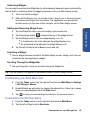
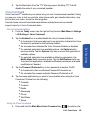
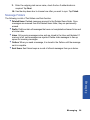
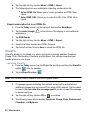
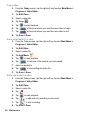
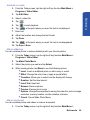
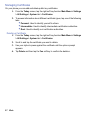
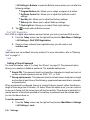
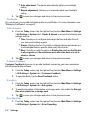
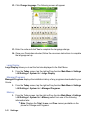
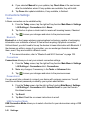
2. Tap either the Enable error reporting or Disable error reporting option to
allow your device to collect operation information and then pass that along to
Microsoft in the event of an error.
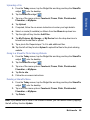
3. Tap
to save your changes and return to the previous screen.
Note: Enabling this option might incur data usage charges.
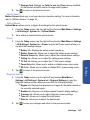
Hard Reset
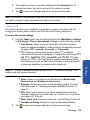
Hard Reset allows you to reset your phone’s settings and clear all data/applications from
the phone’s internal memory. This action resets your phone to its factory default settings,
ends all applications currently running, and wipes all data (pics/video/ contacts) from your
phone. For more information, refer to "Resetting your Phone to Factory Defaults" on page
4.
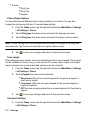
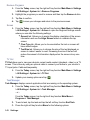
Language Change
Language Change allows you to change the phone’s language setting between English
and French. A language package has been provided on the Getting Started CD included
with your Omnia. Please back up all Omnia contents on your PC using Active Sync (also
available on the included Getting Started CD) prior to changing the language.
Warning: The phone should be fully charged when the language is changed. Problems
may occur if the language is changed when the battery level is low.
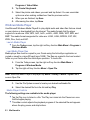
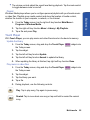
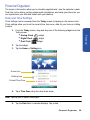
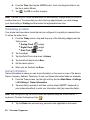
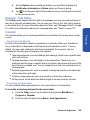
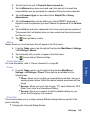
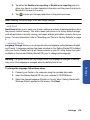
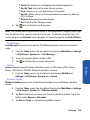
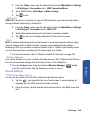
1. Connect your Omnia to the computer using the provided data cable.
2. Insert the Getting Started CD into your computer’s CD-ROM drive.
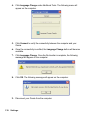
3. Select the desired language (English or French) when “Getting Started with
Windows Mobile” appears on the screen. Click Next.
Settings 138
Settings
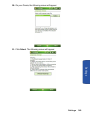
To change the language, follow these steps: