1
Windows Capture Application
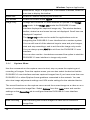
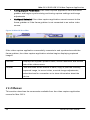
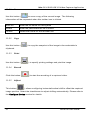
select small, large, or huge icons. If the toolbar is hidden, select an
icon size to display the toolbar.
Status Bar
Enable or disable displaying the status bar.
Full Screen
Enable full screen mode, Ctrl+F.
Image Only
Change the DVI2USB 3.0 user interface to operate in the Image
only mode. In the Image only mode the DVI2USB 3.0 user
interface displays the captured image only. The window borders,
toolbar, status bar and menu bar are not displayed. Scroll bars are
displayed if required.
The Image only mode can be useful for applications such as
integrating the DVI2USB 3.0 user interface into a custom system.
You can still use all of the shortcut keys to save and print images,
start and stop recordings, and to exit from the image-only mode.
You can always press Alt+F4 to exit from the DVI2USB 3.0 user
interface.
You can also use the --borderless command line option to start the
DVI2USB 3.0 user interface in image only mode.
9.4.4
Capture Menu
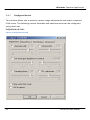
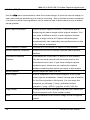
Use the commands on the capture menu to start, stop or pause the capturing and
recording of images. From the capture menu you can also select the device that the
DVI2USB 3.0 user interface receives captured images from if you have more than one
DVI2USB 3.0 or other Epiphan frame grabbers connected to the network. You can
also view image adjustment settings and VGA mode settings for the selected device.
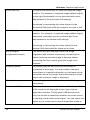
The record functions on the capture menu record the current image as a video or as a
series of consecutive image files. Select Options from the Tools menu and use the
settings on the Recording tab to configure what the DVI2USB 3.0 user interface
records.
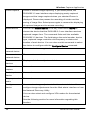
Start recording
Start recording the current image to a video file or a series of
image files.
29
DVI2PCIe User Guide