1
Windows Capture Application
9.2.4
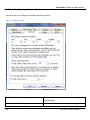
To print a snapshot of the current image:
You can use the following procedure to print the current image on any printer that is
connected to the video capture workstation. You can optionally pause the image
capture before printing an image.
1.
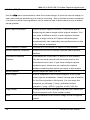
Select Print from the File menu, select
from the toolbar or use the key
combination CTRL+P. The current image is sent to the default printer. You
can select Print Setup from the file menu or use the key combination
CTRL+Shift+P to select a different printer and set printer options.
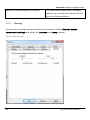
Note: You can also configure the application to invert colors for printing. From the
Tools menu select Options, then select the Display tab and select Invert colors for
printing. By reversing or inverting the colors of an image, the colors are made
complementary of the original value. After performing picture color inversion, black
becomes white, yellow becomes blue, red becomes aqua.
9.3 Recording Captured Images
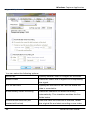
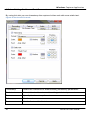
You can record captured images as a video file or as a series of image files. Before
recording captured images as a series of image files, you must configure the recording
options by selecting Options from the Tools menu, then by selecting the Recording
tab, and by finally selecting Record as Images. You should also select the image file
format and other image file settings.
9.3.1
1.
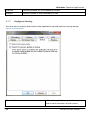
To record captured images as a series of image files:
Select Start Recording from the Capture menu, from the toolbar select
or
use the key combination CTRL+R. As images are captured by the frame grabber
they are recorded as a series of image files according to the image file settings on
the Recording tab of the Options dialog from the Tools menu. The Status bar
shows the name and location of the last saved file. You can pause recording by
using the key combination CTRL+U, by selecting Pause from the Capture menu
25
DVI2PCIe User Guide