1
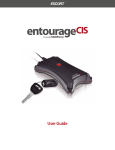
User Guide
SAFETY PRECAUTIONS
We take your safety, and the safety of those around you, very seriously. It is important for you to be aware of the
following precautions:
•
DANGER - DO NOT ATTEMPT TO RECOVER A STOLEN VEHICLE YOURSELF OR ARRANGE FOR A THIRD PARTY TO
RECOVER THE VEHICLE OTHER THAN YOUR LOCAL POLICE SERVICE. YOU RISK ENDANGERING YOURSELF OR
OTHERS AROUND YOU, AND / OR DAMAGE TO PROPERTY. •
DO NOT ATTEMPT TO PROVIDE EMERGENCY RESPONSE SERVICES YOURSELF OR ARRANGE FOR A THIRD
PARTY TO PROVIDE EMERGENCY RESPONSE SERVICE OTHER THAN YOUR LOCAL POLICE, FIRE, OR PARAMEDIC
SERVICES. YOU RISK ENDANGERING YOURSELF OR OTHERS AROUND YOU, AND / OR DAMAGE TO PROPERTY. •
DANGER – Do not place a Blackline GPS Product in or near an open flame or in the presence of flammable
gases or fumes.
•
DANGER - Operation of any electrical equipment in potentially explosive atmospheres can constitute a safety
hazard.
•
WARNING - When in a hospital or other health care facility, observe the restrictions on the use of mobile
devices, such as cellular phones. Do not operate Blackline GPS Products where you are not able to operate
your mobile / cellular phone.
•
WARNING - Switch Blackline GPS Products off before boarding an aircraft and make sure that it cannot be
inadvertently turned on. The operation of wireless appliances, including Blackline GPS Products is forbidden
aboard aircraft to prevent interference with communication systems. Failure to observe these instructions
may lead to the suspension or denial of cellular services to the offender, legal action, or both.
•
WARNING - Road safety comes first. Do not operate a Blackline GPS Product while you are driving a vehicle. Park your vehicle before operating a Blackline GPS Product, or using your mobile phone to interface to the
Blackline GPS service.
•
WARNING - Electrical equipment may be hazardous if misused. Operation of this Product, or similar Products,
must always be supervised by an adult. Do not allow children access to the interior of any electrical Product
and do not permit them to handle any cables.
•
Do not operate Blackline GPS Products outside their specified operating temperature (please consult your
Product’s corresponding data sheet at www.blacklinegps.com/support)
•
Do not store Blackline GPS Products outside their specified storage temperature (please consult your
Product’s corresponding data sheet at www.blacklinegps.com/support)
•
Do not operate a Blackline GPS Products outside their specified humidity rating (please consult your Product’s
corresponding data sheet at www.blacklinegps.com/support)
•
Do not operate Blackline GPS Products in direct Sunlight
•
Do not dispose of Blackline GPS Products within your household trash. Seek advice from your local electronics
recycling authority. Blackline GPS Products may contain an internal Lithium Polymer battery pack.
2
Contents
Introduction
Your Entourage PS system
4
4
About
Battery power
Wireless coverage
GPS coverage
Security mode features
Status light stealth mode
5
5
5
5
6
7
Entourage PS hands-on
Charging
Battery life
Operation
Turning Entourage PS off
Arming Entourage PS
Disarming Entourage PS
7
7
7
7
8
8
9
Your Network Account
Create a Network Account
Logging in
Devices page
Tracking page
Sharing page
Schedule page
Preferences page
Account page
Help page
10
10
10
11
14
17
19
20
23
26
Support
27
Notices
28
3
Introduction
Welcome to the user guide for the ESCORT® Entourage™ PS powered by Blackline GPS™. Your Entourage PS is ready to
use once:
•
You have charged your Entourage PS
•
You have created your Network Account
•
You have received an Entourage PS activation confirmation email
This guide provides information that you will find helpful to comfortably use Entourage PS and your Network Account.
Note: If you have not done so, please get started with Entourage PS by creating a Network Account and activate your
Entourage PS device. This process is online and begins by visiting www.escortinc.com/start
Your Entourage PS system
Your Entourage PS system is consists of the following parts:
•
Entourage PS GPS security device
•
Network Account – a convenient web-based account and user interface
•
Blackline GPS service plan (required) – your Entourage PS is activated with the purchase of a service plan
4
About
This section provides some helpful information about your Entourage PS product and related requirements.
Battery power
Entourage PS is designed for portable operation and is powered by an internal, rechargeable battery. •
The internal battery can be charged at any time and provides up to 7 days of battery life, depending on the
amount of locations retrieved
•
A vehicle charger cable is provided for convenient charging on the go
•
To provide location and security awareness, Entourage PS must have sufficient battery power in order to
wirelessly communicate to the Blackline GPS Network
•
You may turn Entourage PS off at any time to conserve battery power
Note: When you turn Entourage PS off, you are NOT able to remotely turn the device on. You must physically turn it
back on when you wish to use it further.
Note: An optional vehicle hardwiring kit is available for Entourage PS that keeps the internal battery charged at all
times. To preserve Entourage PS portability, consider installing a hardwire kit in each of your vehicles.
Wireless coverage
Similar to how a mobile phone requires wireless (cellular) coverage in order to send or receive a phone call,
Entourage PS requires wireless communication to communicate security and location information. When wireless
service coverage is available, Entourage PS automatically connects to the Blackline GPS location-based services
platform (Blackline GPS Network) using wireless communication.
GPS coverage
Entourage PS requires GPS satellite signal coverage to find a location. Entourage PS features Blackline GPS
UltimateSense™ antenna technology that provides industry-leading reception. UltimateSense technology enables
Entourage PS to be conveniently hidden within your vehicle during installation when delivering exceptional tracking
performance.
5
Security mode features
Your Entourage PS features a security mode that can be armed (enabled) or disarmed (disabled) by pressing the
security mode button or from within your Network Account. While armed, Entourage PS is not only sensitive to vehicle tampering (vibration), it also monitors its GPS location
within an automatically-created GPS security perimeter. GPS security perimeter monitoring enables Entourage PS to
determine if your vehicle has moved from where you parked it (a GPS security perimeter breach). You can optionally
subscribe to email and / or text message (SMS) security alerts that provide visibility of tampering and a GPS security
perimeter breach. This is discussed within the Preferences section of the Network Account chapter.
Arming and disarming the security mode of your Entourage PS is discussed further within the following chapters.
Note: You are able to remotely locate Entourage PS at any time regardless of whether the security mode is enabled or
disabled.
Status light stealth mode
Entourage PS features a status light stealth mode that turns off the status lights two minutes after the last key-press. This feature ensures the ability for Entourage PS to provide security features while discreetly hidden within your
vehicle.
Note: The following chapter describes how to operate Entourage PS with respect to the status light stealth mode
feature.
6
Entourage PS hands-on
This chapter provides you with valuable information about your portable Entourage PS device.
Charging
While waiting for your Entourage PS to be activated, begin charging its internal battery:
1. Plug the wall charger into a household power socket
2. Plug the charger’s DC plug into the Entourage PS power socket
3. Charge for 5 hours before unplugging
Note: It is acceptable to leave your Entourage PS plugged in and charging for longer than 5 hours. Note: For additional convenience, your Entourage PS comes equipped with a vehicle charger cable for charging on
the go. Charging from your vehicle is the same process as using the wall charger.
Battery life
A full battery charge will provide up to 7 days of operation depending upon the number of locations retrieved from
Entourage PS. Fewer or infrequent location requests will result in a longer battery life. Frequent location requests,
either manually or via the location scheduler, will reduce the battery life. Aggressive location requests may reduce the
battery life to 3 to 4 days.
Note: For applications that require more aggressive locate requests, consider purchasing a hardwiring cable for
Entourage PS. A hardwiring cable may be installed in more than one vehicle to retain portability while keeping a full
battery charge.
Operation
Your Entourage PS has a keypad user interface that allows you to:
•
Power Entourage PS on and off
•
Wake Entourage PS from its stealth mode
•
Monitor the wireless signal connection
•
Arm and disarm the security mode
•
Monitor the arm and disarm security mode
To turn Entourage PS on:
1. Press and release the power button
2. Provided that Entourage PS has sufficient battery capacity to operate, the green power and wireless
connection status light will begin blinking
3. Entourage PS will connect to the Blackline GPS Network
4. The green power and wireless connection status light will illuminate continuously when connected
Note: Without any additional key presses for two minutes, the status lights will turn off while Entourage PS enter its
status light stealth mode
7
To wake Entourage PS up from its status light stealth mode:
1. Press and release the power button
2. The green power and wireless connection status light will illuminate continuously if Entourage PS is
connected to the Blackline GPS Network
Or
3. The green power and wireless connection status light will blink if it is not connected to the Blackline GPS
Network.
Note: The red security mode status light will indicate whether the security mode is armed or disarmed, as described
below.
Turning Entourage PS off
To conserve battery life while not in use, turn Entourage PS off. To turn Entourage PS off:
1. If the status lights are currently off, press and release the power button to wake-up the status lights
2. Press and release the power button to turn Entourage PS off
3. Entourage PS will turn off immediately
Note: When you turn Entourage PS off, you are NOT able to remotely turn the device on. You must physically turn it
back on when you wish to use it further.
Arming Entourage PS
The Entourage PS security mode IS NOT engaged (it is disarmed) if the red security light is OFF. You may have to
first wake up the status lights if they have gone into stealth mode.
To engage the Entourage PS security mode (tamper sensing and GPS security perimeter monitoring):
1.
If the status lights are currently off, press and release the power button to wake-up the status lights
2.
Press and release the arm / disarm button
3.
The red security mode status light will begin blinking
4.
Entourage PS will arm its security mode (enabled)
Note: To minimize false tamper sense alerts, there is a 60 second arming delay timer that provides you time to hide
(stow) Entourage PS without triggering the tamper (vibration) sensor.
Note: Every time that you arm Entourage PS, it automatically computes a new GPS security perimeter for monitoring
while armed. The red security mode status light will illuminate continuously when Entourage PS computes a GPS
security perimeter
Note: Entourage PS can be located at any time whether it is armed or disarmed.
8
Disarming Entourage PS
The Entourage PS security mode IS engaged (it is armed) if the red security light is ON. You may have to first wake
up the status lights if they have gone into stealth mode.
To disarm the security feature of Entourage PS:
1. If the status lights are currently off, press and release the power button to wake-up the status lights
2. Press and release the arm / disarm button
3. The red security mode indicator light will turn off
4. Entourage PS will disarm its security mode (disabled)
Note: When disarming Entourage PS, you have 20 seconds to disarm the system before a tamper (vibration) alert is
triggered and communicated to the Blackline GPS Network
Note: Entourage PS can be located at any time whether it is armed or disarmed.
9
Your Network Account
Create a Network Account
Your Network Account is a common home for products powered by Blackline GPS and is compatible with
Entourage PS. Your Network Account provides a day-to-day window into the use and setup of your Entourage PS
device.
From your Network Account, you may:
•
Activate multiple compatible products on a single account
•
Remotely interact with these products
•
Share their location and security features with others
•
Accept device-sharing invitations from others
Logging in
To get started with using your Entourage PS, log into your Network Account:
1. Open your Internet browser, such as Microsoft Internet Explorer, Mozilla FireFox, Google Chrome, or Apple
Safari
2. Visit www.BlacklineGPS.com and click the Go to Login button
3. Enter your email address and password that you used to create your Network Account
4. Click the Login button
5. The Devices page is displayed
Note: If you forget your password, click the Forgot your Password link and your password will be sent to the email
account you use to log into your Network Account.
10
Devices page
The Devices page is the home page of your Network Account. It lists any devices that you have activated on your
account (My Devices) and any devices shared to your account from others. Device banner
The current status of each device is conveniently described within a horizontal device banner that includes:
•The name given to the device
•A graphic device avatar
•Links for tracking, changing preferences, and sharing your device’s location and security features to
others
•The online / offline status
•The arm / disarm status, if supported by the device type (for example the BlipPlus applications for
supported smartphones does not support security features)
•The battery / charging status
•The wireless radio signal level, similar to the signal bars on a cellular phone
•The time since the most recent position
Device name
The device name is a helpful name for your device that you may customize. To customize the device name, please see
Device convenience links below.
Device avatar
The device avatar is an image that you may choose to represent your vehicle. To customize the device avatar, please
see Device convenience links below.
Device convenience links
The device banner contains three convenience links that allow you to click-through to pages relating to that device.
To track your Entourage PS device:
1. Click the Track this device link within the associated device banner
2. The Tracking page for this device will open
To adjust the preferences for your Entourage PS, such as changing the device name or device avatar:
1. Click the Change preferences link within the associated device banner
2. The Preferences page for this device will open
To share your Entourage PS device location and security awareness with others:
1. Click the Share this device link within the associated device banner
2. The Sharing page for this device will open
11
Devices shared to you include a link that allows you to delete the device from your My friends list. To delete a friend
device from your My friend list:
1. Click the Remove this device link within the associated device banner
2. The Sharing page for this device will open with a button to remove this device from your My friends list
Online / offline icon
The online / offline status describes whether your Entourage PS device is wirelessly communicating with the
Blackline GPS Network:
• Online - If a device is online, it is wirelessly communicating with the Blackline GPS Network and available for
user interaction.
• Offline – if a device is offline, it is no longer communicating with the Blackline GPS Network.
For convenience, if a device is offline, the last-reported status is shown within the device banner. This can be helpful to
understand if a device is offline due to low-battery or low-wireless signal coverage. Reasons that a device may be offline include:
•
The device’s external power supply has been interrupted, and the internal battery is drained preventing it from
maintaining a wireless connection to the Blackline GPS Network
•
The device has left the wireless signal coverage area
•
The device may be out of reach of the wireless signal coverage (example: underground parking garage or
locally-compromised coverage)
•
There may be a local wireless coverage outage
Arm / disarm / alert icon
The Arm / disarm / alert icon indicates the arm / disarm state of your Entourage PS security feature. This icon also
indicates if your Entourage PS is in an alert state.
• This icon indicates that the device is armed
• This icon indicates that the device is disarmed
• This icon indicates that the device is armed and currently has one or more alerts
Battery / charging icon
The battery icon indicates the current capacity of your Entourage PS internal battery:
• This icon indicates the current capacity of the device’s internal battery is full
• This icon indicates the current capacity of the device’s internal battery is nearly full
• This icon indicates the current capacity of the device’s internal battery is mostly full
• This icon indicates the current capacity of the device’s internal battery is mostly empty
• This icon indicates the current capacity of the device’s internal battery is nearly empty
• This icon indicates the current capacity of the device’s internal battery is empty
12
Radio icon
Similar to a mobile phone, your Entourage PS device reports the number of bars of wireless signal reception:
•
This icon indicates five bars of signal reception out of five, or 100% signal. This signal level
represents very strong level of signal reception.
•
This icon indicates four bars of signal reception out of five, or 80% signal. This signal level
represents very strong wireless signal coverage.
•
This icon indicates three bars of signal reception out of five, or 60% signal. This signal level
represents good wireless signal coverage.
•
This icon indicates two bars of signal reception out of five, or 40% signal. This signal level
represents good wireless signal coverage.
•
This icon indicates one bars of signal reception out of five, or 20% signal. This signal level
represents low wireless signal coverage that may experience occasional reception outages.
•
This icon indicates zero bars of signal reception out of five, or 0% signal. This signal level represents
very weak wireless signal coverage and prone to loss of signal.
Last position
The Last position indicator informs you how long ago your Entourage PS reported a manually-requested location or
automatically-created scheduled location.
To map the most recent location for a device:
1. Click the last location icon
2. The Tracking page opens with the most recent location automatically displayed on the interactive map
13
Tracking page
The Tracking page is your main interface for interacting with your devices or the devices shared to your account.
To access the Tracking page within your Network Account:
1. Click on the Tracking link in the main navigation bar OR click the Track this device link in the device banner,
on the Devices page, that you would like to locate
2. The Tracking page will open
On the Tracking page, you can:
•
Remotely locate your Entourage PS device
•
Arm or disarm the Entourage PS security feature
•
View data stored within your Entourage PS Event History
The Tracking Page primary elements include:
•
Device identification information
•
A control panel
•
A Device Status panel
•
A Security Status panel
•
An interactive map
•
A command feedback window
•
An Event History
Entourage PS location methods
There are a number of ways to locate your Entourage PS:
•
The Tracking page allows you to locate your Entourage PS, in real-time
•
The Tracking page allows you to continuously locate your Entourage PS for short periods of time (10 minutes
at a time)
•
Create a Schedule to automate tracking for when you’re not in front of your computer
•
Using the Blackline GPS BlipPlus™ application installed on compatible smartphones
•
Using Remote control text message (SMS) commands from any phone with a text message service plan
Locating Entourage PS once
To locate your Entourage PS now:
1. From the Tracking page, click the Locate button once
2. The location request will show within the Command feedback window beneath the map, while the
Blackline GPS Network communicates the location request to your Entourage PS device
3. Your Entourage PS device computes a location and sends it to the Blackline GPS Network
14
4. Your Entourage PS location is mapped on the interactive map
5. The interactive map allows you to zoom in and out (zoom scale and plus & minus buttons), pan around the
map (click, hold, and drag the map with your mouse), and select map, satellite, or hybrid map and satellite
views (click the appropriate button)
6. A map bubble contains the name of the device, the time & date of the location, the speed, and the direction
of travel
7. The location is added to your Entourage PS Event History for storage and mapping at a later time
Note: A location request typically requires 20 to 40 seconds and depends upon the quality of GPS signal coverage. Locating Entourage PS continuously
To locate your Entourage PS continuously for a short period of time:
1. From the Tracking Page, click the Continuous Tracking button once (the location request process is identical
to the single location request)
2. The first location will be displayed on the map within approximately 20 to 40 seconds
3. Subsequent locations will be displayed every 10 seconds provided that GPS signal coverage is maintained
4. Once the continuous track session stops after 10 minutes, a notice will be appear within the command
feedback window.
5. For additional continuous tracking, click the Continuous tracking button again.
Additional Entourage PS location methods
•
To create a schedule that will automatically track your Entourage PS’ location for you, click on the Scheduler
button or select Schedule from the web site navigation menu.
•
If you have a smartphone that is compatible with Blackline GPS BlipPlus™, please refer to the BlipPlus
documentation for further information, available at www.BlacklineGPS.com/support
•
To use text message remote control commands, please refer to the Preferences Page section within this
guide
Arming and Disarming your Entourage PS
Similar to physically arming or disarming Entourage, you may remotely arm or disarm Entourage PS from your
Network Account.
To arm or disarm your Entourage PS device:
•
If your Entourage PS is currently disarmed, you may remotely arm it by clicking the Arm button on the tracking
page
•
If your Entourage PS is currently armed, you may remotely disarm it by clicking the Disarm button on the
tracking page
15
Event history
All location and security information for your Entourage PS is automatically stored within your Event History for later
use.
The Event History provides the following features:
•
A chronological list of events that occurred between a start date and an end date
•
An event filter that allows you to view all event types or a specific type
•
A refresh button that refreshes the list
•
A button to clear all displayed locations from the map
•
The ability to display multiple locations simultaneously
•
A feature to choose how many events to display on a single page
•
A data export feature that allows you to export location data into a file compatible with Google Earth. Visit
earth.google.com for further information.
Mapping previous locations
To map a single location within your Event History:
1. Click on the date and time link of the event
2. The location will be mapped on the interactive map
To map more than one location within your Event History at the same time:
1. Click the location check-boxes that you wish to map
2. Click the Display Checked Locations button
3. All locations are mapped on the interactive map
4. Each location may be clicked to review the date & time, speed, and direction of travel
To clear all displayed locations from the interactive map:
1. Click the Clear Map button
Exporting data to Google Earth
You may export one or more locations to Google Earth for enhanced visualization.
To export data for viewing within Google Earth:
1. If not yet installed, download and Install the Google Earth application on your computer
2. Within the Event History, click the check-box of any location that you wish to view
3. Click the View in Google Earth link
Depending on your computer system, Google Earth will either:
•
Open and allow you to view the data, or
•
You will be prompted to save the Google Earth KML file for viewing within Google Earth
Note: Visit earth.google.com for further information.
16
Sharing page
The Sharing page allows you to:
•
Share your Entourage PS location and security features with others
•
Manage the permissions, per friend, for anyone to whom you’ve shared your Entourage PS
•
Delete sharing relationships to others
•
See any sharing invitations that have not yet been accepted
To access the Sharing page within your Network Account:
1. Click on the Sharing button in the main navigation bar OR click the Share this device link in the device
banner, on the Devices page, that you would like to share
2. The Sharing page will open
Friend invitations
To share your Entourage PS location and security features to someone:
1. Select the device that you would like to share from the drop-down box at the upper left of the page
2. Enter the email address into the form provided to whom you wish the sharing invitation to be sent
3. Choose the preferences that you would like to enable
4. Click the Save button
A sharing invitation will be sent to your friend. If the friend does not have an account, their sharing invitation invites
them to create a free Network Account. If the friend has a Network Account already, your device will automatically
show as a new device within their My Friends list. You can also monitor whether the sharing invitation has been
accepted. Any pending invitations indicate that the share invitation has not been accepted.
17
Friends I’ve shared to
This page provides a list of the friends with whom you have shared your Entourage PS device, or another Network
Account-compatible device.
To access the Friends I’ve shared to page:
1. Click the Friends I’ve Shared to button
2. The Friends I’ve Share to page will open
To review or adjust friend permissions to whom you have shared your Entourage PS:
1. Select the device that you have shared to a friend from the device drop-down box at the upper left of the
page
2. Click the Permissions button for the friend whom you would like to review or edit permissions
3. Make any changes that you require by selecting or de-selecting check boxes
1. Click the Save button
To delete the sharing relationship of one of your devices to a friend:
1. Select the device that you have shared to a friend from the device drop-down box at the upper left of the
page
2. Click the Delete Share button that corresponds to the friend for whom you would like to revoke all sharing
privileges
To delete a friend device that someone has shared to your My Friends list:
1. Select the friend device that has been shared to you from the device drop-down box at the upper left of the
page
2. Click the Remove Device button
18
Schedule page
The Schedule page allows you create, edit, or delete a schedule. A schedule automatically requests locations from
your Entourage PS at a regular interval. You are only able to create schedules for devices activated on your account. You are not able to create schedules for friend devices.
To access the Schedule page within your Network Account:
1. Click on the Schedule button in the main navigation bar
2. The Schedule page will open
To create a schedule:
1. Choose how often that you would like locations to be automatically requested from the Track Every dropdown menu
2. Choose For how long you would like the schedule to operate from the For drop-down menu
3. Choose the Starting in time that for when your schedule should begin
4. Click the Save button
To edit a schedule:
5. Click the Edit Schedule link
6. Modify the settings as you require
7. Click the Save button
To delete a schedule:
1. Click the Delete Schedule button
2. The existing schedule will be deleted and replaced by the create schedule form
19
Preferences page
The Preferences page allows you to change the settings that are related to your Entourage PS product. If you have
more than one product activated on your account, you may configure each device’s preferences differently.
To access the Preferences page within your Network Account:
1. Click on the Preferences link in the main navigation bar OR click the Change Preferences link in the device
banner, on the Devices page, that you would like to view or modify
2. The Preferences page will open
Basic preferences
This page allows you to modify a number of basic settings for your Entourage PS, including the device name, device
image, time zone, language, and your preferred unit system.
To change the Entourage PS device name, image that represents your vehicle, time zone, language, or your unit
system:
1. Make the appropriate changes by either clicking text boxes and editing text or selecting the appropriate
setting from the drop-down menu
2. Click the Save button
Alert preferences
The Alert preferences page allows you to customize the settings used to send security alerts and notifications to your
email account and / or mobile phone through text messaging (SMS). For each Entourage CIS device, you are able to
provide two email addresses and two mobile phone numbers for text messaging.
To access the Alert preferences page:
1. Click the Alert preferences button
2. The Alert preferences page will open
There are two types of security alerts:
•
Tamper (vibration) alert – When your Entourage PS security mode is armed manually or automatically, your
Entourage PS becomes sensitive to vibration when you leave proximity of your vehicle with a paired MyPass
key fob. If Entourage PS senses tampering (vibration), it will send a Tamper alert to you through email and / or
text message, depending upon your settings.
•
GPS security perimeter breach alert – Once your Entourage PS security mode is armed, and the device
detects that it has moved 300m from the position that it was armed, it will send a Perimeter Breech to you
through email and / or text message, depending upon your settings.
Note: After being armed, there is an arming delay of 60 seconds before your Entourage PS becomes sensitive to
tampering (vibration).
20
There are a number of notifications:
•
Network log-on notification – This notification tells you when your vehicle reconnects to the wireless
network and is online. This notification occurs when your vehicle has been out of wireless communication
signal coverage for an extended period of time, and has again logged back into the Blackline GPS Network.
•
Network log-off notification – This notification tells you when your vehicle has disconnected from the
wireless network and is offline. This may occur due to either your vehicle leaving wireless communication
signal coverage, or a local service outage. Blackline GPS can not control when local outages occur and is not
notified when such events occur.
•
Low battery warning – This notification tells you when the Entourage PS internal battery falls below 40%
capacity. This notification lets you know that the battery should be recharged soon.
To enter an email address for email security alerts and notifications:
1. Click on either the Primary or Secondary email alert boxes and type your email address
2. Click the Save button to save your changes
To enter a mobile phone number for text message alerts and notifications:
1. Click on either the Primary or Secondary text message alert boxes and type your ten digit mobile phone
number (for example, 4035554444)
2. Choose your mobile phone carrier from the drop-down box beside the Primary or Secondary alert box that
you have edited
3. Click the Save button to save your changes
Note: Your Network Account uses your carrier’s email to text message gateway for alert and notification
communication. Text messages (SMS) may experience delays related to network traffic.
To receive Tamper (vibration) alerts:
1. Check the Tamper (vibration) alert checkbox
2. Click the Save button to save your changes
To receive GPS security perimeter breach alerts:
1. Check the GPS security perimeter breach alert checkbox
2. Click the Save button to save your changes
Note: You do not need to subscribe to Tamper alerts in order to receive GPS security perimeter alerts.
To enable automatic tracking of your Entourage PS (every 5 minutes for 2 hours) after a GPS security perimeter breach:
1. Check the GPS security perimeter breach auto-track checkbox
2. Click the Save button to save your changes
Note: When the GPS security perimeter has been breached, no further alerts will be sent until the alarm has been
reset. To reset the alarm, first disarm Entourage PS and then re-arm its security mode.
21
To receive Network log-on notification messages:
1. Using your mouse, check the Network log-on notification checkbox
2. Click the Save button to save your changes
To receive Network log-off notification messages:
1. Using your mouse, check the Network log-off notification checkbox
2. Click the Save button to save your changes
To receive Low-vehicle and low back-up battery notification messages:
1. Using your mouse, check the Low-vehicle battery notification checkbox
2. Click the Save button to save your changes
Remote control settings
Remote control is a feature that allows you to use text messaging from your mobile phone to remotely send
commands to your Entourage PS device. This feature enables you to interact with your Entourage PS within your
Network Account when you are not in front of your computer.
To access the Remote control settings page:
1. Click the Remote control settings button
2. The Remote control settings page will open
To configure your Entourage PS device for remote control from up to two mobile phones:
1. For each mobile phone, enter your mobile phone number into the Allow text messages from text box
2. Select your carrier from the drop-down box
3. Enter a descriptive password that is specific to the Entourage PS for which you are configuring remote control
(lower case only)
4. Click the Save button
To send a remote control command to your Entourage PS device from your mobile phone:
1. Open a new text message to 1-403-390-1350 on your mobile phone
2. Type your password followed by a space
3. Enter the one or two-character command letter – for example, type “L” for locate
4. Send the text message
Once received, the Blackline GPS Network will send you a text message acknowledging your command and advise
you of the remote control command progress.
Note: Consider adding the Blackline GPS Network phone number, 1-403-390-1350, as a contact within your mobile
phone’s address book. This will ensure the Blackline GPS Network remote control phone number is always convenient.
22
Account page
The Account page provides access to a variety of information that relates to your Network Account.
To access the Account page within your Network Account:
1. Click on the Account link in the main navigation bar
2. The Account page will open
General settings
The General settings page allows you to:
•
Change your Network Account password
•
Change the email address that you use to access your Network Account
•
Change your Network Account language
To change your password:
1. Enter your current password into the first text box.
2. Enter your new password into the second text box
3. Enter your new password again into the third text
4. Click the Save button
If you forget your password, you can log out and click on the Forgot your password link to have your password
emailed to your email account.
To change your email address:
1. Enter your current password into the first text box.
2. Enter your new email address into the second text box
3. Enter your new email address again into the third text
4. Click the Save button
To change the language used within your Network Account:
1. Click the Language drop-down box
2. Pick your preferred language
3. Click the Save button
23
Contact details
The Contact details page allows you to edit your Network Account contact information.
To access the Contact details page:
1. Click the Contact details button
2. The Contact details page will open
To update your contact details:
1. Click any text box and make the appropriate edits
2. Click the Save button
Activate a device
This page allows you to activate a new Entourage PS, or other Network Account-compatible product.
To access the Activate a device page:
1. Click the Activate a device button
2. The Activating process page will open
To activate a Network Account-compatible device:
•
Enter the device unit ID into the first field
•
Enter the activation code into the second field
•
Click the Activate button and follow the remaining instructions
Add a friend’s device
This page allows you to add a friend’s device to your My Friends list, on the Devices page, if you have been sent an
invite code within an invitation email message.
To access the Add a friend’s device page:
1. Click the Add a friend’s device button
2. The Add a friend’s device page will open
If you have been sent a friend invite code, to add a friend’s device to your My Friends list:
1. Enter the Invite code into the text box provided
2. Click the Save button
Package details
The package details page provides a summary of the service package for each device activated on your account.
To access the Package details page:
1. Click the Package details button
2. The Package details page will open
24
Transaction details
The Transactions page provides a chronological list of all service billing transactions for all devices on your account.
To access the Transaction details page:
1. Click the Transaction details button
2. The Transaction details page will open
To review a particular transaction receipt:
1. Click View, corresponding to the item that you wish to view.
To print a particular transaction receipt:
1. Click View, corresponding to the item that you wish to view
2. Press Ctrl and P on your keyboard (at the same time) OR select Print from your browser menu system
25
Help page
The Help page provides tools for self-help and live customer care.
To access the Help page within your Network Account:
1. Click on the Help link in the main navigation bar
2. The Help page will open
General support
The General support page provides a form that allows you to request help from Blackline GPS Customer Care.
To request Customer Care assistance:
1. In the Subject text box, type a descriptive topic
2. Enter a description of the help that you are looking for
Note: Please provide background information to ensure that Blackline GPS Customer Care can provide you with the
best care possible.
User guide
To access the User guide page:
1. Click the User guide button
2. The User guide page will open
Privacy policy
To view the Blackline GPS Privacy policy page:
1. Click the Privacy policy button
2. The Privacy policy page will open
26
Support
If you have any questions about your use of Entourage PS, please contact the Blackline Customer Care group. There
are a number of ways to receive the support that you require.
Customer Care from your Network Account
If you are logged into your Network Account:
1. Click the Help link in the navigation bar
2. Complete and submit the Support Contact form provided
Please be descriptive to ensure that we are able to give you the best care possible.
Customer Care by email
If it is more convenient for you to receive support through email, please send a descriptive email to:
[email protected]. Please be descriptive to ensure that we are able to give you the best care possible.
Customer Care by telephone
For 24/7 live telephone support, please call: 1-866-859-4118.
27
Notices
Information in this document is subject to change without notice. This document is provided “as is” and Blackline GPS Inc. (“Blackline GPS or
Blackline”) and its affiliated companies and partners assume no responsibility for any typographical, technical or other inaccuracies in this
document. Blackline GPS reserves the right to periodically change information that is contained in this document. However, Blackline GPS makes no
commitment to provide any such changes, updates, enhancements or other additions to this document to you in a timely manner or at all.
Copyright
© Copyright 2009 Blackline GPS Inc. All rights reserved. Except as expressly provided herein, no part of this manual may be reproduced, copied, transmitted, disseminated, downloaded, or stored in any
storage medium, for any purpose without the express prior written consent of Blackline GPS Inc. (“Blackline” or “Blackline GPS”). Blackline GPS
hereby grants permission to download a single copy of this manual onto some form of electronic storage medium to be viewed and to print one
copy of this manual or any revision hereto, provided that such electronic or printed copy of this manual must contain the complete text of this
copyright notice. Further, any unauthorized commercial distribution of this manual or any revision hereto is strictly prohibited.
Trademarks
The Blackline GPS families of related marks, images and symbols, including Entourage, MyPass, UltimateSense, Aura, Protect. Share. Connect. and
Blackline GPS are the exclusive properties and trademarks of Blackline GPS Inc. The BlackBerry and RIM families of related marks, images and
symbols are the exclusive properties and trademarks of Research In Motion Limited. All other brands, product names, company names, trademarks
and service marks are the properties of their respective owners.
Limited One Year Warranty
Blackline GPS offers a One Year Limited Warranty to the original end user purchaser that the Entourage PS product (“Product”) will be free from
non-conformities in materials and workmanship for a period of one (1) year from the date of purchase. During this period Blackline’s sole obligation
under this Limited One Year Warranty is to repair or replace, at Blackline’s option, a non-conforming Product at no cost to the original end user
purchaser other than the cost of packing, insuring, and shipping the Product to Blackline.
This Limited One Year Warranty will be considered VOID if the Product is found to have been subjected to repairs not authorized by Blackline, or if it
has been modified, neglected, improperly maintained, misused, abused, or the appearance of the Product reveals damage by your failure to provide
proper maintenance. Blackline does not warrant damage occurring in transit and does not warrant claims asserted after the end of the warranty
period.
To request warranty repairs on your warranty claim, you must contact Blackline for a return merchandise authorization number (RMA number)
prior to shipment. When authorized, Blackline GPS will provide you with a shipping address. LABEL YOUR SHIPMENT DOCUMENTATION WITH
THE STATEMENT “RETURNING MERCHANDISE TO THE MANUFACTURER FOR REPAIR”. BLACKLINE WILL NOT BE RESPONSIBLE FOR CUSTOMS OR
BROKERAGE CHARGES DUE TO SHIPMENT. SEND YOUR PRODUCT, POSTAGE PREPAID, TO BLACKLINE GPS. All warranty repair requests must be
accompanied by a valid, dated sales receipt and a brief note describing the difficulty you are experiencing with the Product in as much detail as
possible.
Products that are repaired or replaced by Blackline GPS under the terms of this Limited One Year Warranty will be shipped back to you with Blackline
paying the return shipping charges using a non-expedited shipping service. If your Product should be found to require repairs outside of the
Limited One Year Warranty coverage (more than 1 year from date of purchase), Blackline GPS will notify you prior to repair as to the nature of the
problem, quote the price of the Product’s repair, and if approved, perform the repair or replacement and bill you for parts, labor, and return shipping
charges.
Workmanship related to the repair, and replacement components are warranted, subject to the exclusions and procedures set forth below, to be
free, under normal use and maintenance, from defects in material and workmanship for 90 days from shipment or for the balance of the original
warranty period, whichever is greater.
Blackline GPS reserves the right to change or improve its products without obligation to notify any person or organization of such changes or
improvements. Visit the Blackline GPS Web site (www.Blacklinegps.com) for current updates and information concerning the use and operation of
this and other Blackline GPS products.
28
Disclaimer of Warranties
THE SOFTWARE, SERVICES, BLACKLINE SITES, AND ALL INFORMATION AND CONTENT PROVIDED IN CONNECTION WITH THE FOREGOING
(COLLECTIVELY, THE BLACKLINE PRODUCTS AND SERVICES) ARE PROVIDED BY BLACKLINE ON AN “AS IS” AND “AS AVAILABLE” BASIS. BLACKLINE
MAKES NO REPRESENTATIONS OR WARRANTIES OF ANY KIND, EXPRESS OR IMPLIED, AS TO THE OPERATION OF THE BLACKLINE PRODUCTS AND
SERVICES. YOU EXPRESSLY AGREE THAT YOUR USE OF THE BLACKLINE PRODUCTS AND SERVICES IS AT YOUR SOLE RISK.
TO THE MAXIMUM EXTENT PERMISSIBLE BY APPLICABLE LAW, BLACKLINE DISCLAIMS ALL REPRESENTATIONS, WARRANTIES, CONDITIONS AND
GUARANTEES, EXPRESS OR IMPLIED IN CONNECTION WITH THE BLACKLINE PRODUCTS AND SERVICE, INCLUDING IMPLIED REPRESENTATIONS,
WARRANTIES, CONDITIONS AND GUARANTEES OF MERCHANTABILITY, DURABILITY, NON-INFRINGEMENT AND FITNESS FOR A PARTICULAR
PURPOSE. Without limiting the foregoing, Blackline does NOT represent or warrant that:
a)
The Software and Services will be free of viruses or other harmful components;
b)
The Software and Services will be secure, error-free or uninterrupted;
c)
The Services will be available at any specific time or in any geographic location;
d)
Messages or content will be received or transmitted through the Software and Services; and
e)
The positioning-derived data obtained when using the Service will be accurate, precise, or available. The potential positioning accuracy as
delivered through the Services as stated in Blackline literature and specifications provides only an estimate of achievable accuracy based
on: specifications provided by the US Department of Defense for GPS Positioning and based on GPS OEM Receiver specifications of the
appropriate manufacturer (if applicable)
Limitation of Liability
General
Blackline provides you with Services through the networks of telecommunications providers and through other suppliers and third parties (together
“Suppliers”). Your use of the Services of Blackline and equipment, facilities and services of Suppliers is at your own risk. Subject to the terms hereof,
Blackline and the Suppliers will not be liable for any damages, losses of any kind or injury, including lost profits (regardless of whether we have been
notified that such loss may occur) arising directly or indirectly from any of the following:
a)
Your use of the Services of Blackline and of the Suppliers, including the use of any facilities or equipment used in conjunction with such
Services including the Software and the Blackline Sites
b)
Any act, mistake, omission, interruption, delay, error, defect or misrouting of communications by the Suppliers or Blackline
c)
Any failure that may arise from the facilities or equipment used by Blackline or the Suppliers
d)
Libel, slander or defamation arising from material transmitted or received through the use of the Services and the services, equipment and
facilities of the Suppliers
e)
Infringement of patents, trade-marks or copyrights arising from combining or using the Services or Software or equipment, or that of the
Suppliers
f)
Any damage, loss or injury caused by or to a vehicle, watercraft, aircraft or other property if such damage, loss or injury resulted in
connection with the Software or the Services, or the services of the Suppliers
g)
Physical injuries or death, any other damages, loss of profits, loss of earnings, loss of business opportunities, or other loss resulting directly
or indirectly out of or in connection with the use of the Software or Services, or the services, equipment and facilities of the Suppliers.
These limitations of liability apply to acts or omissions of Blackline, its partners, affiliates and Suppliers and each of their respective officers, directors,
employees, suppliers, agents, consultants or other persons for whom in law such parties are responsible (together “Representatives”), which would
give rise to a cause of action in tort, contract or any other doctrine of law.
29
NOTWITHSTANDING ANYTHING ELSE IN THIS AGREEMENT, OUR TOTAL LIABILITY TO YOU UNDER THIS AGREEMENT OR IN CONNECTION WITH
THE SOFTWARE OR OUR SERVICES WILL BE LIMITED TO THE FEES YOU PAID TO US (DIRECTLY OR INDIRECTLY THROUGH A DISTRIBUTOR) FOR THE
SOFTWARE IN THE 6 MONTHS PRIOR TO THE FIRST EVENT GIVING RISE TO THE LIABILITY.
Indemnification
You agree to indemnify and hold Blackline, its partners, affiliates, and Suppliers and each of their respective Representatives harmless from any and
all liabilities, penalties, claims, causes of action and judgments brought by third parties (including costs, expenses and related reasonable legal fees)
resulting from your use or misuse of the Software, Services, or the Blackline Sites, or a breach of any of the Terms whether based in contract, tort
(including strict liability), or other doctrine of law and regardless of the form of action.
Applicable Law
The laws of the province of Alberta, Canada, without regard to principles of conflict of laws, will govern these Terms and Conditions and any dispute
of any sort that might arise between you and Blackline.
Disputes
Any dispute relating in any way to your use of the Software, Services or the Blackline Site shall be submitted to confidential arbitration in Calgary,
Alberta, Canada, except that, to the extent that you have in any manner violated or threatened to violate the intellectual property rights of
Blackline, Blackline may seek injunctive or other appropriate relief in any provincial, state or federal court, and you consent to exclusive jurisdiction
and venue in such courts. Arbitration under this agreement shall be conducted under the National Arbitration Rules then prevailing of the ADR
Institute of Canada. The arbitrator’s award shall be binding and may be entered as a judgment in any court of competent jurisdiction. To the fullest
extent permitted by applicable law, no arbitration under this Agreement shall be joined to an arbitration involving any other party subject to this
Agreement, whether through class arbitration proceedings or otherwise.
Notices
You may notify us by mail sent to Blackline GPS Inc. Suite 101 1215 13th Street SE, Calgary, AB, T2G 3J4. Such notices will be considered effective
after we receive them at the address noted above. Any notice we send you will be sent to your last known residence or electronic address as shown
on our records.
Severability
If any of these Terms and Conditions shall be deemed invalid, void, or for any reason unenforceable, that term or condition shall be deemed
severable and shall not affect the validity and enforceability of any remaining term or condition.
Entire Agreement This Agreement supersedes all prior agreements of the parties regarding the subject matter of this Agreement, and constitutes the whole
agreement with respect to that subject matter. Assignment and Sublicensing
You may not assign or sublicense this Agreement or any of your rights under this Agreement without our prior written consent, which may be
withheld without cause.
Enurement
This Agreement will enure to the benefit of and be binding upon the parties and their lawful successors and permitted assigns. Force Majeure
We will not be liable for any non-performance or delay in performance by that is due wholly or in part to fire, flood, any act of God, riot, act of war
(whether or not declared), terrorism, change in law or any other cause beyond our reasonable control.
30