1
User Guide
Copyright © 1998-2002 McAfee.com Corporation
All Rights Reserved.
Table of Contents
Getting Started.................................................................................................................................. 4
New Features ....................................................................................................................................4
System Requirements .........................................................................................................................4
For All Computers: ..........................................................................................................................4
Specific Operating System Requirements:............................................................................................4
Uninstall Other Firewalls......................................................................................................................4
Configuring Microsoft Internet Explorer..................................................................................................4
Configuring Internet Explorer 5.x .......................................................................................................4
Configuring Internet Explorer 6.x .......................................................................................................5
Download and Installation....................................................................................................................6
Welcome to McAfee.com Personal Firewall ..............................................................................................6
Using McAfee.com SecurityCenter .........................................................................................................7
Setting the Options............................................................................................................................ 8
Security............................................................................................................................................8
Setting the Traffic Blocking Level .......................................................................................................8
Event Logging.................................................................................................................................9
Immediate Background Traces...........................................................................................................9
Accept ICMP Ping Requests ...............................................................................................................9
General..........................................................................................................................................10
When an event is detected..............................................................................................................10
Use the following Visual Trace program .............................................................................................11
HackerWatch Sign-Up Information....................................................................................................11
Use sound effects during trace.........................................................................................................11
Set Home Location ........................................................................................................................11
Clear Visual Trace Caches ...............................................................................................................12
Banned IPs......................................................................................................................................12
Trusted IPs .....................................................................................................................................13
My Servers......................................................................................................................................14
Updates..........................................................................................................................................15
Main Window .................................................................................................................................. 16
Summary Page................................................................................................................................16
Events Page....................................................................................................................................16
About Events...................................................................................................................................17
Understanding IP Addresses............................................................................................................17
Types of Events ............................................................................................................................17
Working with Events .........................................................................................................................19
Archiving the Event Log..................................................................................................................19
Viewing Archived Event Logs ...........................................................................................................19
Clearing the Event Log...................................................................................................................20
Exporting Displayed Events.............................................................................................................20
Copying an Event to the Clipboard....................................................................................................20
Deleting the Selected Event ............................................................................................................20
Showing Events in the Event Log ........................................................................................................20
Showing Today's Events .................................................................................................................21
Showing This Week's Events ...........................................................................................................21
Showing the Complete Event Log .....................................................................................................21
Showing Only Events from the Selected Day......................................................................................21
Showing Only Events from the Selected Internet Address.....................................................................21
Showing Only Events with the Same Event Information........................................................................21
McAfee.com Personal Firewall
User Guide
2
Getting Event Information..................................................................................................................22
Tracing the Selected Event..............................................................................................................22
Getting More Information about an Event..........................................................................................22
Reporting an Event...........................................................................................................................22
Allowing Traffic on a Specific Port........................................................................................................22
Trusting an Address..........................................................................................................................22
Banning an Address..........................................................................................................................23
Alerts.............................................................................................................................................23
Help! I've Been Hacked!....................................................................................................................24
Troubleshooting.............................................................................................................................. 26
Frequently Asked Questions............................................................................................................. 28
Glossary.......................................................................................................................................... 30
Index.............................................................................................................................................. 36
McAfee.com Personal Firewall
User Guide
3
Getting Started
New Features
•
•
A new, more user-friendly and functional user interface
Integration with the new McAfee.com SecurityCenter
System Requirements
For All Computers:
•
•
•
PC with Mircosoft® Windows 95, 98, Me, 2000, or XP
6 MB of free hard drive space for installation
Microsoft® Internet Explorer 5.0 or higher
Specific Operating System Requirements:
•
•
•
•
•
Windows 95: Minimum 32 MB RAM, 200 MHz pro cessor, Winsock 2 upgrade
Windows 98: Minimum 32 MB RAM, 200 MHz processor
Windows Me: Minimum 64 MB RAM, 200 MHz processor
Windows 2000 Professional: Minimum 64 MB RAM, 200 MHz processor, Service Pack 1 or
greater (Service Pack 2 recommended)
Windows XP Home Edition or Professional: Minimum 64 MB RAM, 233 MHz processor
Uninstall Other Firewalls
Before you install McAfee.com Personal Firewall, you must uninstall any other firewall programs on
your computer. Please follow your firewall program’s uninstallation instructions to do so.
Note: If you use Windows XP, you do not have to disable the built-in firewall feature before installing
Personal Firewall.
Configuring Microsoft Internet Explorer
McAfee.com uses ActiveX controls and cookies in its applications. These technologies require specific
Internet browser configurations to ensure the applications are installed correctly and work properly on
your computer.
Most Internet browsers will already have the proper settings to install Personal Firewall. To avoid any
problems with the installation, we suggest that you verify that the Internet Explorer settings are
correct before you try to install Personal Firewall.
First, determine which version of Internet Explorer you are using:
1. Open Internet Explorer.
2. On the Internet Explorer menu bar, click Help, and then click About Internet Explorer.
3. Look for the line labeled Version: and note the first three numbers.
Example: Version: 5.50.4807.2300. The bold numbers indicate where you should look. This version
of Internet Explorer is 5.50, so you would follow the steps in the Configuring Internet Explorer 5.x
section.
Configuring Internet Explorer 5.x
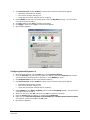
1. Open Internet Explorer. On the Tools menu, click Internet Options.
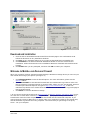
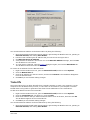
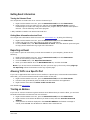
2. Click the Security tab (see Figure 1). Make sure that you are in the Internet Web content
zone and that Security level for this zone is set to Medium or lower.
McAfee.com Personal Firewall
User Guide
4
3. Click Custom Level. Select Enable for these ActiveX controls and plug-ins options:
•
•
•
Download signed ActiveX controls
Run ActiveX controls and plug-ins
Script ActiveX controls marked safe for scripting
4. Select Enable for the Active scripting option under the Scripting settings. You will need to
scroll down the list to find it.
5. Click OK, and then click Yes to confirm the changes.
6. Click Apply, and then click OK to close Internet Options.
7. Quit Internet Explorer.
Figure 1
Configuring Internet Explorer 6.x
1. Open Internet Explorer. On the Tools menu, click Internet Options.
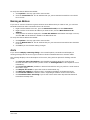
2. Click the Security tab (see Figure 2). Make sure that you are in the Internet Web content
zone and that the security level for this zone is set to Medium or lower.
3. Click Default Level to use the recommended settings.
4. Click Custom Level. Select Enable for these ActiveX controls and plug-ins options:
•
•
•
Download signed ActiveX controls
Run ActiveX controls and plug-ins
Script ActiveX controls marked safe for scripting
5. Select Enable for the Active scripting option under the Scripting settings. You will need to
scroll down the list to find it.
6. When you are done, click OK, and then click Yes to confirm the changes.
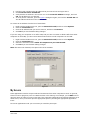
7. Click the Privacy tab (see Figure 3), and then click Advanced.
8. Make sure that Override automatic cookie handling and Always allow session cookies
are selected, and then click OK. Click OK again.
9. Quit Internet Explorer.
McAfee.com Personal Firewall
User Guide
5
Figure 2
Figure 3
Download and Installation
1. Click the link to download Personal Firewall from the Web page or the confirmation email.
Follow the directions on any installation windows.
2. Click Yes on any messages asking you if you want to download files from McAfee.com.
3. Click Continue on the Personal Firewall Installation Wizard to start the download and
installation. Follow the directions on the Installation Wizard to download and install Personal
Firewall.
4. Click Finish when you are prompted, and then click OK to restart your computer.
Welcome to McAfee.com Personal Firewall
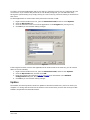
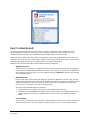
When your computer restarts, Personal Firewall displays a Welcome message where you can test your
new firewall and change your options (see Figure 4).
•
•
•
Click Change Options to edit the firewall options. For more information, please see the
Options section.
Click Test Firewall* to test Personal Firewall with the Hackerwatch.org Probe to make sure
that it is blocking unwanted Internet or network traffic. When you click Test Firewall, Personal
Firewall opens Internet Explorer and goes to http://www.hackerwatch.org , a Web site
maintained by McAfee.com. Please follow the directions on the Hackerwatch.org Probe page to
test Personal Firewall.
Click Done to close the Welcome message.
* If you connect to the Internet through a proxy server or Network Address Translation (NAT) server,
as is the case in most office networks (LANs), you will not get a proper reading. Hackerwatch.org’s
firewall tester looks for which computer asked for the firewall test and tests that computer. If you
connect through a proxy or NAT server, it simply relays your computer’s request for the firewall test,
and Hackerwatch.org will test the wrong computer. The results that you get belong to the proxy
server - not your computer.
McAfee.com Personal Firewall
User Guide
6
Figure 4
Using McAfee.com SecurityCenter
The McAfee.com SecurityCenter is your one-stop security shop, accessible from its icon in your
Windows system tray or from your Windows desktop. With it, you can perform these useful tasks:
•
Get free security analysis for your PC.
•
Launch, manage, and configure all your McAfee.com subscriptions from one icon.
•
See continuously updated virus alerts and the latest pro duct information.
•
Receive free trial subscriptions to download and install trial versions directly from McAfee.com
using our patented software delivery process.
•
Get quick links to frequently asked questions and account details at the McAfee.com Web site.
Note: For more information about its features, please click Help in the SecurityCenter dialog box.
While the SecurityCenter is running and all of the McAfee.com features installed on your computer are
enabled, a red M icon
appears in the Windows system tray. This area is usually in the lower-right
corner of the Windows desktop and contains the clock.
If one or more of the McAfee.com applications installed on your computer are disabled, the
McAfee.com icon changes to black
.
To open the McAfee.com SecurityCenter:
1. Right-click the McAfee.com icon
2. Click Open SecurityCenter.
.
To access a Personal Firewall feature:
1. Right-click the McAfee.com icon
.
2. Point to Personal Firewall, and then click the feature you want to use.
McAfee.com Personal Firewall
User Guide
7
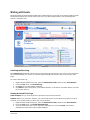
Setting the Options
The Options dialog box is where you set Personal Firewall's protection level.
To set Personal Firewall’s options automatically:
1. Right-click the McAfee.com icon, point to Personal Firewall, and then click Options.
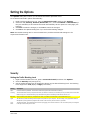
2. Click each tab (Security, General, Banned IPs, etc.) and click Default or Recommend (if
they are available) to have Personal Firewall automatically set the options for each page (see
Figure 5).
3. Click Yes to make the changes, or click No to cancel the changes.
4. Click OK on the Options dialog box if you are finished making changes.
Note: The Default settings are for novice firewall users, and the Recommend settings are for
experienced firewall users.
Figure 5
Security
Setting the Traffic Blocking Level
1. Right-click the Mcafee.com icon, point to Personal Firewall, and then click Options.
2. Click the Security tab (see Figure 4).
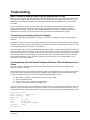
3. Set the traffic blocking level by sliding the selector to the desired blocking level. The blocking
level ranges from Low (Open) to High (Lock-Down):
Setting
Description
Open
Firewall is effectively disabled. This allows all traffic through Personal Firewall with no filtering.
Trusting
This trusts IP traffic from any computer with which you initiate a connection, on the same port as you initiate, and it trusts UDP
traffic on any port. Choose this setting if you find that some games or streaming media will not work for you.
Standard
(Recommended) This allows only computers with which you initiate communications to send traffic back to you.
Tight
This allows only traffic consisting of direct replies to requests from your computer. On this setting, many applications that use
UDP packets (mostly games and programs that 'stream' video or audio) will not be abl e to get traffic.
LockDown
This stops all traffic. This is essentially the same as unplugging your Internet connection. This even blocks ports you configured
to be open under the My Servers tab.
McAfee.com Personal Firewall
User Guide
8
Event Logging
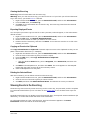
You can choose whether or not to log any events that Personal Firewall reports:
1. Right-click the McAfee.com icon, point to Personal Firewall, and then select Options.
2. Click the Security tab.
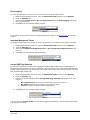
3. Select either Log the event or Do not log the event from the Event logging drop-down
menu (see Figure 6).
4. Click OK if you are finished making changes.
Figure 6
If you choose to log events, Personal Firewall displays the events on the Events page of the main
window.
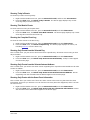
Immediate Background Traces
A background trace performs a trace on the event and logs it in the Event Log for future reference.
1. Right-click the McAfee.com icon, point to Personal Firewall, and then select Options.
2. Click the Security tab.
3. Select either Perform a background trace or Do not perform background trace (see
Figure 7).
4. Click OK if you are finished making changes.
Figure 7
Accept ICMP Ping Requests
You can set the behavior of blocking and logging for ICMP traffic. ICMP traffic is used mainly for
performing traces and pings. Pinging is frequently used to perform a quick test before attempting to
initiate communications. If you are using or have used a peer-to-peer file-sharing program, you may
find yourself being pinged a lot.
1. Right-click the McAfee.com icon, point to Personal Firewall, and then select Options.
2. Click the Security tab.
3. Choose one of the settings from the Accept ICMP ping requests drop-down menu (see
Figure 7):
•
•
•
No-Log/Alert me blocks the ping request and logs it as an event. *
No-Ignore blocks the ping request, but it does not log it.
Yes allows all ping requests without logging them.
4. Click OK if you are finished making changes.
Figure 8
* You must select Log the event from the Event Logging drop-down menu before Personal Firewall
logs any ping requests.
McAfee.com Personal Firewall
User Guide
9
General
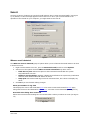
You have a varie ty of options on how the firewall behaves when it traps unwanted traffic (see Figure
9). By default, an alert message appears when events occur. Once you are accustomed to the
operation of the firewall on your computer, you might want to turn this off.
Figure 9
When an event is detected
The When an event is detected group of options allow you to tell Personal Firewall what to do when
it detects an event.
1. Right-click the McAfee.com icon, point to Personal Firewall, and then select Options.
2. Select one of the options from the When an event is detected drop-down menu:
•
•
•
Flash the tray icon: Select this option to have Personal Firewall flash the system
tray/notification area icon.
Display a warning dialog: Displays a dialog box and flashes the system tray/notification
area icon when Personal Firewall detects an event.
Keep quiet: Personal Firewall logs events as it detects them, but it does not display any
alerts.
3. Click OK if you are finished making changes.
Show port numbers in log view
This displays the source and destination ports of an event on Personal Firewall’s Events page,
along with the source and destination IP addresses, and other event information (see Figure 10).
Auto-hide alert dialog after 5 seconds
Select this to hide the Alert Dialog box five seconds after it alerts you about an event (see Figure
10).
Figure 10
McAfee.com Personal Firewall
User Guide
10
Use the following Visual Trace program
This drop down menu allows you to select which available visual tracing application to use for tracing
events (see Figure 11). *
1. Right-click the McAfee.com icon, point to Personal Firewall, and then click Options.
2. Click the General tab.
3. Select the Visual Trace program that you want to use from the drop-down menu.
Personal Firewall uses by default the built-in visual tracing feature of Personal Firewall Plus. If you also
own a copy of McAfee Visual Trace or NeoTrace, you can select it to trace events.
Figure 11
* Only available in McAfee.com Personal Firewall Plus.
HackerWatch Sign-Up Information
In order to report events to HackerWatch.org, you must sign up for the service. This allows your
submissions to be tracked and allows us to notify you if HackerWatch.org needs more information or
further action from you. We also require you to sign up because we have to confirm any information
we receive for that information to be of any value.
All email addresses provided to HackerWatch.org are kept confidential. If a request for additional
information is made by an ISP , that request is routed through HackerWatch.org; your email address is
never exposed.
1. Right-click the McAfee.com icon, point to Personal Firewall, and then click Options.
2. Click the General tab.
3. Click HackerWatch Sign-Up Information. Personal Firewall allows you to enter your
HackerWatch ID, if you already have one, or to sign-up for a HackerWatch ID.
Use sound effects during trace
This option toggles sound effects on or off in McAfee Visual Trace (see Figure 12).*
1. Right-click the McAfee.com icon, point to Personal Firewall, and then click Options.
2. Click the General tab.
3. Click the check box next to Use sound effects during trace. Clear the check box by clicking
it if you do not want sound effects.
* Only available in McAfee.com Personal Firewall Plus.
Set Home Location
Click this button to change or set your home location in McAfee Visual Trace.*
Setting Your Home Location
The first time you perform a Visual Trace , Personal Firewall prompts you to set your home
location.
Setting your home location is not vital to performing a Visual Trace. Click Cancel if you do not
want to set your home location. You can set it or change it at any time on the Options dialog box.
1.
2.
3.
4.
5.
6.
Right-click the McAfee.com icon, point to Personal Firewall, and then click Options.
Click the General tab, and then click Set Home Location.
Click Next on the Set Home Location window.
Select your country from the Select your Country drop-down menu.
Enter your ZIP or post code.
Click Next, and then click Finish.
McAfee.com Personal Firewall
User Guide
11
If the Invalid Location message appears:
1. Click OK.
2. Ensure that you entered your location information co rrectly.
3. Click Next.
If the information is correct and the Invalid Location message appears again, click Advanced to
enter your latitude and longitude.
Setting Your Home Location – Advanced
1.
2.
3.
4.
5.
From Set
Click Yes
Enter the
Enter the
Click OK.
Home Location, click Advanced.
to Advanced View Confirmation.
Latitude of your home location and click North or South.
Longitude of your home location and click East or West.
Tip: If you don't know your latitude and/or longitude, enter a number between or including 0 and
90 for latitude, and between or including 0 and 180 for longitude. Note that the red "crosshairs"
move as you enter numbers. Adjust the numbers until you are on or near your home location.
* Only available in McAfee.com Personal Firewall Plus.
Clear Visual Trace Caches
Clearing the Trace caches deletes all information regarding event traces that McAfee Visual Trace
stores. *
Figure 12
Warning: Do not click this button unless you want to clear your Visual Trace caches. The caches
delete immediately upon pressing the button. Normally, you will only use this option at the request of
our Technical Support staff.
* Only available in McAfee.com Personal Firewall Plus.
Banned IPs
The banned IP address list gives you a convenient mechanism to completely block traffic from a
specific computer. You are invisible to a computer at that IP address regardless of your other settings.
If Personal Firewall detects an event from a banned IP address, it alerts you via the method you
selected from the When an event is detected drop-down menu.
To add an IP address to the Banned IP list:
1.
2.
3.
4.
Right-click the McAfee.com icon, point to Personal Firewall, and then select Options.
Click the Banned IPs tab (see Figure 13).
Click Add.
Enter the IP address you want to ban and click OK. The IP address appears in the Banned IP
list.
5. Click OK if you are finished making changes.
McAfee.com Personal Firewall
User Guide
12
Figure 13
You can also add an IP address to the banned IP list by doing the following:
1. Open the Personal Firewall View Events page by right-clicking the McAfee.com icon, pointing to
Personal Firewall, and clicking View Events.
2. Find the event containing the IP address that you want to ban and right-click it.
3. Click Ban the Source IP Address.
4. Verify that the IP address is the correct one on the Ban this Address message, and click OK.
The IP address is now banned.
5. To verify that it is banned, open the Options dialog box again, and click the Banned IPs tab.
The IP address should be in the banned IPs list.
To remove an IP address from the Banned IP list:
1. Right-click the McAfee.com icon, point to Personal Firewall, and then select Options.
2. Click the Banned IPs tab.
3. Click the IP address you want to remove, and then click Remove. The IP address disappears
from the banned IP list.
4. Click OK if you are finished making changes.
Trusted IPs
The Trusted IP list lets you allow all traffic from a specific computer to reach your computer. For the
computer at the IP address that you trust, it is like there is no firewall on your computer. Personal
Firewall does not log traffic or generate event alerts from IP addresses in the Trusted IP list.
To add an IP address to the list of trusted IPs:
1. Right-click the McAfee.com icon, point to Personal Firewall, and then select Options.
2. Click the Trusted IPs tab (see Figure 11) and click Add.
3. Enter the IP address that you want Personal Firewall to trust at all times, and then click OK.
The IP address appears in the Trusted IPs list.
4. Click OK if you are finished making changes.
You can also add an IP address to the trusted IP list by doing the following:
1. Open the Personal Firewall View Events page by right-clicking the McAfee.com icon, pointing to
Personal Firewall, and clicking View Events.
McAfee.com Personal Firewall
User Guide
13
2. Find the event containing the IP address that you want to ban and right-click it.
3. Click Trust the Source IP Address.
4. Verify that the IP address is the correct one on the Trust this Address message, and click
OK. The IP address is now banned.
5. To verify that it is banned, open the Options dialog box again, and click the Trusted IPs tab.
The IP address should be in the trusted IPs list.
To remove an IP address from the list of trusted IPs:
1.
2.
3.
4.
Right-click the McAfee.com icon, point to Personal Firewall, and then select Options.
Click the Trusted IPs tab.
Click the IP address that you want to remove, and then click Remove.
Click OK if you are finished making changes.
If you are using your computer on an office LAN, and you have no reason to block traffic from other
computers on that LAN, you can instruct Personal Firewall to trust all computers on the LAN:
1.
2.
3.
4.
Right-click the McAfee.com icon, point to Personal Firewall, and then select Options.
Click the Trusted IPs tab.
Select the check box next to Make all computers on your LAN Trusted.
Click OK if you are finished making changes.
Note: If a LAN is not detected, this option will not be available.
Figure 14
My Servers
Some applications need to accept unsolicited connections from other computers to work. In general,
these are server programs, such as a Web site host or file sharing. For example, you do NOT need to
open any ports in order to receive email, but if the computer protected by Personal Firewall acts as an
email server, then you need to open the appropriate ports by checking the appropriate application
items.
Do not set applications until you are certain you need the ports open.
McAfee.com Personal Firewall
User Guide
14
A number of common applications and servers that you might be running are pre -configured for your
convenience. If you need to add ports that are not already configured, you can add them easily
through the options dialog or by simply clicking an event in the log view and creating a rule based on
that event.
To allow applications to communicate freely across the Internet or LAN:
1.
2.
3.
4.
Right-click the McAfee.com icon, point to Personal Firewall, and then select Options.
Click the My Servers tab.
Click the check box next to one of the applications in the Program list (see Figure 15).
Click OK if you are finished making changes.
Figure 15
If the Program list does not have the application that needs access to the Internet, you will need to
add it to the list manually:
1. Right-click the McAfee.com icon, point to Personal Firewall, and then click Options.
2. Click the My Servers tab, and then click Add.
3. Enter the incoming and outgoing TCP/IP and UDP port information in the Add Port
Configuration dialog box, and then click OK.
4. Click OK if you are finished making changes.
Updates
The McAfee.com SecurityCenter checks for updates to Personal Firewall every two hours while your
compute r is running and connected to the Internet. This ensures that you have the most up-to-date
software components for Personal Firewall.
McAfee.com Personal Firewall
User Guide
15
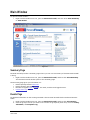
Main Window
To open the main window:
•
Right-click the McAfee.com icon, point to Personal Firewall, and click either View Summary
or View Events.
Figure 16
Summary Page
Personal Firewall provides a Summary page where you can view a summary of what Personal Firewall
is doing.
•
Right-click the McAfee.com icon, point to Personal Firewall, and then click View Summary.
The Personal Firewall window opens to the Summary page.
The Summary page gives you information on:
•
•
•
•
Most frequently blocked addresses
Most frequently attempted ports
Number of logged events for today, this week, and the total logged events.
Hackerwatch.org links
Events Page
For detailed information on the events generated w hen Personal Firewall blocks unsolicited Internet
traffic:
1. Right-click the McAfee.com icon, point to Personal Firewall, and then click View Events.
2. Click the group of events you want to see. Events are grouped by when they occurred: Today,
This Week, and Complete Log.
McAfee.com Personal Firewall
User Guide
16
3. Click an event to display more information in the Event Information section on the bottom of
the window.
About Events
Understanding IP Addresses
IP addresses are just numbers: four numbers between 0 and 255 to be precise. These numbers
identify a specific place that traffic can be directed to on the Internet.
Special IP Addresses
Several IP addresses are unusual for various reasons:
•
•
•
Non-Routable IP Addresses: These are also referred to as "Private IP Space." These IP
addresses cannot be used on the Internet. Private IP blocks are 10.x.x.x, 172.x.x.x, and
192.168.x.x.
Loop-Back IP Addresses: Loop-back addresses are used for testing purposes. Traffic
sent to this block of IP addresses comes right back to the device generating the packet. It
never leaves the device, and is primarily used for hardware and software testing. The
Loop-Back IP block is 127.x.x.x.
Null IP Address: This is an invalid address. When it is seen, it indicates that the traffic
had a blank IP address. This is obviously not normal, and frequently it indicates that the
sender is deliberate ly obscuring the origin of the traffic. The sender will not be able to
receive any replies to their traffic unless the packet is received by an application that
understands the contents of the packet that will include instructions specific to that
application. A Null IP Address is simply 0.0.0.0.
Types of Events
Events from 0.0.0.0
If you see events from IP address 0.0.0.0, there are two likely causes. The first, and most
common, is that for some reason your computer received a badly formed packet. The Internet
isn't always 100% reliable, and bad packets can occur. Since Personal Firewall sees the packets
before TCP/IP can validate them, it may report these packets as an event.
The other situation occurs when the source IP is spoofed, or faked. Spoofed packets may be a sign
that someone is scanning around looking for Trojans, and they happened to try your computer.
It's important to remember that Personal Firewall blocked this attempt, so your computer is safe.
Events from 127.0.0.1
Events will sometimes list their source IP as 127.0.0.1. It's important to note that this IP is
special, and is referred to as the loopback address.
Basically, no matter what computer you're on, 127.0.0.1 always refers to yourself. This address is
also referred to as localhost, as the computer name localhost will always resolve back to the IP
address 127.0.0.1.
Does this mean that your computer is attempting to hack itself? Is some Trojan or spyware taking
over your computer? Not likely. Many legitimate programs use the loopback address for
communication between components. For example, many personal mail or Web servers let you
configure them via a Web interface that is usually accessible through something like
http://localhost/.
However, Personal Firewall allows traffic from these programs, so if you see events from
127.0.0.1, it most likely means that the source IP address is spoofed, or faked. Spoofed packets
are usually signs of someone scanning for Trojans. It's important to remember that Personal
Firewall blocked this attempt, so your computer is safe. Obviously, reporting events from
127.0.0.1 won't do any good, so there's no need to do so.
McAfee.com Personal Firewall
User Guide
17
With that said, there are some programs, most notably Netscape 6.2 and higher, that requires you
to add 127.0.0.1 to the trusted IP list. These programs’ components communicate between each
other in such a manner that Personal Firewall cannot determine if the traffic is local or not.
In the example of Netscape 6.2, if you do not trust 127.0.0.1, then you will not be able to use
your buddy list. Therefore, if you see traffic from 127.0.0.1 and all of the applications on your
computer work normally, then it is safe to block this traffic. However, if a program (like Netscape)
is having problems, place 127.0.0.1 in Personal Firewall’s trusted IP list, and then find out if the
problem is resolved.
If placing 127.0.0.1 in the trusted IP list fixes the problem, then you need to weigh your options:
if you trust 127.0.0.1, your program will work, but you will be more open to spoofed attacks. If
you do not trust the address, then your program will not work, but you will remain protected
against such malicious traffic.
Events from Computers on Your LAN
Events can be generated from computers on your local area network (LAN). To show that these
events are coming from somewhere "close to home," Personal Firewall displays them in green.
In most corporate LAN settings, you'll want to check "Make all computers on your LAN Trusted" in
the Trusted IPs options dialog.
However, it's important to note that in some situations, your 'local' network can be as dangerous,
or even more dangerous, than the outside network. This is especially true if you are on a highbandwidth public network, such as DSL or cable modems. In such a scenario, it's best not to
check the "Make all computers on your LAN Trusted" option.
If you are on a home network connected to broadband, you should instead manually add the IP
addresses of your local computers to the Trusted IP list. Remember, you can use .255 style
addresses to trust an entire block. For example, you can trust your entire ICS (Internet
Connection Sharing) network by trusting the IP 192.168.255.255.
Events from My Own Computer
Under normal operation, you should not see events originating from your own IP address. Most
likely, this is a configuration issue with one of the programs on your computer.
If you see events from your own computer, see what port they are on and determine if you have
an application running that uses that port. You may need to configure an application rule to open
those ports for the program to function normally. See Giving Programs Unrestricted Internet
Access.
Events from Private IP Addresses
IP addresses of the format 192.168.xxx.xxx or 10.xxx.xxx.xxx are referred to as non-routable or
private IP addresses. These IP addresses should never leave your network, and can be trusted
most of the time.
The 192.168 block is used with Microsoft Internet Connection Sharing (ICS). If you are using ICS,
and see events from this IP block, you might want to add the IP address 192.168.255.255 to your
trusted IP list. This will trust the entire 192.168.xxx.xxx block.
If you are not on a private network, and see events from these IP ranges, the source IP address
may be spoofed, or faked. Spoofed packets are usually signs that someone is scanning for
Trojans. It's important to remember that Personal Firewall blocked this attempt, so your computer
is safe.
Since private IP addresses refer to different computers depending on what network you are on,
reporting these events will have no effect, so there's no need to do so.
McAfee.com Personal Firewall
User Guide
18
Working with Events
The Events page of the Personal Firewall main window allows you to find out everything that Personal
Firewall knows about the events in the Event Log. It is also the place where you can manage the
events in the Event Log.
Figure 17
Archiving the Event Log
The Archive Log command archives the current Event Log and archives it in a file on your hard drive.
We recommend that you archive your Event Log periodically because the Event Log can get quite
large.
To archive the Event Log:
1.
2.
3.
4.
Right-click the McAfee.com icon, point to Personal Firewall, and then click View Events.
From the File menu, click Archive Log.
Click Yes on the confirmation message.
Click Save to save the archive in the default location, or browse to a location where you want
to save the archive.
Viewing Archived Event Logs
View Archives lets you view any Event Logs that you previously archived.
Caution: Before you view your archives, you must archive your current Event Log. Failure to do so
will clear your current Event Log when you view an archive.
1. Right-click the McAfee.com icon, point to Personal Firewall, and then click View Events.
2. From the File menu, click View Archived Logs.
3. Click the archive file name (you may have to browse to it) and click Open. The archive
displays where the Event Log normally displays.
McAfee.com Personal Firewall
User Guide
19
Clearing the Event Log
Clear Log clears all information from the Event Log.
Warning: Once you clear the Event Log, you cannot recover it. If you think you will need the Event
Log in the future, you should archive it instead.
1. Right-click the McAfee.com icon, point to Personal Firewall, and then click View Events.
2. From the File menu, click Clear Log.
3. Click Yes on the confirmation box to clear the log. The Event Log clears from the Personal
Firewall window.
Exporting Displayed Events
You can export your Event Log to a text file in case your ISP, technical support, or law enforcement
officials needs it.
1.
2.
3.
4.
Right-click the McAfee.com icon, point to Personal Firewall, and then click View Events.
From the File menu, click Export Displayed Events.
Browse to the location to which you want to save the events.
Rename the file if necessary, and then click Save. Your events are saved to a .txt file in the
location you chose.
Copying an Event to the Clipboard
The Copy Selected Event to Clipboard command copies an event to the clipboard so that you can
paste it onto another document (i.e. Notepad).
1.
2.
3.
4.
Right-click the McAfee.com icon, point to Personal Firewall, and then click View Events.
Click the event in the Event log that you need to export.
From the Edit menu, click Copy Selected Event to Clipboard.
Open Notepad:
•
Click the Windows Start button, point to Programs, then Accessories, and then click
Notepad.
5. Click Edit on the Notepad menu, and then click Paste. The event appears on the Notepad.
Repeat this step until you have all of the necessary events.
6. Save the Notepad file in a safe place.
Deleting the Selected Event
With this command, you can delete events from the Event Log.
1. Right-click the McAfee.com icon, point to Personal Firewall, and then click View Events.
2. Click the event in the Event log that you want to delete.
3. Click Edit, and then click Delete Selected Event. This deletes the event you selected.
Showing Events in the Event Log
The Event Log sorts events by events occurring on the current day, the past week, and the complete
log. Personal Firewall allows you to view them on the Events page in one of those three ways at a
time.
Personal Firewall also lets you display events from specific days, from specific Internet addresses (IP
addresses), or events that contain the same event information.
For information about an event, click the event, and the information appears in the Event
Information area at the bottom of the Events page.
McAfee.com Personal Firewall
User Guide
20
Showing Today's Events
To show only events occurring today:
1. Right-click the McAfee.com icon, point to Personal Firewall, and then click View Events.
2. From the View menu, click Show Today's Events. The Events page displays only events
occurring today from the Event Log.
Showing This Week's Events
To show events occurring in the past week:
1. Right-click the McAfee.com icon, point to Personal Firewall, and click View Events.
2. From the View menu, click Show This Week's Events. The Events page displays only events
occurring this week from the Event Log.
Showing the Complete Event Log
To show all of the events in the Event Log:
1. Right-click the McAfee.com icon, point to Personal Firewall, and click View Events.
2. From the View menu, click Show Complete Log. The Events page displays all events, not
including archives, from the Event Log.
Showing Only Events from the Selected Day
This is useful when you just want to look events from a specific day. All events not occurring on that
day are hidden.
1. Right-click the McAfee.com icon, point to Personal Firewall, and click View Events.
2. From the View menu, click Show Only Events From Selected Day. Today's events appear
on the Events page.
Showing Only Events from the Selected Internet Address
This is useful when you need to see other events originating from a specific Internet address. All other
events are hidden.
1. Right-click the McAfee.com icon, point to Personal Firewall, and click View Events.
2. From the View menu, click Show Only Events From Selected Internet Address. Events
originating from the selected Internet address appear on the Events page.
Showing Only Events with the Same Event Information
This is useful when you need to see if there are other events in the Event Log that have the same
information as the one you selected. You can find out how many times this happened, and if it is from
the same source.
1. Right-click the McAfee.com icon, point to Personal Firewall, and click View Events.
2. From the View menu, click Show Only Events with the same Event Information. Events
with the same Event Information appear on the Events page.
McAfee.com Personal Firewall
User Guide
21
Getting Event Information
Tracing the Selected Event
You can perform a visual trace on an event in the Event log.*
1. Right-click the McAfee.com icon, point to Personal Firewall, and click View Events.
2. Right-click the event you want to trace, and then click Trace Selected Event. Personal
Firewall begins a visual trace using the Visual Trace program that you selected from Options General - Use the following Visual Trace program.
* Only available in McAfee.com Personal Firewall Plus.
Getting More Information about an Event
You can get more information about an event from HackerWatch.org by doing the following:
1. Right-click the McAfee.com icon, point to Personal Firewall, and click View Events.
2. Locate and click the event about which you want more information.
3. From the Event menu, click More Information on Event. Your Web browser opens and goes
to http://www.hackerwatch.org to get more information.
Reporting an Event
If you want to report an event that you think was an attack on your computer, please do the
following:
1.
2.
3.
4.
Right-click the McAfee.com icon, point to Personal Firewall, and click View Events.
Click the event that you want to report.
From the Event menu, click Report Selected Event.
Enter your HackerWatch ID in the HackerWatch ID box, and then click OK.
Note: If you do not have a HackerWatch ID, then you must sign up for one by clicking Sign-Up
for Reporting. Follow the directions on the sign-up Web page.
Allowing Traffic on a Specific Port
If you use an app lication that needs to receive traffic on a specific port, but Personal Firewall blocks
that traffic, you can set Personal Firewall to allow traffic on that port.
1. Right-click the McAfee.com icon, point to Personal Firewall, and click View Events.
2. Find the event generated by Internet traffic that was intended for the application.
3. Right-click the event and click Allow Traffic on this Port.
See related topic My Servers .
Trusting an Address
If you see an event in the Event Log that contains an IP address that you need to allow, you can have
Personal Firewall allow connections from it at all times:
1. Right-click the McAfee.com icon, point to Personal Firewall, and click View Events.
2. Right-click the event whose IP address you want trusted, and click Trust the Source IP
Address.
3. Verify that the IP address displayed in the Trust this Address confirmation message is
correct, and click OK. The IP address is added to the Trusted IPs list.
McAfee.com Personal Firewall
User Guide
22
To verify that the IP address was added:
1. Click Options in the top right of the main window.
2. Click the Trusted IPs tab. The IP address that you just set Personal Firewall to trust should
be in the list.
Banning an Address
If you see an event in the Event Log that contains an IP address that you want to ban, you can have
Personal Firewall not allow connections from it at all times:
1. Right-click the McAfee.com icon, point to Personal Firewall, and click View Events.
2. Right-click the event whose IP address you want to ban, and click Ban the Source IP
Address.
3. Verify that the IP address displayed in the Ban this Address confirmation me ssage is correct,
and click OK. The IP address is added to the Banned IPs list.
To verify that the IP address was added:
1. Click Options in the top right of the main window.
2. Click the Banned IPs tab. The IP address that you just set Personal Firewall to ban should be
in the list.
3. Click OK if you are finished making changes.
Alerts
If you selected Display a warning dialog in the Firewall Options, Personal Firewall displays a
warning message like the one in Figure 14 when it blocks unwanted Internet or network traffic.
This message displays a short description of the event, along with six options for dealing with the
event.
•
•
•
•
•
•
Click Find out more information to get detailed information about the event through
Personal Firewall’s main window (see the section on Viewing Events in this chapter for more
information).
Click Trace this address (available in Personal Firewall Plus only) to perform a visual trace to
the event’s origin.
Click Report this event to report the event to Hackerwatch.org.
Click Ban this address to add the event’s originating IP address to the Banned IP list.
Click Trust this address to add the event’s originating IP address to the Trusted IP list.
Click Continue what I was doing if you do not want to take action beyond what Personal
Firewall has already done.
McAfee.com Personal Firewall
User Guide
23
Figure 18
Help! I've Been Hacked!
The most important thing for you to remember is that your computer is behind a firewall. If you
haven't opened any malicious programs, if you are being careful, and if your computer was not
already compromised before you installed Personal Firewall, then you should be safe .
When you see an event in the log, it does not necessarily mean that someone tried to hack into your
computer. All it means is that a certain type of packet came to the IP address you are currently using
and Personal Firewall determined you didn't need it, so it blocked the packet.
Warnings from Personal Firewall are broken down into three categories:
•
Application Driven
These are the most common. An application you are using caused the firewall to be triggered.
Look at the information provided about the event in the log view. If it mentions an application
you are using, then most likely, you can configure settings in Options to prevent this warning
from happening again.
•
Random Probes
Even if a warning is created that has nothing to do with an application you are using, you still
might not be a specific target. Many would -be hackers configure scanners to attempt to access
random IP addresses over time. Due to the sheer number of 'script-kiddies' running these
scanners, you can expect to be hit by one almost daily.
There are two important things to remember:
1. These probes are at random; they were not specifically targeted at you.
2. Personal Firewall STOPPED these probes from reporting to the 'script-kiddie.' As far as the
probing program knows, your computer doesn’t exist, so the script-kiddie won’t know
either.
•
True Attempts
If you receive multiple hits over time from a similar address, then there’s a chance someone is
actually trying to hack into your computer. However, the key is to err on the side of reason.
McAfee.com Personal Firewall
User Guide
24
Don’t go reporting every little probe that hits your computer. Remember the boy who cried
"wolf." If someone persistently pesters you, ban their IP, or collect as much data as possible
before reporting them.
McAfee.com Personal Firewall
User Guide
25
Troubleshooting
When I connect to www.grc.com it says my NetBIOS port is open.
When you are using the 2nd and 3rd levels (Trusting, Standard) of security in Personal Firewall your
computer will accept all UDP communication with computers that you initiate traffic with. Since you
initiated the connection to the GRC site, Personal Firewall allows the NetBIOS query, which comes
over UDP.
This is not dangerous unless you are in the habit of initiating communications with computers or
people you do not trust. This might occur in peer-to-peer programs such as Napster or AIM. To
prevent this from being a problem, either disable NetBIOS over TCP/IP in your Windows protocol
settings or use security level 4 under the security tab of Personal Firewall options (Tight).
The event type code being reported is unknown.
"The event type code being reported is unknown. This should not happen. Please contact technical
support."
If someone is pinging you with an unknown address, then he or she is spoofing his or her IP address.
The bad news is that we can't track that down, since the IP is wrong. The good news is that they can't
learn anything about your computer or its contents.
Pings work kind of like the old "Self Address Stamped Envelopes" used by catalog companies. Think of
the source IP as a "Return Address" on an envelope. When they ping, they're sending you an envelope
with a return address in it, and they're asking you to put a piece of paper in the envelope saying that
you exist and to send it back. However, since they didn't put a real return address, even if Personal
Firewall hadn't blocked it, your computer would have sent the return to an invalid address. So, in
other words, don't worry about it.
Troubleshooting Personal Firewall Installs in Windows 2000 with Windows Event
Viewer
The event viewer in Windows 2000 can provide useful details about a Personal Firewall install if
technical support is needed.
Note that this option is only available in Windows 2000, not in Windows 95, 98, or ME. Also note that
we are referring to the Event Viewer built into Windows 2000, not the Personal Firewall Event log.
To open the Event Viewer and look for Personal Firewall Warnings or Errors:
1.
2.
3.
4.
Open Start | Programs | Administrative Tools | Event Viewer
Click on Application Log
Click on the "Source" Column to sort by source
Look for events with a Source of "NWService"
If you see any events from Source "NW Service" with Type "Error", double click on them. To copy the
contents, press the button that has two pieces of paper on it in the Event Properties window. Then, if
needed for technical support, paste these events into an email. The result should look something like:
Event Type: Error
Event Source:
NWService
Event Category:
None
Event ID:
2
Date:
4/17/2001
Time:
3:44:22 PM
User:
NT AUTHORITY\SYSTEM
Computer:
CIVIC
Description:
McAfee.com Personal Firewall
User Guide
26
Filter Device I/O Proxy Thread could not open a vital shared memory resource.
This is a fatal error. Ensure multiple copies of application are not
installed. If error persists, reinstall is suggested.
McAfee.com Personal Firewall
User Guide
27
Frequently Asked Questions
What do the color-coded events mean in the Personal Firewall Log
•
•
•
Green entries are from a local IP or non-routable IP (e.g. 192.168.X.X).
Gray entries are from a possibly spoofed IP address, such as the loopback adapter (127.0.0.1)
or an invalid IP (0.0.0.0).
Red entries are from banned IP addresses.
Help links are also included in the event description areas, which will further describe why you might
be seeing events from these sources.
Does Personal Firewall work with Internet Connection Sharing
All issues with ICS on all versions of Windows are corrected. There are no known conflicts with
Personal Firewall and ICS.
Does Personal Firewall have outbound filtering
Not Yet.
While outbound filtering is not nearly as important as securing your computer from the outside, we do
recognize that it is a desirable feature. The next major release of Personal Firewall will include
sophisticated outbound filtering support. We are working extra hard on this feature to make it both
more secure and easier to use than our competition.
Outbound filtering is more than a checkbox on a feature list. The implementation of outbound filtering
which is used on the major firewalls is subject to a number of simple exploits. These render the
outbound filtering much less safe than you would be led to believe.
Please view our related topic: What is a Trojan?
How does Personal Firewall impact system performance and traffic
There is very little performance impact. Potential resource consumption or slowdown occurs in two
areas; CPU usage by the filter in inspecting the traffic, and additional latency added by the time it
takes the filter to inspect the packet before blocking or allowing it.
The CPU overhead is negligible. Even on a heavily loaded system it is difficult to measure. On older
computers under 120 MHz, there might be some measurable overhead.
Added packet latency is under 1 ms, and is effectively zero.
What is a Trojan?
A large portion of the mischief and malice done to personal computers across the Internet is
performed through Remote Access Trojan programs, or RATs.
All Trojans are programs that contain a malicious payload. Frequently they appear to do something
benign or beneficial. They may display a pretty animation or appear to be a utility of some sort (a
famous Trojan of several years ago was an email client).
How do Trojans get on your computer? You put them there; therefore, it is very important that you
exercise caution in where you obtain software. Never take software from someone you meet in a chat
room, for example. This is the #1 place where people get stuck with Trojans. Often people are tricked
into thinking the program they are obtaining will do something for them, like help them play a game.
Many Trojans may do destructive things to your computer regardless of whether you are connected to
the Internet or not. The bottom line is that if a bad person can get you to run his or her program, it is
no longer your computer.
McAfee.com Personal Firewall
User Guide
28
Only you can protect yourself completely. Putting too much faith in virus scanners, firewalls and other
software only makes you less careful. Would you put on a 'bullet-proof' vest and then never worry
about walking around where people were shooting? Always think it through.
Remember these key facts:
•
•
If you run a program that is a Trojan, it will get on your system unless it is blocked by an antivirus program such as McAfee.com VirusScan Online.
The only way to not be hit by Trojans is not to download software from un-trusted sources.
Someone you met online is never a trusted source.
How do I uninstall Personal Firewall?
1. Click the Start button, point to Programs, then McAfee.com, then McAfee.com Personal
Firewall, and then click Uninstall McAfee.com Personal Firewall.
2. Click Uninstall to start uninstalling Personal Firewall.
Does Personal Firewall support Microsoft® Internet Information Services (IIS)?
Personal Firewall is not intended for server-side use. Therefore, it does not include protection from IIS
exploits. Personal Firewall users who run IIS put themselves at risk if they allow access to IIS and do
not keep IIS security patches up-to-date.
We encourage users who run IIS with McAfee.com Personal Firewall to consider securing IIS with
McAfee.com's SecureIIS product. For more information regarding SecureIIS, please visit
http://corporate.mcafee.com/content/software_products/secureiis.asp
McAfee.com Personal Firewall
User Guide
29
Glossary
A
ARP
ARP stands for Address Resolution Protocol and is used for communication over the Ethernet networks
found in most offices. ARP converts the protocol Internet traffic uses for Web pages and email to the
protocol the Ethernet card in your computer uses. If this is blocked, your computer will not understand
the traffic coming from the network. The result is you cannot use email, the Internet, nor can you
print on a network printer.
B
BPS (Bits-Per-Second)
The speed at which data is transmitted in bits-per-second. A 28.8 modem can move 28,800 bits per
second.
browser
A program that is used to look at various kinds of Internet resources.
C
cookie
A Cookie most commonly refers to a piece of information sent by a Web Server to a user's Web
Browser. The Browser software sends it back to the Server whenever the browser makes additional
requests from the Server. When you visit a site that you previously visited, and were welcomed by
name, thank (or blame) a cookie that told them who you are.
country codes
In the course of tracing intrusion attempts you will eventually encounter a country code. The country
code is a two-letter tag at the end of a site URL that identifies the country where the site is located.
See the on-line help for a detailed list of country codes.
D
DHCP
DHCP stands for Dynamic Host Configuration Protocol. It is a protocol used on many networks and by
DSL and Cable providers to assign IP addresses to computers automatically (dynamic IP address).
Every computer on an office network needs an IP address so it can log on to the network, get email,
and connect to the Internet.
domain name system/server (DNS)
The Domain Name System simplifies Internet navigation. Computers on the internet can only be found
at their numerical IP address (e.g., 206.216.115.4). An address like "McAfee.com" makes sense to a
human but a DNS server must match it up to its real IP address. The DNS server databases are
updated regularly as new domain names are registered.
domain name
An Internet site's unique name, which can consist of two or more parts separated by dots
(McAfee.com, whitehouse.gov, www.chubu.ac.jp).
DSL
DSL or Digital Subscriber Line is an increasingly popular method of connecting to the Internet over
regular phone lines. DSL offers the advantage of a relatively high speed connection at prices
substantially lower than ISDN connections. In theory, DSL has a download speed limit of 9 megabits
per second and an upload limit of 640 kilobits per second. In reality, and dependent of your provider's
equipment as well as your computer equipment, you can expect anything from about 1.5 megabit
download/128 kilobit upload (Asymmetric DSL) to 384 kilobits in both directions (Symmetric DSL).
McAfee.com Personal Firewall
User Guide
30
E
email
Electronic Mail, messages sent via the Internet or within a company LAN or WAN. Email attachments
in the form of EXE (executable) files or VBS (Visual Basic script) files have become increasingly
popular as a means of transmitting viruses and Trojans.
F
finger
Software that allows you find out more information about an Internet user such as their real name and
if they are logged on to a network or the Internet.
firewall
Hardware and/or software designed to keep unauthorized outsiders from tampering with a computer
system or network. That system may be a standalone computer, a small LAN or a company-wide
network or WAN with thousands of users. Personal Firewall is a software firewall effective in protecting
standalone computers and small networks.
FTP
FTP or File Transfer Protocol is used to move files between Internet sites. When you "download" a file
from a site, e.g. a virus program update, you are using FTP. Public FTP sites from which you can
download program or driver updates are usually anonymous FTP servers that permit anonymous
logins. Private FTP sites normally require a Login name as well as a password and those who use them
regularly, usually make use of specialized FTP programs.
H
hit
A "hit" is a single request from a web browser for a single item from a web server. A single web page
with text and graphics will require multiple hits in order to acquire the complete page. The number of
hits required to get the entire page, the size of graphic files, the speed of your connection and the
transfer speed of all the various nodes between your browser and the web site all add up to a page
that appears in seconds or one that comes in very slowly.
HTTP
Hypertext Transfer Protocol moves hypertext (HTML) files on the Internet from the server you are
visiting to the browser you are viewing with.
I
ICMP
ICMP stands for Internet Control Message Protocol. It is a troubleshooting tool used by technicians to
find errors on a network, and it communicates errors on a network as they occur. Unfortunately,
hackers can also use it to interfere with and redirect communications. Hackers do this to get
information such as account numbers, credit card numbers, and other information. Thankfully, ICMP is
usually not necessary, and it can be blocked without causing problems.
Internet
The Internet consists of a huge number of inter-connected networks that use the TCP/IP protocols for
the location and transfer of data. The Internet evolved from a linking of university and college
computers (in the late 1960s and early 1970s) funded by the U.S. Department of Defense and called
the ARPANET. The Internet today is a global network of almost 100,000 independent networks.
intranet
A private network, usually inside an organization, that functions very much like the Internet. It has
become common practice to permit access to such Intranets from standalone computers used by
students or employees off-campus or off-site. Firewalls, login procedures and passwords are designed
to provide security.
McAfee.com Personal Firewall
User Guide
31
IP number
The Internet Protocol Number or IP address is a unique number consisting of four parts separated by
dots (e.g. 63.227.89.66). Every computer of the Internet from the largest server to a laptop
communicating through a cell phone has a unique IP number. Not every computer has a domain name
but everyone has an IP.
ISDN
Integrated Services Digital Network is yet another way of moving data at high speed over existing
phone lines (see DSL). ISDN is widely available and with increasing pressure from DSL providers, cost
is coming down. While a 128,000 Bps rate is theoretically possible, most users find that reality is in
the 56,000 to 64,000 Bps range.
ISP
Internet Service Provider. This is the service you subscribe to in order to connect with the Internet. It
may be a small local company with a few thousand subscribers, a regional company (e.g. uswest.net)
or a nationwide mega-provider like A.O.L. or AT&T WorldNet. Most ISPs sell you a connection, nothing
more. They provide no security whatsoever and if your computer is hacked and subsequently
damaged or destroyed, they don't owe you the time of day. On the other hand if you are a hacker or
violate any of the fine print in your ISP service agreement, they can cut off your Internet access
before you can say World Wide Web.
L
LAN
Local Area Network. Two or more computers that are linked together and able to share programs,
data and/or peripherals
M
MIME
Multipurpose Internet Mail Extensions, MIME, is the standard format used for transmitting files
attached to email messages (pictures, sound files, video files, executables, etc.). The attachment is
encoded when it leaves your computer and is decoded and restored to its original form at the
receiving end. The specific encoding/deco ding format for a given file varies with the file type. Once in
a great while you may receive a MIME format attachment, essentially an attachment that was not
properly encoded or decoded. If you open it and look at it, it will appear to be indecipherable
gobbledygook.
modem
MOdulator/DEModulator. Your modem takes data you are sending and modulates it so that it can be
transmitted over an analog voice phone line. Your modem accepts incoming modulated data and
demodulates it so that it is usable by your computer. The earliest modems required the user to place
the telephone handset into a cradle with padded apertures for the two ends of the handset. Speeds
were in the range of 300 to 1,200 Bps. With improvements in error correction, modems today under
ideal conditions can transmit data at over 50,000 Bps. over a single phone line. DSL and ISDN
connections offer even higher speeds. These days the term modem is frequently used to describe
external network connection devices that don't actually perform any modulation or demodulation, such
as DSL and Cable modems which are actually digital end-to-end.
N
NAT
Network Address Translation. The process of converting between IP addresses used within an intranet
or other private network and Internet IP addresses. This makes it possible to use a large number of
addresses within the private network without depleting the limited number of available numeric
Internet IP addresses.
McAfee.com Personal Firewall
User Guide
32
network
When you connect two or more computers, you create a network. When you connect two or more
networks you create an internet (lower case "i").
node
A single computer connected to a network. When you ask Personal Firewall to perform a trace, the
Visual Trace Express trace list shows you all of the nodes between your computer and the source of
your intrusion event. The nodes simply served as connection points in passing along the data.
P
packet switching
This is the method used to move data on the Internet. The data you are sending or receiving is broken
up into pieces, each piece carrying the IP address of where it is going and where it is coming from.
Billions of these pieces are passing through the Internet at any given time and the major node servers
are sorting these pieces and routing them at incredible speeds. The email you are reading or the web
page you are looking at has been reassembled and delivered to your monitor after traveling across
town or around the world and, best of all, you don't have to give it a moments thought.
password
A code (usually alphanumeric) you use to gain access to your computer, to a given program, or to a
Web site.
PING
Packet Internet Groper is a program used to determine whether a specific IP address is accessible. A
packet is sent to the specified address and the program waits for a reply. Programs like Visual Trace
and Visual Trace Express use PING to identify and/or troubleshoot Internet connections. In addition to
identifying the target site, these programs also note all of the nodes the data passed through between
the two ends of the connection. The most popular shareware PING utility is the full-featured version of
Visual Trace.
port
A place where information goes into and/or out of a computer, e.g. a conventional analog modem is
connected to a serial port. The port numbers in TCP/IP communications are virtual values used to
separate traffic into application-specific streams. The ports (destination and source) captured in the
Personal Firewall Event Log are significant because different applications listen and transmit on
different ports. Ports are assigned to standard protocols like SMTP or HTTP so that programs know
what port to try a connection on. The destination port for TCP packets indicates the application or
server being looked for. In the case of UDP packets the source port has more significance.
PPP
Point to Point Protocol allows a computer to use a regular phone line and modem to make TCP/IP
connections to the Internet.
proxy
A computer (or the software that runs on it) that acts as a barrier between a network and the Internet
by presenting only a single network address to external sites. By acting as a go-between representing
all internal computers, the proxy protects network identities while still providing access to the
Internet. See also Proxy Server.
proxy server
A firewall component that manages Internet traffic to and from a local area network (LAN). A proxy
server can improve performance by supplying frequently requested data, such as a popular Web page,
and can filter and discard requests that the owner does not consider appropriate, such as requests for
unauthorized access to proprietary files.
McAfee.com Personal Firewall
User Guide
33
S
server
A computer or software that provides specific services to software running on other computers. The
"mail server" at your ISP is software that handles all of the incoming and outgoing mail for all of your
ISP's users. A server on a LAN is hardware that constitutes the primary node on the network. It may
also have software that provides specific services, data or other capabilities to all of the client
computers attached to it.
SLIP
Serial Line Internet Protocol used to connect a computer to the Internet by way of a phone line. PPP is
replacing SLIP because it is more efficient.
SMTP
Simple Mail Transfer Protocol is a set of rules governing the sending and receiving of email on the
Internet.
SNMP
Simple Network Management Protocol is a set of standards governing communication with devices
connected to a TCP/IP network. This communication takes the form of Protocol Data Units or "PDU's."
SSL
Secure Sockets Layer, a protocol created by Netscape Communications to enable encrypted, secure
communications across the Internet. Internet banking, securities and e -commerce sites commonly use
SSL.
T
TCP/IP
Transmission Control Protocol/Internet Protocol, the protocols that make the Internet possible and
that make it possible fo r your computer to be part of the Internet.
top level domains
Top level domains (TLDs) are the most common domain name extensions. The most familiar of these
is the ubiquitous "DOT COM" but there are others in common usage:
•
•
•
•
•
•
•
COM US Commercial
EDU US Educational
GOV US Government
INT International
MIL US Military
NET Network
ORG Non-Profit Organization
Trojan Horse
A type of computer worm or virus that comes to you disguised as a desirable program. The name is
based on the famous Trojan Horse that was left outside the walls of Troy by a departing army that
appeared to have given up its plans of conquest. The horse, which concealed a band of soldiers, was
brought into the walled city by its unwary inhabitants. The soldiers opened the gates of the city in the
middle of the night and Troy was destroyed by the returning troops.
U
UDP
User Datagram Protocol. UDP converts data messages generated by an application into packets to be
sent via IP.
URL
Uniform Resource Locator, the standard format for Internet addresses.
McAfee.com Personal Firewall
User Guide
34
USENET
More commonly called Newsgroups, USENET is a decentralized worldwide community made up of
almost 20,000 discussion groups covering almost every conceivable area of interest. Rule of thumb:
don't accept software from someone you meet in a newsgroup or chat room!
V
Visual Trace
Powerful Geographical Internet tracing program. Visual Trace uses a proprietary database system
maintained by McAfee.com to determine and provide location information on routes and IP addresses.
VPN
Virtual Private Network. A network that makes use of the Internet to connect computers that are in
different locations. Communication is encrypted for security.
W
WAN
Wide Area Network, a network of computers that covers an area larger than a single building or
campus. In the past WANs have been private networks connecting geographically separated offices of
the same organization. WANs are rapidly being replaced by the Internet and the wide use of VPNs.
WWW
The World Wide Web or just "The Web." Many people think of this in terms of what is accessible to
their browser but in reality the web now encompasses all of the resources that make up the Internet
including such things as FTP sites, USENET, and much more.
McAfee.com Personal Firewall
User Guide
35
Index
Accept ICMP Ping Requests ...............................10
ActiveX controls ............................................4, 5
Alerts............................................................26
Allowing Traffic on a Specific Port.......................24
ARP ..............................................................33
Auto-hide alert dialog after 5 seconds .................11
Banned IPs.....................................................13
removing an IP address from..........................14
Banning an Address.........................................26
BPS ..............................................................33
Clear Visual Trace Caches .................................13
Configuring Microsoft Internet Explorer............. 4–6
cookie ...........................................................33
cookies............................................................6
country codes.................................................33
DHCP............................................................33
DNS..............................................................33
domain name ...................................... 33, 36, 39
domain name system.......................................33
Download and Installation...................................6
DSL ................................................... 19, 33, 36
email ..............6, 12, 16, 29, 31, 33, 35, 36, 37, 39
Event Logging.................................................10
Events......................................................18–20
Events from 0.0.0.0.........................................18
Events Page..............................................17–18
finger............................................................35
firewall...................... 4, 6, 7, 9, 11, 14, 27, 35, 37
Frequently Asked Questions.........................31–32
FTP......................................................... 35, 40
General....................................................11–13
Getting Event Information
Getting More Information about an Event.........24
Tracing the Selected Event.............................24
Getting Event Information............................23–24
Getting Started............................................. 4–7
Glossary ...................................................33–40
HackerWatch Sign-Up Information......................12
Help! I've Been Hacked...............................27–28
hit ..................................................... 27, 32, 35
How do I uninstall Personal Firewall? ..................32
HTTP.............................................................35
ICMP ....................................................... 10, 35
Immediate Background Traces...........................10
Internet...4, 6, 7, 10, 16, 17, 18, 19, 20, 22, 23, 24,
26, 31, 32, 33, 35, 36, 37, 39, 40
Internet Explorer
configuring, Internet Explorer 5.x......................5
configuring, Internet Explorer 6.x......................5
intranet................................................... 35, 36
IP 9, 11, 13, 14, 15, 18, 19, 20, 22, 24, 25, 26, 27,
28, 29, 31, 33, 35, 36, 37, 39, 40
IP number......................................................36
ISDN....................................................... 33, 36
ISP ...............................................12, 21, 36, 39
LAN ................................... 15, 19, 35, 36, 37, 39
Main Window.............................................17–28
opening the main window..............................17
MIME ............................................................36
modem............................................... 33, 36, 37
My Servers.....................................................16
allowing applications to communicate freely ......16
NAT .......................................................... 7, 36
McAfee.com Personal Firewall
User Guide
network...........6, 19, 20, 26, 33, 35, 36, 37, 39, 40
New Features ...................................................4
node ....................................................... 37, 39
packet switching .............................................37
password................................................. 35, 37
PING .............................................................37
Point to Point Protocol......................................37
port.....................................9, 11, 19, 24, 29, 37
PPP......................................................... 37, 39
proxy ........................................................ 7, 37
Reporting an Event..........................................24
Security..................................................... 9–11
server....................... 7, 16, 32, 33, 35, 36, 37, 39
Set Home Location ..........................................12
Set Your Home Location
Setting Your Home Location...........................12
Setting Your Home Location – Advanced...........13
Setting the Options...................................... 9–16
Setting the Traffic Blocking Level .........................9
Show port numbers in log view..........................11
Showing Events in the Event Log .......................22
Showing Today's Events ................................23
Showing Events in the Event Log Showing Only
Events from the Selected Day.........................23
Showing Events in the Event Log Showing Only
Events from the Selected Internet Address .......23
Showing Events in the Event Log Showing Only
Events with the Same Event Information..........23
Showing Events in the Event Log Showing the
Complete Event Log......................................23
Showing Events in the Event Log Showing This
Week's Events .............................................23
SLIP..............................................................39
SMTP ...................................................... 37, 39
SNMP............................................................39
SSL ..............................................................39
Summary Page...............................................17
System Requirements ........................................4
For All Computers...........................................4
Specific Operating System Requirements............4
TCP/IP...........................................................18
top level domains............................................39
Trojan ...........................................18, 31, 32, 39
Trojan Horse ..................................................39
Troubleshooting
The event type code being reported is unknown 29
Troubleshooting Personal Firewall Installs in
Windows 2000 with Windows Event Viewer ....29
Troubleshooting.........................................29–30
When I connect to www.grc.com it says my
NetBIOS port is open.................................29
Trusted IPs ....................................................14
adding an IP address to the list of...................14
removing an IP address from the list of............15
trust all computers on the LAN .......................15
Trusting an Address.........................................24
Types of Events
Events from 127.0.0.1 ..................................18
Events from Computers on Your LAN...............19
Events from My Own Computer.......................19
Events from Private IP Addresses....................19
Types of Events .........................................18–20
loopback events...........................................18
36
Understanding IP Addresses..............................18
Uninstall Other Firewalls.....................................4
Updates.........................................................16
URL ........................................................ 33, 40
Use sound effects during trace...........................12
Use the following Visual Trace program ...............12
USENET.........................................................40
Using McAfee.com SecurityCenter ........................7
Visual Trace ..............................12, 13, 24, 37, 40
VPN..............................................................40
WAN....................................................... 35, 40
McAfee.com Personal Firewall
User Guide
Welcome to McAfee.com Personal Firewall ......... 6–7
When an event is detected................................11
Working with Events ...................................20–21
Archiving the Event Log.................................20
Clearing the Event Log..................................21
Copying an Event to the Clipboard...................21
Deleting the Selected Event ...........................21
Exporting Displayed Events............................21
Viewing Archived Event Logs ..........................21
WWW............................................................40
37