1
Vehicle Installation
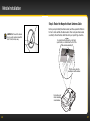
TIP! You can also preset a new
FM preset in a storage location
without having to start using it
right away. Just press menu and
exit the screen.
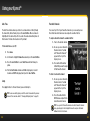
To set and select an FM preset:
1. Press menu.
2. Press the Select button to select
Vehicle Mode.
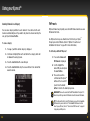
3. Scroll to highlight FM Channels and
press the Select button.
4. Scroll to highlight the storage
location (FM-1 to FM-5) you want to set and press the Select button.
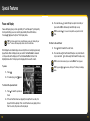
You can choose among the following options:
i. If the chosen storage location is empty (denoted by “---“), or if
the storage location contains the FM preset currently being used
(denoted by “Current”), then a list of FM channels is displayed.
ii. If the chosen storage location has an FM preset that is not currently
being used, and you want to edit it, scroll to highlight Edit Channel
and press the Select button to see the list of FM channels.
iii. If the chosen storage location has an FM preset that is not
currently being used, and you want to start using it, press the
Select button to select Start Using. Skip to step 7.
5. Scroll to highlight the desired FM channel from the list and press the
Select button.
6. If you are editing the storage location that has the “Current” FM
channel, skip to step 7. Otherwise press the Select button to select
Start Using.
48
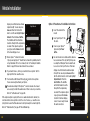
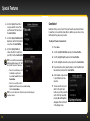
7. The chosen FM channel will
be confirmed on the display
screen and the XpressRCi will
tune to that FM channel.
Press the Select button to
continue.
8. Set your vehicle’s FM radio
to same FM channel.
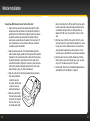
IMPORTANT! You’ll first need
to find an unused FM channel
that is available in your area.
Option 4: FM Direct Adapter (FMDA) Installation
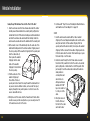
The FMDA needs to be installed by a professional installer. Professional
installation can help improve your radio’s reception and significantly reduce
the visibility of wires. To learn more, check with the retailer where you bought
your radio, or go to xmradio.ca/accessories.
49