1
Configuring Your XpressRCi
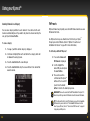
8. Set your vehicle’s FM radio to same FM channel.
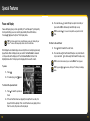
Set Audio Level
If you are using the Aux In Cable or a Cassette Adapter to play your XpressRCi in
your vehicle, you can adjust the audio level to match the volume of other audio
sources you may use, such as a CD player, other FM stations, or an MP3 player.
IMPORTANT! You’ll first need to find an unused FM channel that is available
in your area.
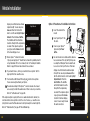
To quickly select an FM channel from the preset list:
1. Press and hold menu until FM Channels is displayed.
2. S
croll to highlight the desired FM preset and press the
Select button.
3. T
he new choice will be confirmed and the XpressRCi will tune to the
chosen FM channel. Press the Select button to return to the main
display screen.
4. S
et your vehicle’s FM radio to
same FM channel.
Do not use the audio level as a volume control. Use the volume control on
your vehicle stereo instead.
NOTE! The audio level adjustment is available only when the FM Transmitter
is turned Off.
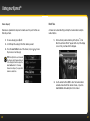
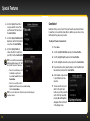
To adjust the audio level:
1. Press menu.
2. Scroll to highlight Vehicle Mode and press the Select button.
3. Scroll to highlight Audio Level and press the Select button.
4. Turn the Control knob to increase or decrease the audio level.
5. Press the Select button.
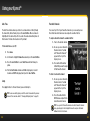
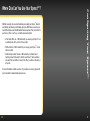
TIP! If using your XpressRCi in a home dock or sound system (sold separately),
press menu, scroll to highlight Audio Level and press the Select button. Use the
Control knob to adjust to the desired audio level and press the Select button.
94
95