1
Kyocera Extended Driver
Version 4.0
User Guide
Legal Notes
Unauthorized reproduction of all or part of this guide is prohibited.
The information in this guide is subject to change for improvement without notice.
We cannot be held liable for any problems arising from the use of this product, regardless of the information herein.
Regarding Trademarks
•
•
•
•
•
PCL is a registered trademark of Hewlett-Packard Company.
Microsoft Windows is a registered trademark of Microsoft Corporation in the U.S. and/or other countries.
PostScript is either a registered trademark or trademark of Adobe Systems Incorporated in the U.S. and/or other
countries.
TrueType is a registered trademark of Apple Computer Inc.
All other brand and product names herein are registered trademarks or trademarks of their respective companies.
Examples of the operations given in this guide support the Microsoft Windows XP printing environment. Essentially the same
operations are used for MIcrosoft Windows 95/98/Me/2000 environments.
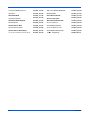
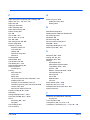
Models supported by the KX printer driver
Copier/
MFP
KM- 1650
KM- 1815
KM- 2050
KM- 2530
KM- 2550
KM- 3035
KM- 3530
KM- 4030
KM- 4035
KM- 4530
KM- 5035
KM- 5530
KM- 6030
KM- 6330
KM- 7530
KM- 8030
KM- C830
KM- C830D
KM- C850
KM- C850D
KM- C2520
KM- C2630
KM- C3225
KM- C3232
KM- C4008
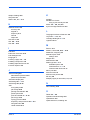
Printers
FS- 820
FS- 920
FS- 1010
FS- 1018MFP
FS- 1020D
FS- 1030
FS- 1800
FS- 1800+
FS- 1900
FS- 1920
FS- 3800
FS- 3820N
FS- 3830N
FS- 6020
FS- 6026
FS- 9100DN
FS- 9120DN
FS- 9500DN
FS- 9520DN
FS- C5016N
FS- C5020N
FS- C5030N
FS- C8008N
FS- C8026N
The explanatory screens shown in this guide may differ from your printing system.
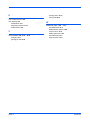
CS- 1650
CS- 1815
CS- 2050
CS- 2550
CS- 6030
CS- 8030
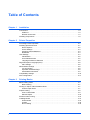
Table of Contents
Chapter 1
Installation
Connections . . . . . . . . . . . . . . . . . . . . . . . . . . . . . . . . . . . . . . . . . . . . . . . . . . . . . . . . . . .
USB Port . . . . . . . . . . . . . . . . . . . . . . . . . . . . . . . . . . . . . . . . . . . . . . . . . . . . . . . . . .
Network Connection . . . . . . . . . . . . . . . . . . . . . . . . . . . . . . . . . . . . . . . . . . . . . . . . .
Installing Components. . . . . . . . . . . . . . . . . . . . . . . . . . . . . . . . . . . . . . . . . . . . . . . . . . . .
Chapter 2
1-3
1-3
1-4
1-9
Printer Properties
Accessing Printer Properties. . . . . . . . . . . . . . . . . . . . . . . . . . . . . . . . . . . . . . . . . . . . . . . 2-1
Installing Optional Devices . . . . . . . . . . . . . . . . . . . . . . . . . . . . . . . . . . . . . . . . . . . . . . . . 2-1
Device Options . . . . . . . . . . . . . . . . . . . . . . . . . . . . . . . . . . . . . . . . . . . . . . . . . . . . . 2-2
Punch Settings . . . . . . . . . . . . . . . . . . . . . . . . . . . . . . . . . . . . . . . . . . . . . . . . . . . . . . 2-3
Assigning Virtual Mailboxes . . . . . . . . . . . . . . . . . . . . . . . . . . . . . . . . . . . . . . . . . . . . 2-3
RAM Disk . . . . . . . . . . . . . . . . . . . . . . . . . . . . . . . . . . . . . . . . . . . . . . . . . . . . . . . . . . 2-4
User Settings. . . . . . . . . . . . . . . . . . . . . . . . . . . . . . . . . . . . . . . . . . . . . . . . . . . . . . . . . . . 2-4
Identification . . . . . . . . . . . . . . . . . . . . . . . . . . . . . . . . . . . . . . . . . . . . . . . . . . . . . . . . 2-5
Unit of Measurement . . . . . . . . . . . . . . . . . . . . . . . . . . . . . . . . . . . . . . . . . . . . . . . . . 2-5
Language Preference Selection . . . . . . . . . . . . . . . . . . . . . . . . . . . . . . . . . . . . . . . . 2-5
Page Description Language (PDL) . . . . . . . . . . . . . . . . . . . . . . . . . . . . . . . . . . . . . . . . . . 2-6
PDL Settings . . . . . . . . . . . . . . . . . . . . . . . . . . . . . . . . . . . . . . . . . . . . . . . . . . . . . . . 2-6
Administrator Settings . . . . . . . . . . . . . . . . . . . . . . . . . . . . . . . . . . . . . . . . . . . . . . . . . . . . 2-8
Job Accounting . . . . . . . . . . . . . . . . . . . . . . . . . . . . . . . . . . . . . . . . . . . . . . . . . . . . . 2-8
Operation Panel Message . . . . . . . . . . . . . . . . . . . . . . . . . . . . . . . . . . . . . . . . . . . . . 2-8
Administrator Password . . . . . . . . . . . . . . . . . . . . . . . . . . . . . . . . . . . . . . . . . . . . . . . 2-9
Compatibility Settings . . . . . . . . . . . . . . . . . . . . . . . . . . . . . . . . . . . . . . . . . . . . . . . . . . . . 2-10
Auto Configuration . . . . . . . . . . . . . . . . . . . . . . . . . . . . . . . . . . . . . . . . . . . . . . . . . . . . . . 2-11
Chapter 3
Printing Basics
Basic Printing Tasks . . . . . . . . . . . . . . . . . . . . . . . . . . . . . . . . . . . . . . . . . . . . . . . . . . . . . 3-1
Basic Printing . . . . . . . . . . . . . . . . . . . . . . . . . . . . . . . . . . . . . . . . . . . . . . . . . . . . . . . 3-1
Printing on Paper of Non-Standard Sizes . . . . . . . . . . . . . . . . . . . . . . . . . . . . . . . . . . . . . 3-7
Custom Paper Sizes . . . . . . . . . . . . . . . . . . . . . . . . . . . . . . . . . . . . . . . . . . . . . . . . . 3-7
Duplex Printing . . . . . . . . . . . . . . . . . . . . . . . . . . . . . . . . . . . . . . . . . . . . . . . . . . . . . . . . . 3-9
Print on Both Sides . . . . . . . . . . . . . . . . . . . . . . . . . . . . . . . . . . . . . . . . . . . . . . . . . . 3-9
Manual Duplex . . . . . . . . . . . . . . . . . . . . . . . . . . . . . . . . . . . . . . . . . . . . . . . . . . . . . . 3-10
Reverse Order Printing . . . . . . . . . . . . . . . . . . . . . . . . . . . . . . . . . . . . . . . . . . . . . . . . . . . 3-13
Collating Modes . . . . . . . . . . . . . . . . . . . . . . . . . . . . . . . . . . . . . . . . . . . . . . . . . . . . . . . . 3-14
Sorter Modes . . . . . . . . . . . . . . . . . . . . . . . . . . . . . . . . . . . . . . . . . . . . . . . . . . . . . . . 3-15
Collate . . . . . . . . . . . . . . . . . . . . . . . . . . . . . . . . . . . . . . . . . . . . . . . . . . . . . . . . . . . . 3-16
Non-Collating . . . . . . . . . . . . . . . . . . . . . . . . . . . . . . . . . . . . . . . . . . . . . . . . . . . . . . . 3-16
i
Chapter 4
Layout
Booklet . . . . . . . . . . . . . . . . . . . . . . . . . . . . . . . . . . . . . . . . . . . . . . . . . . . . . . . . . . . . . . . 4-1
Left Edge and Right Edge Binding . . . . . . . . . . . . . . . . . . . . . . . . . . . . . . . . . . . . . . .4-2
Booklet Printing . . . . . . . . . . . . . . . . . . . . . . . . . . . . . . . . . . . . . . . . . . . . . . . . . . . . .4-2
Multiple Pages Per Sheet. . . . . . . . . . . . . . . . . . . . . . . . . . . . . . . . . . . . . . . . . . . . . . . . . 4-3
Poster. . . . . . . . . . . . . . . . . . . . . . . . . . . . . . . . . . . . . . . . . . . . . . . . . . . . . . . . . . . . . . . . 4-4
Sheets Per Page . . . . . . . . . . . . . . . . . . . . . . . . . . . . . . . . . . . . . . . . . . . . . . . . . . . . .4-5
Available Poster Sizes . . . . . . . . . . . . . . . . . . . . . . . . . . . . . . . . . . . . . . . . . . . . . . . .4-5
Scaling And Gutters . . . . . . . . . . . . . . . . . . . . . . . . . . . . . . . . . . . . . . . . . . . . . . . . . . . . . 4-7
Scaling . . . . . . . . . . . . . . . . . . . . . . . . . . . . . . . . . . . . . . . . . . . . . . . . . . . . . . . . . . . .4-7
Gutter . . . . . . . . . . . . . . . . . . . . . . . . . . . . . . . . . . . . . . . . . . . . . . . . . . . . . . . . . . . . .4-7
Chapter 5
Finishing
Staple . . . . . . . . . . . . . . . . . . . . . . . . . . . . . . . . . . . . . . . . . . . . . . . . . . . . . . . . . . . . . . . . 5-1
Using the Stapler . . . . . . . . . . . . . . . . . . . . . . . . . . . . . . . . . . . . . . . . . . . . . . . . . . . .5-2
Punch . . . . . . . . . . . . . . . . . . . . . . . . . . . . . . . . . . . . . . . . . . . . . . . . . . . . . . . . . . . . . . . . 5-2
Using Hole Punch . . . . . . . . . . . . . . . . . . . . . . . . . . . . . . . . . . . . . . . . . . . . . . . . . . . .5-3
Separation . . . . . . . . . . . . . . . . . . . . . . . . . . . . . . . . . . . . . . . . . . . . . . . . . . . . . . . . . . . . 5-4
Offset Jobs . . . . . . . . . . . . . . . . . . . . . . . . . . . . . . . . . . . . . . . . . . . . . . . . . . . . . . . . .5-4
Rotate Copies . . . . . . . . . . . . . . . . . . . . . . . . . . . . . . . . . . . . . . . . . . . . . . . . . . . . . . .5-5
Chapter 6
Imaging
Print Quality . . . . . . . . . . . . . . . . . . . . . . . . . . . . . . . . . . . . . . . . . . . . . . . . . . . . . . . . . . . 6-1
Custom Print Quality Settings . . . . . . . . . . . . . . . . . . . . . . . . . . . . . . . . . . . . . . . . . . . . . 6-2
Fonts . . . . . . . . . . . . . . . . . . . . . . . . . . . . . . . . . . . . . . . . . . . . . . . . . . . . . . . . . . . . . . . . 6-2
Font Substitution . . . . . . . . . . . . . . . . . . . . . . . . . . . . . . . . . . . . . . . . . . . . . . . . . . . . .6-4
Disable Device Fonts . . . . . . . . . . . . . . . . . . . . . . . . . . . . . . . . . . . . . . . . . . . . . . . . .6-4
Graphics . . . . . . . . . . . . . . . . . . . . . . . . . . . . . . . . . . . . . . . . . . . . . . . . . . . . . . . . . . . . . 6-4
Pattern Scaling . . . . . . . . . . . . . . . . . . . . . . . . . . . . . . . . . . . . . . . . . . . . . . . . . . . . . .6-5
Inversion Options . . . . . . . . . . . . . . . . . . . . . . . . . . . . . . . . . . . . . . . . . . . . . . . . . . . .6-5
Optimization . . . . . . . . . . . . . . . . . . . . . . . . . . . . . . . . . . . . . . . . . . . . . . . . . . . . . . . .6-6
Halftone Screen (Monochrome Printing Systems Only) . . . . . . . . . . . . . . . . . . . . . . .6-6
Grayscale . . . . . . . . . . . . . . . . . . . . . . . . . . . . . . . . . . . . . . . . . . . . . . . . . . . . . . . . . . . . 6-7
Color . . . . . . . . . . . . . . . . . . . . . . . . . . . . . . . . . . . . . . . . . . . . . . . . . . . . . . . . . . . . . . . . 6-8
Color Mode . . . . . . . . . . . . . . . . . . . . . . . . . . . . . . . . . . . . . . . . . . . . . . . . . . . . . . . . .6-8
Continuous Tone . . . . . . . . . . . . . . . . . . . . . . . . . . . . . . . . . . . . . . . . . . . . . . . . . . . . .6-9
Custom Color Mode Adjustment . . . . . . . . . . . . . . . . . . . . . . . . . . . . . . . . . . . . . . . . .6-9
HSL (Hue, Saturation, Lightness) . . . . . . . . . . . . . . . . . . . . . . . . . . . . . . . . . . . . . . . .6-10
RGB . . . . . . . . . . . . . . . . . . . . . . . . . . . . . . . . . . . . . . . . . . . . . . . . . . . . . . . . . . . . . .6-10
Color Correction . . . . . . . . . . . . . . . . . . . . . . . . . . . . . . . . . . . . . . . . . . . . . . . . . . . . .6-10
Color Reproduction . . . . . . . . . . . . . . . . . . . . . . . . . . . . . . . . . . . . . . . . . . . . . . . . . . .6-11
ICM Color Correction . . . . . . . . . . . . . . . . . . . . . . . . . . . . . . . . . . . . . . . . . . . . . . . . .6-12
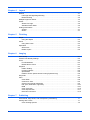
Chapter 7
Publishing
Cover Mode, Page Insert, and Transparency Interleaving. . . . . . . . . . . . . . . . . . . . . . . . 7-1
Printing with Covers . . . . . . . . . . . . . . . . . . . . . . . . . . . . . . . . . . . . . . . . . . . . . . . . . . . . . 7-1
Cover Printing Options . . . . . . . . . . . . . . . . . . . . . . . . . . . . . . . . . . . . . . . . . . . . . . . .7-2
ii
Page Insert. . . . . . . . . . . . . . . . . . . . . . . . . . . . . . . . . . . . . . . . . . . . . . . . . . . . . . . . . . . . 7-5
Insert Page Printing . . . . . . . . . . . . . . . . . . . . . . . . . . . . . . . . . . . . . . . . . . . . . . . . . .7-5
Combinations . . . . . . . . . . . . . . . . . . . . . . . . . . . . . . . . . . . . . . . . . . . . . . . . . . . . . . .7-7
Transparency Interleaving . . . . . . . . . . . . . . . . . . . . . . . . . . . . . . . . . . . . . . . . . . . . . . . . 7-8
Chapter 8
Job
Job Storage (e-MPS) . . . . . . . . . . . . . . . . . . . . . . . . . . . . . . . . . . . . . . . . . . . . . . . . . . . . 8-1
Temporary and Permanent Jobs . . . . . . . . . . . . . . . . . . . . . . . . . . . . . . . . . . . . . . . .8-2
Virtual Mailbox . . . . . . . . . . . . . . . . . . . . . . . . . . . . . . . . . . . . . . . . . . . . . . . . . . . . . .8-8
Quick Copy . . . . . . . . . . . . . . . . . . . . . . . . . . . . . . . . . . . . . . . . . . . . . . . . . . . . . . . . .8-16
Proof and Hold . . . . . . . . . . . . . . . . . . . . . . . . . . . . . . . . . . . . . . . . . . . . . . . . . . . . . .8-17
Private Print . . . . . . . . . . . . . . . . . . . . . . . . . . . . . . . . . . . . . . . . . . . . . . . . . . . . . . . .8-18
Job Storage . . . . . . . . . . . . . . . . . . . . . . . . . . . . . . . . . . . . . . . . . . . . . . . . . . . . . . . .8-20
Synergy Print Box . . . . . . . . . . . . . . . . . . . . . . . . . . . . . . . . . . . . . . . . . . . . . . . . . . . .8-21
Form Gallery . . . . . . . . . . . . . . . . . . . . . . . . . . . . . . . . . . . . . . . . . . . . . . . . . . . . . . . .8-24
Job Name. . . . . . . . . . . . . . . . . . . . . . . . . . . . . . . . . . . . . . . . . . . . . . . . . . . . . . . . . . . . . 8-26
Job Option (Tandem Print) . . . . . . . . . . . . . . . . . . . . . . . . . . . . . . . . . . . . . . . . . . . . . . . . 8-26
Chapter 9
Profile
Add Profile . . . . . . . . . . . . . . . . . . . . . . . . . . . . . . . . . . . . . . . . . . . . . . . . . . . . . . . . .9-1
Edit Profile . . . . . . . . . . . . . . . . . . . . . . . . . . . . . . . . . . . . . . . . . . . . . . . . . . . . . . . . .9-1
Delete Profile . . . . . . . . . . . . . . . . . . . . . . . . . . . . . . . . . . . . . . . . . . . . . . . . . . . . . . .9-2
Import and Export Profile . . . . . . . . . . . . . . . . . . . . . . . . . . . . . . . . . . . . . . . . . . . . . .9-2
Chapter 10 Advanced
Prologue/Epilogue . . . . . . . . . . . . . . . . . . . . . . . . . . . . . . . . . . . . . . . . . . . . . . . . . . . . . 10-1
Select Prologue/Epilogue File to Insert . . . . . . . . . . . . . . . . . . . . . . . . . . . . . . . . . .10-1
Add . . . . . . . . . . . . . . . . . . . . . . . . . . . . . . . . . . . . . . . . . . . . . . . . . . . . . . . . . . . . . .10-2
Edit . . . . . . . . . . . . . . . . . . . . . . . . . . . . . . . . . . . . . . . . . . . . . . . . . . . . . . . . . . . . . .10-2
Delete . . . . . . . . . . . . . . . . . . . . . . . . . . . . . . . . . . . . . . . . . . . . . . . . . . . . . . . . . . . .10-2
Insertion Point . . . . . . . . . . . . . . . . . . . . . . . . . . . . . . . . . . . . . . . . . . . . . . . . . . . . . .10-2
Watermark . . . . . . . . . . . . . . . . . . . . . . . . . . . . . . . . . . . . . . . . . . . . . . . . . . . . . . . . . . . 10-3
Select Watermark . . . . . . . . . . . . . . . . . . . . . . . . . . . . . . . . . . . . . . . . . . . . . . . . . . .10-3
Page selection . . . . . . . . . . . . . . . . . . . . . . . . . . . . . . . . . . . . . . . . . . . . . . . . . . . . .10-4
Add Watermark . . . . . . . . . . . . . . . . . . . . . . . . . . . . . . . . . . . . . . . . . . . . . . . . . . . . .10-4
Additional Text Options . . . . . . . . . . . . . . . . . . . . . . . . . . . . . . . . . . . . . . . . . . . . . . .10-5
Selecting and Creating Custom Colors (Color Models Only) . . . . . . . . . . . . . . . . . .10-6
Edit Watermark . . . . . . . . . . . . . . . . . . . . . . . . . . . . . . . . . . . . . . . . . . . . . . . . . . . . .10-7
Delete Watermark . . . . . . . . . . . . . . . . . . . . . . . . . . . . . . . . . . . . . . . . . . . . . . . . . . .10-7
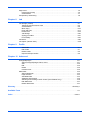
Glossary . . . . . . . . . . . . . . . . . . . . . . . . . . . . . . . . . . . . . . . . . . . . . . . . . . . . . . . . . . . . . . . . . . . Glossary-1
Available Fonts . . . . . . . . . . . . . . . . . . . . . . . . . . . . . . . . . . . . . . . . . . . . . . . . . . . . . . . . . . . . . . . . . . . A-1
Index . . . . . . . . . . . . . . . . . . . . . . . . . . . . . . . . . . . . . . . . . . . . . . . . . . . . . . . . . . . . . . . . . . . . . . . . . Index-1
iii
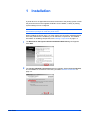
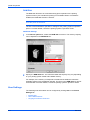
1 Installation
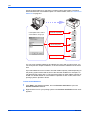
A printer driver is an application that sends documents to the printing system. Install
the printer driver from the supplied CD-ROM. Once installed, a variety of printing
system settings can be configured.
Note: In Windows XP or 2000, you must be logged into the system with
administrator privileges to install the printer driver.
When installing the printer driver, you must specify the connection method and port.
Once the printer driver is installed, you can add more components. For detailed
information on installing components, see Installing Components on page 1-9.
User Guide
1
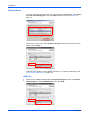
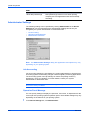
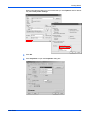
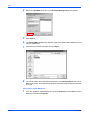
The Welcome to the Kyocera Printer Installation Wizard dialog box appears.
Click Next.
2
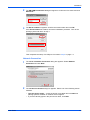
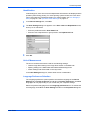
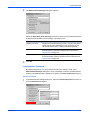
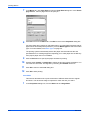
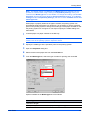
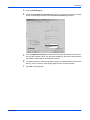
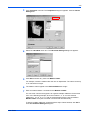
The Local or Network Connection dialog box appears. Select Local connection,
and click Next. For a Network connection, proceed to Network Connection on
page 1-4.
2
1
1-1
Installation
3
4
User Guide
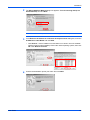
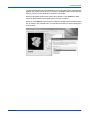
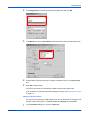
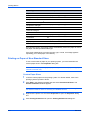
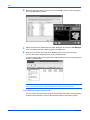
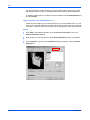
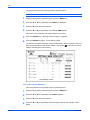
The Select Printer Model dialog box appears. From the list, select the
Manufacturer and corresponding Printers to connect, and click Next.
3
•
•
If the Found New Hardware dialog box appears, click Cancel.
If the Hardware Installation warning dialog box appears, click Continue
Anyway.
•
If the Network Printer Port Monitor dialog box appears, select Yes to install an
e-mail printer port for network printing and click Next.
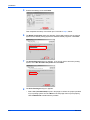
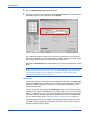
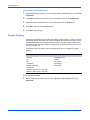
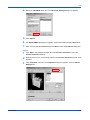
The Select the Printer Port dialog box appears. If the port you want to use appears
in the Use the following port: list, select the port, click Next, and then proceed to
step 6 on page 1-7.
4
1-2
Installation
Connections
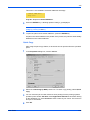
If you are connecting your device to your computer with a parallel cable, select LPT1:
from Use the following port:, then click Next, and then proceed to step 6 on
page 1-7.
5
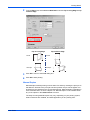
If the port is not in the list, select Create a new port, select the port type from the
menu, and click Next.
6
Instructions for creating a new USB port are below. To create a network port, see
Create a New Network Port on page 1-5.
7
USB Port
1
1-3
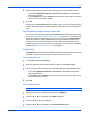
If there are no USB ports listed under Use the following port, from the Create a
new port type list, select KM USB Port:, then click Next.
1
KX Driver
Installation
2
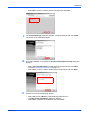
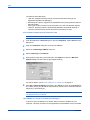
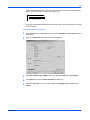
The KM USB Port monitor dialog box appears. Confirm the Port name and click
Advanced....
2
3
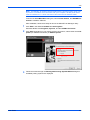
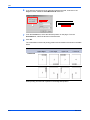
The Serial number list appears. Confirm the serial number and click OK.
If the Serial number list is blank, cancel the installation procedure. Turn off the
printing system and return to step 1.
3
That completes the setup of a USB port. Proceed to step 6 on page 1-7.
4
Network Connection
1
The Local or Network Connection dialog box appears. Select Network
Connection and click Next.
2
The Locate Your Printer dialog box appears. Select one of the following search
methods:
6
•
•
User Guide
5
Type the printer name...: Leave the printer name blank and click Next. All
printing systems available on network servers appear.
If you have directly typed in the print server name, click Next.
1-4
Installation
•
3
Connect to a printer on the Internet or...: Search by URL for printing systems
that operate with the Internet print protocol.
Find and select the printing system URL and click Next.
7
Create a New Network Port
1
1-5
The Select the Printer Port dialog box appears. Select KPrint Port: from the
Create a new port: Type list, and then click Next.
1
KX Driver
Installation
2
The KPrint Add Port Wizard dialog box appears. Select Print using LPR (Line
Printer Remote) and click Next.
2
Note: If the KPrint utility is installed, the following procedure may differ.
3
In the Enter the IP address or host name of the print server dialog box, enter the
IP Address or Host Name and click Next.
3
•
4
User Guide
Click Search... if the IP Address or Host Name is not known. A list of available
network printing systems displays. Select the network printing system, then click
OK. Click Next to continue.
Confirm the destination printer port name and click Next.
4
1-6
Installation
5
Confirm the settings, and click Finish.
5
That completes the setup of a network port. Proceed to step 6, below.
6
The Name Your Printer dialog box appears. Select Yes or No to use the printing
system as the default printing system for Windows-based programs. Click Next. 6
7
The Printer Sharing dialog box appears. If you do not want to share the printing
system, select Do not share this printer and click Next.
7
8
The Print Test Page dialog box appears.
•
1-7
8
Select Yes (recommended) to print a test page to confirm the proper operation
of your printing system and click Next. If the test page does not print properly,
click Troubleshoot to determine the problem.
KX Driver
Installation
•
9
10
The Confirm Settings dialog box appears. Verify the settings and click Install.
The printer driver installation begins.
•
Select Yes (recommended) to install optional components and click Next.
Proceed to Installing Components on page 1-9.
Select No if you do not wish to install optional components and click Next.
Choose from one of the following options:
•
•
User Guide
9
Once the installation is complete, the Printer Installed Successfully dialog box
appears.
10
•
11
Select No if you do not wish to print a test page and click Next.
11
Select Yes and click Next to install additional printer drivers.
The New Printer Installation dialog box appears.
Select No to complete the installation and click Finish.
1-8
Installation
Installing Components
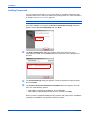
You can expand the functions of your printer driver by installing components that
compliment the ways in which you utilize your printing system. For more information
on profiles, refer to Add Profile on page 9-1.
Note: The displayed components may vary based on the printing system model.
Once the installation is complete, the Printer Installed Successfully dialog box
appears. Select Yes (recommended) and click Next.
1
12
The Select Components dialog box appears. Select the check box of the
components to install, and click Next. Follow the instructions in the dialog box to
proceed.
2
13
The Confirm Settings dialog box appears. Verify the selected component items,
and click Install.
3
14
The Printer Components Installation Completed dialog box appears. Choose
from one of the following options.
4
•
•
Select No to complete the installation, and click Finish.
Select Yes to install additional printer drivers, and then click Next.
When you have completed installing printing systems and components, click Exit to
complete the installation. If prompted, restart your system.
5
1-9
KX Driver
2 Printer Properties
This section explains how to customize the installed printer driver settings including:
•
•
•
•
•
•
•
Accessing Printer Properties
Installing Optional Devices
User Settings
Page Description Language (PDL)
Administrator Settings
Compatibility Settings
Auto Configuration
Follow the steps below to set your preferred options as the default settings. These
default settings can be changed temporarily when printing from within Windowsbased applications.
Accessing Printer Properties
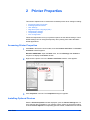
1
Click Start in the Quick Launch toolbar, and click Printers and Faxes. The Printers
and Faxes window appears.
1
Windows 98/Me/2000: Open the Start menu, and click Settings and Printers in
sequence to display the Printers window.
2
Right-click the printer icon in the Printers and Faxes window. A list appears.
2
3
Click Properties in the list. The Properties dialog box appears.
3
Installing Optional Devices
With the Printer Properties window displayed, open the Device Settings tab. For
each optional device installed in your printing system, select the equivalent setting
under the Device Options list. Depending upon the model, available devices include
User Guide
2-1
Printer Properties
finishers, paper feeders, side feeders, high-capacity feeders, hard disk and RAM
disk, tandem unit, booklet stitcher, and duplex unit. For models connected to a
network, the Auto Configure button can be used to select all available devices. You
can also specify the memory setting, PDL (Page Description Language), settings for
the user, administrator settings for operation panel messages, passwords, and more.
Note: The printer image shown in the Printer Properties dialog box and the list of
Device options will vary depending on the printing system you have.
Device Options
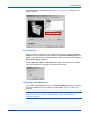
1
Click the Device Settings tab.
2
In the Device options area of the Device Settings tab, select the check boxes for
devices installed in your printing system.
2
1
Note: Some devices cannot be installed simultaneously. For example, a finisher and
a booklet stitcher cannot be used at the same time. After you have selected a device,
other devices will be marked with a red X, preventing the selection of conflicting
devices.
When you select the check box of an optional device shown in blue, a sub-dialog box
appears with additional setting details. If a device option check box is already
selected, double-click the device option to open the sub-dialog box.
3
The Hard Disk Settings dialog box appears if you select the Hard disk option,
enabling the configuration of virtual mailboxes. For further details, see Virtual
Mailbox on page 8-8.
3
2-2
In the Memory box, select the memory capacity of your printing system. This setting
is required to optimize the downloading of printing system fonts. If you don’t know the
memory capacity of your printing system, you can use Auto Configure so the
information can be automatically selected. If auto configure is not available, then
printing system memory can be seen on the status page. To generate a status page,
KX Driver
Printer Properties
select this option from operation panel. See Auto Configuration on page 2-11 for
more information.
4
Punch Settings
When you select the check box for a finishing device shown in blue in the Device
options list, such as Finisher or Multi-Finisher, the Punch Unit Settings dialog box
appears. If the device listing is already enabled, double-click the option to display the
Punch Unit Settings dialog box.
Select 2 Hole, 2 & 3 Hole, or 2 & 4 Hole punch option depending on the optional
Punch Unit attached to your finisher to enable hole punching.
Assigning Virtual Mailboxes
If you enable the Hard disk check box, the Hard Disk Settings dialog box appears
and virtual mailboxes can be created. For further details, see Virtual Mailbox on
page 8-8.
Note: An installed hard disk supports the following options: Quick Copy, Proof and
Hold, Private Print, Job Storage, Virtual Mailbox, Temporary Storage, and
Permanent Storage.
User Guide
2-3
Printer Properties
RAM Disk
The RAM disk functions as a hard disk saving print requests into the printing
system’s memory if a hard disk for printing is not installed. When a hard disk is
installed, the RAM disk function is inactive.
Note: Since the RAM disk is volatile memory, all data sent to the printing system is
lost if the power is turned off.
The size of the RAM disk is specified in settings at the printing system’s operation
panel. For further details, consult the printing system’s Operation Guide.
RAM Disk Settings
1
In the Device options list, enable the RAM disk check box. The memory capacity
can be adjusted in the RAM disk box.
1
2
Specify the RAM disk size. The maximum RAM disk capacity may vary depending
on your printing system model and installed memory.
2
For example, if the memory corresponds to 32 MB minus 24MB, the maximum
available capacity for the RAM Disk is 8 MB. The value in the RAM disk box will not
exceed 8 MB. For further details, consult the printing system's Operation Guide.
User Settings
The following user information can be configured by clicking User in the Device
Settings tab.
•
•
•
2-4
Identification
Unit of Measurement
Language Preference Selection
KX Driver
Printer Properties
Identification
In this dialog box, enter user name and department information to be displayed at the
operation panel during printing. For some printing system models, the User name
can be used with the Job Storage feature. For further details, see Job Storage (eMPS) on page 8-1 and Operation Panel Message on page 2-8.
1
In the Device Settings tab, click User.
2
The User Settings dialog box appears. In the User name and Department boxes,
enter up to 31 characters.
2
•
•
3
1
Enter the preferred name in User Name field.
Enter the user's department or group name in the Department field.
Click OK.
Unit of Measurement
The unit of measurement will be used for the following settings:
•
•
•
Custom Page Sizes setting in the Page Sizes section in the Basic tab
Spacing setting in the Watermark tab’s Add and Edit dialog boxes
Poster settings and Gutter width in the Layout tab.
In the User Settings dialog box, select either inches or millimeters.
Language Preference Selection
The Language preference option specifies the interface language of the Device
Settings tab of Printer Properties and all tabs of Printing Preferences. Available
languages will vary depending on your locale and your computer settings.
Select the preferred language from the Language preferences list. To activate the
new language, click OK in the User Settings and then in the Properties dialog box.
User Guide
2-5
Printer Properties
Page Description Language (PDL)
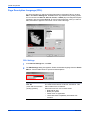
You have the option to change the Page Description Language (PDL) by clicking
PDL in the Device Settings tab. Available PDLs vary based on the printing system.
You can choose from PCL XL, PCL 5e, PCL 5c, or KPDL (Kyocera Page Description
Language). We recommend PCL XL for most printing purposes. After you select a
PDL, the selection appears in the lower corner of the 3-D image.
PDL Settings
2-6
1
In the Device Settings tab, click PDL.
2
The PDL Settings dialog box appears. Select the desired language from the Select
PDL list. See the table below for options and descriptions.
2
1
Option
Description
PCL XL
(color and monochrome
printing systems)
The most recent version of HP PCL and PCL 6. This
PDL includes PCL 5e features.
Enhanced over PCL 5e/c in these areas:
• Reduced file size
• Better print speed
• Faster return to application
• Lacks backward compatibility with earlier PCL
versions
KX Driver
Printer Properties
Option
Description
PCL 5c
(color printing systems)
Specifies PCL 5c as the PDL.
• Fully compatible with earlier PCL versions
• Bidirectional communication support
• Wide selection of fonts for use with Microsoft
Windows applications
• Allows more options for utilizing PRESCRIBE
commands within applications
• Complex graphics might not print as well
PCL 5e
(monochrome printing
systems)
Specifies PCL 5e as the PDL.
• Fully compatible with earlier PCL versions
• Bidirectional communication support
• Wide selection of fonts for use with Microsoft
Windows applications
• Allows more options for utilizing PRESCRIBE
commands within applications
• Complex graphics might not print as well
KPDL
(color and monochrome
printing systems)
Specifies KPDL as the PDL. KPDL is used when
printing from applications that support PostScript 2 or
3.
• An optional KPDL upgrade kit may be required for
some models.
• Kyocera’s emulation of PostScript printing
• Strong graphics reproduction
• Print speeds may be slower than PCL 5e/c
• Requires more printing system memory than PCL
5e/c
• Enables native TrueType font downloading
In GDI compatible mode, vector graphics are rasterized for printing as bitmap
images. Use the GDI compatible mode option to improve the graphic output quality
created by the application. Due to memory restrictions, this feature is not available
in certain printing environments.
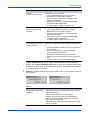
3
Settings is available when the PDL is set to KPDL, and, on some models, when PCL
XL is selected.
3
PCL XL
User Guide
Option
Description
Disable auto media type
switching
A check box control for disabling automatic switching
of the paper source.
If the selected cassette runs out of paper:
Cleared: The printing system will automatically
switch to another cassette loaded with the same
page size and media type.
Selected: Printing will stop until you load more paper
into the cassette.
2-7
Printer Properties
KPDL
Option
Description
Allow data passthrough
Data passthrough reduces errors when printing
complex jobs from applications that use PostScript
formatting.
Administrator Settings
The following settings can be specified by clicking Administrator in the Device
Settings tab. We recommend that the Administrator Settings should only be
changed by the system administrator or authorized users.
•
•
•
Job Accounting
Operation Panel Message
Administrator Password
Note: The Administrator Settings dialog box appearance and options may vary
depending on your printing system.
Job Accounting
Job Accounting settings are specified by the system administrator to implement an
accounting system for assessing charges or other budgetary or tracking applications.
The accounting system can help manage or restrict the printing volume by
department, group or individual. For further details, contact your system
administrator or authorized users.
Note: For further details, see Job Accounting in the Operation Manual on the
Document Library CD-ROM.
Operation Panel Message
You can specify settings to display the job name, user name, or department for the
current job on the printing system's operation panel. The available settings may vary
depending on the features of your printing system.
1
2-8
In the Device Settings tab, click Administrator.
1
KX Driver
Printer Properties
2
The Administrator Settings dialog box appears.
2
Select the Operation panel message check box. Select from the following options
to display at the operation panel during the printing of a job:
3
Option
Description
Display job name
Displays the job name during printing. The job name is the
name sent from the application to the printer driver or it
can be selected in the Job dialog box before printing.
Display user name
Displays the user name during printing. The user name is
the information entered according to the instructions in
Identification on page 2-5.
Display department
Displays the user group during printing. The group name
is the information entered according to the instructions in
Identification on page 2-5.
Click OK.
3
Administrator Password
By setting a password, you can protect and restrict the settings made in the
Administrator Settings dialog box. Once a password is entered, all Administrator
settings are disabled until the password is typed in the Enter Password dialog box.
Set the Password
1
User Guide
In the Administrator Settings dialog box, select the Password protect check box to
open the Password dialog box.
1
2-9
Printer Properties
2
In the Password dialog box, enter the new password in the Password field.
Reenter the password in the Confirm password field and click OK.
2
Note: Use a password from 4 to 16 characters.
Change the Password
1
In the Device Settings tab, click Administrator.
1
2
The Enter Password dialog box appears. Enter the password and click OK.
2
3
The Administrator Settings dialog box appears. Clear the Password protect
check box. A Password message appears.
3
4
Click OK.
4
See Set the Password on page 2-9 to enter a new password.
Compatibility Settings
This feature supports compatibility for media source values unique to the printer
driver, such as those for cassettes or feeders, so your newly installed Kyocera
Extended driver maintains identical media source support with the driver it replaces,
whether for a Kyocera driver or from another manufacturer. If media source macros
exist for the older driver, then the alignment of media source values will maintain
support without the need to change the macros.
Use the Driver Info utility, available on the Kyocera Software Library CD, to compare
the source values for all installed drivers.
If the values for a given media source differ between the old and new printer drivers,
reassign the value in the new driver to match the value in the previous driver.
Compatibility settings can be adjusted by clicking Compatibility in the Device
Settings tab.
Note: Changing the device settings may result in printing errors. For further details
on changing these settings, contact your nearest Kyocera dealer.
Device Compatibility
1
2-10
In the Device Settings tab, click Compatibility.
1
KX Driver
Printer Properties
2
The Compatibility Settings dialog box appears. From the list in the Media source
enumeration area, select the paper supply method.
2
The current value is listed in the Enumerated value box.
3
Enter a new Enumerated value for the media source and click OK. You can also
restore all the parameters to the default by clicking Reset.
3
The other options in the Compatibility Settings dialog box vary depending on
model. Options can include:
4
Combine source and media type lists This option changes the Basic tab of
Printer Properties so that Media type and Source are combined into one box,
labelled Source.
Enable manual duplex on network port Use this option if you do not have a
duplex unit and you want to print using Manual Duplex (see page 3-10).
Disable face-up reverse page order This options prevents reverse order printing
if face up output is selected.
Ignore application collation Use this option to bypass the Collate setting in the
application, and give priority to the printer driver setting.
Auto Configuration
Auto configure detects the installed device options on the printing system if it is
connected over a network. This button appears in the Device Settings Properties
page. It can detect devices including finishers, paper feeders, side feeders, highcapacity feeders, hard disk and RAM disk, tandem unit, booklet stitcher, and duplex
unit.
Auto Configure can detect printing system devices such as input devices, output
devices, RAM disk size, and hard disk size. Then it updates the Device options list
in the Device Settings properties page. Auto Configure keeps the printer driver’s
Device Settings consistent with the actual printing system devices.
Auto Configure currently supports these ports for Microsoft Windows operating
systems:
•
•
•
•
User Guide
Windows 98 & ME – KPrint ports (Raw mode, LPR, and IPP) only
Windows NT 4.0 – KPrint ports (Raw mode, LPR, and IPP) only
Windows 2000 – TCP/IP Ports and KPrint Ports (Raw mode, LPR, and IPP)
Windows XP – TCP/IP Ports only
2-11
Printer Properties
TCP/IP port can be either an IP address or the printing system name (Host name).
Note: Auto Configuration is not supported for Microsoft Windows 95.
Click Auto Configure. An “in progress” message will appear.
The check box settings in the Device options list will be changed and the 3D image
will be updated according to the device options installed. Memory and RAM Disk
information will also change based on the setting information returned.
Under the following conditions the Auto Configure tool cannot communicate with the
printing system:
2-12
•
The printing system is powered off or is in the middle of the startup process. In
such cases, Auto Configure will display the following message after the time out.
•
The Windows XP firewall prevents the communication. It generates the following
message:
KX Driver
Printer Properties
The Microsoft Windows XP Firewall settings can be changed to allow communication
between the printing system and your computer. The default setting for Windows XP
Service Pack 2 is for the Windows Firewall to be set to On.
When the Windows Security alert shown above appears, click Unblock to allow
communication between the printing system and your computer.
When you click Unblock, Auto Configure is added to the Windows Firewall exception
list, as shown in the example below. The Windows Firewall is accessed through the
Control Panel.
5
User Guide
2-13
3 Printing Basics
This section describes the following printing tasks when printing from Microsoft
Windows applications.
•
•
•
•
•
Basic Printing Tasks
Printing on Paper of Non-Standard Sizes
Duplex Printing
Reverse Order Printing
Collating Modes
Basic Printing Tasks
The steps required to print a document created with an application are explained
below. You can select the printing paper size and output destination.
Note: The Print dialog box does not look the same in every application.
Basic Printing
1
Insert the proper paper size (such as A4) into the printing system's paper cassette or
MP tray.
1
2
From the application’s File menu, select Print. The Print dialog box appears.
2
3
Select the desired printing system from the list of available printing systems.
3
4
Specify the number of copies to print in the Number of copies field. You can print
up to 999 copies. When printing two or more copies, enable the Collate check box
for collation. Number of copies and Collate can also be specified in the Basic tab 4
If Ignore Application Collation is selected in the Compatibility Settings dialog
box, the Print Collate setting will not be applied. See page 3-16 for further
information.
User Guide
3-1
Printing Basics
When using Microsoft Word, we recommend that you click Options and for default
tray select Use printer settings.
User Guide
5
Click OK.
5
6
Click Properties to open the Properties dialog box.
6
3-2
Printing Basics
7
In the Basic tab, click Page Sizes to open the Page Sizes dialog box. In the Select
page size list, select a page size for the print job.
7
8
Click OK to return to the Basic tab. Click OK to return to the Properties dialog box.8
For best results when printing on transparencies or recycled paper (the back side of
paper which has already been printed on), from the Media type list select the media
type. For further details, see Media Types on page 3-5.
The printing system automatically selects the paper size that matches the size
specified above. A message appears requesting you to load paper into the MP tray
if the proper paper size is not available.
9
Click the Source list to specify the paper cassette for printing.
10
Choose either Portrait or Landscape to match the document page orientation. You
can rotate the document 180 degrees by selecting the Rotated check box.
9
11
Click OK to return to the Print dialog box.
10
12
Click OK to start printing.
11
Print Sizes
This section describes how to print documents of different sizes than the original
document. The document image is adjusted to match the size you select.
1
3-3
In the Properties dialog box, from the Basic tab click Page Sizes.
1
KX Driver
Printing Basics
2
In the Page Sizes list, select the document’s paper size and click OK.
3
In the Basic tab, click the Print Size list and select the preferred output paper size.3
4
Confirm that the proper paper size is loaded. Click OK to return to the Print dialog
box.
4
5
Click OK to start printing.
2
5
The source document is automatically scaled to fit the output paper size.
If you would like to manually input the Scaling percentage, see Scaling And Gutters
on page 4-7.
Multiple Pages Per Sheet
You can print by arranging multiple pages of the source document on a single sheet
of paper. When this function is enabled, Poster and Scaling are unavailable.
1
User Guide
In the Properties dialog box, click the Layout tab.
1
3-4
Printing Basics
2
Click the Multiple pages per sheet check box.
3
Specify the number of source pages in the Pages per sheet list. You can select the
horizontal direction for the page layout using Layout.
3
2
If you select six pages per sheet, then six pages are printed on a single sheet as
shown in the dialog box in the example above. If Auto is selected for layout, pages
are arranged from the top left corner to the bottom right corner.
Selecting the Print Borders check box displays and prints the page borders of each
page.
Note: When KPDL is set for the PDL, printing may be affected in some applications.
Change the setting to PCL XL or PCL 5e, or set Passthrough mode in the KPDL
mode settings to Off. For further details on changing the PDL, refer to Page
Description Language (PDL) on page 2-6.
Media Types
The printing system automatically selects the paper size specified in the Page Sizes
setting in the Basic tab by default when you are printing on regular paper. However,
the printing system supports a wide variety of printing media depending on your
printing system model.
You can specify the media type in the Media type setting for auto media selection
selection when using non-standard types of printing media, such as recycled paper,
labels, or transparencies. You can also specify the finishing settings for best results.
Automatic selection of media types can be disabled in the PCL XL settings dialog
box. For further details, refer to Page Description Language (PDL) on page 2-6.
Labels, transparencies, and envelopes must be printed using the MP tray. Ensure
the paper is properly loaded by following the instructions outlined in the supplied
printing system's Operation Guide.
3-5
KX Driver
Printing Basics
Note: The default setting is for Source and Media type to be separate, but it is
possible to combine them using a setting in Compatibility Settings. If they are
combined, the Media type list is not available. To change this setting, open Printer
Properties from the Microsoft Windows Printer and Faxes window, go to Device
settings and then Compatibility Settings, and then uncheck Combine source and
media type lists.
When paper is properly loaded in the paper cassette, the printing system can
automatically detect the paper size. However, it is necessary to use the operation
panel on the printing system to assign the media type of the paper cassette so that
the printing system can recognize it. The steps to specify the media settings are
listed below.
1
Load the paper in a paper cassette or the MP tray.
1
Note: Use the MP tray in cassette mode (the default). For further details on MP tray
modes, refer to the printing system's Operation Guide.
2
Specify the media type at the operation panel on the printing system.
2
3
Open the Properties dialog box.
3
4
Select the document paper size from the Print Size list.
4
5
From the Media type list, select the type of media for printing, then click OK.
5
Options available in the Media type list are as follows.
Media Type
Plain 64 to 90 g/m
Transparency
User Guide
Usable Paper Cassettes
2
All
Multi-purpose tray (MP tray)
3-6
Printing Basics
Media Type
Usable Paper Cassettes
Preprinted
All
Labels
Multi-purpose tray (MP tray)
Bond (securities)
All
Recycled
All
Vellum Less than 64 g/m2
All
Rough 90 to 200 g/m2
Multi-purpose tray (MP tray)
Letterhead
All
Color 64 to 90 g/m
2
All
Prepunched
All
Envelopes
Multi-purpose tray (MP tray)
Card Stock
All
Thick
Multi-purpose tray (MP tray)
High quality
All
Custom (1-8)
Refer to Operation Guide
Once printing begins, the printing system automatically selects the paper to match
the paper size and specified media type.
If the paper loaded does not match the size, type, or both, a message appears
requesting you to load paper in the MP tray.
Printing on Paper of Non-Standard Sizes
To use custom sizes of paper in your printing system, you must first define the
custom paper sizes in the Properties dialog box.
Note: For custom paper, supply the paper using the universal (adjustable) paper
cassette or the MP tray.
Custom Paper Sizes
1
Load the custom paper into the printing system. For further details, refer to the
printing system's Operation Guide.
1
2
Click Start in the Windows taskbar and then select Printers and Faxes. The
Printers and Faxes window appears.
2
Note: Windows 98/Me/2000: Open the printer driver properties by clicking Start in
the Windows taskbar and then selecting the Printers window.
3-7
3
Right-click the printer icon and select Properties to open the Properties dialog
box.
3
4
Click Printing Preferences to open the Printing Preferences dialog box.
4
KX Driver
Printing Basics
5
Click Page Sizes. The Page Sizes dialog box appears.
6
Click New. “Custom_size_1” will appear in the Name field. Replace Custom_size_1
with the name for your new custom paper size. The name can be up to 31 characters. 6
7
Enter the measurements in the Height and Width boxes in millimeters or inches. 7
5
Size limits for custom paper are listed in the table below.
8
Size
Cassette
MP tray
Duplexer unit
Minimum (A4
printing systems)
148 × 210 mm
(5.8 x 8.3 inches)
70 × 148 mm
(Portrait)
148 × 216 mm
Maximum (A4
printing systems)
216 × 356 mm
(8.5 x 14 inches)
216 × 356 mm
(Portrait)
216 × 356 mm
Minimum (A3
printing systems)
148 × 210 mm
(5.8 x 8.3 inches)
70 × 148 mm
148 × 210 mm
Maximum (A3
printing systems)
297 × 450 mm
310 × 458 mm
(11.7 x 17.7 inches)
297 × 431.8
mm
Height = 200 mm
Width = 150 mm
Sample Paper Measurements (150 mm x 200 mm)
8
Click OK.
9
Repeat the steps above if you want to add other custom paper sizes. A maximum of
20 different paper sizes can be added.
User Guide
3-8
Printing Basics
Printing with Custom Paper Sizes
1
Select Print from the File menu. From the applications’s Print dialog box, open Print
Properties.
1
2
In the Basic tab, select the name of your saved paper size in the Print Size list.
2
3
Select the source cassette for the custom page size from the Source list.
3
4
Click OK to return to the Print dialog box.
4
5
Click OK to start printing.
5
Duplex Printing
This section describes how to enable the duplex printing option. In order to activate
this printing option, the duplex unit must be installed, and additional memory may be
required depending on the printing system model. For further details, refer to your
printing system's Operation Guide. For information on Booklet printing, see Booklet
Printing on page 4-2.
In the table below, the paper sizes and media types are not available for duplex
printing:
Paper size
Media Type
A3 wide
A6
B6
Postcards
Double postcards
Envelopes
Western size 2 (114 × 162 mm)
Western size 4 (105 × 235 mm)
Transparencies
Labels
Thin paper
Envelopes
Postcards
Print on Both Sides
1
3-9
Select Print from the File menu from the applications’s Print dialog box, open
Properties.
1
KX Driver
Printing Basics
2
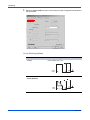
From the Basic tab, select Print on Both Sides. Choose Flip on Long Edge or Flip
on Short Edge.
2
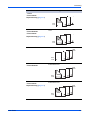
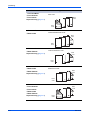
Flip on Long Edge
Portrait
Landscape
Flip on Short Edge
Portrait
Landscape
3
Click OK to return to the Print dialog box.
3
4
Click OK to start printing.
4
Manual Duplex
Manual duplex enables printing on both sides of a sheet by ordering the print job so
that after the first half of the print job has been printed, the job can be flipped over
and fed from the cassette for the second side printing. Manual Duplex is available in
some models that do not have a duplex unit. Manual Duplex is not available when
any of the options in the Advanced tab are used.
The steps for using Manual Duplex may vary, depending on your printing system,
what accessories are installed, and what application you are printing from.
User Guide
3-10
Printing Basics
The Print dialog boxes of some applications allow you to print just the odd or even
pages so that you can use manual duplex, as shown in the examples below.
Adobe Framemaker
Adobe Acrobat
Microsoft Word
The Microsoft Word Print dialog box has a Manual Duplex check box, as shown
above. When this option is selected, the odd pages are printed and then a message
(shown below) appears telling the user to flip the printed pages over and re-insert
them in the input bin of the printing system.
Some Kyocera printing systems have a manual duplex setting in Printing
Properties, in the Basic tab. Instructions for using this method for manual duplex
printing are below. If the Properties or Preferences dialog boxes for your printing
system don't have manual duplex settings, look for an option to print just odd or even
pages in the Print dialog box of the application you want to print from, as shown
above.
Manual Duplex Settings
•
The printing system must be set to a local port.
- OR •
3-11
The Source selection must be Cassette 1 or Cassette 2.
KX Driver
Printing Basics
When using a network port, select Enable manual duplex on network port in the
Compatibility Settings dialog box, accessed from the Device Settings tab. Manual
Duplex cannot be used on a network port in Windows 9x. See Compatibility Settings
on page 2-10 for instructions on changing compatibility settings.
Print on Both Sides
1
In the Basic tab, select Cassette 1 or Cassette 2 from the Source list.
1
2
Select the Print on both sides (manual duplex) check box.
2
3
Select Flip on Long Edge or Flip on Short Edge.
3
4
Select Print manual duplex instructions to print an instruction sheet. Follow the
printed instructions for placing the pages back into the cassette after the first side is
printed.
4
- OR Clear Print manual duplex instructions and follow steps 5-7.
User Guide
3-12
Printing Basics
5
Click OK in the Properties dialog and Print dialog.
5
The even-numbered pages will be printed.
6
When printing stops, remove all printed sheets from the output tray.
6
With Flip on Long Edge selected, turn the stack over on the long edge and put the
pages into the cassette.
With Flip on Short Edge selected, turn the stack over on the short edge and put the
pages into the cassette.
7
Click OK in the Manual Duplex Instruction dialog box.
7
The odd-numbered pages will be printed.
Reverse Order Printing
Prints document pages in reverse order, from the last page to the first.
The reverse order printing function places the order of pages into reverse numerical
order as shown below.
1
2
3
3
2
1
Print Pages in Reverse Order
3-13
1
Open the Properties dialog box.
1
2
From the Basic tab, select the output tray from the Destination list.
2
KX Driver
Printing Basics
3
Select Reverse page order. If Reverse page order is not present, you can change
the Destination output tray to enable this feature.
3
4
Click OK to return to the Print dialog box.
4
5
Click OK to start printing.
5
Collating Modes
By attaching a sorter to your printing system, you can specify how printed documents
are stacked in the output trays after printing.
The number of output trays and their receiving capacity (the number of sheets) varies
depending on the sorter model. Refer to your sorter's Operation Guide.
Frequently, the application settings are given priority, causing a change in the sorter
output method depending on the application. Verify these settings before printing
your documents.
User Guide
3-14
Printing Basics
Sorter Modes
There are three sorter modes to choose from. These modes are selected in the
Basic tab:
•
Collating
Tray 1
Tray 2
Tray 3
Tray 4
Tray 5
•
Page 2
Page 1
Page 2
Page 1
Page 2
Page 1
•
•
Non-collating
20 copies of page 1
Tray 1
Tray 2
Tray 3
Tray 4
Tray 5
•
20 copies of page 4
Page 1
Page 1
Page 2
Page 2
Mailbox
Tray 1
Tray 2
Tray 3
Tray 4
Tray 5
3-15
Collating produces the specified number of copies as complete sets
of documents in each tray.
The document is printed following the page order and received in
each tray. The number of document copies must not exceed the
number of trays. If a tray becomes full, the printing system pauses
and displays a message to remove the paper from the tray. After the
paper is removed, printing resumes for the remaining number of
copies.
This function requires a hard disk installed in the printing system or
a RAM Disk. For setup information, refer to RAM Disk on page 2-4.
Non-collating mode produces the specified number of copies but
divides the document for output in each tray, with page 1 in tray 1,
page 2 in tray 2, and so on. For example, printing 20 copies of a four
page document using grouping produces 20 copies of page 1 in tray
1, 20 copies of page 2 in tray 2, and so on.
The number of document copies must not exceed the sheet
capacity of any tray. If a tray becomes full, the printing system
pauses and displays a message to remove the paper from the tray.
In addition, the maximum document page length must not exceed
the number of sorter trays. If a tray becomes full, the printing system
pauses and displays a message to remove the paper from the tray.
Page 3
Page 3
•
•
•
•
The mailbox mode sends copies to specified user trays, which is
useful when the printing system is shared among different users.
For example, specifying tray 5 sends the printed document to tray 5.
If a tray becomes full, the printing system pauses and displays a
message to remove the paper from the tray.
Mailbox is not available on all printing system models.
Mailbox is a physical mailbox and is different from Virtual Mailbox
(see Virtual Mailbox on page 8-8.)
KX Driver
Printing Basics
Collate
1
Open the Properties dialog box.
2
From the Destination list, select a face-down destination, such as Finisher (facedown) or Top Tray (face-down).
2
3
Select the Collate check box.
4
Select the number of complete sets in the Number of copies box. When printing
using the collate option, specify the number of copies not to exceed the number of
trays. The document page length must not exceed the tray capacity (for example,
200 sheets).
4
5
Click OK to return to the Print dialog box, and click OK to begin printing. The
specified number of copies are produced in separate trays.
1
3
5
Non-Collating
Clearing the Collate check box produces page 1 in tray 1 and page 2 in tray 2.
User Guide
1
Open the Properties dialog box.
2
From the Destination list, select Finisher (face-down) or Top Tray (face-down). 2
3
Clear the Collate check box.
4
Click OK to return to the application’s Print dialog box and begin printing. The
specified number of copies of each page of the document are delivered to each tray.4
1
3
3-16
4 Layout
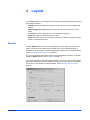
In the Layout tab you can arrange document data on printed pages without changing
the original document.
•
•
•
•
•
Booklet prints a multi-page document in a book format that can be folded and
stapled.
Multiple pages per sheet prints more than one document page on a single
sheet.
Use Poster to print a large banner on several sheets of paper.
Scaling increases or decreases the print size.
Gutter increases the left or top margin, to make a booklet or hole punch pages
easier to assemble and read.
Booklet
Use the Booklet option to print a two-page layout on both sides of each sheet of
paper. You can then fold and bind the booklet in the center. Booklet printing is
available for printing system models equipped with a duplex unit. For further details,
refer to Installing Optional Devices on page 2-1.
You can use optional document finishers to fold and staple the booklet. For further
details on Staple settings, refer to Staple on page 5-1.
The supported paper sizes for Booklet printing are A3, B4, A4, A5, B5 (JIS), ledger,
letter, legal, statement, and folio. Booklet printing can be used with Cover mode to
add a cover to the booklet. For further details, refer to Printing with Covers on
page 7-1.
User Guide
4-1
Layout
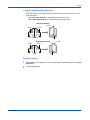
Left Edge and Right Edge Binding
Select left edge or right edge binding of the booklet to match the direction of your
written language:
•
•
Select Left edge binding for languages that read left to right.
Select Right edge binding for languages that read right to left.
Left Edge Binding
Outside
Outside
Outside
Inside
Inside
Right Edge Binding
Outside
Outside
Outside
Inside
Inside
Booklet Printing
User Guide
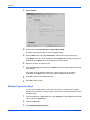
1
Select Print from the File menu. From the applications’s Print dialog box, open Print
Properties.
1
2
Click the Layout tab.
2
4-2
Layout
3
Select Booklet.
3
4
Choose either Left edge binding or Right edge binding.
4
Complete the following steps to use the stapling feature:
5
Click the Basic tab, and under Destination, select a face down finishing tray.
5
If the Staple check box is not available in the Finishing tab, change the setting for
Destination in the Basic tab to an output tray that has a stapler.
6
Select the number of copies to print.
7
Click the Finishing tab, and select the Staple check box. Booklet (fold) is selected
automatically.
7
6
For models using an optional folding unit, select Folding tray as the output
Destination in the Basic tab. The Finishing tab will display Booklet (fold).
8
Click OK to return to the Print dialog box.
8
9
Click OK to start printing.
9
Multiple Pages Per Sheet
You can print multiple pages of the source document on a single sheet of paper.
Pages can be ordered in a variety of ways, and a border can be printed around each
document page.
4-3
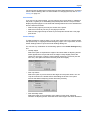
1
From the application’s Print dialog box, open Properties. (Select Print from the File
menu, and select Properties.)
10
2
Click the Layout tab.
11
3
Select Multiple pages per sheet.
12
KX Driver
Layout
4
Select the number of source pages in the Pages per sheet list, from 2 to 25 pages.13
5
Select the horizontal and vertical direction for the page layout from the Layout list.14
Examples: If you select six pages per sheet and select Top to bottom and left, the
pages will be arranged from the top right corner to the bottom left corner.
If Auto is selected, the pages will be arranged from the top left corner to the bottom
right corner.
6
Select the Print borders check box to print a border around each document page.15
Note: Note: When KPDL is selected as the page description language, printing may
be affected in some applications. Change the page description language selection to
PCL XL or PCL 5e/c, or turn off the KPDL setting Allow data passthrough (clear the
check box in the KPDL Settings dialog box). For further details on changing the page
description language, refer to PDL Settings on page 2-6.
Poster
You can print a document in a larger size than the paper supported for the printing
system. The Poster feature allows you to increase the print size, print portions of the
User Guide
4-4
Layout
document on several sheets of paper, then assemble the sheets into a large banner,
up to 25 times larger than the original document.
Sheets Per Page
In the Sheets per page list, select the size of the desired poster, in relation to the
original document size. The list displays the number of sheets to be printed and the
maximum poster size. The final size may be reduced slightly depending on
selections made in the Poster Settings dialog box. For further details, refer to Poster
Settings on page 4-6.
Available Poster Sizes
•
•
•
•
Select 2 x 2 to print a poster 4 times larger than the original.
Select 3 x 3 to print a poster 9 times larger than the original.
Select 4 x 4 to print a poster 16 times larger than the original.
Select 5 x 5 to print a poster 25 times larger than the original.
2x2
3x3
4x4
5x5
The dimensions displayed after each option are based on the selected Page size in
the Basic tab. For further details on selecting a page size, refer to Basic Printing
Tasks on page 3-1.
4-5
KX Driver
Layout
The unit (inches or millimeters) is selected in the User Settings dialog box, accessed
from the Device Settings tab. For further details on changing the unit, refer to User
Settings on page 2-4.
Print Format
If you are new to poster printing, you may want to print a proof sheet, in addition to
the poster, to guide you in assembling the printed poster sheets. The proof sheet
displays all poster pages on one sheet with markings that show how to assemble the
sheets. Under Print format:
•
•
•
Select Poster pages to print only the sheets of the poster.
Select Proof sheet to print only a one-page proof sheet.
Select Poster pages and proof sheet to print all poster sheets and a one-page
proof sheet.
Poster Settings
To make it easier to create a poster, you can print visual cues on the poster sheets
that provide help in cropping and assembling the pages. In the Layout tab, click the
Poster Settings button to open the Poster Settings dialog box.
You can use any combination of the following options in the Poster Settings dialog
box.
User Guide
•
Overlap edges
Select this option to duplicate the edges of document data on adjoining sheets.
Poster appearance is improved when the edges overlap slightly. Select the
check box, then type or select a value between 0.00 and 1.20 inches (0.0 and
30.4 mm). This option will reduce the final poster size slightly.
•
Print crop marks
Select this option to print a border at the edges of each poster sheet. You can
crop each sheet on the border before assembling the sheets. This option
ensures that data on adjoining sheets will match precisely.
•
Print assembly marks
Select this option to print numbers at the edges of each sheet, matching
numbers on adjoining sheets. Assemble each sheet edge to the same numbered
4-6
Layout
edge on another sheet. For a large poster with many sheets, this option ensures
that the poster will be assembled correctly.
Scaling And Gutters
Based on the page size and print size specified in the Basic tab, you can reduce or
enlarge the image from 20% to 500% of the original size, or increase the top or left
margin, before printing.
Scaling
Click the Layout tab in the Properties dialog box, and enter the scale percentage
into the Scaling (20-500%) box, or click the up or down arrow buttons to adjust the
value.
Gutter
Click Gutter to increase the outside margins in a range from 5.0 to 25.4 mm (0.20 to
1.00 inch). The left and/or top margins can be adjusted. This is useful when you want
to add extra margin space to the page for staples or hole punches. When used with
duplex printing, the enlarged gutter lines up evenly on both sides of the sheet. For
further details on duplex printing, refer to Duplex Printing on page 3-9.
•
4-7
To increase outside margins on the left side of the page, enter a number into the
Left box. The Left option may not be available, depending on your Orientation
and Print on both sides settings in the Basic tab.
KX Driver
Layout
•
•
•
To increase outside margins at the top of the page, enter a number into the Top
box. The Top option may not be available, depending on your Orientation and
Print on both sides settings in the Basic tab.
Since the Gutter feature shifts document data to the right or down, select the
Reduce image to fit check box if the printed data extends beyond the edge of the
paper when changing the gutter setting. The size of the printed data is
decreased slightly to fit in the printable margins of the page.
If the document data is small enough that it will not extend beyond the edge of
the paper when the gutter is increased, clear the check box.
When you want to change the page size (for example, to enlarge an A4-size
brochure for printing on A3 paper), refer to Print Sizes on page 3-3.
User Guide
4-8
5 Finishing
This chapter describes the use of finishing equipment. The Finishing tab is available
for models that support optional finishing devices such as Multi finisher or Booklet
stitcher.
Note: For some features in the Finishing tab, the
symbol is displayed when the
feature is unavailable. Place the pointer over the symbol for a message that tells how
to activate the feature in the driver.
•
•
•
Staple binds multiple document pages together with one or more staples.
Punch places round hole punches in the margin.
Separation physically separates document copies or multiple copies of a print
job in the finishing tray.
Staple
The Staple feature is available on printing systems with an optional finishing device
installed. If a Booklet stitcher is installed, the Booklet printing feature is available. For
further details, refer to Booklet on page 4-1.
After installation, optional equipment must be selected in the printer driver in the
Device Settings tab. For further details, refer to Installing Optional Devices on
page 2-1.
Note: Staple and Separation features cannot be used simultaneously.
User Guide
5-1
Finishing
Using the Stapler
1
From the application’s Print dialog box, open Properties. (Select Print from the File
menu, and select Properties.)
1
2
In the Basic tab, under Destination, select a face down finishing tray, such as
Finisher (face down) or Tray A (face down).
2
3
Click the Finishing tab, then select Staple.
3
4
Select one of the available stapling positions: Upper left, Upper right, or Booklet.
(Some models support multiple booklet positions.)
4
Note: You can increase the left or top margin to provide additional space for stapling
by using the Gutter feature in the Layout tab. See Scaling And Gutters on page 4-7.
5
Select how many pages to staple together under Count:
5
Note: The maximum number of sheets that can be stapled varies, depending on the
selected Page size or Media type.
•
•
All sheets (maximum of [--])
Staples all document sheets up to the displayed limit. If the document being
printed has more than the maximum number of sheets, it the maximum number
will be stapled, and the remainder will be stapled separately.
For example, If the maximum is 50 and the document has 58 sheets, the first 50
sheets will be stapled together, and the last eight will be stapled together.
After every [--] sheets
Select this option to divide the document into sets, with a specified number of
sheets in each set, then staple each set separately. You can designate from 2
sheets up to the limit displayed under All sheets. If the final set has fewer
sheets than the limit, it will be stapled.
For example, if stapling has been specified after every 20 sheets for a document
that has 58 sheets, the print job will be stapled in sets of 20, 20, and 18 sheets.
6
Click OK to return to the Print dialog box.
6
7
Click OK to start printing.
7
The final printed document will be stapled and delivered to the output tray.
For further details about stapler specifications, refer to your finishing device’s
Operation Guide.
Punch
The Punch feature is available on printing systems with an optional finishing device
installed. This feature places hole punches along the edge of the printed pages, so
that the pages can be bound together or placed in a binder. Punch cannot be used
when Booklet is selected in the Layout tab.
Note: Not all finishing devices support the punch feature. For further details, refer to
Installing Optional Devices on page 2-1.
User Guide
5-2
Finishing
Using Hole Punch
1
From the application’s Print dialog box, open Properties. (Select Print from the File
menu, and select Properties.)
1
2
In the Basic tab, under Destination, select a face up or face down finishing tray. 2
3
Click the Finishing tab, then select Punch.
4
Select the number of hole punches: 2 hole, 3 hole, or 4 hole. Available punch options
are set in the Device Settings tab and depend on the punch unit installed. For further
details, refer to Installing Optional Devices on page 2-1. For information on
positioning the hole punches, refer to Positioning the Hole Punch below.
4
•
•
3
For metric specification, use 2 hole and 4 hole punch options.
For inches specification, use 2 hole and 3 hole punch options.
5
Click OK to return to the Print dialog box.
5
6
Click OK to start printing.
6
The print job will be punched by the finishing device and delivered to the output tray.
For further details about hole punch specifications, refer to your finishing device’s
Operation Guide.
Positioning the Hole Punch
Note: Some models do not support the punch position option.
5-3
1
With Punch selected in the Finishing tab, click the Settings button.
2
In the Punch Position Settings dialog box, select where to place the hole punches
on the page: Left, Right, or Upper.
2
1
KX Driver
Finishing
3
Click OK in the Punch Position Settings dialog box.
3
4
Click OK to return to the Print dialog box.
4
5
Click OK to start printing.
5
The print job will be punched by the finishing device and delivered to the output tray.
Note: Each sheet will be punched separately. When sheets are stacked, the holes
may not line up exactly.
You can increase the left or top margin to provide additional space for hole punches
by using the Gutter feature in the Layout tab. For further details, refer to Scaling And
Gutters on page 4-7.
Separation
When multiple copies of a print job are printed, they can be difficult to separate in the
output tray. The Separation feature stacks copies so that one can be clearly
distinguished from another. Available options are:
•
•
Offset jobs physically shifts each print job in the output tray.
Rotate copies stacks each copy of a print job at right angles in the output tray.
Note: Offset jobs and Rotate copies will not be available at the same time. Some
models do not support both options.
Offset Jobs
Offset jobs physically shifts each print job in the output tray. This feature requires an
optional finishing device such as a Booklet stitcher or Multi finisher. For further
details, refer to Installing Optional Devices on page 2-1.
Note: To ensure consistent offset stacking, all users printing to the same printing
system should select Offset jobs as the default setting. For further details, refer to
Printer Properties on page 2-1.
User Guide
1
From the application’s Print dialog box, open Properties. (Select Print from the File
menu, and select Properties.)
1
2
In the Basic tab, under Destination, select a face down finishing tray, such as
Finisher (face down) or Tray A (face down).
2
5-4
Finishing
3
Click the Finishing tab, then select Separation. The Offset jobs option is selected.3
4
Click OK to return to the Print dialog box.
4
5
Click OK to start printing.
5
Your print job will be stacked in the output tray, offset from other jobs in the same tray.
Rotate Copies
Rotate copies stacks each copy of a print job at right angles in the output tray. This
feature requires the following:
•
•
•
•
5-5
A Hard disk must be installed or a RAM disk enabled. For further details, refer to
Installing Optional Devices on page 2-1.
Paper size selections are limited to Letter, A4, or B5 (JIS).
The selected paper size must be loaded into two paper sources, one horizontally
and one vertically.
The print job must contain multiple pages and be specified to print multiple
copies.
1
From the application’s Print dialog box, open Properties. (Select Print from the File
menu, and select Properties.)
1
2
In the Basic tab, under Destination, select an option that is not a finishing tray, for
example: Printer default or Inner tray.
2
3
Select a number of copies greater than 1.
3
4
Click the Finishing tab, then select Separation. The Rotate copies option is
selected.
4
5
Click OK to return to the Print dialog box.
5
6
Click OK to start printing.
6
KX Driver
Finishing
Your print job will be stacked in the output tray with each copy alternating horizontally
and vertically.
User Guide
5-6
Finishing
5-7
KX Driver
6 Imaging
The Imaging tab contains options for print job Quality and Grayscale for
monochrome models. Color models offer these features plus Color adjustments.
Print Quality
1
From the Print dialog box of the application, click Properties.
1
2
In the Properties dialog box, click the Imaging tab.
2
3
Select a Print quality from the list.
3
4
If you select Custom as the Print quality, next to the list click Custom Quality to
open the Custom Quality Settings dialog box.
4
Print Quality
User Guide
Option
Description
High quality
Prints using the highest printing system resolution.
Proof (monochrome
printers only))
Prints using the second highest printing system
resolution.
Draft
Prints at a resolution of 600 dpi.
Custom
Choose your own combination of settings for
Resolution, Kyocera Image Refinement, and
EcoPrint.
6-1
Imaging
Custom Print Quality Settings
You can select one or more Custom Quality Settings:
•
•
•
Resolution
Kyocera Image Refinement
EcoPrint
These settings can extend the life of toner cartridges by adjusting print resolution to
reduce the amount of toner used.
Note: The availability of EcoPrint on color printers depends on the printer model and
PDL (Page Description Language). To view or change PDL settings, in the Windows
Printers and Faxes folder, right-click the icon for your printing system and select
Properties. Click the Device Settings tab, then click PDL. For some color printer
models, Kyocera Image Refinement is only available for monochrome printing.
Custom
Option
Description
Resolution (monochrome
printers only)
The number of dots printed in one inch. At higher
resolutions more detail appears in the print job.
Select Fast 1200 mode, 600 dpi, or 300 dpi. Printer
models FS-1800, FS-1800+, and FS-3800 support
Fine 1200 mode.
Kyocera Image
Refinement (KIR)
Smooths the outlines of text and vector graphics.
For color printers, this option is only available when
printing in monochrome mode.
EcoPrint
Reduces the amount of toner placed on the printed
page, and extends the life of the toner cartridge,
making EcoPrint both economical and ecological.
Because toner saturation is reduced, the text and
graphics appear lighter in the print job. EcoPrint
does not increase print speed. For some color
models, the EcoPrint options are: Off, 75%, or 50%.
Fonts
The Fonts feature lets you specify how TrueType fonts are sent to the printing
system. The chosen method will affect the speed and quality of the print job.
Note: All of Kyocera's device fonts are TrueType fonts: do not disable them in the
driver.
6-2
KX Driver
Imaging
1
Click Fonts to open the Font Settings dialog box.
2
Select one of the methods for sending TrueType fonts, and then click OK to save
your selection:
2
1
Fonts
Option
Description
Download as outlines
Useful when using multiple fonts and font sizes.
For large documents. Print speeds will be faster
because of the optimization features in this setting.
The repetition of similar font data sent to the printing
system will be reduced, thereby increasing the print
speed.
Print speed will not be increased when using Asian
fonts such as Japanese, Chinese, and Korean,
because of the large amount of font information
used for these particular fonts.
Allow native download
Improves text quality and increases print speed by
converting TrueType fonts to Adobe Type 42 font
format. This feature is available when KPDL is
selected in the PDL Settings dialog. From the
Device Settings tab, click PDL and select KPDL.
Download as bitmaps
Bitmap downloading provides more detail, however
it creates large file sizes.
Select under these circumstances:
• For print jobs with very small fonts (point size
1-4), user-defined fonts, or Asian fonts.
• For operating systems with fewer TrueType
system fonts (Microsoft Windows 3.1, Windows
98 and Millennium Edition), non-TrueType fonts
can only be downloaded as bitmaps.
Substitute with device
fonts
System fonts and device fonts are automatically
matched based on typeface name. To match a
specific device font with a system font, select
Substitute with device fonts, then click Fonts to
open the Font Substitution dialog box.
Select under these circumstances:
• To increase print speed and efficiency.
• To change a font found throughout a large
document. This selection replaces the old font
with the desired font.
User Guide
6-3
Imaging
Note: GDI compatible mode does not support Substitute with device fonts.
Font Substitution
With Substitute with device fonts selected as the font setting, click Fonts to open
the Font Substitution dialog box.
The System fonts list shows the fonts installed on your computer. The printing
system fonts are listed in the Available device fonts list. Select the system font then
the available device font to be substituted. If the device font does not have similar
font characteristics to the system font, character spacing in the document will appear
incorrect.
Disable Device Fonts
In some cases, the printing system substitutes fonts even if you send the TrueType
fonts as outline fonts or bitmap images. Select Disable device fonts to prevent
substitution of device fonts for TrueType fonts.
When printing with AutoDesk or Adobe applications and Microsoft Office versions
older than Office 2000, select Disable device fonts to overcome device font
limitations with these applications. Device fonts are normally visible in application
font lists as printer icons next to the font name, unless there are equivalent system
fonts, in which case the "TT" TrueType icon remains.
This option also improves portability of printable data. (If cleared, device fonts may
not match when sent to a different printing system.)
The Substitute with device fonts option is disabled If Disable device fonts is
selected.
Graphics
From the Imaging tab, click Graphics to open the Graphics Settings dialog box.
Choose your graphics settings, and then click OK to save your selections.
Note: Some options are available only when a specific PDL is selected. To view or
change PDL settings, in the Windows Printers and Faxes folder, right-click the icon
6-4
KX Driver
Imaging
for your printing system and select Properties. Click the Device Settings tab, then
click PDL.
Pattern Scaling
Adjust the pattern scaling to improve visual compatibility between screen and print
output.
If printed patterns and fills do not match the appearance of that on the screen, use
this feature to select a different print density.
Pattern Scaling
Option
Description
Auto (default setting)
In most cases, this option prints patterns and fills to
match the on-screen appearance.
Coarse
Prints patterns and fills with the fewest number of
lines, patterns, or dots. Coarse is the same as Auto
when PCL XL or PCL 5e/c is selected in the PDL
Settings dialog box.
Medium
Prints patterns and fills with a greater number of
lines, patterns or dots than the Coarse setting.
Medium is the same as Auto when KPDL is
selected in the PDL Settings dialog box.
Fine
Prints patterns and fills with the greatest number of
lines, patterns, or dots. Printed patterns and fills
may appear more dense than the on-screen
appearance
Inversion Options
Inversion options are available when KPDL is selected in the PDL Settings dialog
box.
Inversion options
User Guide
Option
Description
Reverse image
Prints images like a photo negative, reversing black
and white areas of the image.
Mirror print
Prints the page content backwards, as it would
appear in a mirror image.
6-5
Imaging
Optimization
Optimization selections are available when KPDL is selected in the PDL Settings
dialog box.
Optimization
Option
Description
Fast printing
Delivers images in binary format. Fast printing
decreases spool size and increases print speed.
Use it for most everyday printing needs.
Document portability
Creates a PostScript file in ASCII text encoding.
Unlike the binary format created in Fast printing, the
ASCII text created with this selection can be edited.
Halftone Screen (Monochrome Printing Systems Only)
An experienced user can adjust Halftone Screen settings to create shades of gray in
graphic images. The Halftone Screen process breaks down the image into dots.
Larger dots spaced close together create darker shades, and smaller dots spaced
farther apart create lighter shades. Shading can be varied by adjusting the number
of rows of dots, the angle at which rows of dots are placed, and the shape of the dots.
Halftone Screen is available only when KPDL is selected in the Device Settings tab,
in PDL Settings. If GDI compatible mode is selected in the PDL Settings dialog
box, Halftone Screen is unavailable.
1
From the Graphic Settings dialog box, click Halftone Screen.
1
2
Clear the Use printer’s default screens check box.
2
3
Select from the list for each option, or enter the values:
3
Halftone Screen
6-6
Option
Description
Ink
Color used in the printed output. For Monochrome
models, Black is the only available ink color.
Frequency
Number of rows of dots per inch or centimeter. Enter
a numeric value in the Frequency text box, and
select lines/inch or lines/cm.
KX Driver
Imaging
Halftone Screen
Option
Description
Angle
Select the angle at which rows are aligned. An
angle is measured in degrees, ranging from -180 to
+180.
Shape
Select the shape of the halftone dot. The choice for
the best halftone shape depends on the pattern and
number of colors for your image.
Ellipse Resists optical jump, which is when areas of
an image that should be smooth suddenly become
darker. An ellipse shape provides a smoother
gradation of tones. Choose for images with dark
areas.
Round Resists moiré formation and dot gain. Moiré
formation is an unintended pattern that occurs when
two or more colors are printed at the wrong angles.
The correct angles depend on the number of colors
being printed. Dot gain is when the halftone dots
increase when printed, causing a moiré pattern.
Choose for images with light tints and highlighted
areas.
Line Used for special effect. You can change the
effect by selecting a different Angle.
Increase accuracy of
screens
Uses a very precise halftone screen which provides
better print quality, but may increase printing time.
Grayscale
Use the Grayscale options to adjust the appearance of graphics and text produced
by monochrome printing systems, or by color models when the monochrome option
is selected.
Grayscale
Option
Description
Print text as black
Prints all color text as black. This is useful when you
want to reduce the amount of data sent to the printer
for color print jobs, which can provide faster printing.
It is also useful for increasing the detail for light
colored text printed by monochrome printers. White
text and image colors are unaffected.
Print graphics as black
Prints all colors as black. This feature works for
vector graphics only, and is most useful for CAD
applications. Readability is improved for CAD
blueprints because different colored objects print
more clearly.
Gloss mode
Simulates high-gloss copies by adding a glossy
appearance to printed text and images.
Grayscale adjustment settings let you change the Brightness and Contrast of
graphics for monochrome printers. This feature is also available on color printer
models when the monochrome option is selected. Grayscale adjustment settings are
User Guide
6-7
Imaging
useful if graphic images are printing too light, too gray, or too dark. Text remains
unaffected.
1
Click Adjustment to open the Adjustment Settings dialog box.
1
A preview image in the dialog box illustrates any brightness and contrast changes.
2
Drag the Brightness slider right to lighten, or left to darken the graphic images of the
print job.
2
You can also change brightness by entering a numeric value in the text box at the
right. The brightest setting is +100; the darkest is -100. Zero is the default mid-level
setting. Adjusting brightness is useful when graphic images are printing too dark or
too light. Text remains unaffected.
3
Drag the Contrast slider right or left to increase or decrease proportion of light to
dark in the graphic images of the print job.
3
A high contrast setting decreases the grayscale spectrum, making light grays lighter
and dark grays darker. A low contrast setting increases the grayscale spectrum,
making light grays darker and dark grays lighter.
You can also change contrast by entering a numeric value in the text box at the right.
The highest contrast setting is +100; the lowest is -100. Zero is the default mid-level
setting. Adjusting contrast is useful if graphic images are printing too gray, or too
black and white. Text remains unaffected.
Color
Color Mode
Options in Color Mode let you choose how the printing system processes color
matching for a print job. Color matching is the process of accurately and consistently
converting RGB colors (colors as displayed on the computer monitor) to CMYK
colors (colors as used for output printing). RGB is an acronym for Red, Green, and
Blue. CMYK is an acronym for Cyan, Magenta, Yellow and Black.
6-8
KX Driver
Imaging
Color mode offers the following options:
Color Mode
Option
Description
Color (CMYK)
Prints full four-color text and graphics.
Monochrome
Prints as black only, constraining all color settings.
Click Adjustment to change the Adjustment
settings. (For more information, see Grayscale on
page 6-7.)
Custom
Select to make Continuous tone and Gray
component replacement settings available.
Continuous Tone
For color models, the Continuous tone setting is available in addition to Print text
as black, Print graphics as black, and Gloss mode.
Select Continuous tone to print a wide range of color with every shade of gray
represented. It is the tone setting most associated with photographic images.
Continuous tone is available when Custom is selected under Color mode.
Custom Color Mode Adjustment
To specify custom color settings:
1
Select Custom from the Color mode list.
2
Click Adjustment to open the Adjustment Settings dialog box. A preview image in
the dialog box illustrates color changes.
2
3
Select Custom 1, Custom 2, or Custom 3 from the Custom color adjustment list.3
4
Click Settings to open the Custom Color Adjustment dialog box.
Crayons
Saturation or RGB
adjustment
5
User Guide
Portrait
Skin tone and mid-tone
adjustment
1
4
Fruit
Hue adjustment
Select HSL (hue, saturation, lightness) or RGB (red, green, blue) as the color space
to work with.
5
6-9
Imaging
6
Click the arrow buttons beneath the photograph to select one of three different
images. Since different colors are emphasized in each of the photographs, they can
aid in the color adjustment process.
6
HSL (Hue, Saturation, Lightness)
1
Under Select color space, select HSL (hue, saturation, lightness). HSL lets you
adjust the full spectrum, brightness, contrast, and vividness of the color.
1
2
Adjust the distribution and balance of hues.
2
For coordinated hue adjustment, select Master from the Modify list. Drag the Hue
slider to the right or left to increase or decrease the value between -180 and +180.
For specific hue adjustment, select Red, Yellow, Green, Cyan, Blue, or Magenta from
the Modify list. Drag the Hue slider to the right or left to increase or decrease the
value between -10 and +10.
The upper color bar indicates the adjustment made when the slider is dragged, or a
value is typed in the box. The horizontal bracket above the upper color bar shows the
part of the color bar affected by the adjustment.
The lower color bar provides a reference point to the color bar above it for Hue
Adjustment.
3
Drag each slider to adjust the Saturation, Lightness and Contrast between -10 and
+10. You can also type values in the boxes.
3
4
Click Reset if you want to return all HSL settings to zero.
4
5
Click OK to save the new HSL settings.
5
RGB
1
Under Select color space, select RGB. RGB adjusts only the relative values of the
colors red, green, and blue.
1
2
Under each bar, drag the slider to adjust the relative values of Red, Green, and Blue
between -10 and +10. You can also type values in the boxes.
2
3
Click Reset if you want to return all RGB settings to zero.
3
4
Click OK to save the new RGB settings.
4
Color Correction
Color Matching is used for greater consistency in color reproduction among various
devices. It compensates for the different color spaces of color printing systems.
Selecting and applying a set of profiles is called a color profile. Color Correction is
unavailable when Monochrome is selected under Color Mode.
Click Correction to open the Color Correction dialog box. Select one of the color
correction options. Options for ICM (Image Color Management) are available by
6-10
KX Driver
Imaging
clicking ICM Settings. For more information see the section on ICM Color
Correction.
Color Correction
Option
Description
Automatic
Performs color matching according to the default
color profile specified in the Color Management tab
in Properties.
ICM (system corrected)
Specifies color rendering in the print job to make it
as close to the original as possible. ICM technology
relies upon associating an output device like a
printing system with a Color Profile. An ICM Profile
for a printing system contains information about
rendering accurate color information for that device.
The settings for ICM must be set in the Color
Management tab in the printing system Properties.
In Windows 2000 and XP, additional ICM rendering
intent options are available under ICM Settings.
Note: ICM technology is not supported in Windows
95 or Windows NT.
None (application
corrected)
Processes the color data without applying the
adjustments contained in the printing system's
internal color look-up tables. Ink simulation will not
be executed. This is useful if the application
provides its own color correction.
Color Reproduction
1
In the Color Correction dialog box, select Automatic, then click Color
Reproduction. (The Color Reproduction button is enabled only when Automatic
is selected.)
5
2
In the Color Reproduction dialog box, select one Mode, then click OK to save the
selection.
6
Color Reproduction
User Guide
Option
Description
Auto 1
For use in almost all cases, for printing generic
documents.
Auto 2
Prints black text and graphs in black toner only.
Auto 3
Prints black text and graphs in four-color toner
(CMYK).
Auto 4
Prints images and graphs similar to colors shown on
the monitor.
Picture image
Prints images, text, and graphs similar to colors
shown on the monitor.
6-11
Imaging
Color Reproduction
Option
Description
Text
Prints images, text, and graphs in vivid color (black
prints with black toner only).
Chart (graphic)
Prints images, text, and graphs in vivid color (black
prints with four-color toner (CMYK)).
ICM Color Correction
1
In the Color Correction dialog box, select ICM (system corrected), then click ICM
Settings.
1
2
In the ICM Settings dialog box, select one Rendering intent, then click OK to save
the selection.
2
ICM Settings
6-12
Option
Description
Optimize for exact color
(Colormetric)
Select when colors must match precisely in all print
jobs, such as colors in a corporate logo.
Optimize for color
contrast (best for
images)
Select for images or scanned photographs
containing many colors or shades of color.
Optimizes for color contrast by adjusting contrast to
preserve detail throughout the tonal range.
Optimize for color
saturation (best for
graphs)
Select for graphs or charts containing solid colors.
Optimizes for color saturation by adjusting hue to
preserve the vividness of pure colors.
KX Driver
7 Publishing
Note: The properties boxes described here may differ from those for your printing
system and are dependent on what accessories are installed.
Cover Mode, Page Insert, and Transparency Interleaving
This section describes the Cover mode, Page insert, and Transparency interleaving
features of the printer driver. When these options are used with the MP tray, cassette
mode (the default setting), must be set. For further details, refer to the print system's
Operation Guide.
•
•
•
Cover mode: Adds a front or back cover to your document.
Page insert: Inserts blank or printed pages before pages in your document.
Transparency interleaving: Inserts a blank or printed page between each
transparency.
Printing with Covers
For your document's front cover or front and back covers, you can insert and print on
paper that is a different weight or color than the paper for the body of the document.
You can also specify cover printing when completing booklet printing settings. The
paper used for printing the document body is specified in the Paper settings in the
Basic tab of the Properties dialog box. The source of the cover paper is specified
by adjusting the Media for cover settings in the Publishing dialog box. You can also
print on the covers.
A duplexer must be connected in order to print using the Front Inside or Back
Outside. You must also specify Print on Both Sides in the Basic tab.
Although Cover mode and Page insert may be used simultaneously, they cannot
be used with Transparency interleaving (described in Transparency Interleaving on
page 7-8.).
For further details on printing with covers in the booklet printing settings, refer to
Booklet Printing on page 4-2.
User Guide
1
From the application’s Print dialog box, open the Properties. (Select Print from the
File menu and select Properties.)
1
2
In the Properties dialog box, click the Publishing tab.
2
7-1
Publishing
3
Select the Cover mode check box. Select from the page arrangements described in
the table below.
3
Cover Printing Options
Check Box Selection
Cover Insertion Type
Front
Inserts a blank front cover.
Front
cover
Front
Prints on the outside surface of the front cover.
5Front Outside
Front
cover
7-2
KX Driver
Publishing
Check Box Selection
Cover Insertion Type
Front
Prints on the inside surface of the front cover.
5Front Inside
Duplex Printing (page 3-9)
Front
cover
Front
5Front Outside
Prints on the outside and inside surfaces of the front
cover.
5Front Inside
Duplex Printing (page 3-9)
Front
cover
Front and Back
Inserts blank front and back covers.
Back
cover
Front
cover
Front and Back
5Front Outside
Prints on the outside surface of the front cover and inserts
a blank back cover.
Back
cover
Front
cover
Front and Back
5Front Inside
Prints on the inside surface of the front cover and inserts
a blank back cover.
Back
cover
Duplex Printing (page 3-9)
Front
cover
User Guide
7-3
Publishing
Check Box Selection
Cover Insertion Type
Front and Back
Prints on both sides of the front cover and inserts a blank
back cover.
5Front Outside
Back
cover
5Front Inside
Duplex Printing (page 3-9)
Front
cover
Front and Back
5Back Inside
Prints on the inside surface of the back cover and
inserts a blank front cover.
Back
cover
Front
cover
Front and Back
5Back Outside
Prints on the outside surface of the back cover and
inserts a blank front cover.
Back
cover
Duplex Printing (page 3-9)
Front
cover
Front and Back
5Back Inside
Prints on both sides of the back cover and inserts a
blank front cover.
Back
cover
5Back Outside
Duplex Printing (page 3-9)
Front
cover
Front and Back
Prints on both sides of the front and back covers.
5Front Outside
Back
cover
5Front Inside
5Back Inside
5Back Outside
Duplex Printing (page 3-9)
7-4
Front
cover
KX Driver
Publishing
Edit Cover Printing Options
1
From the Media for cover list, select the media type or source cassette for the front
and back covers. When you choose the media type, a source cassette matching that
media is automatically selected.
1
Note: Heavy, thin, or other special papers must be supplied from the MP tray. Media
type selections are not supported for KM-1510.
2
Load the paper for the front and back cover in the paper cassette selected in step 1. 2
3
Click OK to return to the Print dialog box
3
4
Click OK to start printing.
4
Page Insert
You can insert a preprinted page or a page of a different paper type before a
designated page. You can also print on the inserted paper. If a duplex unit is installed,
you can also print on the reverse of the inserted paper.
Although the Page insert and Cover mode may be used simultaneously, they
cannot be combined with Transparency interleaving (described in Transparency
Interleaving on page 7-8).
Insert Page Printing
User Guide
1
From the application’s Print dialog box, open the Properties. (Select Print from the
File menu and select Properties).
1
2
In the Properties dialog box, click the Publishing tab.
2
7-5
Publishing
3
Select the Page insert check box. Select the option corresponding to your desired
page arrangement as shown in the table below. To print on both the front and back
of the inserted page, enable the Print onto front and Print onto back check boxes.3
Check Box Options
Page Insertion Types
5Page insert
Inserts a blank page before the second page.
Inserted
page
5Page insert
Prints on the front surface of the inserted page.
5Print onto Front
Inserted
page
7-6
KX Driver
Publishing
Check Box Options
Page Insertion Types
5Page insert
Prints on the inside surface of the inserted page.
5Print onto Back
Duplex Printing (page 3-9)
Inserted
page
5Page insert
Prints on both sides of the inserted page.
5Print onto Front
5Print onto Back
Duplex Printing (page 3-9)
Inserted
page
I
Combinations
Adjust Media Combination Settings
User Guide
1
Enter the page number to insert. A page will be inserted between the page number
you entered and the page before it. You can designate for pages to be inserted
starting with page 2 and ending on page 255.
1
2
To designate several pages in the document for insertion, enter a comma (,) to
separate them. For a series of insertions in a range of pages, use a hyphen (-). For
example, to insert a page before pages 5, 11, 12, 13, and 18, enter [5,11-13,18]. 2
7-7
Publishing
3
From the Media for page list, select the media type of the inserted page or the
source paper cassette.
3
When you choose the media type, a source cassette that matches that media is
automatically selected. Heavy, thin, or other special papers must be supplied from
the MP tray.
4
4
Click OK to return to the Print dialog box.
5
5
Load the paper into the paper cassette.
6
6
Click OK to begin printing.
7
Transparency Interleaving
By inserting a page between each transparency, you can avoid damaging
transparencies. This function is only available when printing on transparencies
supplied from the MP tray. On these inserted pages you can print the same content
as for the transparencies.
Transparency interleaving cannot be used simultaneously with Cover mode or Page
insert.
Transparency Interleaving Method
1
2
From the application’s Print dialog box, open the Properties. (Select Print from the
File menu and select Properties.)
1
If the Source and Media type lists have been combined in the Compatibility
Settings dialog box, select Auto (Transparency).
2
If the Source and Media type lists have not been combined, from the Media type list,
select Transparency.
3
7-8
KX Driver
Publishing
User Guide
3
Click the Publishing tab.
4
Select the Transparency interleaving check box. To print the transparency content
on the inserted pages as well, select the Print onto backing check box.
5
5
From the Media for backing list, select the media type of the backing sheet or the
source paper cassette. When you choose the media type, the source cassette where
that media is loaded will be automatically selected.
6
6
The printing system’s operation panel will prompt you to load transparencies into the
MP tray, and, if necessary, load backing paper into the selected cassette.
7
7
Click OK to begin printing.
4
8
7-9
8 Job
The Job options are available when you install an optional hard disk on the printing
system or enable a RAM disk. For further details on hard disk installation and setup,
refer to RAM Disk on page 2-4. Private print and Proof and hold can be used with
a RAM Disk.
Job Storage (e-MPS)
The Job tab offers a variety of features, as listed below.
Printer Driver
Menu Options
Function
Job Deletion
after Printing
Access
Code
Panel
Message
(Category)
Temporary and
Permanent Jobs
Stores print jobs for
printing later using
KM-NET for Clients.
See page 8-2
No
Menu> e-MPS> Same as for
original job
Virtual Mailbox
Stores print jobs for
later printing from the
operation panel.
Saved until
printed, then
automatically
deleted
No
Menu> e-MPS> Same as for
original job
Quick Copy
After printing a job,
you can reprint it
from the printing
system’s operation
panel.
Saved until
printing system
power is
turned off
No
Menu> e-MPS>
Quick Copy
User Guide
Default
number of
copies printed
Same as for
original job
(adjustable)
8-1
Job
Printer Driver
Menu Options
Function
Job Deletion
after Printing
Access
Code
Panel
Message
(Category)
Default
number of
copies printed
Proof and Hold
When you print
multiple copies, the
printing system
produces one copy
for proofing and
pauses. You can
resume printing the
remaining copies
from the printing
system’s operation
panel.
Saved until
printing system
power is
turned off
No
Menu> e-MPS
>Quick Copy
One fewer than
original job
(adjustable)
Private Print
Saves print jobs
(without printing
them) for printing
later using the
printing system’s
operation panel.
Printing with this
function requires an
access code.
Deleted after
printing
Yes
Menu> e-MPS
> Private/
Stored
Same as for
original job
(adjustable)
Job Storage
This function is used
for saving print jobs
to print later as
needed. You can
print the required
number of copies
later from the printing
system’s operation
panel.
Saved until
manually
deleted
Optional
Menu> e-MPS
> Private/
Stored
1
Synergy Print Box
SPB stores and then
joins multiple
documents into one
print job. Can include
scanned documents.
Saved until
manually
deleted
No
Document
Management >
Synergy print
box
Same as for
original job
Form Gallery
Overlay a saved
document on to
another document
Saved until
manually
deleted
No
Document
Management>
Forms Box
Same as for
original job
Sometimes the application settings are given priority over the printer driver settings,
causing a change in the output method.
If you select one of the Job options, the hard disk icon appears in the lower corner of
the 3-D image.
Temporary and Permanent Jobs
Functions for jobs saved as Temporary and Permanent jobs are similar to the
functions for Quick Copy and other features described in Job Storage (e-MPS) on
page 8-1. However, these functions are provided for backward compatibility with
printing environments developed before the Job option. Similar to job options,
temporary and permanent jobs use electronic sorting for faster printing of jobs with
multiple copies.
User Guide
8-2
Job
The features are listed below:
•
•
•
Jobs are managed internally with job IDs and printed after saving by an
application (KM-NETJob Manager).
Barcode print output is supported and facilitates future printing with an optional
barcode reader.
Both types of jobs are saved on the hard disk, up to the user-defined capacity.
However, temporary jobs are automatically deleted if the defined capacity is
reached. Permanent jobs remain saved until removed by the user.
Print and Save Temporary and Permanent Jobs
Note: Check that your printing system has an optional hard disk installed.
1
From the application’s Print dialog box, open the Properties. (Select Print from the
File menu).
1
2
Open the Properties dialog box, and click the Job tab.
2
3
Select the Job Storage (e-MPS) check box.
3
4
Select Temporary or Permanent.
4
5
When printing a job with a job ID barcode, click Options to open the Barcode
Options dialog box and make the appropriate settings.
5
For further details, refer to Print a Barcode on a Print Job on page 8-6.
6
Click OK on Barcode Options and then in the Job tab to return to the Print dialog
box. While printing, the job will be simultaneously saved on the hard disk as either a
temporary or permanent job.
6
Note: To reprint temporary or permanent jobs, the dedicated KM-NET for Clients
Job Manager utility is required.
Use KM-NET for Clients to Print Saved Jobs Again
To print out jobs, the KM-NET for Clients utility must first be installed on your
computer. The utility is located on the supplied Kyocera Software Library CD-ROM.
8-3
KX Driver
Job
Note: The KM-NET for Clients communicates with the printing system using TCP/
IP protocol. To make a local connection with your computer, the KX printer driver
must be installed on it. A local connection cannot be used in Windows 2000.
From the CD-ROM Main Menu dialog box, select Printer Utilities, then KM-NET for
Clients to install the software.
After installation, follow these steps to launch the KM-NET Job Manager utility:
User Guide
1
Click Start in the Windows taskbar and All Programs.
Windows 98/Me: Click Programs, Kyocera, and then KM Net for Clients.
2
Click Add. Depending on your printing system connections, select either the Local
printer (for Parallel Connection) or Network printer.
2
3
Follow the wizard through the Starting Add Printing System Wizard dialog box.
Available printing systems are displayed.
3
1
8-4
Job
4
Select the printing system to connect and click Finish to return to the main dialog
box of the KM-NET for Clients.
4
5
Select the printer icon displayed in the main dialog box and click the Job Manager
icon. Print jobs saved in the printing system are displayed.
5
6
Right-click on the job name and select Print from the list to print a saved job.
You can also select multiple jobs for printing simultaneously.
6
To select multiple jobs, click the jobs while holding down the Ctrl key. Saved jobs are
stored on the hard disk.
Note: To delete jobs manually, right-click on the job name and select Delete from
the list. For further details, refer to KM-NET for Clients Operation Guide.
Print Additional Copies of Saved Jobs
You can reprint saved print jobs using the optional barcode reader. Use the printing
system’s serial interface to connect the barcode reader to the printing system.
8-5
KX Driver
Job
When initially printing a job, follow the steps below to print a barcode representing
the job ID on each page or on the cover page only.
{28L016T50}
By simply reading the barcode with the barcode reader, you can reprint either a page
or the entire job.
Print a Barcode on a Print Job
User Guide
1
From the application’s Print dialog box, open the Properties. (Select Print from the
File menu).
1
2
Open the Properties dialog box and click the Job tab.
2
3
Select the Job storage (e-MPS) check box. Select Temporary or Permanent.
3
4
Click Options to open the Barcode Options dialog box.
4
5
Select the Barcode check box. Select Print on first page only or Print on all
sheets.
5
8-6
Job
6
If you want to print the job ID as characters with the barcode, as shown in the
diagram below, enable the Print Barcode ID check box.
6
{28L016T50}
7
From the Position list, select the barcode position on the page. From the
Orientation list, select the direction of the barcode.
7
8
Click OK.
8
The combinations of barcode printing position and orientations are shown in the table
below.
Orientations
Position
Upper-Right
Lower-Right
Upper-Left
Lower-Left
Horizontal
Vertical
When printing, the barcode is printed in the designated position.
8-7
KX Driver
Job
Use the Barcode Reader
When the printed barcode is read by the barcode reader, the printing system outputs
that page.
Barcode Reader
Job Code
Using the Barcode Reader to Read the barcode
•
•
If the barcode on the front cover is read, all pages are printed.
If pages are read individually, only the pages that are read are printed.
Note: This feature requires switching the serial interface mode to work with the
barcode reader. For further details, refer to the barcode reader's Operation Guide.
Virtual Mailbox
With the Virtual mail box feature, mailboxes created on the hard disk are assigned
to multiple users. Jobs posted to a virtual mail box can be printed later from the
printing system’s operation panel. Jobs saved in virtual mailboxes are automatically
deleted after printing, and jobs that have not been printed are saved if the printing
system is switched off. You must create and set p your virtual mailboxes prior to
utilizing this feature.
Note: The Virtual mail box feature is available when the printing system is set to
emulate PCL 5e, PCL XL, or PCL 5c. For information on emulation settings, refer to
Page Description Language (PDL) on page 2-6.
User Guide
8-8
Job
Create a virtual mail box by specifying a mail box name and number. The figure
below illustrates the virtual mailbox option. For further details, refer to Create Virtual
Mailboxes on page 8-9.
Use the printer driver to select a
virtual mailbox for saving a job.
Examination department
Mailbox 1
Mailbox 2
Resort development
Mailbox 3
Mailbox 4
Sales department
Mailbox 5
You can group multiple mailboxes and identify the group with a unique name. You
can save jobs into multiple mailboxes, or save it into all the mailboxes at the same
time.
Up to 255 mailboxes can be created. The total mailbox capacity varies depending on
the printing system model and the size of the hard disk installed. For example, an
FS-1800 printing system with a 1 GB microdrive offers an initial mailbox capacity of
50 MB. For further details on virtual mailbox capacities of each model, refer to the
printing system’s Operation Guide.
Create Virtual Mailboxes
8-9
1
Click Start in the Windows taskbar, and click Printers and Faxes to open the
Printers and Faxes window.
2
Right-click the icon for your printing system in the Printers and Faxes window. A list
appears.
2
1
KX Driver
Job
3
Click Properties in the list. The Properties dialog box appears. Click the Device
Settings tab.
3
4
Select the Hard Disk check box. The Hard Disk Settings dialog box appears.
4
5
Click New and enter any name into Mailbox name.
5
For example, name the mailbox after the user or department. The name can be up
to 31 characters in length.
6
The mailbox names appear in the Defined Names list at right.
6
7
Enter a number between 1 and 255 for the Mailbox number.
7
You can enter commas and hyphens to organize multiple mailboxes for the same
user. In the following example, when the numbers 1, 3, 6, 8-12 are entered,
mailboxes 1, 3, 6, 8, 9, 10, 11, and 12 will be assigned to the name specified in
Mailbox name. Print jobs are saved in those boxes simultaneously.
To assign multiple mailboxes, repeat the above steps. When finished, click OK to
close the Hard Disk Settings dialog box.
User Guide
8-10
Job
It is also possible to assign mailboxes using the same mailbox numbers for users
with different names. However, be aware that this will result in shared mailboxes.
To delete a mailbox that you created, select the mailbox from the Defined names list
and click Delete.
Import and Export the Virtual Mailbox List
These sections explain how to import and export your virtual mailbox lists. You can
save the list of virtual mailboxes created in the previous section onto your personal
computer or network. Once saved, the list can be imported into other printer drivers.
Export
8-11
1
Click Start in the Windows taskbar, and click Printers and Faxes to open the
Printers and Faxes window.
2
Right-click the icon for your printer in the Printers and Faxes window. A list appears.2
3
Click Properties in the list. The Properties dialog box appears. Click the Device
Settings tab.
3
1
KX Driver
Job
4
Select the Hard Disk check box. The Hard Disk Settings dialog box appears.
4
5
Click Export.
5
6
The Export VMB List dialog box appears. Select save location from the Save in list. 6
7
Enter a name in the File name field and click Save. Close the Properties dialog box.7
Import
User Guide
1
Click Start in the Windows taskbar, and click Printers and Faxes to open the
Printers and Faxes window.
2
Right-click the icon for your printing system in the Printers and Faxes window. A list
appears.
2
3
Click Properties in the list. The Properties dialog box appears. Click the Device
Settings tab.
3
1
8-12
Job
4
Select the Hard Disk check box. The Hard Disk Settings dialog box appears.
4
5
Click Import.
5
6
The Import VMB List dialog box appears. Select the virtual mailbox data file to read
from the Look in list.
6
7
Click the virtual mailbox list name and click Open.
8
The virtual mailbox list is opened and displayed in the Defined Names area. Click
OK to save the list. The imported list will replace all Defined Names that were already
in the list.
8
7
Save Jobs in Virtual Mailboxes
1
8-13
From the application’s Print dialog box, open the Properties. Select Print from the
File menu and select Properties.
1
KX Driver
Job
2
Open the Properties dialog box, and click the Job tab.
2
3
Select the Job storage (e-MPS) check box.
3
4
Select Virtual mail box (VMB) and click Selection.
4
If Virtual mail box (VMB) is inactive, no virtual mailboxes have been created yet.
Click Cancel in the screen above, and create a virtual mailbox while referring to
Create Virtual Mailboxes on page 8-9.
5
The Virtual Mailbox Selection dialog box appears. Select the mailbox for saving the
job, and click OK.
5
6
Close the Properties dialog box. The job is saved to the virtual mailbox on the hard
disk and held for printing.
6
•
•
Printing the list -- Refer to the next section, Print Virtual Mailbox Job Lists,
below.
Printing saved jobs -- Refer to Print Jobs in Virtual Mailboxes on page 8-15.
Print Virtual Mailbox Job Lists
Follow these steps to print the jobs lists of virtual mailboxes. You can print a list if
there is at least one job saved in the virtual mailbox.
User Guide
8-14
Job
The list is printed from the printing system’s operation panel.
Note: The actual key operation may differ depending on the model.
1
At the printing system’s operation panel, press the MENU key.
1
2
Press the S or T key repeatedly until e-MPS > is displayed.
2
3
Press the X key to open the submenu.
3
4
Press the S or T key repeatedly until >List of VMB appears.
4
This menu is not displayed if all virtual mailboxes are empty.
5
Press the ENTER key. A blinking question mark [ ? ] appears.
5
6
Press the ENTER key again. The list will be printed.
6
The job list information shows the number of saved jobs, number of pages, size, and
other specific details for each virtual mailbox. The symbol to the left of a virtual
mailbox indicates jobs in the mailbox.
Virtual Mailbox Job List
Print Jobs in Virtual Mailboxes
Jobs are printed from the printing system's operation panel.
8-15
1
At the printing system’s operation panel, press the MENU key.
1
2
Press the S or T key repeatedly until e-MPS >appears.
2
3
Press the X key to open the submenu.
3
4
Press the S or T key repeatedly until the display looks like the example shown
below.
4
KX Driver
Job
This menu is not available if all virtual mailboxes are empty.
>Print VMB Data
Tray 001:
Tray 001: Represents Virtual Mailbox 1.
5
Press the ENTER key. A blinking question mark [ ? ] is displayed.
5
Note: At this point, if there are jobs in other virtual mailboxes, you can select them
(Tray) by pressing the S key.
6
To print the jobs in those virtual mailboxes, press the ENTER key.
6
All jobs in the virtual mailboxes are printed. Once printed, the jobs are automatically
deleted from the virtual mailboxes.
Quick Copy
After using the quick copy feature, a document can be reprinted from the operation
panel.
User Guide
1
In the Properties dialog box, click the Job tab.
2
Select the Job storage (e-MPS) check box. For Quick copy printing, select Quick
copy.
2
3
You can name the job for later reference when printing from the printing system’s
operation panel. Under Job name, select Application defined for automatic naming
by the application. Or, select Custom to enter a name of your choice. The name can
be up to 31 characters.
3
4
Click OK.
1
4
8-16
Job
5
When you Print from the application, the job will be saved to the hard disk while the
specified number of copies prints.
5
For further details on printing additional copies of a Quick copy job, see below.
Printing Additional Copies of Quick Copy Jobs
Note: The actual key operation may differ depending on the model.
1
Press the MENU key at the printing system’s operation panel.
1
2
Press the S or T key repeatedly until e-MPS > appears.
2
3
Press the X key to open the submenu.
3
4
Press the S or T key repeatedly until >Quick Copy appears.
4
5
Press the ENTER key. A blinking question mark [ ? ] displays by the user name. 5
6
If the user name is correct, press the ENTER key. Otherwise, press the S or T key
until the correct name appears.
6
7
Press the ENTER key. Follow the instructions in Identification on page 2-5 to
continue.
7
8
The job name appears with a blinking question mark [ ? ].
If this is the correct job for printing, press the ENTER key.
8
9
Otherwise, press the T or S key until the correct name appears. Then, press the
ENTER key.
9
10
Press theT or S key to specify the number of copies.
11
Press the ENTER key. The Quick Copy job initially printed is printed in the specified
number of copies.
11
10
Deleting Quick Copy Jobs
1
Refer to steps 1 through 8 in Printing Additional Copies of Quick Copy Jobs on
page 8-17.
1
2
If this is the correct job for deletion, press the ENTER key.
2
3
Otherwise, press the T or S key until the correct name appears.
3
4
After the menu for specifying the number of print copies appears, press the T key
once. Delete appears.
4
5
Press the ENTER key to delete the job.
5
Proof and Hold
1
8-17
Open the Job Settings dialog box as indicated in the instructions for Quick Copy on
page 8-16. Select Proof and hold.
1
KX Driver
Job
2
Name the job for future reference when printing from the print operation panel.
•
•
3
2
If you select Application defined in Job name, the application automatically
names the document.
In the Job name area, select Custom to enter a name of your choice. The name
can be up to 31 characters in length.
Click OK.
3
When printing a Proof and hold job of multiple copies, only the first copy is printed
and the remaining copies are saved. Follow the steps below after proofing the first
copy.
Print the Remaining Copies of Proof and Hold Jobs
You can print the remaining copies of Proof and hold jobs following the same steps
as for Printing Additional Copies of Quick Copy Jobs on page 8-17. Use the keys at
the printing system’s operation panel to proceed. When using the Proof and hold
option, the number of copies displayed will be one less than the total due to the
existing proof copy. The printed jobs will remain saved on the hard disk until the
printing system is turned off. To delete jobs manually, use the same key operations
as explained in Deleting Quick Copy Jobs on page 8-17.
Private Print
Private print jobs are saved to the hard disk for printing until a four-digit access code
is entered. The saved jobs are deleted as soon as they are printed.
Save a Private Print Job
1
In the Job tab, select Private print.
1
2
Enter four digits with any numbers between 0 and 9 for the Access code.
2
3
You can name the job for later reference when printing from the print operation panel.3
•
•
4
If you select Application defined in Job name the application automatically
names the document.
In Job name, select Custom to enter a name of your choice. The name can be
up to 31 characters in length.
Click OK.
4
Print Private Print Jobs
Note: The actual key operation may differ depending on the printing system model.
User Guide
1
At the printing system’s operation panel, press the MENU key.
1
2
Press the S or T key repeatedly until e-MPS > appears.
2
3
Press the X key to open the submenu.
3
4
Press the S or T key repeatedly until >Private/Stored appears.
4
8-18
Job
8-19
5
Press the ENTER key, the user name displays with a blinking question mark [ ? ]. 5
6
If the user name is correct, press the ENTER key. Otherwise, press the S or T key
until the correct name is displayed.
6
7
The job name is displayed with a blinking question mark [ ? ]. Press the ENTER key.7
8
The user name displayed is specified following the instructions in Identification on
page 2-5. If this is the correct job for printing, press the ENTER key.
8
9
Otherwise, press the S or T key until the correct job name appears, then press the
ENTER key.
9
10
Enter the four-digit access code created in Private Print on page 8-18.
10
11
Press the S or T key to increase or decrease the number.
11
12
Press the W or X key to move the cursor right and left.
12
13
Press the ENTER key. Use the S or T key to specify the number of copies for
printing.
13
14
Press the ENTER key to start printing.
15
After printing, the job will be automatically deleted from the hard disk. To delete the
job without printing it, follow the same procedure as in Deleting Quick Copy Jobs on
page 8-17.
15
14
KX Driver
Job
Job Storage
The Job storage feature saves jobs on the hard disk for future printing, even if the
printing system is switched off. You can also use access codes to restrict the printing
of forms.
1
In the Job tab, click Job storage (e-MPS) and then select Job Storage.
2
Select the Access code check box and enter the desired four-digit access code
using numbers between 0 and 9. When you want to print the saved jobs, enter the
access code on the print operation panel.
2
3
You can name the job for future reference when printing from the print operation
panel.
3
•
•
4
1
If you select Application defined in the Job name field, the application
automatically names the document.
To give it a name you create, in Job name, select Custom and enter the name
of your choice. The name can be up to 31 characters in length.
Click OK. When you select print, the job will be saved to the hard disk without
printing.
4
Print Jobs Saved Using Job Storage
To print forms and other documents saved using Job Storage, follow the same steps
as for Print Private Print Jobs on page 8-18.
The stored jobs will remain saved even after the printing system is switched off. To
delete them manually, follow the same steps as for Deleting Quick Copy Jobs on
page 8-17. When deleting jobs, you must enter the same access code as saved in
the Job storage procedure.
User Guide
8-20
Job
Synergy Print Box
Synergy print box (SPB) combines electronic and copier data into one document and
stores them in your choice of virtual output print boxes. Copier documents and print
jobs from various applications can be combined.
This feature is available on KM-4530, KM-5530, KM-6230, KM-6330, and KM-7530.
See your printing system’s Operation Guide for more information on this feature.
To use Synergy print box, in the Imaging tab printing quality must be set to High
quality, Proof, or Draft; or select Fast 1200 or 600 dpi in the Custom Quality
Settings dialog box.
Synergy print box uses printing system memory and does not require an optional
Hard disk or setting up a RAM disk. Jobs are sorted and stored in the printing
system's memory rather than in physical mailboxes attached to the printing system.
There are 100 available print boxes, and each print box can hold up to 999 pages.
To combine several jobs, send them to one box, and then print the box from the
operation panel. Jobs can be sent to a print box from your computer, or scanned in
to the printing system and stored in the print box.
Example: Say you want to combine 3 separate documents and one scanned-in page
into one print job. You would send the 3 documents all to the same print box, and
then at the printing system, scan in the page and register it in the print box.
Send a Document to a Print Box
1
Open the document and from the File menu select Print.
1
2
From the Print dialog box, open Properties and then select the Job tab.
2
3
In the Job tab, select Job storage (e-MPS).
3
4
Select Synergy print box.
4
5
In the SPB ID field, enter a print box number. There are 100 available print boxes,
numbered 1 through 100. You may want to go to the printing system’s operation
panel to see if the print box is empty.
5
6
At this point you have the option of giving a name to the print job, or of accepting a
default name generated by the printing system. To give it a custom name, under Job
name, select Custom and then enter a name in text box.
6
7
Click OK, and then Print or OK (varies depending on the application) to send the job
to the print box.
7
The print job is now stored in the printing system’s memory, in a print box.
8-21
KX Driver
Job
Scan a Document into a Print Box
1
At the printing system’s operation panel, press the Document Management key. 1
2
The Document Management menu appears. Under Synergy Print Box, select
Document reg.
2
3
Select a print box from the list.
3
4
(Optional) To give a custom name to the document, touch Change name, and then
enter the name on the typepad that appears. Click End to confirm the new name and
return to the Document reg menu.
4
5
Place the original document on the document feeder or on the glass.
5
6
Hit the Start key.
6
The document is now stored in the print box. Documents stored by this method are
treated as single-sided documents.
User Guide
8-22
Job
Print the Documents in a Print Box
1
At the printing system’s operation panel, press the Document Management key. 1
2
The Document Management menu appears. Under Synergy Print Box, select
Document printing.
2
3
From the list of print boxes, select the print box you want to print.
3
4
The list of documents in the print box appears.
4
•
•
Documents can be sorted by date, new to old, or old to new, or in alphabetical or
reverse-alphabetical order. To sort, select Order of indication, and then choose
one of the sorting options.
To manually select the print order, touch/select the documents in the order in
which you want them to print. A print sequence number will appear to the right of
the document name. To change the sequence, touch the Select/Cancel button
and then re-select the print order.
5
Touch Finish selecting. At this point, you can choose the paper, 2-sided printing,
and other available options such as punch and staple.
5
6
Select Print from list.
6
All the documents in the box will print, in the order you specified.
Print One Document from a Print Box
8-23
1
At the printing system’s operation panel, press the Document Management key. 1
2
The Document Management menu appears. Under Synergy Print Box, select
Document printing.
2
3
From the list of print boxes, select the print box.
3
4
From the list of documents that appears, select the document you want to print.
4
KX Driver
Job
5
Select Conf/Crrt details.
5
6
Select Print from list.
6
The selected document will print.
Edit a Print Box
1
At the printing system’s operation panel, press the Document Management key. 1
2
The Document Management menu appears. Under Synergy Print Box, select Box
Editing.
2
Here your options are:
3
Order of indication Use this option to sort the contents of the print box. The
available sorting methods are alphabetical, reverse alphabetical, newest to oldest,
and oldest to newest.
Delete all data/box This option will delete all documents in this box from the
printing system’s memory.
Box Password Use this option to create a password for a selected print box.
Conf/Crrt details This option displays details about a selected document, such as
number of pages, page size, and the date registered into the printing system’s
memory. From this screen you can edit the name of the document, or print the
document using the Print from list button.
Delete Use this option to delete individual documents in a print box.
Form Gallery
Form Gallery allows the user to store up to 100 frequently used forms or images in
the printing system’s memory for easy access and retrieval (a Hard disk or setting up
a RAM disk is not required). To store an image, send it from your computer or scan
it at the printing system. You can also print out a list of stored images, check and
User Guide
8-24
Job
modify image information, or delete images. A stored form can be combined with an
image scanned in at the printing system.
Scanned image
Stored document
Composite document
Fernville Inc.
2179 Valley Drive
Carville, NY, 13079
Fernville Inc.
2179 Valley Drive
Carville, NY, 13079
Dear Sirs,
Dear Sirs,
+
Thank you for you order of our
one-of-a-kind doohickey. We
appreciate your business.
=
Please contact me if I can be of
any assistance in the future.
Sincerely,
Phillip J. Longshanks
Thank you for you order of our
one-of-a-kind doohickey. We
appreciate your business.
Please contact me if I can be of
any assistance in the future.
Sincerely,
Phillip J. Longshanks
This feature is available on KM-4530, KM-5530, KM-6230, KM-6330, and KM-7530.
See your printing system’s Operation Guide for more information on this feature.
To use the Form gallery, select High quality in the Imaging tab; or select Fast 1200
in the Custom Quality Settings dialog box, accessed from the Imaging tab. Form
gallery is unavailable when PCL 5e is selected in the PDL Settings dialog box,
accessed from the Device Settings tab.
The user can store an image by sending it from the computer or scanning it at the
printing system. Form Gallery uses printing system memory and does not require an
optional Hard Disk or setting up a RAM Disk.
Send a Document to the Form Box
1
Open the document and from the File menu select Print.
1
2
From the Print dialog box, open Properties and then select the Job tab.
2
3
In the Job tab, select Job storage (e-MPS).
3
4
Select Form Gallery.
4
5
At this point you have the option of giving a name to the print job, or of accepting a
default name generated by the printing system. To give it a custom name, under Job
name, select Custom and then enter a name in text box.
5
6
Click OK, and then Print or OK (varies depending on the application) to send the job
to the form box.
6
The print job is now stored in the printing system’s memory, in the form box.
Combine a Stored Form and another Document
8-25
1
At the printing system’s operation panel, press the Copier key.
1
2
Select User choice and then Forms Overlay.
2
3
Select On.
3
KX Driver
Job
4
Press the Form Selected key and then the Loading Form key.
5
The list of forms in the form box will appear. Select the form that you want to overlay.5
6
Select Close.
7
The overlay screen appears. Here you can adjust the exposure of the selected form
by pressing the + and - keys.
7
8
Place the other document or image on the document feeder or on the glass, and
press Start.
8
4
6
The composite document is printed.
Job Name
Select a name for your print job to use with Job storage features, or to display the
name on the printing system's operation panel while the job is printing. This can help
manage documents when multiple users are using the device at the same time.
Select Application defined to allow the application to define the Job name or select
Custom and type your own Job name, to a maximum of 79 characters.
Job Option (Tandem Print)
Distributes a large print job between two printing systems, effectively doubling print
speed and providing backup printing support. Requires installation of the Tandem
unit.
User Guide
8-26
9 Profile
This feature lets you save printer driver settings as a profile. You can select multiple
options in the Printing Preferences tabs, save them to a profile, and use all of them
at once when you apply the profile. For example, you can save a profile with selected
options for Print on both sides, landscape, and rear tray destination. You can also
export profiles to other KX printer drivers on your computer and to other computers.
A maximum 25 profiles can be saved in one driver, including the default profile.
A set of common profiles can be installed as optional components from the Kyocera
Printer Installation Wizard.
Note: The Device Settings tab options cannot be saved to a profile.
Add Profile
Follow these steps to create a new profile.
1
Select the options you want in each Printing Preferences tab.
1
2
Click Profile.
2
3
Click Add to open the Add Profile dialog box.
3
4
Enter a Name for the profile, select an Icon, and enter an optional Description. The
name can be up to 31 characters, the description can be up to 256 characters.
4
5
Click OK to save the profile.
5
6
Click Apply to activate the selected profile.
6
Note: To reset the printer driver to default settings, select the Factory Default
profile and click Apply. This clears the settings of a selected profile.
Edit Profile
Follow these steps to edit a profile.
User Guide
1
Click Profile in the Printing Preferences dialog box.
1
2
Select a profile and click Edit.
2
3
The Edit Profile dialog box appears. You can edit the Name, Icon, and Description.3
4
Click OK to save the profile.
4
9-1
Delete Profile
1
Click Profile in the Printing Preferences dialog box.
1
2
Select profiles and click Delete.
2
3
Click Yes to delete the profiles.
3
Import and Export Profile
You can export and save a profile on your computer and transfer it to other
computers, then use it with other printing systems. Only one profile can be exported
at a time. Use the import feature to import a profile.
Export
1
Click Profile in the Printing Preferences dialog box.
1
2
Select a profile and click Export.
2
3
The Export Profile dialog box appears. Name and save the profile.
3
Import
User Guide
1
Click Import in the Profile dialog box.
1
2
Select a profile and click Open.
2
3
The profile appears in the Select profile list.
3
9-2
10 Advanced
The Advanced tab contains special features that extend the capabilities of the
printing system. Click the button at the left of the feature name to open a dialog box
containing options for that feature.
•
•
Prologue/Epilogue inserts PRESCRIBE printing system language commands
into specified pages or locations of a print job.
Watermark adds semitransparent text to a print job.
Prologue/Epilogue
Prologue/Epilogue lets an experienced PRESCRIBE user insert one or more printing
system language command files into specific locations of a print job. For example, a
command file may contain a macro (series of commands called to accomplish a
specific task), settings for printing system emulation, an electronic form, or a graphic
object such as a logo or signature.
You can add or delete command file names in the list, or select a file to edit.
•
•
To insert a command file into the print job and enable the features in the
Prologue/Epilogue dialog box, select a file name from the list.
To disable Prologue/Epilogue features and clear selection of all command files,
select [None] at the top of the file list. (To disable a particular command file,
select the file, then select Unassigned.)
Select Prologue/Epilogue File to Insert
From the list, select the name of a command file to insert into the print job. (If no file
names are visible in the list, you must click Add to browse for files on your computer
or network to add to the list.) Selecting a file enables the insertion point options for
that file in the dialog box.
User Guide
10-1
Advanced
Add
Click Add to browse your computer or network for command files. The files are plain
text format and typically have a file name extension of either .txt, or .log.
Edit
Select a file name in the list, then click Edit. Microsoft Notepad opens for editing the
file text. To return to the Prologue/Epilogue dialog box, save any changes to the file
and exit Notepad.
Note: Editing a file changes the original file in the computer or network directory.
Delete
Select a Prologue/Epilogue file name, then click Delete. In the message box, click
Yes to confirm the deletion. To refuse the deletion, click No.
Note: The file name only is removed from the Prologue/Epilogue list. The original
file itself is not deleted; it remains in the computer or network directory.
Insertion Point
Each file in the list can be assigned only one insertion point. Choose one of the
following insertion point options:
Unassigned
The selected command file is not inserted into the print job. This is useful if the list
contains several command files, and you want to print some but not others. Select
Unassigned for the files you do not want to print.
Note: To disable all command files (thereby disabling the entire Prologue/Epilogue
feature), select [None] at the top of the file list.
Beginning of the print job
The command file is inserted as the first page of the print job. The document starts
printing on the second page.
End of the print job
The command file is inserted as the last page of the print job, which prints after the
last page of the document.
Note: The following Start of the page and End of the page insertion point options
are available only when PCL 5e or PCL 5c is selected as the PDL (Page Description
Language). To view or change PDL settings, go to Properties, click the Device
Settings tab, and click PDL.
Start of the page
The command file is inserted at the top of each page of the print job.
User Guide
10-2
Advanced
End of the page
The command file is inserted at the bottom of each page of the print job.
With Start of the page or End of the page selected, choose one of the following
page options:
Only on odd pages
The command file is inserted into all odd-numbered pages.
Only on even pages
The command file is inserted into all even-numbered pages.
Pages
To insert the command file into specific pages, type individual page numbers
separated by commas in the text box, or a page range separated by a hyphen.
For example, if you type 2 in the text box, the command file is inserted only into page
2. If you type 1, 3, 5-12 the command file is inserted into page 1, page 3, and pages
5 through 12.
If the Pages option is selected and you click OK without entering any numbers, you
will be prompted to specify page numbers.
Watermark
Use the Watermark feature to create, arrange, and print semitransparent text in the
background of a document. You can choose one of four standard watermarks or
create your own text. The preview area at the left of the dialog box shows how the
watermark appears on a page. This is useful for viewing any adjustments you make
to the appearance and location of the text.
Select Watermark
Select a watermark from the Select watermark list. The selection list contains four
standard watermarks: Confidential 1, Confidential 2, Sample and Copy. For details
on creating your own watermarks, see Add Watermark on page 10-4.
10-3
KX Driver
Advanced
Page selection
Page selection options are enabled after a watermark is selected from the list.
Choose one of the following:
All pages
The watermark prints on every page of the document.
First page only
The watermark prints only on the first page of the document.
All pages except first page
The watermark prints on all pages of the document except the first page.
Only on specified pages
To print the watermark only on specific pages, type individual page numbers
separated by commas in the text box, or a page range separated by a hyphen.
For example, if you type 2 in the text box, the watermark prints only on page 2. If you
type 1, 3, 5-12 the watermark prints on page 1, page 3, and pages 5 through 12.
If the Only on specified pages option is selected and you click OK without entering
any numbers, you will be prompted to specify page numbers.
Print onto outside front cover
Select Print onto outside front cover to print the watermark on a separate front
cover page before the document prints. This option is enabled when Cover mode is
selected in the Publishing tab.
If Cover mode and Front outside are selected in the Publishing tab, the Print onto
front outside cover option in the Watermark dialog box shows as selected, but is
disabled. This is because cover printing is already enabled by the two Publishing tab
selections.
In the Publishing tab you can also select different media for the cover than that used
for the rest of the print job.
Add Watermark
You can create your own custom watermarks with different fonts, styles, colors,
sizes, positions, and angles. You can also set Count to have the watermark appear
multiple times on the page.
User Guide
1
Click Add to open the Add Watermark dialog box.
2
Type a descriptive name for your watermark in the Watermark name text box. The
name can be different from the actual watermark text. After the new watermark is
added, the name appears in the Select watermark list.
2
3
Type the text you want to print as a watermark in the Watermark text box. Your text
will appear in the preview area at the left of the dialog box.
3
4
To add the new custom watermark, click OK. To exit the dialog box without saving
the watermark, click Cancel.
4
1
10-4
Advanced
Additional Text Options
Fonts
Select a font for the new watermark from the Font list, and select a font style, color,
and size.
In the Count box, enter the number of watermarks to appear on a page, from 1 to
20. Selecting a number greater than 1 in Count enables the Spacing option. Enter
a number for the distance between multiple watermarks, in tenths of an inch or
millimeters. The unit (inches or millimeters) is selected in the User Settings dialog
box, accessed from the Device Settings tab.
Use the preview area and the Position or Angle features to adjust where the
watermark prints on the page.
Position
Click the position button to change the position of the watermark without changing
the angle. Position the cursor anywhere in the preview area. Click and hold as you
move the mouse, adjusting the watermark image as you want it to appear on the
printed page.
The following options provide additional means for positioning watermark text:
Centered [default]: Places the center of the watermark text in the center of the
page.
User defined: Select, and then use the x and y boxes to move the text from the
center of the page:
•
•
•
•
10-5
A positive x value moves the watermark text to the right.
A negative x value moves the watermark text to the left.
A positive y value moves the watermark text down.
A negative y value moves the watermark text up.
KX Driver
Advanced
Angle
Click the angle button
to change the angle of the watermark. Position the cursor
anywhere in the preview area. Click and hold as you move the mouse, rotating the
watermark image to as you want it to appear on the printed page
The method of rotation is determined by selecting or clearing the Rotate around
center check box at the far right of the dialog box. Select the check box to rotate text
around its center; clear the check box to rotate text around its left end. You must
select User defined in both Angle and Position to enable the Rotate around
center option.
The following options provide additional means for positioning watermark text:
Diagonal [default]: Places the watermark at the default angle of 52 degrees.
User defined: Select to change the angle from the default value. Enter the number
for the angle you want. An angle is measured in degrees, ranging from 0 to 360.
Selecting and Creating Custom Colors (Color Models Only)
User Guide
1
To use a predefined color for the watermark text, select one from the Color list.
2
For more colors, select Custom at the bottom of the list. Click the […] button to open
the Color dialog box.
2
3
Click one of the Basic colors and click OK; or click Define Custom Colors to open
the color spectrum panel.
3
4
In the color spectrum, click and drag the pointer to different areas of the spectrum to
adjust the hue and saturation levels. The corresponding numeric values appear in
the Hue, Sat, and RGB (Red, Green, Blue) text boxes. Click and drag the slider at
the right side of the color spectrum to adjust the luminosity (relative lightness or
darkness) of a color. The corresponding numeric value appears in the Lum and RGB
text boxes.
4
5
You can also create a specific color by typing numbers in the Hue, Sat, Lum or RGB
text boxes.
5
6
Click Add to Custom Colors to save the new color to the Custom colors at the
bottom left of the Color dialog box.
6
7
Click OK to save any new custom colors and close the Color dialog box. To close
the dialog box without saving any new colors, click Cancel.
7
1
10-6
Advanced
Edit Watermark
The Edit Watermark feature lets you select an existing watermark and make
changes to its appearance and properties. For standard watermarks, the Watermark
name and Watermark text cannot be changed.
1
From the Select watermark list, select a watermark to edit.
1
2
Click Edit to open the Edit Watermark dialog box.
2
3
Make any adjustments you want to the watermark. For details on how to change
watermark properties, refer to Add Watermark on page 10-4.
3
4
When you are finished editing, click OK to save any changes you made to the
watermark. To exit the dialog box without saving the changes, click Cancel.
4
Delete Watermark
The Delete feature lets you delete custom watermarks that were added. The
standard watermarks cannot be deleted.
10-7
1
From the Select watermark list, select a watermark to delete.
1
2
Click Delete.
2
3
In the message box, click Yes to confirm the deletion. To refuse the deletion, click
No.
3
KX Driver
Glossary
A
Access code A four-digit code you must enter at the printing system’s operation panel to
print a Private Print job. An access code can also be used with the Job storage feature.
Auto Configure Device settings feature that queries a printing system through the network and automatically retrieves settings for optional devices, memory, and RAM disk. Driver
settings will be updated with information received from the physical printing system. Installed
devices will be displayed in the 3-D image.
B
Barcode reader Optional device that attaches to your printing system and scans barcodes on a print job or code list. You can use a barcode reader with Permanent, Temporary,
or Virtual Mail Box jobs, to print them or delete them from the hard disk.
Booklet Layout mode that prints a multi-page document in a booklet format by using a duplex unit. Two pages are printed on each side of a sheet to create a document that can be
read like a book. For some models, finishing devices are available to fold and staple booklets.
C
Cassette Input paper tray.
D
dpi Dots per inch. See also Resolution.
Duplex unit Optional accessory that supports two-sided document printing.
E
EcoPrint Printing mode that reduces the amount of toner placed on the printed page. It
extends the life of the toner cartridge. Because toner saturation is reduced, the entire image,
text and graphics, will appear lighter in the printed job. EcoPrint does not increase print
speed.
e-MPS Job storage that lets you store print jobs in the printing system’s memory so that
you can access and print the job again later from the printing system’s operation panel. For
most e-MPS options, an optional Hard disk must be installed.
F
Fast printing Printing mode that decreases spool size and increases print speed.
Finisher Optional device for stapling, folding, punching, or sorting print jobs.
Form gallery Job feature that stores up to 100 frequently used forms or images in the
printing system’s memory for easy access and retrieval. Saved forms can be combined with
other documents at the printing system’s operation panel.
G
Glossary
GDI compatible mode A page description language that accurately reproduces what is
viewed on the screen using the Microsoft Graphical Device Interface (GDI) component to render the document. It generates data in a raster printing format, creating a larger printable file.
Glossary-1
Gutter
Gutter Blank space on the left side or top of a printed page that can be increased by scaling
down text and graphics. This supports stapling and hole punching. When used with Duplex
printing, the enlarged blank space lines up evenly on both sides of the sheet. The larger blank
space is created by shifting the printable area to the right or down as much as one inch (25.4
mm).
H
Halftone screen Imaging process that breaks down an image into dots. An experienced
user can adjust Halftone screen settings to create shades of gray in graphic images. Larger
dots spaced close together create darker shades, and smaller dots spaced farther apart create lighter shades. Shading can be varied by adjusting the number of rows of dots, the angle
at which rows of dots are placed, and the shape of the dots.
J
Job accounting An accounting system that records and controls the number of pages
printed by each account ID. Account IDs can be assigned at the printing system and stored
in the driver. Once account IDs are assigned, use Job accounting to print in the Copy Management mode.
Job storage Job feature that saves print jobs for printing at a later time. Jobs are stored
permanently on the printing system's optional Hard disk: they are not deleted when the printing system is powered off. Job Storage offers a secure print option using a four-digit Access
code. Secure print jobs cannot be printed until requested, using the Access code, at the printing system's operation panel.
KM-NET Software that provides network-wide management of printers and copiers.
Kyocera image refinement (KIR) Imaging feature that smooths the edges of text and
vector graphics.
M
Mailbox Print job destination option that distributes print jobs to output trays when an optional device such as a Sorter stacker, Document finisher, or Mailbox is installed. Compare
with Virtual Mailbox.
Manual duplex Method for printing on both sides of a sheet when the printing system
does not support a duplex unit. After the first half of the print job has been printed, the job can
be flipped over and fed from the cassette for the second side printing.
Monochrome Imaging mode that uses black toner only. When used with color models, all
color settings are constrained.
MP tray Source tray used for labels, transparencies, envelopes, and custom printing media.
O
Offset jobs Finishing mode that physically shifts each print job in the output tray. This feature requires an optional finishing device such as a Booklet stitcher or Multi finisher.
Operation panel The keys and display on the printing system. Use the Operation panel
to set options such as media type and RAM disk size, and to print jobs stored on the optional
Hard disk.
P
Glossary-2
PDL Page Description Language. This is the language used by your computer to tell the
printing system how to print a document. Availability of some printing options depends on the
selected PDL. Available page description languages are PCL XL, PCL 5e (monochrome
models only), PCL 5c (color models only), and KPDL.
KX Driver
Separation
Permanent job storage Job storage stores print jobs in the printing system’s optional
Hard disk. Jobs stored on the Hard disk can only be removed by manual deletion, so are protected from being erased when the printing system is powered off or reset. For some models,
a barcode can be printed on a Permanent print job.
Poster Layout feature for printing a document in a larger size than the maximum supported
by the printer so the cumulative sheets can be assembled as a poster. Use this feature to
print a document in a large, eye-catching poster format, up to 25 times larger than the original
document size.
PRESCRIBE Kyocera's scripting language that you can use to embed commands into
specified locations in a print job. See also Prologue/Epilogue.
Private print Job feature that sends secure print jobs to the printing system with a fourdigit Access code and stores them in RAM disk memory or an optional Hard disk. The job is
printed out at the operation panel by using the Access code.
Profile A set of user defined driver settings that you save as a group. Once saved, you can
select a profile by name and apply its settings to a print job without selecting each feature
individually.
Prologue/Epilogue Advanced feature that allows you to insert a macro into specific locations in the print job. An advanced user may choose to use this feature to embed a PRESCRIBE command that will call a macro to overlay PRESCRIBE form data or a graphic
object, such as a logo or a signature, at a specific point in the print job.
Proof and hold Job feature that prints one copy of a multiple copy job and then stores the
remaining copies in RAM disk memory or an optional Hard disk. Once the first copy has been
reviewed, the remaining copies can be printed or deleted at the printing system’s operation
panel. Proof and hold jobs are stored temporarily and are deleted when the printing system
is reset or powered off.
Q
Quick copy Job feature that prints all copies of a job, then saves the job on the printing
system’s optional Hard disk temporarily for later access. The stored Quick copy jobs can be
accessed from the printing system's operation panel.
R
RAM disk Printing system memory that lets you set up an area within the printing system
memory as a virtual hard disk for faster printing. RAM disk is not an attached device, but an
allocation of existing printing system memory. RAM disk is temporary. All data sent to RAM
disk memory will be lost when the printing system is reset or the power is turned off.
Resolution The number of dots printed in one inch. Higher resolution improves the quality
of detailed printed images.
Reverse page order Print output option that sends to a print job destination from the last
page to the first. This option is unavailable when Printer default is selected.
Rotate copies Finishing mode that draws every other copy from a separate tray and
stacks them in a collated, multi-copy print job. The final stack clearly distinguishes each copy
horizontally and vertically. For restrictions see Finishing chapter.
S
Glossary
Separation Finishing option that stacks print jobs in an output tray so that one print job or
copy is clearly distinguished from another. Separation options include Offset jobs and Rotate
copies.
Glossary-3
Synergy print box (SPB)
Synergy print box (SPB) Job feature that combines electronic and copier data into one
document and stores it in your choice of virtual output print boxes. Copier documents and
print jobs from various applications can be combined. The job is printed out at the operation
panel by selecting the Synergy print box ID number.
T
Tandem print Job option that distributes a large print job between two printing systems,
effectively doubling print speed and providing backup printing support. Requires installation
of the Tandem unit.
Temporary job storage Job feature that stores print jobs on the printing system’s optional Hard disk. Jobs are removed from memory when the Hard disk becomes full. For some
models, a barcode can be printed on a Temporary print job.
Transparency Clear sheet used as printing media.
Transparency interleaving A Publishing feature that inserts a backing sheet between
printed transparencies. The backing sheet, also known as an interleaf, helps keep transparencies clean and prevents the transparencies from clinging together.
V
Virtual mail box Job feature that sends print jobs to a choice of virtual output trays, where
they are sorted and stored in the optional Hard disk rather than in physical mailboxes attached to the printing system. Jobs accumulate in a numbered virtual output tray until printed.
To print, specify the virtual output tray number using the printing system's operation panel or
an optional Barcode reader. Virtual mail box print jobs are deleted after printing. A total of 255
Virtual mail boxes can be assigned.
W
Watermark Advanced feature that lets you add semitransparent text to a document.
Glossary-4
KX Driver
Appendix Available Fonts
MTI (AGFA) 80 FONTS
Font Name
File Name
Font Name
File Name
Albertus Extra Bold
KYCW1_1.TTF
ITC Avant Garde Gothic Book
Oblique
KYCW1_48.TTF
Albertus Medium
KYCW1_0.TTF
ITC Avant Garde Gothic Demi
KYCW1_49.TTF
Antique Olive
KYCW1_2.TTF
KYCW1_50.TTF
Antique Olive Bold
KYCW1_4.TTF
ITC Avant Garde Gothic Demi
Oblique
ITC Bookman Demi
Antique Olive Italic
KYCW1_3.TTF
ITC Bookman Demi Italic
KYCW1_54.TTF
Arial
KYCW1_5.TTF
ITC Bookman Light
KYCW1_51.TTF
Arial Bold
KYCW1_7.TTF
ITC Bookman Light Italic
KYCW1_52.TTF
Arial Italic
KYCW1_6.TTF
ITC Zapf Chancery Medium Italic
KYCW1_79.TTF
Arial Bold Italic
KYCW1_8.TTF
CG Times
KYCW1_27.TTF
Letter Gothic
KYCW1_19.TTF
CG Times Bold
KYCW1_29.TTF
Letter Gothic Bold
KYCW1_21.TTF
CG Times Italic
KYCW1_28.TTF
Letter Gothic Italic
KYCW1_20.TTF
CG Times Bold Italic
KYCW1_30.TTF
Marigold
KYCW1_22.TTF
CG Omega
KYCW1_23.TTF
New Century Schoolbook Roman
KYCW1_67.TTF
CG Omega Bold
KYCW1_25.TTF
New Century Schoolbook
Bold
KYCW1_69.TTF
CG Omega Italic
KYCW1_24.TTF
New Century Schoolbook Italic
KYCW1_68.TTF
CG Omega Bold Italic
KYCW1_26.TTF
KYCW1_70.TTF
Clarendon Condensed Bold
KYCW1_9.TTF
New Century Schoolbook Bold
Italic
Palatino
Coronet
KYCW1_10.TTF
Palatino Bold
KYCW1_73.TTF
Courier
KYCW1_11.TTF
Palatino Italic
KYCW1_72.TTF
Courier Bold
KYCW1_13.TTF
Palatino Bold Italic
KYCW1_74.TTF
Courier Italic
KYCW1_12.TTF
Σψμβολ Symbol
KYSYM.TTF
Courier Bold Italic
KYCW1_14.TTF
6\PERO SymbolPS
KYSYM1.TTF
CourierPS
KYCW1_55.TTF
Times Roman
KYCW1_75.TTF
CourierPS Bold
KYCW1_57.TTF
Times Bold
KYCW1_77.TTF
CourierPS Oblique
KYCW1_56.TTF
Times Italic
KYCW1_76.TTF
CourierPS Bold Oblique
KYCW1_58.TTF
Times Bold Italic
KYCW1_78.TTF
Garamond Antiqua
KYCW1_15.TTF
Times New Roman
KYCW1_31.TTF
Garamond Halbfett
KYCW1_17.TTF
Times New Roman Bold
KYCW1_33.TTF
Garamond Kursiv
KYCW1_16.TTF
Times New Roman Italic
KYCW1_32.TTF
User Guide
ITC Zapf Dingbats
KYCW1_53.TTF
KYZAPF.TTF
KYCW1_71.TTF
A-1
Garamond Halbfett Kursiv
KYCW1_18.TTF
Times New Roman Bold Italic
KYCW1_34.TTF
Helvetica
KYCW1_59.TTF
Univers Bold
KYCW1_37.TTF
Helvetica Bold
KYCW1_61.TTF
Univers Bold Condensed
KYCW1_41.TTF
Helvetica Oblique
KYCW1_60.TTF
Univers Bold Italic
KYCW1_38.TTF
Helvetica Bold Oblique
KYCW1_62.TTF
Univers Bold Condensed Italic
KYCW1_42.TTF
Helvetica Narrow
KYCW1_63.TTF
Univers Medium
KYCW1_35.TTF
Helvetica Narrow Bold
KYCW1_64.TTF
Univers Medium Condensed
KYCW1_39.TTF
Helvetica Narrow Oblique
KYCW1_65.TTF
Univers Medium Italic
KYCW1_36.TTF
Helvetica Narrow Bold Oblique
KYCW1_66.TTF
Univers Medium Condensed Italic
KYCW1_40.TTF
ITC Avant Garde Gothic Book
KYCW1_49.TTF
>PN Wingdings
KYWD_29.TTF
A-2
KX Driver
Index
A
Accessing Printer Properties 2-1
Administrator Settings 2-8
job accounting 2-8
operation panel message 2-8
password 2-9
Advanced tab 10-1
Assembly marks 4-6
Assigning Virtual Mailboxes 2-3
Auto Configuration 2-11
Available device fonts 6-4
B
Barcode Reader
reading with 8-8
Basic Printing Tasks 3-1
Binding 4-2
Bitmaps 6-3
Booklet 4-1 – 4-3
Brightness 6-8
C
Cassettes 3-8
Chart 6-12
CMYK 6-9
Collating Modes 3-14
Color 6-8 – 6-9
adjustment settings 6-8 – 6-9
continious tone 6-9
correction 6-10 – 6-12
custom 6-9
hue 6-9 – 6-10
ICM correction 6-12
in Watermark text 10-6
lightness 6-9 – 6-10
reproduction 6-11
Command files 10-1 – 10-2
Compatibility settings 2-10 – 2-11
Index-1
Components, installing 1-9
Continuous Tone 6-9
Contrast 6-8
Cover 7-1
printing 7-2
printing options 7-2, 7-5
printing with 7-1
Cover Mode 7-1 – 7-2
Crop marks 4-6
Custom Color 6-9
in Watermarks 10-6
D
Data Passthrough 2-8
Device fonts 6-3
disabling 6-4
Document image, sizing 3-3
Document portability 6-6
Duplex Printing 3-9
Duplexer unit 3-8
E
EcoPrint 6-2
F
Fast printing 6-6
Finisher 2-3
Punch settings 2-3
Finishing 4-3, 5-1 – 5-3
Firewall 2-13
Font Substitution 6-4
Fonts 6-2 – 6-3, A-1
native download 6-3
G
GDI compatible mode 6-4, 6-6
Gloss mode 6-7
K
Graphic Settings 6-6
Grayscale 6-7
Gutters 4-1, 4-7 – 4-8
KIR 6-2
KM-NET for Clients
using to print saved jobs 8-3
KPDL 2-6 – 2-8, 3-5, 6-6
Kyocera Image Refinement 6-2
H
Halftone Screen 6-6
accuracy 6-7
angle 6-7
frequency 6-6
ink 6-6
shape 6-7
Hole Punch 5-3
HSL 6-9 – 6-10
Hue 6-9 – 6-10
L
Language Preference Selection 2-5
Layout 4-1 – 4-4, 4-7
Left edge binding 4-2 – 4-3
Lightness 6-10
M
I
Macros 10-1
Mailbox, virtual 8-8, 8-10 – 8-16
Mailboxes, assigning 2-3
Manual Duplex 3-10
settings 3-11
Margins 4-7
Measurement 2-5
Media type 3-5 – 3-6
available options 3-6
combinations 7-7 – 7-8
combined with Source 2-11
Mirror print 6-5
Monochrome 6-9
Monochrome printers 2-6
MP tray 3-8
Multiple pages per sheet 3-4, 4-1, 4-3
ICM 6-11
ICM Color Correction 6-12
ICM Settings 6-12
Imaging 6-1
Inserting a page 7-5 – 7-6
Installing Components 1-9
Installing Optional Devices 2-1
Inversion Options 6-5
J
Job Accounting 2-8
administrator password 2-9
password protect 2-9
Job Name Display 2-8
Job Settings 8-1 – 8-2
Job Storage 8-2, 8-20
Jobs
form gallery 8-24
job storage 8-20
printing with KM-NET 8-3
private print 8-18
proof and hold 8-17 – 8-18
quick copy 8-16
synergy print box 8-21
temporary and permanent 8-2
using barcodes 8-8
virtual mailbox 8-8
Index-2
N
Non-Collating 3-16
O
– 8-3
Offset 5-4 – 5-5
Operation Panel Message 2-8
Optimization 6-6
Optional devices, installing 2-1
KX Driver
P
Q
Page Description Language (PDL) Settings 2-6
Page Insert 7-1 – 7-2, 7-5 – 7-6
Page Size 3-4
Pages per Sheet 3-5
Paper Cassettes 3-6
Paper Size matching 3-5
Pattern Scaling 6-5
PCL 2-6
PCL 5e 2-6 – 2-7
PCL XL 2-6 – 2-7, 3-5
PDL 2-6, 10-2
PDL settings 2-2, 2-6, 6-6
Picture image 6-11
Poster 4-1, 4-4, 4-7
assembly marks 4-7
crop marks 4-7
settings 4-6
Sheets Per Page 4-5
Sizes 4-5
PostScript 6-6
PRESCRIBE 10-1
Print borders 3-5, 4-4
Print Quality 6-1 – 6-2
Printer default settings 2-1
Printer Properties
accessing 2-1
Printing
basic tasks 3-1
covers 7-2
duplex 3-9
Job ID using the barcode reader 8-6 – 8-7
multiple pages 3-4
on paper of non-standard sizes 3-7
remaining copies of proof and hold jobs 8-18
reverse order 3-13
with Custom Paper Sizes 3-9
Private Print 8-2, 8-18 – 8-19
Profile 9-1
Prologue/Epilogue 10-1 – 10-3
Proof and Hold 8-2, 8-17 – 8-18
Punch
positioning 5-3 – 5-4
using 5-2
Punch Settings 2-3
Punch Unit 2-3
Quick Copy 8-1, 8-16
additional copies 8-17
deleting 8-17
User Guide
R
RAM Disk Settings 2-4
Reading with the Barcode Reader 8-8
Recycled paper 3-3
Resolution 6-2
Reverse image 6-5
Reverse Order Printing 3-13
RGB 6-9 – 6-10
Right edge binding 4-2 – 4-3
Rotate copies 5-4 – 5-6
S
Saturation 6-9 – 6-10
Scaling 3-4, 4-1, 4-7
Separation 5-4 – 5-6
Settings
administrator 2-8
Administrator password 2-9
compatibility 2-10 – 2-11
job 8-1 – 8-2
Mailbox, virtual 8-8, 8-10 – 8-16
manual duplex 3-11
PDL 2-2, 2-6
Punch 2-3
RAM Disk 2-4
user 2-4
Sorter Modes 3-15 – 3-16
Staple 4-1, 4-3, 5-1 – 5-2
Substitute with device fonts 6-3 – 6-4
System fonts 6-4
T
Temporary and Permanent Jobs 8-2
printing 8-3
Toner saturation 6-2
Transparency 3-3, 7-1, 7-8 – 7-9
Transparency Interleaving 7-1 – 7-2, 7-8
– 7-9
Index-3
U
printing jobs in 8-15
saving jobs 8-13
Unit of Measurement 2-5
User Settings 2-4
Identification 2-5
language preference 2-5
measurement 2-5
V
Virtual Mailbox 8-8, 8-10
assigning 2-3
printing job lists 8-14
Index-4
– 8-16
W
Watermark 10-1, 10-3 – 10-7
add watermark 10-4
additional text options 10-5
custom colors 10-6
delete watermark 10-7
edit watermark 10-7
page selection 10-4
KX Driver
©2005 KYOCERA MITA Corporation
is a trademark of Kyocera Corporation
Revision
1.02005.11
2004.8
Rev. 2.1