1
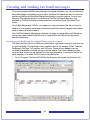
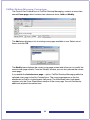
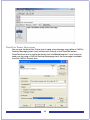
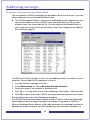
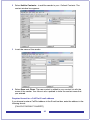
2 3 Add new columns or subtract existing ones, as required. For new columns, chose a meaningful column header name. Add the required data under each column header. The data source can be created by any means available to populate a Microsoft Word table, including importing information from existing files. If you edit the recipient list using the Mail Merge utility (that is, click Edit in the Data source section of the Microsoft Mail Merge Helper), the Data Form window opens and lists all the entries from the data source table. You can add, delete, modify, and search for records in this window. Any column headers that you added or modified in the data source file automatically appear in this window. Note that the ToFax text box is the only mandatory text box for CallPilot. The following parameters and characters are supported in the ToFax text box: Maximum supported length for the fax phone number is 120 characters. Numbers 0 through 9 are supported. Uppercase and lowercase P and the comma is used when a pause is necessary. The Pound sign (#) is supported. Common phone number symbols such as left and right parentheses and the dash, are supported. Spaces are supported. When placed before a CallPilot mailbox number, to designate the mailbox address, the M is not case-sensitive. The other text boxes are optional, and are used to customize, or to direct CallPilot how to handle, the fax. Three specific CallPilot text boxes and their parameters are: ToName: This is the fax recipient’s name, and can be up to 256 characters in length. DelReceipt: You can use this tag to receive a Delivery Receipt in the form of a CallPilot message in your CallPilot mailbox, when the fax is delivered to the recipient. If the DelReceipt text box is set to 1, then a delivery receipt is generated. If DelReceipt is set to 0, a delivery receipt is not generated for that recipient. If the DelReceipt text box is empty, or the field is not in Data.doc, then no delivery receipt is generated. DelType: This text box is used to set a delivery priority for each recipient. If the DelType text box is set to 0 or is left empty (or if DelType Text Box is not present in your Data.doc), the message is tagged for Normal delivery. If DelType is set to 1, then the message is tagged for Economy delivery. If DelType is set to 2, then the message is tagged for Urgent delivery. Messages sent to non-CallPilot recipients with the Delivery Type set to Economy is delivered on a schedule defined by the CallPilot server for Economy delivery. Note that messages sent to CallPilot mailboxes are not affected by the Economy designation, and is sent as Normal messages. Transmission of messages tagged as Normal or Urgent begin immediately. The Urgent icon is displayed from My CallPilot or a Desktop Messaging 21