1
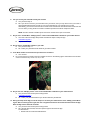
ii. Slide the Jacuzzi App to the center of the screen.
iii. Slide the Jacuzzi App to the top of the mobile device. This will close it from running in the background.
iv. Re-launch the App by selecting it from the mobile device.
For Android Devices:
i. Click and hold the center button.
ii. Scroll to the Jacuzzi App.
iii. Slide the Jacuzzi App to the left of the screen. This will close it from running in the background.
iv. Re-launch the App.
14. Did you enter the correct Wi-Fi network security type, SSID (network name), and password
a. Yes: proceed to the next step
b. No: the Wi-Fi SSID (network name) and password are case sensitive. Ensure that you have entered these
parameters correctly.
How do I find my home Wi-Fi’s network security type?
Mobile Device on Android Platform
If you have an Android mobile device, go to the Wi-Fi menu, select your home Wi-Fi network and then select
‘View’. You can find the network security type at the bottom of the list under ‘Security’.
•
•
•
•
•
•
Personal Computer with Windows 7
Go to Control Panel -> Network and Internet -> Network and Sharing Center.
Click on ‘Manage Wireless Networks’ on the left pane.
Right click your wireless network connection and select ‘Properties’.
Click on ‘Security’ tab to find out the security type.
Macintosh Computer
Hold down the ‘Option’ key and click the Wi-Fi icon menu bar item. You will see details about your wireless
network and other networks around you.
You can find the security type on the list under your home Wi-Fi.
NOTE: If none of these tips help you find the Wi-Fi security type, please contact your wireless router
vendor for more information.
15. After you enter the SSID (Wi-Fi network name) and password when on the ‘Spa-To-Home Wi-Fi Setup’ screen,
do you see a Wi-Fi icon on the topside screen of the spa within 60 seconds?
a. Yes: now proceed to the next step in the setup process.
b. No: check the SSID (Wi-Fi network name) and/or password that you have entered. These values are case
sensitive.
NOTE: If the information you entered is correct, then your spa will be connected to the home Wi-Fi. This can be
verified by –
•
•
A Wi-Fi icon will appear on the topside screen of your spa.
Your mobile device will automatically switch connection from JHTSpa_xxxxxx to your home Wi-Fi network.
Check your mobile device’s Wi-Fi menu to verify this.
Issues after Successful Initial Setup
Connectivity Issue:
Cannot control the Spa using the App
OR