1
MedBASE
User’s Manual
Windows
Table of Contents:
Introduction: ........................................................................................................1
Getting Started:....................................................................................................1
Installing the Program..................................................................................1
Starting the Program ...................................................................................1
Provider Menu .....................................................................................................2
Choose… ....................................................................................................2
Edit… .........................................................................................................2
New… ........................................................................................................2
Patient Menu........................................................................................................3
Select… ......................................................................................................3
New… ........................................................................................................4
Appointments ..............................................................................................4
Summary .....................................................................................................6
Labels..........................................................................................................6
Review Claims.............................................................................................6
Import .........................................................................................................7
Card Reader ................................................................................................7
Physician Menu ....................................................................................................7
Select… ......................................................................................................7
New… ........................................................................................................8
Labels..........................................................................................................8
Claim Menu .........................................................................................................9
Select… ......................................................................................................9
New… ...................................................................................................... 11
Direct ........................................................................................................ 11
Summary ................................................................................................... 11
Service Codes............................................................................................ 12
Process Menu..................................................................................................... 12
Bill… ........................................................................................................ 12
Profile ....................................................................................................... 13
Accounting................................................................................................ 14
Accounts Receivable.................................................................................. 14
Reconcile................................................................................................... 14
Discrepancy............................................................................................... 15
Adjust ....................................................................................................... 15
Preferences… ............................................................................................ 16
Help… ...................................................................................................... 16
Quit Menu................................................................................................. 18
Table of Contents:
MedBASE License Agreement ........................................................................... 19
Index.................................................................................................................. 20
MedBASE User’s Manual - Page 1
Introduction:
MedBASE is a versatile and powerful billing and
office management database system designed for the
Apple Macintosh and IBM-compatible PC's. The
MedBASE program makes full use of many of the
intuitive tools characteristic of mouse-based systems
with the aim of providing a user-friendly environment
for the operator. In the PC-based program, a mouse
is preferred but not mandatory. A minimum of
operator training is necessary for using the application,
and the layout is designed to maximize efficiency and
minimize operator error.
This manual is intended for those using the MedBASE
PC application. The manual assumes that you are
familiar with basic MS-DOS/Windows operating
system commands and are acquainted with the use of
the mouse and menu-driven commands. For new
users unfamiliar with this environment, we recommend
reviewing your MS-DOS User's Manual. Proper
operation of the program requires that MedBASE be
properly installed as described below. The application
is compatible with Systems using MS-DOS 3.2 or
higher or MS-Windows 3.1 or higher.
Because of the potential memory demands of a large
database system, we recommend at least 1 MBytes of
RAM with MS-DOS and preferably 4 MBytes of
RAM with Windows. A hard disk with a capacity of
at least 20 MBytes is recommended. MedBASE is
compatible with all IBM Compatible computers from
the XT to the newer 486 systems.
Getting Started:
Installing the Program:
With Windows simply run the program SETUP.EXE
on the first MedBASE Program disk and follow the on
screen instructions.
To install MedBASE DOS, insert the diskette entitled
"MedBASE Program" into the floppy disk drive.
(Note: this installation procedure assumes that you
wish to install the program on the C: harddrive.
Contact MedBASE Software for specific installation
instruction if you wish to use any other drive). Make
the floppy disk drive the current drive by typing A:
<Enter> or B:<Enter> depending on the drive
into which you have inserted the "MedBASE
Program" disk. Then simply type Install <Enter>.
The program will begin installing itself. When the
installation is complete remove the "MedBASE
Program Disk" and reboot your computer by turning it
off and then restarting it. Your MedBASE program is
now installed.
Starting the Program:
In MedBASE Windows simply double click on the
MedBASE Windows icon.
With MS-DOS MedBASE is accessed by simply
typing "MedBASE" at the C:\> prompt. If no
providers (billing physicians), have been entered in
the billing system, the user will be asked to enter the
new Provider Information as described on Pages 2.
After entering the Provider Information or with
subsequent program use when only one provider is in
the system, this provider will be selected
automatically. If more than one provider is present,
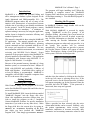
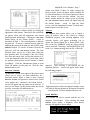
the Provider Browse Window will appear as shown
below. This displays a listing of each of the providers
in the system. Select the desired provider
and then close the window by clicking in the close box
in the top left corner or pressing the F7 key. If the
password is active for the selected provider, a window
will appear prompting you for the password. Enter the
password and click <F7-OK>. If the password is
inactivated, these steps are bypassed.
When a provider has been selected, only the active
claims under him/her can be accessed. Similarly, only
the patient appointments, claim reviews, claim
summaries, summaries of accounts receivable, daily
summaries and accounting summaries related to that
MedBASE User’s Manual - Page 2
provider are accessible. The active provider is
displayed at the bottom of the screen in the status bar
as shown below.
Provider Menu
Choose
The Choose option allows you to change the active or
'Current Provider'. Upon selecting Choose, the
Provider Browse Window will again appear, similar to
Startup. The desired provider can then be selected
and the window closed. If the password is enabled,
the operator will be prompted with the Password
Window. After choosing the new provider, the status
bar will be updated at the bottom of the screen.
Edit
The Edit option allows you to enter or change the
information associated with each provider. If the
password is active, the password window will appear
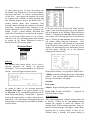
before editing is allowed. The Provider Information
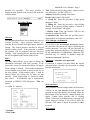
screen contains several fields as shown at the top of
the next column. Fields marked with a * must be
entered before any billing can be done for that
provider. Fields marked with a † cannot be edited,
once saved.
In MedBASE, type is automatically
converted to UPPER CASE (Exception - Title, see
below).
A = alpha, N = numeric
Title: Needed for direct billing letters. Upper or lower
case allowed (ie - for BSc, PhD, etc.)
Address: Needed for printing claim cards.
Postal Code: Format “ANANAN”.
*† Group No.: Enter the provider’s 4 digit group
number or “0000”.
*† Billing No.: Enter the provider's 6 digit billing
number. If an incorrect billing number is entered, a
message "Invalid Input" will appear.
* District Code: Enter the District Code for the
provider as outlined by OHIP.
*† Specialty Code: Enter either the specialty code (2
digit number) or for general practitioners, enter “00”.
<F9-Change Password>
If you click on the <F9-Change Password> button,
the password edit screen will appear displaying the
current password. You may edit the password by
typing in the password edit boxes. The password may
be any combination of 6 alphanumeric characters. The
password may be enabled or disabled using the
"Disable Password” check box.
Important - remember your password!
If password is enabled you must know the current
password before selecting a given provider or editing
provider information.
<F4-Delete>
Only providers without existing claims can be deleted.
Clicking on the <F4-Delete> button prompts the
program to search the database for existing claims for
this provider. If any are found, a warning message will
appear "Cannot delete provider due to existing
claims". If there are no existing claims, a message will
appear asking to confirm if you wish to delete the
provider. Click <Yes> to delete the provider or <No>
to cancel.
<F7-Done>
* Surname:
* First Name:
MedBASE User’s Manual - Page 3
Click the <F7-Done> button to leave the Provider
Information screen. Any changes will be saved.
New
Select the New menu option from the provider menu to
enter a new provider. A blank Provider Information
screen will then appear. Refer to the Edit menu
option on Page 2 for details regarding the Provider
Information screen.
Patient Menu:
If the user leaves the Search Field blank and hits
"return", then all patients in the database will be
displayed in the Patient Browse Window. Clicking on
the <F6-New> button will allow you to enter a new
patient as described on Page 4. Clicking on <F8Cancel> allows the user to exit without editing
patient information. After selecting a patient, either
through an exact match in the Patient Search routine
or from the browse window, the Patient Information
Screen will then appear, allowing you to edit patient
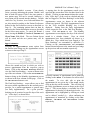
information. This screen is shown below. Fields
marked with an * are required for OHIP claims.
Select
The Select menu option allows you to select a
patient for editing of patient information. Upon
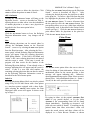
selecting Select, the Patient Search… screen will
appear as shown below.
Patient : Assigned by the program when a new
patient is entered. It cannot be edited.
By typing in either: (a) the Patient's surname, first
name or any portion thereof, (b) the Patient #, or (c)
the 10 Digit Health #, the corresponding patient will
be found almost immediately. If more than 1 patient
matches the search criteria, as when a partial name is
entered (eg - "FR"), then these patients will be
displayed in a Patient Browse Window as shown
below.
* Health : Enter the patient’s 10 digit Health Number.
If an incorrect health number is entered, a message
"Invalid Input" will appear. Correct the health number
or leave it blank to continue.
* Version : If applicable, enter the version number (1
or 2 alphabetic characters).
Surname:
Given Name:
Street Address:
City: See Preferences section on Page 16 for
information about setting default values for City.
MedBASE User’s Manual - Page 4
Province: See Preferences section on Page 16 for
information about setting default values for Province.
appointments. If no appointments have been entered,
a message will alert the user to this.
Postal Code: Format “ANANAN”.
Phone (Home): Enter the patient’s area code and
home phone number. See Preferences section on for
information about setting default values for area code.
Phone (Work): Enter the patient’s area code and
work phone number.
Sex: Choose male or female, by clicking the
appropriate radio button. See Preferences section on
for information about setting default values for patient
sex.
* Date of Birth: Enter the patients date of birth in the
form dd / mm / yy.
: Optional field (40 alphanumeric characters) used for
indexing patients (ie - by diagnosis or other variable).
Used as a marker for patient summaries.
For newly entered patients or those without billed
claims, the message 'No Claims Entered' will be
present in the information box. Otherwise, the Last
Visit and Last Diagnosis will be shown. Last Visit is
useful when generating Patient Summaries (see Page
6). Last Diagnosis is used as a default value for new
patient claims. These fields cannot be edited.
<F9-Out of Province>
Mandatory for Reciprocal Medical Billing (RMB)
for
out-of-province
patients.
Clicking
the
<F9-Out of Province> button brings up the Out of
Province screen.
Otherwise, the Patient Appointments screen will
appear displaying a scrollable list of the appointments
for that patient in chronological order.
An
appointment can be highlighted by clicking on it and
can be deleted, 'marked' (ie - when confirming an
appointment)
or
'unmarked'
by
clicking
on the <F4-Remove>, <F6-Mark> and <F2-Unmark>
buttons respectively.
<F4-Delete>
Only patients without existing claims can be deleted.
Clicking on the <F4-Delete> button prompts the
program to search the database for existing claims for
this patient. If any are found, a warning message will
appear "Cannot delete patient due to existing claims".
If there are no existing claims, a message will appear
asking to confirm if you want to delete the patient.
Click <Yes> to delete the patient or <No> to cancel.
<F6-Select>
Clicking the <F6-Select> button will bring up the
Patient Search… screen as described on Page 3,
allowing the user to either edit or view the information
of another patient or to enter a new patient as
described in the New menu option as described below.
<F7-Done>
Click the <F7-Done> button to leave the Patient
Information screen. Any changes will be saved.
New
Enter the appropriate registration number and select
the correct province using the province Pop-Up menu.
Click <F7-OK> to continue.
<F2-Appointments>
Clicking on the <F2-Appointments> button will
bring up a scrollable list of the active patient's
New patients can be entered either by clicking the
<F6-New> button on the Patient Search… screen, or
by selecting the New menu option from the Patient
menu After selecting one of these options, a blank
Patient Information screen will appear. Enter the
Health #, Version # (if applicable), patient surname
and given name. The program will then search for a
MedBASE User’s Manual - Page 5
patient with this Health # or name. If one already
exists a message indicating the patient, Health # and
date of birth will appear. If this is the same patient, a
new patient entry will not be created. Otherwise, a
new patient will be entered into the database. Default
values for City, Province, Area Code and Patient Sex
are also entered according to the Patient Preferences
defined in the Set Preferences screen as described on
Page 16. The remaining patient data can then be
entered on the Patient Information screen as described
for the Select menu option. To cancel, hit 'Return' 4
times, leaving the Health #, Version #, Surname and
Given Name fields blank. The new Patient Screen
will be exited and the new patient entry will be
deleted.
Appointments
Selecting the Appointments menu option from
the Patient menu brings up the Appointments screen
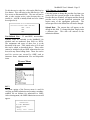
as shown at the top of Page 5.
Choose the month and year in which you wish to
process appointments from the respective pop-up
menus. Click on the <F6-Next Booking> button to
view the Find Next Booking… screen as shown at the
top of the next column. Click on the <F9-Schedule>
button to bring up the Monthly Appointments screen
as shown in the next column on this page. Click on
the <F8-Cancel> button to exit.
The Find Next Booking… screen allows you to find
the next available appointment for the currently active
provider, for a patient appointment or general entry
(see Daily Appointments). For a given provider,
bookings can be restricted to specific days of the week
(ie - "office days") as shown below.
A starting date for the appointment search can be
specified (the current date or the last date found is the
default). Clicking on <F6-Find> initiates the search.
Only "office days" of the week are checked and days
that are flagged as "No More Bookings" on the Daily
Appointments screen (as shown in the adjacent
column) are ignored. The Daily Appointments screen
for the "First Available Booking" day is then
displayed. Exiting from the Daily Appointments
screen returns the user to the Find Next Booking…
screen. Click <F7-Done> to exit. The Monthly
Appointments screen displays the days of the selected
month in a calender format.
Days on which
appointments have been scheduled are shown as a
double box. Days which have been flagged as "No
More Bookings" are surrounded by asteris2ks (*).
Clicking on the <F2-Previous> and <F4-Next>
buttons situated adjacent to the month and year brings
up the previous and next months respectively.
A weekly summary of appointments can be printed by
clicking on the <Week 1…5> buttons for each week of
the month.
To view, add, edit or print the
appointments for any given day of the month, simply
click on that day on the calender. This will bring up
the Daily Appointments screen as shown at the top of
Page 6. This screen displays a scrollable list of the
appointments for that day in chronological order. An
appointment can be highlighted by clicking on it and
can be deleted, 'marked' (ie - when confirming an
appointment) or 'unmarked' by clicking on the <F4Remove>, <F2-Mark> and <F6-Unmark> buttons
respectively.
MedBASE User’s Manual - Page 6
appointments, click on the <F3-Print> button of the
Daily Appointments screen. When the entries or
changes for that day are complete, click on the <F7Done> button to return to the previous screen (Find
Next Booking… screen or Monthly Appointments
screen). Click on the <F7-Done> button on the
previous screen to complete appointment processing.
Summary
To add an appointment, click on the <F5-Add>
button. This brings up a modified Patient Search…
screen with a <F6-General> button rather than a
<F6-New> button as shown below.
The user can search for a specific patient or click on
<F6-General> to enter patients not yet in the
database or non-patient activities such as meetings.
After selecting a patient or 'General' entry, the
Add/Edit Appointment screen will appear as
illustrated below. For 'General' entries, the 'patient'
field is editable. Enter the time of the appointment
and a brief description (up to 15 characters) and click
on <F7-Done> to complete the entry and return to
the Daily Appointments screen.
Selecting the Summary menu option from the Patient
menu brings up the Patient List / Export screen as
illustrated below. This screen allows the user to either
print or export a summary for a subset of patients by
specifying any or each of 4 parameters: Sex, Age, date
of Last Visit and Identifier.
Click the <F3-Print> button to print the patient
summary.
Click the <F5-Export> button to export the patient
information to a text file. This file can be used for
importing patients into another MedBASE program or
into other programs which accept a tab-delimited text
file such as Microsoft Excel® or most word
processing applications. The File Save dialogue
window will appear prompting the user to 'Insert
Export Diskette'. Click the <F7-Done> button to exit
this screen.
Labels
Similarly, to edit an appointment, click on the <F9Edit> button on the Daily Appointments screen. This
will also bring up the Add/Edit Appointment screen
and allow the user to change the patient by clicking on
the <F5-Change Patient> button or change the
time or description as described above. If no more
further appointments or bookings are desired for that
day, then click on the “No More Bookings”
checkbox. When searching for the next available
appointment, then days flagged as such will be
omitted.
To print a summary of the daily
Patient labels can be printed using Avery AL-120 label
sheets (14 labels / page) with a laser printer or with a
non-laser printer equipped with a sheet feeder. After
selecting the Labels menu option, the Print Patient
Labels screen will appear as shown below.
MedBASE User’s Manual - Page 7
claims were billed. If there are claims entered, the
Review Claims screen will appear with a scrollable list
of claim information for the selected patient as shown
at the bottom of the previous column. You may
choose another patient for claims review by clicking
the <F5-Choose> button which will again bring up
the Patient Search… screen. To print the claim
review, click the <F3-Print> button. Click the <F7Done> button to exit this screen.
Choose chart labels or address labels by clicking the
appropriate radio buttons. Chart labels are useful both
for patient charts and lab requisitions and contain
detailed patient information. Clicking the <F5-Add>
button brings up the Patient Search… screen as
described on Page 3. The selected patient is added to
the print list. To remove a patient from the print list,
highlight the patient in the print list and click the <F4Remove> button. To remove all names from the the
print list, click the <F8-Clear> button. The Start
Position allows you to use a label sheet which has
been partially used. For example, if the first 3 labels
have been previously used, set the start position to '4'
to use the remainder of the sheet. If more than 1 label
per patient is desired, then set the Number of Labels
accordingly. Click the <F3-Print> button to print
labels for patients in the print list. Click the <F7Done> button to exit.
Review Claims
The Review Claims menu option of the patient menu
allows you to review all claim information for a
particular patient. When a claim is open, selecting
Review Claims will generate a claims review for the
active patient only. Otherwise, the Patient Search…
screen will appear and any patient can be selected. If
there are no claims for this patient under the current
provider, a message will indicate that no
Import
The Import menu option allows you to import a
group of patients from a file created by another
MedBASE program. After selecting Import, a file
selection window will appear prompting you to
choose the Patient Import file as shown below. Only
files created by MedBASE using the Export option
can be imported. Choosing a non-MedBASE file will
result in a warning message and the file will not be
imported. After selecting a valid Import file, the
Importing Patients… screen will appear with a status
bar indicating progress.
Duplicate patients will not be imported and the screen
will indicate the total patients in the Import file and the
total imported. Click the <Done> button to exit.
Card Reader
New patients can also be entered with the use of a
Magnetic Card Reader. After selecting the Card
Reader menu option, a Magnetic Card Reader
message will appear as shown below.
MedBASE User’s Manual - Page 8
To cancel, press any key. To enter a new patient, run
the Health Card through the card reader (magnetic
strip down and back). As with new patients entered
via the New… menu option, the program will search
for a patient with a Health # or name matching that
read from the magnetic strip of the Health Card. If
existing patients match these parameters, then
messages appear informing the operator as described
in the New… menu option section. Otherwise, a new
Patient Information Screen appears, displaying the
Health , Version , patient surname, first name and
initial, date of birth and sex as read from the magnetic
strip, as well as the default values for City, Province
and Area Code. The remaining patient data can then
be entered on the Patient Information screen as
described for the Select menu option.
Physician Menu:
If the user leaves the Search Field blank and hits
"return", then all referring physicians in the database
will be displayed in the Referring Physician Browse
Window. Clicking on the <F6-New> button will allow
you to enter a new referring physician as described on
Page 9. Clicking on <F8-Cancel> allows the user to
exit without editing physician information. After
selecting a physician , either through an exact match
in the Physician Search routine or from the browse
window, the Referring Physician Information Screen
will then appear, allowing you to edit physician
information as shown below.
Select
The Select menu option allows you to select a
referring physician for editing of physician
information. Upon selecting Select, the Physician
Search… screen will appear as shown below.
Fields marked with an * are required for OHIP claims.
* Billing : Enter the referring physician's 6 digit billing
number. If an incorrect billing number is entered, a
message "Invalid Input" will appear.
Surname:
First Name:
By typing in either: (a) the referring physician's
surname, first name or any portion thereof, or (b)
the Physician #, the corresponding physician will be
found almost immediately. If more than 1 physician
matches the search criteria, as when a partial name is
entered (eg - "M"), then these referring physicians will
be displayed in a Referring Physician Browse Window
as shown below.
Address: Required for Physician Address Labels.
Postal Code: Format “ANANAN”.
Physician Address Labels.
Required for
<F4-Delete>
Only referring physicians without existing claims can
be deleted. Clicking on the <F4-Delete> button
prompts the program to search the database for
existing claims for this referring physician. If any are
found, a warning message will appear "Cannot delete
physician due to existing claims". If there are no
existing claims, a message will appear asking to
MedBASE User’s Manual - Page 9
confirm if you want to delete the physician. Click
<Yes> to delete the patient or <No> to cancel.
<F6-Select>
Clicking the <F6-Select> button will bring up the
Physician Search… screen as described on Page 8,
allowing the user to either edit or view the information
of another physician or to enter a new physician as
described in the New menu option below.
<F7-Done>
Click the <F7-Done> button to leave the Referring
Physician Information screen. Any changes will be
saved.
Clicking the <F5-Add> button brings up the Physician
Search… screen as described on Page 8. After
selecting the desired physician, the physician is added
to the print list. To remove a physician from the print
list, highlight the physician in the print list and click
the <F4-Remove> button. To remove all names from
the the print list click the <F8-Clear> button. The
start position allows you to use a label sheet which has
been partially used, as described in the Patient Labels
section on Page 6. Click the <F3-Print> button to
print address labels for physicians in the print list.
Click the <F7-Done> button to exit.
Claim Menu:
New
New referring physicians can be entered either by
clicking the <F6-New> button on the Physician
Search… screen or by selecting the New menu option
from the Physician menu. After selecting the New…
menu option, a blank Referring Physician Information
screen will appear. Enter the referring physician’s
OHIP billing number. If this field is left blank, and
“return” is hit, a new referring physician is not entered
and the screen is exited. If an entry is made, the
program will then search for this number in the
Referring Physician database. If one already exists, a
message indicating this will appear and the screen is
exited. If this is a new and valid number, the
remaining referring physician data can then be entered
on the Referring Physician Information screen as
described for the Select menu option.
Labels
Referring physician address labels can also be printed
using Avery AL-120 label sheets with a laser printer
or a non-laser printer equipped with a sheet feeder.
After selecting the Labels menu option, the Print
Physician Labels screen will appear as shown at the
top of Page 9.
Select
The Select menu option allows the user to select a
claim for editing of claim information. If there are no
unsubmitted claims for the current provider, a alert
message will appear indicating this. Otherwise,
choosing Select brings up the Claim Select screen as
shown below. Only unsubmitted claims (ie - Status =
'Saved') for the active provider can be accessed.
By typing in either: (a) the patient's surname, first
name or any portion thereof, or (b) the claim
Account #, the corresponding claim will be found
almost immediately. Searching on Account # will
yield only one match (if found). If searching on the
patient's name, then often, more than 1 claim will
match the search criteria, and these claims will be
displayed in a Claim Browse Window as shown
MedBASE User’s Manual - Page 10
below, displaying the claims in order of Account
Number.
does not change the current provider in the Status
Bar.
<F3-Patient>
To change the patient for this particular claim, either
enter the patient number (if known) or click the <F3Patient> button. Clicking the <F3-Patient>
button will bring up the Patient Search… screen as
described on Page 3. The user may select another
patient or enter a new patient for the claim.
If the user leaves the Search Field blank and hits
"return", then all Unsubmitted Claims will be displayed
in the Claim Browse Window for the active provider.
Clicking on the <F8-Cancel> button allows the user
to exit without entering the Claim Form screen.
Otherwise, the Claim Form screen will appear as
shown below. A given claim account contains
anywhere from 1 to 8 claim items. After selecting the
desired claim and closing the window, the Claim Form
screen will appear allowing you to edit claim
information.
<F4-Ref Phys>
To enter or change a referring physician for the claim,
either enter the physician number (if known) or click
the <F4-Ref Phys> button. Clicking on the <F4-Ref
Phys> button will bring up the Physician Search…
screen as described on Page 8. The user may select a
referring physician from the database or enter a new
physician for the claim.
<F5-Diag Code>
For patients with previous billings, the most recent
diagnosis code will already be entered as the default.
The diagnosis code can be entered or changed by
typing in the 3 digit diagnosis code or by clicking the
<F5-Diag Code> button. Clicking the <F5-Diag
Code> button will bring up the Diagnosis Code
Browse Window.
Account #: This is the claim account number assigned
by the program. This number should be recorded with
any hard copy billing records or slips and is used by the
program for identifying claims. This field cannot be
To search for a given diagnosis (or portion thereof),
edited.
use the Find (Ctrl-F) and Find Again (Crtl-G)
<F2-Provider>
commands to bring up the find window Once the
To change the provider for this particular claim, click desired Diagnosis Code is selected, close the window
the <F2-Provider> button. This will bring up the and the correct diagnosis code is entered. (NOTE Provider Browse Window and the desired provider Find and Find Again are active whenever a browse
can be selected (password protection will require entry window is open and may be used as an alternative
of the appropriate password). Close the Provider searching tool).
Browse Window after making the selection. This will
change the provider on the Claim Form screen but
Health #: The Health number for the selected patient
will appear here. This field cannot be edited.
MedBASE User’s Manual - Page 11
Hospital : You must enter the hospital or facility
number as necessary. See Preferences section on Page
16 for information about setting default values for
Hospital #.
In / Out: Select inpatient or outpatient by clicking the
appropriate radio button. See Preferences section on
Page 16 for information about setting default values
for this field.
Admit Date: The admission date must be entered for
hospital inpatients.
Bill Code: A valid OHIP service code (format
“ANNNA”) must be entered here. If an incorrect
service code is entered a message "Invalid Input" will
appear. Up to 8 service codes can be entered per
claim. All codes must end in the suffix A, B or C.
The entry of a claim item into the Claim database
depends on the presence of a non-blank Bill Code. To
delete a claim item, simply erase the Bill Code. On reopening the Claim Form Window for that account,
that claim item will be deleted.
To review billing information for a specific service
code, select the Service Codes option from the Claim
Menu (see Page 12).
#: The number of services for each bill code are
entered in this field. If no entry is made, '1' is
assumed. For expandable codes such as hospital
visits, a # > 1 refers to visits on consecutive days
starting with the Service Date.
Unit Fee: The unit fee for the specified billcode is
entered automatically. The unit fee can be changed by
manually entering a fee and hitting <enter>.
blank) is automatically entered for the first claim item.
For subsequent claims items, the service date for the
previous claim item is automatically entered. This
feature can be disabled by unchecking 'Automatic
Date Entry' in the Set Preferences screen in the
Preferences section. When this feature is disabled, the
service date must be manually entered.
OHIP
Reciprocal
WCB
Direct
You can use this Pop-Up
menu to select the claim
billing type. OHIP is the
default.
Status: The claim status, Not Saved or Saved, is
displayed at the bottom of the Claim Form screen.
Manual Review: The Manual Review checkbox
should be checked for claims designated as requiring
manual review by OHIP.
<F8-Cancel>
The <F8-Cancel> button allows you to leave the
claim edit screen without saving any changes made. A
message window will appear asking you to confirm
that this is what you intend to do.
<F7-OK>
Clicking the <F7-OK> button will leave the claim edit
screen and save any changes.
New
Selecting the New menu option from the claim menu
brings up a screen identical to the Patient Search…
screen (described on Page 3) but with the heading
"Choose Patient for New Claim…" as shown below.
Fee Billed: The fee billed is automatically calculated
and entered (equals the product of the number of
services and the unit fee). The fee billed can be
changed by manually changing the unit fee and hitting
'return'.
Service Date: The date on which the service was
rendered is entered here. If 'Automatic Date Entry' is
checked off in the Preferences section (see Page 16)
and a value has been entered for the default date, then
this date will be automatically entered in the first date
field. If 'Automatic Date Entry' is checked off but the
default date has been left blank, then either the
admission date or the current date (if admission date is
The user can select a patient from the database or
enter a new patient. A new Claim Form screen will
then come up for this patient with the current provider
as the default provider. The most recent diagnosis
code of the selected patient is entered as well. The
default referring physician is blank. Data is entered in
the fields as described for the Select… menu option.
Values for Hospital # and In / Out will appear as
MedBASE User’s Manual - Page 12
specified in the Set Preferences screen as described in
the Preferences section on Page 16. Details of Claim
Form entry are described under the Select… menu
option.
Direct
If the Direct option is selected and no unsubmitted
Direct claims are available, a message will appear,
alerting you to this. Otherwise, the Patient Browse
Window will appear, showing only patients with
unsubmitted Direct claims by the current provider.
Select the patient for whom you wish to print a Direct
billing statement of account and close the window.
The Service Code screen will appear allowing you to
enter a description for any service code billed to this
patient for which the description field is blank. Click
<OK> to confirm and continue.
To change the provider (the current provider is the
default) click the <F5-Choose Provider> button.
The Provider Browse Window will appear and the
desired provider can be selected (password protection
will require entry of the appropriate password). You
can specify a specific service code to limits the claim
summary to claims matching that code. To print the
summary, click the <F3-Print> button. Click the
<F7-Done> button to exit.
Service Codes
Selecting the Service Codes option of the claim
menu will allow you to examine or edit the
All unsubmitted directly-billed claim items will be
included and may come from several claim accounts.
The Direct billing statement of account will then be
printed. It may be advisable to use the provider’s
letterhead for this report. After the statement is
printed, a message will appear asking if you wish to
change the status for these claims to submitted.
Summary
The Summary option of the claim menu is used for
printing a summary of claims in a given date range or
account range for a particular provider. The date
range can be used for detailed daily, weekly or
monthly claim summaries. The account range is useful
for verifying entered data against original data
(keeping track of the accounts entered in a given time
period). The generated report details all of the
mandatory claim and patient data for each claim item
as well as totals. After selecting the Summary menu
option, the Claim Summary screen will appear.
fees, OHIP requirements or service description for a
given service code. After selecting Service Codes ,
the Service Code Info screen will appear as shown
above. To examine or edit a different service code,
enter the first 4 characters of the service code (minus
the A,B or C suffix). The service code information
will then appear for the entered service code.
Alternatively,
click
the
<F5-Choose Service Code> button to bring up the
Service Code Browse Window as shown below,
allowing the user to select a service code from the list.
MedBASE User’s Manual - Page 13
To edit the service code fees, click on the Edit Service
Fees button. This will bring up the Edit Service Code
Fees screen as illustrated below. The user will not be
able to alter certain service codes because they are
invalid (ie - A603B is initially blank and a fee cannot
be assigned to it).
<F5-Choose Provider>
Click this button to change the provider for whom you
wish to bill (the current provider is the default). The
Provider Browse Window will appear and the desired
provider can be selected (password protection will
require entry of the appropriate password). The
current provider in the Status Bar will not be changed.
Submit Date: The current date will appear as the
default in this field. To change this date, simply enter
a different date. This date will entered on the
submission diskette.
User-Defined Fees - 25 non-OHIP, non-machinereadable codes are included in the MedBASE fee
schedule and are numbered from I001A to I025A.
The assignment and usage of these fees is at the
discretion of the user. Their initial value is $1.00 and
this can be edited as described above. These codes
cannot be included with an OHIP submission but can
be used in any Direct billing claim. These fees can be
used for services not covered by OHIP such as
insurance forms, administration fees and disposable
items.
Process Menu:
Bill
The Bill option of the Process menu is used for
verifying an OHIP submission and creating a machinereadable file on diskette for submission to OHIP.
After selecting Bill, the OHIP Submission screen will
appear.
MedBASE User’s Manual - Page 14
<F9-Verify>
This button is used to verify all unsubmitted OHIP,
Reciprocal and WCB claims belonging to the active
provider for errors. The errors checked for include:
Service code excluded from machine-readable input.
Diagnosis code required for this service code.
Referring physician required for this service code.
Hospital number required.
Admission date required.
Service date is after submission date.
Service date is more than 6 months old.
Service date is after admission date.
Missing Health number for this patient.
Missing date of birth for this patient.
Reciprocal Claims require a specified province.
Reg# for <province> must be __ digits
Manual review required for this claim.
If errors are found an error report window will appear
as shown below. Click <F3-Print> to print a report
of these errors. If errors are found, they should be
corrected before proceeding with the submission.
Click <F7-Done> to return to the OHIP Submission
screen.
provider in the group. Click on <Yes> or <No> as
desired.
After processing is complete, a machine-readable
ASCII file will be created and a file save window will
appear with a prompt to select the drive for the OHIP
submission diskette. Insert the diskette and select A:
or B:. The file will be saved on the diskette and a
duplicate copy will also be saved in the \ MedBASE \
Submit directory on the hard disk. A prompt will then
appear asking whether you wish to print a Billing
Summary. Click <Yes> or <No> as desired. Be sure
to record the number of Claims and Records. The
OHIP Submission screen will then be exited.
It is advisable to check all submission diskettes to
ensure that a submission file is present. Duplicates
from the \ MedBASE \ Submit directory can be copied
onto a new diskette if necessary.
<F8-Cancel>
Click on this button if you wish to exit and bypass the
billing procedure. This will be necessary when you
wish to correct errors identified during verification
before proceeding with billing. The OHIP Submission
screen will then be exited.
Profile
NOTE - Only one error is reported for any claim item.
It is advisable to reverify the submission prior to
proceeding with billing to ensure that a second
unrecognized error was not present.
Selecting the Profile option of the Process menu
will allow you to print a detailed summary or “practice
profile” of a particular provider's billings broken down
according to specific service codes billed over a
specified date range. Details of the # of times billed,
total fees billed, total fees paid, and last date billed will
be displayed for each service code billed during the
specified date range. This report is useful for
analyzing patterns of practice and changes thereof.
After selecting the Profile menu option, the Practice
Profile screen will appear as shown below. To
change the provider (the current provider is the
<F7-Bill>
Click on the <F7-Bill> button when you are satisfied
that the OHIP submission is error-free.
All
unsubmitted OHIP, Reciprocal and WCB claims
belonging to the active provider will be processed.
OHIP claims without a valid Health # will not be
submitted. If the provider belongs to a group (ie Group # not ‘0000’), then you are given the option of
billing all providers from that group. Conversely, you
may wish to submit separate diskettes for each
default) click the <F5-Choose Provider> button.
The Provider Browse Window will appear and the
desired provider can be selected (password protection
will require entry of the appropriate password). The
MedBASE User’s Manual - Page 15
default date range is from the first to the last day of
the previous month. This can be edited as desired. To
print the Practice Profile report, click the <F3-Print>
button. Click the <F7-Done> button to exit.
Accounting
Selecting the Accounting option of the Process menu
will allow you to print a accounting summary which
indicates the # of services, fee billed, fee paid,
accounts receivable, over-payments and write-offs for
a particular provider over a specified date range. A
breakdown is also given according to claim status (ie saved, submitted, discrepancy and reconciled). After
selecting Accounting, the Accounting Summary
screen will appear as shown below.
To change the provider (the current provider is the
default) click the <F5-Choose Provider> button.
The Provider Browse Window will appear and the
desired provider can be selected (password protection
will require entry of the appropriate password).
The accounting summary can be defined according to
an account # range and a date range. The default
account # range includes the entire range of claim
accounts in the database. This can changed as is
desired. More commonly, the date range is used to
delimit the accounting summary (ie - for monthly
statements or year-end statements). The default date
range is from the first to the last day of the previous
month. This can be edited as desired. To print the
Accounting Summary report click the <F3-Print>
button. Click the <F7-Done> button to exit.
Accts Receivable
Selecting the Accts Receivable option of the claim
menu will allow you to print an Accounts Receivable
list as of any specified date broken down according to
# of days past due. After selecting Accts
Receivable, the Accounts Receivable screen will
appear as shown below.
To change the provider (the current provider is the
default) click the <F5-Choose Provider> button.
The Provider Browse Window will appear and the
desired provider can be selected (password protection
will require entry of the appropriate password). The
default date is the current date and this is the date
generally used for generating a list of 'Outstanding
Transactions' (ie - current Accounts Receivable).
When a prior listing of Accounts Receivable is
required, (usually for Financial Statements at fiscal
year-end), the desired date can be entered in this field.
You can use this
All claims
Pop-Up menu to
30 days past due
select
the desired
60 days past due
date threshold for
90 days past due
the
Accounts
120 days past due
Receivable list. To
print
the
Accounts
Receivable report, click the <F3-Print> button.
Click the <F7-Done> button to exit.
Reconcile
The Reconcile option of the Process menu is used to
reconcile previously billed claims from a OHIP
Remittance Advice (RA) Diskette. After selecting
Reconcile, a window will appearasking you to
choose the diskdrive for the RA diskette. Insert the
OHIP RA diskette and select A: or B:, then select the
RA file from the list of files that appears (should begin
with a “P” as per the new OHIP format). If you select
a file which is not an OHIP remittance advice file an
error message will appear. If a proper file has been
selected the file will be read, the diskette ejected and
the Reconciliation Summary screen will appear as
shown below.
As a default, the claim item will be reconciled if the
fee paid is within $1.00 of the fee billed. Otherwise,
the claim item will be marked as a discrepancy. The
underpayment and overpayment limits may be edited
as desired.
MedBASE User’s Manual - Page 16
year to the current date. This can be edited as desired.
To print a Discrepancy report, click the <F3-Print>
button. To process the claim discrepancies, click the
<F9-Process> button. Click the <F7-Done> button
to exit.
Click the <Continue> button to proceed with the
reconciliation. The Reconciliation Summary screen
will show the progress of the reconciliation both in the
form of a status bar and in the table, indicating the
total # of records, # reconciled, # of discrepancies, #
previously processed and # not found (ie - on the
RA diskette but not in the database). When the
reconciliation is completed a prompt will appear
asking whether you wish to print the Reconciliation
Summary reports.
If you click the <F9-Process> button, the Claim
Browse Window will appear, displaying only the
discrepant claims for the selected provider If there are
no discrepant claims an alert message will indicate
this. Selecting the desired claim and closing the
window brings up the Discrepancy Audit screen as
illustrated at the top of the next column. An
explanatory code is displayed at the bottom of the
Discrepancy Audit screen giving the reason for the
discrepancy.
Clicking the <F5-Choose> button
brings up the Claim Browse Window again, allowing
you to select another discrepant claim.
These reports include:
(1) Reconciliation Totals and List of Discrepancies.
(2) Summary of Claim Items 'Not Found' (if
applicable).
(3) Message from the Ministry of Health (if present
on RA diskette).
Click <Yes> or <No> as desired. Click <Done> to exit
the Reconciliation Summary.
Discrepancy
Selecting the Discrepancy option of the Process
menu will bring up the Discrepancy Summary screen
which allows you to print a discrepancy report or
process the claim discrepancies for a given provider
over a specified date range.
To change the provider (the current provider is the
default) click the <F5-Choose Provider> button.
The Provider Browse Window will appear and the
desired provider can be selected (password protection
will require entry of the appropriate password). The
default date range is from the first day of the current
If you wish to reconcile the discrepant claim and
accept the amount shown under fee paid, click the
<F6-Accept> button. However, if you wish to edit
the fee paid (ie - after receiving additional fees
following submission of a Remittance Enquiry to
OHIP), click the <F9-Adjust> button. This will
modify the Discrepancy Audit screen as shown below,
allowing you to edit the fee paid field. After entering
the new fee paid, click the <F6-Accept> button on
this modified screen to return to the original
Discrepancy Audit screen. Clicking <F8-Cancel>
returns you to the original Discrepancy Audit screen
without changing the fee paid.
MedBASE User’s Manual - Page 17
Click <F6-Accept> on the original Discrepancy Audit
screen to reconcile the changes. To exit the original
Discrepancy Audit screen click the <F7-Done>
button.
Adjust
Selecting the Adjust option of the Process menu
allows you to enter or change the fee paid or modify
the status (ie - Saved, Submitted, Discrepancy, or
Reconciled) or billing type (ie - OHIP, Reciprocal,
WCB or Direct) of any claim under the current
provider. This is generally used for manual
reconciliation (ie - for directly billed claims) or for
resubmission of rejected machine-readable claims (by
changing the status back to Saved from Submitted and
correcting the error, the claim account will be
automatically included in the billing submission).
After selecting Adjust, the Claim Adjust screen will
appear as shown below. Unlike the Claim Select
screen, this screen allows you to access all claims for
the active provider (ie - unsubmitted, submitted,
discrepant and reconciled claims).
As with Claim Select, typing in either: (a) the patient's
surname, first name or any portion thereof, or (b)
the claim Account #, will bring up the the Claim
Browse Window if more than 1 claim matches the
search criteria or the Adjust Claim… screen if only 1
claim matches the criteria. The Adjust Claim screen is
shown below.
Enter or change the fee paid as necessary for the
appropriate claim items.
Saved
Submitted
Discrepancy
Reconciled
You can use this Pop-Up
menu to change the claim
status for all of the items in
the claim. If discrepancy is
chosen, a warning message
will appear, asking if you wish to change the status
of all claim items to “Discrepancy”.
OHIP
Reciprocal
WCB
Direct
You can use this Pop-Up
menu to change the billing
type for all of the items in the
claim.
Clicking the <F5-Choose> button will bring up the
Claim Browse Window allowing you to select another
claim for adjustment. Click the <F7-Done> button to
exit.
Preferences
Selecting the Preferences option of the Process
menu will bring up the Set Preferences Screen as
illustrated below.
Preferences can be used to set default values that are
automatically entered for the specific fields shown on
the screen, when a new patient entry or new claim
entry is created. These default values are providerspecific and the values used depend on the provider
MedBASE User’s Manual - Page 18
that is active when a new patient or claim entry is
created. Editing these default values will affect only
new records. Previously entered information will not
be affected.
The check box entitled 'Automatic Date Entry' affects
manual versus automatic entry of the service date
when entering claims. If a value is entered for Default
Date, then this date will be used for the service date
on new claims. This is useful for billing a batch of
claims where the services were rendered on the same
day. For further details regarding automatic date
entry, see Service Date in the Select… section of the
Patient Claim menu on Page 11.
To change the default values for another provider,
click the <F5-Choose Provider> button. The
Provider Browse Window will appear and the desired
provider can be selected (password protection will
require entry of the appropriate password).
Click the <F7-Done> button to exit.
Help
Pressing the <F1-Help> button brings up the on-line
Help Screen as shown at the top of Page 17. The online Help contains essentially the same information
that is outlined in the MedBASE 3.0 Manual and is
similarly organized according to menu items. To
select a topic, click on the desired topic and then click
on the <Help> button at the bottom. The <Next>
and <Previous> buttons bring the next and
previous topics respectively. Click in the close box in
the top left hand corner to exit or by pressing <F7>.
Quit Menu:
The Quit menu contains one option… Quit
allows you to quit the program.
This
For technical advice and support, call MedBASE
Software Inc. at:
Phone / FAX
- 416-778-5852
Cellular Line - 416-417-2743
MedBASE User’s Manual - Page 19
MedBASE LICENSE AGREEMENT
MedBASE Software Inc. will assume that in purchasing this software package, you have agreed to be bound by the terms of this
license agreement. If you do not accept the terms of this license agreement, you may return the package to MedBASE Software Inc.
within 30 days of purchase for a full refund.
MedBASE Software Inc. grants to you and you accept a Software License to use the program and documentation delivered with this
Software License Agreement.
MedBASE Software, Inc. retains the copyright protection of the program and documentation. Under copyright laws, you agree not
to transfer the program and documentation in any form to any party without prior written consent of MedBASE Software, Inc.
Further, you agree that copies of the program shall be made only for backup and archival purposes. These archival copies must be
retained in your possession.
Except, as provided in this Agreement, you may not transfer, sub-license, lease or rent, time-share or lend the program and
documentation, your copies of such ot any of your rights under this License Agreement except by prior written consent from
MedBASE Software, Inc.
You may not alter, decompile, reverse engineer, disassemble, reverse translate, or in any other way derive any source code from this
program. You may not remove or obscure MedBASE Software, Inc.’s copyright notices in either hardcopy or machine-readable
portions of the program and documentation.
MedBASE Software Inc. shall not be liable for any tort, indirect, special or consequential damages such as loss of profits or loss of
goodwill that may result from improper use of this software. The liabilities of MedBASE Software Inc. shall be limited to a refund
of the productÕs price.
The program supplied by MedBASE Software Inc. may be installed and used on only one computer terminal.
MedBASE Software Inc. agrees to provide “Ongoing Support” in the form of telephone assistance, on-site technical maintenance as
required, as well as updates to the program and documentation. An annual fee will be charged for this Ongoing Support, as agreed
upon at purchase. Default of payment of annual support fee will result in suspension of all Ongoing Support.
This is the only agreement between you and MedBASE Software, Inc. It cannot and shall not be modified unless in writing and
signed both by you and an authorized officer of MedBASE Software, Inc. You agree to be bound by this mutual agreement between
you and MedBASE Software, Inc.
MedBASE User’s Manual - Page 20
Index:
Accounting Menu Option.................................. 14
Accounting Summary........................................ 14
Accounting Summary screen............................. 14
Accounts Receivable......................................... 14
Accounts Receivable report .........................14, 15
Accounts Receivable screen .........................14, 15
Accts Receivable Menu Option ......................... 14
Add/Edit Appointment screen ............................. 6
Address Labels ................................................... 6
Adjust Menu Option ....................................15, 16
Adjust Claim… screen ...................................... 16
Admission date ............................................10, 13
Analyzing patterns of practice ......................13, 14
Appointments ............................................. 4, 5, 6
Appointments Menu Option................................ 4
Appointments screen....................................... 5, 6
Automatic Date Entry..................................10, 16
Bill Code .......................................................... 10
Billing Number ............................................... 2, 8
Billing Summary ............................................... 13
Billing type ..................................................11, 16
Bill… Menu Option… ...................................... 12
Card Reader… Menu Option .............................. 7
Changing Password ............................................ 2
Changing Billing type...................................15, 16
Changing Claim status .................................15, 16
Changing Fee paid .......................................15, 16
Chart Labels ....................................................... 6
Choose… Menu Option (Provider) .................... 2
Claim Adjust… screen ...................................... 16
Claim Browse Window ................................ 9, 16
Claim Form screen...................................9, 10, 11
Claim Menu ........................................................ 9
Claim Select… screen ......................................... 9
Claim Status ..........................................11, 16, 17
Claim Summary screen...................................... 11
Daily Appointments screen.................................. 5
Date threshold .................................................. 14
Default date ...........................................10, 15, 16
Default date range............................................. 15
Deleting a Provider ............................................. 2
Deleting a Patient................................................ 4
Deleting a Referring Physician............................. 8
Deleting a Claim Item ....................................... 10
Diagnosis codes .......................................... 10, 13
Diagnosis Code Browse Window ...................... 10
Direct claim billing ...........................11, 12, 15, 16
Direct billing Statement of Account................... 11
Disabling Password............................................. 2
Discrepancy Menu Option................................. 15
Discrepancies.............................................. 15, 16
Discrepancy Audit screen.................................. 15
Discrepancy report............................................ 15
Discrepancy Summary screen............................ 15
District Code ...................................................... 2
Edit Menu Option (Provider) .............................. 2
Edit Menu (Find, Find Again) ........................... 10
Edit Service Code Fees screen .......................... 12
Edit Service Fees .............................................. 12
Editing Provider Information .............................. 2
Expandable codes ............................................. 10
Exporting Patient data......................................... 6
Fee billed .................................................... 10, 14
Fee paid .................................................14, 15, 16
Find Command ................................................. 10
Find Again Command ....................................... 10
Find Next Booking… screen ............................... 5
First Available Booking....................................... 5
Group Number.................................................... 2
Health Card ........................................................ 7
Health Number ................................3, 4, 7, 10, 13
Health Number, invalid ................................. 3, 13
Help Menu Option ...................................... 16, 17
Help Screen ................................................ 16, 17
Hospital number...................................... 9, 13, 16
Identifier ......................................................... 3, 6
Import Menu Option........................................... 7
Importing Patients… screen ................................ 7
Inpatient / Outpatient field .......................... 10, 16
Installing the Program ......................................... 1
Labels Menu Option (Patient) ............................. 6
Labels Menu Option (Physician)...................... 8, 9
MedBASE User’s Manual - Page 21
Last Diagnosis .................................................... 4
Last Visit........................................................ 4, 6
License Agreement ........................................... 18
List of Discrepancies (Reconciliation report)..... 15
Machine-readable input................................12, 13
Magnetic Card Reader ........................................ 7
Manual reconciliation...................................15, 16
Manual Review............................................11, 13
MedBASE Submit directory ........................13, 14
Message from the Ministry of Health ................ 15
Microsoft Excel® ............................................... 6
Monthly Appointments screen............................. 5
New… Menu Option (Provider) ........................ 2
New… Menu Option (Patient) ........................... 4
New… Menu Option (Referring Physician)........ 8
New… Menu Option (Claim)........................... 11
Next booking...................................................... 5
Not found - claims ............................................ 15
Number of services ........................................... 10
Office days.......................................................... 5
OHIP RA diskette............................................. 14
OHIP Remittance Advice.................................. 14
OHIP Service codes.....................................10, 12
OHIP Submission diskette ...........................12, 13
OHIP Submission file...................................12, 13
OHIP Submission file - duplicate....................... 13
OHIP Submission screen................................... 12
Out of Province screen........................................ 4
Outstanding transactions................................... 14
Overpayments..............................................14, 15
Password Protection ........... 1,2,10,12,13,14,15,16
Patient Information screen .............................. 3, 4
Patient Browse Window ............................... 3, 11
Patient Appointments screen ............................... 4
Patient Import file........................................... 6, 7
Patient Labels ..................................................... 6
Patient List / Export screen................................. 6
Patient Menu ...................................................... 3
Patient Search… screen ...............3, 4, 5, 6, 10, 11
Physician Menu................................................... 7
Physician Search… screen......................7, 8, 9, 10
Practice Profile report....................................... 13
Practice Profile screen....................................... 13
Preferences… Menu Option............................. 17
Previously processed claims .............................. 15
Print…Direct Menu Sub-Option ....................... 11
Print Patient Labels screen .................................. 6
Print Physician Labels screen............................... 9
Process Menu ................................................... 12
Profile Menu Option ......................................... 14
Provider Browse Window 1,2,9,10,12,13,14,15,16
Provider Information screen ................................ 2
Provider Menu.................................................... 2
Quit Menu Option............................................. 17
RA (Remittance Advice) file ............................. 14
Reciprocal Claims ..................................11, 13, 16
Reciprocal Medical Billing .................................. 4
Reconcile Discrepant Claim............................... 15
Reconcile Menu Option .................................... 14
Reconciliation by diskette.................................. 14
Reconciliation Summary reports........................ 15
Reconciliation Summary screen......................... 15
Reconciliation Totals ........................................ 15
Referring Physician address labels ....................... 8
Referring Physician Browse Window .................. 8
Referring Physician Information screen ............... 8
Remittance Enquiry........................................... 15
Resubmission .................................................... 16
Review Claims Menu Option............................... 6
Review Claims screen ......................................... 7
Select… Menu Option (Patient) ......................... 3
Select… Menu Option (Referring Physician) ...... 7
Select… Menu Option (Claim)........................... 9
Service Codes ............................................. 10, 12
Service Code Browse Window.......................... 12
Service Code Info screen .................................. 12
Service Code screen for Direct Billing............... 12
Service Codes Menu Option.............................. 12
Service Date ............................................... 10, 16
Set Preferences screen........................4, 10, 11, 16
Setting default values .........................4, 10, 11, 16
Specialty Code.................................................... 2
Starting the Program........................................... 1
Status bar (Current Provider) .................. 2, 10, 12
MedBASE User’s Manual - Page 22
Submit Date...................................................... 12
Summary Menu Option (Patient)......................... 6
Summary Menu Option (Claim) ........................ 11
Summary of Claim Items 'Not Found'................ 15
Technical advice and support ............................ 17
Underpayment .................................................. 14
Unit Fee............................................................ 10
User-Defined Fees ............................................ 12
Verify ............................................................... 13
Verification Screen ........................................... 13
Version Number ......................................... 3, 4, 7
WCB claims.................................................11, 13
Workman's Compensation Board ...................... 11
Write-offs ......................................................... 14