1
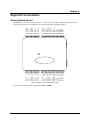
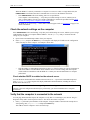
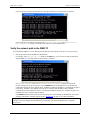
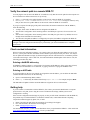
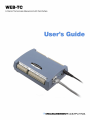
WEB-TC User's Guide Ethernet Troubleshooting When the WEB-TC is directly connected to a computer via a crossover cable or a single hub/switch, the LINK/ACTIVITY LED flashes when data is transmitted or received over the Ethernet connection. o If the LINK/ACTIVITY LED is not flashing, there are two possibilities: Your computer is not transmitting — verify that your TCP/IP settings are correct, and that you are using a valid IP address for both your computer and WEB-TC. Perform the procedure listed in Check the network settings on the computer TCP/IP settings below. The WEB-TC is not receiving — contact MCC technical support. Refer to Getting help on page 27 for contact information. Check the network settings on the computer If the LINK/ACTIVITY LED is not flashing, verify that your TCP/IP settings are correct, and that you are using a valid IP address for both your computer and the WEB-TC. Use the ipconfig utility to return the TCP/IP settings on your computer. 1. Open a DOS Command Prompt window from your computer. 2. Enter ipconfig and press the Return key. Your computer will display all TCP/IP network configuration values currently set on the computer. An example is shown here. o If the IP Address or Subnet Mask information are all 0’s, or if the first three sets (octets) of numbers in either the IP address or Subnet Mask do not match the device's network settings, then the computer will be unable to communicate with the WEB-TC. Contact your network administrator or computer professional. Check whether DHCP is enabled on the network server You can determine whether DHCP is enabled on the network server — open a DOS Command Prompt and enter ipconfig /all. Your computer will display additional TCP/IP information, including the status of DHCP on the network server. Contact your network administrator regarding network settings Changes to network configuration should only be performed by your network administrator or computer professional. Verify that the computer is connected to the network You can ping (Packet InterNet Groper) the computer to verify that it is connecting to your network. Ping is a diagnostic utility used to send a request to a device. The device then returns a response. Enter ping followed by the IP address of the computer. Using the address returned in the example above with ipconfig, enter ping 127.0.0.01 and press the Return key. This address tells the computer to test its network setup. 25