1
PROGRAMMABLE PARSER TEST TOOL
User’s Guide
V1.0
Revisions
Date/version
2006-06-19 V1.00
Changes
First release.
The information contained in this document, with respect to applications, examples and similar, is
intended through suggestion only. It is your responsibility to make sure that your application meets
your specifications. BXO Solutions AB takes no responsibility for the correctness of the information or
its use. This applies in particular, but not limited to, information regarding the exchange of information
with third party products.
©2006 BXO Solutions AB
2 (7)
Table of Contents
1
What is this?........................................................................................................ 4
2
System Requirements ......................................................................................... 4
3
Overview ............................................................................................................. 5
4
Getting started..................................................................................................... 6
©2007 BXO Solutions AB
www.bxo.se
3 (7)
1 What is this?
This tool can be used to simulate a serial log printer output, in order to verify that the
Programmable Parser is set up correctly in BXO Log.
2 System Requirements
Windows XP SP2 with .NET Framework 2.0
Windows 2003 Server with .NET Framework 2.0
©2006 BXO Solutions AB
4 (7)
3 Overview
Click here to add a text line.
Click here to send the text.
Here you specify different text lines to be sent.
Connect/Disconnect COM port
©2007 BXO Solutions AB
www.bxo.se
5 (7)
4 Getting started
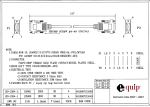
1. Link two COM ports together with a crossed RS-232 cable (a nullmodem).
2
2
3
3
5
5
2. Set up the COM port to the same settings as BXO Log Programmable Parser,
except the COM port name, of course (for instance, you could have COM1
on the test tool and COM2 in BXO Log.
3. Set up the Line ending characters. The most common is CR/LF.
4. Click on the Add Text Line button.
An empty text box appears in the window.
5. Type in a text string you want to be able to send
The texts you enter are saved to the harddrive automatically when you exit the
program.
©2006 BXO Solutions AB
6 (7)
6. Click the Connect/Disconnect button to open the COM port.
If the connection was established OK, it will display in the status bar.
7. Use the Send buttons to send the text lines you have entered
©2007 BXO Solutions AB
www.bxo.se
7 (7)