1
Appendix A: Rule Editor Expressions 226
Functions
}
6.
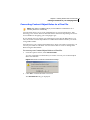
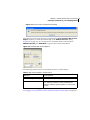
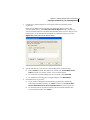
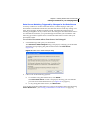
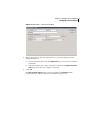
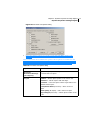
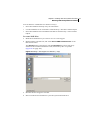
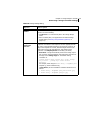
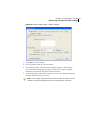
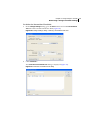
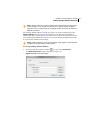
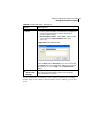
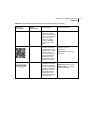
(Optional) If you wish to customize the barcode, click the View Qlingo...
button and edit the Rule. For example, if you wish to add color to the barcode,
the Rule will be as follows:
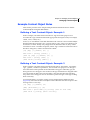
if(|->[CustomerType] = "Private")
{
XMPBarCode("QRCode", "http:ww.xmpie.com/uDirect,
"color=rgb(248,16,85);")
}
else
{
XMPBarCode("QRCode", "http:ww.xmpie.com/PersonalEffect",
"color=rgb(248,16,85);")
}
7.
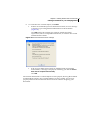
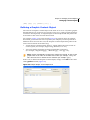
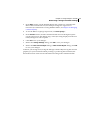
Click OK to close the Qlingo window.
8.
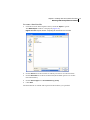
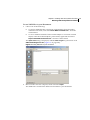
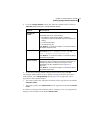
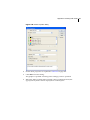
Click OK to accept your settings in the New Content Object window.
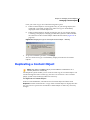
The new barcode Content Object is added to the uCreate Print panel's
Content Objects list.
9.
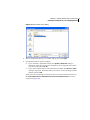
Use the barcode Content Object to tag a graphic frame in your Document (by
selecting the graphic frame and then double-clicking the barcode Content
Object in the uCreate Printpanel).
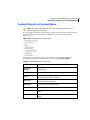
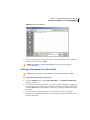
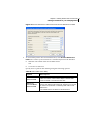
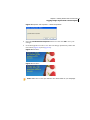
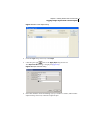
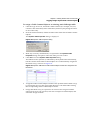
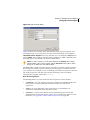
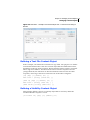
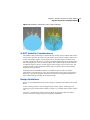
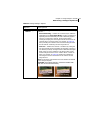
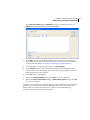
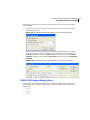
10. Scroll through the Data Source records using the record selection box (located
at the bottom of the uCreate Printpanel) to see how the tagged object
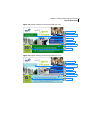
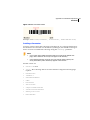
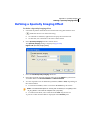
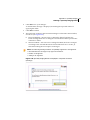
dynamically changes in the Document for each recipient (Figure 111).