1
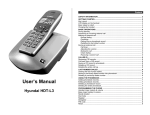
User’s
Manual
Hyundai HDT-H3
HDT-H3 OM
Page 1 of 35
CONTENTS
CONTENTS
1
ENVIRONMENT AND SAFETY ...................................................................................................5
2
SETTING UP YOUR PHONE .....................................................................................................6
SYSTEM REQUIREMENT ................................................................................................................ 6
INSTALL YOUR HDT-H3 ................................................................................................................ 6
SWITCH ON/OFF YOUR PHONE ......................................................................................................... 7
SETUP YOUR PC ........................................................................................................................ 7
ADJUSTING THE SPEAKER VOLUME ON YOUR PC .................................................................................... 7
SET YOUR HANDSET’S CLOCK ......................................................................................................... 9
Set the clock to 12 hours/24 hours .............................................................................................. 9
3
ABOUT YOUR PHONE ..........................................................................................................10
YOUR HDT-H3 ........................................................................................................................ 10
ICONS ON YOUR HANDSET’S DISPLAY ............................................................................................... 11
EXPLORE THE MENUS ................................................................................................................ 11
Main menu........................................................................................................................ 11
Phonebook ....................................................................................................................... 11
Call records menu ............................................................................................................... 11
4
MAKING CALLS .................................................................................................................12
CALLING ORDINARY PHONE NUMBER ................................................................................................ 12
CALLING SKYPE CONTACT ......................................................................................................... 12
PREPARATORY DIALLING FOR SKYPEOUT (PRE-DIAL) ........................................................................... 12
QUICK DIALLING ....................................................................................................................... 13
END A CALL............................................................................................................................ 13
ANSWER A CALL ...................................................................................................................... 13
MAKING SECOND OUTGOING CALL .................................................................................................. 13
RECEIVE SECOND INCOMING CALL .................................................................................................. 13
REDIAL A NUMBER .................................................................................................................... 13
HANDSFREE CALLS ................................................................................................................... 14
ADJUSTING THE VOLUME OF THE CALLER’S VOICE ................................................................................. 14
SPEAK TO SOMEONE PRIVATELY WHEN YOU ARE ON A CALL ...................................................................... 14
5
USING YOUR PHONEBOOK ...................................................................................................15
TO STORE A NAME AND NUMBER .................................................................................................... 15
MANAGING YOUR NUMBERS ......................................................................................................... 15
View your ENTRIES ............................................................................................................. 15
Edit your entries
................................................................................................................. 16
Copy your entries ................................................................................................................ 16
Quick dial to entries in your private phonebook
............................................................................. 17
Delete an entry from your phonebook ........................................................................................ 17
Delete all entries in your phonebook .......................................................................................... 17
HOW MUCH SPACE IS STILL AVAILABLE IN MY PHONEBOOK? ...................................................................... 18
CALL A NUMBER IN YOUR PHONEBOOK ............................................................................................. 18
Call directly from your phonebook ............................................................................................. 18
Make a preparatory (pre-dial) call from your phonebook ................................................................... 18
Use your phonebook during a call ............................................................................................. 18
6
ENTERING LETTERS & SPECIAL CHARACTERS .........................................................................20
7
VOICEMAIL .......................................................................................................................21
RETRIEVING VOICEMAIL .............................................................................................................. 21
DELETING VOICEMAIL ................................................................................................................ 21
HDT-H3 OM
Page 2 of 35
CONTENTS
DELETING ALL VOICEMAIL ........................................................................................................... 21
8
KEEP TRACK OF YOUR CALLS USING THE CALL RECORDS..........................................................22
FIND OUT WHO HAS CALLED YOU AND WHO YOU HAVE CALLED ................................................................... 22
Check your call records ......................................................................................................... 22
Transfer the call records to your phonebook ................................................................................. 22
Delete a call records entry...................................................................................................... 22
Delete all call records ........................................................................................................... 22
FIND OUT HOW LONG YOU’VE TALKED .............................................................................................. 22
View the call timer ............................................................................................................... 22
Reset the call timer .............................................................................................................. 23
CALL A NUMBER IN YOUR CALL RECORDS .......................................................................................... 23
Call directly from your call records ............................................................................................ 23
Make a preparatory (pre-dial) call from your call records
9
.................................................................. 23
ADDITIONAL FEATURES ......................................................................................................24
CHANGE ONLINE STATUS USING THE HANDSET .................................................................................... 24
KEYPAD LOCK ......................................................................................................................... 24
FORGOT WHERE YOU PUT THE HANDSET(S)? ...................................................................................... 24
10
PERSONALIZING YOUR PHONE..............................................................................................25
PERSONALIZE YOUR PHONE’S DISPLAY ............................................................................................. 25
Set your handset’s clock and time format .................................................................................... 25
Give your phone a name
....................................................................................................... 25
Adjust the Contrast .............................................................................................................. 25
Set your phone’s language ..................................................................................................... 25
Change your wallpaper ......................................................................................................... 25
Colour your phone ............................................................................................................... 25
PERSONALIZE YOUR SOUNDS........................................................................................................ 26
Your handset’s sounds
11
......................................................................................................... 26
MANAGING YOUR CALLS USING ADVANCED FEATURES..............................................................27
USE YOUR PHONE AS … ............................................................................................................. 27
AN ALARM CLOCK ..................................................................................................................... 27
To set the alarm clock........................................................................................................... 27
When the alarm clock rings
.................................................................................................... 27
A TIMER ................................................................................... FEL! BOKMÄRKET ÄR INTE DEFINIERAT.
To set the timer .................................................................................................................. 27
When the timer rings ............................................................................................................ 27
A STOPWATCH ........................................................................................................................ 27
To use the stopwatch ........................................................................................................... 27
USING TOUCH & DIAL ................................................................................................................. 28
To activate touch & dial ......................................................................................................... 28
To deactivate touch & dial ...................................................................................................... 28
AUTO ANSWER ........................................................................................................................ 28
DIAL MODE ............................................................................................................................ 28
RECALL DURATION.................................................................................................................... 28
AREA CODE STRIPPING ............................................................................................................... 28
12
MANAGING YOUR DECT PHONES ...........................................................................................30
REGISTER A HANDSET ................................................................................................................ 30
BASE SELECT ......................................................................................................................... 30
DELETE A HANDSET .................................................................................................................. 30
HDT-H3 OM
Page 3 of 35
CONTENTS
CHANGE PIN .......................................................................................................................... 31
RESET ................................................................................................................................. 31
13
USING MULTI-HANDSETS .....................................................................................................32
CALL SOMEONE IN THE HOUSE ...................................................................................................... 32
CALL SOMEONE IN THE HOUSE WHILE YOU ARE TALKING ON THE PHONE ........................................................ 32
TRANSFER YOUR CALL TO ANOTHER HANDSET .................................................................................... 32
MAKE A 3-WAY CONFERENCE CALL ................................................................................................. 32
14
APPENDIX ........................................................................................................................34
DEFAULT SETTINGS .................................................................................................................. 34
TROUBLESHOOTING ................................................................................................................. 34
HDT-H3 OM
Page 4 of 35
ENVIRONMENT AND SAFETY
1
Environment and safety
Safety information: This telephone is not designed for making emergency telephone calls when the power fails. An
alternative should be made available for access to emergency calls.
Power requirements: the computer thru the USB will provide Power.
Battery requirements: The handset requires power source of two rechargeable NiMH batteries, size AAA 1.2V 750mAh
(HR11/45). Please do not use non-rechargeable batteries.
WARNING! The electrical network is classified as dangerous according to criteria in the standard IEC 60950. The only way to
power down this product is by unplugging the power supply from the electrical outlet. Ensure the electrical outlet is located
close to the apparatus and is always easily accessible.
Safety precautions:
•
Do not allow the handset to come into contact with liquids or moisture.
•
Do not open the handset or base station. This could expose you to high voltages.
•
Do not allow the charging contacts of the charger or the battery to come into contact with extraneous conductive
materials.
•
There is a slight chance that the telephone could be damaged by an electrical storm. It is recommended that users
unplug the phone from the USB socket during a storm.
•
Do not use the handset in an explosive hazard area such as where there is gas leaking.
Environmental care: Please remember to observe the local regulations regarding the disposal of your packaging materials,
exhausted batteries and old phone and where possible promote their recycling.
Because the phone works by sending radio signals between the base unit and the handset, wearers of hearing aids may
experience interference in the form of a humming noise.
We advise that this phone should not be used near intensive care medical equipment or by persons with pacemakers.
Your phone can interfere with electrical equipment such as answering machines, TV and radio sets if placed too close. It is
recommended that you position the base unit at least one meter from such appliances.
CAUTION
RISK OF EXPLOSION IF BATTERY IS REPLACED BY AN INCORRECT TYPE. Never use non-rechargeable batteries;
use recommended type supplied with this telephone. NiMH batteries must be disposed of in accordance with the
applicable waste disposal regulations.
HDT-H3 OM
Page 5 of 35
SETTING UP YOUR PHONE
2
Setting up your phone
System requirement
In order to use the phone, your computer should meet the following requirements:
. PC running Windows 2000 or XP
. 400 MHz processor
. 128 MB RAM
. Free USB slot on the PC
. Internet Connection
Install your HDT-H3
1.
Connect the USB plug to a USB
slot on the PC.
If you are using a USB hub or
docking station, please make sure
the USB ports are powered up.
2.
Connect the output plug of the
mains adapter to the socket on the
back of the base unit and the
mains adapter to the wall mains
supply.
Connect the telephone line to the
phone socket on the back of the
base unit and to the wall phone
socket.
3. Place the 2 rechargeable NiMH
AAA batteries (included),
observing their polarities, into the
battery compartment on the
handset.
Slide the battery door firmly into
place.
4.
Place the handset on the charger
unit and let the batteries charge for
a full 14 hours before using it for
the first time.
Handset may get warm during
initial charge.
Please note that handset may not
turn ON for up to 15 minutes if the
batteries are low.
HDT-H3 OM
Page 6 of 35
SETTING UP YOUR PHONE
Switch on/off your phone
To switch off the power of your phone:
1. Press and hold
during standby.
To switch on the power of your phone:
Press
. The battery icon will display in 10 seconds,
or,
Return the handset to the charger; the handset should be automatically turned on.
Power saver
In order to reserve batteries power, the handset will turn itself off 30 minutes after the base has lost power or unplugged
from the PC. Please remember to power on the handset when the base is power on.
Setup your PC
To start making Internet calls, please download SKYPE and create a SKYPE account. For information on how to download
and use SKYPE, please visit www.skype.com
Before using your phone, please install the software provided in the enclosed CD.
To install the software:
1.
Turn on your PC.
2.
Insert the disk to your computer.
3.
Go to your CD-Rom directory and double click on setup.exe.
4.
An installation wizard will guide you through the installation; when finished, a shortcut icon will be created on your desktop.
To start using the phone,
1.
Plug in the USB base to your computer’s USB.
2.
Start the USB driver by double clicking on the shortcut icon created on your desktop; SKYPE should automatically start
with the driver.
3.
If this is the first time you use the driver, you will see the following screen. Select “Allow this program to use SKYPE”
and click OK.
4.
Once both SKYPE and the base are detected, your phone is ready for use. Your current SKYPE online status should
be shown on the phone’s display.
About the USB Driver
Once the USB driver is installed on your PC, it should auto start when you start the PC; a tray icon will be shown when
the USB driver is loaded.
Double click on the tray icon will return the ABOUT page of the USB driver, where the current status will be shown. If
there are problems with the connection, the problem will be displayed; otherwise CONNECTED will be shown.
You do not have to restart the USB driver unless it was exited. To exit the USB driver, right click on the tray icon and
select EXIT
Adjusting the speaker volume on your PC
The speaker volume setting will affect the sound quality of your phone.
Please follow the steps below to adjust your speaker volume.
HDT-H3 OM
Page 7 of 35
SETTING UP YOUR PHONE
1. Click on the Start button and select Settings. Select Control Panel.
2. Click on Sound and Multimedia if you are using Windows 2000, or
click on Sound and Audio devices if you are using Windows XP.
3. Select the audio Tab from Sound and Multimedia Properties/Sound
and Audio devices.
4. Check the “Use only preferred devices” (Windows 2000) or “Use only
default devices” (XP) checkbox to separate the audio from going out
via the same channel.
5. Select USB audio Device/USB Phone from the Preferred device
pulldown menu.
6. Click the Volume button.
7. Adjust the volume using the slider. Close the window when finished.
HDT-H3 OM
Page 8 of 35
SETTING UP YOUR PHONE
Set your handset’s clock
Once the base is connected to the PC and the software is running, your handset will obtain the current time from the PC.
However, you can still adjust the clock on your handset manually.
To adjust your clock:
1. Press MENU during standby.
2. Press Up or Down to select DISPLAY, and then press OK.
3. Press Up or Down to select CLOCK, and then press OK.
4. Press Left or Right to change the HOUR, and then press Down.
5. Press Left or Right to change the MINUTE.
If you set the time format of your clock to 12 hours, go to step 6. If you set it to 24 hours, go to step 7.
6. Press Down. Press Left or Right to select AM/PM.
7. Press OK to confirm.
SET THE CLOCK TO 12 HOURS/24 HOURS
To change your phone’s time format:
1. Press MENU.
2. Press Up or Down to select DISPLAY. Press OK.
3. Press Up or Down to select TIME FORMAT. Press OK.
4. Press Up or Down to select 12 HOURS or 24 HOURS.
5. Press OK to confirm.
HDT-H3 OM
Page 9 of 35
ABOUT YOUR PHONE
3
About your phone
Your HDT-H3
Soft Keys
The functions of the soft keys are displayed right above
the soft keys. The soft keys’ functions are displayed as
text in a box, i.e. MENU, in this manual.
Rock Key
Use to navigate the menus.
Use to view PHONEBOOK by pressing up or down
during standby mode.
Use to view DIALLED by pressing left or right during
standby mode.
Talk & Recall Key
Use to make and receive calls.
Use to answer second incoming call.
End & On/Off Key
Use to end a call.
Use to exit menus.
Use to switch the phone on/off.
Star & Ringer Off Key
Use to turn the ringer on/off.
Pound, Key lock & Pause Key
Use to enter a pause.
Use to lock the keypad.
Intercom Key
Use to enter the intercom menu.
SKYPE Key
Use to access SKYPE contact list.
Calls Key
Use to enter the call records menu.
LED
Blink during an incoming call.
Blink during paging.
Turn on steadily during a call.
Page Key
Use to page the handset.
Use to register a handset.
HDT-H3 OM
Page 10 of 35
ABOUT YOUR PHONE
Icons on your handset’s display
Base/Handset link
Name
Call in progress
Battery full;
please charge.
Number
2/3 full;
1/3 full;
Empty,
Volume level; 1 block=lowest volume; 5
blocks=highest volume
Loudspeaker
Internal melody
Alarm clock
External melody
Ringer off
Mode
Key lock
Volume
Home Phone/ PSTN Base
Contrast
Mobile Phone
Office Phone
Gender
Birthday
Address (Country, Province, City)
Language
USB Base
Online Status
Explore the menus
Your phone offers a variety of functions and features that are grouped in the menus.
MAIN MENU
SKYPE
Contacts
User Status
Voicemail
Display
Clock
Time Format
Handset Name
Contrast
Language
Wallpaper
Colour
Sounds
Handset
Base (PSTN)
HS Key Tones
HS Tones
CALL RECORDS MENU
Advanced
Alarm Clock
Timer
Stopwatch
Touch & Dial
Auto Answer
Dial Mode (PSTN)
Recall (PSTN)
Area Code (PSTN)
System
Register
Base Select
Delete HS
Change PIN
Reset
PHONEBOOK
Private
View
Use Number
Details
Edit
To Shared
Delete
Add Entry
Quick Dial
Change
Delete
Status
Delete All
Shared
View
Use Number
Edit
To Private
Delete
Add Entry
Status
Delete All
Missed
Use Number
Details
Use Number
List
To Private
To Shared
Delete
To Private
To Shared
Delete
Received
Use Number
Details
Use Number
List
To Private
To Shared
Delete
To Private
To Shared
Delete
Dialled
Use Number
Details
Use Number
List
To Private
To Shared
Delete
To Private
To Shared
Delete
Call Timers
Last Call
Dialled
Received
All Calls
Clear All
Delete Calls
Missed
Dialled
Received
VMWI
All Calls
In menu mode, press
anytime or place your
phone in the charger for charging to exit the menu
and return to standby. Any unconfirmed changes will
not be saved.
HDT-H3 OM
Page 11 of 35
MAKING CALLS
4
Making Calls
Calling Ordinary Phone Number
1.
Press
2.
Dial the number you want to call; the number appears on the display and is dialled.
.
SKYPEOUT
In order to make SKYPEOUT calls, you need to purchase SKYPEOUT credits; please go to
http://www.skype.com/store/buy/skypeout.html for further details.
When making SKYPEOUT calls, it is necessary to dial 00, 011 or + as a prefix of the phone number you are calling.
For example, when making calls within North America: 00-1-905-5251258 or 011-1-905-3456622
when making international calls: 00-852-25447555 or +852-90446577
Emergency Calls
This phone is not intended for making emergency calls; please use a PSTN phone in case of emergency.
Entering a +
Simply press and hold the 0 key for 1 second during standby or off hook.
Call timer
The call timer shows the duration of your current call on display.
Out of range warning
will flash. You need
If you move too far away from the base unit during a call, your phone will sound an alert tone, and
to move closer to the base unit or your call will be disconnected.
If the handset cannot find the base in 30 minutes, it will automatically turn itself off and user will have to manually turn it on
again.
Low battery warning
If your phone is almost out of battery during a call, it will sound an alert tone. Place your phone on the charger for charging
as soon as possible or it would turn off when it is out of battery. Placing the phone on the charger for charging will end the
current call.
Calling SKYPE Contact
1. Press
to launch the contact list during standby.
Contact List
The contact list shows the SKYPE contact list of the user who is currently login to SKYPE on the PC. The icon on the left
of each entry shows the online status of the contact. If the contact list is not obtained (i.e. user not login), UNAVAILABLE
will be returned.
Changing user status
You can also change your online status on the handset. Refer to section 9 for instruction on how to change online status.
Search by letter
Using the keypad, enter the first letter of the name you wish to find. For example, to find “Sam”, press 7 four times, the first
contact begins with the letter S is high-lighted.
2. Press Up and Down to select the contact.
View contact Information
When a contact is highlighted, press DETAILS allows you to view the information of the selected contact. Contact’s full
name, home/mobile/office phone number, language, address, and online status will be shown.
3.
Select the contact to call then press
. The contact name will be displayed and dialled.
Preparatory dialling for SKYPEOUT (pre-dial)
With pre-dial, you can see and edit the number you are calling on the display before dialling it thru SKYPEOUT.
1. Enter the number you want to call. The number appears on the display.
Deleting digits
Press CLEAR to delete an incorrect digit. If you press CLEAR on the last digit, your phone will return to standby.
Entering a pause
Press and hold
2. Press
where you want to enter a pause.
.
HDT-H3 OM
Page 12 of 35
MAKING CALLS
Saving a number from pre-dial:
1. Enter the number in standby. The number appears on the display.
2. Press SAVE.
Memory Full
If the phonebook is full, FULL is displayed, and then the phone returns to standby.
3. Enter the name for the record. Refer to section 6: Entering letters & special characters. A name must be entered and it must
be unique.
4. Press Down to go to the next field.
5. Edit the number for the record if necessary. You must enter a number.
6. Press Down. Press Left or Right to select a VIP melody for the record.
7. Press SAVE to confirm. The phone returns to standby.
Quick dialling
1. During standby, press and hold a digit key that you have set a quick dial number to and your call is made.
For information on how to set quick dial numbers, refer to “Assign a quick dial key” under section 5: using your phonebook.
End a call
1. Press
or place the phone on the charger.
Answer a call
When you receive a call, the phone will ring and
1. Press
will flash in the display.
to answer the call.
Caller id
The caller’s full name or SKYPE name will be shown on the display.
Turning off the ringer
Press SILENT when the phone is ringing to turn off the ringer for the call OR
Press and hold
when the phone is in standby to turn off the ringer for all the calls.
turned off. (Press and hold
appears when the ringer is
again to turn on the ringer.)
Making second outgoing call
While on a call, you can always make a second outgoing call.
1.
While on the first call, press
. A dial tone should be heard; the first call will be put on hold.
2.
To call an ordinary number, enter the number and then press
3.
4.
To call a contact, press
to obtain the contact list; select the contact to call.
Press DETAILS to view the detail of the contact and then press DIAL to make the second call.
.
5.
6.
To return to the first call or to toggle between calls, press
To end one of the two calls, simply return to the other call.
.
Receive second incoming call
While you are on a call, you can pick up a second incoming call.
1.
When there is a second incoming call, a call-waiting alert will be heard.
2.
Press
3.
4.
again to return to the first call, and to toggle between the two calls.
Press
To end one of the two calls, simply return to the other call.
to pick up the second call.
Redial a number
Your phone records the last 10 contacts or numbers you have dialled. The most recent call is stored at the top of the list. Only
the SKYPE name will be stored for SKYPE contact calls.
HDT-H3 OM
Page 13 of 35
MAKING CALLS
If you have more than 1 handset, each handset records its own set of dialled number(s).
To redial the last contact dialled:
1. Press
.
2. Press REDIAL. The last dialled contact appears on the display and is dialled.
To redial one of the last 10 dialled numbers:
1. Press Left or Right during standby. The redial list appears on the display.
2. Press Up or Down to select the number you wish to redial. Press
.
Handsfree calls
Handsfree provides the convenience of talking to the caller without holding onto the phone. You can communicate by using a
headset or the speaker/microphone of the phone. Handsfree also allows others in the room to be involved in the conversation if
you are not using the headset.
If you want to use the headset,
1.
Plug in the headset to the headset jack at the side of your phone. You can hear the caller from the earpiece of the
headset, and you can speak via the headset’s microphone. A headset using a 2.5mm plug can be used.
2.
Unplug the headset to end handsfree.
If you want to use the phone’s speaker, during a call,
1.
Press OPTIONS. Press Up or Down to select SPEAKER. Press OK.
2.
Repeat step 1 to switch off the speaker.
You can hear the caller over the loudspeaker and you can speak via the microphone.
will appear on the display.
Adjusting the volume of the caller’s voice
You can increase or decrease the volume of a caller’s voice during a call. There are 5 volume levels for selection.
To adjust the volume, during a call:
1. While the phone is off hook (i.e. dial tone can be heard), press Up or Down. The display shows the current volume level.
Press Up or Down again to adjust the volume.
Still can’t find the most comfortable level?
Besides adjusting the volume on the handset, you might also need to adjust the volume on your PC in order to set
the speaker to the most comfortable volume.
Please refer to section 2 – Adjust the speaker volume on your PC for information on how to adjust the volume on the
Speak to someone privately when you are on a call
During a call, if you wish to speak to someone privately without having the caller hear your conversation,
1. Press MUTE. The caller cannot hear you, but you can hear the caller.
2. Press UNMUTE to communicate with your caller again.
HDT-H3 OM
Page 14 of 35
5
USING YOUR PHONEBOOK
Using your phonebook
You can use your phonebook to manage your phone entries. Your phone has a private phonebook and a shared phonebook.
The information in your private phonebook is stored in your handset; therefore, if you have more than one handset, each
handset has its own phonebook.
The information in your shared phonebook is stored in the base unit; therefore, the information can be shared by all the
handsets. Your phone must have a link with the base unit in order to use the shared phonebook.
Your private phonebook can store 100 records, and your shared phonebook can store 20 records. Each record can store a
name with up to 10 characters and a number with up to 20 digits.
Storing Entries
Please note that contacts on the contact list cannot be stored to the phonebook (both shared and private).
To store a name and number
To access your phonebook,
1. Press NAMES.
2. Press Up or Down to select the phonebook you wish to open, PRIVATE or SHARED. Press OK to confirm. Now you are
in the private or shared phonebook.
To add an entry to your phonebook,
1. Press Up or Down to select ADD ENTRY, and then press OK.
Memory full
If your phonebook is full, FULL is displayed. You have to delete some records before entering new ones.
2. Enter the name for the record. Refer to section 6: Entering letters & special characters. A name must be entered and it
must be unique. Press Down to continue.
3. Enter the number for the record. You must enter a number.
Entering a pause
Press and hold
where you want to enter a pause.
Entering a +
Press and hold 0 where you want to enter a +.
4. If you are adding an entry in the shared phonebook, press SAVE to confirm the information you have entered. Now, you
can press
to return to standby.
If you are adding an entry in the private phonebook, press Down and continue to step 5.
5. Press Left or Right to select a VIP melody for the record. If you do not wish to select a VIP melody, go to step 6.
VIP melody
A VIP melody is a melody you can select for a special person. Your phone will ring the selected VIP melody when the
calling number has an exact match as the one in your phonebook.
6. Press SAVE to confirm the information you have entered.
Duplicate name
You cannot enter an identical name for 2 different records in your phonebook. If so, DUPLICATE NAME REPLACE?
is displayed. Press OK to replace the existing record with the new entry or press CANCEL to return to the previous
display and make changes to the name.
Managing your numbers
You can view, edit, copy, and assign quick dialling to each of your numbers.
VIEW YOUR ENTRIES
1. Press NAMES.
2. Press Up or Down to select the phonebook you want to access (PRIVATE or SHARED); press OK to continue.
3. Press Up or Down to select VIEW, and then press OK.
HDT-H3 OM
Page 15 of 35
USING YOUR PHONEBOOK
4. Press Up or Down to scroll to the entries you wish to view or search by letter.
Search by letter
Using the keypad, enter the first letter of the name you wish to find. For example, to find “Sam”, press 7 four times, the
first entry begins with the letter S is high-lighted.
If you are in the PRIVATE phonebook, go to step 5. If you are in the SHARED phonebook, go to step 8.
5. To view the details of your entries, go to step 6 or press Up or Down to continue scrolling.
6. Press OPTIONS.
7. Press Up or Down to select DETAILS. Press OK. The details of the entry you selected are displayed.
8. Press Up or Down to view the details of the other entries in your phonebook.
EDIT YOUR ENTRIES
1. Press NAMES.
2. Press Up or Down to select the phonebook you want to open, PRIVATE or SHARED; press OK to continue.
3. Press Up or Down to select VIEW, and then press OK.
4. Press Up or Down to scroll to the entries you wish to edit or search by letter.
If you selected PRIVATE, go to step 5. If you selected SHARED, go to step 8.
5. To view the details of your entries before editing, go to step 6. If not, go to step 8.
6. Press OPTIONS.
7. Press Up or Down to select DETAILS. Press OK. The details of the entry you selected are displayed.
8. Press OPTIONS. Press Up or Down to select EDIT, and then press OK.
9. Edit the name and number using the keypad. Press CLEAR to erase a character or digit.
If you are editing an entry in the private phonebook, you can also change the VIP melody.
10. Press SAVE to confirm all your changes. The display will show the entry you just edited.
COPY YOUR ENTRIES
Information of the entries can be shared by copying the entries from the private phonebook to the shared phonebook and
vice versa.
1. Press NAMES.
2. Press Up or Down to select the phonebook you want to open, PRIVATE or SHARED. Press OK.
3. Press Up or Down to select VIEW. Press OK. Press Up or Down to scroll to the entry you wish to copy or search by
letter.
If you are in the PRIVATE phonebook, go to step 4. If you are in the SHARED phonebook, go to step 6.
4. To view the details of your entries before copying, go to step 5; otherwise go to step 6.
5. Press OPTIONS. Press Up or Down to select DETAILS. Press OK. The details of the entry you selected are displayed.
6. Press OPTIONS.
7. To copy to the shared phonebook, press Up or Down to select TO SHARED. Press OK.
To copy to the private phonebook, press Up or Down to select TO PRIVATE. Press OK.
8. Edit the name and number using the keypad. Press CLEAR to erase a character or digit.
9. Press SAVE to confirm.
HDT-H3 OM
Page 16 of 35
USING YOUR PHONEBOOK
QUICK DIAL TO ENTRIES IN YOUR PRIVATE PHONEBOOK
This feature allows you to dial to the entries in your private phonebook by pressing and holding a quick dial key that you have
assigned. You can assign 9 quick dial keys (keys 1-9).
NOTE: Contacts on the contact list cannot be assigned to quick dial keys.
Assign a quick dial key
1. Press NAMES.
2. Press Up or Down to select PRIVATE, and then press OK.
3. Press Up or Down to select QUICK DIAL. Press OK. The first quick dial key is displayed.
4. Press Up or Down to scroll to the quick dial key you wish to use.
If no number is assigned to the quick dial key, the display shows EMPTY. To assign a number, press SELECT, and then
go to step 6.
If there is already a number assigned to the quick dial key, the display shows the name and number of the entry. To
assign a new number, go to step 5.
5. Press OPTIONS. Press Up or Down to select CHANGE. Press OK.
6. The display shows a list of entries in your private phonebook.
7. Press Up or Down to select the entry you wish.
8. Press DETAILS. The display shows the details of the entry that you selected. Press OK to confirm.
Delete a quick dial key
1. Press NAMES.
2. Press Up or Down to select PRIVATE, and then press OK.
3. Press Up or Down to select QUICK DIAL, and then press OK. The first quick dial key is displayed.
4. Press Up or Down to scroll to the quick dial key you wish to delete.
5. Press OPTIONS. Press Up or Down to select DELETE. Press OK.
6. CONFIRM? is displayed. Press OK to confirm.
DELETE AN ENTRY FROM YOUR PHONEBOOK
1. Press NAMES.
2. Press Up or Down to select the phonebook you want to access, PRIVATE or SHARED. Press OK.
3. Press Up or Down to select VIEW. Press OK.
4. Press Up or Down to scroll to the entry you wish to delete or search by letter.
If you are in the PRIVATE phonebook, go to step 5.
If you are in the SHARED phonebook, go to step 7.
5. To view the details of your entries before deleting, go to step 6. If not, go to step 7.
6. Press OPTIONS. Press Up or Down to select DETAILS. Press OK. The details of the entry you selected are displayed.
7. Press OPTIONS.
8. Press Up or Down to select DELETE. Press OK. CONFIRM? is displayed. Press OK to confirm.
DELETE ALL ENTRIES IN YOUR PHONEBOOK
1. Press NAMES.
2. Press Up or Down to select the phonebook you want to open, PRIVATE or SHARED. Press OK.
3. Press Up or Down to select DELETE ALL. Press OK. CONFIRM? is displayed. Press OK to confirm.
HDT-H3 OM
Page 17 of 35
USING YOUR PHONEBOOK
How much space is still available in my phonebook?
Your phone keeps track of how much memory you have used and how much is still available in your phonebook.
1. Press NAMES.
2. Press Up or Down to select the phonebook you want to open, PRIVATE or SHARED. Press OK.
3. Press Up or Down to select STATUS. Press OK to view the status. Press OK when finished.
Call a number in your phonebook
While you are viewing your phonebook, you can make a call to the entry you wish. You can also open your phonebook
during a call.
CALL DIRECTLY FROM YOUR PHONEBOOK
1. Press NAMES.
2. Press Up or Down to select the phonebook you want to open, PRIVATE or SHARED. Press OK.
3. Press Up or Down to select VIEW. Press OK.
4. Press Up or Down to scroll to the entry you wish to call or search by letter.
If you are in the PRIVATE phonebook, go to step 5.
If you are in the SHARED phonebook, go to step 8.
5. To view the details of the entry before calling, go to step 6. If not, go to step 8.
6. Press OPTIONS.
7. Press Up or Down to select DETAILS. Press OK. The details of the entry you selected are displayed.
8. Press
NOTE:
.
If there is no entry being stored in the PHONEBOOK, EMPTY will result.
MAKE A PREPARATORY (PRE-DIAL) CALL FROM YOUR PHONEBOOK
With pre-dial, you can edit the phone number you wish to call before dialling.
1. Press NAMES.
2. Press Up or Down to select the phonebook you want to open, PRIVATE or SHARED. Press OK.
3. Press Up or Down to select VIEW. Press OK.
4. Press Up or Down to scroll to the entry you wish to call or search by letter.
If you are in the PRIVATE phonebook, go to step 5.
If you are in the SHARED phonebook, go to step 8.
5. To view the details of the entry before calling, go to step 6. If not, go to step 8.
6. Press OPTIONS.
7. Press Up or Down to select DETAILS. Press OK. The details of the entry you selected are displayed.
8. Press OPTIONS.
9. Press Up or Down to scroll to USE NUMBER. Press OK. The phone number appears on the display.
10. Press CLEAR or Left or Right to edit the phone number or press
to make the call.
USE YOUR PHONEBOOK DURING A CALL
To view your phonebook during a call,
1. Press OPTIONS.
2. Press Up or Down to select PHONEBOOK. A list of entries in your private phonebook is displayed.
3. Press Up or Down to select the entry you wish to view or search by letter.
4. Press DETAILS. The details of the entry are displayed.
5. Press CANCEL 3x to return to the call.
To make a call from your phonebook during a call,
1. Press OPTIONS.
2. Press Up or Down to select PHONEBOOK. A list of entries in your phonebook is displayed.
3. Press Up or Down to select the entry you wish to view or search by letter.
HDT-H3 OM
Page 18 of 35
USING YOUR PHONEBOOK
4. Press DETAILS. The details of the entry are displayed.
5. Press DIAL.
HDT-H3 OM
Page 19 of 35
ENTERING LETTERS & SPECIAL CHARACTERS
6
Entering letters & special characters
You can enter letters, numbers, and special characters for your handset name, the phonebook record name and other menus.
To enter letters and special characters:
1. Find the key with the letter or number or special characters you wish to enter.
2. Press it as many times as you need until the letter or number or special character appears on the display.
Entering space & special characters/symbols
Press 1 once to enter a space. Press 0 or
to enter the symbols you wish.
Changing case
Press
. The next letter you entered will be in the opposite case.
Erasing characters
Press CLEAR. The character on the left of the cursor is erased.
Moving the cursor
Press Left or Right to move the cursor around.
HDT-H3 OM
Page 20 of 35
USING THE CALL RECORDS
7
Voicemail
Your phone allows you to access your SKYPE voicemail box with just a few presses.
SKYPEVOICEMAIL
To get a voicemail account, please go to http://www.skype.com/products/skypevoicemail/ for further details.
You have new Voicemail
When there are new voicemails waiting for you, the LED on the handset will be blinking and
of the display during standby. The LED will be off and the
your voicemail box.
will appear on the top line
icon will be gone when there is no more new message in
Retrieving Voicemail
1. Press MENU.
2. Press Up or Down to select SKYPE. Press OK.
3. Press Up or Down to select VOICEMAIL. Press OK.
4. Press Up or Down to select VIEW. Press OK.
5. Press Up or Down again to select the message you would like to retrieve;
6. Press PLAY to listen to the message.
Which messages are new messages?
When you are browsing the voicemail list, you will see an icon on the left of each voicemail. These icons indicate which
messages are retrieved and new. If the icon next to the voicemail is
retrieved; if the icon next to the voicemail is
the icon of that voicemail will be updated.
, that means this piece of voicemail is already
, that means this piece of voicemail is new. After a new voicemail is heard,
Deleting Voicemail
1. Press MENU.
2. Press Up or Down to select SKYPE. Press OK.
3. Press Up or Down to select VOICEMAIL. Press OK.
4. Press Up or Down to select VIEW. Press OK.
5. Press Up or Down again to select the message you would like to retrieve;
6. Press DELETE; a confirmation prompt should be shown; press OK.
Deleting All Voicemail
1. Press MENU.
2. Press Up or Down to select SKYPE. Press OK.
3. Press Up or Down to select VOICEMAIL. Press OK.
4. Press Up or Down to select DELETE ALL. Press OK.
5. A confirmation prompt should be shown; press OK.
HDT-H3 OM
Page 21 of 35
USING THE CALL RECORDS
8
Keep track of your calls using the call records
Find out who has called you and who you have called
Your phone keeps a record each time you make, receive or miss a call. You can access a list of the last 15 calls that you have
missed and a list of the last 10 calls you have dialled and the last 5 calls you have received. You can keep track of who you’ve
talked to and for how long.
CHECK YOUR CALL RECORDS
1. Press
.
2. Press Up or Down to select MISSED, DIALLED or RECEIVED.
3. Press OK. A list of call records is displayed. Press Up or Down to scroll the list.
To view the details of a call records entry, go to step 4.
4. Press OPTIONS. Press Up or Down to select DETAILS. Press OK.
TRANSFER THE CALL RECORDS TO YOUR PHONEBOOK
To save the phone number of your family, friends, and colleagues, you can transfer the call records to your phonebook if you
do not already have their information.
1. Press
.
2. Press Up or Down to select MISSED, DIALLED or RECEIVED.
3. Press OK. A list of call records is displayed. Press Up or Down to scroll the list.
To view the details of the call records entry, go to step 4. If not, go to step 5.
4. Press OPTIONS. Press Up or Down to select DETAILS. Press OK.
5. Press OPTIONS. Press Up or Down to select TO SHARED if copying to the shared phonebook or TO PRIVATE if copying
to the private phonebook. Press OK.
6. Add or edit the name using the keypad. Press CLEAR to erase a character or digit. There must be a name.
7. Press Down. Add or edit the number using the keypad. Press CLEAR to erase a digit. There must be a number.
Copying to the private phonebook, go to step 8. Copying to the shared phonebook, go to step 9.
8. Press Down. Press Left or Right to select a VIP melody.
9. Press SAVE to confirm all you’ve entered.
DELETE A CALL RECORDS ENTRY
1. Press
.
2. Press Up or Down to select MISSED, DIALLED or RECEIVED.
3. Press OK. A list of call records is displayed. Press Up or Down to scroll the list.
To view the details of a call records entry, go to step 4. If not, go to step 5.
4. Press OPTIONS. Press Up or Down to select DETAILS. Press OK.
5. Press OPTIONS. Press Up or Down to select DELETE. CONFIRM? is displayed. Press OK to confirm.
DELETE ALL CALL RECORDS
You can delete each individual (missed, dialled, received) call records list or delete all the call records lists at once.
To delete individual/all call records list:
1. Press
.
2. Press Up or Down to select DELETE CALLS. Press OK.
3. Press Up or Down to select MISSED, DIALLED, RECEIVED, VMWI or ALL CALLS. Press OK.
4. CONFIRM? is displayed. Press OK to confirm.
Find out how long you’ve talked
Your phone has a call timer that records how long you have spent on your last call, dialled calls, received calls, and all calls.
VIEW THE CALL TIMER
HDT-H3 OM
Page 22 of 35
USING THE CALL RECORDS
1. Press
.
2. Press Up or Down to select CALL TIMERS. Press OK.
3. Press Up or Down to select LAST CALL, DIALLED, RECEIVED, or ALL CALLS.
4. Press OK. The time you spent on the calls is displayed.
5. Press OK when finished.
RESET THE CALL TIMER
1. Press
.
2. Press Up or Down to select CALL TIMERS. Press OK.
3. Press Up or Down to select CLEAR ALL. Press OK. CONFIRM? is displayed.
4. Press OK to confirm. The call timer is reset and will start counting from 0 seconds.
Call a number in your call records
While you are reviewing the call records, you can make a call or return a call to the person.
CALL DIRECTLY FROM YOUR CALL RECORDS
1. Press
.
2. Press Up or Down to select MISSED, DIALLED or RECEIVED.
3. Press OK. A list of call records is displayed. Press Up or Down to scroll the list.
To view the details of a call records entry, go to step 4. If not, go to step 5.
4. Press OPTIONS. Press Up or Down to select DETAILS. Press OK.
5. Press
..
MAKE A PREPARATORY (PRE-DIAL) CALL FROM YOUR CALL RECORDS
With pre-dial, you can edit the phone number you wish to call before dialling.
1. Press
.
2. Press Up or Down to select MISSED, DIALLED or RECEIVED.
3. Press OK. A list of call records is displayed. Press Up or Down to scroll the list.
To view the details of a call records entry, go to step 4. If not, go to step 5.
4. Press OPTIONS. Press Up or Down to select DETAILS. Press OK.
5. Press OPTIONS. Press Up or Down to select USE NUMBER. Press OK.
6. Press CLEAR or Left or Right to edit the phone number or press
to make the call.
HDT-H3 OM
Page 23 of 35
ADDITIONAL FEATURES
9
Additional features
Change online status using the handset
You can change your online status anytime without going back to your computer.
1. Press MENU.
2. Press Up or Down to select IM CONFIG. Press OK.
3. Press Up or Down to select USER STATUS. Press OK.
4. Select the online status you want others to see.
5. Press OK to confirm.
Keypad lock
Locking the keypad prevents accidental key presses when you put your phone in the pocket.
To lock the keypad:
1. Press and hold
during standby.
the phone except pressing UNLOCK.
is displayed. The keypad is locked. Nothing will happen when you press a key on
NOTE: When a call comes in, your keypad becomes active. When you end the call, your keypad will be locked again.
To unlock the keypad:
1. Press UNLOCK. UNLOCK? is displayed. Press OK. The keypad is unlocked.
Forgot where you put the handset(s)?
Just page your handsets, and they will reveal themselves.
To page your handset(s):
on the base unit. All the handsets in standby or screen saver mode connected to that base unit will
1. Press and release
play a paging melody.
Not ringing?
A handset will not play the paging melody if it is powered off or on an outside call; however, all the other handsets will still
To stop the paging melody:
1. Press and release
on the base unit, and all the handsets will stop paging OR
Press STOP on a handset and that handset will stop paging. All the other handsets will keep playing the paging melody.
NOTE: If an external call comes in, all the handsets will stop paging, and play the external call melody.
NOTE: The paging melody will last for 30 seconds if no key is pressed.
HDT-H3 OM
Page 24 of 35
PERSONALIZING YOUR PHONE
10
Personalizing your phone
Your phone comes with a colour display and a selection of ringing melodies. Personalize your phone to make it the way you
want it to look and the way you want it to sound.
Personalize your phone’s display
SET YOUR HANDSET’S CLOCK AND TIME FORMAT
The time appears on the handset is obtained from the PC the base unit is connected to.
Please refer to section 2: setting up your phone.
GIVE YOUR PHONE A NAME
Your phone comes with a name from the factory. You can give your phone a different name. If you have more than 1 handset,
you can give each handset its own name.
To name your phone:
1. Press MENU.
2. Press Up or Down to select DISPLAY. Press OK.
3. Press Up or Down to select HANDSET NAME. Press OK.
4. Enter or edit the name. See section 6: entering letters & special characters for information on how to enter characters.
5. Press OK to confirm.
ADJUST THE CONTRAST
Change the contrast of your LCD.
1. Press MENU.
2. Press Up or Down to select DISPLAY. Press OK.
3. Press Up or Down to select CONTRAST. Press OK.
4. Press Left/Right or Up/Down to select the proper contrast.
5. Press OK to confirm.
SET YOUR PHONE’S LANGUAGE
Change the language on your phone.
1. Press MENU.
2. Press Up or Down to select DISPLAY. Press OK.
3. Press Up or Down to select LANGUAGE. Press OK.
4. Press Up or Down to select the language. Press OK to confirm.
CHANGE YOUR WALLPAPER
Change the wallpaper to give your phone a refresh look with your style.
1. Press MENU.
2. Press Up or Down to select DISPLAY. Press OK.
3. Press Up or Down to select WALLPAPER. Press OK.
4. Press Up or Down to select the wallpaper. Press OK to confirm.
COLOUR YOUR PHONE
Change the colour of the menus, highlight, and background of your phone to your colour.
1. Press MENU.
2. Press Up or Down to select DISPLAY. Press OK.
3. Press Up or Down to select COLOUR. Press OK.
4. Press Up or Down to select the colour. The colour of the menus will change as you select the different colours.
5. Press OK to confirm.
HDT-H3 OM
Page 25 of 35
PERSONALIZING YOUR PHONE
Personalize your sounds
YOUR HANDSET’S SOUNDS
You can assign different ringing melodies for each handset at different volume levels. To find out if it is a call from inside or
outside the house, you can assign different ringing melodies for external and internal calls.
Your phone sounds key press tones and confirmation tones.
Key tones are tones that your phone makes each time you press a key on the phone.
Confirmation tones are tones that your phone makes when an operation is successful.
Parking tones are sounded when you place your phone on the charging unit.
To set your handset’s ringing melodies and volume:
1. Press MENU.
2. Press Up or Down to select SOUNDS. Press OK.
3. Press Up or Down to select HANDSET. Press OK.
4. Press Left or Right to change the volume level. Press Down.
5. Press Left or Right to select the external melody. Press Down.
6. Press Left or Right to select the internal melody. Press OK to confirm when finished.
To set your handset’s key tones
1. Press MENU.
2. Press Up or Down to select SOUNDS. Press OK.
3. Press Up or Down to select HS KEY TONES. Press OK.
4. Press Up or Down to select ON or OFF. Press OK to confirm.
To set your handset’s confirmation/parking tones
1. Press MENU.
2. Press Up or Down to select SOUNDS. Press OK.
3. Press Up or Down to select HS TONES. Press OK.
4. Press Up or Down to select ON or OFF. Press OK to confirm.
To set your base’s ringing melody and volume:
1. Press MENU.
2. Press Up or Down to select SOUNDS. Press OK.
3. Press Up or Down to select BASE. Press OK.
4. Press Left or Right to change the volume level.
5. Press Down. Press Left or Right to select the melody. Press OK to confirm.
HDT-H3 OM
Page 26 of 35
ENJOYING THE EXTRAS
11
Managing your calls using advanced features
Use your phone as …
An alarm clock
TO SET THE ALARM CLOCK
1. Press MENU.
2. Press Up or Down to select ADVANCED. Press OK.
3. Press Up or Down to select ALARM CLOCK. Press OK.
4. Press Up or Down to select ON or OFF.
To set on the alarm clock, press OK and continue to step 5.
To set off the alarm clock, press OK to confirm.
5. Press Left or Right to set the HOUR. Press Down.
6. Press Left or Right to set the MINUTE.
If your phone’s time format is set to 12 hours, go to step 7. If it is 24 hours, go to step 8.
7. Press Down. Press Left or Right to set AM/PM.
8. Press OK to confirm.
WHEN THE ALARM CLOCK RINGS
1. Press STOP to turn off and deactivate the alarm clock OR
2. Press SNOOZE. The alarm clock will ring again in 10 minutes.
NOTE: When the alarm clock is ringing, if you do not press any key in 1 minute, it will snooze for 10 minutes and then ring
A timer
Afraid you might have forgotten putting a chicken in the oven? You can set a time, and your phone will do the countdown. It will
ring after the time you’ve set has elapsed.
TO SET THE TIMER
1. Press MENU.
2. Press Up or Down to select ADVANCED. Press OK.
3. Press Up or Down to select TIMER. Press OK.
4. Press Left or Right to set the HOUR. Press Down.
5. Press Left or Right to set the MINUTE. Press Down.
6. Press Left or Right to set the SECOND.
7. Press OK to confirm. The timer starts counting and your can see the timer on display.
WHEN THE TIMER RINGS
The timer will ring once it finishes counting the time you set.
1. Press STOP. The countdown timer will stop ringing.
NOTE: When the timer is ringing, if you do not press any key in 1 minute, it will stop ringing.
A stopwatch
Need to know how long it took you to run 6 laps or how long your presentation is? Your stopwatch starts counting once you
press START on your phone.
TO USE THE STOPWATCH
1. Press MENU.
2. Press Up or Down to select ADVANCED. Press OK.
3. Press Up or Down to select STOPWATCH. Press OK.
4. Press START. The stopwatch starts counting.
Press STOP. The stopwatch stops. You can choose to reset the stopwatch or cancel the stopwatch.
HDT-H3 OM
Page 27 of 35
ENJOYING THE EXTRAS
Press PAUSE. The stopwatch pauses counting. Press RESUME to start the stopwatch again from the paused time.
Press CANCEL. The stopwatch is deactivated.
Using touch & dial
NOTE: Your phone must be registered to use this feature.
Touch & dial allows you to call a number by pressing any key (except CANCEL and
) on your handset.
TO ACTIVATE TOUCH & DIAL
1. Press MENU.
2. Press Up or Down to select ADVANCED. Press OK.
3. Press Up or Down to select TOUCH & DIAL. Press OK.
4. Press Left or Right to select ON. Press Down. Enter the phone number.
5. Press OK to confirm. Your phone returns to standby.
If activated, TOUCH & DIAL is displayed.
TO DEACTIVATE TOUCH & DIAL
1. Press CANCEL. CONFIRM? is displayed.
2. Press OK to confirm. Your phone returns to normal mode
Auto answer
Auto answer gives you the convenience of answering a call by just picking up the phone from the charger. You do not need to
press any key to answer the call.
To activate or deactivate auto answer:
1. Press MENU.
2. Press Up or Down to select ADVANCED. Press OK.
3. Press Up or Down to select AUTO ANSWER. Press OK.
4. Press Up or Down to select ON or OFF. Press OK.
The following features are available when you linked the handset to the PSTN base only; Unavailable will be returned if
handset is linked to USB base and one of the following items is selected.
Dial mode
Your phone is set to tone dialling. You can switch to pulse dialling if necessary.
To change dial mode:
1. Press MENU.
2. Press Up or Down to select ADVANCED. Press OK.
3. Press Up or Down to select DIAL MODE. Press OK.
4. Press Up or Down to select TONE or PULSE. Press OK.
Recall duration
Your phone comes with 2 factory programmed recall durations. Check with your local telephone company if you are not sure
which duration to use.
1. Press MENU.
2. Press Up or Down to select ADVANCED. Press OK.
3. Press Up or Down to select RECALL. Press OK.
4. Press Up or Down to select RECALL 1 or RECALL 2. Press OK.
Area code stripping
This section is applicable to models with Area Code Stripping option only.
Area code stripping removes an area code as specified by you from any incoming caller id.
To activate and program the area code to be stripped:
HDT-H3 OM
Page 28 of 35
ENJOYING THE EXTRAS
1. Press MENU.
2. Press Up or Down to select ADVANCED. Press OK.
3. Press Up or Down to select AREA CODE. Press OK.
4. Press Left or Right to select ON.
7. Press Down. Enter area code. Press OK to confirm.
The area code can be up to 5 digits long. The area code will be removed from any caller id that begins with the same
HDT-H3 OM
Page 29 of 35
SYSTEM
12
Managing your DECT phones
NOTE: Your phone must have a link with the base unit in order to use any system features mentioned in this section
EXCEPT for registering a handset.
Register a handset
You can register your phone to up to 4 base units. Each base unit can register up to 4 handsets.
Your handset is registered to the base unit by default and is ready to use. You only have to register your handset if
UNREGISTERED is displayed.
To register your handset when UNREGISTERED:
1.
Press REG.
2.
Press OK to select REGISTER.
3.
Press and hold
base).
on the base unit until the IN USE LED on the base flashes (or until you hear some tones from PSTN
4.
Enter the PIN code. (Default 0000)
5.
Press OK. You will see a confirmation screen when registration is completed.
NOTE: If you want to delete a registered handset, SUCCESSFUL will appear on your display screen.
If you want to delete an unregistered handset, FAILED will appear on your display screen.
If registration is successful, the handset will display its name and number. The
icon, which indicates the link between your
phone and the base unit, will display steadily with the battery icon
. This state is referred as “standby”.
If registration fails, a warning screen will display. The handset will not display the handset number.
repeat the above procedure.
will flash. You need to
To register your phone to an additional base unit:
1.
Press MENU.
2.
Press Up or Down to select SYSTEM. Press OK.
3.
Press Up or Down to select REGISTER. Press OK.
4.
Press and hold
the PSTN base).
on the base unit for 4 seconds; the IN USE LED on the base flashes (or you hear some tones from
5.
Enter the PIN code on your handset. (Default 0000)
6.
Press OK. You will see a confirmation screen when registration is completed.
Base select
Your phone may be registered to up to 4 base units.
When your phone is registered to more than 1 base unit, you can select a base unit through which you want your handset to
operate.
To select a base, either:
1. Press and hold MENU for one second; you should see the BASE SELECT page.
2. Press Up or Down to select the base you wish. Press OK.
OR
1. Press MENU.
2. Press Up or Down to select SYSTEM. Press OK.
3. Press Up or Down to select BASE SELECT. Press OK.
4. Press Up or Down to select the base you wish. Press OK.
Delete a handset
You can delete any handsets from the base unit. Once you delete a handset, that handset will no longer have a link with the
base unit.
HDT-H3 OM
Page 30 of 35
SYSTEM
The information in the private phonebook and call records is still available to you. However, you will no longer have access to
the shared phonebook or any features related to the base from the deleted handset.
1. Press MENU.
2. Press Up or Down to select SYSTEM. Press OK.
3. Press Up or Down to select DELETE HS. Press OK.
4. Press Up or Down to select the handset to be deleted. Press OK.
5. Enter your PIN code. Press OK.
Change PIN
A PIN (personal identification number) code is required to access some of the menus in your phone. This ensures secure
access to your phone.
The factory preset code is “0000”. You can change it to a unique code of your own.
1. Press MENU.
2. Press Up or Down to select SYSTEM. Press OK.
3. Press Up or Down to select CHANGE PIN. Press OK.
4. Enter your current PIN code. Press OK.
5. Enter the new PIN code. Press OK.
6. Enter the new PIN code again. Press OK.
Reset
You can reset the display, sounds, and other settings of your phone. Refer to the default settings on Page 34.
1. Press MENU.
2. Press Up or Down to select SYSTEM. Press OK.
3. Press Up or Down to select RESET. Press OK.
4. Enter your PIN code. Press OK. CONFIRM? is displayed.
5. Press OK to confirm. Your phone returns to standby.
HDT-H3 OM
Page 31 of 35
USING MULTI-HANDSETS
13
Using multi-handsets
NOTE: You need at least 2 handsets to carry out the functions mentioned in this section.
Call someone in the house
You can call someone in the house by using the intercom function on your phone.
To make an intercom call:
1. Press
. Press Up or Down to select the handset you want to call. Press OK.
2. Wait for the other handset to answer your call.
To exit intercom:
1. Press
.
If an external call comes in while you are on an intercom call, the caller id will display.
To answer the call:
1. Press
to end the intercom call.
2. Press
to answer the external call.
Call someone in the house while you are talking on the phone
While you are on an outside call, you can put the outside call on hold and make a call (inquiry call) to someone in the house.
To make an inquiry call, during an outside call:
1. Press
OR
Press OPTIONS. Press Up or Down to select INTERCOM. Press OK.
2. Press Up or Down to select the handset you want to call. Press OK.
3. Wait for the other handset to answer your call.
To return to the outside caller:
1. Press OPTIONS.
2. Press Up or Down to select OUTSIDE CALL. Press OK. Your inquiry call is ended.
Transfer your call to another handset
During an outside call,
1. Press
OR
Press OPTIONS. Press Up or Down to select INTERCOM. Press OK.
2. Press Up or Down to select the handset you want to transfer. Press OK.
3. Wait for the other handset to answer your call.
4. When the other handset has answered your call, press
OR
Press OPTIONS. Press Up or Down to select TRANSFER. Press OK. The outside call is transferred.
Make a 3-way conference call
Your can connect an outside call and an inside call and talk to both of them at the same time.
During an outside call,
1. Press
OR
Press OPTIONS. Press Up or Down to select INTERCOM. Press OK.
2. Press Up or Down to select the handset you want to call. Press OK.
HDT-H3 OM
Page 32 of 35
USING MULTI-HANDSETS
3. Wait for the other handset to answer your call.
4. When the other handset has picked up the call. Press OPTIONS.
5. Press Up or Down to select CONFERENCE. Press OK. You are now in a conference call.
To exit conference:
1. Press
OR
Press OPTIONS. Press Up or Down to select EXIT CONF. Press OK.
HDT-H3 OM
Page 33 of 35
APPENDIX
14
Appendix
Default Settings
HDT-H3
Handset Name*
Touch and Dial
24 hours
Time Format
Touch and Dial Number
Spanish
Language
Quick Dial
Wallpaper 1
Wallpaper
Quick Dial Numbers
Colour 1
Colour
PIN Code
Maximum
Handset Ring Volume
Base Selection
Melody 2
Handset External Ring Melody
LCD Contrast Level*
Melody 3
Handset Internal Ring Melody
Receiver Volume
Off
PSTN Base Volume
Message waiting indication
Melody 1
PSTN Base Melody
Last Call Timer
On
Key Beep
Dialled Call Timer
On
Confirmation/Parking Tone
Received Call Timer
Off
Alarm Clock
All Calls Timer
Off
Countdown Timer
Off
Stopwatch
On
Auto Answer
*This feature/function will not be set back to default after reset.
Off
Empty
Off
Empty
0000
Base 1
2
Medium
Off
Reset
Reset
Reset
Reset
Troubleshooting
Problem(s)
No dialling tone when
pressing
.
icon is flashing.
When the handset is
placed on the charger,
no beep is heard.
Possible cause(s)
- The base unit is not properly connected to the
PC.
- Too far from the base unit.
- Battery is low (low battery icon is displayed).
- The handset is not registered. If the handset is
unregistered, it displays UNREGISTERED.
- The handset is out of range.
- The handset is not placed properly on the
charger.
- Charging contacts are dirty.
- The handset tone is turned off.
Battery icon remains
empty although the
handset has charged for
24 hours.
No symbol on the
display.
Bad audio quality
(crackles, echo, etc.)
Cannot hear the other
party clearly/ speaker
too loud/quiet
The phone does not ring
when a call comes in.
Contact list/ User status
returns UNAVAILABLE
message
DISCONNECTED is
shown during standby.
Cannot call ordinary
phone number
- The handset’s power is turned off previously.
- Handset battery is defective.
- Handset is not placed properly on the base unit
or charger.
- Battery is uncharged.
- The product is not properly connected.
- Interference from nearby electrical appliance.
- Base unit is installed in a room with thick walls.
- The handset is too far from the base unit.
a.
The speaker
volume is set to minimum
- The PC’s speaker volume is set to minimum
- The ringer is off.
The IM Service is not started or login.
The software is not started.
The USB is not plugged in.
The USB is connected to a USB hub/docking
station which is not powered.
- The PC is in standby/hibernate mode
- 00, + or 011 is omitted
-
- Your SKYPE account has too little or no credit.
- The handset has lost link
Busy tone is returned
- SKYPE or the PC application is/are not started.
- The USB is not plugged in/ PC in
standby/hibernate mode.
- The contact to call is offline
Solution(s)
- Check the connections.
- Move closer to the base unit.
- Charge battery.
- Register the handset. Refer to section 11:
Register a handset.
- Move closer to the base unit.
- Take the handset off the charger and put it
back again.
- Clean charging contacts with a clean and
dry cloth.
- Turn on the handset tone from the Sounds
Menu.
- There will be no beep if the handset’s
power is turned off previously.
- Please contact your dealer to purchase
new rechargeable battery.
- Check to make sure the battery icon is
scrolling.
- Charge battery.
- Make sure your product is properly
plugged in.
- Move the PC to a different location.
- Install the base unit in a different room.
- Move closer to the base unit.
b.
See
section 4: Making calls – Adjusting the
volume of caller’s voice.
- Turn on the ringer.
- Check if both SKYPE and the software are
started.
- Check if the USB is plugged in.
- If you are using USB hub or docking
station, check if the USB ports are
powered.
- Enter 00, + (press and hold 0) or 011
before the number to dial.
- Check your account to see if you have
enough credit.
- Check to see if a link is established
between then handset and the base.
- Refer to section 4: Making Calls – Calling
Ordinary Phone for information.
- Make sure both SKYPE and the PC
application is/are started on the PC and
running properly.
- Make sure the phone is setup correctly.
Refer to section 2: setting up your phone.
- Wait for the remote party to be online.
HDT-H3 OM
Page 34 of 35
APPENDIX
The
marking certifies the compliance with technical regulations in accordance with the Directive 1999/5/EC for the
safety of the user, electromagnetic perturbations and for efficient use of radio spectrum:
73/23/EC and 93/68/EC – Low Voltage Directive as per EN 60950-1
89/336 EEC – Electromagnetic Compatibility as per EN 310 489-1 and -6
99/5/EC – Effective use of Radio Spectrum as per EN 301 406
SERVICE
If your telephone needs service, please contact the store where you bought it. You can also find information on the web site
www.ondico.se
13802 IB EN
HDT-H3 OM
Page 35 of 35