1
DRI User Guide
’’%’"
DRI User Guide
VA Linux Systems, Inc. Professional Services - Graphics.
15 June 2001
1. Preamble
1.1 Copyright
Copyright © 2000-2001 by VA Linux Systems, Inc. All Rights Reserved.
Permission is granted to make and distribute verbatim copies of this document provided the
copyright notice and this permission notice are preserved on all copies.
1.2 Trademarks
OpenGL is a registered trademark and SGI is a trademark of Silicon Graphics, Inc. Unix is a registered trademark of The Open Group. The ‘X’ device and X Window System are trademarks of
The Open Group. XFree86 is a trademark of The XFree86 Project. Linux is a registered trademark
of Linus Torvalds. Intel is a registered trademark of Intel Corporation. 3Dlabs, GLINT, and Oxygen are either registered trademarks or trademarks of 3Dlabs Inc. Ltd. 3dfx, Voodoo3, Voodoo4,
and Voodoo5 are registered trademarks of 3dfx Interactive, Incorporated. Matrox is a registered
trademark of Matrox Electronic Systems Ltd. ATI Rage and Radeon are registered trademarks of
ATI Technologies, Inc. All other trademarks mentioned are the property of their respective owners.
2. Introduction
With XFree86 4.x and the Direct Rendering Interface (DRI), hardware accelerated 3D graphics can
be considered a standard feature on Linux workstations. Support for other operating systems,
such as FreeBSD, is underway.
This document describes how to use the DRI system and troubleshoot problems which may
occur. Readers should have a basic understanding of Linux, X and OpenGL. See the resources
section at the end for more documentation and software downloads.
This document does not cover compilation or installation of XFree86 4.x. It is assumed that
you’ve already installed a Linux distribution which includes XFree86 4.x or that you’re an experienced Linux developer who has compiled the DRI for himself. DRI download, compilation and
installation instructions can be found at http://dri.sourceforge.net/DRIcompile.html
Edits,
corrections
DRI User Guide
and
updates
to
this
document
may
be
mailed
to
DRI User Guide
<[email protected]>.
3. Supported Architectures & Hardware
3.1 CPU Architectures
The architectures currently supported by the DRI have grown from the initial Intel i386 systems
to now include the Alpha Processor and the Sun SPARC machines.
Intel’s SSE (a.k.a. Katmai) instructions are used in optimized vertex transformation functions in
Mesa-based drivers. This requires a recent Linux kernel both at compile and runtime. See the
DRI Compile Guide for compile-time requirements. At runtime a check is made to determine if
the CPU can execute SSE instructions. They’re disabled otherwise.
AMD’s 3DNow! instructions are also used in optimized vertex transformation functions in the
Mesa-based DRI drivers. 3DNow! is supported in most versions of Linux. Like the SSE optimizations, a runtime check is made to determine if the CPU can execute 3DNow! instructions.
Alpha-based systems can use Compaq’s optimized math library for improved 3D performance.
See the DRI Compilation Guide for details.
3.2 Graphics Hardware
XFree86 4.2 (or later versions) includes 3D acceleration for the following graphics hardware:
•
3dfx, supported on Intel x86, AMD and Alpha:
•
Voodoo5 5500
•
Voodoo4 4500
•
Voodoo3 3500 TV
•
Voodoo3 3000 AGP
•
Voodoo3 3000 PCI
•
Voodoo3 2000 AGP
•
Voodoo3 2000 PCI
•
Voodoo Banshee
•
Velocity 100/200
There are many configurations of 3dfx cards on the market. Not all have been tested.
•
•
Matrox, supported on Intel x86 and AMD:
•
Matrox G200
•
Matrox G400
Intel i810/i815/i830 (motherboard chipsets)
•
i810
•
i810-dc100
•
i810e
•
i815
•
i830
DRI User Guide
•
ATI Rage 128, supported on Intel x86, AMD and Alpha:
•
Rage Fury
•
Rage Magnum
•
XPERT 2000
•
XPERT 128
•
XPERT 99
•
All-in-Wonder 128
•
Rage 128 PCI (Alpha-based systems)
Note that both PCI and AGP versions of Rage 128 based cards are supported at this time.
•
•
ATI Radeon, supported on Intel x86, AMD and Alpha:
•
Radeon SDR AGP
•
Radeon DDR AGP
•
Radeon 32MB SDR PCI (Alpha-based systems)
•
Radeon 7000, M6 (RV100)
•
Radeon 7200 (R100)
•
Radeon 7500, M7 (RV200)
•
Radeon 8500, 9100 (R200)
•
Radeon 9000, M9 (RV250)
3Dlabs, supported on Intel x86 and AMD:
•
Oxygen GMX 2000 (MX/Gamma based). Note: this driver is no longer being actively
developed.
Support for other hardware is underway. Most of the DRI development work is funded by contracts with IHVs. These contracts often prevent us from announcing drivers before they’re
released. Queries about upcoming drivers may not be answerable.
4. Prerequisite Software
•
The DRI is available in XFree86 4.0 and later.
•
Some hardware drivers require specific versions of the Linux kernel for AGP support, etc.
See section 10 for specifics.
•
You DO NOT need to install Mesa separately. The parts of Mesa needed for hardware
acceleration are already in the XFree86/DRI project.
5. Kernel Modules
3D hardware acceleration requires a DRI kernel module that’s specific to your graphics hardware.
The DRI kernel module version must exactly match your running kernel version. Since there are
so many versions of the kernel, it’s difficult to provide precompiled kernel modules.
While the Linux source tree includes the DRI kernel module sources, the latest DRI kernel sources
will be found in the DRI source tree.
See the DRI Compilation Guide for information on compiling the DRI kernel modules.
DRI User Guide
XFree86 4.0.1 added automatic kernel module loading to the X server. On Linux, the X server
uses modprobe to load kernel modules. In Linux 2.4.x the DRM kernel modules should be kept
in /lib/modules/2.4.x/kernel/drivers/char/drm/ for automatic loading to work.
Optionally, DRM kernel modules can be loaded manually with insmod prior to starting the X
server.
You can verify that the kernel module was installed with lsmod, checking the X server startup
log, and checking that /proc/dri/0 exists.
6. XF86Config file
The XFree86 configuration file is usually found in /etc/X11/XF86Config. This section
describes the parts which must be specially set for the DRI.
First, the XF86Config file must load the GLX and DRI modules:
Section "Module"
...
# This loads the GLX module
Load
"glx"
# This loads the DRI module
Load
"dri"
EndSection
Next, the DRI section can be used to restrict access to direct rendering. A client can only use
direct rendering if it has permission to open the /dev/dri/card? file(s). The permissions on
these DRI device files is controlled by the "DRI" section in the XF86Config file.
If you want all of the users on your system to be able to use direct-rendering, then use a simple
DRI section like this:
Section "DRI"
Mode 0666
EndSection
This section will allow any user with a current connection to the X server to use direct rendering.
If you want to restrict the use of direct-rendering to a certain group of users, then create a group
for those users by editing the /etc/group file on your system. For example, you may want to
create a group called xf86dri and place two users (e.g., fred and jane) in that group. To do
that, you might add the following line to /etc/group:
xf86dri:x:8000:fred,jane
You have to be careful that the group id (8000 in this example) is unique.
Then you would use the following DRI section:
Section "DRI"
Group "xf86dri"
Mode 0660
EndSection
This would limit access to direct-rendering to those users in the xf86dri group (fred and jane
in this example). When other users tried to use direct rendering, they would fall back to unaccelerated indirect rendering.
[Note that there is a known bug in XFree86 4.0 that prevents some changes to the DRI section
DRI User Guide
from taking effect. Until this bug is fixed, if you change the DRI section, please also remove the
/dev/dri directory with the rm -rf /dev/dri command.]
Finally, the XF86Config file needs Device and Screen sections specific to your hardware. Look
in section 10: Hardware-Specific Information and Troubleshooting for details.
7. Memory usage
Using the 3D features of a graphics card requires more memory than when it’s just used as a 2D
device. Double buffering, depth buffering, stencil buffers, textures, etc. all require extra graphics
memory. These features may require four times the memory used for a simple 2D display.
If your graphics card doesn’t have a lot of memory (less than 16MB, for example), you may have
to reduce your screen size and/or color depth in order to use 3D features. Reducing the screen
resolution will also leave more space for texture images, possibly improving 3D performance. If,
for example, you play Quake3 at 1024x768 but start your display at 1600x1200 you might consider restarting X at 1024x768 in order to maximize your texture memory space.
The documentation included with your card should have information about maximum screen
size when using 3D.
8. Using 3D Acceleration
This section describes how to link your application with libGL.so and verify that you are in fact
using 3D acceleration.
8.1 libGL.so
Your OpenGL program must link with the libGL.so.1.2 library provided by XFree86. The
libGL.so.1.2 library contains a GLX protocol encoder for indirect/remote rendering and DRI code
for accessing hardware drivers. In particular, be sure you’re not using libGL.so from another
source such as Mesa or the Utah GLX project.
Unless it was built in a special way, the libGL.so library does not contain any 3D hardware driver
code. Instead, libGL.so dynamically loads the appropriate 3D driver during initialization.
Most simple OpenGL programs also use the GLUT and GLU libraries. A source for these
libraries is listed in the Resources section below.
8.2 Compiling and linking an OpenGL program
A simple GLUT/OpenGL program may be compiled and linked as follows:
gcc program.c -I/usr/local/include -L/usr/local/lib -L/usr/X11R6/lib -lglut -lGLU -lGL -o program
The -I option is used to specify where the GL/glut.h (and possibly the GL/gl.h and GL/glu.h)
header file may be found.
The -L options specify where the libglut.so and the X libraries are located. libGL.so and
libGLU.so should be in /usr/lib, as specified by the Linux/OpenGL ABI standard.
The -lglut -lGLU -lGL arguments specify that the application should link with the GLUT,
GLU and GL libraries, in that order.
8.3 Running your OpenGL program
Simply typing ./program in your shell should execute the program.
If you get an error message such as
DRI User Guide
gears: error in loading shared libraries: libGL.so.1: cannot
open shared object file: No such file or directory
if means that the libGL.so.1 file is not the right location. Proceed to the trouble shooting section.
8.4 libOSMesa.so
OSMesa (Off-Screen Mesa) is an interface and driver for rendering 3D images into a user-allocated block of memory rather than an on-screen window. It was originally developed for Mesa
before Mesa became part of the XFree86/DRI project. It can now be used with the XFree86/DRI
libGL.so as well.
libOSMesa.so implements the OSMesa interface and it must be linked with your application if
you want to use the OSMesa functions. You must also link with libGL.so. For example:
gcc osdemo.c -lOSMesa -lGLU -lGL -o osdemo
In stand-alone Mesa this interface was compiled into the monolithic libGL.so (formerly libMesaGL.so) library. In XFree86 4.0.1 and later this interface is implemented in a separate library.
8.5 glxinfo
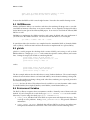
glxinfo is a useful program for checking which version of libGL you’re using as well as which
DRI-based driver. Simply type glxinfo and examine the OpenGL vendor, renderer, and version
lines. Among the output you should see something like this:
OpenGL vendor string: VA Linux Systems, Inc.
OpenGL renderer string: Mesa DRI Voodoo3 20000224
OpenGL version string: 1.2 Mesa 3.4
or this:
OpenGL vendor string: VA Linux Systems, Inc.
OpenGL renderer string: Mesa GLX Indirect
OpenGL version string: 1.2 Mesa 3.4
The first example indicates that the 3dfx driver is using Voodoo3 hardware. The second example
indicates that no hardware driver was found and indirect, unaccelerated rendering is being used.
If you see that indirect rendering is being used when direct rendering was expected, proceed to
the troubleshooting section.
glxinfo also lists all of the GLX-enhanced visuals available so you can determine which visuals
are double-bufferd, have depth (Z) buffers, stencil buffers, accumulation buffers, etc.
8.6 Environment Variables
The libGL.so library recognizes three environment variables. Normally, none of them need to be
defined. If you’re using the csh or tcsh shells, type setenv VARNAME value to set the variable.
Otherwise, if you’re using sh or bash, type export VARNAME=value.
1.
LIBGL_DEBUG, if defined will cause libGL.so to print error and diagnostic messages. This
can help to solve problems. Setting LIBGL_DEBUG to verbose may provide additional
information.
2.
LIBGL_ALWAYS_INDIRECT, if defined this will force libGL.so to always use indirect rendering instead of hardware acceleration. This can be useful to isolate rendering errors.
DRI User Guide
3.
LIBGL_DRIVERS_PATH can be used to override the default directories which are searched
for 3D drivers. The value is one or more paths separated by colons. In a typical XFree86
installation, the 3D drivers should be in /usr/X11R6/lib/modules/dri/ and
LIBGL_DRIVERS_PATH need not be defined. Note that this feature is disabled for set-uid
programs. This variable replaces the LIBGL_DRIVERS_DIR env var used in XFree86 4.0.
4.
MESA_DEBUG, if defined, will cause Mesa-based 3D drivers to print user error messages to
stderr. These are errors that you’d otherwise detect by calling glGetError.
Mesa-based drivers (this includes most of the drivers listed above) also observe many of the
existing Mesa environment variables. These include the MESA_DEBUG and MESA_INFO variables.
9. General Trouble Shooting
This section contains information to help you diagnose general problems. See below for additional information for specific hardware.
9.1 Bus Mastering
DMA-based DRI drivers (that’s most DRI drivers) cannot function unless bus mastering is
enabled for your graphics card. By default, some systems don’t having bus mastering on. You
should enable it in your BIOS.
Alternately, you can check the status of bus mastering and change the setting from within Linux.
There may be similar procedures for other operating systems.
Run lspci (as root) and find the information describing your graphics adapter. For example:
00:00.0
00:01.0
00:07.0
00:07.1
00:07.2
00:07.3
00:11.0
00:12.0
00:14.0
01:00.0
Host bridge: Intel Corporation 440BX/ZX - 82443BX/ZX Host bridge (rev 03)
PCI bridge: Intel Corporation 440BX/ZX - 82443BX/ZX AGP bridge (rev 03)
ISA bridge: Intel Corporation 82371AB PIIX4 ISA (rev 02)
IDE interface: Intel Corporation 82371AB PIIX4 IDE (rev 01)
USB Controller: Intel Corporation 82371AB PIIX4 USB (rev 01)
Bridge: Intel Corporation 82371AB PIIX4 ACPI (rev 02)
Ethernet controller: Intel Corporation 82557 [Ethernet Pro 100] (rev 08)
SCSI storage controller: Symbios Logic Inc. (formerly NCR) 53c895 (rev 02)
Multimedia audio controller: Ensoniq ES1371 [AudioPCI-97] (rev 08)
VGA compatible controller: 3Dfx Interactive, Inc.: Unknown device 0009 (rev 01)
The bus, device, and function number comprise the device id, which is conventionally written in
the form bus:dev.func, or in this case 01:00.0.
Use the setpci command to examine bit two of register 4 for your graphics card. This will indicate whether or not bus mastering is enabled.
setpci -s 01:00.0 4.w
A hexadecimal value will be printed. Convert the least significant digit to binary. For example, if
you see 3, that’s 0011 in binary (bit two is 0). If you see 7, that’s 0111 in binary (bit two is 1). In
the first example, bus mastering is disabled. It’s enabled in the second example.
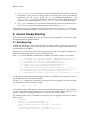
The following shell script will enabled bus mastering for your graphics card and host bridge.
Run it as root.
#!/bin/bash
dev=01:00.0
# change as appropriate
echo Enabling bus mastering on device $dev
setpci -s $dev 4.w=$(printf %x $((0x$(setpci -s $dev 4.w)|4)))
dev=00:00.0
echo Enabling bus mastering on host bridge $dev
setpci -s $dev 4.w=$(printf %x $((0x$(setpci -s $dev 4.w)|4)))
DRI User Guide
You can check if this worked by running the first setpci command again.
9.2 The X Server
1.
Before you start the X server, verify the appropriate 3D kernel module is installed. Type
lsmod and look for the appropriate kernel module. For 3dfx hardware you should see
tdfx, for example.
2.
Verify you’re running XFree86 4.0 (or newer) and not an older version. If you run xdpyinfo and look for the following line near the top:
vendor release number:
3.
4000
Verify that your XF86Config file (usually found at /etc/X11/XF86Config) loads the glx
and dri modules and has a DRI section.
See the Software Resources section below for sample XF86Config files.
4.
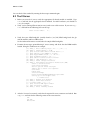
Examine the messages printed during X server startup and check that the DRM module
loaded. Using the Voodoo3 as an example:
(==)
(II)
(0):
(0):
(0):
(0):
(0):
(II)
(II)
(II)
(==)
(==)
(0):
(0):
(0):
(II)
5.
TDFX(0): Write-combining range (0xf0000000,0x2000000)
TDFX(0): Textures Memory 7.93 MB
[drm] created "tdfx" driver at busid "PCI:1:0:0"
[drm] added 4096 byte SAREA at 0xc65dd000
[drm] mapped SAREA 0xc65dd000 to 0x40013000
[drm] framebuffer handle = 0xf0000000
[drm] added 1 reserved context for kernel
TDFX(0): [drm] Registers = 0xfc000000
TDFX(0): visual configs initialized
TDFX(0): Using XFree86 Acceleration Architecture (XAA)
Screen to screen bit blits
Solid filled rectangles
8x8 mono pattern filled rectangles
Indirect CPU to Screen color expansion
Solid Lines
Dashed Lines
Offscreen Pixmaps
Driver provided NonTEGlyphRenderer replacement
Setting up tile and stipple cache:
10 128x128 slots
TDFX(0): Backing store disabled
TDFX(0): Silken mouse enabled
X context handle = 0x00000001
[drm] installed DRM signal handler
[DRI] installation complete
TDFX(0): direct rendering enabled
After the X server has started, verify that the required X server extensions are loaded. Run
xdpyinfo and look for the following entries in the extensions list:
GLX
SGI-GLX
XFree86-DRI
DRI User Guide
9.3 Linking, running and verifying 3D acceleration
After you’ve verified that the X server and DRI have started correctly it’s time to verify that the
GL library and hardware drivers are working correctly.
1.
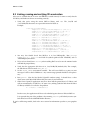
Verify that you’re using the correct libGL.so library with ldd. The /usr/lib and
/usr/X11R6/lib directories are expected locations for libGL.so.
Example:
% ldd /usr/local/bin/glxinfo
libglut.so.3 => /usr/local/lib/libglut.so.3 (0x40019000)
libGLU.so.1 => /usr/local/lib/libGLU.so.1 (0x40051000)
libGL.so.1 => /usr/lib/libGL.so.1 (0x40076000)
libXmu.so.6 => /usr/X11R6/lib/libXmu.so.6 (0x402ee000)
libXi.so.6 => /usr/X11R6/lib/libXi.so.6 (0x40301000)
libm.so.6 => /lib/libm.so.6 (0x40309000)
libc.so.6 => /lib/libc.so.6 (0x40325000)
libX11.so.6 => /usr/X11R6/lib/libX11.so.6 (0x40419000)
libXt.so.6 => /usr/X11R6/lib/libXt.so.6 (0x404bd000)
libSM.so.6 => /usr/X11R6/lib/libSM.so.6 (0x40509000)
libICE.so.6 => /usr/X11R6/lib/libICE.so.6 (0x40512000)
libXext.so.6 => /usr/X11R6/lib/libXext.so.6 (0x40529000)
libvga.so.1 => /usr/lib/libvga.so.1 (0x40537000)
libpthread.so.0 => /lib/libpthread.so.0 (0x4057d000)
/lib/ld-linux.so.2 => /lib/ld-linux.so.2 (0x40000000)
2.
You may also double check that libGL.so is in fact DRI-capable. Run strings
libGL.so.1.2 | grep DRI and look for symbols prefixed with "XF86DRI", such as
"XF86DRIQueryExtension".
3.
To be safe one should run ldconfig after installing libGL.so to be sure the runtime loader
will find the proper library.
4.
Verify that the appropriate 3D driver is in /usr/X11R6/lib/modules/dri/ For example,
the 3dfx driver will be named tdfx_dri.so.
5.
Set the LIBGL_DEBUG environment variable. This will cause libGL.so to print an error
message if it fails to load a DRI driver. Any error message printed should be self-explanatory.
6.
Run glxinfo. Note the line labeled "OpenGL renderer string". It should have a value
which starts with "Mesa DRI" followed by the name of your hardware.
7.
Older Linux OpenGL applications may have been linked against Mesa’s GL library and
will not automatically use libGL.so. In some cases, making symbolic links from the Mesa
GL library to libGL.so.1 will solve the problem:
ln -s libGL.so.1 libMesaGL.so.3
In other cases, the application will have to be relinked against the new XFree86 libGL.so.
It is reported that part of the problem is that running ldconfig will silently rewrite symbolic links based on the SONAME field in libraries.
If you’re still having trouble, look in the next section for information specific to your graphics
card.
DRI User Guide
10. Hardware-Specific Information and Troubleshooting
This section presents hardware-specific information for normal use and troubleshooting.
10.1 3dfx Banshee, Voodoo3, Voodoo4 and Voodoo5 Series
10.1.1 Requirements
The 3dfx DRI driver requires special versions of the 3dfx Glide library. Different versions of
Glide are needed for Banshee/Voodoo3 than for Voodoo4/5. The Glide libraries can be downloaded from the DRI website.
10.1.2 Configuration
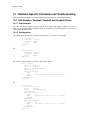
Your XF86Config file’s device section must specify the tdfx device. For example:
Section "Device"
Identifier "Voodoo3"
VendorName "3dfx"
Driver
"tdfx"
EndSection
Or,
Section "Device"
Identifier "Voodoo5"
VendorName "3dfx"
Driver
"tdfx"
EndSection
The Screen section should then reference the Voodoo device:
Section "Screen"
Identifier "Screen 1"
Device
"Voodoo3"
Monitor
"High Res Monitor"
DefaultDepth 16
Subsection "Display"
Depth
16
Modes
"1280x1024" "1024x768" "800x600" "640x480"
ViewPort
0 0
EndSubsection
EndSection
Or,
Section "Screen"
Identifier "Screen 1"
Device
"Voodoo5"
Monitor
"High Res Monitor"
DefaultDepth 24
Subsection "Display"
Depth
16
Modes
"1280x1024" "1024x768" "800x600" "640x480"
ViewPort
0 0
EndSubsection
Subsection "Display"
Depth
24
Modes
"1280x1024" "1024x768" "800x600" "640x480"
ViewPort
0 0
EndSubsection
EndSection
DRI User Guide
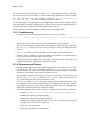
The kernel module for 3dfx hardware is named tdfx.o and should be installed in /lib/modules/2.4.x/kernel/drivers/char/drm/. It will be automatically loaded by the Xserver if needed.
The DRI 3D driver for 3dfx hardware should be in /usr/X11R6/lib/modules/dri/tdfx_dri.so. This will be automatically loaded by libGL.so.
The Voodoo5 supports 3D rendering in 16 and 32 bpp modes. When running in 32bpp mode an
8-bit stencil buffer and 24-bit Z (depth) buffer are offered. When running in 16bpp mode only a
16-bit Z (depth) buffer is offered and stencil is implemented in software.
A software-based accumulation buffer is available in both 16 and 32bpp modes.
10.1.3 Troubleshooting
•
If you try to run an OpenGL application and see an error message similar to
gd error (glide): gd error (glide): grSstSelect:
non-existent SSTgd error (glide): grSstSelec
it means that you have the wrong version of the Glide library for your hardware.
•
3D acceleration for Banshee and Voodoo3 is only supported in the 16 bit/pixel screen mode.
Use xdpyinfo to verify that all your visuals are depth 16. Edit your XF86Config file if
needed.
•
The /dev/3dfx device is not used for DRI; it’s only for Glide on older 3dfx hardware.
•
Different versions of Glide are needed for Voodoo3 and Voodoo5. See the DRI website’s
resources page to download the right version of Glide.
•
Voodoo4/5 may be run at 24bpp (instead of 32bpp, the default) but 3D acceleration is not
supported in that mode. 32bpp mode is fully 3D accelerated.
10.1.4 Performance and Features
•
Normally, buffer swapping in double-buffered applications is synchronized to your monitor’s refresh rate. This may be overridden by setting the FX_GLIDE_SWAPINTERVAL environment variable. The value of this variable indicates the maximum number of swap buffer
commands can be buffered. Zero allows maximum frame rate.
•
On Voodoo4/5, rendering with 16-bits/texel textures is faster than using 32-bit per texel
textures. The internalFormat parameter to glTexImage2D can be used to control texel
size. Quake3 and other games let you control this as well.
•
The glTexEnv mode GL_BLEND is not directly supported by the Voodoo3 hardware. It can
be accomplished with a multipass algorithm but it’s not implemented at this time. Applications which use that mode, such as the Performer Town demo, may become sluggish when
falling back to software rendering to render in that mode.
•
The Voodoo3/Banshee driver reverts to software rendering under the following conditions:
•
Setting GL_LIGHT_MODEL_COLOR_CONTROL to GL_SEPARATE_SPECULAR_COLOR.
•
Enabling line stippling or polygon stippling.
•
Enabling point smoothing or polygon smoothing.
•
Enabling line smoothing when line width is not 1.0. That is, antialiased lines are done
in hardware only when the line width is 1.0.
•
Using 1-D or 3-D texture maps.
•
Using the GL_BLEND texture environment.
DRI User Guide
•
Using stencil operations.
•
Using the accumulation buffer.
•
Using glBlendEquation(GL_LOGIC_OP).
•
Using glDrawBuffer(GL_FRONT_AND_BACK).
•
Using
glPolygonMode(face,
GL_LINE).
•
Using point size attenuation (i.e. GL_DISTANCE_ATTENUATION_EXT).
•
Using glColorMask(r, g, b, a) when r!=g or g!=b.
GL_POINT)
or
glPolygonMode(face,
•
The Voodoo5 driver reverts to software rendering under the same conditions Voodoo3 with
three exceptions. First, stencil operations are implemented in hardware when the screen is
configured for 32 bits/pixel. Second, the GL_BLEND texture env mode is fully supported in
hardware. Third, glColorMask is fully supported in hardware when the screen is configured for 32 bits/pixel.
•
As of January, 2001 the second VSA-100 chip on the Voodoo5 is not yet operational. Therefore, the board isn’t being used to its full capacity. The second VSA-100 chip will allow
Scan-Line Interleave (SLI) mode for full-screen applications and games, potentially doubling the system’s fill rate. When the second VSA-100 chip is activated glGetString(GL_RENDERER) will report Voodoo5 instead of Voodoo4.
•
The lowest mipmap level is sometimes miscolored in trilinear- sampled polygons.
•
The GL_EXT_texture_env_combine extension is supported on the Voodoo4 and Voodoo5.
10.1.5 Known Problems
•
The lowest mipmap level is sometimes miscolored in trilinear- sampled polygons
(Voodoo3/Banshee).
•
Fog doesn’t work with orthographic projections.
•
The accuracy of blending operations on Voodoo4/5 isn’t always very good. If you run
Glean, you’ll find some test failures.
•
The Glide library cannot be used directly; it’s only meant to be used via the tdfx DRI driver.
•
SSystem has problems because of poorly set near and far clipping planes. The office.unc
Performer model also suffers from this problem.
10.2 Intel i810
10.2.1 Requirements
A kernel with AGP GART support (such as Linux 2.4.x) is needed.
10.2.2 Configuration
Your XF86Config file’s device section must specify the i810 device, and specify a usable amount
of video ram to reserve.
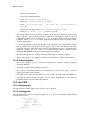
Section "Device"
Identifier "i810"
VendorName "Intel"
Driver
"i810"
Option
"AGPMode" "1"
VideoRam
10000
EndSection
DRI User Guide
The Screen section should then reference the i810 device:
Section "Screen"
Identifier "Screen 1"
Device
"i810"
Monitor
"High Res Monitor"
DefaultDepth 16
Subsection "Display"
Depth
16
Modes
"1280x1024" "1024x768" "800x600" "640x480"
ViewPort
0 0
EndSubsection
EndSection
The kernel module for the i810 is named i810.o and should be installed in /lib/modules/2.4.x/kernel/drivers/char/drm/. It will be automatically loaded by the Xserver if needed.
The DRI 3D driver for the i810 should be in /usr/X11R6/lib/modules/dri/i810_dri.so.
This will be automatically loaded by libGL.so.
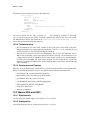
10.2.3 Troubleshooting
•
3D acceleration for the i810 is only available in the 16 bit/pixel screen mode at this time.
32bpp acceleration is not supported by this hardware. Use xdpyinfo to verify that all your
visuals are depth 16. Edit your XF86Config file if needed.
•
The i810 uses system ram for video and 3d graphics. The X server will ordinarily reserve
4mb of ram for graphics, which is too little for an effective 3d setup. To tell the driver to use
a larger amount, specify a VideoRam option in the Device section of your XF86Config file.
A number between 10000 and 16384 seems adequate for most requirements. If too little
memory is available for DMA buffers, back and depth buffers and textures, direct rendering
will be disabled.
10.2.4 Performance and Features
Basically all of the i810 features which can be exposed through OpenGL 1.2 are implemented.
However, the following OpenGL features are implemented in software and will be slow:
•
Stencil buffer and accumulation buffer operations
•
Blend subtract, min/max and logic op blend modes
•
glColorMask when any mask is set to false
•
GL_SEPARATE_SPECULAR_COLOR lighting mode
•
glDrawBuffer(GL_FRONT_AND_BACK)
•
Using 1D or 3D textures
•
Using texture borders
10.3 Matrox G200 and G400
10.3.1 Requirements
A kernel with AGP GART support (such as Linux 2.4.x) is needed.
10.3.2 Configuration
Your XF86Config file’s device section must specify the mga device:
DRI User Guide
Section "Device"
Identifier "MGA"
VendorName "Matrox"
Driver
"mga"
Option
"AGPMode" "1"
VideoRam
32768
EndSection
The Screen section should then reference the MGA device:
Section "Screen"
Identifier "Screen 1"
Device
"MGA"
Monitor
"High Res Monitor"
DefaultDepth 16
Subsection "Display"
Depth
16
Modes
"1280x1024" "1024x768" "800x600" "640x480"
ViewPort
0 0
EndSubsection
EndSection
To use a 32bpp screen mode, use this Screen section instead:
Section "Screen"
Identifier "Screen 1"
Device
"MGA"
Monitor
"High Res Monitor"
DefaultDepth 24
DefaultFbBpp 32
Subsection "Display"
Depth
24
Modes
"1280x1024" "1024x768" "800x600" "640x480"
ViewPort
0 0
EndSubsection
EndSection
The kernel module for the G200/G400 is named mga.o and should be installed in /lib/modules/2.4.x/kernel/drivers/char/drm/. It will be automatically loaded by the Xserver if needed.
The DRI 3D driver for the G200/G400 should be in /usr/X11R6/lib/modules/dri/mga_dri.so. This will be automatically loaded by libGL.so.
10.3.3 Performance and Features
Software rendering will be used under any of the following conditions:
•
Using glDrawBuffer(GL_FRONT_AND_BACK).
•
Using point, line, or triangle smoothing.
•
Using glLogicOp.
•
Using glPolygonStipple or glLineStipple.
•
Using 1D or 3D textures.
•
Using texture borders.
•
Using glDepthFunc(GL_NEVER).
DRI User Guide
•
Using the accumulation buffer.
The AGP mode may be set to 1, 2, or 4. One is used by default. Higher AGP speeds may result in
unreliable performance depending on your motherboard.
Compaq has funded the implementation of AGP accelerated ReadPixels and DrawPixels in this
driver. With this implementation, on a G400 drawing directly from AGP memory (exported to
the client), throughput of up to 1 GB/sec has been measured.
Additionally Compaq’s funding has produced several new extensions in Mesa, including one
(packed_depth_stencil_MESA) which enables Read/DrawPixels functionality to operate directly
on the packed 24/8 depth/stencil buffers of this hardware.
In order to access this functionality, the application must ensure that all pixel processing operations are disabled. There are in addition a fairly complex set of rules regarding which packing/unpacking modes must be used, and which data formats are supported, and alignment constraints. See the files in lib/GL/mesa/src/drv/mga/DOCS for a summary of these. The extension definitions are included in the Mesa 3.4 source distribution.
10.3.4 IRQ Assignment
There have been problems in the past with the MGA driver being very sluggish when the DRI is
enabled (to the point of being unusable.) This is caused by the graphics card not having an interrupt assigned to it. The current DRI trunk will attempt to detect this condition and bail out gracefully.
The solution to the above problem is to assign an interrupt to your graphics card. This is something you must turn on in your system BIOS configuration. Please consult your system BIOS
manual for instructions on how to enable an interrupt for your graphics card.
10.3.5 MGA HAL lib
MGAHALlib.a is a binary library Matrox has provided for use under Linux to expose functionality for which they can not provide documentation. (For example TV-Out requires MacroVision be
enabled on the output.) This binary library also sets the pixel/memory clocks to the optimal settings for your Matrox card.
Currently the MGAHAL library is required for the G450 to work. You can download this from
the driver section on Matrox’s website: www.matrox.com/mga
Here modifications to the DRI build instructions which make the mga ddx driver use the MGAHAL library:
1.Put the following define in your host.def file
#define UseMatroxHal YES
2. Place mgaHALlib.a in the following directory
xc/programs/Xserver/hw/xfree86/drivers/mga/HALlib/
You can use DualHead on the G400/G450 DH cards by creating two device sections which both
point to the same BusID. For most AGP devices the BusID will be "PCI:1:0:0". Configure your
screen section as you would normally configure XFree86 4.x Multihead. It should be noted that
currently the second head does not support direct rendering.
10.3.6 Known Problems
None.
10.4 ATI Rage 128
DRI User Guide
10.4.1 Requirements
A kernel with AGP GART support (such as Linux 2.4.x) is needed.
10.4.2 Configuration
Your XF86Config file’s device section must specify the ati device:
Section "Device"
Identifier "Rage128"
VendorName "ATI"
Driver
"ati"
Option
"AGPMode" "1"
Option
"UseCCEFor2D" "false"
EndSection
The Screen section should then reference the Rage 128 device:
Section "Screen"
Identifier "Screen 1"
Device
"Rage128"
Monitor
"High Res Monitor"
DefaultDepth 16
Subsection "Display"
Depth
16
Modes
"1280x1024" "1024x768" "800x600" "640x480"
ViewPort
0 0
EndSubsection
Subsection "Display"
Depth
32
Modes
"1280x1024" "1024x768" "800x600" "640x480"
ViewPort
0 0
EndSubsection
EndSection
The kernel module for the Rage 128 is named r128.o and should be installed in /lib/modules/2.4.x/kernel/drivers/char/drm/. It will be automatically loaded by the Xserver if needed.
The DRI 3D driver for the Rage 128 should be in /usr/X11R6/lib/modules/dri/r128_dri.so. This will be automatically loaded by libGL.so.
You may also set your screen depth to 32 for 32bpp mode.
10.4.3 Performance and Features
While PCI Rage 128 based cards are supported, they do not yet support PCI GART, so they will
not perform as well as their AGP counterparts.
For AGP cards, the AGP mode may be set to 1, 2, or 4. One is used by default. Higher AGP
speeds may result in unreliable performance depending on your motherboard.
Note that even at 32bpp there is no alpha channel.
The following OpenGL features are implemented in software and will be slow:
•
accumulation buffer operations
•
stencil, when using a 16bpp screen
•
Blend subtract, min/max and logic op blend modes
•
GL_SEPARATE_SPECULAR_COLOR lighting mode
DRI User Guide
•
glDrawBuffer(GL_FRONT_AND_BACK)
•
Using 1D or 3D textures
•
Using texture borders
10.4.4 Known Problems
If you experience stability problems you may try setting the UseCCEFor2D option to true. This
will effectively disable 2D hardware acceleration. Performance will be degraded, of course.
10.5 ATI Radeon
10.5.1 Requirements
A kernel with AGP GART support (such as Linux 2.4.x) is needed.
10.5.2 Configuration
Your XF86Config file’s device section must specify the ati device:
Section "Device"
Identifier "Radeon"
VendorName "ATI"
Driver
"ati"
Option
"AGPMode" "1"
EndSection
The Screen section should then reference the Radeon device:
Section "Screen"
Identifier "Screen 1"
Device
"Radeon"
Monitor
"High Res Monitor"
DefaultDepth 16
Subsection "Display"
Depth
16
Modes
"1280x1024" "1024x768" "800x600" "640x480"
ViewPort
0 0
EndSubsection
Subsection "Display"
Depth
32
Modes
"1280x1024" "1024x768" "800x600" "640x480"
ViewPort
0 0
EndSubsection
EndSection
The kernel module for the Radeon is named radeon.o and should be installed in /lib/modules/2.4.x/kernel/drivers/char/drm/. It will be automatically loaded by the Xserver if needed.
The DRI 3D driver for the Radeon should be in /usr/X11R6/lib/modules/dri/radeon_dri.so. This will be automatically loaded by libGL.so.
You may also set your screen depth to 32 for 32bpp mode.
10.5.3 Performance and Features
While this driver supports many of the features of ATI Radeon cards, we do not yet fully support
the card’s TCL features. This work is progressing, but is not yet ready.
The AGP mode may be set to 1, 2, or 4. One is used by default. Higher AGP speeds may result in
unreliable performance depending on your motherboard.
The following OpenGL features are implemented in software and will be slow:
DRI User Guide
•
Blend subtract, blend min/max and blend logicops
•
Stencil and accumulation operations
•
1D and 3D textures
•
Texture borders
The GL_EXT_texture_env_combine, GL_EXT_texture_env_add and GL_EXT_texture_env_dot3
extensions are supported (or will be soon supported in the new driver based on Mesa 3.5).
We hope to implement support for the following features in the future:
•
Vertex transformation, clipping and lighting (TCL)
•
Hardware stencil buffer
•
Cube map textures
•
3D textures
•
Three texture units
10.5.4 Known Problems
Certain (early?) revisions of the AMD Irongate chipset have AGPGART problems which effect
Radeon, and other graphics cards. The card may work unreliably, or not work at all. If the DRM
kernel module is not loaded, the 2D Xserver may work. There’s hope that this can be fixed in the
future.
10.6 3DLabs Oxygen GMX 2000
The driver for this hardware was experimental and is no longer being developed or supported.
11. General Limitations and Known Bugs
11.1 OpenGL
The following OpenGL features are not supported at this time: overlays, stereo, hardware-accelerated indirect rendering.
OpenGL-like functionality is provided with the Mesa library. XFree86 4.1.0 uses Mesa 3.4.2. Subsequent releases of XFree86 will use newer versions of Mesa. When newer versions of Mesa are
available, the 3D drivers can be updated without reinstalling XFree86 or libGL.so.
11.2 GLX
The GLX 1.3 API is exported but none of the new 1.3 functions are operational.
The new glXGetProcAddressARB function is fully supported.
GLXPixmap rendering is only supported for indirect rendering contexts. This is a common
OpenGL limitation. Attempting to use a direct rendering context with a GLXPixmap will result
in an X protocol error.
11.3 Debugging
Debugging DRI drivers with gdb can be difficult because of the locking involved. When debugging OpenGL applications, you should avoid stepping inside the GL functions. If you’re trying
to debug a DRI driver it’s recommended that you do so remotely, from a second system.
DRI User Guide
11.4 Scheduling
When you run multiple GL applications at once you may notice poor time slicing. This is due to
an interaction problem with the Linux scheduler which will be addressed in the future.
11.5 libGL.so and dlopen()
A number of popular OpenGL applications on Linux (such as Quake3, HereticII, Heavy Gear 2,
etc) dynamically open the libGL.so library at runtime with dlopen(), rather than linking with -lGL
at compile/link time.
If dynamic loading of libGL.so is not implemented carefully, there can be a number of serious
problems. Here are the things to be careful of in your application:
•
Specify the RTLD_GLOBAL flag to dlopen(). If you don’t do this then you’ll likely see a
runtime error message complaining that _glapi_Context is undefined when libGL.so tries to
open a hardware-specific driver. Without this flag, nested opening of dynamic libraries does
not work.
•
Do not close the library with dlclose() until after XCloseDisplay() has been called. When
libGL.so initializes itself it registers several callbacks functions with Xlib. When XCloseDisplay() is called those callback functions are called. If libGL.so has already been unloaded
with dlclose() this will cause a segmentation fault.
•
Your application should link with -lpthread. On Linux, libGL.so uses the pthreads library
in order to provide thread safety. There is apparently a bug in the dlopen()/dlclose() code
which causes crashes if the library uses pthreads but the parent application doesn’t. The
only known work-around is to link the application with -lpthread.
Some applications don’t yet incorporate these procedures and may fail. For example, changing
the graphics settings in some video games will expose this problem. The DRI developers are
working with game vendors to prevent this problem in the future.
11.6 Bug Database
The DRI bug database which includes bugs related to specific drivers is at the SourceForge DRI
Bug Database
Please scan both the open and closed bug lists to determine if your problem has already been
reported and perhaps fixed.
12. Resources
12.1 Software
A collection of useful configuration files, libraries, headers, utilities and demo programs is available from http://dri.sourceforge.net/res.phtml
12.2 Documentation
•
General OpenGL information is available at the OpenGL Home Page
•
XFree86 information is available at the XFree86 Home Page
•
Information about the design of the DRI is available from Precision Insight, Inc.
•
Visit the DRI project on SourceForge.net for the latest development news about the DRI and
3D drivers.
•
The DRI Compilation Guide explains how to download, compile and install the DRI for
yourself.
DRI User Guide
12.3 Support
•
The DRI-users mailing list at SourceForge is a forum for people to discuss DRI problems.
•
In the future there may be IHV and Linux vendor support resources for the DRI.
DRI User Guide
CONTENTS
1.
Preamble ........................................................................................................................................... 1
1.1 Copyright ................................................................................................................................ 1
1.2 Trademarks ............................................................................................................................. 1
2.
Introduction
.....................................................................................................................................
1
3.
Supported Architectures & Hardware .........................................................................................
3.1 CPU Architectures .................................................................................................................
3.2 Graphics Hardware ...............................................................................................................
2
2
2
4.
Prerequisite Software
.....................................................................................................................
3
5.
Kernel Modules
...............................................................................................................................
3
6.
XF86Config file
................................................................................................................................
4
7.
Memory usage
.................................................................................................................................
5
8.
Using 3D Acceleration ...................................................................................................................
8.1 libGL.so ...................................................................................................................................
8.2 Compiling and linking an OpenGL program ....................................................................
8.3 Running your OpenGL program .........................................................................................
8.4 libOSMesa.so ..........................................................................................................................
8.5 glxinfo ......................................................................................................................................
8.6 Environment Variables ..........................................................................................................
5
5
5
5
6
6
6
9.
General Trouble Shooting ..............................................................................................................
9.1 Bus Mastering .........................................................................................................................
9.2 The X Server ............................................................................................................................
9.3 Linking, running and verifying 3D acceleration ...............................................................
7
7
8
9
10. Hardware-Specific Information and Troubleshooting ............................................................ 10
10.1 3dfx Banshee, Voodoo3, Voodoo4 and Voodoo5 Series .................................................. 10
10.2 Intel i810 ................................................................................................................................ 12
10.3 Matrox G200 and G400 ........................................................................................................ 13
10.4 ATI Rage 128 ......................................................................................................................... 15
10.5 ATI Radeon ........................................................................................................................... 17
10.6 3DLabs Oxygen GMX 2000 ................................................................................................ 18
11. General Limitations and Known Bugs ......................................................................................
11.1 OpenGL .................................................................................................................................
11.2 GLX ........................................................................................................................................
11.3 Debugging .............................................................................................................................
11.4 Scheduling ............................................................................................................................
11.5 libGL.so and dlopen() ..........................................................................................................
11.6 Bug Database ........................................................................................................................
18
18
18
18
19
19
19
12. Resources ........................................................................................................................................
12.1 Software .................................................................................................................................
12.2 Documentation .....................................................................................................................
12.3 Support ..................................................................................................................................
19
19
19
20
$XFree86: xc/programs/Xserver/hw/xfree86/doc/sgml/DRI.sgml,v 1.29 2003/02/17 03:57:29 dawes Exp $
i