1
69
Plug-Ins
•
•
•
•
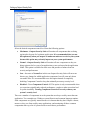
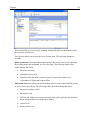
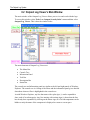
Any―the whole message as it was received.
Header―message service headers.
Subject, From, To, Cc, Bcc―contents of the message fields of the same name.
Body―message body except the headers.
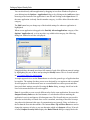
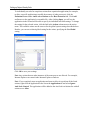
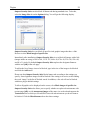
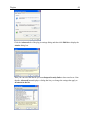
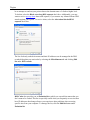
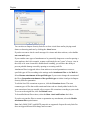
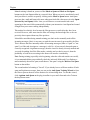
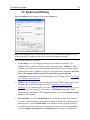
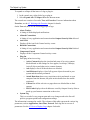
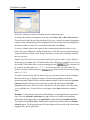
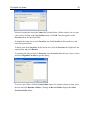
3. Choose condition. Use the Choose condition drop-down list to specify the way to
match the specified text with the specified field contents. If you want to enable a
case-sensitive search of the specified text, select the Match case check box. The
following conditions are available:
•
•
•
•
•
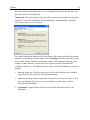
Contains/Does not contain―simply searches for the specified text in the
specified search field.
Starts with/Does not start with―matches the required text at the beginning of
the specified search field.
Ends with/Does not end with―matches the required text at the end of the
specified search field.
Equals/Does not equal―checks whether the required text completely matches
the specified search field.
Matches/Does not match―considers the specified text as a regular expression
and checks whether the specified search field satisfies this expression.
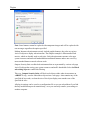
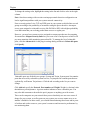
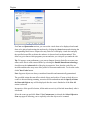
4. Specify text to search for in the selected field. Specify the required text. This can
either be an e-mail address, a simple keyword contained in the message, or a regular
expression (if the Matches/Does not match condition is used).
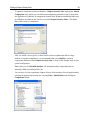
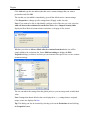
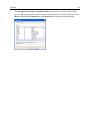
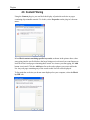
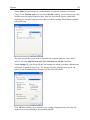
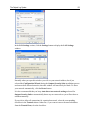
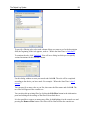
After specifying all the parameters, click OK to save the rule.
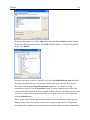
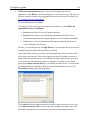
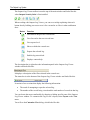
To edit a selected rule, click Edit. To delete a selected rule, click Remove. To copy a
selected rule, click Copy.