1
MT 7.12 Software Control Panel
15
Note: If you are using a TouchPen and you are in Pen/Finger mode, a dialog will ask
whether you wish to calibrate using Pen or Finger. Calibrate using each option separately
and when you are done, MT 7.12 will restore your TouchPen mode to Pen/Finger.
3.
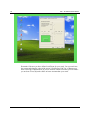
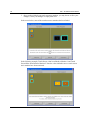
A calibration target appears in the lower left corner of the touch screen.
Note: If you press Escape or do not touch the screen within twenty seconds, the
system automatically cancels the calibration process with no change to the current
settings.
4. Touch the screen positioning your fingertip to completely cover the green target.
This position is calculated upon liftoff and when you remove your finger, the target
should turn red.
When touching the calibration target, make sure to:
• Face the monitor directly.
• Perform the calibration in the position (sitting or standing) you expect to
normally use the touch screen.
• Touch the calibration target firmly and precisely with your fingertip. During
Calibration, be careful to keep your fingernails and other fingers away from the
touch screen as you touch the target.
5. Repeat these instructions for additional calibration targets.
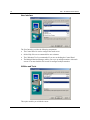
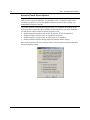
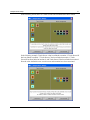
6. Once you have calibrated the touch screen, a dialog box will appear to ask if you
wish to test, accept or cancel this calibration.
•
If you select Accept, then the new calibration settings are automatically accepted.
•
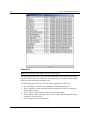
If you select Test, then a Draw (refer to the Tools tab for more details) screen
appears. When you exit Draw mode, a dialog will prompt, “Are you satisfied
with the results?”
•
•
Selecting Yes will keep the new calibration settings.
•
Selecting No will restore the original (pre-calibration) settings.
If you select Cancel, the original settings will be restored without change.
Testing the Calibration
If you accidentally liftoff from the screen in the wrong place during calibration, you will
distort the touch screen calibration. Test by touching several points on the screen to make
sure you are satisfied with the calibration results. The cursor should be located
underneath your finger or pen when you touch the screen. Repeat the Calibration process
until you are satisfied. Recalibrate the touch screen if any of the following tests fail.
3M Touch Systems Proprietary Information