1
A <Printing> option should appear in the <File> menu. This will be enabled once a
Project containing at least one layer has been created, or loaded.
The following associated libraries must also be installed:
1. iText: from http://sourceforge.net/projects/itext/
2. Batik: from http://xmlgraphics.apache.org/batik/
3. VertexSymbols plugin from Cadplan should also be installed.
Operating Instructions
To prepare a drawing for printing:
1. Selected the required layers, then zoom and pan to show the required map
region to be printed.
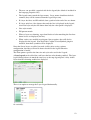
2. Select the <Printing> option in the <File> menu or the Printer icon (
from the shortcut bar.
)
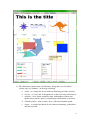
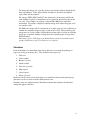
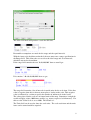
3. The Printer Setup window will appear showing the map region. This widow
can be resized to show a greater area for printing.
4. The current page boundaries are shown as red lines.
5. The <Page Setup> button will show a standard Java PageFormat dialog where
paper size, orientation and margins can be set. On <OK> the page boundaries
will be adjusted to match.
6. The <Fit to Page> checkbox will force the scaling to fit the map drawing onto
a single sheet of paper at the currently set paper orientation. If a border is
displayed the scale of the map will be adjusted to fit the border onto the single
sheet of paper. If items of furniture exist outside the single page and the
border placed to enclose them, they will remain there until moved by the user.
7. The <Print Quality> combo sets the optional print quality (see below).
8. The <Scale> field is used to define a required drawing scale. To change the
scale, enter the required value, then the <Enter> key. The page boundaries
will be then adjusted.
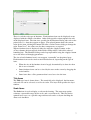
9. The zoom buttons are used to change the size of the visible paper area:
a. + means zoom in (by about 20% for each button click)
b. O means zoom to 100%, i.e. the same map size as in the main view
panel.
c.
- means zoom out (by about 20% for each button click)
10. The visible paper area can also be panned using a <Shift Left Click Drag> of
the mouse. Using the Zoom 100% button (<O>) returns the view to the top
left of the print preview.
3