1
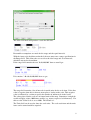
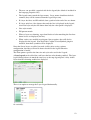
There is a tab for each type of furniture. Each furniture item can be displayed or not
displayed with the <Show> checkbox. Other fields provide various options for each
of the displayed item. The font sizes specified in the Furniture Dialog tabs refer to the
printed sizes, i.e. how they appear on paper. The colored button shows the current
color for the item, clicking this button will offer a Color Chooser dialog to change the
color. From Java 7, the colors can also have transparency as required.
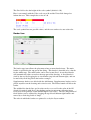
When a furniture item is displayed, either by using the <Apply> button, or the
<Close> button, the item appears in the Printer Setup widow, with a blue colored
bounding box. The Furniture dialog can be kept open while using the <Apply> button
to see the effects of changing parameters.
The size of each furniture item is set to appear “reasonable” on the printed page.
Each furniture item can be sized to suit individual needs, depending on the type of
item:
•
When the size of the furniture item is largely determined by its font size then
this is user selectable.
•
Some furniture items can be re-sized by the user on the screen by dragging the
resize handles.
•
Some items have a Size parameter that is used to re-size the item.
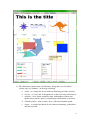
Title Items
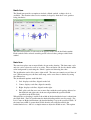
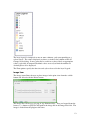
The Title type item is shown above. The actual title to be displayed, the font name,
style and size can be selected, as well as its color. The layer field specifies the layer
number.
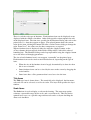
Scale Items
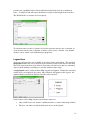
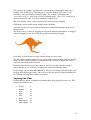
The Scale item is used to display a scale on the drawing. The auto range option
estimates a reasonable range for the scale, and a set of intervals. This may not be
optimal in all cases, so a specific range and interval can be set by un-checking the
Auto scale checkbox.
7