1
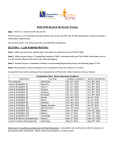
2015 FFV Sporting Pulse User Guide Entering Match Results Step 1 – Getting Started Login to your Fox Sports Pulse Passport and access your Club's Membership Database. If you do not have an FSP Passport please click here for information on how to set one up. Step 2 – SP Competitions Home Page Click ‘Match Results’ to open a new window and proceed to find your fixture(s). 1 Step 3 a) - Search for Club Fixtures - To search for fixtures on a particular day, click on the ‘matches commencing on’ and ‘matches concluding on’ fields and select the desired date from the pop-up calendar. - To search for matches on more than one day: Matches Commencing On = date of the first match that requires a result AND, Matches Concluding On = date of the last match that requires a result. - Entering the fixture venue and competition name is not mandatory, but will allow Club Officials to narrow the search for specific fixtures. This can be done by: Clicking the ‘Venue Name’ drop down box and selecting a venue from the list OR Manually typing in the venue name (N.B. correct venue name must be entered in the search field for this method to work). 2 Step 3 b) - Search for Club Fixtures When you have located the fixture(s) for which you need to enter results, click ‘Post Game’ and proceed to the Match Menu page. 3 Step 4 - Match Results - The ‘Match Result’ page allows Club Officials to enter all match details. Please refer to Appendix 1 – Results Entry, Minimum Requirements at the bottom of this user guide to ensure you have entered all details required of your league. Please also refer to the Team Selection and Detailed Player Results user guide for advice on pre game player selection and goal scorer entry. - Once scores have been entered, the ‘Results’ drop down box should automatically display either ‘won’, ‘lost’ or ‘draw’ (if not simply update the match status to either ‘won’, ‘lost’ or ‘draw’. The Results drop down box is crucial for the correct calculation of league ladders). - In the event of a forfeit: enter the result as a three (3) nil (0) win and in the ‘Match Summary’ section write FORFEIT - In the event of a postponed or abandoned match: Select ‘Washout’ and an FFV representative will advise both clubs of either a match result determination OR a date & time for the match to be replayed. - Once all match details are complete, click . 4 Smart Phone (iPhone & Android) - Entering Match Results Step 1 – Login - Go to www.foxsportspulse.com and touch the white bars to open the dropdown menu. - Select the ‘Passport’ option. 5 Step 1 (continued) Sign in to the SP Passport with your nominated email address and password. Club/Name - Each SP Competitions database (i.e. club or team) that your SP Passport is linked with will appear in the adjacent screen. - Click on the club logo for the SP Competitions database that you want to access to enter results. - NB: If no club logo/club name is displaying please contact the relevant club official who can assist with linking your SP Passport to your club database (please refer to the SP Passport and User Management guide for help with creating your SP Passport). 6 Step 2 - Search for Club Fixtures & Enter Results To search for club fixtures and enter match results, repeat Step 3 and Step 4 (refer pages 5-7) illustrated above. 7 Appendix 1 – Results Entry, Minimum Requirements 8