Transcript
Troubleshooting Guide
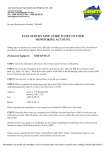
LOGGING IN
REMOVING THE GOOGLE TOOLBAR
You must have an account to log in. Fill out the
training registration form (available on SalesForce)
and email to [email protected]
The Google toolbar also has a pop-up blocker that
stops enLighten learning modules from loading
properly. You will need to remove it.
Already registered?
There may be an error with your details, contact:
Cherie Kesby: (02) 4720 2536 (9am-5pm AEST Mon-Fri)
Email: [email protected]
1.
From the Start menu select Control Panel.
2.
3.
Select the Add or Remove Programs icon.
From the list of programs, select Google Toolbar
and click Remove.
Remove
3.
From the Settings
Settings tab, adjust the screen
resolution to 1024 x 768 then click Apply.
Apply
4.
Click OK to exit this screen.
ALLOWING POP-UPS
EnLighten uses pop-ups throughout the system and
to launch the modules. You must allow pop-ups for
enlighten.
1.
Click on Tools then PopPop-up Blocker > PopPop-up
Blocker Settings
VIEWING THE ENTIRE SCREEN
The status bar may be covering the navigation tabs
at the bottom of the screen. We recommend using
Internet Explorer instead of Mozilla/Firefox when
logging into enLighten.
DOWNLOADING FLASH PLAYER
You will need to have Flash installed to view certain
components of the learning modules in enLighten.
1.
2.
Go to www.adobe.com.au
Click on Install Adobe on the right hand corner
of the screen – click Get Adobe Flash Player.
Player.
3.
4.
Un-check Google Toolbar option - Download.
Download.
A yellow bar will appear at the top of your
screen, right click and select Ins
Ins tall this A dd o n
for all users on this computer.
computer.
5.
Adobe download manager will open – download
Adobe Flash Player.
2. In the text field enter *.sabanow.net,
*.sabanow.net, click Add.
Add
You may also need to adjust the screen resolution.
Method 1
1. Click anywhere on the module screen.
2. Press the F11 key on your keyboard and the
screen should revert to Full Screen Mode.
3.
Click Close to exit this screen.
Revised October 2011 – version 1.7
Method 2
1. From the Start menu select Control Panel.
Panel.
2. Select the Appearance and Themes icon and
then the Display icon.