1
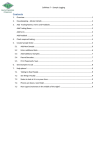
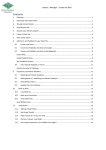
Adviser / Manager – Agronomist Details Contents 1. Overview ......................................................................................................................................... 1 2. Spray Recommendation Report ...................................................................................................... 2 3. 4. 2.1 Agronomist Details .................................................................................................................. 2 2.2 Report Configuration .............................................................................................................. 2 2.3 Report Layout and Logo .......................................................................................................... 3 2.4 Disclaimer and Notes .............................................................................................................. 4 2.5 Load Recommendation Template on Mobile App .................................................................. 5 Report ............................................................................................................................................. 6 3.1 Client Details ........................................................................................................................... 6 3.2 Logo ......................................................................................................................................... 7 3.3 Prepared By ............................................................................................................................. 8 Help please! .................................................................................................................................... 9 4.1 Talking to Real People ............................................................................................................. 9 4.2 See things Visually ................................................................................................................... 9 4.3 Notes to look at it in my own time ......................................................................................... 9 4.4 Phones are down, need help! ................................................................................................. 9 4.5 Non-urgent brainwave in the middle of the night? ................................................................ 9 Adviser / Manager – Agronomist Details ADVISER MANUAL – Agronomist Details 1. Overview Report outputs in Adviser can be customised using contact details and logo. This help sheet describes how to customise Reports and Spray Recommendation Reports. The configuration for Spray Recommendation Reports is done in the Preferences of the Recommendation tab, and in the Preview of a Spray Recommendation Report. The configuration for Reports is done in the Reports tab of Adviser, in the ‘Setup’ menu. 1|Page Integrity | Innovation | Mateship | Copyright 2014 Adviser / Manager – Agronomist Details 2. Spray Recommendation Report 2.1 Agronomist Details 1. Open the Recommendations tab 2. Click the button for Recommendation Settings 3. Expand the ‘Agronomist’ menu by clicking the ‘+’ symbol 4. Click in each field and enter details as required 2.2 Report Configuration 1. Open the Recommendations tab 2. Click the button for Recommendation Settings (as above in Agronomist Details) There are a number of customisations that can be made to the Report. In most cases, the default settings will be ideal. Note that changes such as increasing the font size may adversely affect the report layout if paragraphs are too long. Some common customisations are shown below: 3. Expand the ‘Page Footer’ menu and click into the field to set your own footer text 2|Page Integrity | Innovation | Mateship | Copyright 2014 Adviser / Manager – Agronomist Details 4. Expand the ‘Other Details’ menu and enter text in the ‘Valid Statement’ field. This statement is intended to describe the timeframe for which the Spray Recommendation is valid, and is shown alongside the chemical products on the Spray Recommendation Report. 2.3 Report Layout and Logo As preparation, you will need an image file on your computer that is suitable for use as a report logo. This can be a ‘jpg’ or ‘bmp’ image. This should be prepared for this purpose and be a small image of around 500x500 pixels. 1. 2. 3. 4. 5. 6. 7. 8. Open the Recommendations tab Click on an existing Recommendation Click Preview Click the checkbox for ‘Show Logo’ if it is already selected Click the folder open symbol to select an image file Browse to the image on your computer, selecting ‘jpg’ or ‘bmp’ file type as required Click Open Change the logo position by selecting a position indicator above ‘Show Logo’. To use the full page width logo position you will need to use a logo edited for this purpose. The report will generate with the new logo. While still in the Preview screen, other report Components can be toggled on or off by clicking the checkbox in the configuration at the top of the screen. 3|Page Integrity | Innovation | Mateship | Copyright 2014 Adviser / Manager – Agronomist Details 9. Experiment with the Spray Recommendation Report configuration by toggling Components. The report will update with each change, though not all changes appear on the first page. 10. Product Summary: display a total of each chemical at the end of the report 11. Inventory Balance: (requires Product Summary to be enabled) display the Inventory Balance relevant to this Operation. Only suitable for use if your Chemical Inventory is kept up to date. 12. Recording Sheet: Provides space for common and regulatory records at the end of the Report 2.4 Disclaimer and Notes The Notes Editor is used for adding notes, disclaimers and key codes etc. to your Spray Recommendation Report. These notes will appear in the footer of all recommendation pages. 1. Open the Recommendations tab 2. Click the button for Recommendation Settings 3. Click the ‘Notes Editor’ tab 4. Make changes to the Notes text as desired 5. Access formatting by clicking ‘Notes Editor’ again This will update Recommendation Reports when they are previewed or printed. (grey box below). 4|Page Integrity | Innovation | Mateship | Copyright 2014 Adviser / Manager – Agronomist Details 2.5 Load Recommendation Template on Mobile App When you are satisfied with the configuration of your Spray Recommendation Report, sync it to CornerPost so that it can be used on mobile apps synced to your account. 1. Click File CornerPost 2. Click ‘Upload Recommendation Template to CornerPost’ 3. Retrieve the Template to your device by accessing the Settings cog on the home screen, and clicking ‘Update Recc Template’ 4. If the changes are not carried over properly or your experience any display issues, click ‘Reset Recc Template’ first, then ‘Update Recc Template’. 5|Page Integrity | Innovation | Mateship | Copyright 2014 Adviser / Manager – Agronomist Details 3. Report The settings described here are to do with branding and personal details on Reports. The details of other Report settings is found in the ‘Reports’ manual. To access Report Settings: 1. Open an existing Client File 2. Click the Reports tab 3. Click ‘General’ from the Report Library The Report will generate. This may take a few moments depending on the size of your client file. Most of the settings for the Report are found in the ‘Configure Report’ screen: 4. Click ‘Setup’ The configuration options will be explained below. Click the ‘+’ symbol or double click on each section (parent node) to expand its children. 3.1 Client Details If you have not already done so for the currently open Client File, you may wish to fill in Client Details so that they appear on the front page of the report. 1. Click File Info Client Options 2. Click the ‘Client Details’ tab 3. Fill in fields as desired and click OK 6|Page Integrity | Innovation | Mateship | Copyright 2014 Adviser / Manager – Agronomist Details These details will appear on the front page of the Report, as long as the Cover Page options are enabled. 3.2 Logo The logo used must be a bitmap image, and should be prepared to an appropriate size for the reports. To add your own logo: 1. Click ‘+ Headers’ 2. Tick Logo 3. Click Browse and navigate to the file location of the image 7|Page Integrity | Innovation | Mateship | Copyright 2014 Adviser / Manager – Agronomist Details 3.3 Prepared By To add your name to the ‘Prepared By’ message in the footer: 1. Click ‘+ Footers’ 2. Tick Prepared By 3. Type in your name and details if required 8|Page Integrity | Innovation | Mateship | Copyright 2014 Adviser / Manager – Agronomist Details 4. Help please! We at Back Paddock understand that everyone is different and learns in different ways. To facilitate this and make our products more accessible for everyone, we have a plethora of different ways and means of obtaining assistance in any situation. 4.1 Talking to Real People That’s fine by us! We have a HelpDesk service that operates Monday to Friday 7:30am – 6pm on free call 1800 557 166 and we are always happy to take your call. 4.2 See things Visually Private webinar sessions can be arranged if you say please very nicely, and send an email through to [email protected] Alternately, there are a few videos on various processes available online at http://www.backpaddock.com.au/help-desk/ This gets updated frequently, so if you have a question about something that’s not up there, let us know and we may just create one inspired by your request! 4.3 Notes to look at it in my own time Not a problem! As well as this user manual, we have a heap of Help Sheets available online to point you in the right direction, get you started, and save you from any sticky situations you might find yourself in. Visit: http://www.backpaddock.com.au/help-desk/ for the full list organised by program. 4.4 Phones are down, need help! Have you seen met our Online Consultant? She’s friendly, patient, knowledgeable and about three clicks away! Reach her at http://www.backpaddock.com.au/help-desk/ by clicking on the Site Consultant button. 4.5 Non-urgent brainwave in the middle of the night? How about an email? We’ve usually responded by the end of the next business day, and this gives you a chance to send us your thoughts or questions at any hour of the day or night! Give us a yell at [email protected] Good luck, and have fun! Back Paddock Team. Ph: 1800 755 166 E: [email protected] W: www.backpaddock.com.au 9|Page Integrity | Innovation | Mateship | Copyright 2014