1
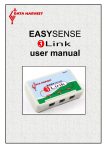
EASYSENSE 3Link
DO229 (1)
Scope
Scope will open an oscilloscope type display.
(Level 2 and 3 only)
• A logging wizard will open, deselect the tick next to any sensors from which readings
are not required and click on Finish.
• In the panel on the right select a suitable time base. The fastest interval (with one sensor
connected) is 20 μs.
• Click on the Start/Stop icon
to begin recording. If the interval is set to 20 ms or
slower (roll mode) the graph trace will be redrawn continuously on the screen until you
click on the Start/Stop icon
when the trace will ‘freeze’.
Note: Scope is not available when the User Level is set to Level 1.
Timing
Timing is used to allow students to study Time, Velocity, Acceleration,
Momentum and Kinetic Energy relationships using switch-type (digital) sensors
such as Light gates. The Sensors are connected to inputs 1:A or 1:A & 2:B.
The recording wizard will open from which how the data is recorded, the parameters of
the experiment, units & decimal places for the calcuated results and the data columns to
display can be chosen. (The options will depend on the user level selected). When the
selection has been made, click on Finish.
Click on the Start/Stop
icon and a reading will be displayed when a change is
detected in signal from the digital sensors. Click on the Start/Stop icon
to stop data
being recorded.
Open File
Used to load a previously saved .SSL or .sid file. Locate the correct file and click
on open.
Open Worksheet
To select and open a worksheet and its accompanying experimental set up file.
(Level 2 and 3 only)
Open Setup
To select and open an experimental set up file. This will pre-set the software for
a specific operation.
Using Smart Q Sensors
The Sensor leads
There are three sensors leads supplied with
EASYSENSE 3Link, two long and one short.
These are used to connect Smart Q Sensors to
the inputs on EASYSENSE 3Link.
Smart Q Sensors
Data Harvest manufactures a wide range of Smart Q
Sensors for use with the EASYSENSE range of loggers.
© Data Harvest Group Ltd.
6