1
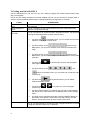
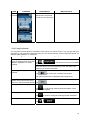
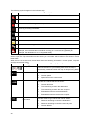
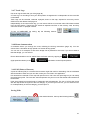
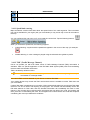
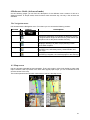
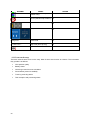
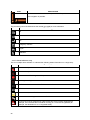
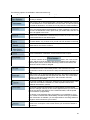
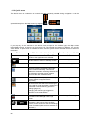
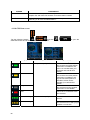
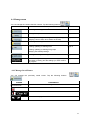
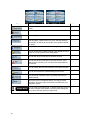
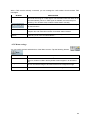
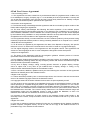
The next area is a combined status indicator field. Tap this area to open the Quick menu (page 66).
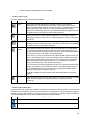
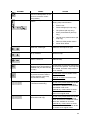
Icon
Status for
More information
GPS position
quality
A higher number of lit bars indicates better GPS position
accuracy.
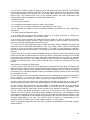
Battery status
The device is running on battery power. The number of
lit bars represent the remaining capacity.
The battery is
being charged
The device is running on external power. The battery is
being charged.
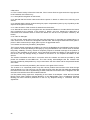
Vehicle type
The symbol displays the vehicle type used for route
calculation.
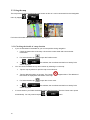
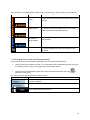
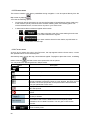
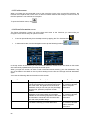
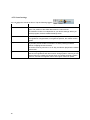
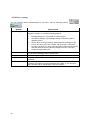
2.3.5 Using the Cursor (the selected map location)
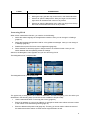
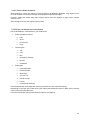
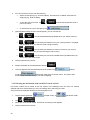
First, place the Cursor at the desired map location with one of the following options:
•
Use the Find menu to select a location. The map returns with the selected point (the Cursor) in
the middle, and the Cursor menu appears with the available options.
•
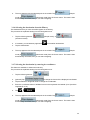
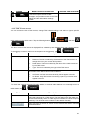
Tap the screen and tap again to place the Cursor at the desired location. Now tap
open the Cursor menu.
to
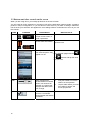
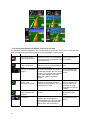
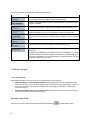
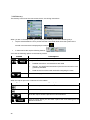
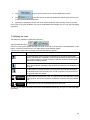
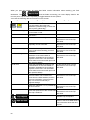
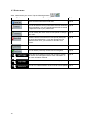
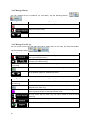
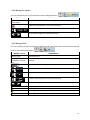
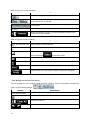
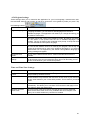
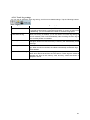
You can perform the following actions in Simple mode:
Button
Action
Creates a new route with the Cursor as the destination. The previous route
(if exists) is deleted.
Saves the Cursor as a Favourite destination
Opens a screen with the name, address and coordinate information of the
Cursor, and the list of POIs near it
21