1
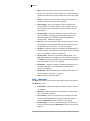
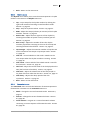
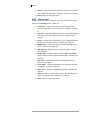
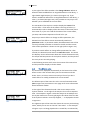
Getting Started 12 2.10 Using the Menus Once in the menu system, turn the effect knob to scroll through the items on the current menu. Push the effect knob to enter a submenu or execute a command. Menu parameters show their current value on the bottom line after an equals sign (=). Turn the param knob to change the value of a parameter. To exit a submenu, scroll all the way to the last item, which is always labelled Back. With Back selected, push the effect knob to exit the submenu. The last item on the main menu is labelled Exit menu. Push the effect knob with Exit menu selected to return to the effects screen. 2.11 Set Power Mode Octavius Squeezer has a sophisticated power management system which lets you trade off battery life against sound quality. If you want your battery to last as long as possible, it’s a good idea to set the Power setting to medium or low. Do it like this: 2.12 Push and release the effect knob to enter the menu system. Find the Settings menu and click the effect knob to enter it. Find the Power parameter on the Settings menu. Change the Power setting to med or low using the param knob. Back out of the Settings menu. Use Exit menu to return to the effects screen. Optimise for Your Instrument Different bass guitars can produce vastly different volume levels. Some adjustment is therefore necessary to get the best results with your Octavius Squeezer. You’ll probably find you need to adjust the Track sens. parameter on the Settings menu to get the best pitch-tracking performance with your instrument. You’ll almost certainly need to turn it down if you play an active bass with a hot output. The VCF sens. parameter, also on the Settings menu provides a global sensitivity adjustment for all the effects that use an envelope follower, so that you don’t need to change the parameters of all your effects when you plug in a new instrument. You’ll also want to turn this down if you play a hot active bass. © Chunk Systems Pty Ltd | www.chunksystems.com