1
GHT – Multi format eReader
7 inch eReader, video player, MP3 player and digital photo viewer
MODEL:CD706A
User manual
Product introduction and specification
This product is a portable eReader, video player, MP3 player and digital photo viewer. With
its color LCD screen, you can view pictures, listen to music, watch videos and read eBooks.
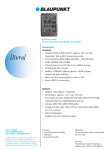
◆Display type: TFT LCD 7 inch (16:9)
◆Resolution: 800 x 480pixels
◆Photo file formats: JPG, BMP, PNG, TIFF
◆Music file formats: WMA, WAV, MP3, OGG, AAC
◆Video file formats: AVI, DIVX, XVID, DAT, WMV, 3GP, FLV
◆eBook file formats: TXT, PDF, EPUB, HTML, FB2, Palmdoc, zTxt, TCR, RTF, OEB,
OpenReader, Non-Drm'ed mobipocket
◆USB connection: USB device 2.0
◆Expansion card slot: SD/MMC
◆Power supply: AC 100----240V DC 5V 1.5A
◆Battery duration: eBooks around 7 hours, photo viewing 6 hours, music or video for 3
hours.
◆Compatible operating system: Windows 2000/XP/Vista/7, Macintosh computer (MAC)
Parts and components
These components are included with your product.
The GHT Multi format eReader, User manual, power adapter, Quick start guide, USB cable
and earphones
1
Navigation controls
1. Indicator light
Lights up in red while charging and lights up in green after charging complete.
2. DC IN slot
Insert the power adaptor cable into this socket
3. USB connector
Connect the unit to a PC.
4. PHONE
Insert earphones into this socket
5. SD/MMC expansion card slot.
For use with SD/MMC cards
6. EXIT
Return to the previous menu or item.
7. Navigation Button
OK: Press to confirm and enter.
Turn the previous page or next page, when watching video or listening to music, press
the buttons to adjust the volume.
8. Power Switch
Slide the Power Switch to turn your eReader on or off
9. Book
Press the button to enter into the eBooks list in the internal memory
10. Photo
Press the button to enter into the photo list in the internal memory
11. Book Mark
Press “Book Mark” button to add a new book mark while reading
12. Zoom
Press to enlarge text size while reading.
2
Loading files (movie/ music/ photo/ eBook)
1.Drag and drop the files to the SD/MMC cards or to your computer.
2.Insert and press the card into the unit if there are files in the card, and the unit can read
the files on the card directly. Press the card and it will eject from the card slot.
3.If the files are on the computer, use the USB cable to connect the unit to the computer,
and copy and paste the files directly into the eReader. After the file transfer completes,
please Safely Remove Hardware from the PC and then directly unplug the USB
connection.
Optional - ASSP tool
When connecting your eReader with your PC, it will show "Connected with computer”.
When connected, the eReader can’t be used to read, view photos, watch video or listen to
music. Your eReader will be recognized as a removable storage device by your computer.
Click to open the device and you will find files named "WMEncoder.exe",
"FileConverter.exe", "encoder.exe", "Autorun.inf" and "gdiplus.dll", these are the
eReader’s ASSP tool and not a virus. You may use them according to the instructions
below.
Note: The ASSP tool is software in the internal memory for managing picture and audio
files to optimize the utilization of the internal memory space. It is inapplicable for managing
eBooks and video files.
How to use ASSP
1.Double click “ FileConverter.exe”, then click “Add File” and chose the files in your
computer. Double click the files to add them to your eReader.
2.The pictures added will be stored at 800x480 pixels to suit the screen, and the mp3 files
will be converted to wma format files.
3.If you don't want to use the ASSP tool, just copy the files in your PC and paste them
directly to the eReader. These files will be stored without compression.
4.Once you format the eReader, the ASSP software will be deleted. You can still copy and
paste files to eReader, but you will not be able to convert the picture and audio files to
save space.
3
Getting Started
1.Charge the unit
Connect your eReader to power for charging by using the wall adapter provided.
To fully charge the unit, wait 4 hours using the wall adaptor included in the package. It will
need about 6 hours to fully charge by using USB cable. The eReader should be turned off
when charging by using USB cable.
Note: The battery life is determined by the number of repeated charge and discharges.In
the charging process, the unit has a certain degree of warming. This is normal.
2.Power on the unit
Slide the power switch to turn the unit on . It will take roughly 30 seconds for Booting
(turning on). Then it will enter into the main menu.
Books
When you turn on the eReader, it will go to the main menu and the underline will stop at the
first option---“Continue Reading”
Press "OK" button to continue reading the book that you have read last time.
How to read a book in the eReader
If you haven’t read any books before, please press “down arrow” to move the underline to
“Books” and press “OK” button to enter. You may also press the “Book” icon to enter the
eBooks list directly.
Press “up or down arrow” to move the underline to select a book and press OK to start
reading.
When reading a book press “left or right arrow” to turn pages (except PDF format eBooks).
When reading PDF format eBook, press “up or down arrow” to turn pages and press “left or
right arrow” to move left or right.
When reading eBooks in WORD format, the text content will be fully displayed. If there are
pictures or diagrams in your WORD format eBook, then the pictures will not be displayed.
4
How to set up a bookmark and delete a bookmark
When reading a book and you want to make a bookmark for the current page, press “Book
Mark” icon, a quill-pen will appear on the upper-right corner of the screen. This page has
been bookmarked.
When you read this book next time, go to the main menu and press “down arrow” to move
the underline to “Bookmarks”. Press OK to find the bookmark. And then press OK to enter
the bookmark page.
If you want to delete the bookmark, select the bookmark and press OK to enter that page,
then press “Book Mark”, the bookmark will be deleted.
Photos
In the main menu:
1.Press “down arrow” to move the underline to “Photos” and press OK, you will find
“Internal memory” or also with SD/MMC card listed. Press OK to enter. There will be
image files listed. Press OK to start playing pictures.
2.Press “Photo” button and the pictures will be listed on the screen. Press OK to start
playing pictures.
There will be several icons at the bottom of the screen, from left to right, their functions
are as below:
1). Add or stop background music
2). Full screen slideshow
3). Last picture
4). Next picture
5). Rotate the picture
6). Return
Press “left or right arrow” to select the 6 icons above and press OK to confirm your
selection.
Press “Exit” button to exit.
5
Music
In the main menu, press “down arrow” to move the underline to “Music” and press OK, you
will see “Internal memory” or SD/MMC card listed. Press OK to enter the songs list. Then
press “up or down arrow” to select the song you want to play. Press OK to play.
There will be several icons at the bottom of the screen, from left to right, their related
functions are as follow:
1). Show songs list
2). Last song
3). Play
4). Pause
5). Next song
6). Return
Press “Exit” button to exit.
Video
In the main menu, press “down arrow” to move the underline to “Video” and press OK, you
will see “Internal memory” or SD/MMC card listed. Press OK to enter the video files list.
Press “up or down arrow” to select the video you want to play. Press OK to play.
When playing the video, press “up or down arrow” to adjust volume and press “left or right
arrow” to play the last or next video. Press OK to pause or continue play.
Press “Exit” button to exit.
6
Clock
How to set date and time
In the main menu, press “down arrow” to move the underline to “Clock” and press OK to
enter the interface with three options: Set Date, Set Time, and Set Alarm.
Set Date
Press OK to set Date.
Press “up or down arrow” to change month, day and year and press “left or right arrow” to
move cursor among month, day and year.
Press OK when finished setting. It will return to the clock with calendar interface.
Set Time
Press “left or right arrow” to move cursor between hour and minute, and press “up or down
arrow” to change the time. Press OK when finished and it will return to the clock with
calendar interface.
How to set alarm clock
Press “right arrow” to move cursor to “Set Alarm” and press OK to confirm. Press “left or
right arrow” to move cursor between time and alarm clock state (OFF/ON), and press “up
or down arrow” to set up alarm clock time and change alarm clock state between OFF and
ON.
Press OK when finished and it will return to the clock with calendar interface.
Tips: please make sure that your eReader has power and has been turned on when alarm
is set to on.
5 minutes snooze
The alarm clock has a 5 minutes snooze function. When time is up, the alarm will ring and
cursor will stay at “Snooze”. If you want an extra 5 minutes snooze, please press OK and
the alarm clock bell will ring again after 5 minutes.
Press “Exit” button to exit.
7
Dictionary
In the main menu, press “down arrow” to move the underline to “Dictionary” and press OK
to enter the interface showing: Please input the word.
Input the words by using the on-screen-keyboard. Press “left or right arrow” to move cursor
left or right and press “up or down arrow” to move cursor up and down.
When you have finished inputting, move the cursor to “Back” and then press “down arrow”
to move cursor to “Search”, then press OK to search the word. The related word
explanation will appear on the screen.
Press “Exit” button to exit.
Documents
Press “down arrow” to move the underline to “Documents” and press OK to enter, you will
find four folders: eBooks, photo, music, video. Select a folder and press OK to enter the
folder, then select a file in that fold and press OK to play.
Settings
In the main menu, press “down arrow” to move the underline to “Setting” and press OK to
enter the interface with two options: Slideshow interval; Information. Press OK to set up
slideshow interval, you may choose 5 seconds, 10 seconds or 15 seconds by pressing “up
or down arrow”. And then press OK to confirm. It will go back to the last interface.
Press “down arrow” to move the underline to “Information” and press OK to find the
technology information of your eReader such as software version.
Press “Exit” button to exit.
8