1
WAYPOINT
REMOTE OPERATIONS
H ow WAY P O I N T NAV I G AT I O N W ork s
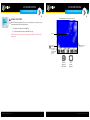
Waypoints are stored positions that allow you to mark areas of interest or navigation points.
Your Fishfinder can save a combination of up to 2,750 Waypoints and Spot-Locks.
WAYPOINT
FISHFINDER OPERATIONS
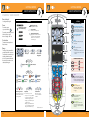
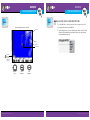
Mark a Waypoint
1. Press the VIEW key until a Chart View is displayed on the screen.
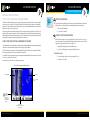
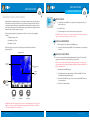
2.A waypoint can be marked as follows: MARK A WAYPOINT
12:13 PM OCT 18
PROP
12
5/
S P E ED
2
DEPTH
1 ft
.3
BEAR ING
273°
Settings
TARG E T
0
.0
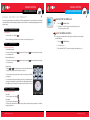
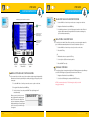
1. To create a Waypoint at the boat’s position, press and hold the Spot-Lock key.
To save the waypoint at the boat’s position, press the MARK key.
To save a waypoint at the cursor position, use the 4-WAY Cursor Control key to move
the cursor to a position on the Chart View. Then, press the MARK key. This Waypoint will be saved on the Humminbird.
D ISTANCE
114 ft
Controls
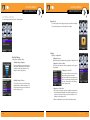
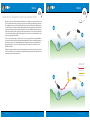
NAVIGATE TO A SAVED WAYPOINT
1. Manually navigate the boat to within a quarter mile of the Waypoint location.
Navigate to a SAVED Waypoint
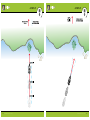
If a saved waypoint is within 1⁄4 mile of the boat position, you can start i-Pilot Link navigation
towards it.
2. Press the GOTO key.
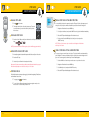
1.From the Chart View, press the GOTO key.
3. Select the Waypoint from the list and press the OK key.
2.Select a waypoint from the list, and press the RIGHT Cursor key.
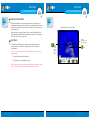
DISENGAGE NAVIGATION TO A WAYPOINT
1. Press the Cancel Softkey on the GOTO Waypoint Active Screen OR
press one of the steering keys.
NOTE: If you start another mode of i-Pilot Link navigation, Navigate to Waypoint
will disengage automatically.
OR
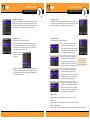
1. Use the 4-WAY Cursor Control key to select a waypoint or position on the chart.
2. Press the GOTO key.
If you've selected a waypoint, navigation will start automatically.
If you've selected a position, select Go To Position from the submenu, and press the
RIGHT Cursor key.
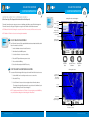
navigate to the most recently
created waypoint
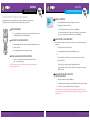
1. Navigation X-Press Menu: Press the MENU key.
2.Select the Waypoint name (WP), and press the RIGHT Cursor key to open the submenu.
3.Select Go To, and press the RIGHT Cursor key to start navigation.
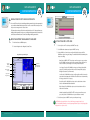
NOTE: Waypoints are saved with an alphanumeric name that stars with WP. The name can
be edited and managed in the Waypoint Management dialog box (see Manage your i-Pilot Link
Navigation Data).
54
minnkotamotors.com
minnkotamotors.com
55