1
2
1. RefSet CreateUpload Installation
Extract the Install_RefSet_CreateUpload_{version}.exe file to any folder on the hard
drive
Navigate to the folder on the hard drive using Windows Explorer and double click on the
Install_RefSet_CreateUpload_{version}.exe file to run the installation
Click on Yes if you get a User Account Control message that says “Do you want to allow
the following program from an unknown publisher to make change to this computer?”
Follow the installation instructions to install Refset CreateUpload to the hard disk
A shortcut to the program will be placed in the Start menu and on the desktop
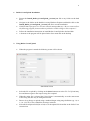
2. Using RefSet CreateUpload
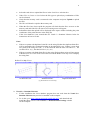
When the program is started the following screen will be shown
Start Menu Screen
Select the file to upload by clicking on the Select button next to the File To Upload entry
box and then navigate to the Surpac string file to upload
When the string file is selected the Upload Name is automatically set to the same name
as the string file, this may be changed if needed
Enter a String Range to upload using a standard Surpac string range definition (eg: 1,4 or
1;3 or 1,5,2 etc) or leave blank for all strings in the file
Select the description field (D1 to D4) to set the upload file Point IDs in the PtIDs From
selection box