1
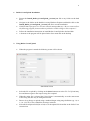
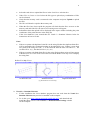
3 Select the card drive to upload the files to in the Card Drive selection box Under Files to Create on Card select the file types to upload (any combination of files can be selected) Check that the memory card is connected to the computer and press Upload to upload the files The file/s will then be copied to the memory card When the file/s have been copied the program will check that the file/s are now on the memory card and if the file/s do not exist a warning screen will appear Information about the upload will be displayed in the report window including the point coordinates of the points that are in the string file If the Leica database is not created then see Visual C++ Runtime Libraries below for instructions on how to fix this Notes: If there are points with duplicate Point ID’s in the string file then the duplicate Point ID’s will be appended with a sequential number in the upload file/s (eg: If there is more than one point in the string file with ‘1’ as the Point ID then the first will named ‘1’, the second will be ‘1(1)’, the third will be ‘1(2)’, etc) If there are points with blank Point ID’s in the string file then these points will not appear in RefSet Viva as Control Points but will be used in the RefSet Viva map view to display the string lines RefSet Viva Map Views: All Point ID’s Set Blank Point ID’s Duplicate Point ID’s (eg: Walls Shown as Lines Only) 3. Visual C++ Runtime Libraries If after installation the Leica database program does not work then the Visual C++ Runtime Libraries may need to be installed on the computer To do this go to http://support.microsoft.com/kb/2019667 and download and install the latest version of the Visual C++ Redistributable Package suitable for the computer