1
StorageCraft - ImageManager User Guide
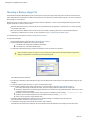
Creating a ShadowProtect IT Edition CD
The USB key contains the source files and license necessary to create a ShadowProtect IT Edition CD. You can then use the CD to start
ShadowProtect in Windows or load the StorageCraft Recovery Environment.
To create a ShadowProtect IT Edition CD
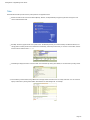
1. Insert the USB key into an available USB port.
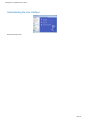
2. Browse the USB key for the ShadowProtect IT Edition image file (ENU_ShadowProtect_IT_CD_3.5.iso).
3. Use a CD/DVD burning software of your choice to burn the ISO image to CD or DVD media.
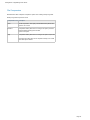
From the CD, you can start ShadowProtect IT Edition in two ways:
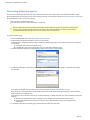
To start ShadowProtect in Windows
1. Place the IT Edition CD in the system's CD/DVD drive.
2. If ShadowProtect IT Edition does not start automatically, browse the USB key and execute START SHADOWPROTECT command script.
3. When prompted, enter the IP address of the IT Edition license server that contains your activated IT Edition license.
For more information, see Using the IT Edition Licensing Server.
ShadowProtect IT Edition loads into memory only (Windows XP or later). The hard drive is not used to store information.
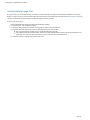
To load StorageCraft Recovery Environment
1. Shutdown the system.
2. Insert the USB key into an available USB port, then restart the system.
Make sure the system BIOS is configured to boot from the CD/DVD drive before the system's hard disk drive (HDD).
3. Follow the on-screen instructions to load the Recovery Environment.
The Recovery Environment runs directly from the CD/DVD. The hard drive is not used to store information.For more information about the
Recovery Environment, see the StorageCraft Recovery Environment User Guide.
Page 21