1
Task 3: Create User Accounts
13
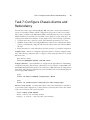
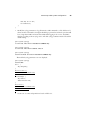
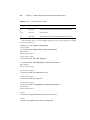
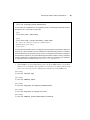
For a Unix-like operating system Generate a 1024-bit SSH version 1 RSA key pair using the
ssh-keygen program with the –b flag set to 1024 and the -t flag set to rsa1. By default, the
resulting public key will be written to $HOME/.ssh/identity.pub. The contents of this file
would then be loaded into the router using the techniques described in the section “Configuring
the Root Account” earlier in this chapter. Typical ssh-keygen output is shown here:
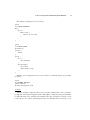
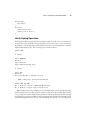
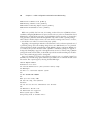
[harry@dr-data harry]$ ssh-keygen -b 1024 -t rsa1
Generating public/private rsa1 key pair.
Enter file in which to save the key (/home/harry/.ssh/identity):
Enter passphrase (empty for no passphrase):
Enter same passphrase again:
Your identification has been saved in /home/harry/.ssh/identity.
Your public key has been saved in /home/harry/.ssh/identity.pub.
The key fingerprint is:
d1:ac:20:9b:f6:82:04:06:09:69:11:57:66:8d:17:be [email protected]
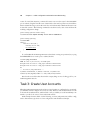
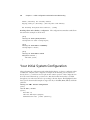
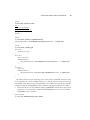
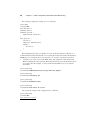
After loading the resulting public key into the router, SSH connectivity can be tested:
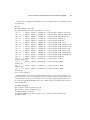
[harry@dr-data harry]$ ssh -l root -1 10.0.1.1
The authenticity of host '10.0.1.1 (10.0.1.1)' can't be established.
RSA1 key fingerprint is 10:e1:82:2f:6b:c3:9c:5e:84:d5:6c:0b:df:1c:3d:ea.
Are you sure you want to continue connecting (yes/no)? yes
Warning: Permanently added '10.0.1.1' (RSA1) to the list of known hosts.
Enter passphrase for RSA key '/home/harry/.ssh/identity':
Last login: Wed May 15 17:38:58 2002 from 10.0.1.201
--- JUNOS 5.2R2.3 built 2002-03-23 02:44:36 UTC
root@r1%
In this example, the -l switch was needed to indicate that the remote login name should be
root instead of the user’s local Unix login name, which would be harry in this case. The -1 was
also needed to indicate that SSH version 1 should be used, because the SSH configuration on this
author’s Linux machine causes it to first try SSH version 2.
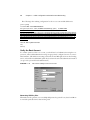
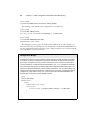
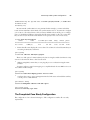
For the SecureCRT application Generate a key pair by clicking the Advanced button in the
SSH Quick Connect dialog box, followed by selecting the Create Identity File option in the
resulting Advanced SSH Options dialog box, which will open the SecureCRT Key Generation
Wizard. The wizard will guide you through the remaining key generation steps. When the Wizard completes, you will be prompted to enter the directory and key filenames for your newly
generated secret and public keys. When using SecureCRT version 3.1.2, the default location and
filename for the secret key is C:\Program Files\SecureCRT 3.0\identity. The public key
will be stored in the same directory with a .pub file extension. As described in the previous “For
a Unix-like Operating System” section, the contents of this public key file should be loaded into