1
USER MANUAL
1
____________________________________________________________________________________________________________________
AG600
AG100-AG500
AG1000-AG4000,AG8
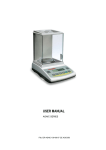
USER MANUAL
AG SERIES
Plik: ER-AG-100-01-08 AG0M71 GB
USER MANUAL
2
____________________________________________________________________________________________________________________
Contents:
1. General description ........................................................................................................3
2. Completeness ................................................................................................................3
3. Balance description ........................................................................................................4
4. Keys and indicators ........................................................................................................6
5. Technical data ................................................................................................................7
6. Security rules..................................................................................................................8
7. Preparations – working environment ..............................................................................9
8. Preparations – the balance...........................................................................................10
9. Operation principles......................................................................................................11
10. Start-up ........................................................................................................................12
11. Internal calibration ........................................................................................................13
12. User functions menu.....................................................................................................14
12.1 Autotaring ................................................................................................................15
12.2
Pieces counting function .........................................................................................16
12.3 External calibration / calibration options...................................................................18
12.4 RS-232C interface setting........................................................................................21
12.5 Print-out settings......................................................................................................22
12.6 Date and time setting ...............................................................................................25
12.7
LCD settings ...........................................................................................................26
12.8 Language setting (option) ........................................................................................27
12.9 Weigh summing (option) ..........................................................................................28
12.10 Maximal /minimal value (option)...............................................................................29
12.11 Treshold signalization (option) .................................................................................30
13. Connecting the balance to computer or printer.............................................................34
14. Troubleshooting and maintenance ...............................................................................35
Declaration of Conformity....................................................................................................36
USER MANUAL
3
____________________________________________________________________________________________________________________
1. General description
AG series balances are destined for high accuracy weighing in laboratory
practice.
Balances are equipped with internal calibration system for proper accuracy
control during operation. The user should also own weight standard of OIML F2
or F1 class for periodical control of the balance (weight value stated in
Technical Data sheet) - available for extra fee.
All balances are metrologically tested - calibration or legal verification
certificate on demand.
Legal verification is required for balances used in some applications: direct sale,
pharmaceutical prescriptions, medical and pharmaceutical analysis, goods
packing and others.
Balances with legal verification are mark with the following:
- protective seal placed on the casing mounting screw at the back of the balance,
- calibration switch protective seal,
- notified body stamps and green metrological marking placed on the balance
name plate.
AGZ series balances are destined for purposes where verification is not required.
AGZ series balances do not have internal calibration system and also all
functions connected with it are removed (chapter 11 and 12.3).
2. Completeness
A standard set consist of:
1. Balance
2. Pan elements:
- AG50-AG600 (round pan): a pan base and a pan,
- AG1000-AG4000, AG8 (rectangular pan): gum nuts (4pcs) and a pan,
3. Feeder (ZN12V/500mA)
4. User manual
5. Guarantee Card
USER MANUAL
4
____________________________________________________________________________________________________________________
3. Balance description
Front view (AG100-AG600)
8
1
2
3
4
5
7
1 – pan
2 – pan support
3 – pan ring
4 – LCD display
5 – keys
6 – rotating legs
7 – water level
8 – antiblast shield
Note:
AG600 does not
have the pan ring
and the antiblast
shield.
6
Front view (AG1000-AG4000, AG8)
1
2
4
5
7
6
1 – pan
2 – pan supports
4 – LCD display
5 – keys
6 – rotating legs
7 – water level
USER MANUAL
5
____________________________________________________________________________________________________________________
Rear view:
Printer
or computer
Feeder
Keyboard
~230V/50Hz
Feeder
Adjustment
switch
ON
OFF
PS2
RS232C
1
RxD (receiver)
TxD (transmitter)
2
6
7
3
8
4
5
GND
+5V
6
5
4
3
2 1
masa
9
Data
Case
USER MANUAL
6
____________________________________________________________________________________________________________________
4. Keys and indicators
g
0%
keys
key
key
key
key
key
key
key
key
key
key
key
key
indicator
indicator
indicator
100%
-
tare (subtract package weight from weighed mass)
switch-off (standby),
confirm
.
1/F1 ... 5/F5 6/→0← -
decimal point,
numeric / functional keys,
numeric key / zeroing (balances for direct sale use
only),
numeric key / data output (print / transmission),
numeric key / internal calibration,
numeric key / Menu,
numeric key / special function,
enter an option,
leave an option,
navigation / move a cursor up,
navigation / move a cursor down,
result stabilisation,
tatal load indicator (0-100%),
stand-by mode,
→T←
I/
ENTER
7/
8/
9/MENU
0/
>
<
∧
∨
linear
OFF
Max, Min, d, e,
II
-
metrologic parameters and accuracy class.
USER MANUAL
7
____________________________________________________________________________________________________________________
5. Technical data
Type
Capacity (Max)
Min load (Min)
Reading unit (d)
Verification unit (e)
Tare range
Accuracy class
Working temperature
Weighing time
Pan dimension
Balance base dim.
Balance weight
Power
Calibration weight
(OIML)
Type
Capacity (Max)
Min load (Min)
Reading unit (d)
Verification unit (e)
Tare range
Accuracy class
Working temperature
Weighing time
Pan dimension
Balance base dim.
Balance weight
Power
Calibration weight
(OIML)
AG100
100g
0,02g
0,001g
0,01g
-100g
AG200
AG300
200g
300g
0,02g
0,02g
0,001g
0,001g
0,01g
0,01g
-200g
-300g
II
+18 ÷ +33°C
<8s
φ115mm
215(235)x345x90mm
5kg
~230V 50Hz 6VA / =12V 300mA
100g
200g
200g
F2
F2
F2
AG600
600g
0,5g
0,01g
0,1g
-600g
φ150mm
500g
F2
AG1000
1000g
0,5g
0,01g
0,1g
-1000g
AG2000
2000g
0,5g
0,01g
0,1g
-2000g
AG3000
3000g
0,5g
0,01g
0,1g
-3000g
II
+18 ÷ +33°C
<5s
AG4000
4000g
0,5g
0,01g
0,1g
-4000g
AG500
500g
0,02g
0,001g
0,01g
-500g
500g
F1
AG8
8000g
5g
0,1g
1g
-8000g
165x165mm
215(235)x345x90mm
5kg
~230V 50Hz 6VA / =12V 300mA
1000g
2000g
F2
F2
5000g
F2
USER MANUAL
8
____________________________________________________________________________________________________________________
6. Security rules
To avoid electrical shock or damage of the
balance or connected peripheral devices, it is
necessary to follow the security rules below.
• All repairs and necessary regulations can be made by authorised
personnel only.
• To avoid fire risk use a feeder of an appropriate type (supplied with
the balance). Pay attention that supply voltage is compatible with
specified technical data.
• Do not use the balance when its cover is opened.
• Do not use the balance in explosive conditions.
• Do not use the balance in high humidity.
• If the balance seems not to operate properly, unplug it from the
mains and do not use until checked by authorised service.
USER MANUAL
9
____________________________________________________________________________________________________________________
7. Preparations – working environment
+33°C
+18°C
When choosing a location to set up the balance, remember the following rules to
ensure proper working conditions and user-friendly operating:
- setup the balance on an even, flat surface leaving neccesary room for easy
acces,
- maintain proper working temperature,
- avoid strong air drafts, vibrations, dust, big temperature changes and
humidity over 90%,
- avoid locations with extreme heat radiation and electromagnetic or magnetic
fields.
USER MANUAL
10
____________________________________________________________________________________________________________________
8. Preparations – the balance
1. Take the balance and supplied accessories (a feeder, pan elements) out of the
box.
2. Place the balance on a stable ground not affected by mechanical vibrations
and airflows.
3. Level the balance with rotating rear legs 6 so that the air bubble in water-level
7 at the back of the balance is in the middle.
4. (for AG100-AG600) Gently insert the mandrel of pan support 2 into pan
socket through the pan ring 3. Put the decorative pan 1 on (AG600 balances
have decorative pan joined with pan support).
1
2
3
7
6
5. (for AG1000-AG8) Place supports 2 on mandrels visible in balance cover hole
put pan 1 on supports.
1
2
7
6
USER MANUAL
11
____________________________________________________________________________________________________________________
6. Plug a feeder to the power socket at the back of the balance.
Moisture in the air may condense on the surface of the balance when
transferred to the warmer environment. In this case leave the balance for
at least 4 hours unplugged from the mains for conditioning to avoid
wrong operating or damage of the balance.
Leave the pan empty and plug the feeder to the mains. At the end of self-tests,
the balance displays zero indication and is now ready to work.
9. Operation principles
1. To ensure proper weighing accuracy the balance is equipped with internal
calibration system. The system automatically calibrates the balance every 2
hours and with temperature changes (more than 1°C) without user ingerence.
Nevertheless, it is advised to check balance accuracy with weight standard
(or other object with known weight) before and after each series of
measurements.
2. Weighed sample should be placed in the centre of the pan.
3. In direct sale use (d=e), make sure that zero indicator is displayed. If not,
press →0← key and wait until zero indication and zero indicator appears. In
other balances the key does not operate.
4. The balance is equipped with a tare equal to its range. To tare the balance
press →T← key. Storing a tare value does not extend measuring range, but
only subtracts it from a load placed on a pan. To make weight control easier
and to avoid range overdrawing, the balance is equipped with a load indicator
(graduated in percentages).
5. Weighing result should be read when the indicator "
signalises stabilisation of a result.
" lights, which
6. When the balance is not used but it is necessary to be ready to work
immediately, it can be switched off by pressing I/ key. The balance reading
system is then switched off to "standby" mode (signalled by the indicator
"OFF"). To switch the balance on press I/ key. The balance is immediately
ready to operate maximum accuracy (after self tests).
USER MANUAL
12
____________________________________________________________________________________________________________________
7. The mechanism of the balance is a precise device, sensitive to mechanical
strokes and shocks.
Before transportation take off the pan (move it slightly and lift it up)
and the pan base and preserve from any damages.
Do not overload the balance more then 20% of maximum load (Max).
Do not press a pan with a hand.
8. The balance should not be used to weigh ferromagnetic materials due to
accuracy decrease.
9. When the balance is moved to another localisation remember to level the
balance and proceed with internal calibration.
10.
Start-up
INICJALIZATION
program version
Processor
EEPROM
...
...
AUTOMATIC CALIBRATION
Internal calibration
Please wait ...
Max ...
Min ...
e= ...
d= ..
0.000 g
0%
100%
After switching-on, the balance
performs automatic self-test. Each
test must be accepted and confirmed
with mark.
After self-test the balance proceeds
with internal calibration mode as
described in chapter 11.
When internal calibration is finished,
the balance is in normal weighing
mode.
USER MANUAL
13
____________________________________________________________________________________________________________________
11.
Internal calibration
Internal calibration is performed automatically after each start-up, also every
2 hours and with temperature changes more than 1°C.
To calibrate the balance with internal weight, simply empty the pan and press
key twice.
CALIBRATION
Internal calibration
Please wait ...
Press
CALIBRATION
Internal calibration
Taring, please wait ...
key twice.
Until calibration process is finished
do not perform any operation, as any
vibrations and shocks may affect the
process of calibration and delay the
calibration or deteriorate the result.
CALIBRATION
Internal calibration
Loading, please wait ...
Max ...
Min ...
e= ...
d= ...
0.000 g
0%
100%
The calibration weight is placed on
the pan three times to avoid
inaccurate calibration result. In case
any problems during calibration, the
error is signalised on the display and
calibration process is stopped. The
result of correct calibration is zero
indication.
In case internal calibration does not ensure proper accuracy of the balance (e.g.
results of weighing object of known weight are wrong), please contact the nearest
service centre.
USER MANUAL
14
____________________________________________________________________________________________________________________
12.
User functions menu
All balances, beside basic functions like weighing and tare, are equipped with
additional functions. Basic set of special functions is shown below. In respect of
metrology calibration with external weight is important special function.
Other functions: recipe ingredients summing, density calculation etc. can be
enabled as an option on customer request (described in additional brochure
when ordered).
USER FUNCTIONS&OPT.
Autotaring
PCS counting
Unit selection
Percent
Calibration
RS-232C settings
Print settings
Time&date settings
LCD settings
Menu settings
Exit
To enter the user menu press Menu
key. The cursor (dark background) is
placed at the top.
To move the cursor, use the
navigation keys:▼and ▲.
- function activated
- function deactivated
To enter chosen function and open the
menu of the function press ENTER
key.
To return to the previous window
press < key. To leave the user menu
and return to weighing mode choose
Exit option.
USER FUNCTIONS&OPT. / ENABLING
Autotaring
PCS counting
Unit selection
Percent
Calibration
RS-232C settings
Print settings
Time&date settings
LCD settings
Menu settings
Exit
Easy access to the most useful
functions will shorten operation time
and make work more comfortable. To
remove a function from the function
menu, use Menu settings option.
Select function by cursor and press
ENTER key. Chosen functions should
be signified with mark.
To quickly go from functions menu to
Menu settings press key.
USER MANUAL
15
____________________________________________________________________________________________________________________
12.1 Autotaring
This function automatically keeps zero indication when a pan is empty or zero
indication was forced with →T← key.
Press Menu key to enter the user
function menu, choose Autotaring and
press ENTER key.
USER FUNCTIONS
Autotaring
PCS counting
. . .
USER FUNCTIONS \ PIECES COUNTING
1. Activate
2. Correction range:
3. Exit
2
d/sec
Choose Correction range using ∨
and ∧ keys and press ENTER key.
Enter maximum zero flow to be
automatically
corrected
(choose
between 0.5 ÷ 5 verification unit(s)
per second).
USER FUNCTIONS \ PIECES COUNTING
1. Activate
2. Correction range:
3. Exit
Max ...
Min ...
2
d/sec
e= ...
d= ..
AUT
0.000 g
0%
100%
Choose Activate option and press
ENTER.
Any changes off the zero readout that
are equal to a defined fraction of
digits per second are automatically
tared, independently of changing
environment conditions (temperature,
humidity, etc.).
To leave the function press Menu key, choose Autotaring function and then choose
Deactivate option.
USER MANUAL
16
____________________________________________________________________________________________________________________
12.2
Pieces counting function
1. Counting with a reference sample
Max ...
Min ...
e= ...
d= ..
II
Place a reference sample with known
number of pieces on the pan.
2.000 g
0%
100%
USER FUNCTIONS
Press Menu key to enter the user
function menu, choose Counting with
the cursor and press ENTER key.
Autotaring
PCS counting
. . .
USER FUNCTIONS \ PIECES COUNTING
1.Activate
2.Sample quantity
3.Unit weight
4.Exit
Chose Pieces quantity option and press
ENTER key.
USER FUNCTIONS \ PIECES COUNTING
1.Activate
2. Sample quantity
3. Unit weight
4. Exit
Max ...
Min ...
12
Using numeric keys enter the quantity
of the sample and press ENTER key.
d= ..
The balance calculates unit weight
basing on given number of pieces and
reference sample weight and then shows
number of pieces on the display.
:
e= ...
12 pcs
0%
100%
Reference sample parameters may be used in series of weighing. To recall
previously used sample parameters start Counting function with Activate option.
To leave the function press Menu key, choose Counting function and then choose
Deactivate option.
Note:
To switch between weighing mode and pieces counting mode press key.
USER MANUAL
17
____________________________________________________________________________________________________________________
2.Counting with unit weight.
USER FUNCTIONS
Press Menu key to enter the user
function menu, chose Counting and
press ENTER key.
Autotaring
PCS counting
. . .
USER FUNCTIONS \ PIECES COUNTING
Chose Unit weight option and press
ENTER key.
1.Activate
2.Sample quantity
3.Unit weight
4.Exit
USER FUNCTIONS \ PIECES COUNTING
1.Activate
2.Sample quantity
3.Unit weight
4.Exit
Max ...
Min ...
:
0.2g
e= ...
d= ..
0 pcs
0%
Enter unit weight value using numeric
keys and press ENTER to accept. The
unit weigh value is stored in balance
memory until switched off.
The balance displays pieces amount.
100%
Note: To correct wrong digits when entering unit weight, press < key to delete the
last number or CLR to leave the function and proceed from the beginning.
USER MANUAL
18
____________________________________________________________________________________________________________________
12.3
External calibration / calibration options
Calibration with external weight standard in verified balances should be performed
in case balance indications exceed permissible error. To calibrate the balance
a service centre should use calibration weight as stated in Technical Data table
(or of better accuracy) with valid calibration certificate.
Calibration of EC verified balance requires to destroy a mark for
protecting an access to adjustment switch and results in loosing its EC
verification. To renew EC verification of a balance, contact with
service or notified body is necessary.
Adjustment
switch
ON
Mark
OFF
In EC verified balances executing a
calibration requires to change
adjustment switch position, which is
placed behind the mark (sticker) of a
notified body. An access to the switch
is possible only after the mark is
removed, which causes loosing EC
verification of the scale. To renew EC
verification of a balance, contact with
service or notified body is necessary.
In order to store results of calibration with external weight it is possible to print
calibration report (see Calibration options). For this purpose a printer or a
computer with testing program is necessary.
The report printout example
Date : ... Time: ...
Calibration report
-------------------------------Date of production: ...
Serial number: ...
Program version: ...
Adjustment no.: ...
Factory external weight: ...
- external weight value registered during factory calibration
Factory internal weight:
...
- internal weight value registered during factory calibration
Current external weight:
...
- external weight value registered during last calibration
Current internal weight:
...
- internal weight value registered during last external calibration
Weight difference:
...
- difference between internal weight values: factory value–current value
USER MANUAL
19
____________________________________________________________________________________________________________________
Calibration options:
USER FUNCTIONS
Autotaring
PCS counting
. . .
Calibration
. . .
USER FUNCTIONS \ CALIBRATION
1. External calibration
2. External load
3. Calibration of time
4. Calibration of temp.
5. Report printout
6. Exit
: 200g
: 2h
: 1.0oC
If an access to adjustment switch is
not protected with the mark, with a
thin screwdriver set adjustment switch
to ON position (balance displays the
message Calibration switch ON and
makes a sound).
Press MENU key choose Calibration
option and press ENTER.
Option External weight enables to
enter the value of used calibration
weight. Choose External weight
option, press ENTER and use > and <
keys to select desired value. It is
advised to use as great weight value
as possible.
USER FUNCTIONS \ CALIBRATION
1. External calibration
2. External load
3. Calibration of time
4. Calibration of temp.
5. Report printout
6. Exit
: 200g
: 2h
: 1.0oC
USER FUNCTIONS \ CALIBRATION
1. External calibration
2. External load
3. Calibration of time
4. Calibration of temp.
5. Report printout
6. Exit
: 200g
: 2h
: 1.0oC
Calibration of time and Calibration
of temperature option is related with
internal calibration.
To print a calibration report, connect a
printer and use Report printout
option. Calibration report is a proof of
correct calibration process and may be
useful for balance diagnostics.
USER MANUAL
20
____________________________________________________________________________________________________________________
Calibration sequence:
USER FUNCTIONS
Press Menu key, choose Calibration
option and press ENTER to accept
(calibration must be enabled).
Autotaring
PCS counting
. . .
Calibration
. . .
USER FUNCTIONS \ CALIBRATION
1. External calibration
2. External load
3. Calibration of time
4. Calibration of temp.
5. Report printout
6. Exit
: 200g
: 2h
: 1.0oC
Check if External weight value is
equal to external weight value used
for calibration. If not, choose External
weight option and enter correct value.
Choose External calibration option
and press ENTER to accept.
CALIBRATION
External calibration:
taring
Wait until taring process is finished
and load the pan with the calibration
weight of correct value.
CALIBRATION
External calibration:
Put the calib. weight _200g
CALIBRATION
External calibration:
Remove calib. weight
CALIBRATION
Wait until external calibration is
finished.
External calibration:
wait
Max ...
Min ...
e= ...
d= ...
0.000 g
0%
Take off the calibration weight.
100%
After external calibration the balance
switches to the weighing mode.
USER MANUAL
21
____________________________________________________________________________________________________________________
12.4 RS-232C interface setting
To enable cooperation with a printer (or a computer), transmission parameters
must be equal in both devices.
This function enables the following transmission parameters:
- send and receive speed (1 200 ÷ 115 200bps),
- number of bits (7 or 8 Bytes),
- parity control (none, even, odd),
- protocole type (default protocole - LONG),
/ PRINT key pressing with stable indication,
- transmission mode (after
directly after
/ PRINT key pressing without stable indication, automatically
after stabilisation of each weighing result, continuous transmission in 0,1s
periods).
USER FUNCTIONS
Autotaring
PCS counting
. . .
Press MENU key to enter the user
function menu, choose RS232C
settings and press ENTER key.
RS-232C settings
. . .
USER FUNCTIONS / RS232C SETTINGS
1. Baudrate:
4800
2. Bits:
8-bit
3. Parity:
brak
4. Protocol:
LONG
5. Sending mode: button+stab.
6. Exit
USER FUNCTIONS / RS232C SETTINGS
1. Baudrate:
<4800>
2. Bits:
8-bit
3. Parity:
brak
4. Protocol:
LONG
5. Sending mode: button+stab.
6. Exit
Check if balance RS232C interface
transmission parameters are compliant
with connected external device
parameters.
To enter correct parameters values
select desired parameter using ∨ and ∧
keys and press ENTER key.
Set correct parameter value using <
and > keys and press ENTER to
accept.
To leave the function press MENU
key or use Exit option.
USER MANUAL
22
____________________________________________________________________________________________________________________
12.5 Print-out settings
This function enables to select desired information, which will be used on printouts:
- numeration of succesive measurements,
- date and time of each measurement,
- custom information (optional) – additional text entered with a computer
keyboard.
USER FUNCTIONS
Autotaring
PCS counting
. . .
Print settings
Press MENU key to enter the user
function menu, choose Print settings
and press ENTER key.
. . .
USER FUNCTIONS \ PRINT SETTINGS
Header
Values
Footer
ID1
ID2
ID3
Exit
Select desired parameter using ∨
and ∧ keys and press ENTER key to
change setting.
Header - the entrance to the printout header definition menu; the checkbox sign
indicates if at least one option in the header definition menu is marked.
Header definition menu
USER FUNCTIONS \ PRINT SETTINGS
Blank line
Mode name
Date & time
Balance type
Serial number
ID1
ID2
ID3
Signature
Exit
Relevant
element
is
marked/unmarked if ENTER key is
pressed. The marked element will
appear in a printout header if the
Header element in values definition
menu is marked.
USER MANUAL
23
____________________________________________________________________________________________________________________
An example of a full printout header:
--------------- WEIGHING --------------Date : 2000-04-25
Time : 22:32
Scale type
: AGNZ200
Serial number
: 123456
ID1 string
ID2 string
ID3 string
Signature
.....................................
← blank line
← mode name
← date and time
← balance type
← serial number
← ID1
← ID2
← ID3
← signature
Values - the entrance to printout values definition menu; the checkbox sign
indicates if at least one option in values definition menu is marked.
Values definition menu
USER FUNCTIONS \ PRINT SETTINGS
Header
Blank line
ID1
ID2
ID3
Measur. Number
Tare
Net
Gross
LCD result
Exit
Relevant
element
is
marked/unmarked if ENTER key is
pressed. The values Tare, Net and
Gross are always expressed in
grams. The value LCD result always
indicates display state with an active
unit.
An example of a full printout header (without header):
ID1 string
ID2 string
ID3 string
Measurement number : 1
T
0.0000 g
N
66.7425 g
B
66.7425 g
LCD
333.7125 ct
← blank line
← ID1
← ID2
← ID3
← measurement number
← tare
← net
← gross
← LCD result
USER MANUAL
24
____________________________________________________________________________________________________________________
Footer - the entrance to the printout footer definition menu; the checkbox sign
indicates if at least one option in footer definition menu is marked.
Footer definition menu
USER FUNCTIONS \ PRINT SETTINGS
Blank line
Mode name
Date & time
Balance type
Serial number
ID1
ID2
ID3
Signature
Dash line 3
3 blank lines
Exit
Relevant
element
is
marked/unmarked if ENTER key is
pressed.
An example of a full printout footer :
------------ PCS COUNTING ------------Date : 2000-04-25
Time : 23:05
Scale type
: AGNZ200
Serial number
: 123456
ID1 string
ID2 string
ID3 string
Signature
.....................................
---------------------------------------
← blank line
← mode name
← date and time
← balance type
← serial number
← ID1
← ID2
← ID3
← signature
← separating line
← 3 empty lines
ID1, ID2, ID2 - strings (max. 20 characters) defined by PS2 keyboard or by a scale
numeric keypad, which works similarly to mobile keyboard (characters coupled
with relevant key appear in a display first line after the key is pressed); inscribed
string is approved with ENTER key.
USER MANUAL
25
____________________________________________________________________________________________________________________
12.6 Date and time setting
Use this function to set current date and time, used in print-outs:
USER FUNCTIONS
Autotaring
PCS counting
. . .
Press MENU key to enter the user
function menu, choose Time&date
settings and press ENTER key.
Time&date settings
. . .
USER FUNCTIONS \ DATE AND TIME
1. Time:
2. Date:
3. Exit
09:11:03
2006-03-31
Select desired parameter using ∨
and ∧ keys and press ENTER.
USER FUNCTIONS \ DATE AND TIME
1. Time:
2. Date:
3. Exit
09:11:03
2006-03-31
Enter correct values using numeric
keys and press ENTER to accept.
USER MANUAL
26
____________________________________________________________________________________________________________________
12.7 LCD settings
This function enables to set contrast and back-light illumination of the LCD
display:
USER FUNCTIONS
Press MENU key to enter the user
function menu, choose LCD settings
and press ENTER key.
Autotaring
PCS counting
. . .
LCD settings
. . .
USER FUNCTIONS \ LCD SETTINGS
1. Contrast
2. Backlight
3. Exit
:
:
8
ON
USER FUNCTIONS \ LCD SETTINGS
1. Contrast
2. Backlight
3. Exit
:
:
<
ON
> 12
USER FUNCTIONS \ LCD SETTINGS
1. Contrast
2. Backlight
3. Exit
:
:
12
Choose Contrast option using ∨ and ∧
keys and press ENTER to key.
Select desired Contrast value using
< and > keys and press ENTER
accept.
Choose Backlight option using ∨
and ∧ keys and press ENTER key.
ON
USER FUNCTIONS \ LCD SETTINGS
1. Contrast
2. Backlight
3. Exit
:
:
12
<OFF>
Turn LCD Backlight on or off and
press ENTER to accept.
USER MANUAL
27
____________________________________________________________________________________________________________________
12.8 Language setting (option)
This function enables to select a language used for displayed commends and
printouts:
USER FUNCTIONS
Autotaring
PCS counting
. . .
Press MENU key to enter the user
function menu, choose Language
settings and press ENTER key.
Language settings
. . .
USER FUNCTIONS \ LANGUAGE SETTING
1. Polish
2. English
3. German
4. Russian
5. Ukrainian
6. Spanish
7. French
8. Czech
9. Exit
Select desired language using ∧ and ∨
keys and press ENTER key to accept
USER MANUAL
28
____________________________________________________________________________________________________________________
12.9 Weigh summing (option)
This function allows separate weighing of several ingredients in one container with
a possibility to control aggregated sum of all weighed components.
USER FUNCTIONS
Press Menu key, choose Weighs
summing and press ENTER to accept.
Autotaring
PCS counting
. . .
Weigh summing
. . .
USER FUNCTIONS \ WEIGH SUMMING
1. Activate
2. Reset
3. Exit
Max ...
Σ=0.000g
n=0
Min ...
e= ...
d= ..
SUM
0.000 g
0%
100%
USER FUNCTIONS \ WEIGH SUMMING
1. Deactivate
2. Reset
3. Exit
Ingredients weight: 0.000g
Number of ingredients: 0
Chose Activate option using ∨ and ∧
keys and press ENTER.
The balance is now ready for
successive ingredients weighing.
Before weighing each ingredient press
→T← key to zero the indication.
During series weighing total weight
(Σ) and number of series (n) are
shown at the left of the display.
For instant return to weighing mode
and display total weight of all
ingredients press key. To return to
series summation press the key again.
To leave the function press Menu key,
chose Weigh summing function and
then chose Deactivate option.
USER MANUAL
29
____________________________________________________________________________________________________________________
12.10 Maximal /minimal value (option)
This function enables to display a maximal or minimal value of series of weighing.
Press
Menu
key,
choose
Maximal/minimal value and press
ENTER to accept.
USER FUNCTIONS
Autotaring
PCS counting
. . .
Maximal/minimal value
. . .
USER FUNCTIONS \ MAXIMAL VALUE
1. Activate
2. Reset
3. Mode:
4. Exit
Max ...
Choose Activate option using ∨ and ∧
keys and press ENTER.
MAX
Min ...
e= ...
d= ..
0.000 g
0%
100%
The function is now active – the
balance displays only maximum value
from successive series of weighing
(starting from the function activation
or using Reset option).
USER FUNCTIONS \ MAXIMUM VALUE
1. Deactivate
2. Reset
3. Mode:
MAX
4. Exit
To display weigh value of a current
sample press key. To return to
Maximum value function press the
key again.
To leave the function press MENU
key, choose Maximal/minimal value
function and then chose Deactivate
option.
USER MANUAL
30
____________________________________________________________________________________________________________________
12.11 Treshold signalization (option)
This function compares weighing result with two reference values: lower and
upper threshold. The balance signalises comparison result with MIN, OK and
MAX indicators and sound signal.
If comparison result is:
- smaller than lower threshold – the balance displays MIN,
- between threshold values - the balance displays OK,
- bigger than upper threshold - the balance displays MAX
- lower than zero threshold (no load) – none of the indicators appears
Operation sequence:
USER FUNCTION
Autotaring
PCS counting
Press MENU key, choose Treshold
signalization option and press ENTER
to accept.
. . .
Treshold signalization
. . .
USER FUNCTION \ TRESHOLD SIGNAL.
1. Activate
2. Zero threshold :
3. MIN threshold:
4. MAX threshold:
5. Outputs mode:
6. Buzzer :
7. Wyjście
brak
none
none
none
none
USER FUNCTION \ TRESHOLD SIGNAL.
1. Activate
2. Zero threshold:
3. MIN threshold:
4. MAX threshold:
5. Outputs mode:
6. Buzzer :
7. Exit
5
none
none
none
none
USER FUNCTION \ TRESHOLD SIGNAL.
1. Activate
2. Zero threshold:
3. MIN threshold:
4. MAX threshold:
5. Outputs mode:
6. Buzzer :
7. Exit
5
12.000
none
none
none
Chose Zero threshold option using ∨
and ∧ keys and press ENTER.
Enter Zero threshold value using
decimal keys and press ENTER key –
indications below this value are
regarded as unloaded balance
(threshold indicators does not appear).
Enter MIN threshold
threshold values.
and
MAX
Outputs mode enables to set
THRESHOLD output working mode
(described further). To choose
appropriate working mode use
< and > keys and press ENTER key to
accept.
USER MANUAL
31
____________________________________________________________________________________________________________________
USER FUNCTION \ TRESHOLD SIGNAL.
1. Activate
2. Zero threshold:
3. MIN threshold:
4. MAX threshold:
5. Outputs mode:
6. Buzzer :
7. Exit
5
12.000
none
none
<stable OK>
USER FUNCTION \ TRESHOLD SIGNAL.
1. Activate
2. Zero threshold:
3. MIN threshold:
4. MAX threshold:
5. Outputs mode:
6. Buzzer :
7. Exit
Max ...
Min ...
5
12.000
none
none
<stable OK>
e= ...
Buzzer option enables to select sound
signal mode. When Stable OK option
is set, sound signal occurs after
weighing result stabilisation within
OK range. Other possible options:
- sound signal occurs when threshold
values (MIN and MAX) are
exceeded,
- no sound signal
To start function choose Activate
option and press ENTER key.
d= ..
After each measurement the balance
displays comparison result.
3
2
1
100.000 g
0%
100%
USER FUNCTION \ TRESHOLD SIGNAL.
1. Deactivate
2. Zero threshold:
3. MIN threshold:
4. MAX threshold:
5. Outputs mode:
6. Buzzer :
7. Exit
5
12.000
none
none
<stable OK>
To leave the function press MENU
key, choose Treshold signalization
function and then choose Deactivate
option.
In balances equipped with THRESHOLD output, comparison result may be used
to control external optical indicator or other external devices.
Threshold comparison results appear on Thr I and Thr II output pins as a
shortcircuit state. Control output working modes are presented on the state
charts below.
USER MANUAL
32
____________________________________________________________________________________________________________________
THRESHOLD output state charts (increasing load):
1. Indicator mode:
Outputs:
P1 ( thr I)
zero
treshold
thr I
P2 (thr II)
thr I
thr II
P3 (zero)
thr II
2. Pulse mode:
Outputs:
2s.
P1 (thr I)
thr I
2s.
P2 (thr II)
thr II
P3 (zero)
zero
treshold
3. Level mode:
Outputs:
P1 (thr I)
zero
treshold
thr I
P2 (thr II)
thr I
thr II
P3 (zero)
thr II
USER MANUAL
33
____________________________________________________________________________________________________________________
THRESHOLD output is a open collector transoptor output with load capacity
100mA / 24V. Additional transmitters require separate 24V feeder, transmitter
input must be protected with diodes, e.g. 1N4148.
AXIS offers MS3K/P electronic board, consisting of RM96P transmitters, with
DC24V input voltage and AC250V, 8A output (sold separately).
PROGI output
Single transmitter connection
P1 (thr 1)
P2 (thr 2)
P3 (zero thr)
ground
shield
USER MANUAL
34
____________________________________________________________________________________________________________________
13.
Connecting the balance to computer or printer
The balance may send data to a computer or a printer via RS232C interface.
RS232C
1
RxD (receiver)
TxD (transmitter)
2
6
7
3
8
4
5
GND
9
Case
When cooperating with a computer, the
balance sends weighing result after
initialising signal from a computer or
after pressing
key.
When cooperating with the balance, a
computer should be equipped with a
program that enables receiving and
processing data from the balance.
AXIS offers computer programs to cooperate with balances. Demo versions and
program descriptions are available on the website: www.axis.pl:
- RS 232C Test – free serial port testing program,
- ProCell – residual program for cooperation with Microsoft EXCEL and
other Microsoft Windows applications (demo version).
Detailed information for programmers:
The balance sends data with a following method:
Computer → Balance: initiation signal S I CR LF (53h 49h 0Dh 0Ah),
Balance → Computer: weighing result in the following format:
(16Bytes, LONG protocol - 8bits, 1stop, no parity, 4800bps),
Bytes description:
1
- „-„ mark or space
2
- space
3÷4 - digit or space
5÷9 - digit, decimal point or space
10 - digit
11 - space
12 - k, l, c, p or space
13 - g, b, t, c or %
14 - space
15 - CR
16 - LF
USER MANUAL
35
____________________________________________________________________________________________________________________
14.
Troubleshooting and maintenance
Display indication
Possible cause
Remedy
"Test ..."
Auto-tests are being performed /
electronic unit damage
The balance is during zeroing
/ mechanical damage
wait for 1 minute
"----"
"Internal calibration:
load error"
„Tare range
exceeded”
„Zeroing range
exceeded”
„Weighing range
exceeded”
„Measuring range
exceeded (+)”
„Measuring range
exceeded (+)”
„Unit weigh is too
small”
To small zero load or overloading
of balance mechanism /
mechanical damage
Tare key pressed during zero
indication
Permissible zeroing range was
exceeded
Permissible weighing range
(Max +9e) was exceeded
Upper limit of analog-digital
transducer measuring range was
exceeded
Lower limit of analog-digital
transducer measuring range was
exceeded
Entered unit weigh is too small
wait for 1 minute
check if the balance is placed on
stable ground, not affected by
vibrations
Check if there are all necessary
pan elements or if the balance is
not loaded
Balance indications must be
different than zero
Remove the load from the pan
Reduce the load
Remove the load from the pan
Check if there are all necessary
pan elements
Unit weight is too small or entered
number of pieces is too big
If a remedy does not have any effect and the communicate is still displayed,
contact your dealer or service centre.
1. A balance should be kept clean.
2. Take care that no dirt gets between the casing and the pan. If found any,
remove a pan (lift it up), remove the dirt and then replace a pan.
3. In case of improper operation caused by a short-lasting power supply decay,
unplug the balance from the mains and then plug it in again after few seconds.
4. It is forbidden to make any repairs by unauthorised persons.
5. To repair a balance, please contact our nearest service centre.
USER MANUAL
36
____________________________________________________________________________________________________________________
Declaration of Conformity
We:
AXIS Spółka z o.o. 80-125 Gdańsk, ul.Kartuska 375B
Confirm with all responsibility that AG and AGZ series balances:
AG100, AG200, AG300, AG500
AG600, AG1000, AG2000, AG3000, AG4000, AG8
AGZ100, AGZ200, AGZ300, AGZ500
and AGZ600, AGZ1000, AGZ2000, AGZ3000, AGZ4000, AGZ8
marked with CE mark comply with the following:
1. EN 55022 standard Limits and methods of measurement of radio disturbance
characteristics of information technology equipment and IEC 61000-4-3 Electromagnetic
compatibility (EMC) - Part 4-3: Testing and measurement techniques - Radiated, radiofrequency, electromagnetic field immunity test, harmonised with the Council Directive
89/336/EEC.
Additionally AG series balances with following marking on the name plate:
- a sticker with two-digit number of the year in which
the mark was affixed and the number of the Notified Body
- a green metrology sticker with “M” mark
xx
- a protective seal affixed by the Notified Body
comply with requirements stipulated on the Type-Approval Certificate TCM 128/06-4428
and for verification to comply with:
2. En 45501 Metrological aspects of non-automatic weighing instruments harmonised with
the Council Directive 90/384/EEC amended with 93/68/EEC.
Additional information
- Conformity evaluation for the Council Directive 89/336/EEC were carried out by
Laboratorium Badawcze Oddziału Instytutu Elektrotechniki w Gdańsku
- Type-Approval Certificate no. TCM 128/06-4428 was issued by Česky Metrologicky
Institut Brno (Notified Body no. 1383).
Gdańsk, 15.01.2007
Per pro Director of AXIS Ltd:
Production Manager
Jan Kończak
_________________
Signature