1
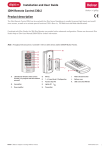
efficiency • intelligence • ease-of-use iDim Remote Control (304) User Manual People | Innovations | Solutions iDim Introduction The iDim Remote Control (304) can be used with the iDim Sense Standalone to modify the preset light levels and recall/store scenes, as well as activating special functions (100 hr Burn-In, PIR Walk test and Mode Identification). Combined with iDim Studio, the 304 iDim Remote can provide further advanced configuration. Please see document iDim Studio Help or iDim User Manual (D004735) for further information. Note: Throughout this document ‘Controller’ refers to iDim Sense and/or DIGIDIM Button Panels. LED indicator (Flashes when comms transfer is in progress and when buttons pressed) D. OK key I. Mode selection button E. 1 - 4 Scene Recall / Configuration J. Battery cover F. Function key (Fn) K. USB connection (Mini B) B. Up modifier G. Lights off ( C. Down modifier H. Transmitter A. ) Technical Specifications Connections Operating conditions Mechanical Data PC to remote: USB 2.0 A Cable to USB Mini B Cable Power supply: 2 x AAA (LR03) 1.5 V batteries Ambient temperature: 0 to 40°C Relative humidity: 90% max, non-condensing Storage temperature: -10°C to +70°C Operating range: Approx. 10 m Operating frequency: 36 kHz Housing: Traffic White (RAL 9016). Non-flammable polycarbonate, halogen free. Weight: 40g Wall bracket screw type: 2 x No 6 - ¾“ (3.5 mm x 20 mm) pan pozi head screws EMC: Emission: EN 6100-6-3 EMC: Immunity: EN 6100-6-1 Safety: EN 60 950 Conformity & Standards Environment 2 Complies with WEEE and RoHS directives Helvar iDim Remote Control (304) User Manual iDim Add / Remove Batteries To add or remove batteries: 1. Unclip the battery cover on the reverse of the remote. 2. Add batteries, observing correct polarity and replace cover. Note: Batteries not required if running iDim Remote Control through a PC via USB cable. Assemble iDim Remote Cradle for Desktop Use To assemble the iDim Remote Cradle for desktop use: 1. Attach rubber feet A to base B. 2. Insert base B into recess C on the reverse of the cradle until it clicks. To disassemble the iDim Remote Cradle (not shown): Insert flat head screwdriver into recess C and gently lever base A away from the cradle to avoid the unit being damaged. B C Helvar Helvar A Setup iDim Remote Cradle for Wall Attachment To mount the iDim Remote Cradle to a wall: 1. Drill and insert screw to chosen mounting location. Leave approx 1 mm between screw head and wall to allow cradle to sit comfortably on screw. 2. Carefully slide the cradle onto the screw adjusting screw tightness as required. 3. With cradle still wall mounted, mark hole A on the wall. 4. Remove cradle, drill second hole and apply wall plug. 5. Slide cradle back on to wall and insert bottom screw. Tighten screw as needed. A Attach iDim Remote to Cradle To attach the iDim Remote to the remote cradle: 1. Place iDim Remote onto cradle mounting point. 2. Push iDim Remote downwards until it clicks, holding the unit in place. Note: Remove the iDim remote by following the above procedure in reverse. Doc No: 7860263 iss. 4 Helvar 3 iDim Connecting the iDim Remote to your PC Note 1: The iDim Remote only needs to be connected to a PC if you want to set advanced configuration settings via your PC. The remote will work without iDim Studio. Note 2: To download iDim Studio please visit www.helvar.com To connect the iDim Remote to your PC: 1. Attach Mini USB connector to iDim remote. 2. Connect the opposite end of the USB cable to the USB port of the PC. The new device will be automatically recognised. 2. 3. Run iDim Studio (if installed) 1. Do NOT disconnect iDim Remote when the LED is flashing red. While using iDim Studio software, the iDim Remote LED flashes red when device communication is in progress. Do not disconnect the iDim Remote from PC during this time. Switching Lights On / Recall Scenes using iDim Remote To switch lights on / recall a scene using the iDim remote: 1. 2. Point the remote at a controller. Point the remote at a controller 5 1 Press scene key 1, 2, 3 or 4 to recall the required scene. 2 6 3 7 4 O To switch lights off: 1. Point the remote at a controller. 2. Press 1 2 3 4 key on remote control to switch the lights off. 0% When lights are switched off via a remote, switch or panel; a 90‑second exit delay will start. During this time any PIR movement will extend the delay. 1 5 2 6 3 7 4 O The exit delay will be cancelled when a new scene is manually selected. Modify Light Levels using iDim Remote DALI 1 and DALI 2 scenes operate as a combination of Constant Light (CL), Fixed Light (FL) and Offset dependent on which of the 6 iDim modes that an iDim Sense is in and the scene selected. It is possible to modify the DALI 1 and DALI 2 levels using the iDim Remote. The adjusted levels will only be temporary unless they are stored into the already selected scene. For example: • If DALI 1 is a Constant Light Scene then modifying the levels will cause the Constant Light target level to be modified. • If DALI 1 is a Fixed Light scene then the Fixed Light level will be modified. • If operating in Constant Light + Offset mode, the DALI 2 level will also be affected if DALI1 is modified. Please refer to table 1 overleaf for default DALI 1 and 2 scene setup for each iDim mode. Other advanced configuration such as configuring the bright out level is only possible using the iDim Studio software. 4 Helvar iDim Remote Control (304) User Manual iDim Modify Light Levels using iDim Remote When modifying the constant light target levels for your system, please ensure that the process is done in a darkened room or during dusk as excessive natural light may result in levels being recorded by the sensor that are not actually achievable. Table 1: Default DALI 1 and DALI 2 Constant Light, Fixed Light and Offset configuration for the six default iDim modes. In this table ‘iDim Controller’ refers to iDim Remote, Switches and Panels unless specified. 1 iDim Controller Scene 1 iDim Controller Scene 2 iDim Controller Scene 3 iDim Controller Scene 4 2 3 4 5 6 CLASSROOM SINGLE OFFICE OPEN-PLAN OFFICE CORRIDOR LINK CORRIDOR HOLD MEETING ROOM DALI 1 CL CL CL FL (100%) CL CL DALI 2 Offset Offset Offset FL (100%) Link to corridor1 See notes below2 DALI 1 CL CL CL FL (70%) CL - DALI 2 Offset Offset Offset FL (70%) Link to corridor1 FL (100%) DALI 1 FL (100%) FL (100%) FL (100%) FL (40%) FL (100%) - DALI 2 FL (100%) FL (100%) FL (100%) FL (40%) Link to corridor1 FL (0%) DALI 1 FL (40%) FL (40%) FL (40%) FL (10%) FL (40%) FL (40%) DALI 2 FL (40%) FL (400%) FL (40%) FL (10%) Link to corridor1 FL (20%) Note 1: In Corridor Hold (iDim Mode 5) DALI 2 is only used to connect an offi ce to the corridor. Note 2: In Meeting Room (iDim Mode 6), iDim Solo SW1 input operates DALI 1 CL / Off and SW2 input operates DALI 2 FL (100%) / Off; as SW1 is located at the entrance of a room, switching off SW1 will cause both DALI 1 and DALI 2 circuits to go off. DALI 1 To modify light levels using the iDim remote: 1 1. Point the remote at a controller. 2. Select the scene you wish to modify. 5 2 6 3 7 4 O Ch 3. Press DALI 1 modifier key up to raise DALI 1 light level. 1% 100% 100% 1% Ch 4. Press DALI 1 modifier key down to lower DALI 1 light level. 5. Press DALI 2 modifier key up to raise DALI 2 light level. 6. Press DALI 2 modifier key down to lower DALI 2 light level. DALI 2 1 Note 1: If you intend to store the modified levels, ensure the required scene number is selected before modifying. 5 2 6 3 7 4 O 1% 100% 100% 1% Ch Ch Note 2: Scene 1 is the default ’on’ scene selected by PIR movement and Solo SW1 and SW2. Note 3: When operating in Constant light + Offset mode, the DALI 1 and DALI 2 levels will both adjust together. Doc No: 7860263 iss. 4 5 iDim Stores Scenes using iDim Remote To store a modified scene using the iDim remote: IDim Sense LED flash feedback 1. Point the remote at a controller. 2. Hold scene key 1, 2, 3 or 4 for 10 seconds to store scene. 1 1 2 iDim Sense LEDs will flash green if scene successfully stored. The iDim mode will then flash the iDim mode number red / green to signify that the iDim Sense is in User Defined mode. 5 6 3 7 4 O 2 10 s 3 4 Note: Mode flash will only occur when storing scenes for the fi rst time. Further scenes stores will only activate green scene store LED. To exit User Defined mode and reset the iDim Sense to default mode settings, the iDim Remote Control must be in ’special function mode’. Please see chapter below for more information. 625 ms 250 ms 125 ms 250 ms 125 ms Example for mode 2 (Single Office Mode) Special Functions using iDim Remote It is possible to make the iDim Remote perform advanced tasks to assist commissioning and system testing. The iDim Remote uses a ’special function mode’ where these advanced tasks can be configured. This mode must be activated before a special function or test is run. This avoids accidental configuration changes or tests being run which could cause the light levels or scenes to be altered unintentionally. Please see below for activating and deactivating special function mode. See pages 7 - 8 for the types of special functions possible. To activate special function mode: 1. Remove the battery cover from the remote control. 2. Using a pen (or other long blunt object) press mode selector button on the reverse of the iDim Remote for 3 seconds. Special function mode is now active. 3. Check that the iDim Remote is in special function mode by recalling a scene. The iDim Remote LED will flash orange when a function (i.e. Scene recall) is performed. 4. Run the special functions that you require. (See pages 7 and 8 for special functions) Note 1: All standard operation settings such as scene recall, modify and store scene are still possible when the iDim Remote is in special function mode. Note 2: Once special function mode is activated it will remain so until it is manually deactivated. To deactivate special function mode: 1. Hold the mode selector button for 1 second to return to standard operation. Special function mode is now deactivated. 2. Check that the iDim Remote is in standard operating mode by recalling a scene on the remote. The iDim Remote LED should flash green when scene recall is called. 6 3 seconds When a remote key is pressed during standard operation iDim Remote LED flashes green. When a remote key is pressed in special function mode iDim Remote LED flashes orange. When the iDim Remote is communicating with a PC the iDim Remote LED flashes red. Do NOT disconnect during this time. Helvar iDim Remote Control (304) User Manual iDim Special Functions using iDim Remote (cont.) Start/Stop 100 hour Burn-In Mode IDim Sense LED flash feedback To start or stop Burn-In mode: 1. Ensure the iDim Remote is in special function mode. 2. Point the remote at a controller. 3. Press Fn key and scene 1 at same time. 30 secs 250 ms Lights will blink 4 times and then go to 100%. The 100 hour Burn-In counter will begin. 250 ms ... 4. To stop Burn-In mode press Fn key and scene 1. Note: Restarting a Burn-In test following a stop will cause the 100hour Burn-In time to be reset. Use Resume Burn-In Mode to continue a stopped Burn-In test. Resume Burn-In Mode IDim Sense LED flash feedback 5 1 To resume a stopped Burn-In mode: 1. Ensure the iDim Remote is in special function mode. 2 6 3 7 4 O 2 + Fn 2. Point the remote at a controller. ... 3. Press Fn key and scene 2 at the same time. Lights blink 4 times and go to 100% if Burn-In counter is not at zero. 250 ms 30 250 secs ms ... Note: If a Power Off / On cycle occurs, the Burn-In time will be reset to 100 hours. Mode Identification IDim Sense LED flash feedback 1 To establish which iDim mode is selected: 1. Ensure the iDim Remote is in special function mode. 2 5 6 3 7 4 O 3 + Fn 2. Point the remote at a controller. 3. Press Fn key and scene 3 at the same time. iDim Sense LEDs will flash the current mode. 250 ms If Mode 1 has not been modified. 250 125 ms ms If Mode 1 is in User Defined mode Note: Number and type of flashes depends on mode selected and if the iDim Sense is in User Defined mode. Start/Stop PIR Walk Test IDim Sense LED flash feedback 1 To start/stop PIR Walk test: 1. Ensure the iDim Remote is in special function mode. 5 2 6 3 7 4 O 4 + Fn 2. Point the remote at a controller. 3. Press Fn key and scene 4 at the same time. 1 sec iDim Sense will flash then wait for 10 s before looking for movement. When movement is detected: lights will go on for 5 s; to transition level for 5 s, off for 5 s and then return to the currently selected mode. 1 sec ... Reset Mode 1 To reset a controller to factory default settings: 1. Ensure the iDim Remote is in special function mode. 2. Point the remote at a controller. 3. Press and hold key 3 and 4 at same time for 10 seconds. Note: Lights will behave in the same manner as when powered up for the first time in the mode currently selected. Doc No: 7860263 iss. 4 5 2 6 3 7 4 O 3 + 4 10 s 250 ms Note: The active mode flashes e.g. 2 flashes when mode 2 selected. 250 ms 7 iDim Special Functions using iDim Remote Enable IR Receiver To enable the Infra-red receiver of a controller: 1. Ensure the iDim Remote is in special function mode. 2. Point the remote at a controller. 3. Press and hold DALI 1 modifier up and Fn key at the same time for 10 seconds. IDim Sense LED flash feedback 1 5 2 6 3 7 4 O Ch 10 s Disable IR Receiver IDim Sense LED flash feedback To disable the Infra-red receiver of a controller: 1. Ensure the iDim Remote is in special function mode. 2. Point the remote at a controller. 3. Press and hold DALI 1 modifier down and Fn key at the same time for 10 seconds. 1 5 2 6 3 7 4 O Ensure the iDim Remote is in special function mode. 2. Point the remote at the iDim Sense you wish to lock. 3. Press and hold DALI 2 modifier up and Fn key at the same time for 10 seconds. Note: When locked, the iDim Sense mode selector ring can still be manually turned. However, the modes will be ignored unless the mode selector ring is unlocked. IDim Sense LED flash feedback 6 2 3 7 4 O 1. Ensure the iDim Remote is in special function mode. 2. Point the remote at the iDim Sense you wish to unlock. 3. Press and hold DALI 2 modifier down and Fn key at the same time for 10 seconds. Note: iDim Sense will remain in the selected mode (and in user defined mode where applicable) until the mode selector ring is turned again. Ch 125 ms + Fn 10 s Unlock iDim Sense Mode Selector Ring To unlock the mode selector ring of an iDim Sense: 125 ms + Fn 5 1 1. Ch 10 s Lock iDim Sense Mode Selector Ring To lock the mode selector ring of an iDim Sense: 125 ms + Fn IDim Sense LED flash feedback 1 5 2 6 3 7 4 O Ch 125 ms + Fn 10 s Advanced Configuration with iDim Studio Software Note: All standard operation settings such as scene recall, modify and store scene are still possible when the iDim Remote is in special function mode. Transfer settings to iDim Sense using iDim Remote To transfer settings to iDim Sense using iDim Remote: 1. Point the remote at a controller. 2. Press OK and Fn key at same time. 8 625 ms 125 ms 125 ms 125 ms 125 ms Helvar iDim Remote Control (304) User Manual iDim iDim Sense LED Flash Feedback Two LEDs, red and green, in the iDim Sense flash to provide visual feedback, for various states and operations. Function LED flash feedback Mode unmodified (default mode) User defined mode selected* Mode 1 Selected (Classroom mode) 250 ms Mode 2 Selected (Single Office mode) 250 ms 250 ms Mode 3 Selected (Open Plan mode) 250 ms 250 ms 250 ms Mode 4 Selected (Corridor Link mode) 250 ms 250 ms 250 ms 250 ms Mode 5 Selected (Corridor Hold mode) 250 ms 250 ms 250 ms 250 ms 250 ms Mode 6 Selected (Meeting Room mode) 250 ms 250 ms 250 ms 250 ms 250 ms PIR Walk Test Mode 1 sec Sequence repeats until walk test is complete. 100-hour Burn-In Mode Sequence repeats until burn-in is complete. DALI Errors Sequence repeats until error clears. Change from unoccupied to occupied Typically follows a PIR detection. 250 250 msms 250 ms 250 ms 250 ms 250 250 msms 250 250 msms 250 250 msms 250 250 msms 250 250 msms 250 250 ms ms 250 250 msms 250 250 msms 250 250 msms 250 250 msms 250 250 msms 250 250 msms 250 250 msms 250 250 msms 250 250 msms 250 250 msms 250 250 msms 250 250 msms 250 250 msms 1 sec 250 ms 30 seconds 250 ms 250 ms 1 sec 250 ms 250 ms 30 seconds 250 ms 250 250 msms ... 250 ms ... ... 125 ms Data received from IR Remote 125 ms Enabling / Disabling of IR Receiver 125 ms Successful Scene Store 625 ms Failed Scene Store 625 ms Successful Upload from IR Remote 625 ms 125 ms 125 ms 125 ms 125 ms Failed Upload from IR Remote 625 ms 125 ms 125 ms 125 ms 125 ms Note: iDim Sense LED feedback flashes apply to all iDim units of v5.3 and onwards * To leave User Defined mode and reset iDim Sense to default settings at any time, hold button 3 + 4 on the iDim Remote Control for 10 seconds while the remote is in ‘Special function mode’. See page 6 - 8 for information. Doc No: 7860263 iss. 4 9 iDim Hawley Mill Hawley Road Dartford, Kent DA2 7SY United Kingdom Tel: +44 (0)1322 222211 Fax: +44 (0)1322 282216 Data subject to change without notice 10 www.helvar.com Helvar iDim Remote Control (304) User Manual